Set up AI Token Spend Management
Overview
AI Token Spend Management gives your finance team consolidated visibility into token usage, costs by model, and spend trends across AI providers like Anthropic and OpenAI. Instead of reconciling invoices from multiple dashboards, you can track it all in one place on Ramp.
If your business uses Ramp only for AI Token Spend Management, see AI Token Spend Management for standalone businesses. That experience has different access and navigation.
Check AI provider plan and setup requirements
Developer API usage has different requirements. To connect Claude API, you must belong to a Claude Platform team organization; individual organizations are not supported. To connect OpenAI API, you must belong to an OpenAI Platform organization; personal accounts are not supported.
For Cursor, an admin can connect automatically with Ramp for Chrome or provide a read-only Team API key. If Cursor reports that Enterprise access is required, the connection cannot complete until your team has it. Google Cloud uses a Cloud Billing export to BigQuery. AWS Bedrock uses an IAM role. Fireworks AI requires an API key with access to exactly one account.
| Provider product | Account or setup requirement | Connect in Ramp |
|---|---|---|
| Claude.ai or Claude Code subscription | Claude Enterprise is required. Claude Team is not supported. | Connect Claude Enterprise |
| Claude API | You must belong to a Claude Platform team organization. Individual organizations are not supported. | Connect Claude API |
| ChatGPT or Codex via a ChatGPT subscription | ChatGPT Enterprise is required. ChatGPT Business and personal accounts are not supported. | Connect ChatGPT Enterprise |
| OpenAI API | You must belong to an OpenAI Platform organization. Personal accounts cannot connect. | Connect OpenAI API |
| Cursor | A Cursor admin can connect automatically with Ramp for Chrome or provide a read-only Team API key. If Cursor requires Enterprise access, the connection cannot proceed without it. | Connect Cursor |
| Google Cloud (Gemini) | A Cloud Billing export to BigQuery, with access to the billing account and dataset project. | Connect Google Cloud (Gemini) |
| AWS Bedrock | Access to your AWS account to create a read-only IAM role for Ramp. | Connect AWS Bedrock |
| Fireworks AI | An API key with access to exactly one account and its administration, user, API-key, usage, and cost data. | Connect Fireworks AI |
If your Claude.ai, Claude Code, ChatGPT, or Codex subscription does not meet the Enterprise requirement, Ramp cannot import that subscription's usage. Ramp can separately track eligible API-billed usage when you connect the applicable developer API.
Open AI Token Spend and connect providers
In the Ramp app, go to Manage Spend > Tokens.
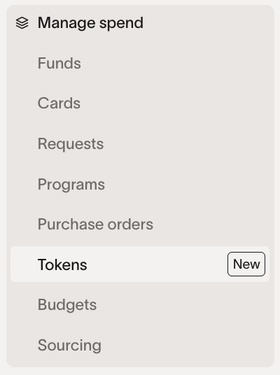
Use the connection guide in Check AI provider plan and setup requirements for the provider product you want to connect.
Roles that can connect AI Token Spend providers
This role guidance covers Claude API, Claude Enterprise, OpenAI API, ChatGPT Enterprise, Cursor, and Google Cloud. For Fireworks AI and AWS Bedrock, see their connection guides.
Business Admins, Owners, IT Admins, and users with the AI Token Spend Admin role can connect providers for core Ramp accounts. Owners, Admins, and users with the AI Token Spend Admin role can connect providers for standalone accounts. If you do not have one of these roles, ask someone who does to connect the provider.
Who can access AI Token Spend Management
Access to AI Token Spend Management varies by role:
| Role | View company-wide data | Manage settings, API keys, and provider connections | Manage Spend Limits |
|---|---|---|---|
| Owner | Yes | Yes | Yes, with paid access described below |
| Admin | Yes | Yes | Yes, with paid access described below |
| IT Admin | Yes | Yes | No |
| Finance Admin | Yes | No | No |
| View-Only Admin | Yes | No | No |
| AI Token Spend Admin role | Yes | Yes | Yes, with paid access described below |
Assigning the preset AI Token Spend Admin role does not require Ramp Plus. AI Spend Limits are available through an active AI Token Spend subscription. Access under existing or custom billing arrangements may differ. Having the role alone does not unlock Spend Limits.
To check access, open AI Token Spend and select Set soft limit or Edit limit for an API key. If your business lacks paid access, Ramp displays an access prompt. Ask your Ramp Admin to review that prompt if you cannot proceed. User limits are available only for businesses with that capability enabled.
To add a user to the AI Token Spend Admin role, go to Company > People and select Edit Profile or Invite People. Under Additional Roles, select AI Token Spend Admin.
Employees with access to their own AI Spend data can view it from My AI Spend after their business completes AI Token Spend onboarding. They cannot access company-wide data or settings.
Manage provider connections and data sync in AI Token Spend Management
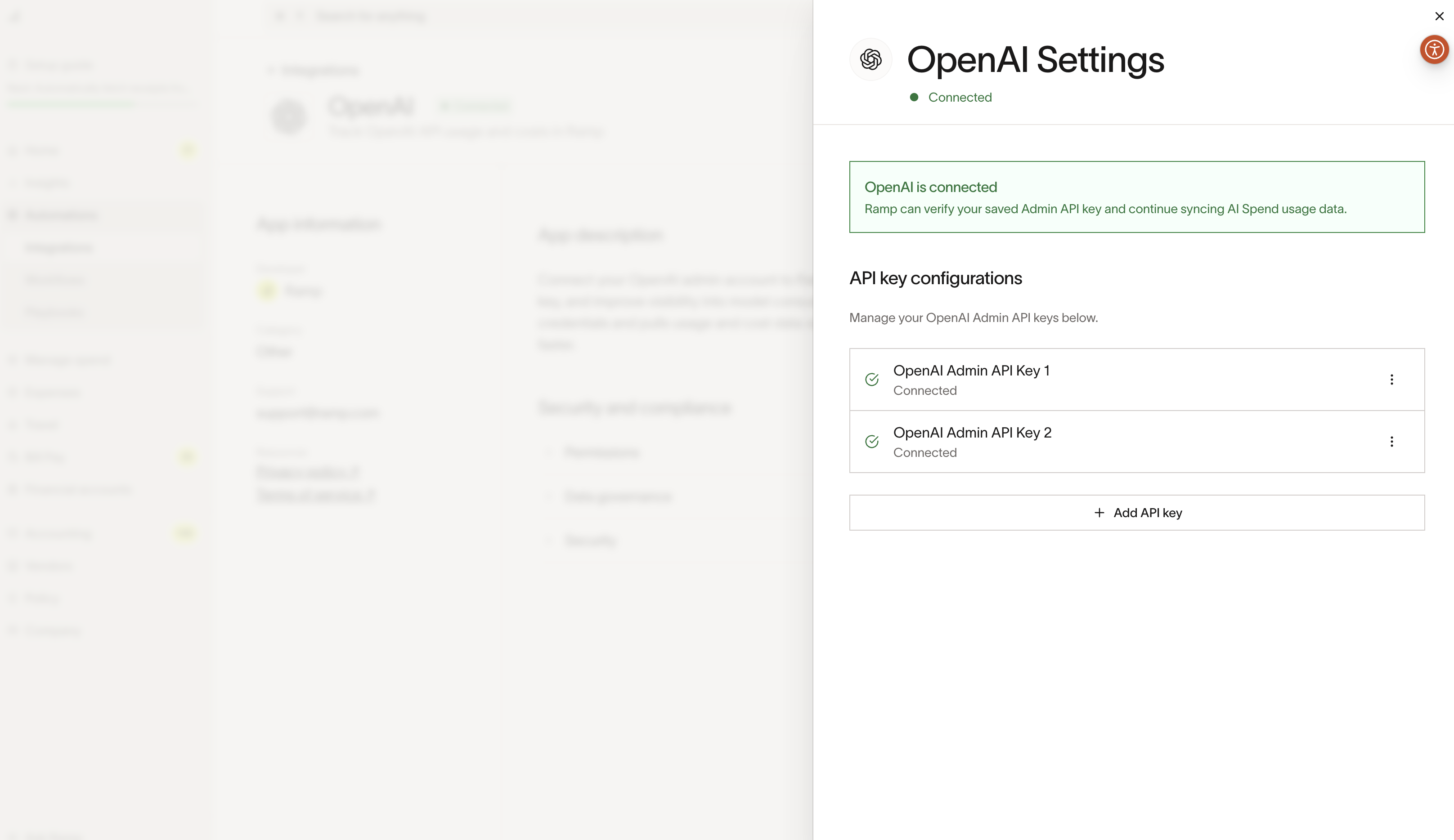
Add multiple keys for one provider
- Settings → Manage → Add API key
- Once connected, the AI Spend page will load with the additional data
AI Token Spend Management data and sync details
| Detail | Description |
|---|---|
| Sync frequency | Data syncs daily. Expect data to reflect T-1 day. |
| Initial backfill | Recent data is usually backfilled within a few minutes, while the full historical backfill can take up to 24 hours depending on account size and provider rate limits (Anthropic rate limits are currently 1 request per minute). |
| Cost calculation | For OpenAI API credit-based plans, Costs and Unified Daily Usage do not distinguish included or prepaid credit consumption from overage usage. Dollar estimates value all consumption at the workspace's overage rate, so they are not actual billed spend. Costs can show consumption breakdowns but not the overage-spend split. For Codex credits used through ChatGPT Enterprise, Ramp can calculate computed overage spend from your configured monthly prepaid credit pool and price per credit. See Calculating Codex credits and overages on your ChatGPT Enterprise plan. |
Troubleshoot missing or unexpected AI Token Spend data
AI Token Spend Management displays usage and cost data exposed by the provider connection. Data syncs daily and normally reflects T-1 day. A new connection can take up to 24 hours to complete full historical backfill, and larger Anthropic accounts can take longer because of provider rate limits.
Check the provider connection and data source
Use the connection guide that matches the provider product that generated the missing usage. Claude API and Claude Enterprise are separate connections, as are OpenAI API and ChatGPT Enterprise. Google Cloud data comes from the Cloud Billing export for the selected billing account, which covers only projects paid by that account.
For ChatGPT Enterprise, the API key's organization must match the ChatGPT workspace organization, and it must include codex.enterprise.analytics.read and chatgpt.enterprise.usage_limit.read. If you plan to use Ramp to control workspace usage limits, it must also include chatgpt.enterprise.usage_limit.write. For Claude API and OpenAI API, personal accounts cannot connect.
Check how usage is attributed
Ramp can display provider-provided reporting dimensions such as user, email address, internal user or team label, API-key label, provider, and model. A breakdown is available only when the connected provider exposes the relevant identifier or dimension in its usage export.
Get help with unresolved data differences
If the expected refresh window has passed and the connection guide confirms the correct provider account and credentials, contact Ramp Support. Include the provider, connected account type, affected date range, and the missing or unexpected provider, user, or API-key data.
Security and data handling
Ramp takes the security of your provider credentials and usage data very seriously.
Credential storage
Ramp stores the API keys you provide for Claude API, OpenAI API, ChatGPT Enterprise, and Fireworks AI in an encrypted format consistent with Ramp's existing integration security standards. Decrypted keys are not stored by Ramp; we decrypt your key when the system calls the relevant provider API. For GCP, Ramp stores only the BigQuery billing table ID you provide — Ramp does not store any GCP credentials.
Access control
Access to AI Token Spend data and provider administration is role- and permission-based. See Who can access AI Token Spend Management for the current access scopes.
Data minimization
AI Token Spend Management is designed to ingest the fields needed to power spend reporting and analytics and does not require you to provide prompts or message content.
How the product works
For Claude API and OpenAI API, AI Token Spend Management uses the Admin API keys you provide to call the provider's Admin APIs. For Claude API, Ramp also uses the key's write access to lock API keys when you use API-key controls. For ChatGPT Enterprise, Ramp uses an Admin API key with Codex analytics API read access to import usage and billing-related data, such as token usage, cost, provider and model identifiers, and provider-provided reporting dimensions. Ramp uses chatgpt.enterprise.usage_limit.read to read workspace usage-limit settings. If you plan to use Ramp to control those limits, it also uses chatgpt.enterprise.usage_limit.write to change them. For GCP, Ramp reads cost and usage data directly from the BigQuery billing export table you configure — no API key is involved.
Retention
Ramp retains imported spend and usage data to provide historical reporting and trend analysis. Disconnecting a provider stops subsequent scheduled imports but does not delete previously imported data, which remains subject to Ramp's standard retention and deletion practices and contractual obligations. For Fireworks AI, usage and cost data from the disconnected configuration no longer appears in reporting.
Disconnecting Anthropic, OpenAI, Cursor, or Fireworks AI immediately clears the stored encrypted API-key value. Disconnecting GCP retains the configured billing table ID. Disconnecting AWS retains the role ARN, account information, and External ID. The table below summarizes these outcomes:
| Provider | Stored connection details after disconnecting |
|---|---|
| Anthropic | Ramp immediately clears the encrypted API-key value. |
| OpenAI | Ramp immediately clears the encrypted API-key value. |
| Cursor | Ramp immediately clears the encrypted API-key value. |
| Fireworks AI | Ramp immediately clears the encrypted API-key value. |
| GCP | Ramp retains the configured billing table ID. |
| AWS | Ramp retains the role ARN, account information, and External ID. |
Manage AI Token Spend after setup
Investigate unexpected activation or invitations
Connecting your first provider creates an AI Token Spend Admin role for your business, but it does not by itself send Ramp invitations. If you see an unexpected pending invitation, review it from Invited and select Revoke invite before it is accepted.
Review AI Token Spend activity and export spend data
The AI Token Spend Activity tabs record the actor and timestamp for user or API-key soft-limit creation, changes, and deletion; supported key locks and unlocks; and API-key owner reassignment. They do not show provider-connection or provider-credential history, and activity events cannot be exported from AI Token Spend Management.
CSV exports are separate from the Activity tabs. When available, the API-key and people tables export spend and inventory data, not an activity log. Reports and CSV exports require company-wide view access and are not available with team access.
Controlling your access
For Claude API, Claude Enterprise, OpenAI API, ChatGPT Enterprise, Cursor, and Fireworks AI, delete the specific connected key in the provider's credential settings to revoke access through that key; other active connections continue to work. For GCP, remove Ramp's read access to the configured BigQuery data. For AWS, remove the IAM role deployment to block new sessions; temporary sessions issued before removal remain active until they expire. Disconnecting GCP or AWS in Ramp does not revoke access by itself. Use the provider-specific destinations below:
| Provider | How to revoke Ramp's access |
|---|---|
| Claude API | Delete the key from Admin API keys. |
| Claude Enterprise | Delete the key from organization API settings. |
| OpenAI API | Delete the key from OpenAI Admin API keys. |
| ChatGPT Enterprise | Delete the key under Credentials > Admin keys in the OpenAI Admin Console. |
| Cursor | Delete the key from Cursor API Keys. |
| Fireworks AI | Delete the key from Fireworks AI API keys. |
| GCP | Remove Ramp's read access to the configured BigQuery data in the Google Cloud console. |
| AWS | Remove the IAM role deployment to block new sessions by following Disconnect AWS Bedrock. Temporary sessions issued before removal remain active until they expire. |
Frequently asked questions
What data does Ramp import from my AI providers?
Ramp imports usage and cost data exposed through the provider APIs you connect. For example: token usage, spend/cost, provider/model identifiers, and time-based usage metrics. This data is used to power spend reporting and analytics in AI Token Spend Management.
Does Ramp ingest prompts, message content, or model outputs?
AI Token Spend Management is designed for spend and usage reporting and does not require prompts or message content. Ramp uses provider APIs to import usage and cost information rather than application content.
Which providers require an Admin API key?
The credentials required depend on the provider:
- Claude API: Requires an Admin API key with write access. Ramp uses the provider's Admin API to import organization-wide usage and billing data, including user-level attribution when the provider makes it available. When you use API-key controls, Ramp also uses this access to lock Anthropic API keys.
- OpenAI API: Requires a read-only Admin API key. Ramp uses the provider's Admin API to import organization-wide usage and billing data, including user-level attribution when the provider makes it available.
- ChatGPT Enterprise: Requires an Admin API key with Codex analytics API read access to import usage and cost data. Ramp also requires
chatgpt.enterprise.usage_limit.readto display workspace usage-limit settings. Thechatgpt.enterprise.usage_limit.writepermission is needed only if you use Ramp to control those limits. - Claude Enterprise: Uses an Analytics API key to import Claude usage and cost data.
- Cursor: Does not use an Admin API key. It uses a read-only Team API key to import usage and cost data.
- Fireworks AI: Uses an API key created by a Fireworks AI account admin. The key must give Ramp access to exactly one account and its administration, user, API-key, usage, and cost data.
- Google Cloud (Gemini and Vertex AI): Does not use an API key. Ramp reads cost and usage data from the BigQuery Cloud Billing export table you configure.
For every provider, AI Token Spend Management imports data needed for spend reporting and does not retrieve prompts, message content, or model outputs.
Is any of this personal data?
Typically, the imported data is business account usage and cost data. Depending on your provider configuration, the usage export may include identifiers like a user name, email address, or internal user/team label. If present, Ramp uses those identifiers only to provide spend breakdowns and access-controlled reporting.
How does Ramp use this data?
Ramp uses imported usage/cost data to provide reporting, trend analysis, and cost allocation insights inside AI Token Spend Management. Aggregated or anonymized information may be included in Ramp reports or benchmarks, unless this is precluded by your company's agreement with Ramp. Other Ramp customers do not see your company's provider-level, model-level, team-level, user-level, or API key-level data.
Can Ramp employees see my usage data?
Access is restricted and role-based. Only authorized personnel may access customer data for limited purposes such as support, troubleshooting, and maintaining the service, consistent with Ramp's access controls and logging practices.
How long does Ramp retain this data?
Ramp retains imported data under its standard retention and deletion practices and contractual obligations. Fireworks AI usage and cost data no longer appears in reporting after disconnecting. See Retention for provider-specific disconnect behavior.
Does Ramp use this data to train AI models?
AI Token Spend Management uses your provider data to display reporting and analytics. Ramp does not use your company's provider credentials to perform actions in your provider account beyond retrieving usage and cost data, except when you use API-key controls to lock Anthropic API keys or use Ramp to control ChatGPT Enterprise workspace usage limits. In that case, Ramp uses chatgpt.enterprise.usage_limit.read to read settings and chatgpt.enterprise.usage_limit.write to change them.
Can other Ramp customers see my company's AI usage data?
No. Other customers do not see your company's provider-level, model-level, team-level, user-level, or API key-level data.
How does Ramp aggregate and de-identify AI spend data for benchmarks?
Ramp may use aggregated and anonymized customer data to report industry-level AI spending trends and benchmarks. Benchmark reporting is not intended to identify your business, individual users, API keys, or provider account details.
Why is my data taking a long time to load?
Anthropic rate limits are currently 1 request per minute, so larger accounts may take longer to import. We recommend waiting overnight for the initial data load to complete in the background.
How are OpenAI costs calculated for credit-based plans?
For OpenAI API credit-based plans, dollar estimates are not actual billed spend. For Codex credits used through ChatGPT Enterprise, Ramp can calculate computed overage spend from your configured monthly prepaid credit pool and price per credit. See AI Token Spend Management data and sync details for how Ramp calculates these values and what Costs can report.
How often does data sync?
Data syncs daily and should be up to date with T-1 day.
Can Ramp track AI agent spend?
AI Token Spend Management can track AI agent spend when the connected provider exposes the usage data. The available attribution depends on the identifiers and reporting dimensions that the provider includes in its usage export.
How can we set AI Spend Limits?
For soft limits that apply individually to people across your company, by department, or by user, see Set up AI Spend Limits.
Owners, Admins, and users with the AI Token Spend Admin role can manage limits for API keys and, when available, users from AI Token Spend, subject to the paid-access requirements above. Hard limits apply only to ChatGPT Enterprise workspace usage limits and prevent additional workspace usage after the configured threshold is reached. For Anthropic Platform and OpenAI Platform, limits send notifications and do not prevent provider charges.
How can we monitor unexpected AI spending?
Use AI Token Spend to set spend-limit thresholds and review unusual spikes. Ramp can alert you when spend reaches configured thresholds and uses anomaly detection to identify unexpected spending patterns.
What permissions are needed?
Claude API requires an Admin API key with write access to retrieve usage and billing data and lock API keys when you use API-key controls. OpenAI API requires an Admin API key limited to read-only permissions for the provider endpoints needed to retrieve usage and billing data. ChatGPT Enterprise requires an Admin API key with Codex analytics API set to Read and chatgpt.enterprise.usage_limit.read. If you plan to use Ramp to control workspace usage limits, also grant chatgpt.enterprise.usage_limit.write. Ramp uses the read scope to read usage-limit settings and the write scope to change them. For GCP, you need Billing Account Costs Manager or Billing Account Administrator on the billing account, plus BigQuery User on the dataset project.