Connect Google Cloud (Gemini) to AI Spend Management
Overview
Connect Google Cloud so Ramp can import your Gemini and Vertex AI cost and usage data into AI Spend Management. This connection uses a Cloud Billing export to BigQuery — Ramp reads the exported billing table and does not store any Google Cloud credentials.
Note: Provider setup is the same whether your business has a standalone AI Spend Management account or a core Ramp account.
Before you connect Google Cloud
Your Ramp role must allow you to connect providers. See roles that can connect providers for core and standalone accounts. If you do not have one of these roles, ask someone who does to connect the provider.
You also need the following Google Cloud permissions before starting:
- Billing Account Costs Manager or Billing Account Administrator on the target Cloud Billing account
- BigQuery User on the project that will contain the dataset
- Project Creator (only if you need to create a new project)
Step 1: Select or create a Google Cloud project
Before enabling Cloud Billing data exports, choose or create a Google Cloud project where the exported billing data will be stored. For ease of management, we suggest creating a new project specifically for billing if one doesn't already exist. Make sure billing is enabled on this project and that it is linked to the Cloud Billing account that pays for your Gemini or Vertex AI projects — otherwise the export setup will not offer this project as a destination.
Step 2: Create a BigQuery dataset
-
Open BigQuery in the Google Cloud console.
-
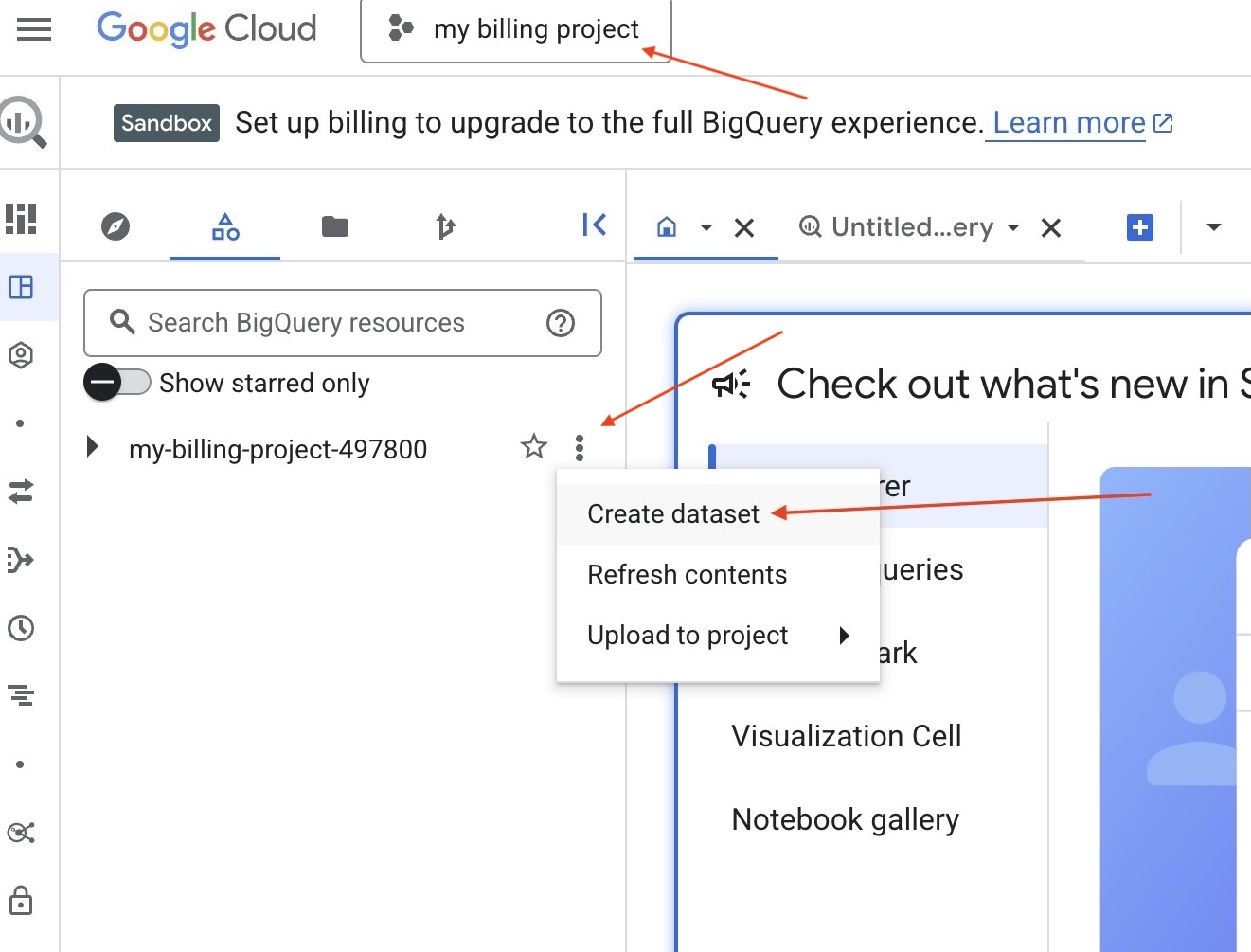
Select the project you created or chose in Step 1 from the project selector at the top of the BigQuery console.
-
Click Create dataset.
-
Enter a dataset ID, such as
all_billing_data. -
Click Create dataset. The dataset should now appear under your selected project.
Step 3: Enable Cloud Billing export
-
Click the navigation menu icon to the left of the Google Cloud logo, then select Billing.
-
If you have more than one Cloud Billing account, select the billing account that pays for your Gemini or Vertex AI projects. The export covers only the projects paid by the selected account.
-
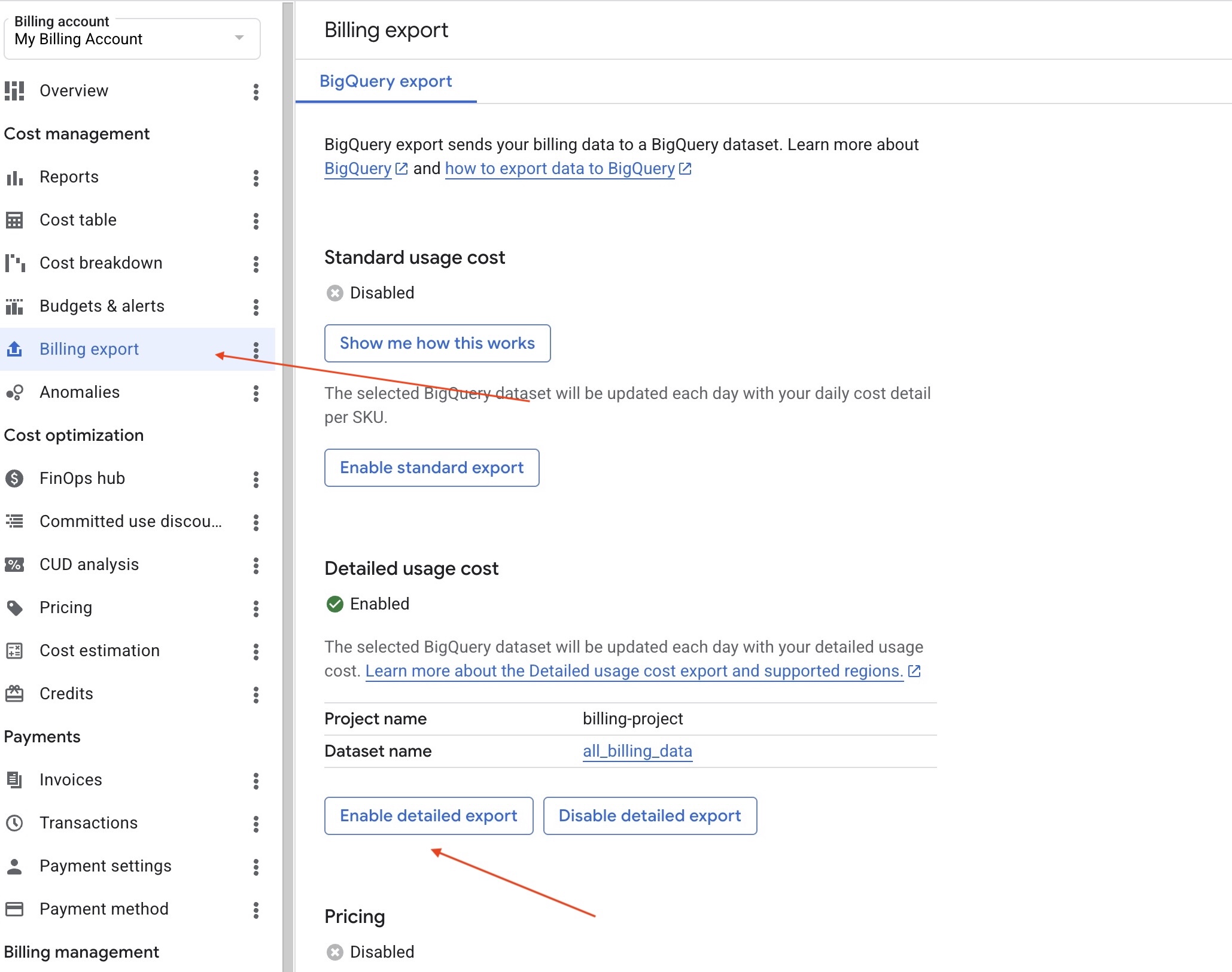
Click Billing export.
-
Click Enable detailed export.
-
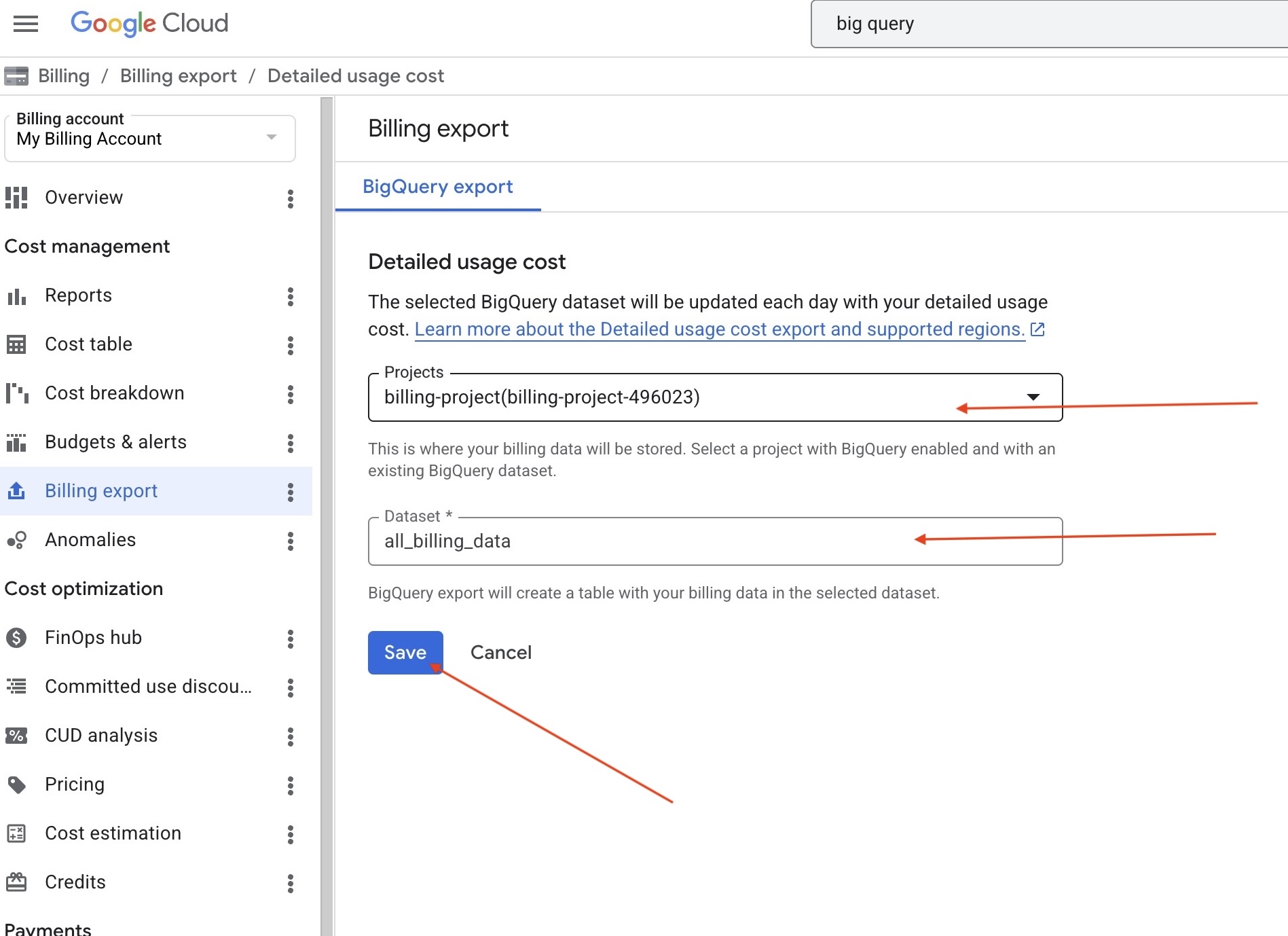
Complete the setup modal with the project you want to export billing data to and the dataset you created in Step 2.
Step 4: Copy the billing table ID into Ramp
-
The billing export should automatically create a BigQuery table under your selected project and dataset. This may take about 24 hours.
-
After the table is created, navigate to it, select the three-dot menu next to it, and click
Copy ID.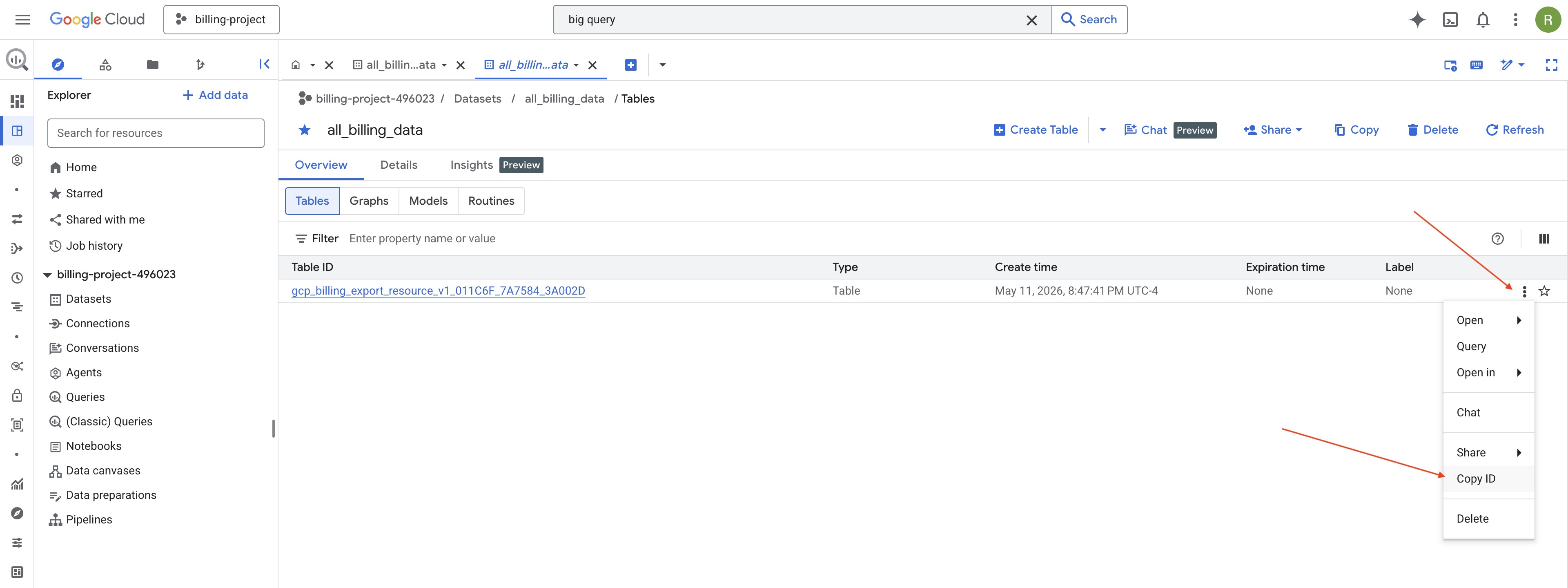
-
Return to the AI Spend Management page in Ramp, paste the billing table ID, and save the connection.