Customizing Roles and Permissions
Overview
Available on Ramp Plus. See Ramp Plus overview for plan details.
Ramp gives admins granular control over what each user role can do across the platform. Role customization and Custom Role creation are available to Ramp Plus customers.
With these tools you can:
- Toggle specific permissions on or off for built-in roles like Accounting, Manager, Finance Admin, and IT Admin
- Create Custom Roles tailored to your organization
- Restrict certain roles to specific business entities (multi-entity customers)
Ramp also offers granular Procurement Role Configuration for purchase order workflows.
Editing an existing role's permissions
Admins can customize the permissions for the following built-in roles: Accounting, Manager, Finance Admin, and IT Admin. Changes you make to a role apply to every user assigned that role.
To customize a role's permissions:
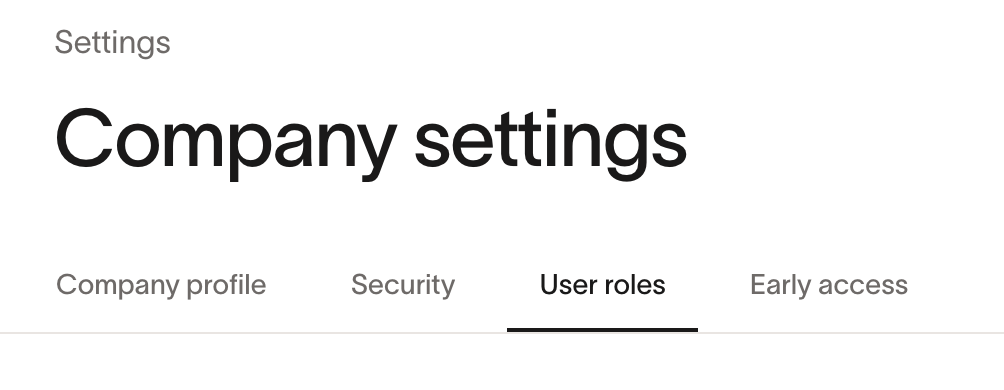
- Go to Company > Settings > User roles .
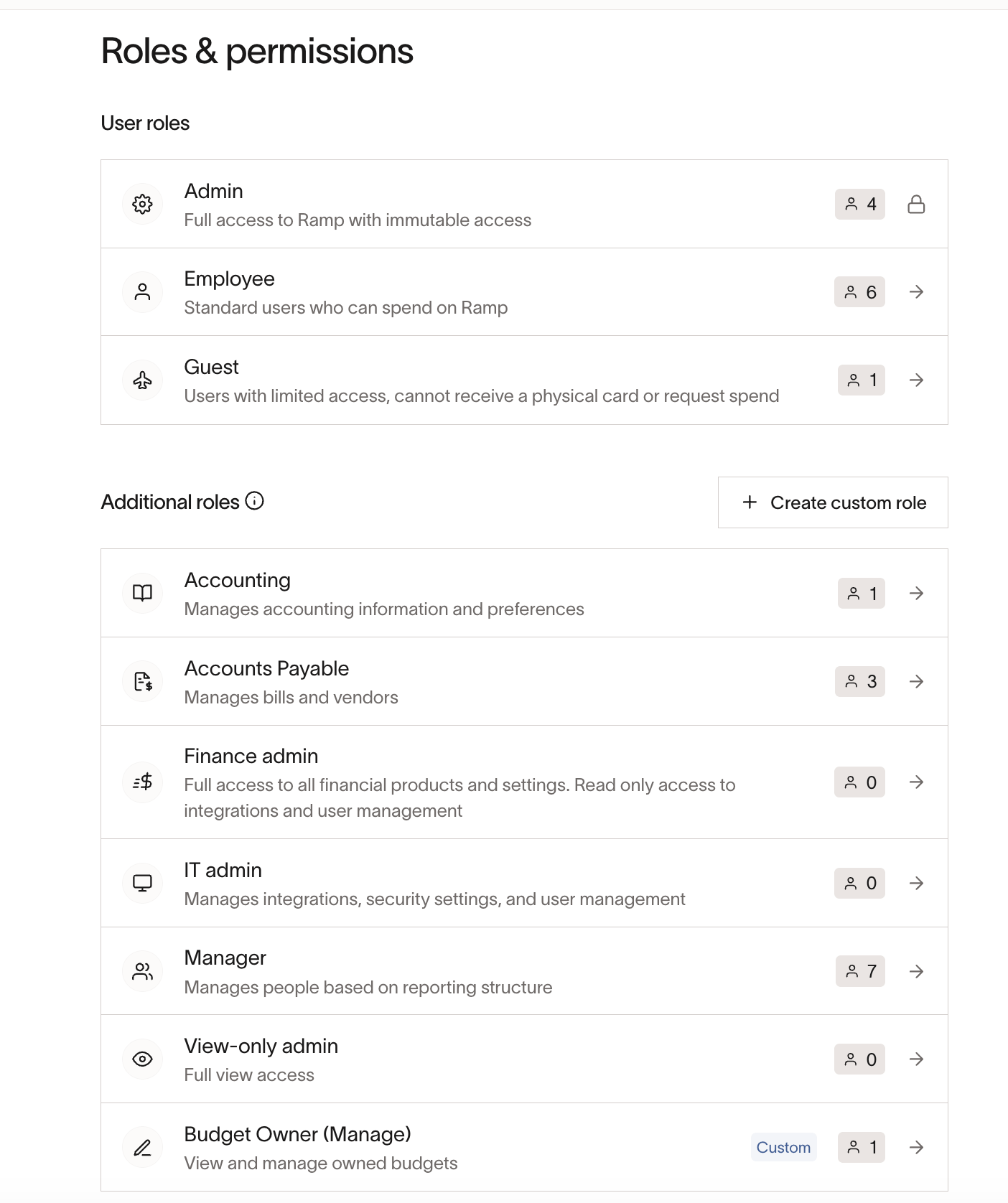
- Select the role you want to edit. You will see the associated permissions grouped by product area.
- Toggle the customizable permissions on or off. Permissions with a green checkbox are customizable. Those grayed out are implied and cannot be changed.
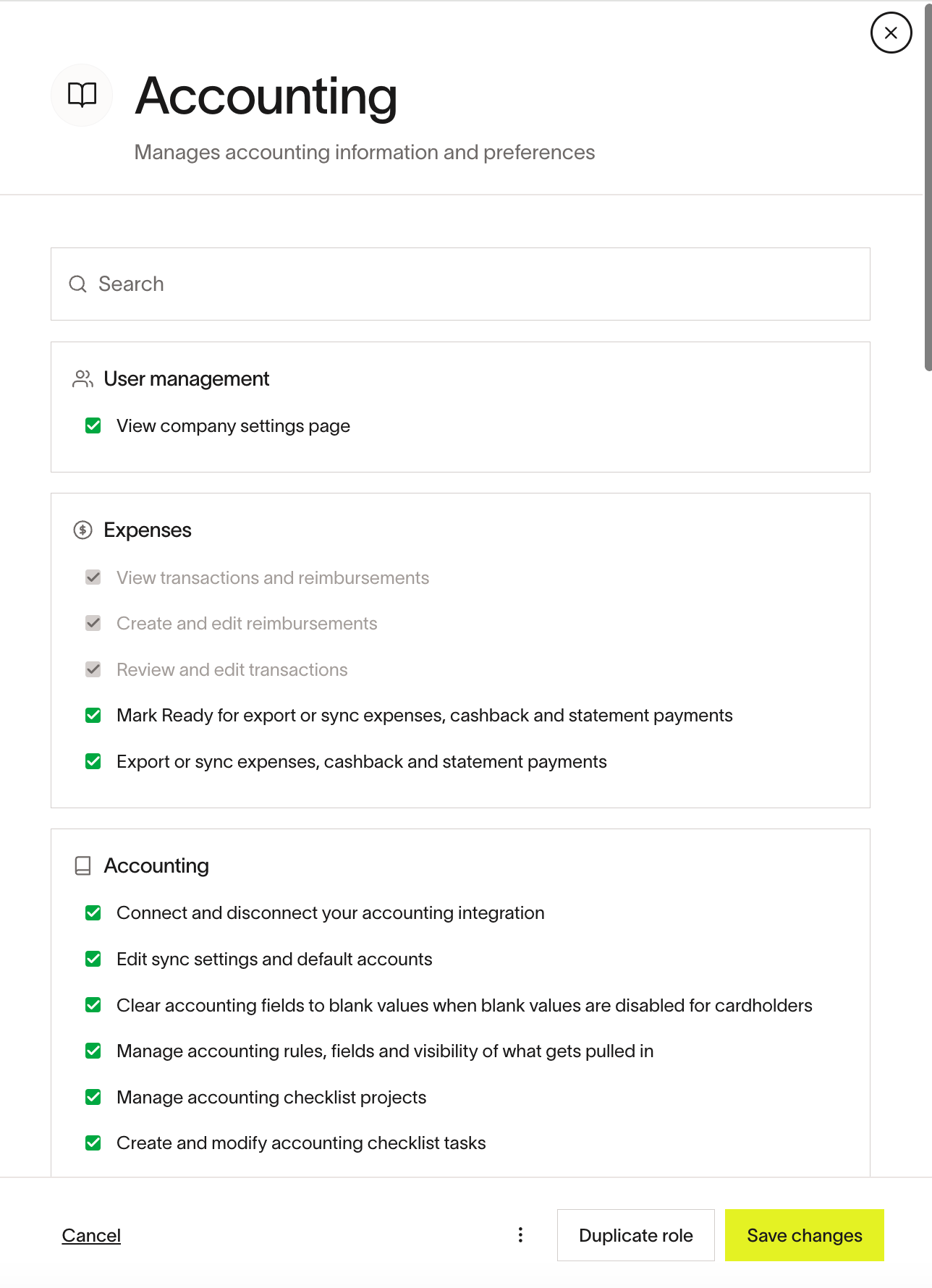
- Click Save changes .
Need different permission sets for different users within the same role? You can create a Custom Role instead.
Permission tables by product area
The tables below show which permissions each role has across Ramp product areas.
Key: C = customizable (can be toggled on or off by an Admin), I = implied (built into the role, cannot be changed). A blank cell means the role does not have that permission.
For procurement-specific permissions (purchase orders, procurement programs, and receipts), see Procurement Role Configuration.
Expenses
| Permission | Admin/Owner | Employee | Manager | Accounting | Finance Admin | Accounts Payable | IT Admin | View-Only Admin | Guest |
|---|---|---|---|---|---|---|---|---|---|
| View all expenses across the company | I | I (team only) | C | C | I (all) | ||||
| Edit all expenses across the company (includes editing accounting coding) | I | I | C | ||||||
| Mark ready all expenses across the company | I | C | C | ||||||
| Sync expenses across the company | I | C | C |
Accounting
| Permission | Admin/Owner | Employee | Manager | Accounting | Finance Admin | Accounts Payable | IT Admin | View-Only Admin | Guest |
|---|---|---|---|---|---|---|---|---|---|
| Connect and disconnect your accounting integration | I | C | C | C | |||||
| Manage default accounts, sync settings, and CSV export formatting | I | C | C | ||||||
| Manage accounting fields and coding rules | I | C | C |
User management
| Permission | Admin/Owner | Employee | Manager | Accounting | Finance Admin | Accounts Payable | IT Admin | View-Only Admin | Guest |
|---|---|---|---|---|---|---|---|---|---|
| Invite additional users | I (Any role) | C (Non-admin) | C | C (Any role) | |||||
| Edit other users' details | I (All users, all fields) | C (Team only, limited fields) | C | C (All users, limited fields) | |||||
| Edit permissions for roles | I | C | C (Default off) |
Vendors
| Permission | Admin/Owner | Employee | Manager | Accounting | Finance Admin | Accounts Payable | IT Admin | View-Only Admin | Guest |
|---|---|---|---|---|---|---|---|---|---|
| View all vendors | I | I | I | I | I | I | |||
| Edit details on vendors they own | I | I | I | I | I | I | I | ||
| Edit details on all vendors | I | C | I | ||||||
| Price Intelligence | I | I | I | ||||||
| Seat Intelligence | I | I | I | I |
Note: The "Create or delete any vendor" permission is bundled — it is not possible to grant vendor creation without also granting vendor deletion. If you need users to create vendors without being able to delete them, this cannot be configured through role permissions alone.
Request funds
| Permission | Admin/Owner | Employee | Manager | Accounting | Finance Admin | Accounts Payable | IT Admin | View-Only Admin | Guest |
|---|---|---|---|---|---|---|---|---|---|
| Can be issued funds | I | C | I | I | I | C | I | I | |
| Request spend, Spend Programs, and procurement programs | I | I | I | I | I | I | I | ||
| Eligible for physical card | I | C | I | ||||||
| Submit reimbursement | I | C | I | I | I | I |
Bill Pay
| Permission | Admin/Owner | Employee | Manager | Accounting | Finance Admin | Accounts Payable | IT Admin | View-Only Admin | Guest |
|---|---|---|---|---|---|---|---|---|---|
| View all bills | I | I | I | I | I | ||||
| View allowed bills | I | C | C | I | I | I | I | ||
| Create/modify drafts | I | C | C | I | I | I | |||
| Create/modify bills | I | I | I | I | |||||
| View payment details | I | I | C | I | |||||
| Modify payment runs | I | I | I | C | |||||
| Modify Bill Pay settings | I | C | C |
Travel
| Permission | Admin/Owner | Employee | Manager | Accounting | Finance Admin | Accounts Payable | IT Admin | View-Only Admin | Guest |
|---|---|---|---|---|---|---|---|---|---|
| Access booking flow | I | I | I | I | I | ||||
| Enable/disable booking for users | I | C | |||||||
| Travel manager | I | C | C | C | C | ||||
| Modify travel policies | I | C |
Ramp banking
| Permission | Admin/Owner | Employee | Manager | Accounting | Finance Admin | Accounts Payable | IT Admin | View-Only Admin | Guest |
|---|---|---|---|---|---|---|---|---|---|
| View treasury accounts | I | C | C | I | |||||
| Request transfers | I | C | C | ||||||
| Manage treasury accounts | I | C | C |
Banking
| Permission | Admin/Owner | Employee | Manager | Accounting | Finance Admin | Accounts Payable | IT Admin | View-Only Admin | Guest |
|---|---|---|---|---|---|---|---|---|---|
| View bank accounts | I | C | C | I | |||||
| Edit bank accounts | I | C | C | ||||||
| View account balances | I | C | C | I |
Approvals
| Permission | Admin/Owner | Employee | Manager | Accounting | Finance Admin | Accounts Payable | IT Admin | View-Only Admin | Guest |
|---|---|---|---|---|---|---|---|---|---|
| Modify approval policies | I | C | |||||||
| Modify approval instances | I | C | |||||||
| Modify Bill Pay approval instances | I | C | C | C |
Rewards
| Permission | Admin/Owner | Employee | Manager | Accounting | Finance Admin | Accounts Payable | IT Admin | View-Only Admin | Guest |
|---|---|---|---|---|---|---|---|---|---|
| View rewards | I | C | C | I |
What's NOT customizable
- Admin and Owner permissions cannot be customized. These are super-user roles with full access to all Ramp features.
- Guest permissions cannot be customized.
- Employee base permissions are minimal and mostly not customizable.
- Permissions marked I (implied) cannot be toggled off. They are core to the role's function.
- Permissions marked C (customizable) can be toggled on or off by an Admin.
Entity-specific access
For Ramp Plus customers with multi-entity enabled, certain roles can be restricted to specific business entities. This lets you control which parts of your organization a user can access.
Which roles support entity restriction
Finance Admin, Accounting, and Accounts Payable roles can be restricted to specific business entities.
How to configure entity access
Open Entities settings, select an entity, and use Share entity access to add or remove eligible users. See Manage entity restrictions for the complete procedure and troubleshooting.
What Admin and Owner roles see
Admin and Owner roles always have full cross-entity access and cannot be entity-restricted.
Limitations
Entity restrictions are applied per product area. Some areas may not yet fully enforce entity restrictions.
Troubleshooting
I don't see the option to customize role permissions
Role customization requires Ramp Plus and an Admin or Owner role. Verify that your account meets both requirements.
Frequently asked questions
Can I customize roles differently for different users?
Yes. Each default role (e.g., Accounting, Manager, IT Admin) can be customized — any changes you make apply to all users assigned that role. However, if you need different permission sets for different users within the same role, you can create a Custom Role.
For example:
- Employee A can have the Accounting role with permissions to manage accounting rules and integrations
- Employee B can have the Accounting role without those permissions
This is possible by creating and customizing separate role variants.
Can I let someone manage cards without viewing full card details?
Yes, for Custom Roles and Finance Admin role customization. Role customization and Custom Roles are available on Ramp Plus. A Ramp Plus Admin can create a Custom Role, or customize the Finance Admin role, with Manage funds, cards, and spend requests enabled while leaving View 16 digit card numbers, expiration dates, and CVV of other cardholders disabled.
This lets the user manage funds, cards, and spend requests without giving them role-level access to view other cardholders' full card numbers, expiration dates, or CVVs.
Vendor Portal roles vs. Ramp account roles
- Vendor Portal Admin access does not grant company-wide reporting or financial visibility in Ramp.
- Reporting is available only to roles on the main Ramp account (e.g., Admin , Owner , or Managers with reporting permissions).
- If you need reporting access, ask your company's Ramp Admin or Owner to update your role.
- The Vendor Portal is solely for managing vendor invoices and payments — not for viewing company reports.
Can I allow a user to create vendors without letting them delete vendors?
No. The vendor create and delete permissions are bundled together as a single toggle. Granting the ability to create vendors also grants the ability to delete them. A separate "delete own vendors" permission exists that lets users delete only vendors they created.
What is the difference between customizable and implied permissions?
Customizable (C) permissions can be toggled on or off by an Admin. Implied (I) permissions are built into the role and cannot be changed — they are core to that role's function.