Ramp Audit Log
Overview
Available on Ramp Plus. This feature is available to Administrators and Owners. See Ramp Plus overview for plan details.
The audit log is a consolidated place for you to track all actions made by Ramp and fellow teammates across Ramp. It helps you:
- Stay SOX Compliant - ensure admins / owners have the proper controls and restrictions on their actions
- Investigate actions - search and find any transaction on Ramp to see all associated events.
- Keep track of the most important changes - filter and save views to track key changes such as changes made to bank account information, vendor information, etc.
Accessing the audit log
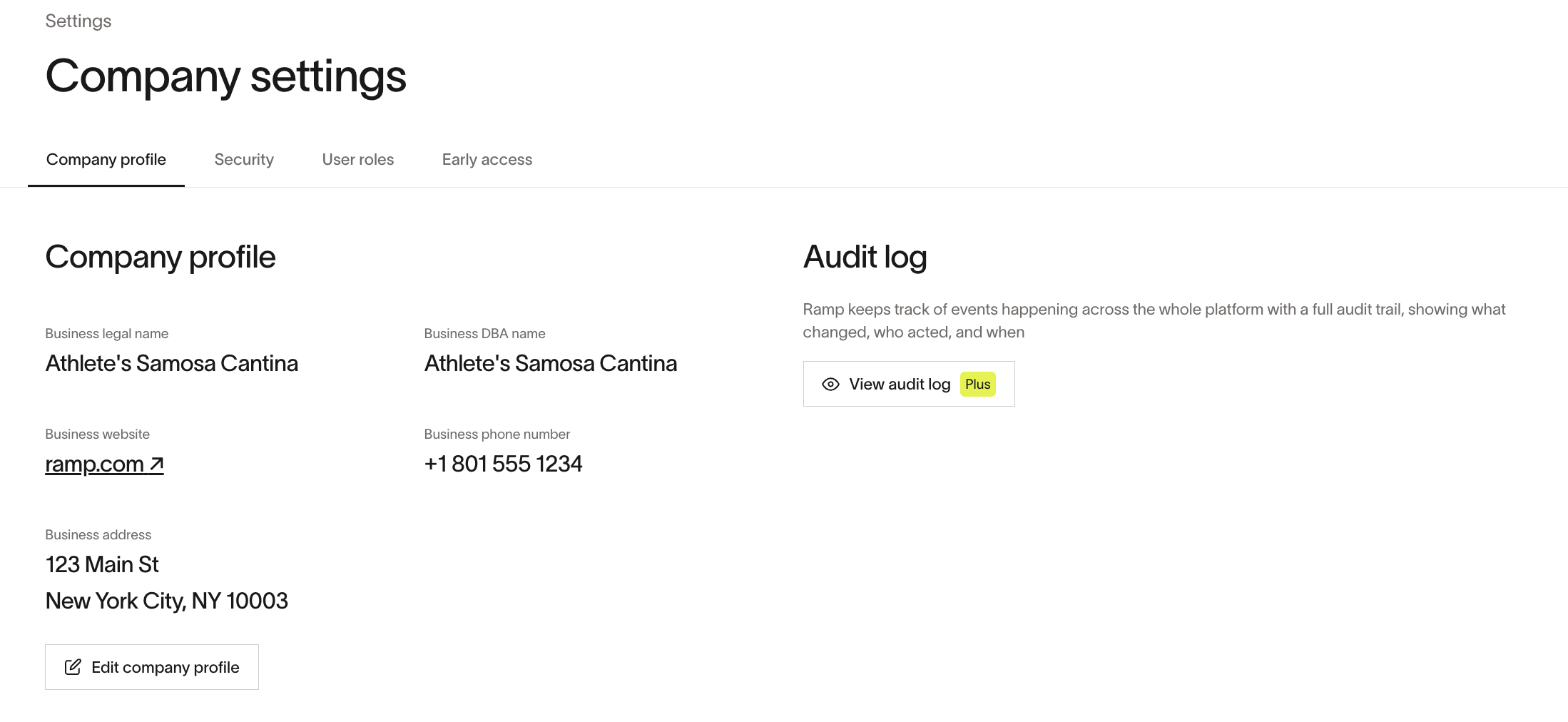
The audit log can be found in the company settings page.
Authentication events in the audit log
The audit log tracks authentication events, including User login, User signed out, and User signed out of all sessions.
Login events may include Method, MFA, IP address, and Location.
Logout events may include Reason, IP address, and, for sign-out-all events, the number of sessions revoked. Reasons can include user sign-out, admin session revocation, business lock, magic-link account recovery, identity lock, or password reset.
Definitions
TERM
DEFINITION
Acted on own item
Filters for events where someone acted on their own item - i.e. approved their own expenses, etc.
Actor
Person / Object that made the change. This could be Ramp or a specific person.
Affected User
Associated person on the object that was affected. For example, if I reject person X's transaction, person X is the affected user.
| TERM | DEFINITION |
|---|---|
| Acted on own item | Filters for events where someone acted on their own item - i.e. approved their own expenses, etc. |
| Actor | Person / Object that made the change. This could be Ramp or a specific person. |
| Affected User | Associated person on the object that was affected. For example, if I reject person X's transaction, person X is the affected user. |
Limitations of the audit log
Not all admin actions are currently tracked in the audit log, including some integration setup events and older administrative behaviors.
If you do not see a specific action or event in the audit log, it may not be instrumented yet, and this can be expected behavior.
When investigating activity, use the audit log filters to search by actor name, date and time range, and any available keywords related to the event you are looking for.
If no event appears after applying the relevant filters and time range, assume that specific action is not currently tracked in the audit log.