AWS Bedrock integration: Connect to AI Token Spend Management
Overview
Connect AWS Bedrock so Ramp can import your Bedrock cost data into AI Token Spend Management. This connection does not use an API key — instead, you create a read-only IAM role in your own AWS account that Ramp is allowed to assume, then submit that role's ARN to Ramp.
Before you connect AWS Bedrock
Business Admins, Owners, IT Admins, and users with the AI Token Spend Admin role can connect providers for core Ramp accounts. Owners, Admins, and users with the AI Token Spend Admin role can connect providers for standalone accounts. Only these users can submit the role, sync, disconnect, or reconnect AWS Bedrock — everyone else sees a read-only view of the connection and needs to ask one of these users to make changes.
You also need the following in AWS before starting:
- Access to the AWS payer/management account is required to import Bedrock spend across your entire organization; learn why the payer/management account is required.
- Permission to create CloudFormation stacks or to run Terraform 1.5 or later in that account. If you do not manage your company's AWS infrastructure, a cloud infrastructure or DevOps engineer on your team can complete Step 2 and send you the role ARN.
Step 1: Copy the External ID from Ramp
- Open AWS Bedrock Settings in Ramp. You can also reach this drawer by selecting AWS Bedrock from the Providers tab on the AI Token Spend page, or from the provider list on the AI Token Spend setup page.
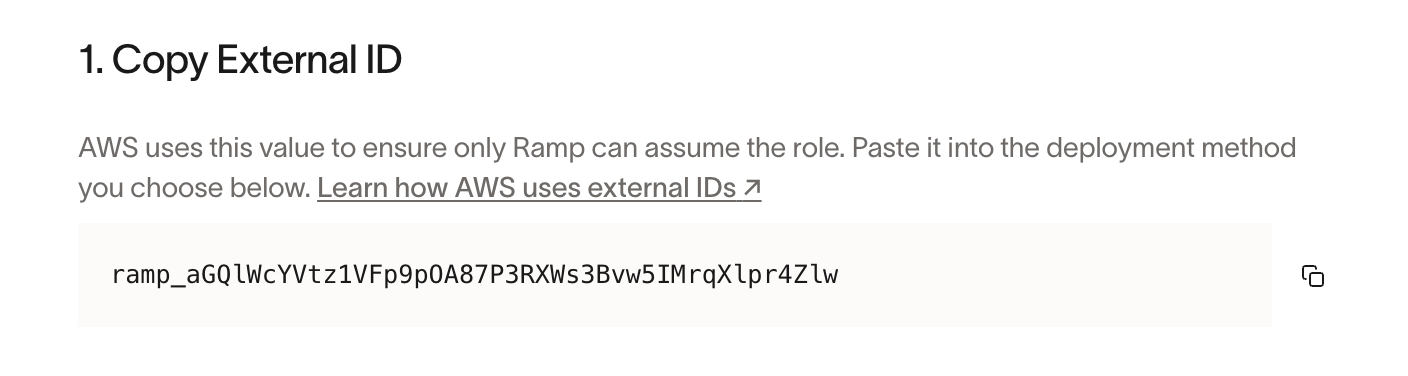
- Copy the External ID that Ramp generates. AWS uses this value so that only Ramp can assume the role you deploy. Your External ID does not expire, and it stays the same if you later disconnect and reconnect. For background, see how AWS uses external IDs.
Step 2: Create the Ramp IAM role in AWS
In this step you create a new IAM role in your own AWS account. You are not sending Ramp any credentials — instead, the role's trust policy names Ramp as the only party allowed to assume it, and requires the External ID from Step 1 as proof. When Ramp needs your cost data, it assumes this role to obtain short-lived AWS credentials.
The role is read-only and narrowly scoped: it grants Cost Explorer read access (ce:GetCostAndUsage and ce:GetDimensionValues) and nothing else. Ramp cannot read, create, or change any other resource in your AWS account, and cannot invoke Bedrock models. Ramp also filters every Cost Explorer request to the Amazon Bedrock service, so non-Bedrock AWS spend is never imported.
Ramp gives you two ways to create the role — Terraform or CloudFormation. Both produce the same role, named token-spend-management under the ramp/ path. Use whichever matches how you manage infrastructure; you do not need both.
Create the role with Terraform
- Download the Terraform module.
- Set the module's
external_idinput to the External ID you copied from Ramp. - Apply the module with Terraform 1.5 or later, in the AWS account you chose above.
- Copy the value of the module's
role_arnoutput.
Create the role with CloudFormation
- In the AWS Bedrock Settings drawer, select Open CloudFormation. This opens the AWS console pre-filled to create a stack named
ramp-token-spend-managementin theus-east-1region, with your External ID already filled in. - Confirm you are signed in to the AWS account you chose above, select I acknowledge that AWS CloudFormation might create IAM resources with custom names, then select Create stack.

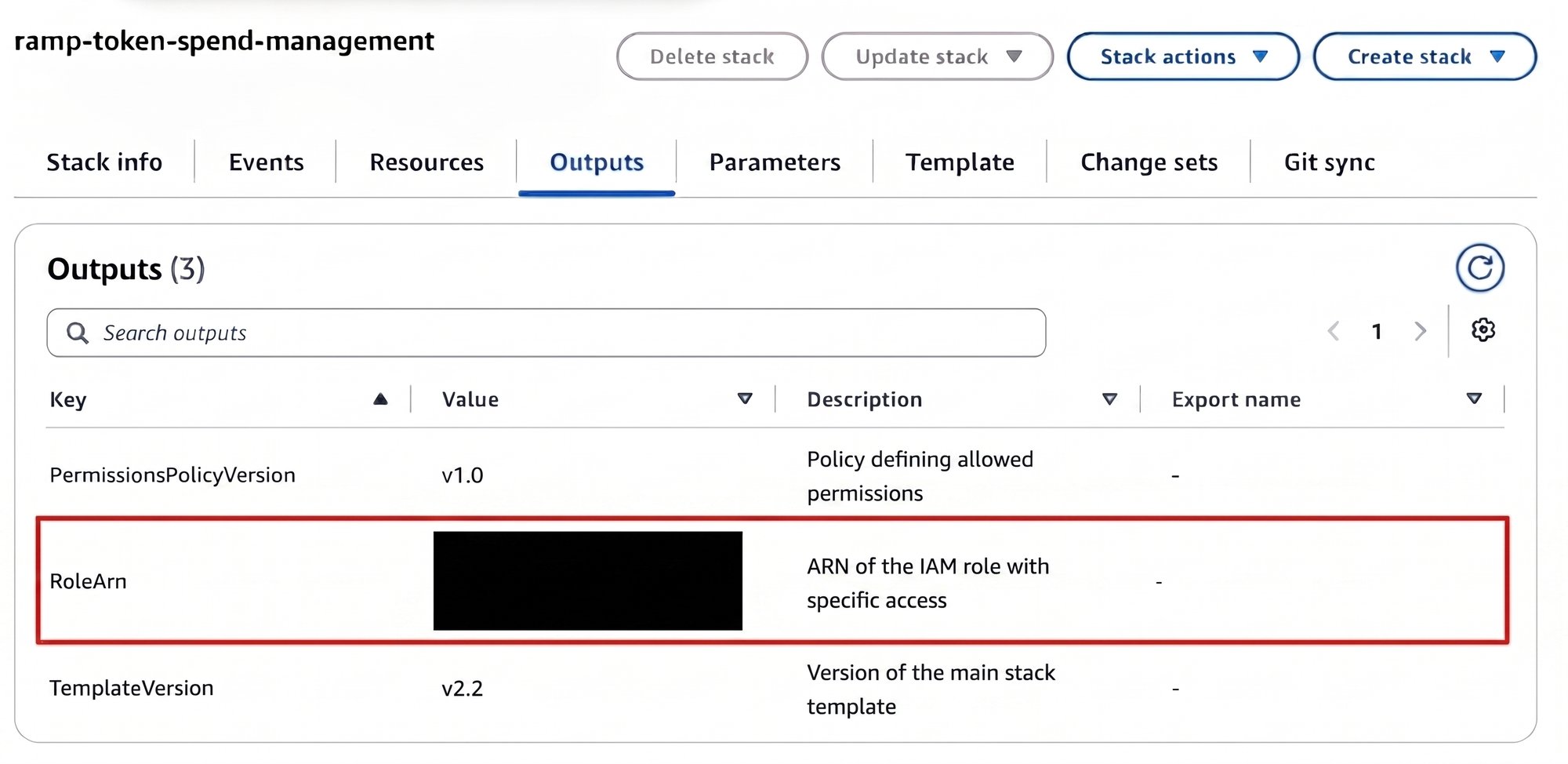
- When the stack finishes, copy the role ARN from the stack outputs.
Step 3: Submit the role ARN and verify the connection
-
Paste the role ARN into the AWS Bedrock Settings drawer in Ramp. It must match this format exactly, where the account number is that account's 12-digit AWS account ID:
arn:aws:iam::<12-digit-account>:role/ramp/token-spend-managementFor example:
arn:aws:iam::123456789012:role/ramp/token-spend-managementIf the ARN is rejected when you submit it, check the AWS account ID and the exact role path — the role name and
ramp/path must match the format above. -
Select Verify connection. Ramp confirms that the role's trust policy requires your External ID, that the role belongs to the account in the ARN you submitted, and that the role allows Cost Explorer access (
ce:GetCostAndUsage).
Verification can take a few minutes. The drawer updates on its own when it finishes — you do not need to refresh. If verification fails, the button changes to Retry verification; see Troubleshoot connecting AWS Bedrock for the fix that matches the error Ramp shows.
Note: While checking the trust policy, Ramp deliberately attempts to assume the role with a missing and an incorrect External ID and expects both to be denied. Two
AccessDeniedAssumeRoleevents per verification attempt are expected in CloudTrail and do not indicate a problem.
What happens after AWS Bedrock connects
Once the connection is verified, Ramp imports up to 365 days of Cost Explorer history, starting with the newest costs. AWS actuals appear in your AI Token Spend reports after the full import completes.
Troubleshoot connecting AWS Bedrock
Ramp shows the reason verification failed in the AWS Bedrock Settings drawer. Find the matching heading below, resolve the issue in AWS, then submit the role ARN again and select Retry verification.
Ramp couldn't assume the AWS role
Review the role's trust policy and confirm the External ID in the policy matches the External ID shown in Ramp. Then resubmit the role ARN.
The AWS trust policy is invalid
The role can be assumed without the correct External ID, which means its trust policy is too permissive. Update or redeploy the stack with the current External ID from Ramp, then submit the role ARN again.
Cost Explorer access is missing
Confirm the role's policy allows ce:GetCostAndUsage, then resubmit the role ARN.
The payer account doesn't match
The role Ramp assumed belongs to a different AWS account than the one in the role ARN you submitted. Confirm you deployed the stack in the account whose Cost Explorer data you want Ramp to import, then submit that account's role ARN.
AWS is temporarily unavailable
Wait a few minutes, then resubmit the role ARN.
AWS verification failed
Review your deployment and resubmit the role ARN. If verification keeps failing, contact Ramp Support with the role ARN and the error shown in Ramp.
Disconnect AWS Bedrock
Disconnecting in Ramp stops new Cost Explorer imports. Cost data Ramp already imported is retained and stays visible in your reports.
Disconnecting in Ramp does not change anything in your AWS account, and Ramp retains your stored role ARN and External ID so you can reconnect later. Because of that, disconnecting alone does not revoke Ramp's access — to fully revoke it, you must also remove the deployment you created:
- Terraform: remove Ramp's module and apply your configuration again.
- CloudFormation: delete the
ramp-token-spend-managementstack.
AWS sessions that were already issued to the role can remain valid for up to one hour after you remove the deployment.
Frequently asked questions
Why must I connect the payer or management account?
We receive billed costs across your entire org by connecting to the payer/management account. A dedicated least-privilege service account does not support providing org wide cost and usage data. Placement in the payer/management account carries no elevation of privilege. The role contains only read-only Cost Explorer actions, with no write access, no IAM or AWS Organizations permissions, and no access to workloads, resource configuration, or application data.