Connect Claude Enterprise to AI Spend Management
Overview
Connect Claude Enterprise so Ramp can import your organization's Claude usage and cost data into AI Spend Management. This connection includes Claude Code usage paid through a Claude.ai subscription. If Claude Code uses Anthropic API keys instead, connect Claude API. You can connect automatically with Ramp for Chrome or manually with an Analytics API key.
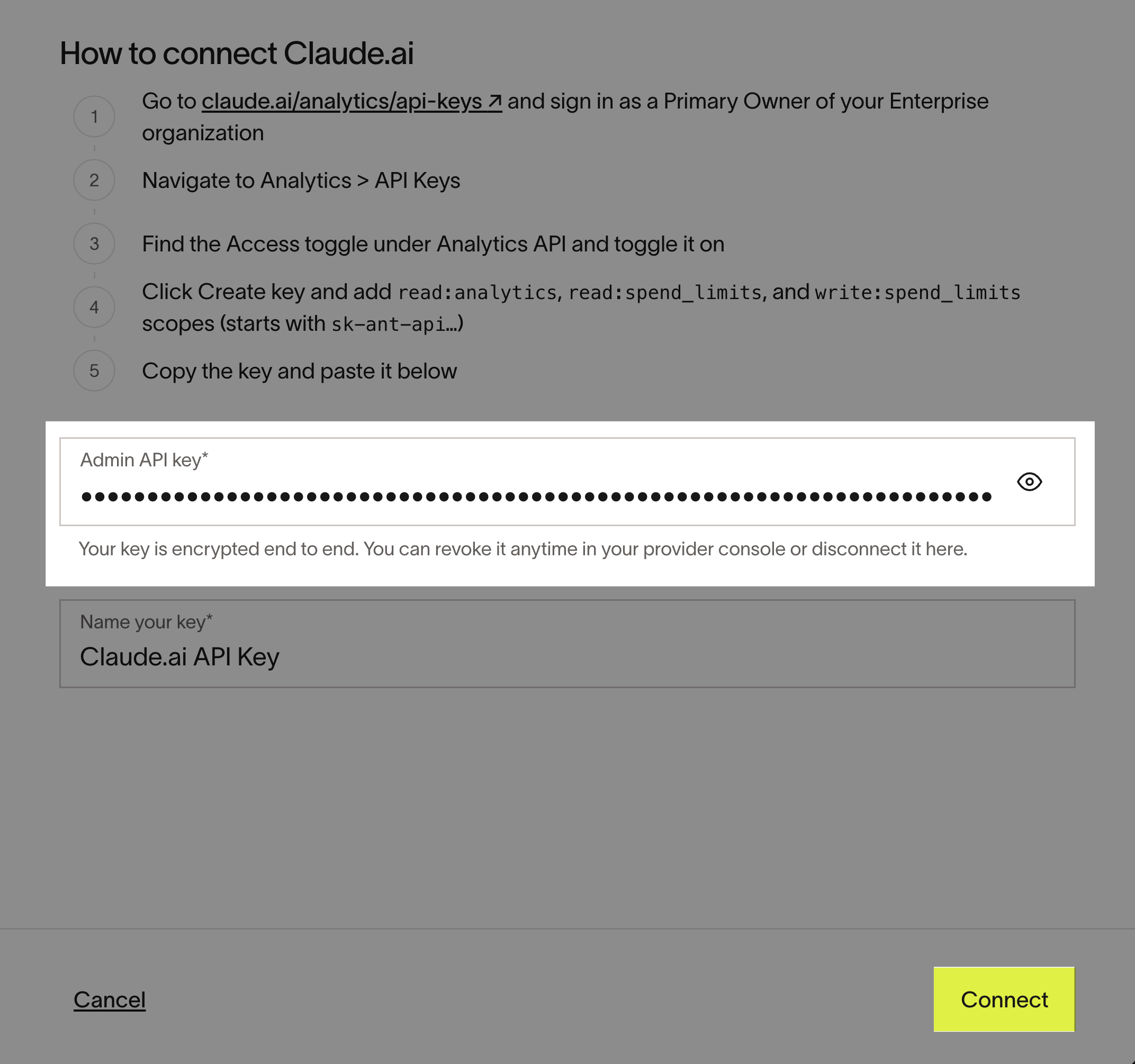
Note: Provider setup is the same whether your business has a standalone AI Spend Management account or a core Ramp account. The screenshots below show an older connection name; in Ramp, look for Claude Enterprise.
Before you connect Claude Enterprise
To connect Claude Enterprise, your organization must be on the Claude Enterprise plan. Claude Team and individual plans are not supported. See Check whether you have a Claude Enterprise account.
Your Ramp role must allow you to connect providers. See roles that can connect providers for core and standalone accounts. If you do not have one of these roles, ask someone who does to connect the provider.
To connect manually, you must be the Claude.ai primary account owner.
Connect automatically with Ramp for Chrome
This option is available only when automatic setup is enabled for your business, you use a supported browser with Ramp for Chrome installed, and you have permission to administer AI Spend Management. If you have permission to administer AI Spend Management but do not see Connect automatically, use the manual Analytics API key instructions instead.
- Install Ramp for Chrome.
- Open Connect Claude Enterprise in Ramp.
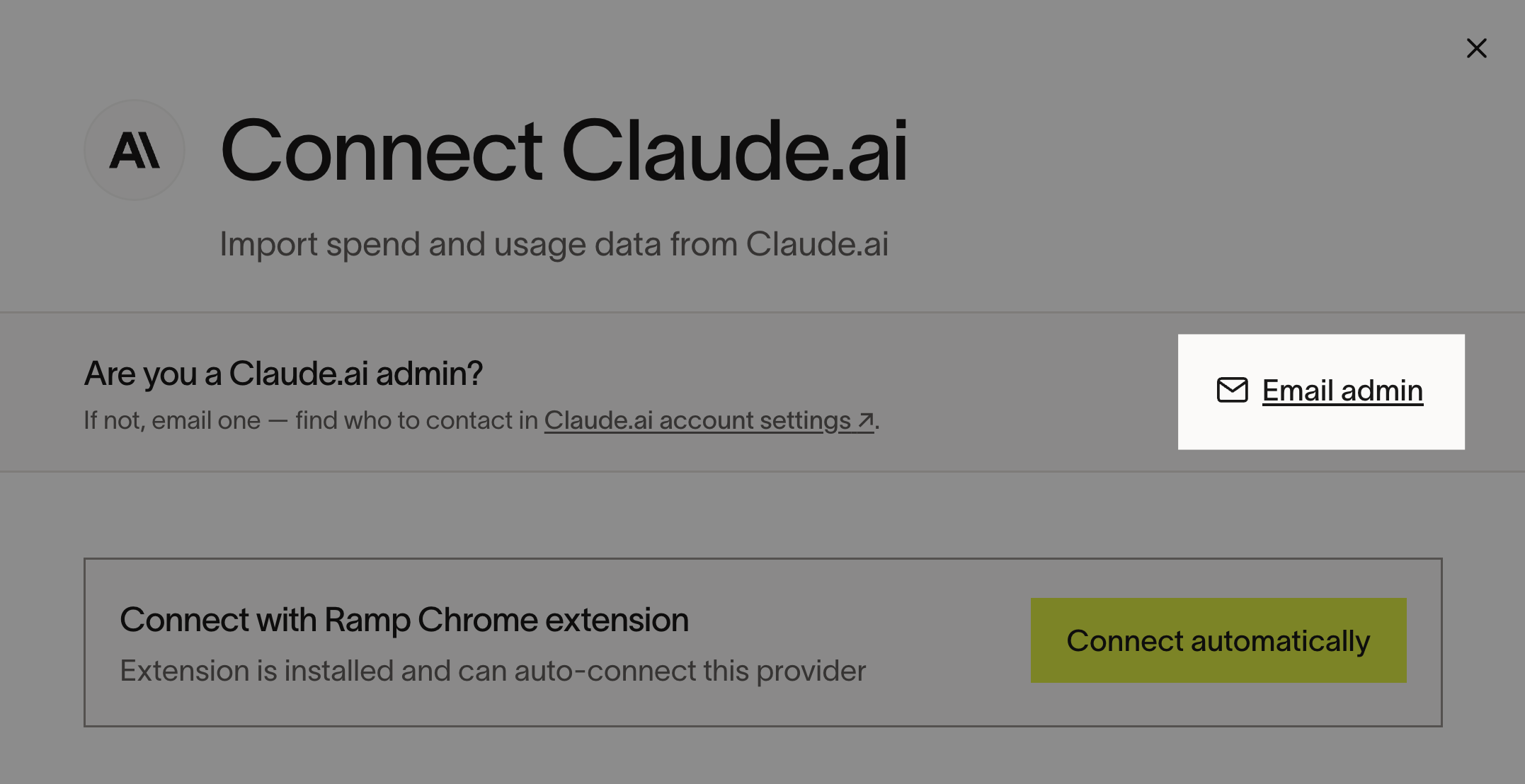
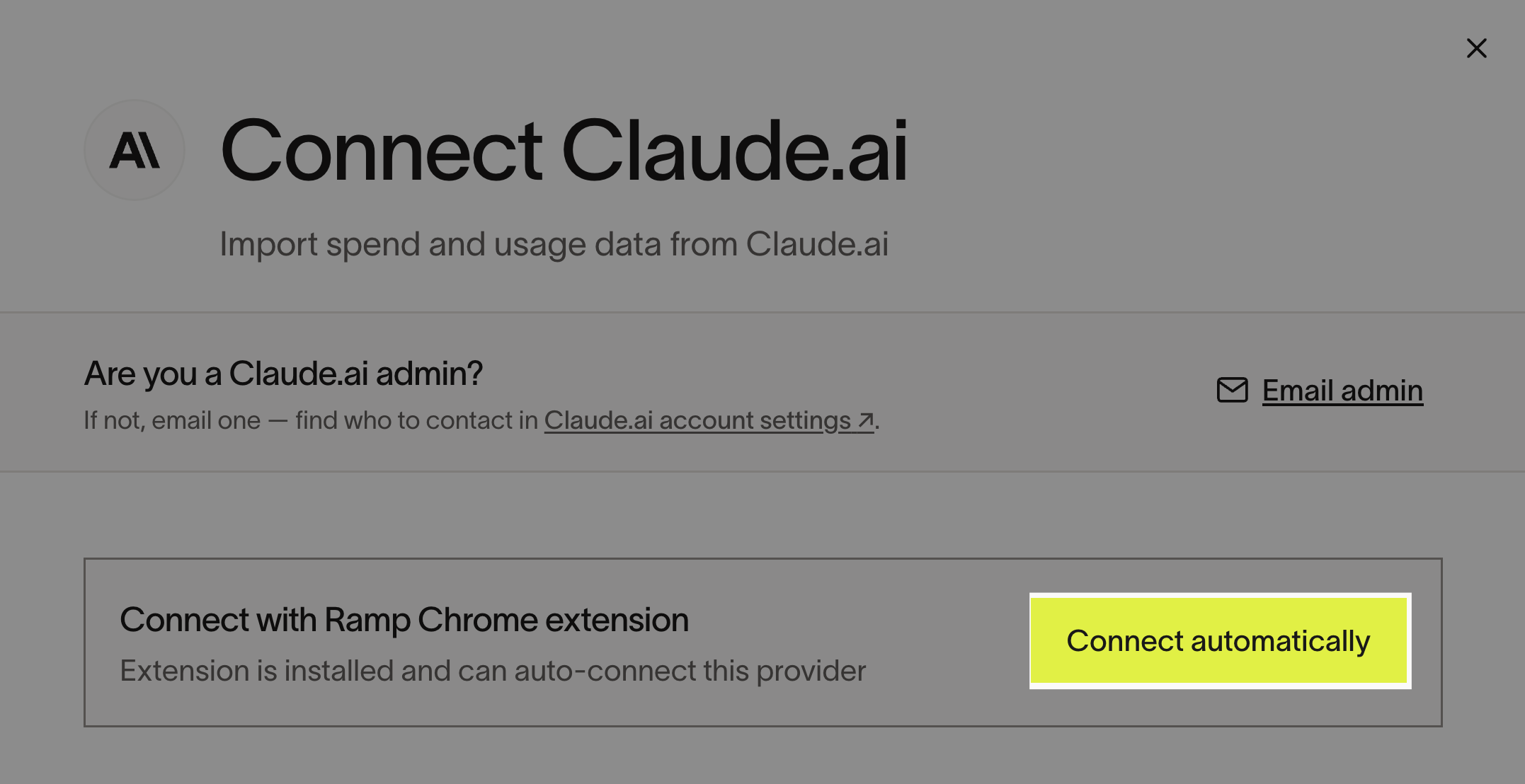
- Select Connect automatically. If you are the Claude.ai primary account owner, Ramp creates the API key. Otherwise, Ramp helps identify the owner and emails them instructions.
Connect manually with an Analytics API key
You must be the Claude.ai primary account owner to complete this setup.
-
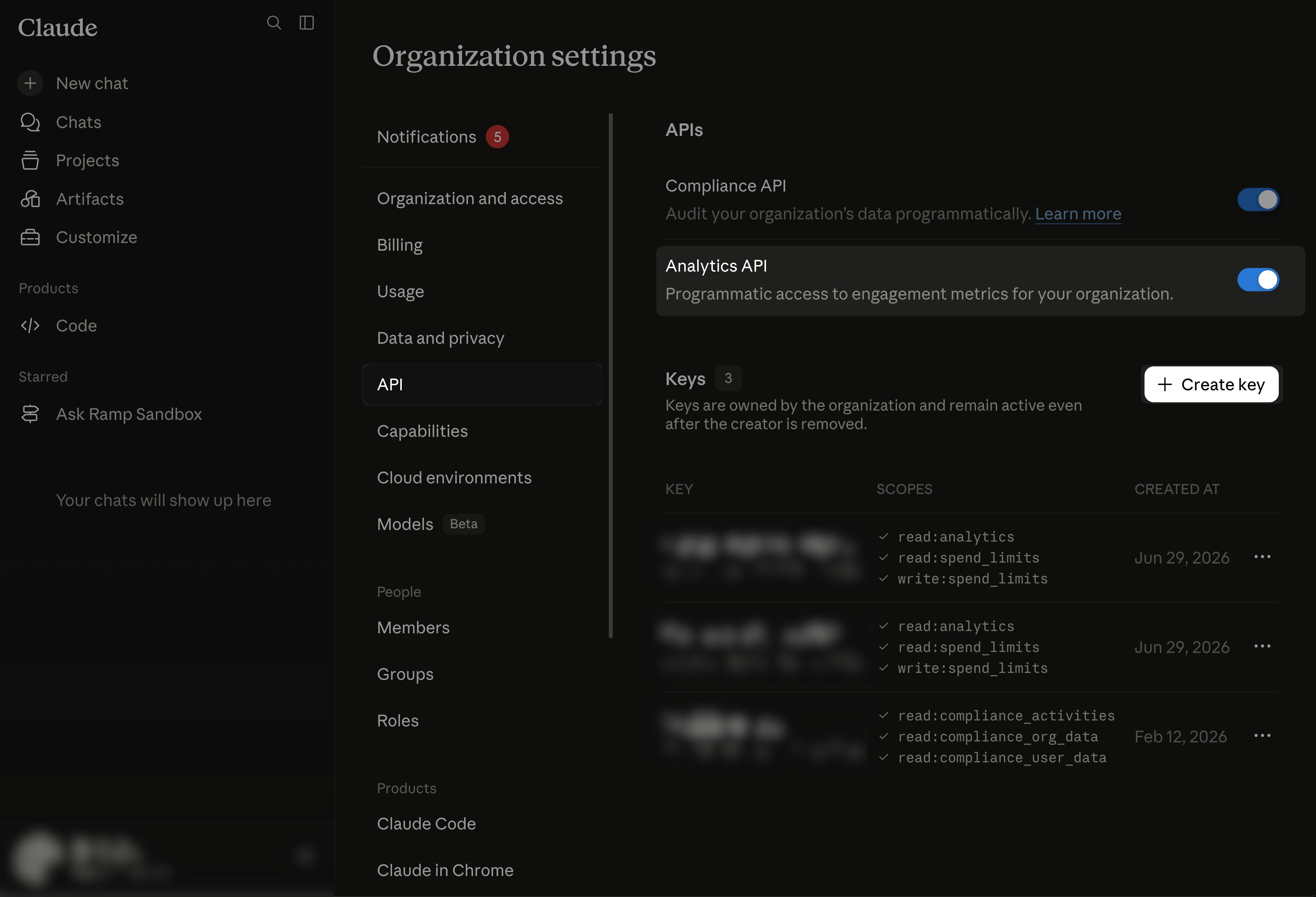
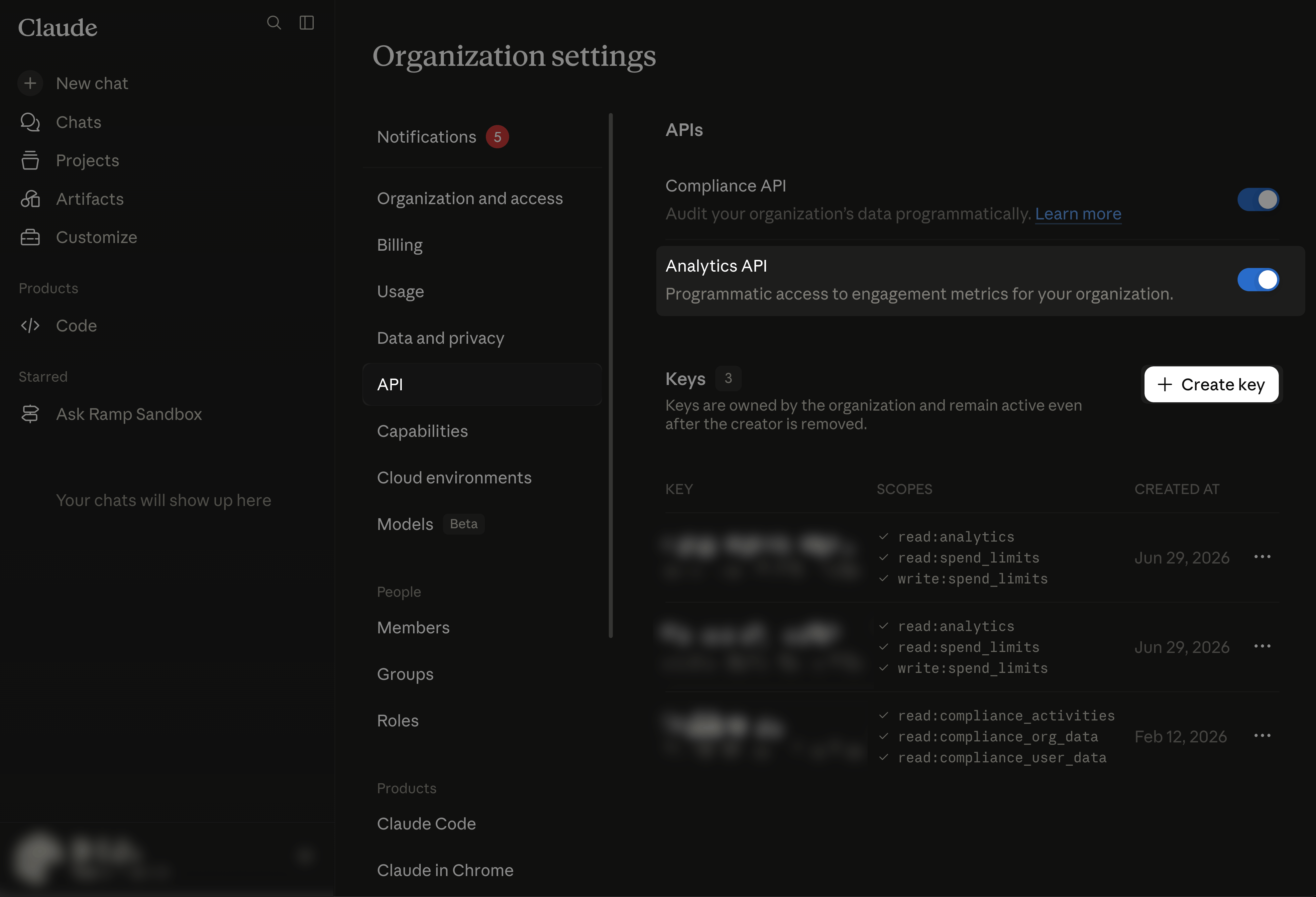
Open organization API settings in Claude.ai.
-
Turn on Analytics API and select Create key.
-
Give the key a descriptive name and assign the
read:analytics,read:spend_limits, andwrite:spend_limitsscopes.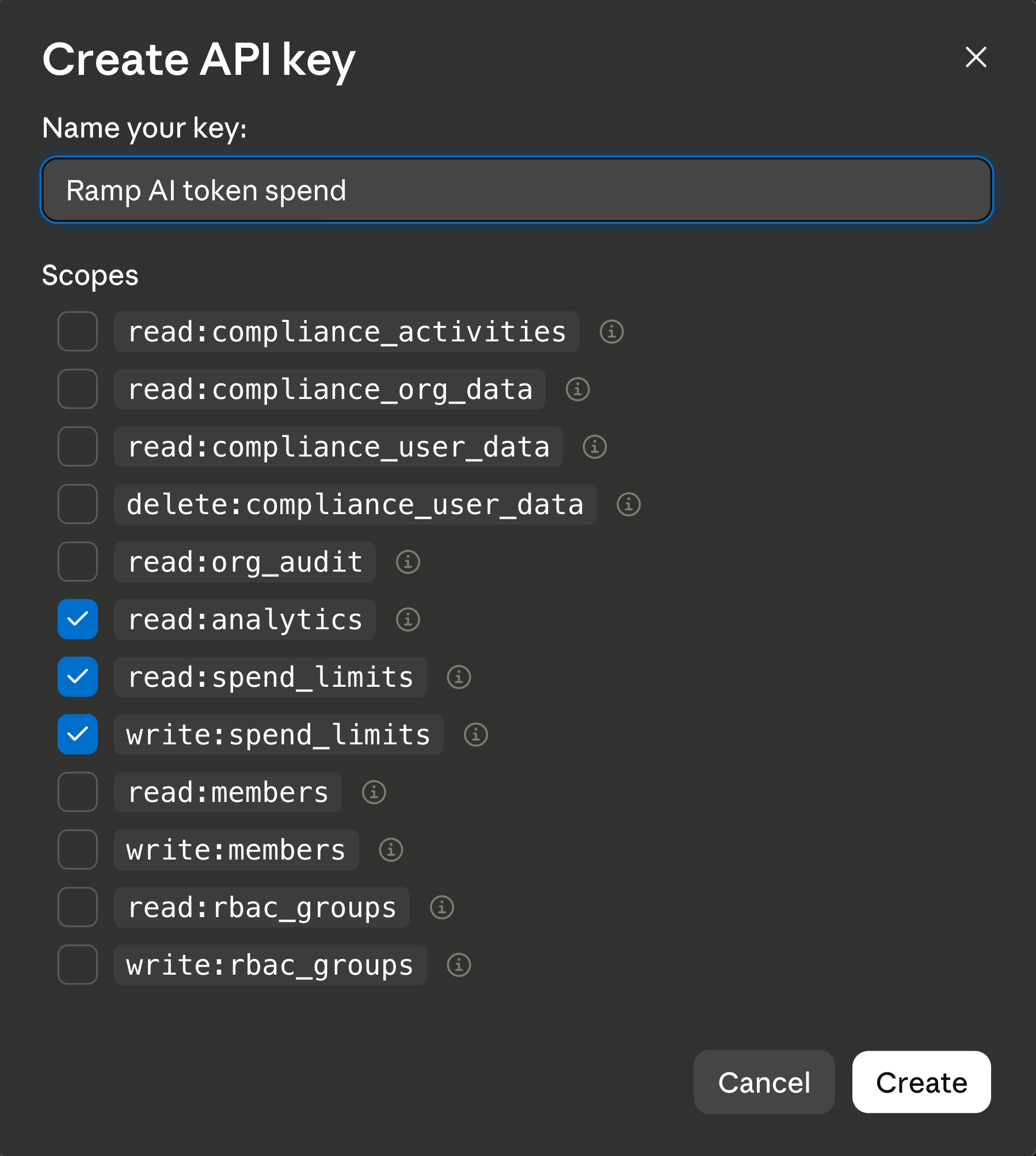
-
Copy the key, open Connect Claude Enterprise in Ramp, paste the key, and select Connect.
Troubleshoot connecting Claude Enterprise
Check whether you have a Claude Enterprise account
- Open the Billing page in Claude.ai.
- Confirm Current plan shows Enterprise plan.
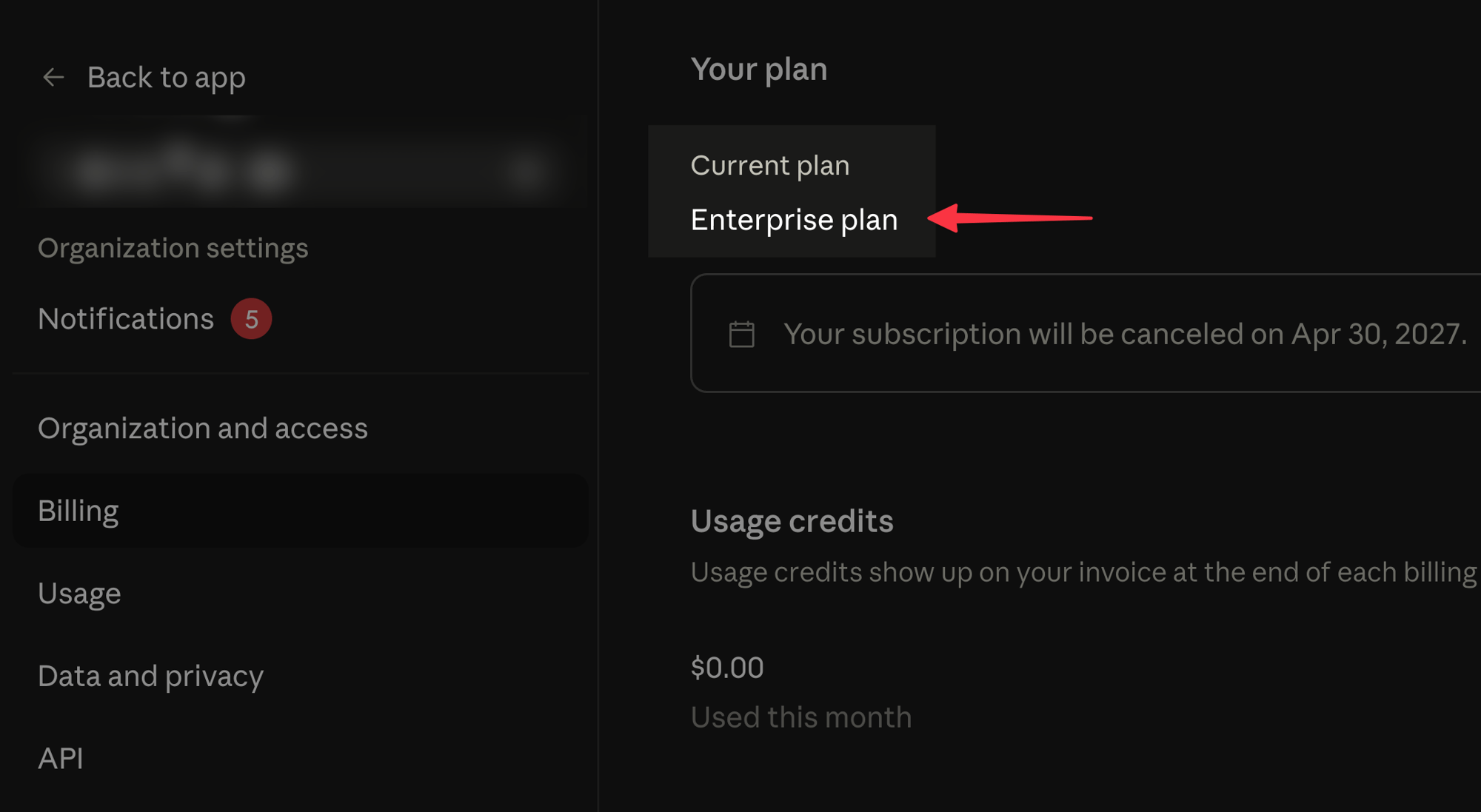
If your current plan is not Enterprise plan, Ramp cannot import your Claude.ai usage and cost data. Contact your Claude.ai primary account owner to confirm which plan your organization is on.
Check whether you are the Claude.ai primary account owner
- Open your organization's API settings in Claude.ai.
- If you are the primary account owner, you can see the API tab under organization settings, the Analytics API toggle, and the Create key button.
Get help from the Claude.ai primary account owner
-
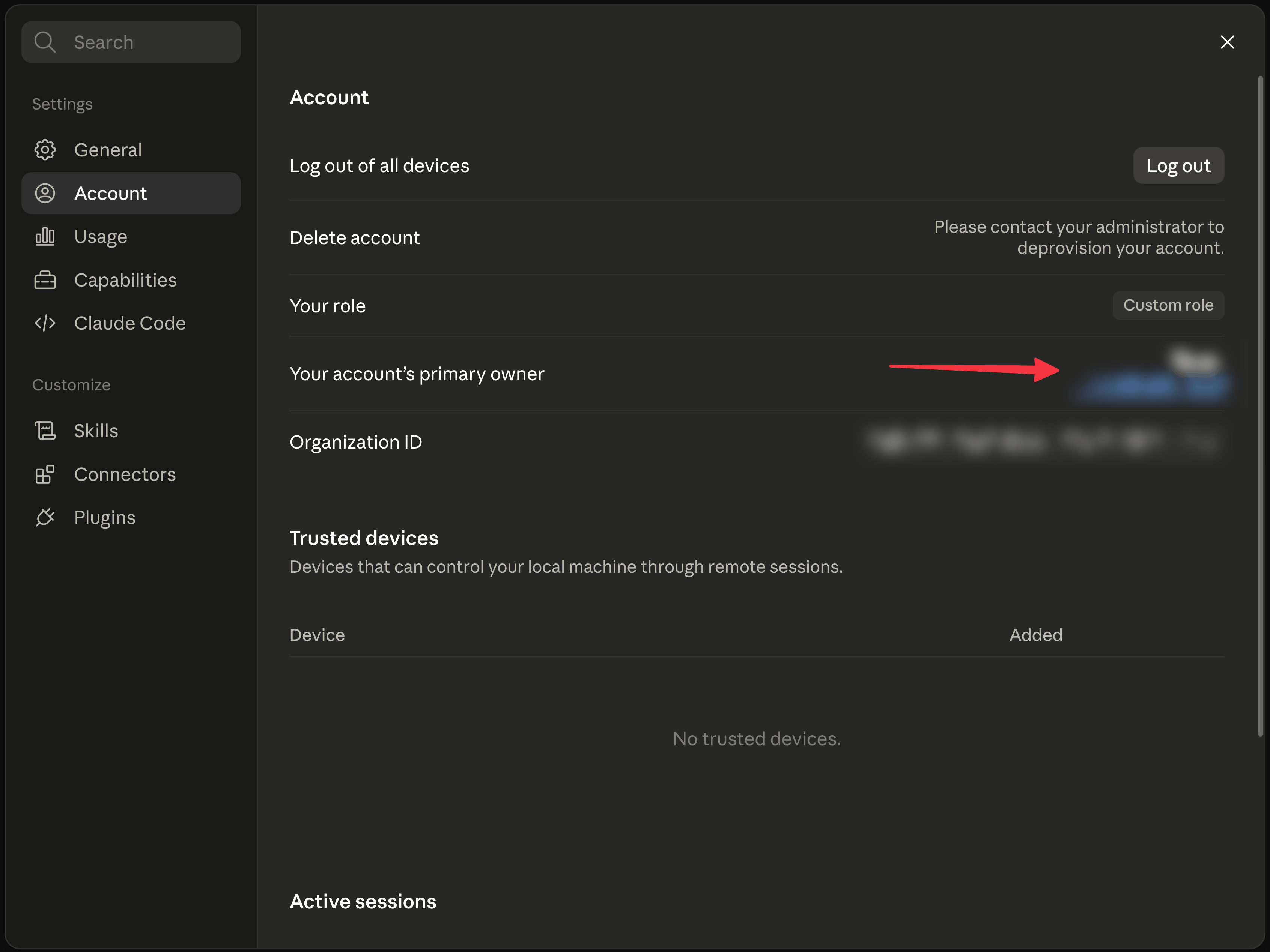
Open Account settings in Claude.ai.
-
Find the person listed in the Your account's primary owner field.
-
Open Connect Claude Enterprise in Ramp.
-
Select Email admin and send the connection instructions to the primary account owner.