QuickBooks Online overview
Overview
Ramp offers a direct integration with QuickBooks Online, enabling effortless data transfer from Ramp to QuickBooks. This ensures your QuickBooks account reflects accurate and up-to-date spending details. Our integration respects your QuickBooks settings, so no changes are made without your input.
Please note: Once an expense is synced to QuickBooks Online, all future edits must be made directly within your accounting software. Syncing an expense will lock it in Ramp, preventing any edits.
Transactions
Ramp syncs transactions to QuickBooks as expenses. Unlike some systems that use the banking tab for syncing, Ramp's method ensures valuable data from Ramp is utilized, enhancing the efficiency of automation tools. Expenses appear in QuickBooks under the 'Expenses' section.
Reimbursements
Reimbursements are sent to QuickBooks as bills, and payments are settled as bill payments. This process allows for detailed tracking of reimbursements by vendor in QuickBooks.
Additional features
- Vendor Creation: Ramp can automatically add new vendors from your transactions to QuickBooks (functionality only available to Owner, Admin, and Accounting roles. The vendor is not created until after the transaction has cleared.)
- Receipt Attachment : Receipts uploaded in Ramp are automatically attached to transactions in QuickBooks.
What Ramp looks like
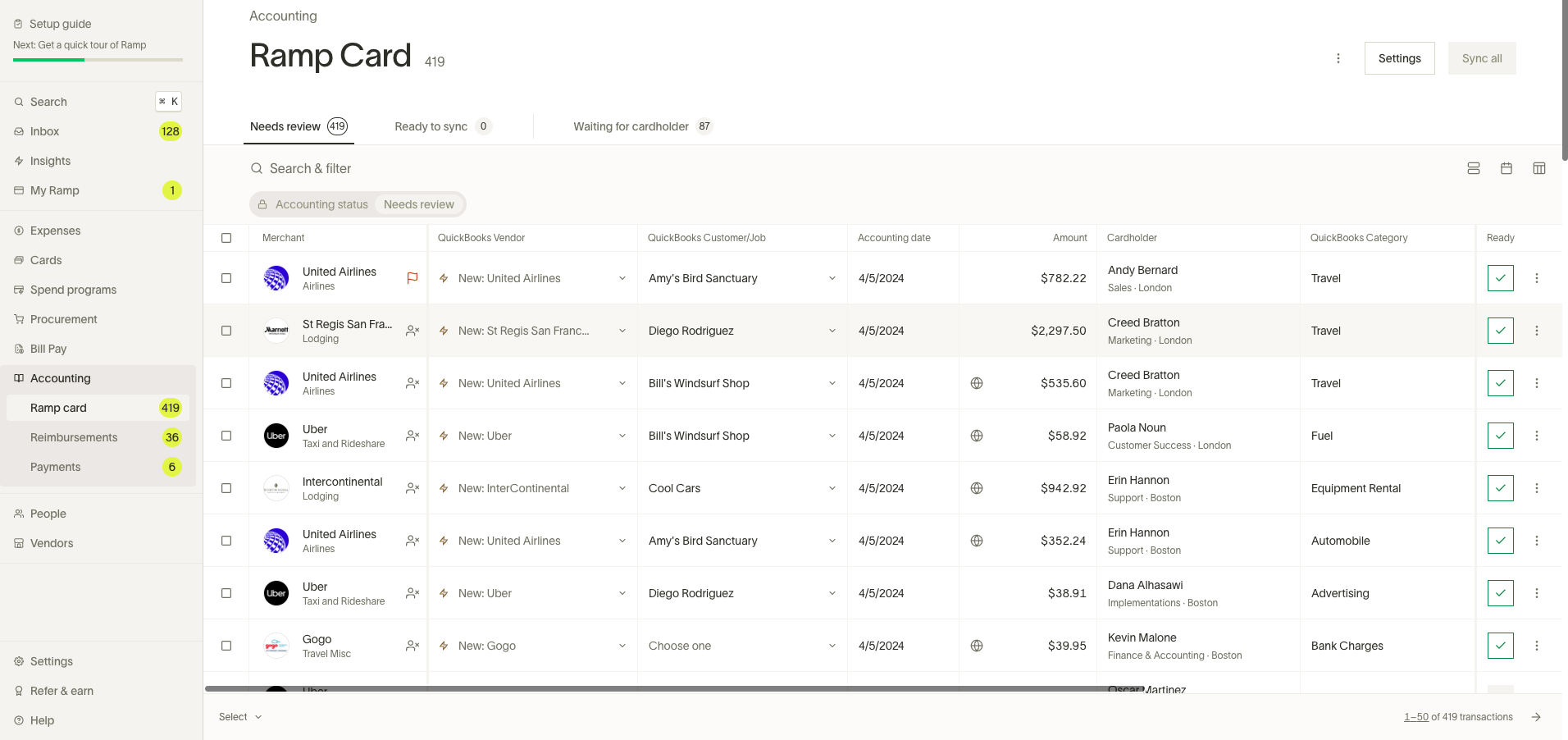
Below is what the QuickBooks Online integration looks like on Ramp after you set it up. We will attempt to find the vendor for you by matching the vendor name on Ramp to the vendor names you have on QuickBooks so you don’t have to. For more information on settings, rules, and other automations that Ramp offers, please reference thisarticle.
Setup guide
To integrate QuickBooks Online with Ramp:
Step 1: Go to the 'Accounting' tab on your Ramp Dashboard.
Step 2: Select QuickBooks Online and click 'Connect to QuickBooks'.
Step 3: Enter your QuickBooks credentials and choose your company.
Step 4: Back in Ramp, specify default accounts for transactions and reimbursements.
Note: The default transaction account must be a Liability and Credit Card type in QuickBooks.
Enable QuickBooks Online classes in Ramp
If Class is missing from Ramp's accounting fields, check that Track classes is enabled in the QuickBooks Online company connected to Ramp. Follow Intuit's instructions to turn on class tracking, including its subscription prerequisites.
Either QuickBooks Online assignment mode allows Ramp to import classes:
- One to entire transaction: Use one class for the transaction.
- One to each row in transaction: Allow different classes for individual line items. Choose this mode to split transactions by class.
After saving your QuickBooks Online settings, refresh the fields in Ramp:
- Open Accounting, select Settings, then Accounting fields.
- Select Refresh to request updated accounting fields from QuickBooks Online. If Ramp says a refresh occurred recently, try again in a few minutes.
If you cannot access Accounting fields, ask a teammate who manages your accounting settings to refresh them.
Multi-entity
QuickBooks Online does not support Ramp's multi-entity feature within a single Ramp account. If your business already has multiple Ramp entities, those entities can still appear in Ramp while QuickBooks Online is connected. However, Ramp syncs through one connected QuickBooks Online company and does not map different Ramp entities to different QuickBooks companies or subsidiaries.
If you need to manage multiple business entities, you have two options:
- Disconnect QuickBooks Online and move to Universal CSV or a supported multi-entity provider such as NetSuite or Sage Intacct. Before disconnecting, approve and pay all outstanding bills in Ramp — see What if I need to change accounting providers? for details. To disconnect, go to Accounting > Settings and click Disconnect in the Danger zone section.
- Create a separate Ramp account for each entity and connect each to its own QuickBooks Online company file. For more details, see Ramp support for QuickBooks Online (QBO) and Intuit Enterprise Suite (IES) .
What if I need to change accounting providers?
Suppose you have briefly connected to a different accounting provider and do not have any bill payments in flight. In that case, you can disconnect from your current accounting provider and follow the setup instructions for your new one. If you have bill payments in flight, we strongly recommend you do not disconnect from your current accounting provider until outstanding bill payments are paid.
To disconnect from your current accounting provider:
- Go to the Accounting tab and click the Settings button.
- In the Danger zone section, click the Disconnect button.
If you have bill payments in flight while you change your accounting provider, Ramp handles those bills based on their sync status rather than the provider. The migration does not create complete bill records in the new provider.
Instead, approve and pay all bills in Ramp before you disconnect the accounting provider. After you switch to the new accounting provider, you can enter, approve, and pay with bill payments again. The bills you created in your previous accounting provider will not sync to the new one.
How will transactions appear in QuickBooks?
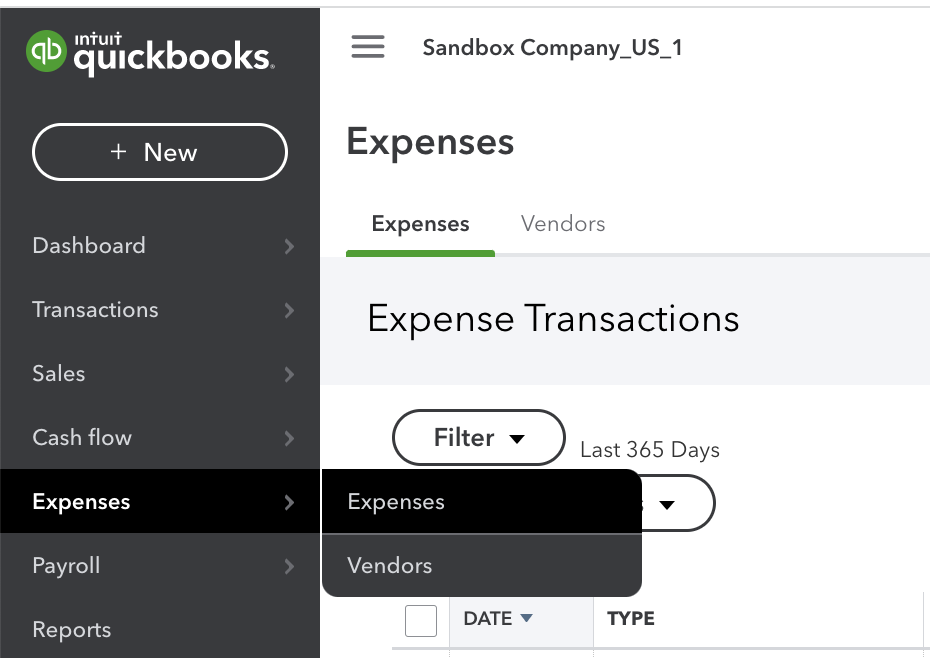
In QuickBooks, transactions appear under 'Expenses' -> Expenses. Ramp allows detailed coding for each transaction, including categories, vendors, and other fields. Transactions can be split across multiple categories, except for Location and Vendor.
In QuickBooks, after syncing from Ramp, a fully detailed transaction will display various elements. These include Category, Vendor, Location, Customer, Class, and a Billable option (Yes/No). In addition to these details, the transaction will also feature a memo and a receipt, attached at the bottom of the entry. By default, the description field in QuickBooks shows the cardholder's first and last name, along with the transaction memo.
Moreover, Ramp provides the flexibility to distribute transaction amounts across several categories, except for Location and Vendor. Splitting by Class requires QuickBooks Online's One to each row in transaction setting; see Enable QuickBooks Online classes in Ramp.
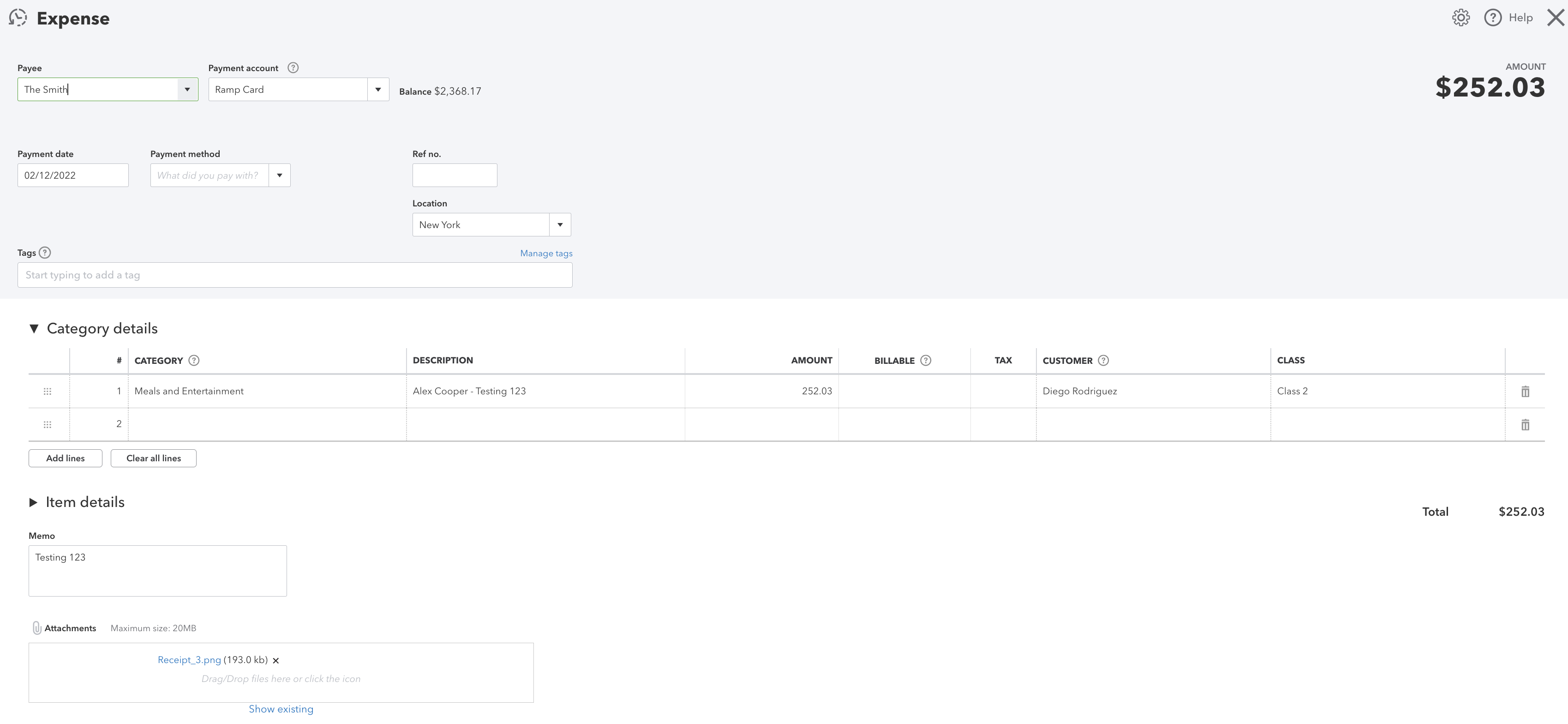
Note: we do no support pulling in custom tags from QuickBooks Online.
How will reimbursements appear in QuickBooks?
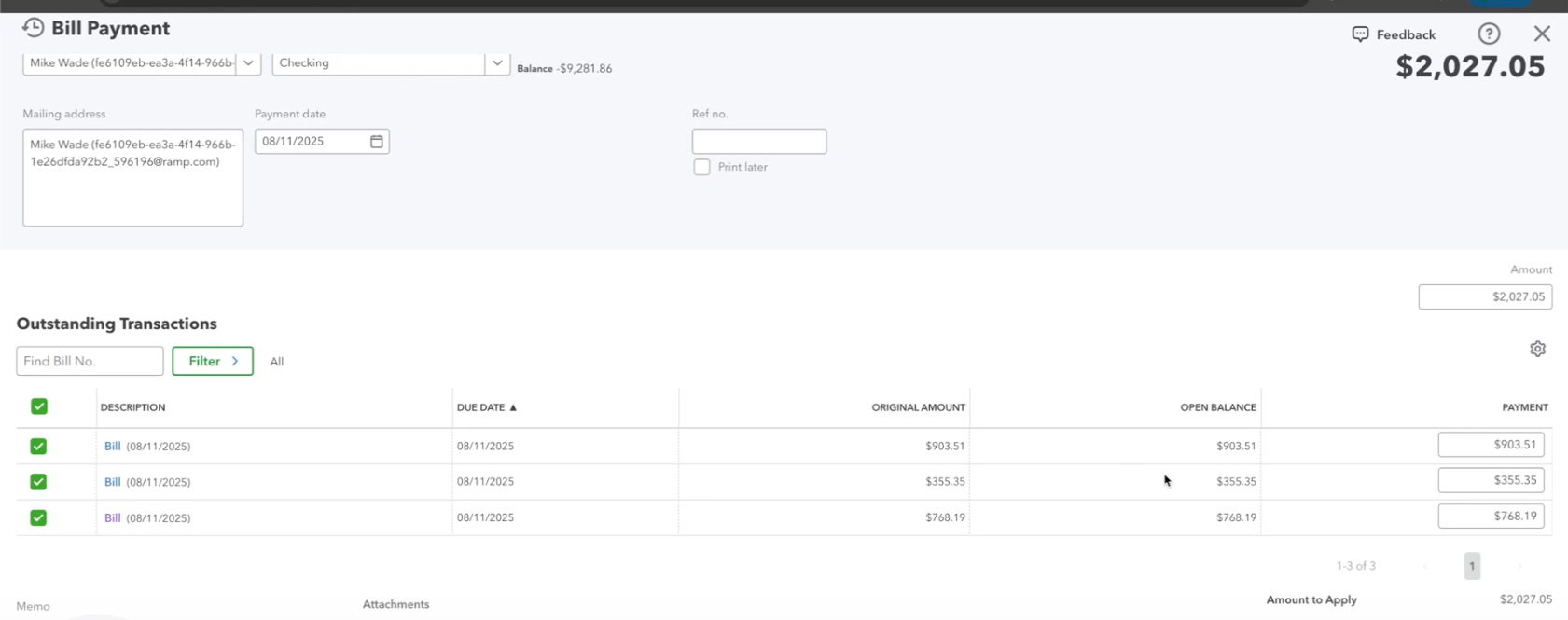
Reimbursements are synced as bills and bill payments in QuickBooks, appearing under 'Expenses' and 'Vendors'. The vendor for a reimbursement is identified by the employee's name and email.
Note: we create a vendor as the merchant for reimbursements. In order to sync reimbursements to your QuickBooks account, ensure your QuickBooks version is the QuickBooks Online Essentials tier or higher.
The provided image illustrates a completely processed reimbursement via ACH as it appears in QuickBooks Online. If you paid a reimbursement via ACH, we will sync a bill (marked as paid) and a bill payment. If you selected Manual Pay within Ramp, we will only sync a bill (marked Open).
In this example, notice it is marked as 'Paid' at the top right. In QuickBooks, the vendor for this reimbursement is listed as the employee's first and last name, followed by their email. Other details included are Category, Location, Customer, Class, and whether it's Billable (Yes/No).
By default, the date listed on the bill corresponds to the approval date unless your accounting date settings use a different date.
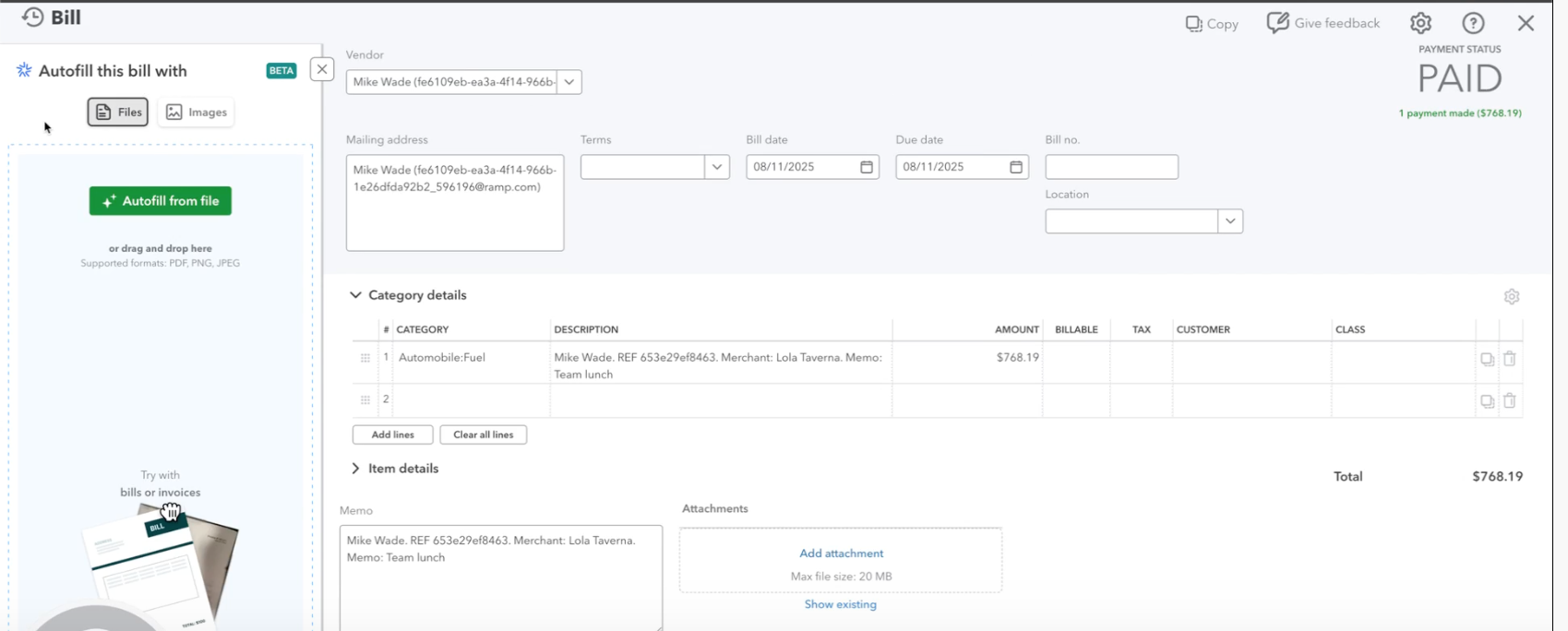
An individual bill payment also uses the approval date by default unless your accounting date settings use a different date. A batched bill payment uses the batch processing date.
How will accruals appear in QuickBooks?
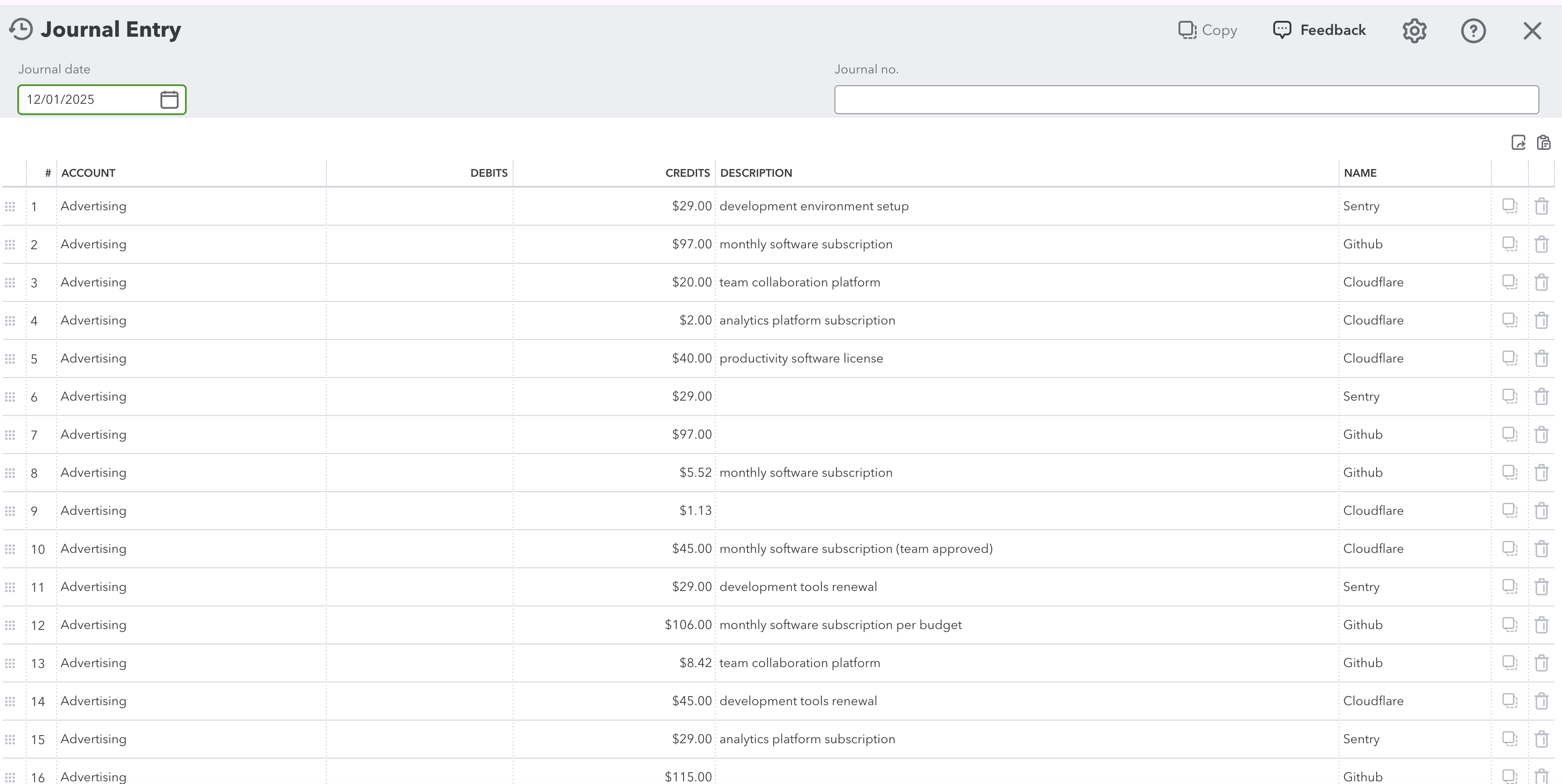
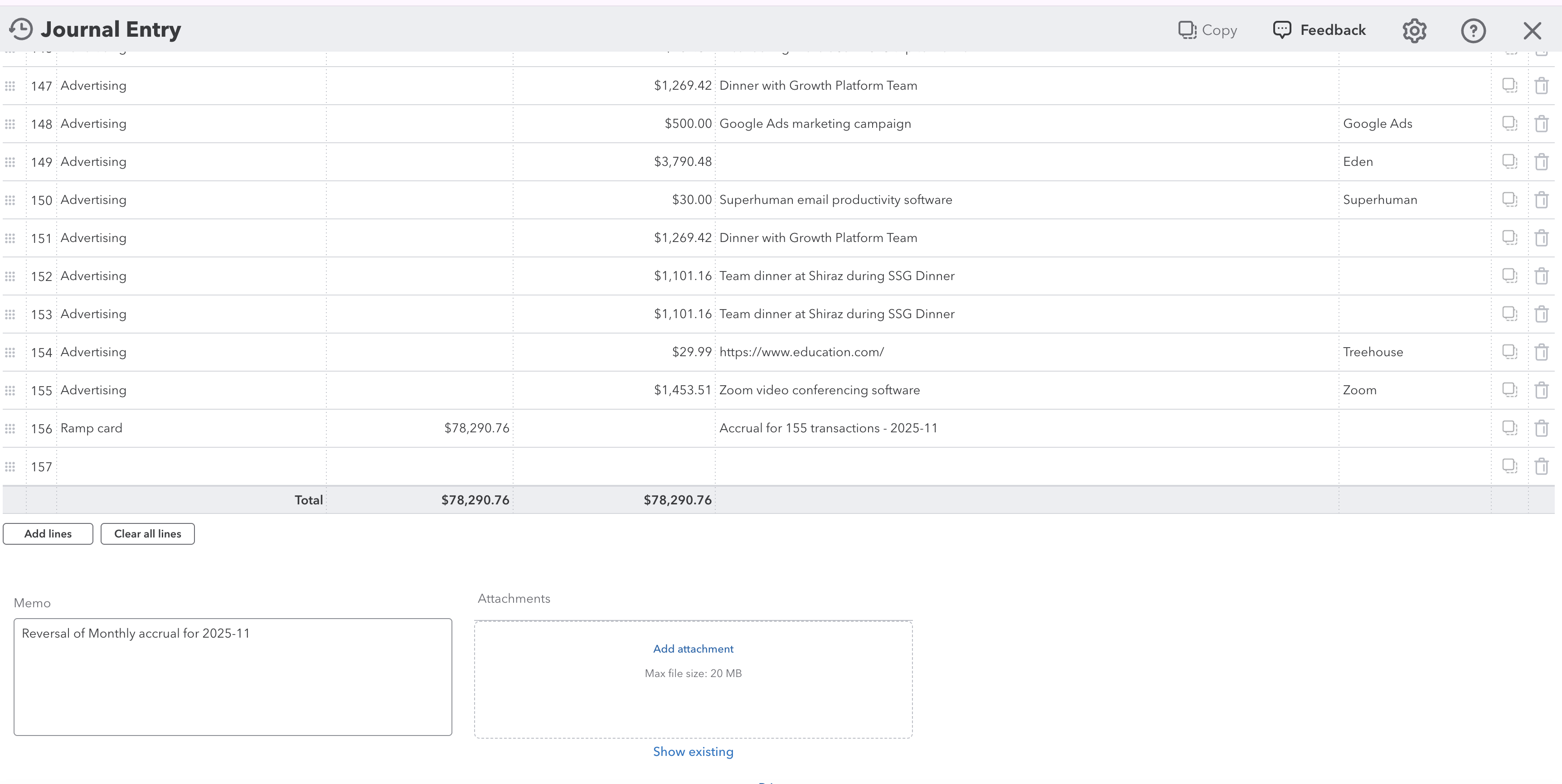
Ramp syncs accruals for unsynced card transactions to QuickBooks Online as journal entries. See the Accruals guide for prerequisites, configuration, and accounting-date effects.
Ramp does not provide an Accruals on/off setting in Accounting settings. Ramp syncs an accrual journal entry only after a user selects Sync accrual(s); after that sync, its reversing journal entry posts automatically on the configured reversal date.
Bill Pay
With QuickBooks Online, you have access to our Bill Pay feature. Please reference thisarticlefor more information.
Accounting period handling
Ramp supports editable accounting periods on bills and respects QuickBooks Online posting period rules. If a bill's accounting date falls within a closed accounting period, Ramp automatically updates it to the first day of the next open period before syncing; see Sync error: Accounting period closed for troubleshooting.
Repayments
Ramp can sync employee repayments to QuickBooks Online, including both bank account and debit card repayments. Bank account repayments sync as Deposits, while debit card repayments sync as Credit Card Purchase (credit) objects. For full details on setup, sync behavior, and troubleshooting, see Sync repayments to your accounting software.
Statement payments
With QuickBooks Online, you can sync statement payments from Ramp. These payments show up in the 'Payments' section of the 'Accounting' tab, but only after they are cleared.
For these transactions, you'll get information from two sources: the credit side from your Checking Account's bank feed, and the debit side from Ramp. Instead of processing these separately, QuickBooks helps you match them to form a single transaction. This approach avoids duplicating the same transaction.
For example, let's say there are two statement payments to sync to QuickBooks Online in Ramp.
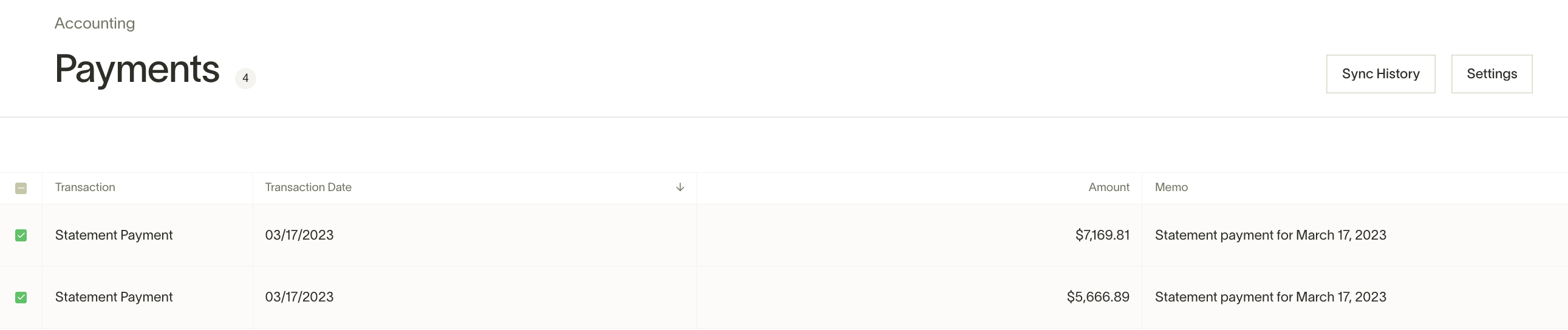
Before syncing, you'll see these transactions on your bank feed for the checking account.
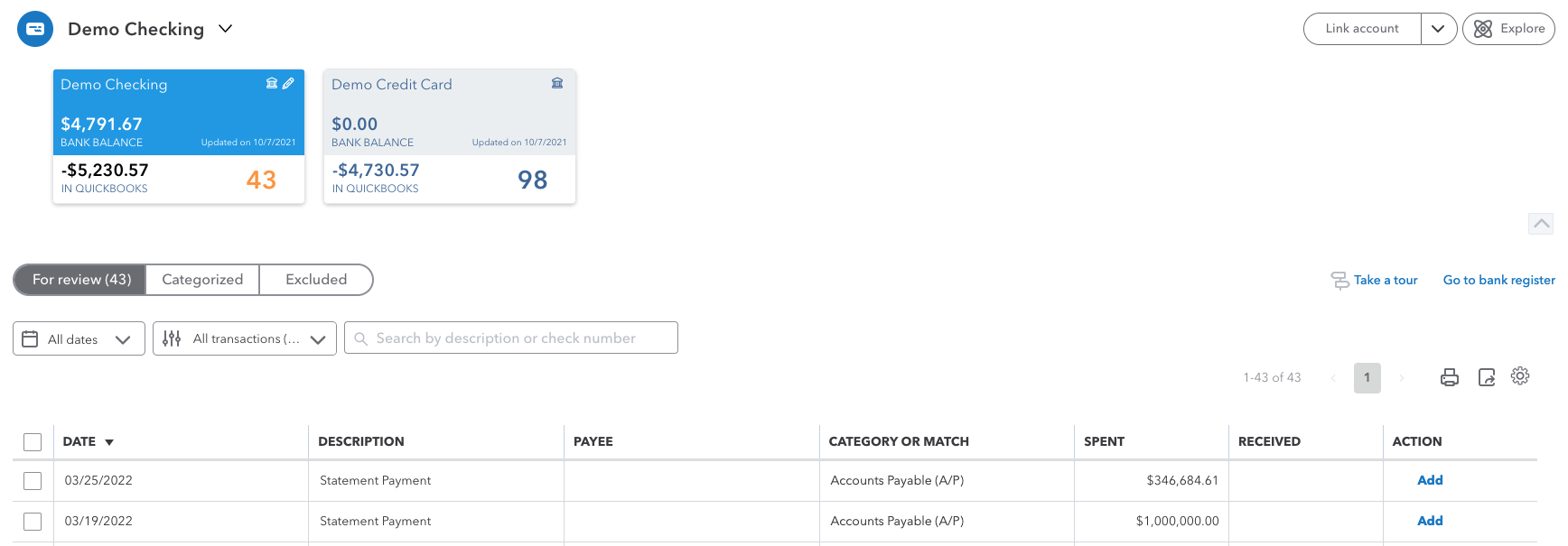
After syncing, QuickBooks recognizes that these are part of the same transaction and suggests matching them. By confirming this match, the transfer between your checking account and Ramp Card account is accurately recorded once.
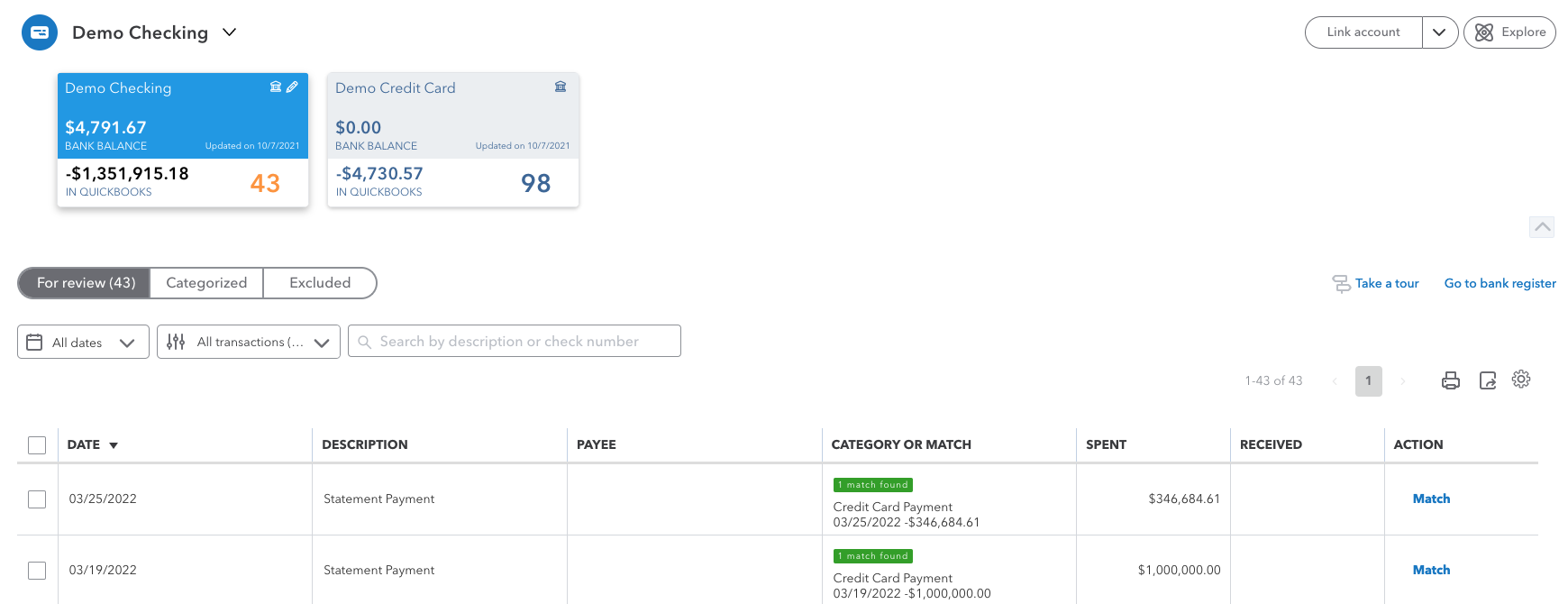
I have already classified the Checking Account payment to the Ramp Card account rather than doing a match. What should I do? If you've already categorized the checking account payment to the Ramp Card account without matching, you can remove the duplicate Ramp Card transaction in QuickBooks Online. This prevents recording the same transaction twice.
Ramp banking: how Ramp syncs transaction objects to QuickBooks?
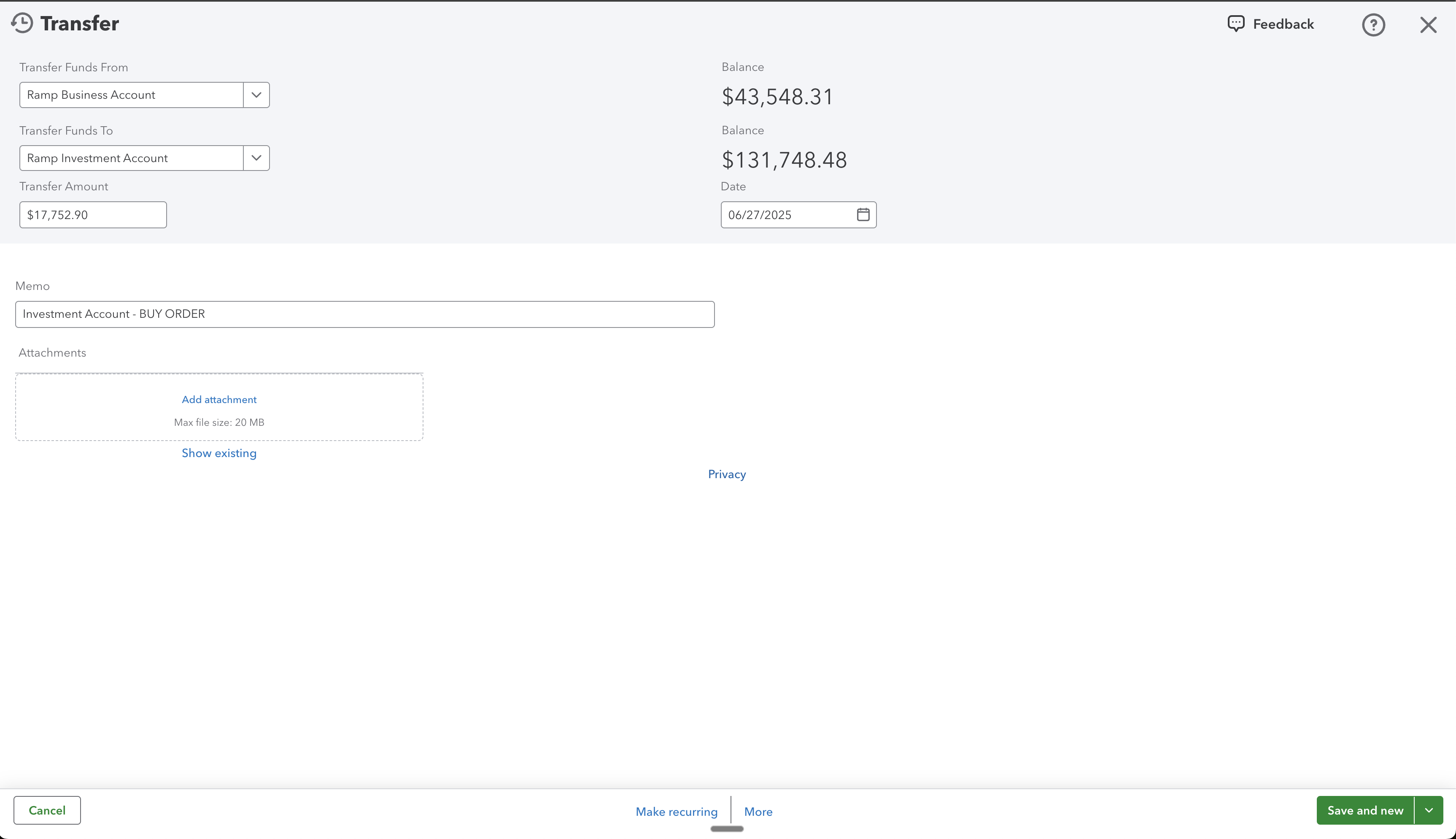
1. Transfer
When it’s used: Funds move between your linked bank accounts on Ramp and your Ramp Checking Account, or between 2 of your Ramp Checking Accounts (e.g. money movement between accounts owned by your business).
Accounting logic:
Ramp syncs this activity as a Transfer in QBO. No income or expense accounts are involved—this reflects an internal movement of funds within your business.
2. Deposit
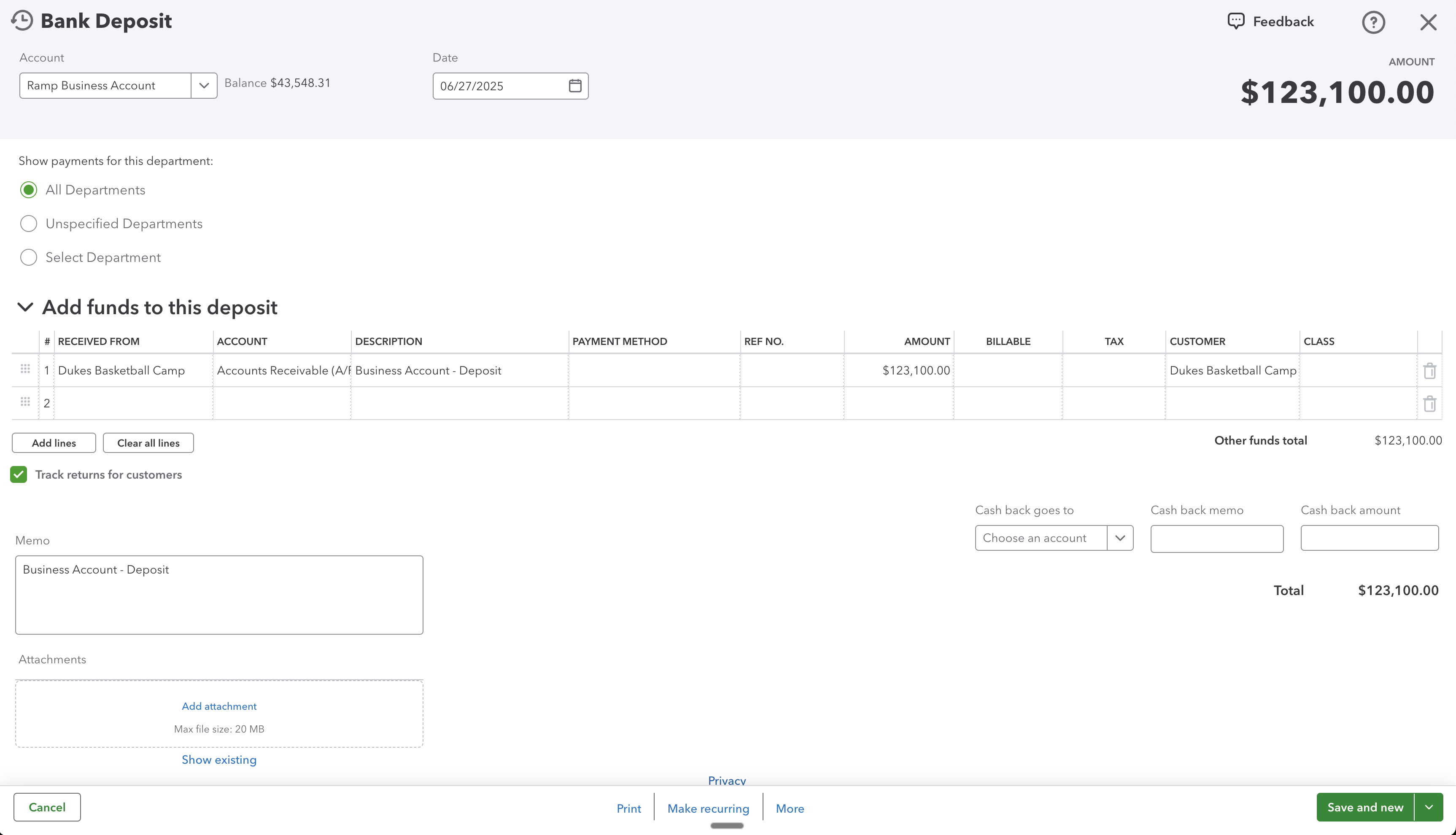
When it’s used: An external source sends funds into your Ramp business account (e.g. Stripe payouts or client payments).
Accounting logic:
Ramp syncs this activity as a Deposit in QBO. The offsetting account is typically an Income, Asset (such as Accounts Receivable), or a custom clearing account, depending on your mapping. This ensures incoming funds are accurately recorded based on your accounting setup.
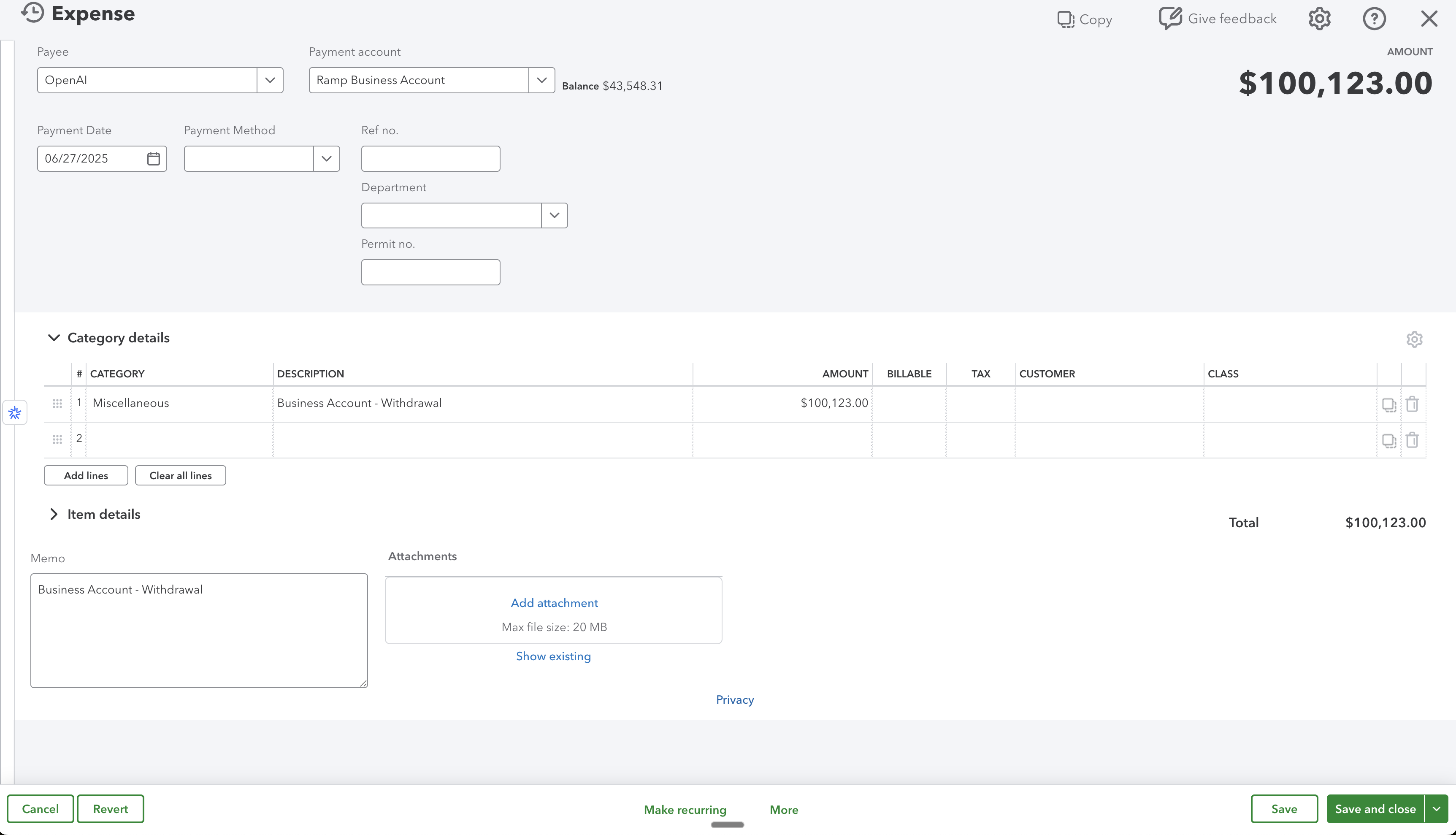
3. Expense
When it’s used: Funds are sent from your Ramp account to an external party (e.g. payroll processors or vendor payments).
Accounting logic:
Ramp syncs this activity as an Expense in QBO. The offsetting account is typically an Expense or Liability account, depending on the nature of the transaction (e.g. payroll clearing or accounts payable)
4. Earnings payout
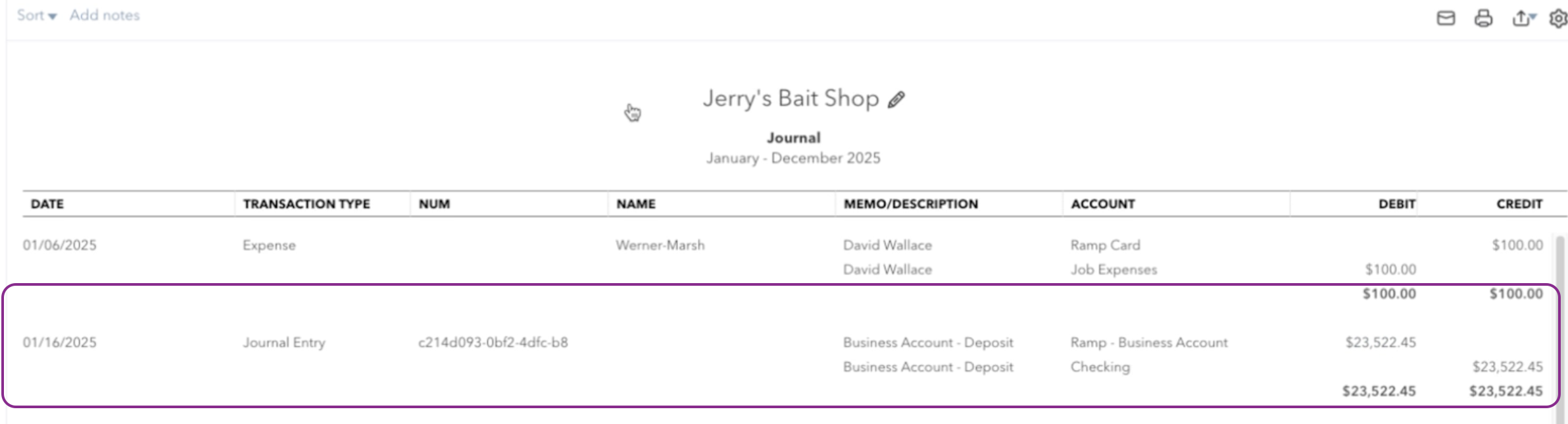
Earnings payouts sync as journal entries in your connected ERP.
The synced deposit will show as a journal entry:
- Credit: The account where the funds were withdrawn.
- Debit: The Ramp business account where the funds were deposited.
This ensures your accounting records reflect the movement of funds accurately. For more information on Ramp Banking please visit Ramp Banking Accounting.
Reconciliation
Check out Ramp's Reconciliation Report tool for QuickBooks Online. We've also broken down some of the journal entries you can expect to see below:
Accounting impact
How Ramp syncs credit card transactions:
Ramp syncs credit card transactions as credit card transactions in your accounting provider.
- Purchase is made
- Debit (increase) Expense or Bank Account
- Credit (increase) Credit Card Liability Account
Please note: Ramp only syncs transactions to QBO in USD.
How Ramp syncs Reimbursements:
Ramp syncs reimbursements as bills and bill payments in your accounting provider.
- Bill
- Debit (increase) Expense Account in original currency
- Credit (increase) Liability (A/P) Account in original currency
- Bill Payment
- Debit (decrease) the Liability Account
- Credit (decrease) The Cash/Bank Account
How Ramp syncs statement payments:
Ramp syncs statement payments as checks in your accounting provider.
- Statement is paid
- Debit (decrease) Credit Card Liability Account: Reducing the amount you owe since you're paying off the credit card.
- Credit (decrease) Bank Account: This account represents your company's cash, which decreases when you pay off the credit card bill.
To reconcile, you must go to your accounting provider to match the amount paid to Ramp from your bank account to the total dollar transaction amount synced over from Ramp. If you go to the Transactions tab within Ramp, you can filter by the statement period to quickly check which transactions were included in which statement.
Cashback redemption
The accounting for a cashback is a credit to the Ramp Card account, reducing the liability on the card, and a credit to a nominated expense or income account. This cashback entry does not appear on a bank feed, so it is important to sync it across to the Ramp Card account to bring the value of the liability back into balance with the statement.
Ramp Checking Account transfers
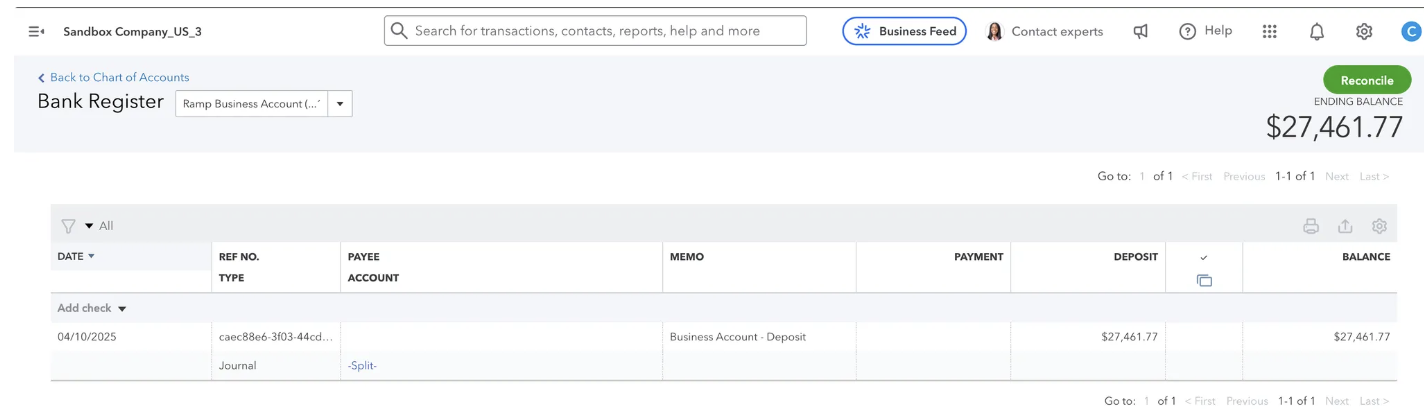
We sync Ramp Checking Account wallet transfers as journal entries to QuickBooks Online.
Accounting logic
- Deposits:
- Debit Ramp Checking Account
- Credit opposing account
- Withdraws:
- Debit opposing account
- Credit Ramp Checking Account
Supported ERP fields
The fields below are only currently supported when syncing open-loop transfers (external withdrawals and deposits).
CategoryVendor- Required when category is
Accounts Payable
- Required when category is
Customer- Required when category is
Accounts Receivable
- Required when category is