Ramp Banking Accounting
Overview
Available on Ramp Plus. See Ramp Plus overview for plan details.
Speed up your reconciliation process by configuring the accounting sync settings for your Ramp Checking Account(s) and Ramp Investment account(s). Cash transfers and earnings payouts sync as journal entries in your connected ERP. Follow the steps below to get started.
Ramp Banking supports the following accounting platforms:
- QuickBooks Online
- NetSuite
- Universal CSV (including IIF support for QuickBooks Desktop)
- Xero
- Sage Intacct
- Acumatica
- Zoho Books
- QuickBooks Desktop
- Microsoft Dynamics Business Central
- Microsoft Dynamics Finance and Operations (Enterprise)
Accounting sync settings
If you haven’t connected Ramp to your accounting provider yet, please refer to theOverview of Ramp Accountingfor more details.
If you already have an ERP connected (either directly or via UCSV), follow these steps to link accounts in Ramp to the corresponding ERP account:
- Navigate to Accounting > Settings > Sync Settings > Banking.
- Select the appropriate GL account mappings for:
- Checking Account(s): This account handles closed-loop deposits and withdrawals. A GL account is automatically created for you, but you can update or create a new account if needed.
- Earnings account: This account records earnings revenue from Ramp Checking Accounts. Select an existing account in your ERP or create a new one.
- Investment Account: This account records all buy and sell orders. Select an existing account in your ERP or create a new one. Only applicable if you opened one.
- Dividend account: This account records cash dividend from Ramp Investment account (Self-Directed). Select an existing account in your ERP or create a new one.
- Linked bank account(s): This account is used for any funding account(s) linked to your Ramp Checking Account. Again, choose an existing GL account or create a new one. Note, the following account mappings are only available for businesses on QuickBooks Online, NetSuite, Sage Intacct, Xero, or Universal CSV who have an Investment Account (Managed).
- Reminder to add all accounts you have moved funds from/to and assign a GL account by clicking "Add another account".
- Investment Account Cash Account: This account tracks cash in your Investment Account (Managed).
- Interest Income Account: This account tracks interest income from your Investment Account (Managed).
- Position Asset Account: This account tracks investment positions in your Investment Account (Managed).
- Realized Gain/Loss Account: This account tracks realized gains and losses from your Investment Account (Managed).
- Unrealized Gain/Loss Account: This account tracks unrealized gains and losses from your Investment Account (Managed).
- Choose the sync frequency:
- Manual sync: Transfers are synced when you initiate them.
- Automatic sync (daily): Transfers are synced automatically on a daily basis.
Note that adjusting accounting settings does not affect the operation of your Ramp cards but affects how Ramp syncs transactions to your ERP system.
Manual sync / un-synced transfers
If you choose to sync manually, any unsynced transfers (those not started or that have failed) will appear in the table located at Accounting >Bankingin the left navigation bar. From this table, you can manually trigger the sync.
If a provider account mapping is missing, you will see “Configure to sync.” In this case, update the setting under Sync Settings > Banking before attempting to sync your transfers.
AI-suggested GL accounts / categories
For open-loop transfers such as external deposits and withdrawals, Ramp suggests a GL account based on your past accounting patterns. The suggestion appears in the GL Account column of the Accounting > Banking table with a purple AI icon to the left of the value.
Note: AI suggestions currently apply to the GL Account / Category field only. Other accounting fields such as Department, Class, and Location are not auto-suggested for open-loop transfers at this time.
How AI suggestions work
- When an open-loop transfer clears or is received in your Ramp Checking Account, Ramp analyzes your historical coding patterns to suggest a GL account.
- Open the Accounting > Banking table. Transfers with an AI-suggested GL account display a purple AI icon next to the value.
- If your business has defaults set up, the defaults will override AI suggestions and be applied automatically.
Reviewing and adjusting suggestions
- Accept (default): If the suggested GL account is correct, no action is needed. The suggestion is used when you sync the transfer to your ERP.
- Override: If the suggestion is incorrect, click the GL Account cell and select a different value. Your correction helps Ramp improve future suggestions.
- Bulk edit: Select multiple transfers using the checkboxes, then use the bulk action bar to apply the same GL account to all selected transfers at once.
Sync history and failures
Use the Sync History button at the top right to view and download a CSV file. This CSV shows which transfers have been successfully synced and includes error messages for any failed sync attempts.
UCSV
For businesses using UCSV, you have the option to download a CSV of transfers instead of exporting them directly to your ERP. Downloading the CSV will mark the transfers as synced.
If necessary, you can mark these transfers as unsynced in the Sync History view. This will cause them to reappear in the transfers table.
What activities are synced?
Activities synced as journal entries
The following Ramp Banking activity is synced as a journal entry to the ERP:
Ramp Checking Account
- Deposit into Ramp Checking Account
- Withdrawal from Ramp Checking Account
- Transfers between Ramp Checking Accounts owned by different entities, synced to NetSuite as an Advanced Intercompany Journal Entry (see Sync cross-entity transfers to NetSuite as intercompany journal entries below)
- Earnings payout from Ramp Checking Account (monthly)
- External deposits (i.e., deposits from a non-linked account, via wire or Real Time Payment)
- External withdrawals (i.e., Payroll)
Ramp Investment Account (Self-Directed)
- Buy order: Deposits into Ramp Investment Account(Self-Directed) from a Ramp Checking Account buying FUGXX
- Sell order: Withdrawal from Ramp Investment Account (Self-Directed) to a Ramp Checking Account selling FUGXX
- Cash dividends from Ramp Investment Account (Self-Directed) monthly
- Reinvested dividends within Ramp Investment Account (Self-Directed) monthly
Note: For cash and reinvested dividends, Ramp syncs journal entries using the activity date shown in Ramp. Apex monthly statements may show the same dividend using the processing date when cash settles, so the dates may differ during reconciliation.
Ramp Investment Account (Managed)
Note: Only available for businesses on QuickBooks Online, NetSuite, Sage Intacct, and Universal CSV
- Deposit into Investment Account (Managed): Deposits into Ramp Managed Portfolio from Ramp Checking Account
- Withdrawal from Investment Account (Managed): Withdrawal from Ramp Managed Portfolio to Ramp Checking Account
- Buy order: Buying assets using cash in Investment Account cash account
- Sell order: Selling assets from Position Asset Account and increasing cash balance in Investment Account cash account
- Mark to Market: Adjusting the value of investment positions to reflect current market prices, recording unrealized gains or losses
- Cash Dividends: Cash distributions received from investment positions in the Managed Portfolio
Note: For cash dividends, Ramp syncs journal entries using the activity date shown in Ramp. Apex monthly statements may show the same dividend using the processing date when cash settles, so the dates may differ during reconciliation.
Managed Investment Account entries in Xero
For businesses using Xero, Managed Investment Account transfers sync as bank transfers. Managed Investment Account activities sync as bank transactions, except cash dividends and credit interest sync as manual journal entries.
Regarding external deposits and withdrawals
- Ramp may suggest a GL account for these transfers based on your past accounting patterns. The suggestion appears with a purple AI icon in the GL Account column. See AI-suggested GL accounts for details.
- Review the suggested GL account, or select one manually if no suggestion appears, in the Accounting > Banking table before syncing.
- When syncing external deposits and withdrawals within QuickBooks Online, you may need to select some additional required fields.
- AP account: Select category for QuickBooks Vendor
- AR account: Select category for QuickBooks Customer/Job
- External payment activities are not yet supported for Sage (coming at Ramp speed). Open Banking > Overview. If your Banking menu shows Accounts instead, open Banking > Accounts. Select the desired Checking Account, open History, and record the activities in Sage manually.
Note that if you selected Automatic daily sync, external deposits and withdrawals are not synced automatically as additional category needs to be selected first.
Microsoft Dynamics wallet transfer requirements
Supported Ramp Banking transfers sync to Microsoft Dynamics as balanced journal entries with the tracking categories you select in Ramp. Complete the provider-specific journal field before syncing:
- Microsoft Dynamics Finance and Operations (Enterprise): Select a Journal Batch and any required tracking categories.
- Microsoft Dynamics Business Central: Select a Journal and any required tracking categories. When a selected GL account maps to exactly one Business Central bank account, Ramp posts that side of the entry to the bank account; otherwise, Ramp posts it to the GL account.
Regarding vendor payments sent from Banking
Vendor payments sent from Banking > Move money > Send money are supported for QuickBooks Desktop and NetSuite accounting sync. If you use another accounting provider, create manual journal entries for these payments in your ERP.
Sync cross-entity transfers to NetSuite as intercompany journal entries
When you transfer funds between two Ramp Checking Accounts owned by different entities that map to different NetSuite subsidiaries in NetSuite OneWorld, Ramp automatically records the cross-entity movement as a 4-line Advanced Intercompany Journal Entry in NetSuite. This is available to Ramp Plus customers on a NetSuite OneWorld connection with multiple entities that hold Ramp Checking Accounts.
The journal entry has four lines: the receiving entity's cash is debited and it owes the sender, while the sending entity's cash is credited and is owed by the receiver.
| Line | Subsidiary | Account | Entry |
|---|---|---|---|
| 1 | Receiving entity | Ramp Checking Account GL account | Debit |
| 2 | Receiving entity | Intercompany payables account | Credit |
| 3 | Sending entity | Intercompany receivables account | Debit |
| 4 | Sending entity | Ramp Checking Account GL account | Credit |
Any codings you select on the transfer (such as department, location, or class) are applied to all four lines. This mirrors the intercompany journal entries Ramp creates for cross-entity card statement payments — see NetSuite integration: International accounting support.
Set up NetSuite intercompany accounts
Configure intercompany accounts for every entity that participates in cross-entity transfers, not just the ones that receive deposits. Each journal entry uses the receiving entity's payables account and the sending entity's receivables account, so an entity that only sends transfers still needs its accounts mapped, or the sync fails. Because a given entity can be either the sender or the receiver depending on the transfer direction, set both accounts for each participating entity. Under Accounting > Settings > Sync settings > Banking, select the entity in the Editing for dropdown, then in the NetSuite Intercompany Transfers section set:
- Intercompany payables account: a liability GL account, such as Accounts Payable or Other Current Liability.
- Intercompany receivables account: an asset GL account, such as Accounts Receivable or Other Current Asset.
Once both accounts are configured, qualifying transfers sync automatically, or when you manually sync them from the Banking table. If these accounts are missing when you try to sync a transfer, select Configure to sync to finish setup.
Intercompany wallet transfer limitations
- One account pair per entity: Each entity supports a single Intercompany payables account and a single Intercompany receivables account.
- Wallet-to-wallet only: Only transfers from one Ramp Checking Account to another Ramp Checking Account between different entities create an intercompany journal entry. Transfers funded from an external (non-Ramp) bank account are not supported and sync as ordinary journal entries.
- Different subsidiaries required: The two entities must map to different NetSuite subsidiaries. A transfer between entities on the same subsidiary syncs as an ordinary deposit, not an intercompany journal entry.
- Shared values across subsidiaries: The accounts and codings you select must be available to both the sending and receiving subsidiaries in NetSuite, or NetSuite rejects the entry.
Banking-Related activities synced by other Ramp products
The following other activities are synced by other Ramp products and will not show up under Accounting > Banking tab:
- Bills paid from a Checking Account: Synced under Bill Pay with Checking Account as the source bank account. This includes direct debits matched to Ramp Bill Pay bills; the linked debit is not synced again as a separate Banking transaction.
- Reimbursements paid from a Checking Account: Synced under Reimbursement with Checking Account as the source bank account
- Card statements paid from a Checking Account (30-day and 1-day): Synced under card statement payment with Checking Account as the source bank account
- Billing statements paid from a Checking Account: Synced under billing statement payment with Ramp Checking Account as the source bank account. These include fees incurred under toward your billing statement such as Plus fees, Bill Pay wire fees etc
Activities not yet synced to your ERP
The following activities currently do not automatically sync into your ERP system and require manual handling:
1. employee repayments / reverse reimbursement
- Employee repayments (reimbursement from employee for accidental personal charges on Ramp card) to the Ramp Card are not synced automatically .
- You will need to manually create journal entries for these transactions in your ERP system.
- How to locate them :
Go to Banking > Accounts > Transfer table and filter for Transaction type = "Ramp Card", all records with Paid by... are repayments.
- How to locate them :
2. Investment account (managed) activities in QuickBooks Desktop, Zoho Books, and Acumatica
- Any Managed Portfolio activities such as buy and sell orders, cash transfers, accrued interest and earnings are not synced automatically for these providers.
- You will need to manually create journal entries for these transactions in your ERP directly from monthly investment statements provided by Apex, the custodian.
- How to locate them:
Go to Banking > Documents and download the Managed Portfolio monthly investment statements.
- How to locate them:
3. Vendor payments for other accounting providers
- If you use an accounting provider other than QuickBooks Desktop or NetSuite, you will need to manually create journal entries for these transactions in your ERP system.
- How to locate them:
Go to Banking > Accounts > Transfer table and filter for Transaction type = "Vendor Payment"
- How to locate them:
4. Negative balance refunds
- If your Ramp bank account has a negative balance that results in a refund , this is classified as a bank refund .
- These types of transactions are not currently supported for automatic accounting in Ramp.
- Recommended action :
- Create manual journal entries using data from your accounting provider’s bank feed .
5. Reinvested dividends from Ramp investment account (self-directed) in Sage, QuickBooks Desktop, Zoho Books, and Acumatica
- You will need to manually create journal entries for these transactions.
- How to locate them:
Go to Banking > Investment Account > Transfer table and filter for Transaction type = Dividend with positive mount. - What to do:
Record these transactions manually in your ERP system.
- How to locate them:
Direct bank feeds
Direct bank feeds support both Ramp Checking Accounts and Ramp Operating Accounts. They do not support Ramp Investment Accounts.
We offer direct bank feeds integration for Ramp Checking Accounts and Ramp Operating Accounts for the accounting providers: QuickBooks Online and QuickBooks Desktop, NetSuite, Sage Intacct, Acumatica, Zoho Books, and Xero. These bank feeds connect through Plaid, Intuit, or MX, depending on the accounting provider. By establishing this connection with your accounting software, you can view transaction data from your supported accounts.
See Ramp Checking Account Bank Feeds for more details.
Exportable bank feeds (OFX)
Exportable bank feeds support both Ramp Checking Accounts and Ramp Operating Accounts. They do not support Ramp Investment Accounts. You can export a standard OFX or CSV file of transactions from either supported account type to reconcile account activity on the bank side of your accounting systems.
For ERPs
Go to Accounting >Banking, use the clock icon to select your date range, then click the download icon and choose “Export to [Your ERP]” (e.g., QuickBooks, NetSuite, or Xero—this label updates based on your ERP connection). Then manually upload the OFX file to your ERP for reconciliation.
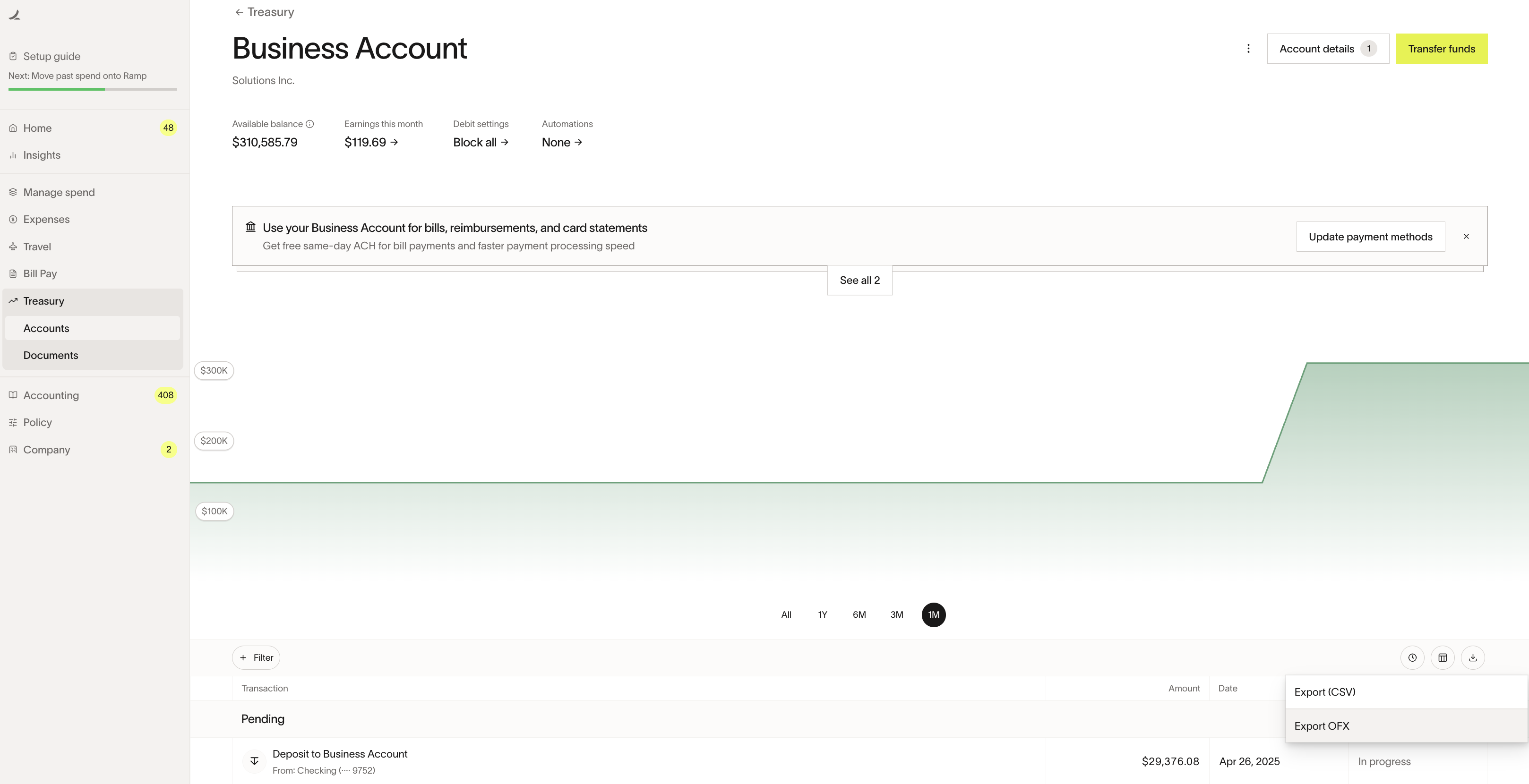
See Upload bank feed (OFX) to ERP systems for detailed instructions on how to upload OFX file to ERP system(s).
For UCSV
Go to Banking > Overview. If your Banking menu shows Accounts instead, go to Banking > Accounts. Select the right account, open its transaction history, use the calendar icon to select your date range, click the download icon, and choose Export (CSV). To customize your CSV, select Export settings before downloading.
Note that pending transactions and dividend reinvestments (DRIP) in the Investment Account will not show up in your bank feed.
Frequently asked questions
Is bank feed available?
Direct bank feeds support Ramp Checking Accounts and Ramp Operating Accounts for QuickBooks Online, QuickBooks Desktop, NetSuite, Sage Intacct, Acumatica, Zoho Books, and Xero. They do not support Ramp Investment Accounts. For other ERPs, you can export a bank feed in OFX format from Ramp and upload it to your ERP system.
How do I remove entries in the banking > overview table under accounting?
Entries in the Banking > Overview table cannot be deleted or hidden in Ramp. This is intentional to preserve an accurate audit trail and prevent discrepancies between Ramp and your accounting system. To remove entries, ensure all required fields are completed such as category, vendor/customer/job (entries with “Choose one” or “Configure” will remain open until fully categorized), then select the transactions and choose Mark as synced for direct accounting integrations. For Universal CSV, choose Export, then Export CSV. This includes QuickBooks Desktop file exports from Banking; IIF export is not available for Banking transactions.
What do I do when I am unable to connect to QuickBooks Online?
When the Treasury → QuickBooks Online sync settings won’t save, it’s often due to an authorization issue or a mapping validation error. Here are the recommended steps to resolve this:
- Hard reset the QuickBooks Online connection
- In Ramp, go to Accounting → Settings .
- Disconnect your QuickBooks Online integration, then reconnect it.
- During the Intuit flow, ensure you're selecting the correct company file and using an admin role.
- Re-save the Banking mappings in this order
- Navigate to Accounting → Settings → Sync Settings → Banking .
- Re-select and save:
- Ramp Checking Account(s)
- Earnings account
- Investment account / dividend account (if applicable)
- Linked bank account (try a different QBO bank account temporarily if needed)
- Verify your QBO account types
- Ensure all mapped accounts in QuickBooks Online are active and classified as Bank or Cash-type accounts.
Why did I receive a QuickBooks Online sync error even though the journal entry was created?
This can happen if Ramp successfully creates the journal entry in QuickBooks but receives a temporary server or connection error during the sync process. In this case, QuickBooks records the entry, but Ramp displays a failed sync message.
To resolve this and prevent duplicate entries:
- In Ramp, go to Accounting > Banking.
- Select the failed Banking transaction and ensure all required fields are completed such as category, vendor/customer/job (entries with “Choose one” or “Configure” will remain open until fully categorized).
- Select Mark as synced.
This tells Ramp the entry was successfully recorded in QuickBooks, clears the error message, and stops any additional sync attempts. This recovery path applies to direct QuickBooks Online integrations. QuickBooks Desktop file exports use Export, then Export CSV instead.