Upload Bank Feed (OFX) to ERP systems
This article applies to both Ramp Checking Accounts and Ramp Operating Accounts. Bank feeds do not support Ramp Investment Accounts.
Exportable bank feeds help you reconcile account activity on the bank side of your accounting systems. You can export a standard OFX file of transactions to and from your Ramp Checking Account or Ramp Operating Account and upload it to your ERP system. Go to Accounting > Banking, then click the download icon to download the bank feed.
This article provides instructions and resources on how to upload an OFX file into the following ERP systems.
QuickBooks Online
- Go to Transactions > Bank transactions
- Click the dropdown icon next to "Link account"
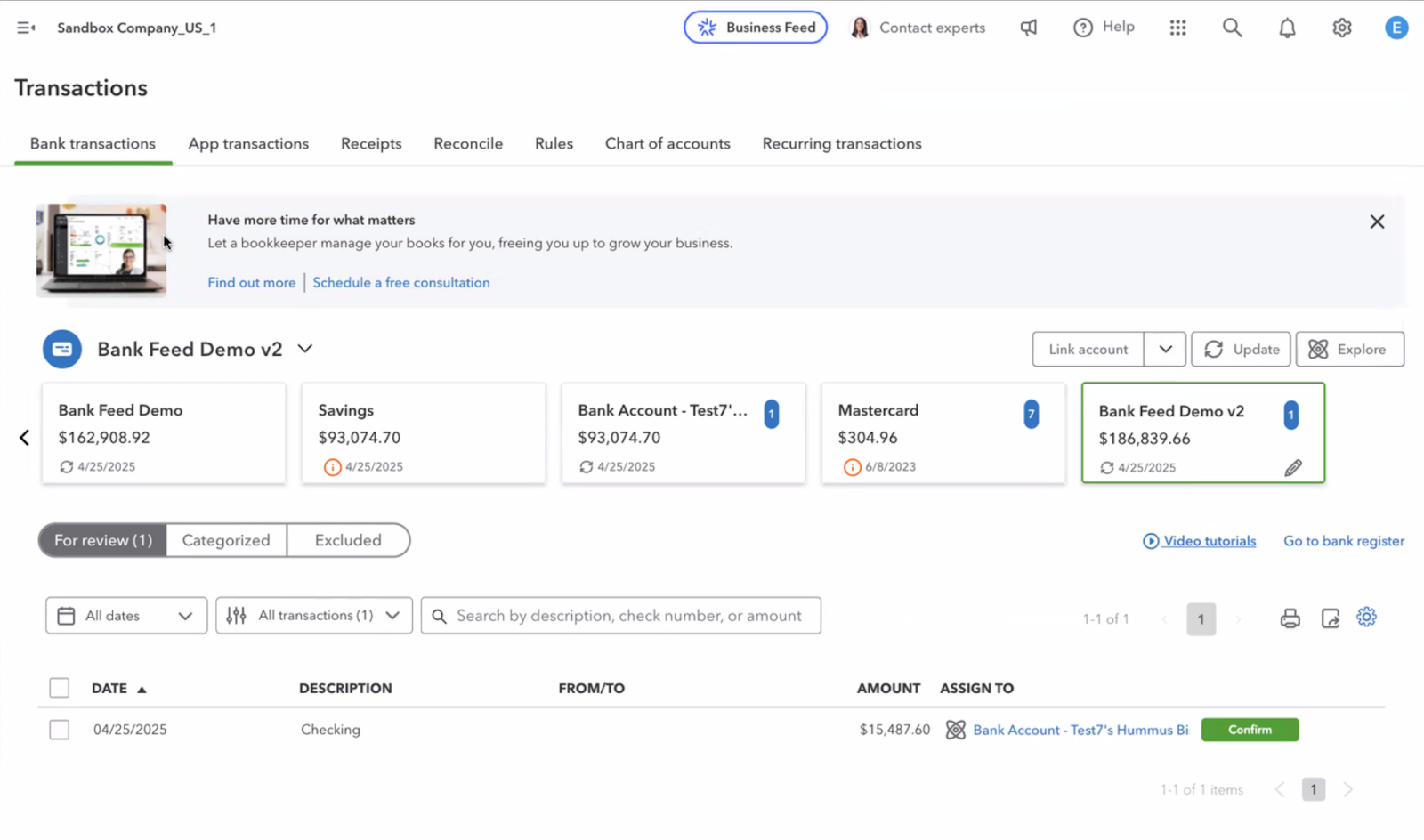
- Upload the OFX file you exported from Ramp
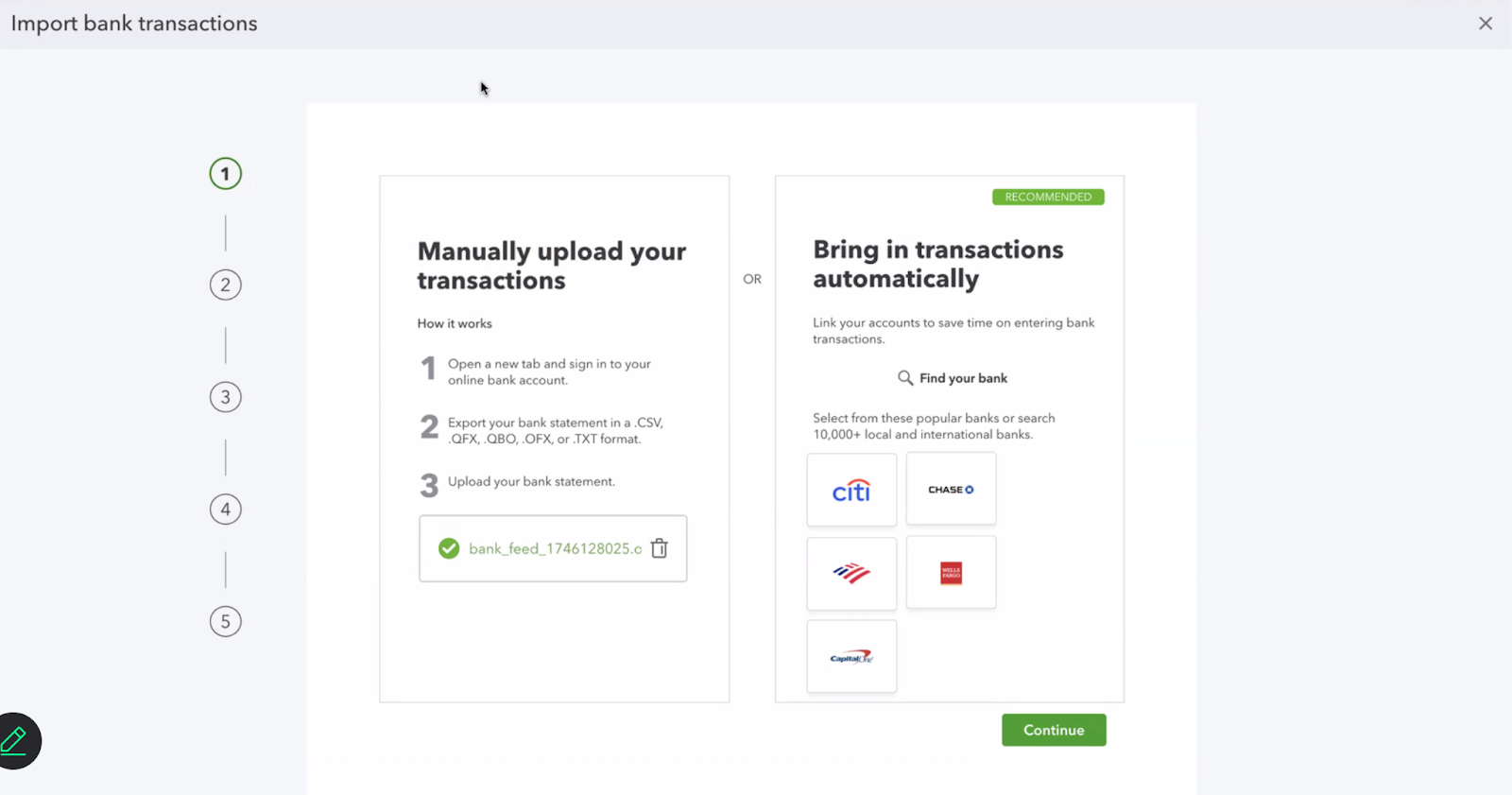
- For better matching, select the account already mapped to your Ramp Checking Account or Ramp Operating Account under Sync settings in Ramp
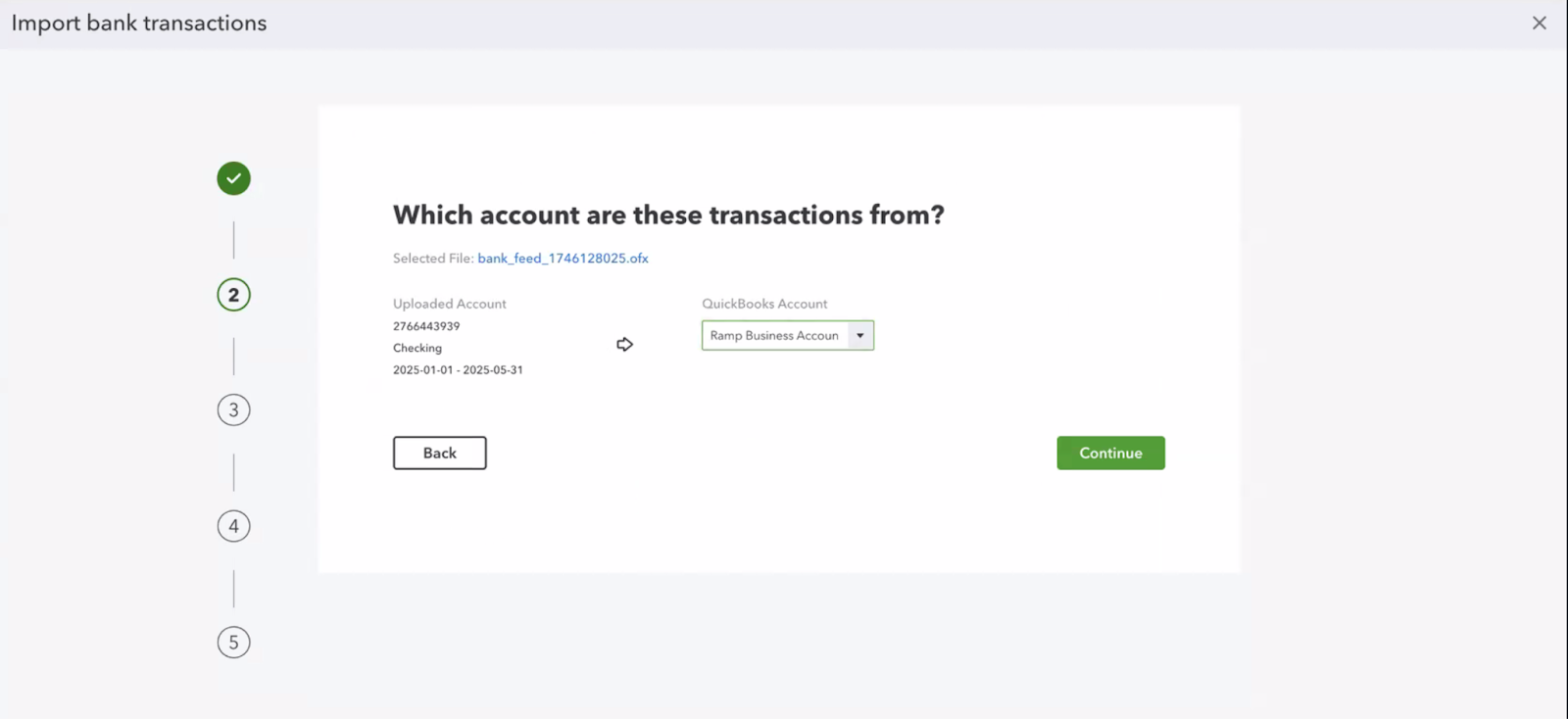
- Click "Continue"
- You can now go through the reconciliation process in QuickBooks Online.
For more details, see QuickBooks' documentation on manually uploading transactions into QuickBooks Online. Note: Direct bank feed connection is now supported, see Ramp Checking Account Bank Feeds: QuickBooks Online and QuickBooks Desktop Set Up for more details.
NetSuite
-
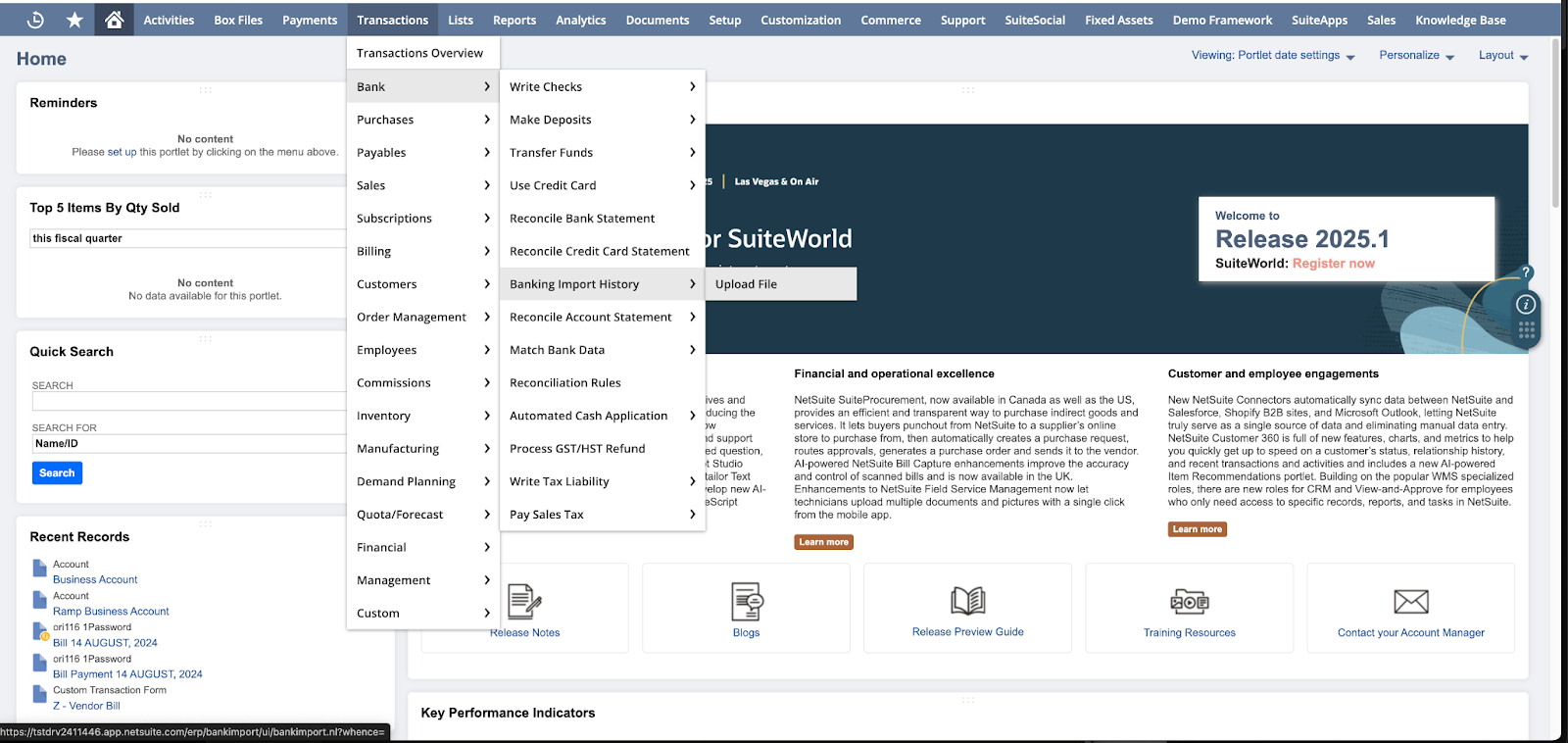
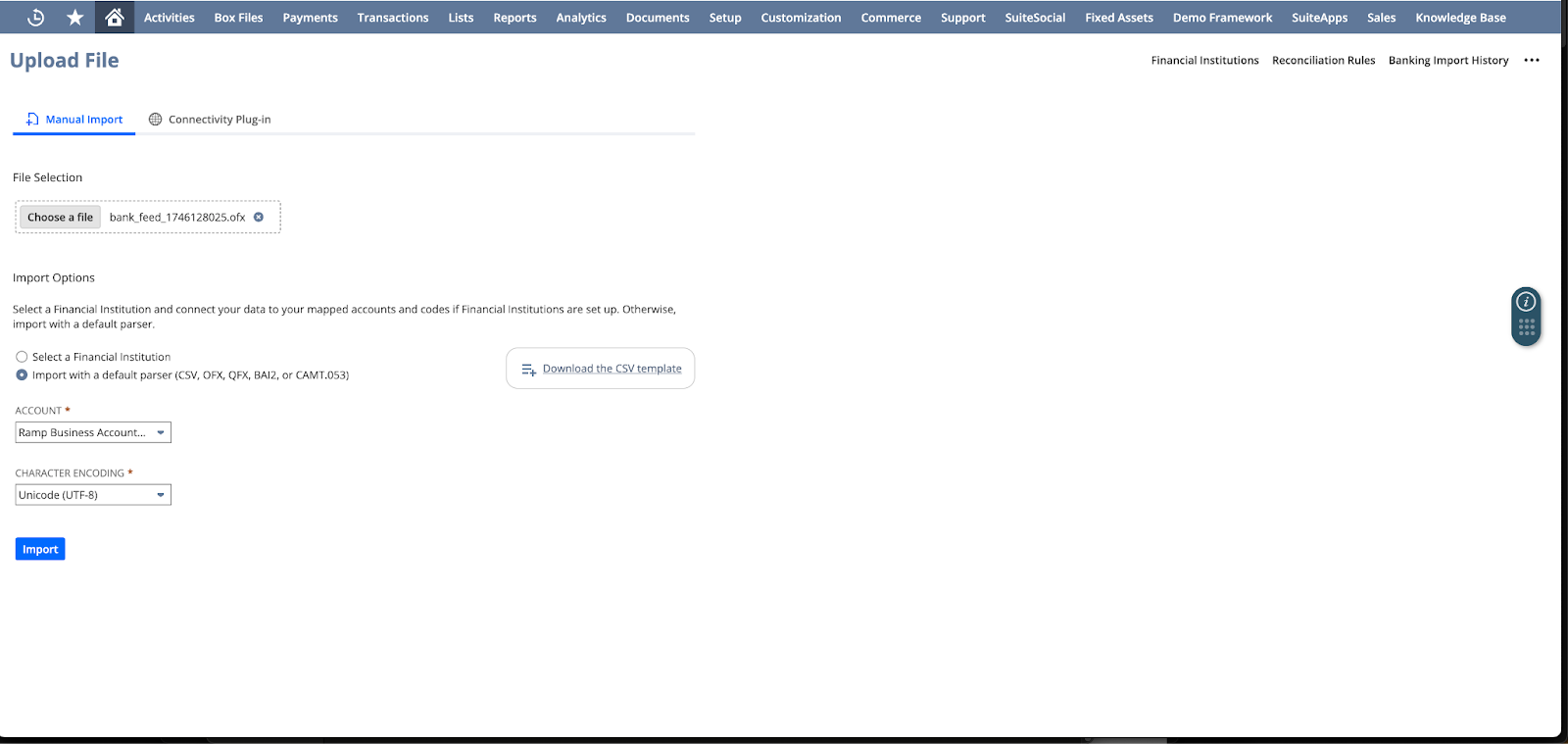
Go to the import page from Transactions > Bank > Banking Import History > Upload File
-
Upload the OFX file exported from Ramp and select the corresponding Ramp Checking Account or Ramp Operating Account, then click Import
-
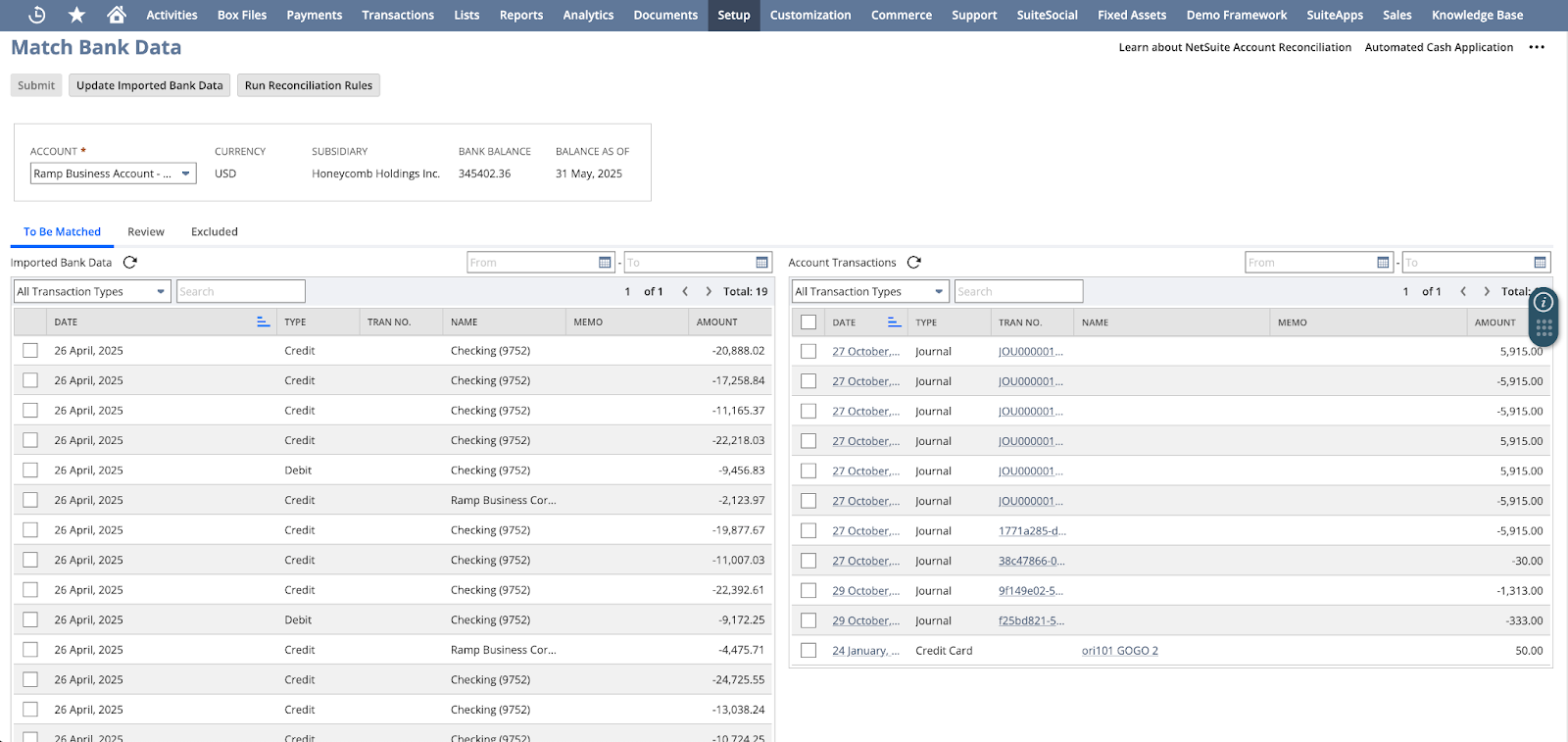
You can now see the Ramp bank transactions in the Match Bank Data page and begin the reconciliation process
See NetSuite's documentation on importing a bank statement.
Xero
-
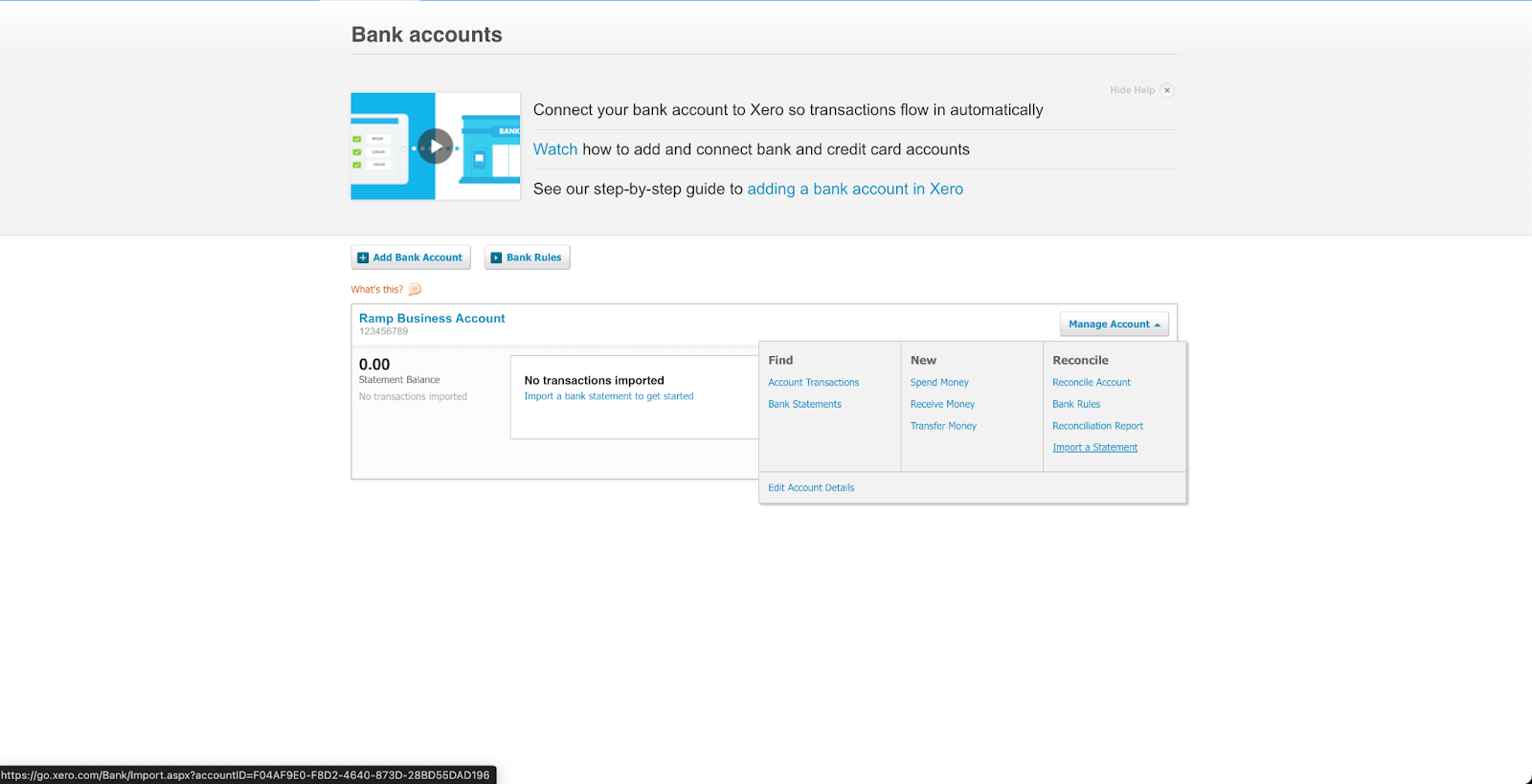
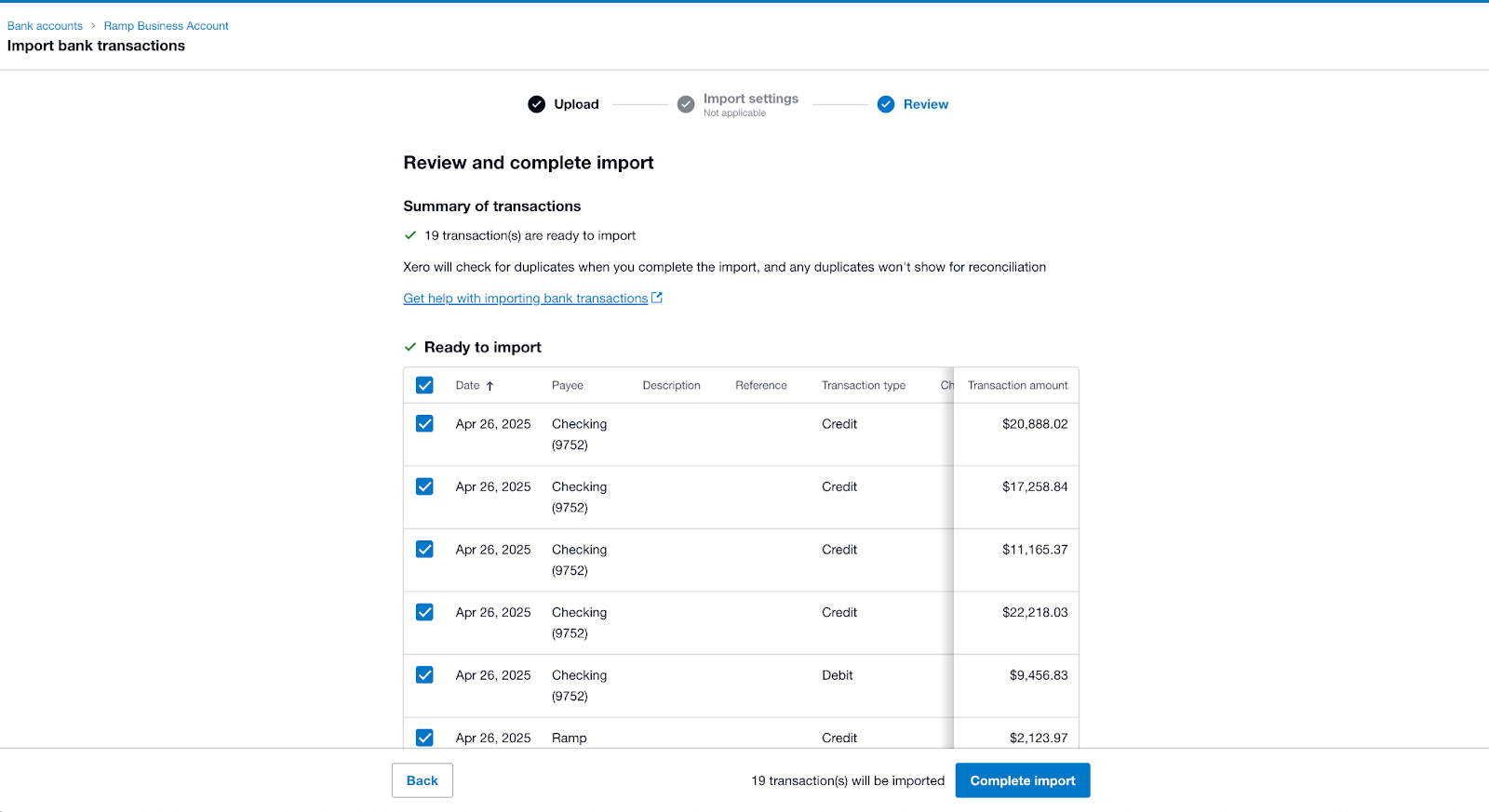
Select the Ramp Checking Account or Ramp Operating Account you'd like to import bank feed data to (Accounting > Bank accounts > Import a Statement).
-
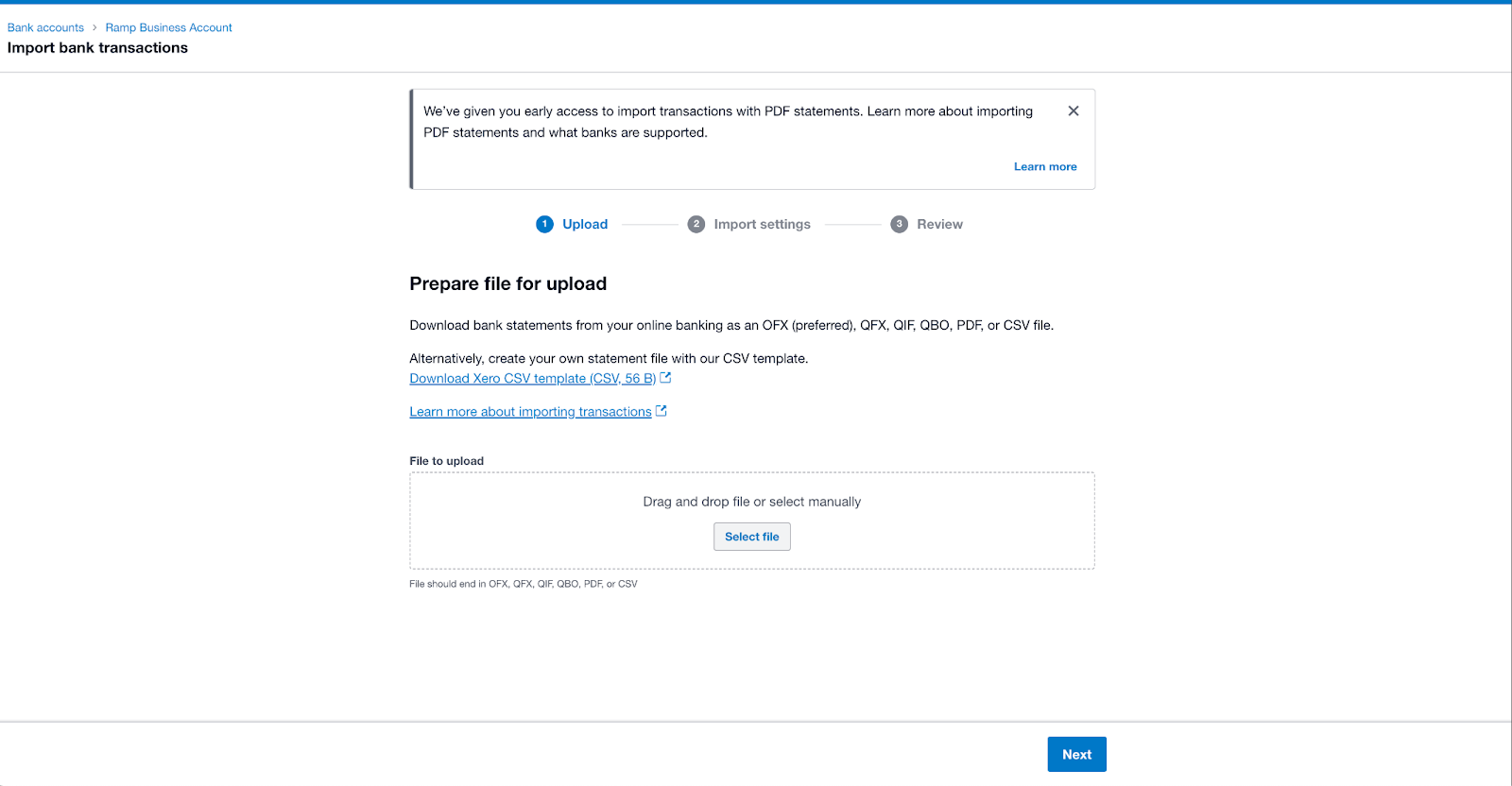
Upload the OFX file exported from Ramp
-
Select the transactions that you want to import
-
Go through the reconciliation process in Xero
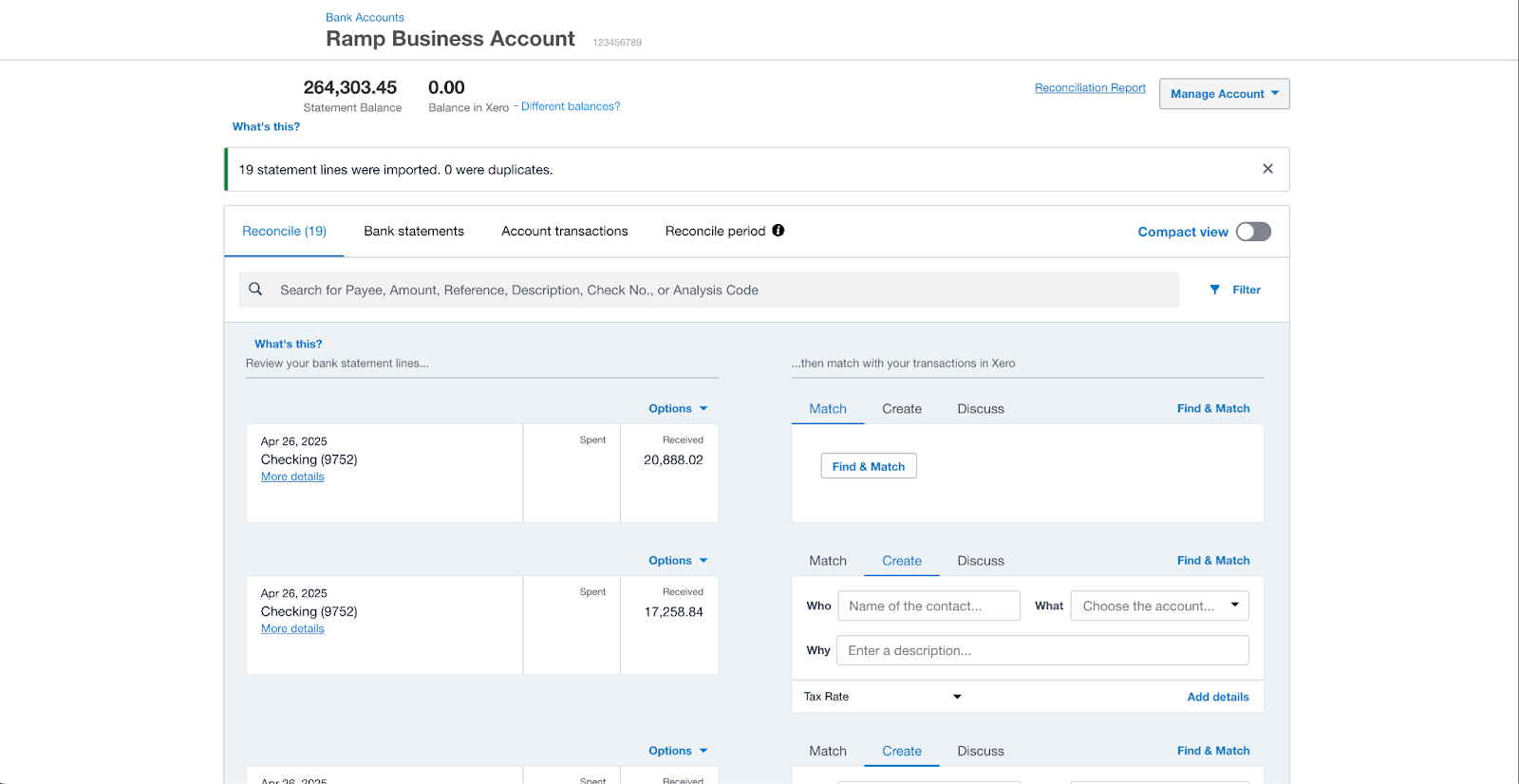
See Xero's documentation on manually importing bank statements.
Sage
See Sage's documentation on importing a bank statement. Direct bank feeds is now available, see Ramp Checking Account Bank Feeds: Sage Intacct Set Up.