Sync error: Accounting period closed
Overview
Ramp may receive this error when a bill or bill payment attempts to sync to a closed accounting period in your accounting provider:
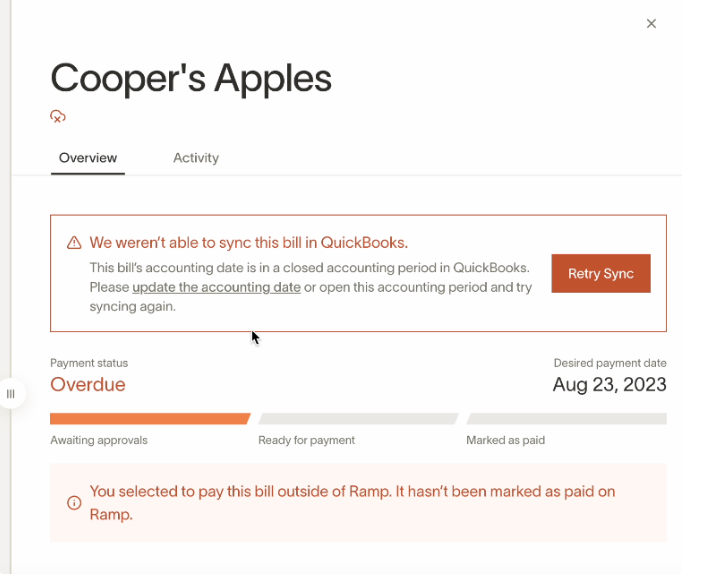
We weren't able to sync this bill to {Accounting Provider}.
This bill's accounting date is in a closed accounting period in {Accounting Provider}. Please update the accounting date or open the accounting period and try again.
For NetSuite, QuickBooks Online, Sage Intacct, Acumatica, and Xero, Ramp automatically checks the bill's accounting date during draft creation and again on either bill creation or final approval, depending on your sync settings. If the accounting date falls in a closed period, Ramp updates it to the first day of the next open period before syncing.
When Ramp automatically updates the accounting date, the bill activity history records the change. This error can still appear if the bill already has a sync error, because the failed sync means Ramp has already attempted to sync the bill and will not automatically update the accounting date afterward.
Resolve an initial bill sync error
Ramp only performs the automatic closed-period check before a sync attempt: during draft creation and again on either bill creation or final approval, depending on your sync settings. If the bill already has this sync error, Ramp has already attempted to sync it and will not automatically update the accounting date on retry.
To resolve the error, use one of these options:
- Edit the accounting date of the bill to be in an open period in your accounting provider.
- Open the period that includes the accounting date in your accounting provider, then retry the sync in Ramp.
Resolve errors after the bill has already synced
If the bill already synced to your accounting provider, later edits may not sync unless the accounting period is reopened or the changes are made directly in your accounting provider. The right resolution depends on which field changed and what your provider allows in a closed period.
If you updated the bill in Ramp and the sync failed, either reopen the accounting period and retry the sync, or make the needed correction directly in your accounting provider. If you resolve the accounting outside Ramp and do not want Ramp to retry the bill or payment sync, you can use Mark as synced from the bill to clear the sync error.
Resolve bill payment sync errors
If this error appears during the bill payment sync, use one of these options:
- Open the period that includes the payment date in your accounting provider, then retry the sync in Ramp.
- Account for the bill payment manually in your accounting provider, then use Mark as synced in Ramp if the bill should no longer retry automatic sync.
Most accounting providers do not allow Ramp to update paid bills in closed periods, so payment sync errors may require manual reconciliation in the accounting provider.
NetSuite locked periods and closed periods
NetSuite distinguishes between locked periods and closed periods. A locked period may still allow posting if a NetSuite user has Override Period Restrictions permission or if your NetSuite workflows allow the transaction; NetSuite may also move the posting period to the next open period or current period based on your NetSuite configuration.
A closed period cannot be changed in a way that impacts the general ledger. If NetSuite returns this closed-period sync error, update the accounting date to an open period, reopen the period in NetSuite, or make the correction directly in NetSuite.
NetSuite also has a preference called Allow transaction date outside posting period. If this preference is set to Disallow, NetSuite may return an error when the bill date is outside the selected posting period, such as when the accounting period date is January 31 but the posting period is February.
Raw error message: accounting_period_closed for your technical team.