Bill Pay accounting
Overview
Ramp Bill Pay isn't only a platform for paying bills faster than anyone else. It is also built to give your accounting and finance teams peace of mind, which means we ensure accurate records and categorizations between our Bill Pay platform and your accounting software. Learn more about how Bill Pay Accounting works.
Supported integrations
Bill Pay supports all of Ramp’s accounting integrations, including QuickBooks Online, Universal CSV (with IIF support for QuickBooks Desktop), Xero, Sage Intacct, NetSuite, Microsoft Business Central, and Acumatica.
QuickBooks Online:
- How to set up QuickBooks accounting:
You can learn more about integrating QuickBooks at Ramp here: QuickBooks Online Overview - Versions supported: we currently only support QuickBooks Online Essentials tier or higher. You can upgrade your QuickBooks Online plan
- Payment date: the QuickBooks bill payment date is the date that the payment is made (i.e. the funds are withdrawn from your account)
- Check vs ACH payment coding: QuickBooks doesn't differentiate between a check and an ACH payment and instead broadly categorizes them all as check payments
- View an AP Aging report: You can directly view your AP Aging Report within Bill Pay. Read how in Where to view AP Aging Report and what's included.
- Multi Currency Syncing: Ramp can pay bills in foreign currencies. However, our QuickBooks Online integration currently only supports syncing bills and payments that are in USD .
Xero:
- How to set up Xero accounting: you can learn more about integrating Xero at Ramp here: Xero Overview
- View an AP Aging report: You can directly view your AP Aging Report within Bill Pay. Read how in Where to view AP Aging Report and what's included.
No accounting mode:
You can use the fastest Bill Pay product on the market with no accounting software. It's a great way to trial the product or to support your growing startup before you commit to an accounting software provider. Here are some things to know:
- Setup: During the Bill Pay setup flow, press 'Set up later' to skip the accounting integration. You can always set one up later after you've paid your first few bills.
- What happens to your bills after you integrate with a supported accounting provider? You can sync them manually to your new provider. Select a bill you've created, edit the vendor to add it to QuickBooks or Xero with a default GL Category, edit the bill with a GL category, and confirm it synced by clicking the 'View in QuickBooks Online/Xero' link. Any bill paid with a Single-use Ramp card or an existing card will be automatically matched to bills you sync to QuickBooks Online or Xero.
- What about paying a bill with a Single-use Ramp card or an existing Ramp card? You still have all the payment methods at your disposal, including Single-use Ramp cards and existing Ramp cards. You'll find the card transaction in the main card accounting area and account for it as you account for a normal card transaction. See more about accounting here: Accounting Overview
Universal CSV and QuickBooks Desktop:
Bill Pay is now available for users of QuickBooks Desktop and any accounting software that uses .csv imports/exports. For more information on how to set up Bill Pay for Universal CSV: Bill Pay Universal CSV and QuickBooks Desktop Setup
- How do I setup Ramp Accounting for Universal CSV?
Check out this article to learn how: Universal CSV Overview - How do I setup Ramp Accounting for QuickBooks Desktop?
Find out how in this article: QuickBooks Desktop Overview
NetSuite and Sage:
Bill Pay is now available for customers using either NetSuite or Sage Intacct and supports the setup ofmultiple entities. To use Bill Pay with NetSuite or Sage, just follow the instructions below:
- Go to Entities under Company.
- We pull the subsidiaries that exist in your accounting provider account. Then, for each subsidiary, you can assign A) a default bank account to use to pay bills, B) the corresponding cash account in your accounting provider, and C) the default AP account you want to use to track bills
- Go pay bills and assign them to subsidiaries. In the Bill Pay edit view, you'll have a new drop down where you can select the subsidiary that each bill belongs to
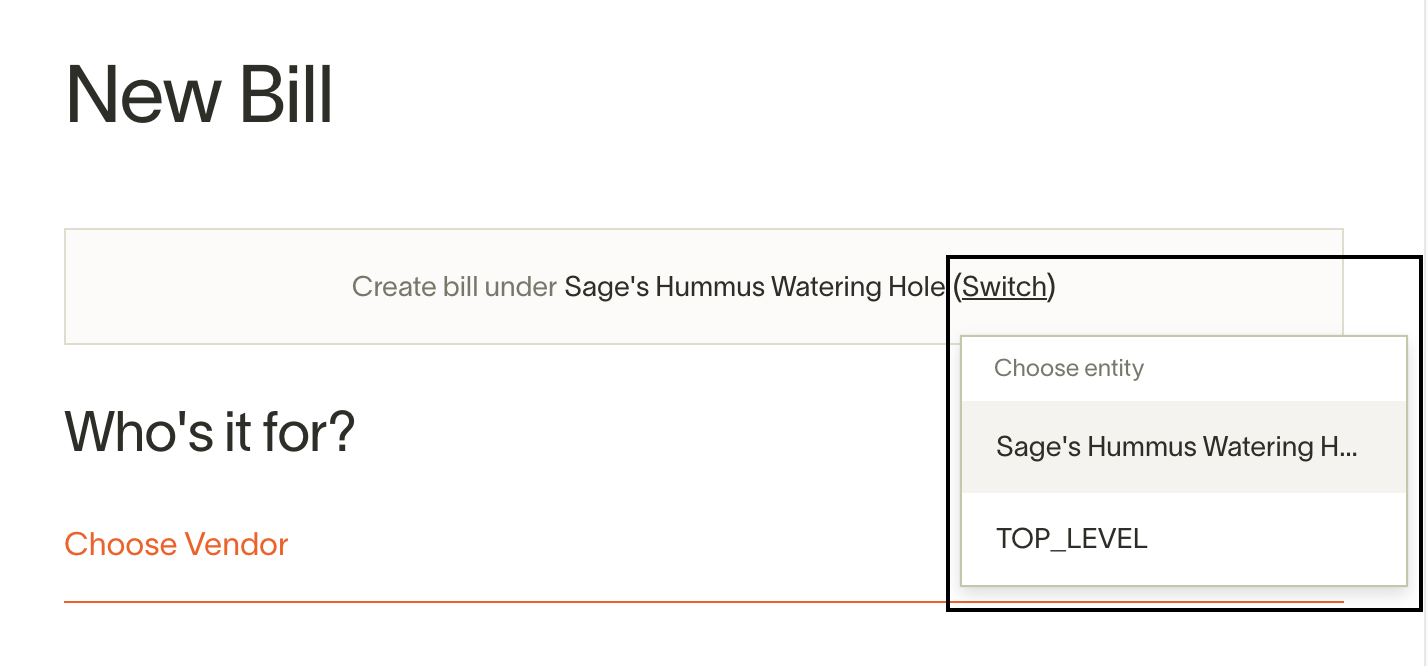
Acumatica:
We are able to sync bills directly to Acumatica. Bill Payments will sync once the bill is released in Acumatica.
- How do I set up Acumatica accounting?
Check out this article to learn how: Acumatica overview
When and how do bills sync
When do bills sync?
Bill Pay provides automatic syncing of bills and payments between Ramp and your accounting software. Here's how it works:
- When they're created or on approval: Bill Pay gives you the option to choose if bills are synced immediately after its created or after all approvals are met. Learn more in Sync bills on approval.
- Quick note on expected accounting period behavior: By default, Ramp uses the Invoice date of the bill to determine where it will sync to. You can override this by setting an Accounting date manually. For NetSuite, QuickBooks Online, Sage Intacct, Acumatica, and Xero, Ramp checks the accounting date during draft creation and again on either bill creation or final approval, depending on your sync settings; if the accounting date falls in a closed period, Ramp automatically updates it to the first day of the next open period before syncing. See Sync error: Accounting period closed for troubleshooting.
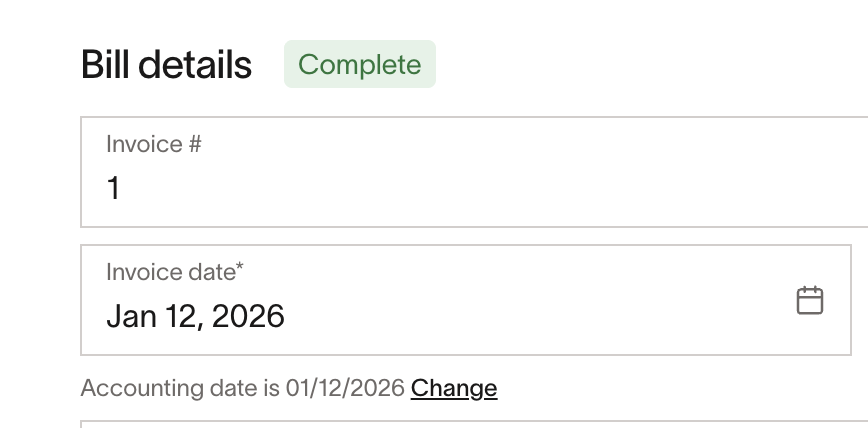
- Bill payments typically use the timestamp from when funds are processed our of your bank account to determine posting period. See more notes on how different payment methods impact this behavior in Bill payment methods and timelines.
- Quick note on expected accounting period behavior: By default, Ramp uses the Invoice date of the bill to determine where it will sync to. You can override this by setting an Accounting date manually. For NetSuite, QuickBooks Online, Sage Intacct, Acumatica, and Xero, Ramp checks the accounting date during draft creation and again on either bill creation or final approval, depending on your sync settings; if the accounting date falls in a closed period, Ramp automatically updates it to the first day of the next open period before syncing. See Sync error: Accounting period closed for troubleshooting.
- After updates: If bill fields like due date, invoice line items, etc are updated, Ramp will re-sync the bill to your accounting provider and update those relevant fields.
- After payment: Ramp automatically syncs bill payments to your accounting software once the bill has been paid. The payment date synced to your accounting software is typically the date the payment is completed OR the date funds are pulled out of your bank account (whichever comes first). For ACH payments, you may see a date earlier than the date the funds actually settle out of your bank account, since bank settlement can take 1–3 additional business days (e.g., over weekends or holidays). The bill payment in Ramp however will always be marked as "paid" in your Ramp dashboard once the bill payment funds have been credited and received by your vendor. See more about Bill Pay payments here: Bill payment methods
- After matching a direct debit: Ramp syncs the matched payment through Bill Pay and excludes the linked external debit from separate Banking transaction sync. See Match direct debits to Ramp Bill Pay bills.
- After marking a bill paid outside Ramp: For supported accounting providers, Ramp can sync the bill payment after you mark the bill as paid in Ramp and provide the payment date and mapped cash or bank account. For unsupported accounting providers, Ramp syncs the open bill, but you must record or match the payment in your accounting provider manually. See Paying outside of Ramp for provider support.
- After payment cancellation: If a payment is canceled, we will either attempt to void the payment (NetSuite, QuickBooks) or delete the payment (Sage, Xero, all other supported accounting providers). See more below under Payment Cancellations
- NOTE: If you are using Bill Pay for Universal CSV and QuickBooks Desktop, the bill will only appear as paid in your accounting provider once you have paid the bill, exported the CSV from Ramp Bill Pay, and imported that CSV to your accounting provider. More information about this integration can be found here: Bill Pay for Universal CSV and QuickBooks Desktop
PLEASE NOTE: Ramp cannot sync any bills that were created before the accounting provider is linked. If any bills were created in Ramp before linking, we advise you to manually create these bills and bills payments in the accounting provider directly.
How do bills sync?
In your accounting software, a bill payment will show as a liability. After it is created but before it is paid, it will be posted to the GL as an AP liability. Once it's paid, it is categorized under the proper GL account. The memo will show that the payment was a Ramp Bill Pay to <vendor name> for <amount>.
- Coding one invoice to multiple categories: this is possible with Bill Pay if your invoice has multiple line items. Code each individual line item to the same or different categories.
- Switching accounting software mid-payment : If you switch accounting software, we will sync your bills as long as the payment for the bill has been initiated even if you switch mid-flight.
- Importing bills paid off Ramp: While Ramp allows you to create a bill and select it to be paid outside of Ramp, we do not allow importing of bills that have already been paid into Ramp.
- Manual payment sync: Supported accounting providers can sync bill payments for bills paid outside Ramp after you mark the bill as paid in Ramp. If the payment was already recorded in your accounting provider, use Mark as synced instead of retrying payment sync so Ramp does not attempt to create a duplicate bill payment. See Paying outside of Ramp for provider support.
If you are using the Bill Pay for Universal CSV and QuickBooks Desktop settings, your bills will not sync automatically. Instead, when you upload the CSV export from Ramp to your accounting provider, we will create two journal entries, one for the bill and one for the bill payment. More information about this integration can be found here: Bill Pay for Universal CSV and QuickBooks Desktop
Payment cancellations
We will handle payment cancellations differently depending on your accounting system and if the period with the payment is open or closed:
- All other accounting providers besides QuickBooks and NetSuite:
- Ramp will attempt to delete the payment off the bill in the accounting period. If the period is closed, you likely need to manually reconcile these.
- QuickBooks:
- If the period with the original payment is still open, then we will void it. This will open up the bill for payment, so you can re-issue the payment in Ramp.
- If the period is closed, then canceling the payment in Ramp will not make any changes in QuickBooks. You will need to manually reconcile in this case. For example, if the payment was canceled due to a check not getting cashed, you can reconcile in QuickBooks by booking the return to a liability account (like "Stale Checks"), then reissue the payment from that same liability account.
- NetSuite:
- If the period with the original payment is still open, then we will void it. This will open up the bill for payment, so you can re-issue the payment in Ramp.
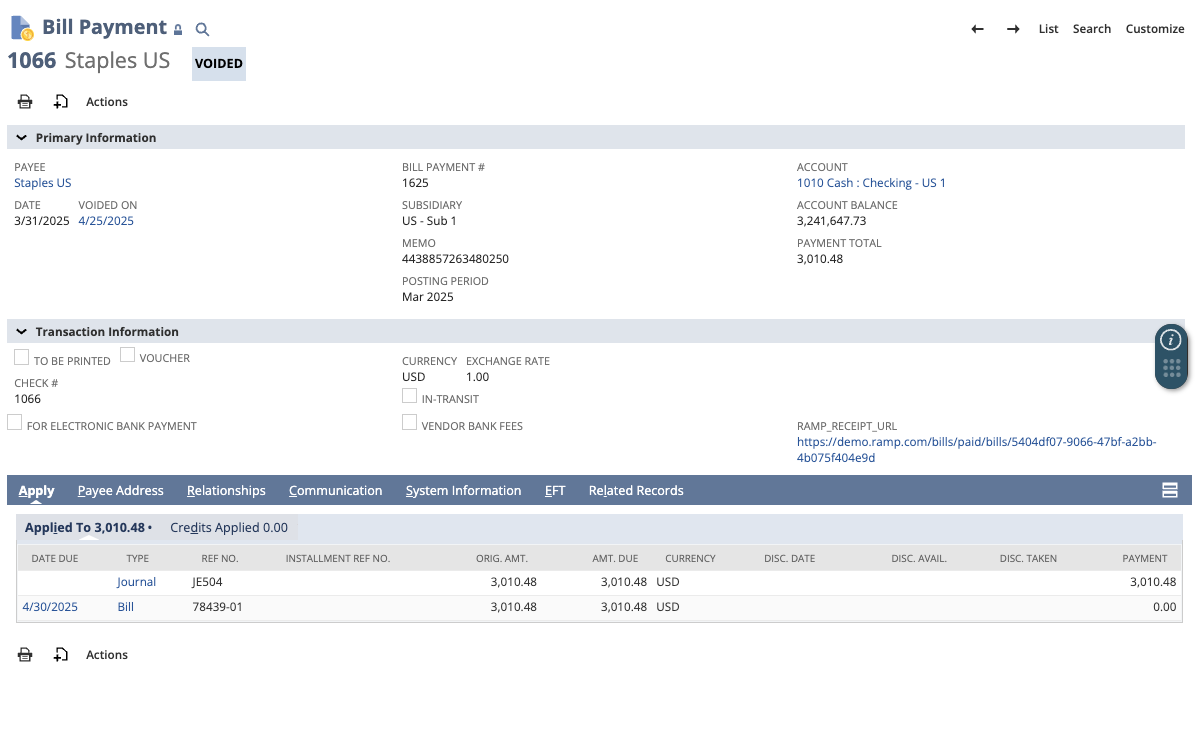
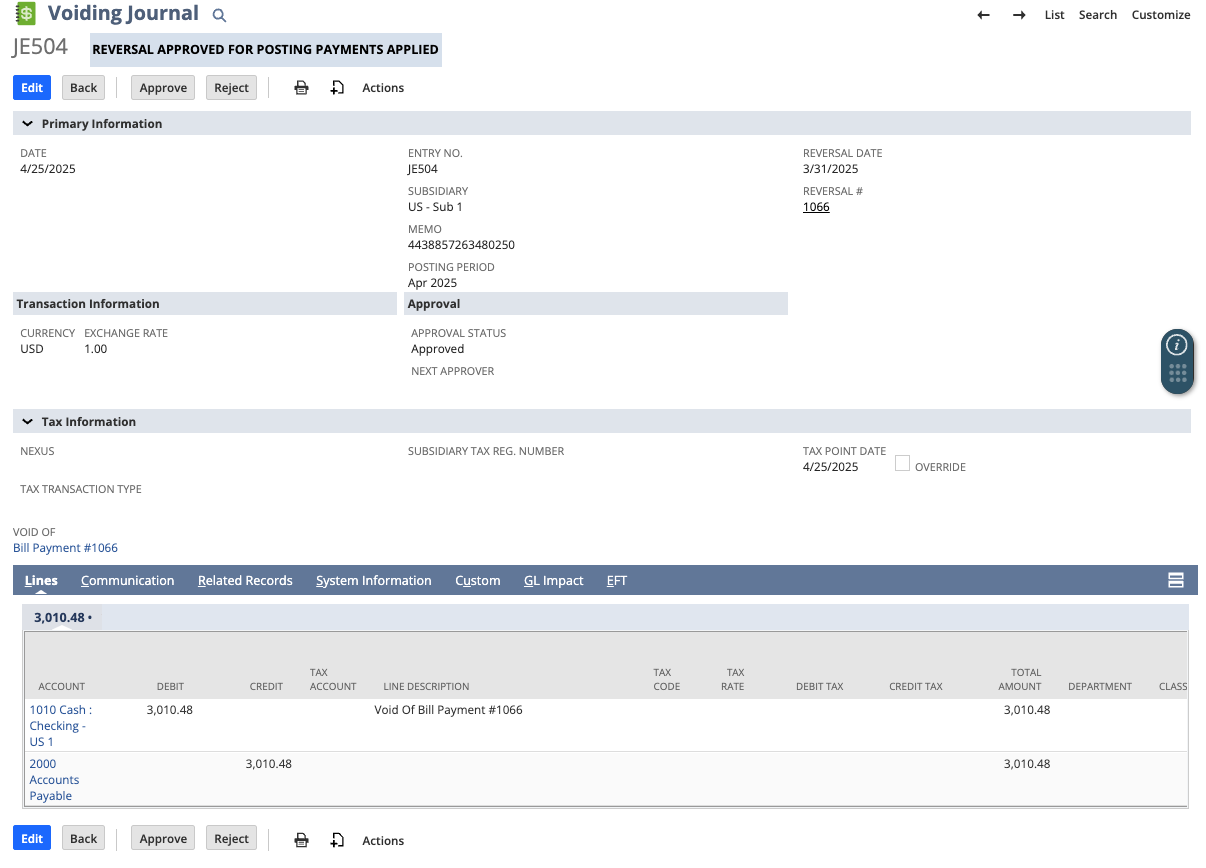
- If the period is closed, and the "Void Transactions Using Reversing Journals preference" is enabled in NetSuite, then the original payment will remain in the closed period for audit integrity, a reversing entry is created in the open period to reflect the voided payment, and the void reopens up the bill for payment to issue another payment. See images below of the voided payment and the new journal entry.
Identifying and resolving sync errors
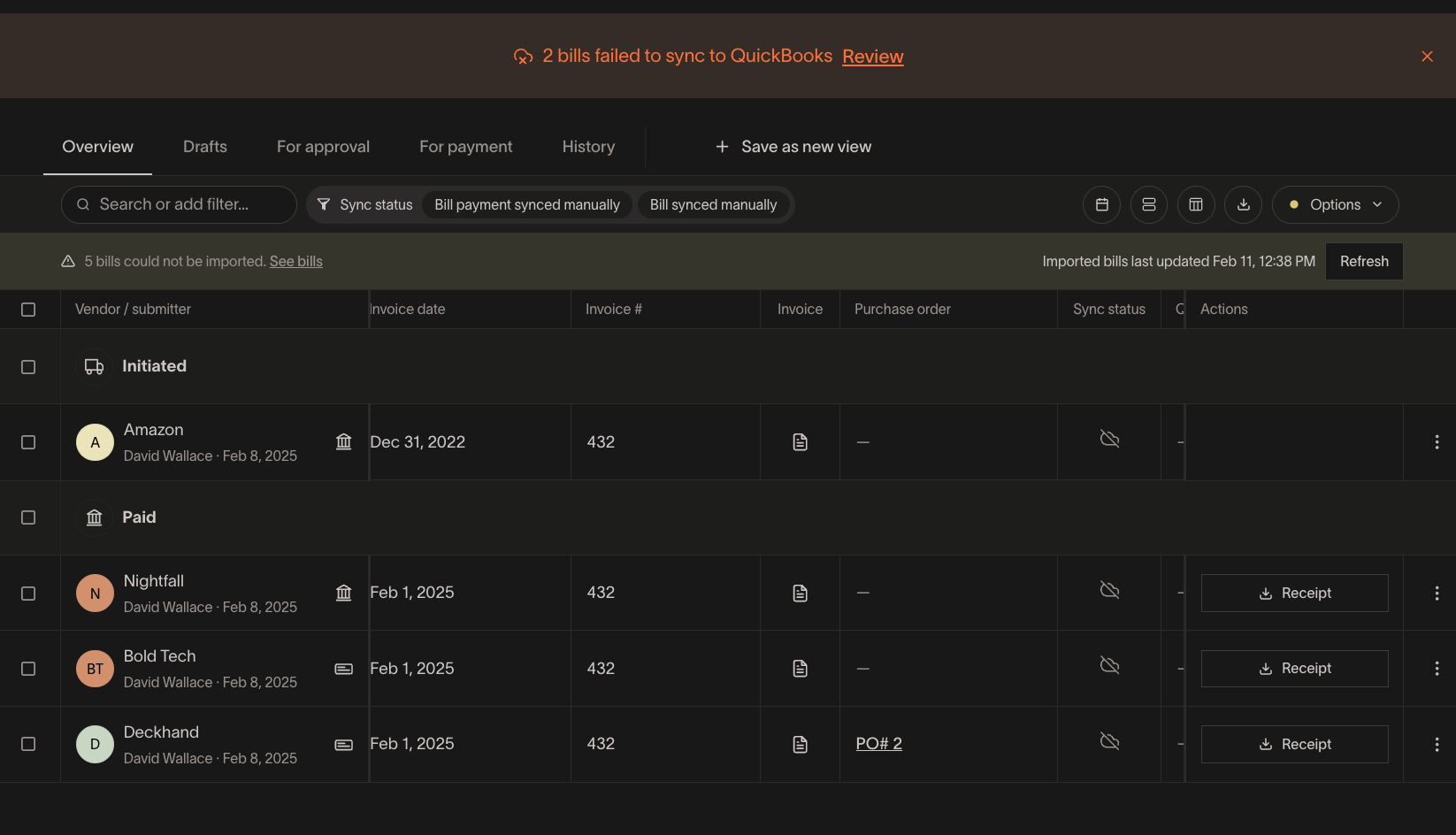
If there is at least 1 sync error in Bill Pay, we will flag it at the top of your Bill Pay instance with a banner. This banner is currently available for Early Access customers, and you can opt in from What's new.
- If you click "review" in the banner, it will filter on all your bills with a sync error.
- If you dismiss the banner, it will only show up again if a new sync error occurs.
Regardless of the banner, you can also always filter on sync errors using the Sync status filter and save as a new view, to save the filter and come back to it whenever.
If you see any sync errors that are stale or you intend to resolve them outside of Ramp, you can now mark a bill as synced manually. If you click into the bill, you will see the option "Mark as synced."
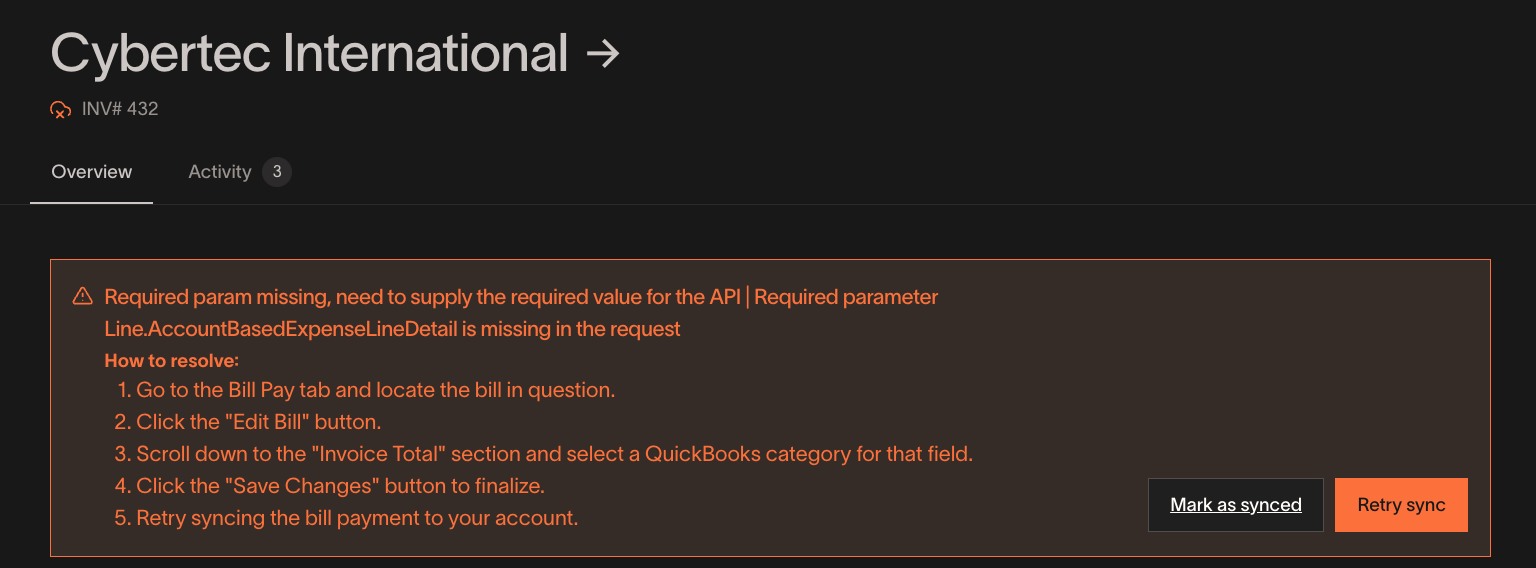
Doing so will remove automatic syncing from the bill and the payment, and remove the sync error from view. You can always retry syncing later to sync both the bill and payment if it is complete.
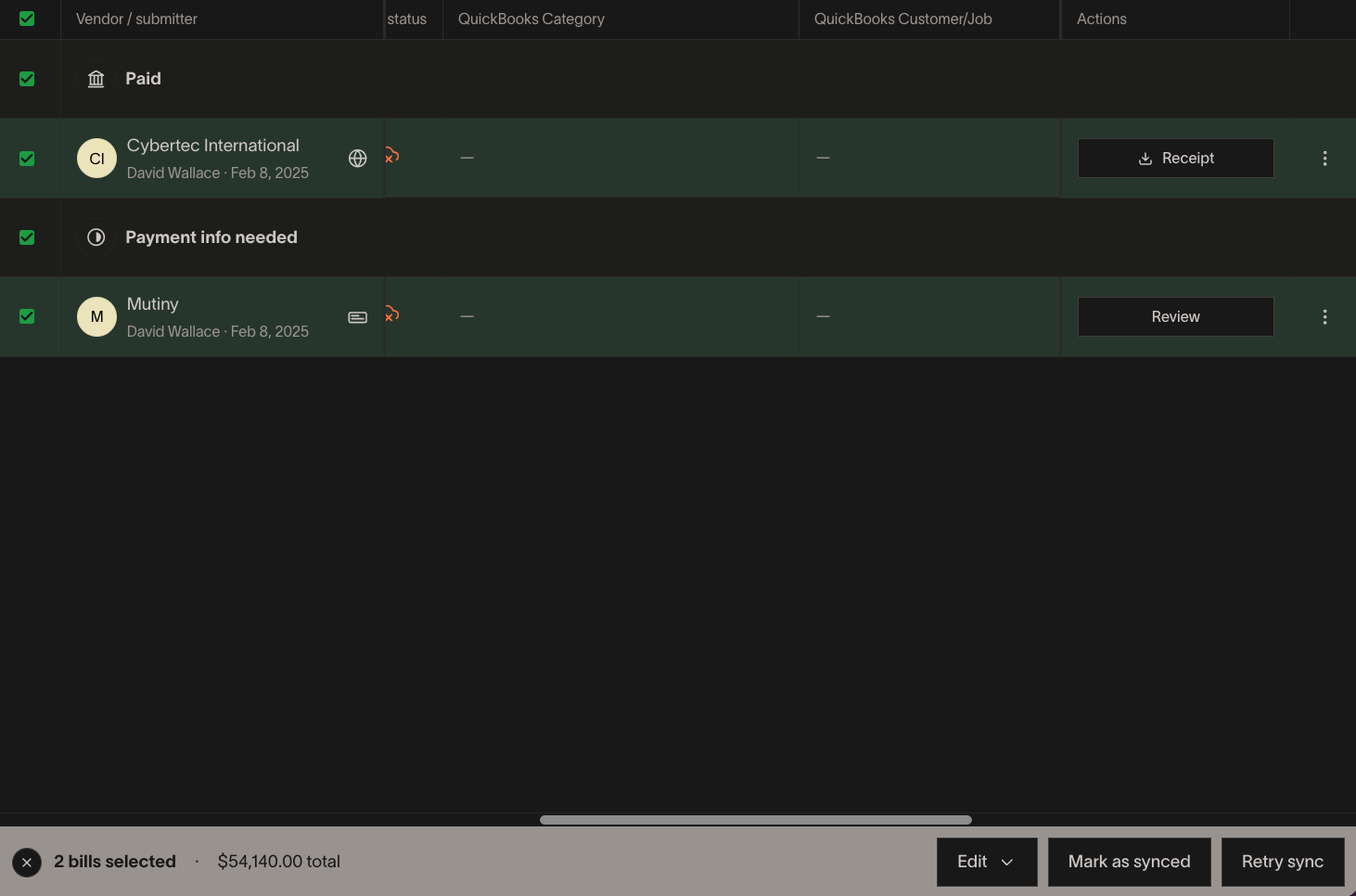
If you have multiple sync errors, you can also mark multiple bills as synced at the same time. Just select all the bills with sync errors you would like to mark synced, and you'll see an option in the footer to mark as synced in bulk.
Frequently asked questions
My bill failed to sync to my accounting provider, does this mean my payment failed?
- This is not necessarily the case. You can review the Activity on the bill to understand payment status, and can retry the sync separately once the recommended troubleshooting steps have been followed. Let us know if we can help: How to contact Ramp's Support team