Xero overview
Overview
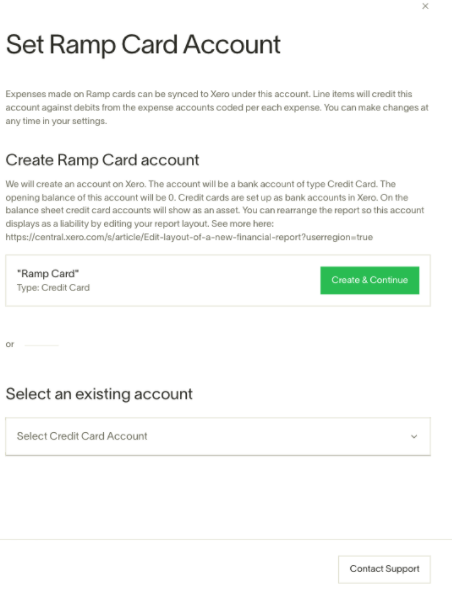
When we initially setup a connection with Xero, you will have the ability to create the Ramp Card with just one click on Ramp. We create it as a bank account with an opening balance of $0. On the balance sheet, credit card accounts will show up as an asset, however you can rearrange the report so this account displays as a liability by editing your report layout. See morehere.
For features available to all integrations, please reference this article. We’ve also built some additional features to make the integration more robust:
- Vendor creation: If we detect a vendor that isn’t on your Xero instance, you will have the option to create that vendor within Ramp. The vendor will show up in the Xero Contact column as “New:...” and by syncing it over, you will create the vendor.
- Receipt Attachment: The receipt within Ramp will sync over as an attachment to your Xero instance. If an employee uploads a receipt to a transaction after that transaction has been synced, we will automatically send that receipt over without you having to manually add it to your instance.
What it looks like
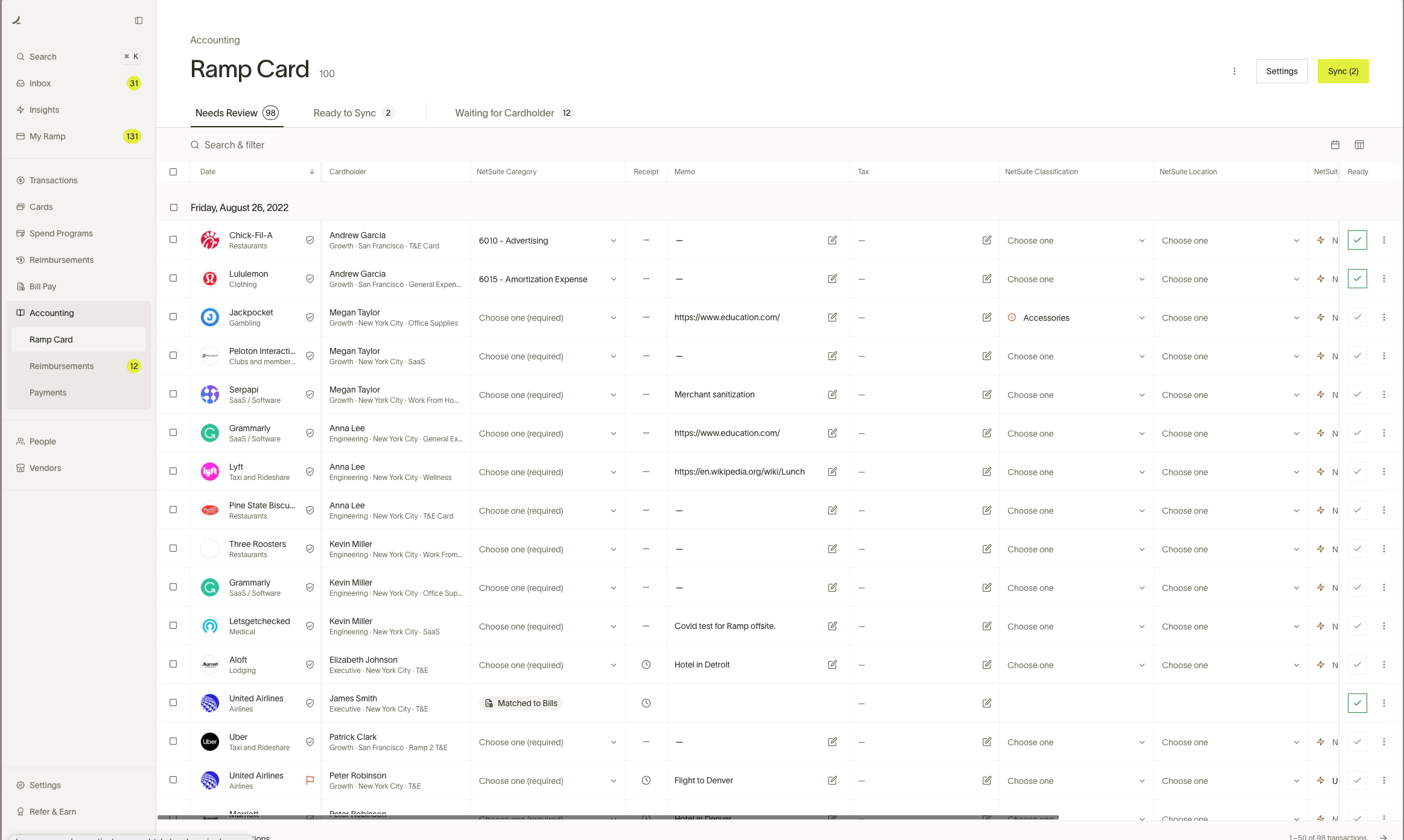
Below is what the Xero integration looks like on Ramp after you set it up. We will attempt to find the vendor for you by matching the vendor name on Ramp to the vendor names you have on Xero so you don’t have to. For more information on settings, rules, and other automations that Ramp offers, please reference this article.
Setup (~ 5 minutes)
**1.**Link your Xero account with Ramp.Under the Accounting tab, select Xero from the list of platforms.
2. Enter your Xero credentials.
**3.**Set Ramp Card Account.
**4.**Select accounting fields.
Note: If you have already connected before but are attempting to reconnect, you may get a blank screen when initiating the connection. To solve this issue, go to your Xero account > Settings > Connected Apps and disconnect Ramp. Afterwards, you should be able to connect Ramp to Xero.
Transactions
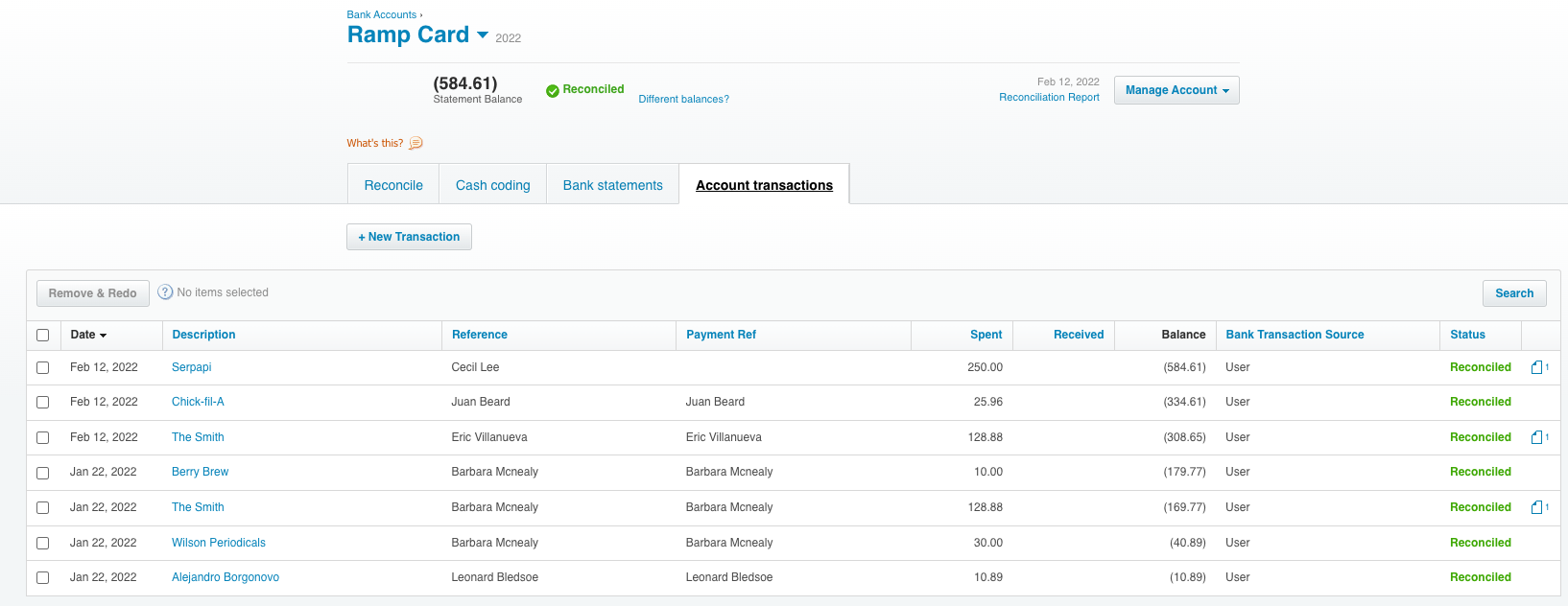
Ramp card transactions show up as a card transaction on Xero. To see them, go to:
Accounting > Bank Accounts > Ramp Card > Transactions
Note: The Ramp Card account on Xero is created as a bank account because the Xero API does not support the creation of Credit Card accounts.
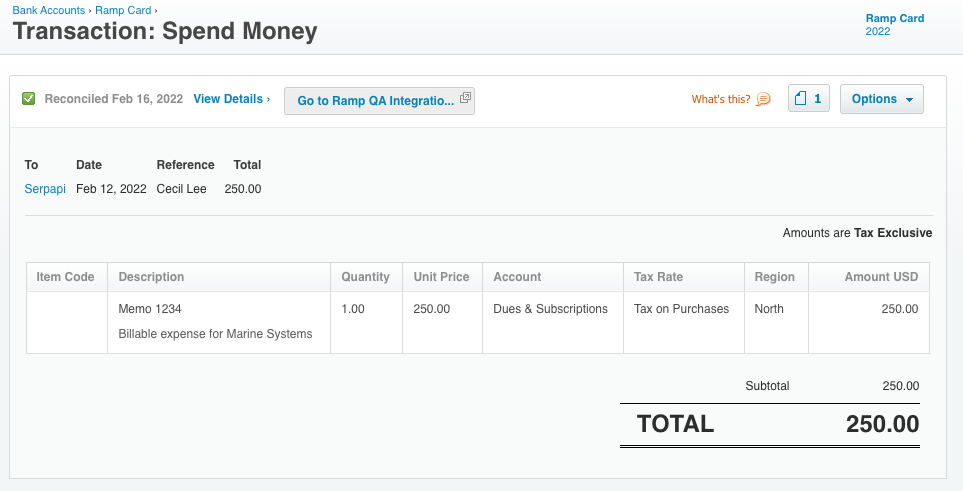
When you click into the transaction, you will see the below information that was coded within Ramp. This depends on what fields you have active on your Xero instance including any tracking categories you may have created. The receipt is on the top right with the page icon.
Reimbursements
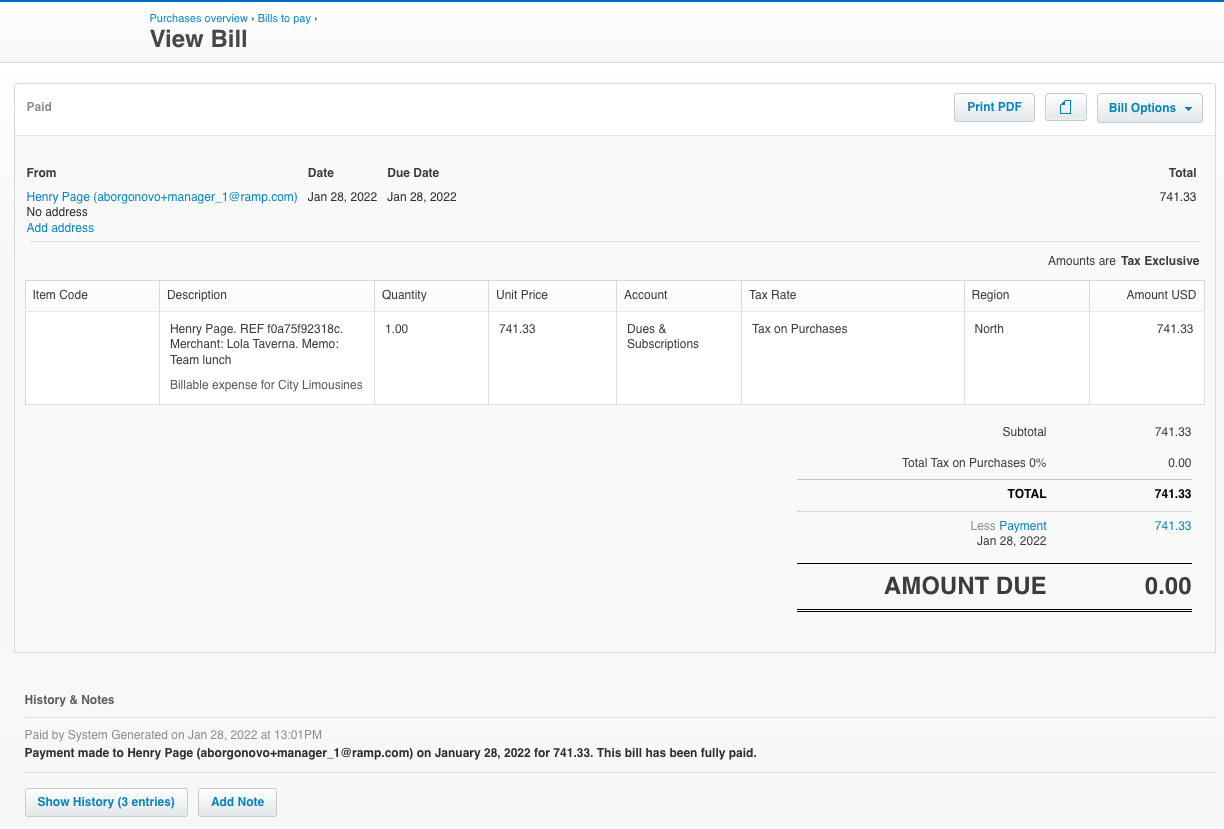
Reimbursements are created as bills on Xero, and a bill payment is created if it is paid through ACH on Ramp. The bill will sync over to the default AP Account on Xero.
To view, go to Accounting > Chart of Accounts > Select the $ figure on your AP account.
- It will be mark as unpaid if selected as Manual Pay on Ramp.
- If paid through ACH on Ramp, we will also sync a Bill Payment that credits the cash account selected under Default Accounts in Ramp
- Below is what the AP Account looks like for when we sync over a bill and bill payment (i.e. paid via ACH on Ramp). If it was marked as Manual Pay, then there would be no payment debiting the AP account.
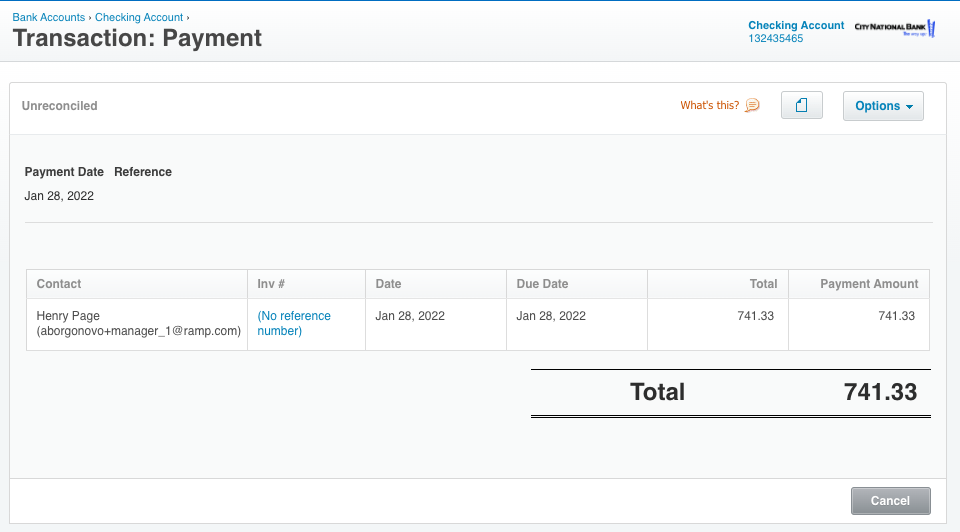
- Below the AP account is what the Checking account looks like, and we can see the corresponding $741.33 charge there
- The vendor will be set as “first name last name (email)” of the employee being reimbursed with additional merchant info sent to the description field within Xero
Bill Pay
With Xero, you have access to our Bill Pay feature. Please reference this article for more information.
Note: You can now link a single bill to multiple card transactions with Xero.
Accounting period handling
Ramp supports editable accounting periods on bills and respects Xero posting period rules. If a bill's accounting date falls within a closed accounting period, Ramp automatically updates it to the first day of the next open period before syncing; see Sync error: Accounting period closed for troubleshooting.
International Bill Pay
Ramp now supports international Bill Pay for Xero. This feature works very similar to paying a domestic bill, except:
- International bills can only be created for international vendors. This will not work for domestic vendors.
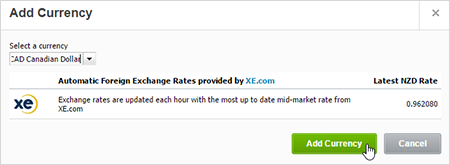
- Any foreign currencies on a bill should be added in Xero before syncing bills (Ramp will prompt you if this is needed)
- To add a currency to your Xero instance:
- Click on the organization name → Settings → Currencies .
- Click Add Currency .
- Select a currency.
- Click Add Currency.
- To add a currency to your Xero instance:
Statement payments
With Xero, you can sync over statement payments. This will appear in the Payments tab of the Accounting tab and only appears after it has cleared.
You will be getting a record of this transaction from two places - from your Checking Account's bank feed, which will have the credit side of the transaction, and from Ramp, which will have the debit side of the transaction.
Instead of independently classifying these transactions, e.g. allocating the checking account credit to a Ramp Card debit, and the Ramp Card debit to a checking account credit - we instead want to match the two sides and create a single transaction. This will prevent us from making two duplicate transactions.
In the below example, you can see where to find the statement payments to sync over within Ramp.
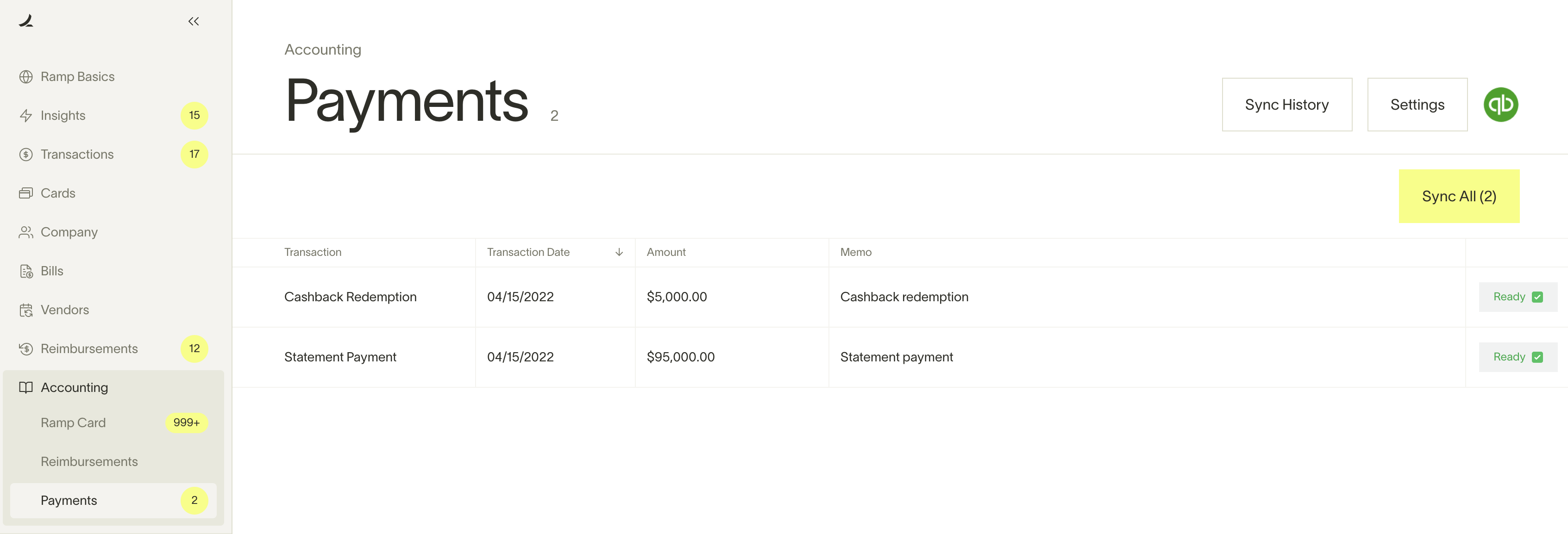
Note: the first time you try this, you may see Configure to sync in place of the sync button. Make sure you have a cash account and credit card liability account configured in your sync settings and you should be able to proceed.
**I have already classified the Checking Account payment to the Ramp Card account, rather than doing a match. What should I do?**In this case, you can safely delete the statement payment in the Ramp Card account from Xero, as you have already recorded the transfer from the Checking account. Classifying the Ramp Card transaction would create a duplicate, so keeping the transaction is not necessary.
Reconciliation
Accounting impact
How Ramp syncs credit card transactions:
Ramp syncs credit card transactions as credit card transactions in your accounting provider.
- Purchase is made
- Debit (increase) Expense or Bank Account
- Credit (increase) Credit Card Liability Account
How Ramp syncs reimbursements:
Ramp syncs reimbursements as bills and bill payments in your accounting provider.
- Bill
- Debit (increase) Expense Account in original currency
- Credit (increase) the Liability Account in original currency
- Bill Payment
- Debit (decrease) the Liability Account
- Credit (decrease) The Cash/Bank Account
How Ramp syncs statement payments:
Ramp syncs statement payments as checks in your accounting provider.
- Statement is paid
- Debit (decrease) Credit Card Liability Account: Reducing the amount you owe since you're paying off the credit card.
- Credit (decrease) Bank Account: This account represents your company's cash, which decreases when you pay off the credit card bill.
To reconcile, you will have to go to your accounting provider to match the amount that was paid to Ramp from your bank account to the total dollar transaction amount synced over from Ramp. If you go to the Transactions tab within Ramp, you can filter by the statement period to easily check which transactions were included in which statement.
Cashback redemption
The accounting for a cashback is a credit to the Ramp Card account, reducing the liability on the card, and a credit to a nominated expense or income account. This cashback entry does not appear on a bank feed so this entry is important to sync across to the Ramp Card account to bring the value of the liability back into balance with the statement.
Ramp Checking Account transfers
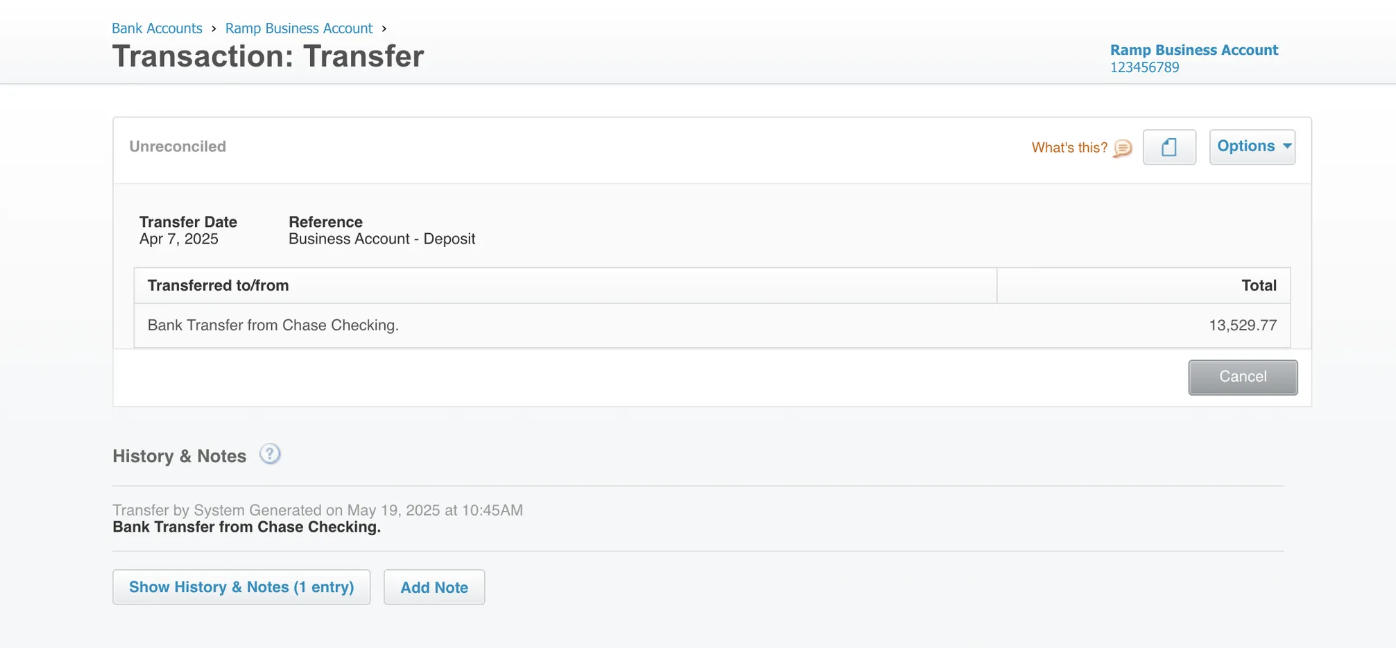
We sync Ramp Checking Account wallet transfers as journal entries in Xero.
Accounting logic
- Deposits:
- Debit Ramp Checking Account
- Credit opposing account
- Withdraws:
- Debit opposing account
- Credit Ramp Checking Account
Supported ERP fields
Below field is only currently supported when syncing open loop transfers.
Category