Managing Accounting Rules
Overview
For finance professionals, quick book closures and insightful data are vital. Here's how Ramp amplifies your accounting prowess:
- Seamless integration : Ramp seamlessly syncs with your accounting system, ensuring that all expenses—bills, reimbursements, or card charges—are accurately categorized.
- Swift book closings : With advanced tools, including rules and suggestions, classify expenses and close your books faster than ever.
- Precision first : By leveraging multiple data points, rules, and past classifications, Ramp ensures accurate data without compromising speed. We prioritize getting it right the first time so each sync to your system is flawless.
For an overview of how Ramp accounting works, check out this article.
Automate coding with AI
Using AI and historical data, Ramp's Accounting Agent can automatically code your transactions:Ramp Accounting Agent — Enablement & Daily Use (Admin guide).
To give Ramp's AI written coding guidance, see Accounting policy for AI coding. Accounting rules still take priority over AI coding.
Automate coding with rules
Pre-coded cards
Pre-coded cards help automate transaction categorization based on preset rules. You can even mark transactions as "ready" automatically once they meet all requirements. This speeds up your workflow and helps ensure accurate coding.
Benefits
- Purpose-specific categorization: Create cards for specific merchants or use cases, and have transactions auto-categorized.
- Workflow efficiency: Transactions are coded quickly and in line with your accounting policies.
Common use cases
- Per diem card: Automatically code all transactions to "Meals & Entertainment" or your chosen GL account.
- Merchant-specific card: For example, a Slack card can auto-assign Category to "Dues and Subscriptions", Merchant to "Slack", and apply other fields as needed.
How to set up pre-coded cards
⚠️ Card-level rules currently support single-select and checkbox fields only. Rules for free-text fields are not supported at this time.
For new cards
- Go to the Manage Spend tab and click Funds.
- Click Issue. If no funds have been issued, click Issue funds.
- Select General expenses or Virtual card.
- In Advanced, expand Accounting coding.
- Under Accounting rules, click Add.
- Select values for the appropriate accounting fields, then click Save changes.
For existing cards
Step 1: From Manage Spend, select an existing card.
Step 2: Click Actions, then select Edit.
Step 3: In the Advanced section, click Transaction coding rules.
Step 4: Click Add and choose the appropriate accounting fields.
Optional: use Spend Programs for pre-coding
To pre-code transactions using a card program:
Step 1: Go to Manage spend > Programs. Step 2: Click Create program. Step 3: Follow the setup flow in the product to define pre-coding rules.
Accounting rules
Ramp uses mapping rules and advanced coding rules to automate how your transactions flow into your accounting system (ERP). By setting these defaults, you ensure data consistency and reduce manual entry during month-end close.
Note: Accounting rules, including Advanced Rules, automate accounting coding; they do not change how Ramp identifies or groups merchants. Do not use them to fix an incorrectly identified or grouped merchant. See Correcting Transaction Merchant and Date Information on Ramp.
Employee and group defaults
You can set accounting defaults for specific individuals or organizational groups to ensure their expenses are pre-coded.
Individual employee mappings
To set defaults for a specific person:
- Navigate to Company and select the People tab.
- Select an employee and click Edit.
- Go to the Accounting tab.
- Select the specific Accounting Location or Accounting Department that applies to their expenses.
Department and location mappings
To set defaults for entire groups:
- Navigate to Company and select Departments or Locations.
- Select the department or location you wish to edit.
- Assign the corresponding value from your accounting system (e.g., mapping the "Sales" department in Ramp to "Department 400" in your ERP).
- Note: You can also define these mappings when creating a new department or location from the Create menu.
Coding rules configuration
The Coding Rules page is where you manage Mapping Rules and Advanced Rules. Access it by going to Accounting > Settings > Coding Rules.
Rule types
| Rule Type | Function |
|---|---|
| Mapping Rules | Create a direct 1-to-1 link between a Ramp field (like Category or Merchant) and an Accounting field. |
| Advanced Rules (Plus) | Use "If/Then" logic to code transactions and mileage reimbursements based on multiple conditions (Amount, Employee, Department, etc.). |
Rule inputs
When creating rules, you can trigger automation using several fields:
- Ramp Fields: Location, Category, Merchant, Department, or Employee.
- Accounting Fields: Vendor, Location, Department, Class, or Billable status.
Advanced automation logic
For more complex accounting needs, advanced rules can perform specific actions beyond basic coding.
Automated transaction splits
You can configure an Advanced Rule to automatically split a transaction by percentage:
- Within an Advanced Rule, navigate to the Then code to the following fields section.
- Select Split.
- Apply a Saved Split Template or create a Custom Split.
- Define the different Categories, Locations, or Departments for each portion of the split.
Pivot rules (multi-field mapping)
Pivot rules allow you to map a single input to multiple accounting outputs. For example, you can create a rule where the "Ramp Department" determines both the "Accounting Category" and the "Accounting Location" simultaneously.
Automatic sync readiness
To skip manual review for trusted transactions, enable the Mark expenses as ready to sync toggle within a rule. When a transaction meets the rule's criteria, Ramp will:
- Apply all defined coding.
- Mark the transaction as "Ready."
Default coding
Setting default values helps ensure transactions are always coded—even when no specific rule or user input is provided.
Why set default values?
- Ensure consistent coding: Use default values for common cases, and create rules for exceptions.
- Avoid automatic vendor creation:
Some providers like QuickBooks Online, NetSuite, and Xero require a Vendor field.
For card transactions, assigning a default like “Misc. Ramp Vendor” can prevent Ramp from auto-creating vendors. For reimbursements, default vendors are supported only for NetSuite and Sage Intacct.
How to set default values
- Go to Accounting Settings.
- Select Accounting fields.
- Click the Edit icon.
- Choose your default value from the dropdown.
⚠️ Make sure the default value exists in your accounting provider before selecting it in Ramp.
Accounting rules hierarchy
The priority in which accounting rules are applied can greatly influence your financial outcomes. Here's how Ramp structures the hierarchy:
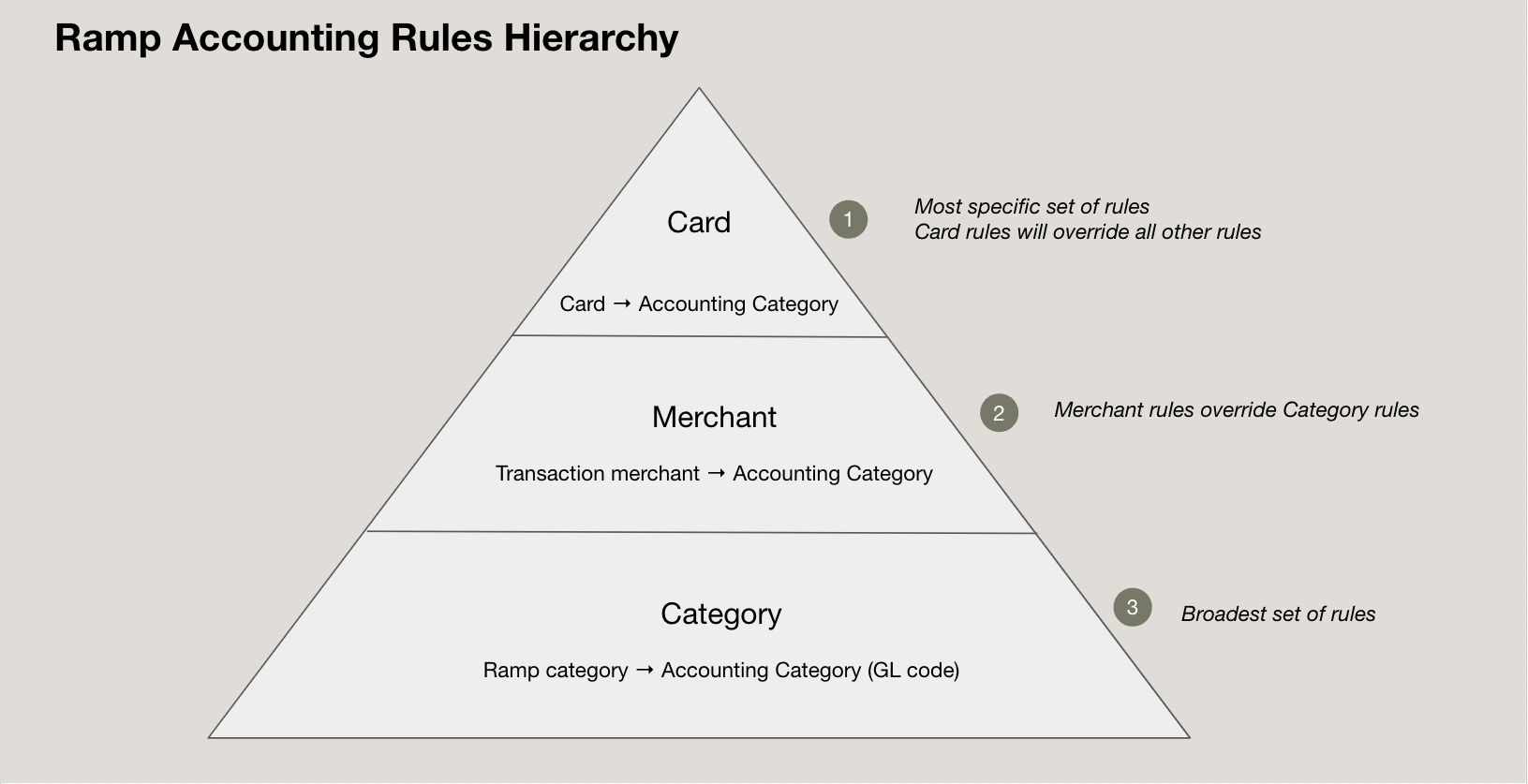
- Card & card program rules :
- These are paramount and will always supersede other rules.
- Advanced rules :
- These are prioritized over standard mapping rules.
- Within Advanced Rules, more specific rules take precedence.
- E.g., A rule with both "Merchant" and "Department" inputs will be prioritized over one with only "Category".
- Rule application based on output fields :
- GL account (accounting category): Merchant mappings are first followed by category mappings, followed by other fields.
- Accounting provider vendor: Merchant mappings take precedence over other fields.
- Other accounting provider outputs: Department mappings are prioritized, followed by Location, then Merchant, and lastly, Category mappings.
- Noteworthy :
- If two input fields (e.g., Category and Merchant) aim to map to the same output field, the more specific mapping is chosen.
- It's possible for more than one rule to apply to a particular transaction.
- If a Rule or Advanced Rule is deleted, the set field is removed from previously affected transactions that are not synced and not marked Ready. If there is a less specific rule, it maps to that field. If there is no other related rule, the field resets to the default value.
Frequently asked questions
What’s the difference between AI coding and rule-based coding?
AI coding uses historical data to predict how transactions should be coded. Rule-based coding applies logic you define, such as merchant, category, or employee rules. Many customers use both together for the best results.
When should I use pre-coded cards instead of accounting rules?
Use pre-coded cards when you want all transactions on a specific card to follow the same coding. Use accounting rules when coding depends on conditions like merchant, amount, department, or employee.
Can AI-coded transactions still be overridden by rules?
Yes. Card rules and accounting rules take priority over AI suggestions. If a rule applies, Ramp will follow the rule instead of the AI prediction.
Which rules take priority if multiple rules apply?
Ramp follows a strict hierarchy:
- Card and card program rules
- Advanced rules (more specific rules win)
- Standard mapping rules
If two rules affect the same field, the more specific rule is applied.
Can more than one rule apply to a single transaction?
Yes. Multiple rules can apply as long as they affect different fields. Ramp applies each rule based on priority and output field.
What happens if I delete a rule?
If you delete a rule:
- The affected field is removed from transactions that are not synced and not marked Ready.
- If a less specific rule exists, Ramp applies it instead.
- If no other rule applies, the field resets to the default value.
Can I automatically mark transactions as ready to sync?
Yes. You can enable “Mark expenses as ready to sync” in:
- Pre-coded cards
- Advanced rules
When criteria are met, Ramp applies the coding and marks the transaction Ready to sync.
Do card-level rules support all accounting fields?
No. Card-level rules currently support single-select and checkbox fields only. Free-text fields are not supported.
Can I require employees to code their own transactions?
Yes. You can require cardholders to complete fields like category, location, vendor, or billable status before transactions are ready.
What are default accounting values used for?
Default values act as a fallback when no rule or user input applies. They help ensure every transaction is coded and prevent sync errors.
Why should I set a default vendor?
Some accounting systems require a vendor for every transaction. For card transactions, setting a default vendor (e.g., “Misc. Ramp Vendor”) can prevent Ramp from creating new vendors automatically.
Do default values apply to reimbursements?
Yes. Default accounting values apply to both card transactions and reimbursements. Default vendors for reimbursements are supported only for NetSuite and Sage Intacct.
Can I automate transaction splits?
Yes. Advanced rules allow you to:
- Split transactions by percentage
- Use saved split templates
- Assign different categories, departments, or locations to each split
What are pivot rules and when should I use them?
Pivot rules map one input to multiple outputs. For example, a single department selection can determine both the accounting category and location.
Where do I manage all accounting automation rules?
Go to Accounting > Settings > Coding Rules. This page is the central hub for mapping rules, advanced rules, and automation logic.
How do I set up an automatic GL code for mileage reimbursements?
Go to Accounting> Settings> Coding Rules. Under Create a Rule, go to Create advanced rule. Select the condition 'Reimbursement type' is 'Mileage,' then select the accounting category.