Ramp Accounting Agent — Enablement & Daily Use (Admin guide)
Overview
Accounting Agent AI coding is available on Ramp Plus. See Ramp Plus overview for plan details.
Feature overview
The exact Accounting Agent features available depend on your account.
- AI-Coding — Ramp's AI automatically codes relevant accounting fields using transaction context and history for entries you typically populate when syncing to your ERP system.
- Suggested Actions — recommends which transactions to mark ready or manually review.
- Auto-mark ready (Plus) — marks low-risk, fully completed expenses as ready.
- Smart Groups — groups transactions into sets of related review work so you can review similar transactions together.
AI coding
When enabled, Ramp's Accounting Agent starts coding eligible card transactions after they clear and eligible bills when they are created.
Settings
To adjust AI coding, open Automation settings.
You can then choose whether you want AI coding to auto-code:
- Auto-code all eligible fields for new expenses and bills (default)
- Auto-code selected fields
- I don't want to use AI coding
On Ramp Plus, you can also turn on Auto-mark ready for these transactions.
For eligible transactions, the agent evaluates GL account and other eligible accounting fields, such as department, class, and location.
Your accounting policy holds written coding guidance for Ramp's AI. To see which AI coding features use it, see What the accounting policy guides.
When the agent may code or update a field
- Blank field + high confidence → AI takes the first pass and fills it. Example: Starbucks $8 “client coffee” with GL blank → AI sets Meals & Entertainment (Client).
- Existing AI coding + new information → AI may update the field when new transaction information becomes available.
- Transaction already marked Ready → AI does not update the coding when new information becomes available.
When the agent will not override
- Employee value present → AI does not change it. Example: Employee chose Travel: Airfare for Uber → AI leaves it.
- Admin value present → AI does not change it. Example: Admin set Client Gifts for Staples → AI respects admin value.
- Rule value present → AI does not change it. Example: Apple $2.99, rule Computer Equipment → keeps rule.
- Field required by policy → AI does not code the field. The required field must be completed according to your company's policy before the transaction can be marked ready.
Review faster with suggested actions and smart groups
Suggested actions
In the Needs review table, you’ll see a Suggested action column. Each transaction row shows a suggested-action badge, such as Remind cardholders, Remind approvers, or Mark ready.
- Hover a badge to see why it’s suggested (receipt present, all fields coded, approved, etc.).
- Select a transaction row to open its details.
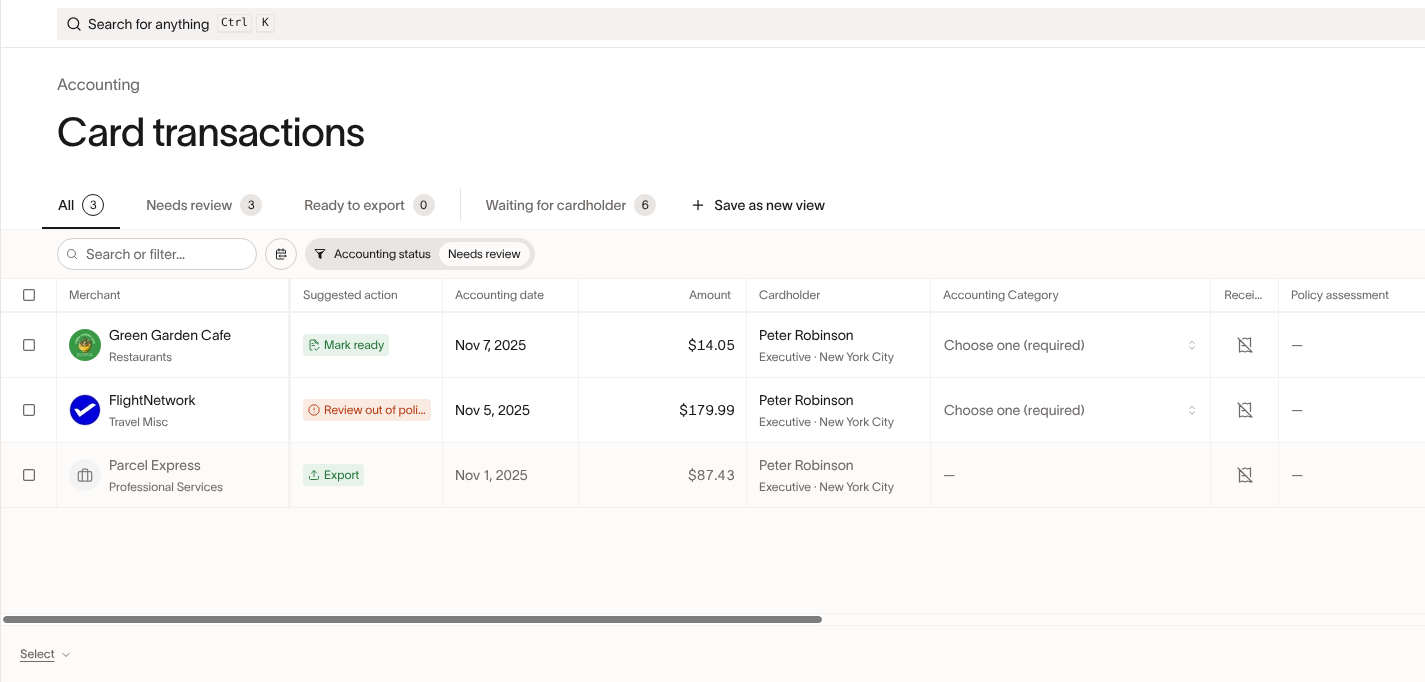
Suggested actions that Ramp may provide include:
| Suggested action | Meaning |
|---|---|
| Remind cardholders | The transaction is waiting on input or action from the cardholder. |
| Remind approvers | The transaction is waiting for approval. |
| Review fields or Review [field name] | One or more accounting fields need review. |
| Review receipt | The transaction receipt needs review. |
| Review out of policy | The transaction is out of policy and needs review. |
| Review amortization | The transaction appears to be amortized and requires review. |
| Mark ready | Ramp believes the transaction is properly coded and not suspicious, and recommends marking it as ready. |
Smart Groups
If Smart groups appears under Group by, select it to review related transactions in groups.
Smart Groups can use thematic headers, such as Meals and travel or Office operations, or headers that describe the suggested review work, such as:
- Review [GL account name] codings that may be incorrect
- Review material expenses that could need additional attention
- Expenses that do not meet your policy requirements
- Expenses that are awaiting approval
- Review expenses individually
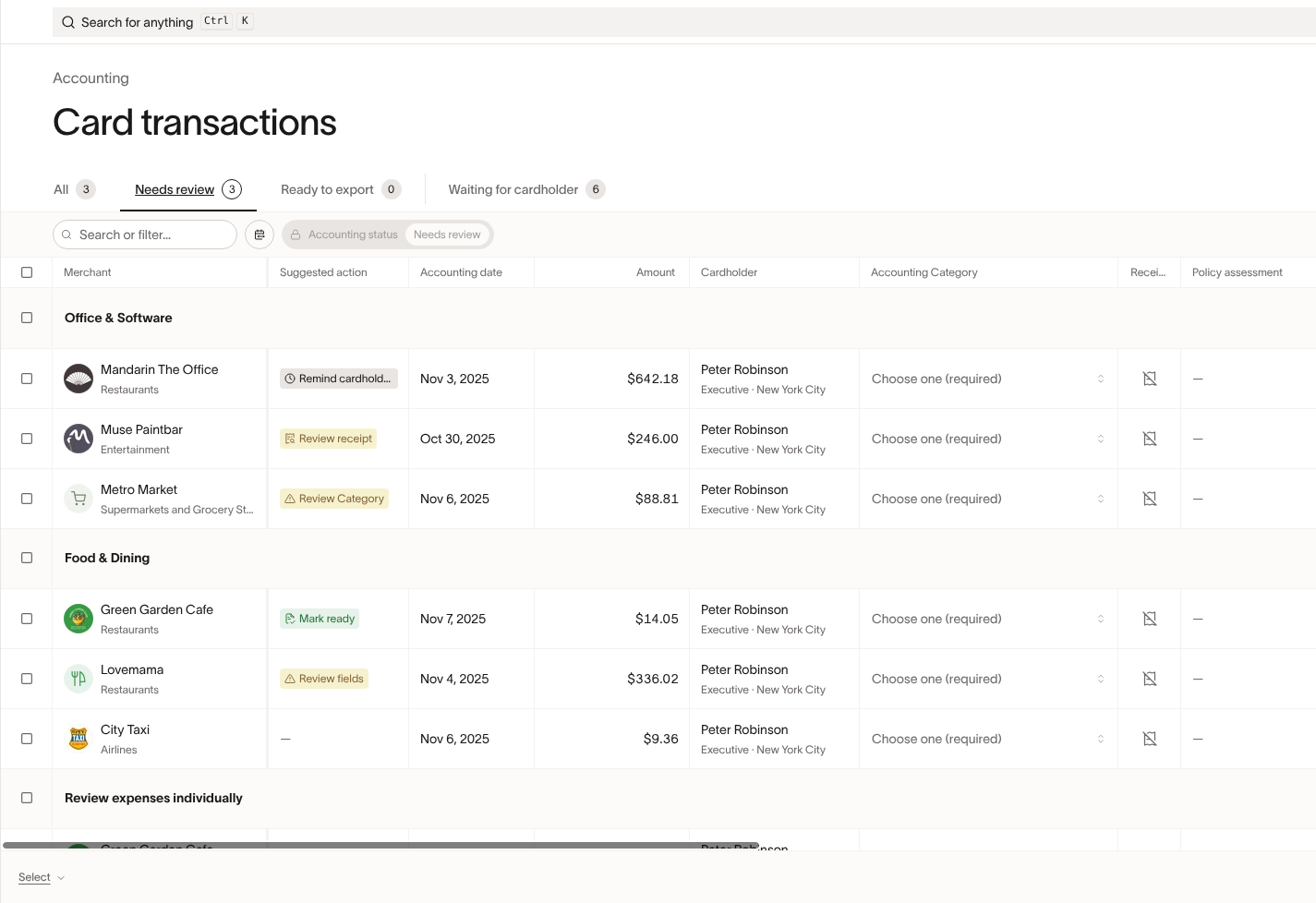
When to use which view:
- Clear Smart groups from Group by to review transactions line by line with the Suggested action column.
- Select Smart groups from Group by to batch similar work under group headers.
Improve accuracy with AI-coding feedback
Use the feedback prompt when Ramp displays it.
When you override eligible AI-applied coding in the Needs review table, Ramp may ask why you changed it. Add a brief note to give guidance for future suggestions.
Coach reviewers to be specific.
Ask reviewers to include short, concrete guidance—e.g., “client meal, not team” or “software → user support.”
Know the impact.
Ramp uses submitted feedback as guidance for future suggestions. In some cases, feedback may also trigger reevaluation of related prior AI-coded transactions that are unsynced and not marked Ready.
- Tip: Keep the note to one sentence. Name the distinction (e.g., client vs. internal; software vs. support). No need to restate details already visible on the transaction.
Two paths to “zero-touch”
Get items toReadywithAuto-mark ready** (Plus); move them to the ERP withAuto-sync.**
Used together, these create a fast lane from swipe → ERP for in-policy, fully completed transactions.
How to auto-mark items “Ready” (two options)
Available on Ramp Plus. See Ramp Plus overview for plan details.
- Advanced rules (if–then logic) Use rules to mark transactions ready when they meet exact conditions and Ramp's Ready eligibility checks.
- Example: IF Merchant = Zoom AND receipt present AND all required fields coded THEN Mark ready.
- Ramp AI Allow Ramp’s AI to identify eligible transactions based on signals such as satisfied receipt and memo requirements, completed required fields, in-policy status, and high-confidence coding.
- Example: Small recurring SaaS charge with receipt + fully coded → AI marks Ready .
Note: Decide what can be auto-marked ready through rules or AI. Set the Materiality threshold (USD) from Automation settings.
How auto-sync works
Auto-sync is a separate accounting automation setting and does not require Accounting Agent.
- Automatic sync: When Auto-sync is on in Automation settings, Ramp begins processing eligible card transactions marked Ready nightly at midnight Eastern Time.
- Eligibility: A card transaction must be cleared, nonzero, unsynced, marked Ready, and complete all required accounting coding. Every entity represented in the nightly batch must also have its required account mappings completed in Sync settings.
- If a transaction does not sync: Open Ready to sync, complete any missing coding, verify the entity's Sync settings, then select the transaction and click Sync to retry. If the nightly volume exceeds processing capacity, remaining eligible transactions stay Ready and are picked up the following night.
- Important: Auto-sync rechecks eligibility before syncing transactions from your Ready queue. Auto-mark ready separately controls which transactions become Ready.
Safe rollout pattern (recommended)
- Start by auto-marking repeatable, low-risk spend (Plus) using advanced rules (e.g., small recurring vendors).
- Layer in AI-based auto-marking (Plus) for similar low-risk patterns from Automation settings once receipt, memo, and field requirements are reliably satisfied.
- Turn Auto-sync on from Automation settings once you trust that items reaching Ready are truly post-worthy.
Frequently asked questions
Can I override Ramp’s suggestions?
Yes.
How does this affect the employee experience?
If your business requires employees to code transactions, those codings are not affected by the Accounting Agent.
What fields are coded by the Accounting Agent?
AI coding applies only to eligible accounting fields. See AI coding for field eligibility details.
How does this work with conditional filtering?
The Accounting Agent respects conditional filtering rules. It can code dependent fields when their controlling selections make the predicted option visible; otherwise, it leaves them uncoded.
How can I tell if something is AI coded?
AI coded fields will have a Ramp intelligence icon:

Can I filter to only see AI codings?
If Coded by appears in your table filters, select Accounting Agent to show AI-coded transactions. This filter is not available to every business.
Can I turn this off for specific fields?
Yes. Open Automation settings, select Auto-code selected fields, and see AI coding for details.
Will AI change a rule’s coding?
No. AI will not override rule-based codings.
What happens with AI coding when a transaction clears but the cardholder hasn't uploaded a receipt or memo? Does the AI update its coding if a receipt or memo is added later with new information? Or does the AI wait to code these transactions?
AI coding begins after a transaction clears and can reconsider a suggestion when new information arrives, but it does not update transactions already marked Ready. See AI coding for details.
How do I know which items are safe to sync?
Start with complete, high-confidence items already auto-marked Ready, then see How to auto-mark items Ready before expanding.
Can I turn Smart Groups off?
Yes. Clear Smart groups from Group by to turn it off; see Smart Groups for details.
What if an employee coded a field incorrectly?
AI won’t override employee entries. Fix it and move on—your edits help improve future suggestions.
Can I set my own AI confidence threshold?
Not at this time.
What do the icons mean on transactions?
A person icon = manually coded by a Ramp user. A bolt icon = coded by a rule. Hover the Ramp Intelligence icon to see why the coding was suggested. Low confidence appears as a yellow badge in the tooltip.
Will the agent retroactively change past codings after it learns?
Feedback can trigger reevaluation of related prior AI-coded transactions that are unsynced and not marked Ready. It does not overwrite manual or rule coding.
Can I review the feedback submitted to the agent?
Not today.
Does AI coding work for Ramp Checking Account open-loop transfers (external deposits and withdrawals)?
Ramp suggests a GL account (Category) for Ramp Checking Account open-loop transfers (such as external deposits and withdrawals) in the Accounting > Banking table. Ramp Banking AI coding suggests the GL Category field only. See Ramp Banking Accounting for details.
Is Accounting Agent AI coding a Ramp Plus feature?
Yes. Accounting Agent AI coding is available with Ramp Plus.