Where to view AP Aging Report and what's included
Overview
The Accounts Payable (AP) aging report is a key accounting document that details all outstanding bills and invoices a business owes as of a specific date. Its primary purpose is to help businesses manage their cash flow by tracking what is owed, to whom, and when the payments are due.
Ramp generates two AP aging reports, a Summary and a Detailed AP report. Summary AP reports group rows by vendor and invoice due date. The detailed AP report is broken out at an invoice level. Both group the total amount due into columns by how old or “aged” the debt is into the following buckets, based on the bill's due date:
- Current
- <30 days
- 30 - 60 days
- 90+ days
How it works
Multi-currency AP aging reports
Currently, expenses in non-USD currency are included in AP aging reports without conversion, e.g. $1000 AUD displays as $1000 without any indication of its currency.
Multiple entities and AP aging reports
Multi-entity customers can choose to download a report that includes bills across all entities, or choose to filter by entity when downloading the AP Aging. If filtered by entity, we will generate a report for bills for that entity only across both the summary and detailed view.
Either way, the detailed AP aging report has an Entity column that indicates the entity from which the expense originates.
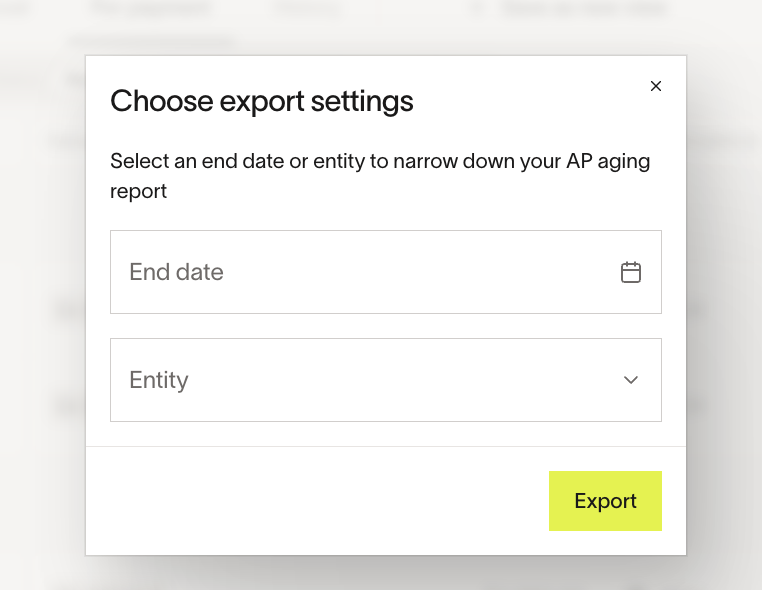
How to download
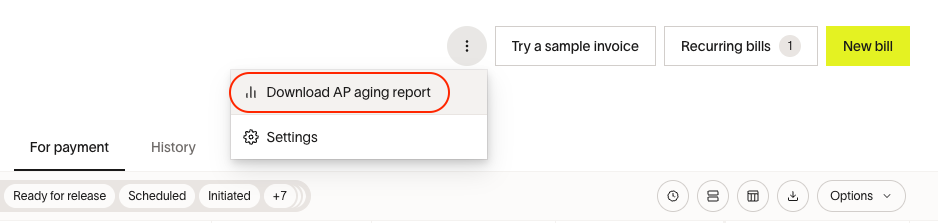
Navigate to the Bill Pay tab, click the three-dot icon, and select Download AP aging report to download a ZIP file of both reports. Some roles will see a Download AP aging report button instead of the three-dot menu.
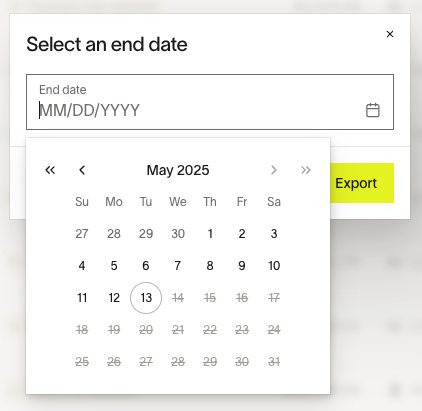
Next, enter an end date for the report. Note that the bills in the report are based on the Bill Date—by default, this is the Invoice Date. However, if there is an Accounting Date on the bill, we will use the Accounting Date instead.
If you don't enter an end date, we will default to today's date when generating the report.
A ZIP file containing the summary and detailed AP reports in CSV downloads to your browser’s download directory. The filenames are in the following format:
- {business_name}-summary-ap-aging-report-as-of-{date}.csv
- {business_name}-detailed-ap-aging-report-as-of-{date}.csv
How we generate our AP aging report
Dates
- By default, we use the Invoice date as the billing date unless the bill has an accounting date. If it does, we use the accounting date.
- Expenses age from the due date. Aging from other dates is not supported at this time.
- If the end date is 7/31 and the due date is 7/15, the bill is considered 15 days old and is included in the <30 days bucket.
Includes
- All unpaid bills with bill/invoice dates on or before the selected end date, including:
- Invoices created or added to Ramp after the end date, provided the billing date is before the end date, and the invoice is still outstanding as of the end date.
- Approved and unapproved bills
- Unapplied & applied vendor credits
Excludes
- Draft bills
- Archived bills
- Bills whose payments have been initiated (i.e. debit leg completed)
- These bills are considered 'paid' and so are excluded from AP Aging if the report is pulled on or after the date the debit leg has completed
- Note that this behavior aligns with the timing that we sync payments to your accounting provider (upon debit leg completion), such that the AP Aging in your accounting provider and Ramp should align
Role-based functionality
The following roles can run AP Aging Reports:
- Owner
- Admin
- Accounting (internal)
- Accounts Payable
- View-only Admin
The following roles cannot run AP aging reports:
- Employee
- IT Admin
- Guest
Use cases and examples
Use Ramp’s AP aging reports to:
- Compare and reconcile against your accounting system.
- Review your payments for errors like duplicate invoices.
- Forecast AP balances and cash flow.
- Plan and schedule vendor invoice payment dates for cash flow timing and financing.
Best practices and tips
How to run an AP aging report in your accounting provider
- Instructions for QuickBooks Online customers: AP aging reports in QuickBooks Online
- Instructions for Sage Intacct customers: Aged creditors report in Sage
- Instructions for NetSuite customers: A/P aging report in NetSuite
- Instructions for Xero customers: Aged payables detail report in Xero
- Instructions for Microsoft Business Dynamics customers: Aged accounts payable report in Business Central