QuickBooks Online integration: Reconciliation report
The reconciliation tool streamlines the closing of your books with real-time expense matching to your ERP. It ensures 100% accuracy, allowing you to monitor balances continuously and not just at the month's end. It also identifies and tracks down missing items, offering insights and bulk reminders to help you close your books faster.
Features
Compare balances between Ramp and QuickBooks Online: View your total transaction spend, statement payments and cashback on Ramp against the balance in your accounting system. We import your balance directly from QuickBooks.
Review matched transactions in one place: Analyze transactions in Ramp and QuickBooks Online before months end to ensure everything is accounted for.
Balance your unmatched transactions: Find or sync items that haven't been matched yet, ensuring every transaction has a counterpart in the opposite system.
How do I to find the reconciliation tool?
You can find this tool by going toAccounting → Click the 3 dots next to Settings → Reconciliation Report. Please note that this tool is available only to U.S.-based entities at this time.
The tool allows you to conduct a side-by-side comparison of all your transactions on a monthly basis. These expenses can fall can fall into 1 of 3 categories:
- "No matching transaction in Ramp" means that the transaction exists in QBO but was not synced over from Ramp.
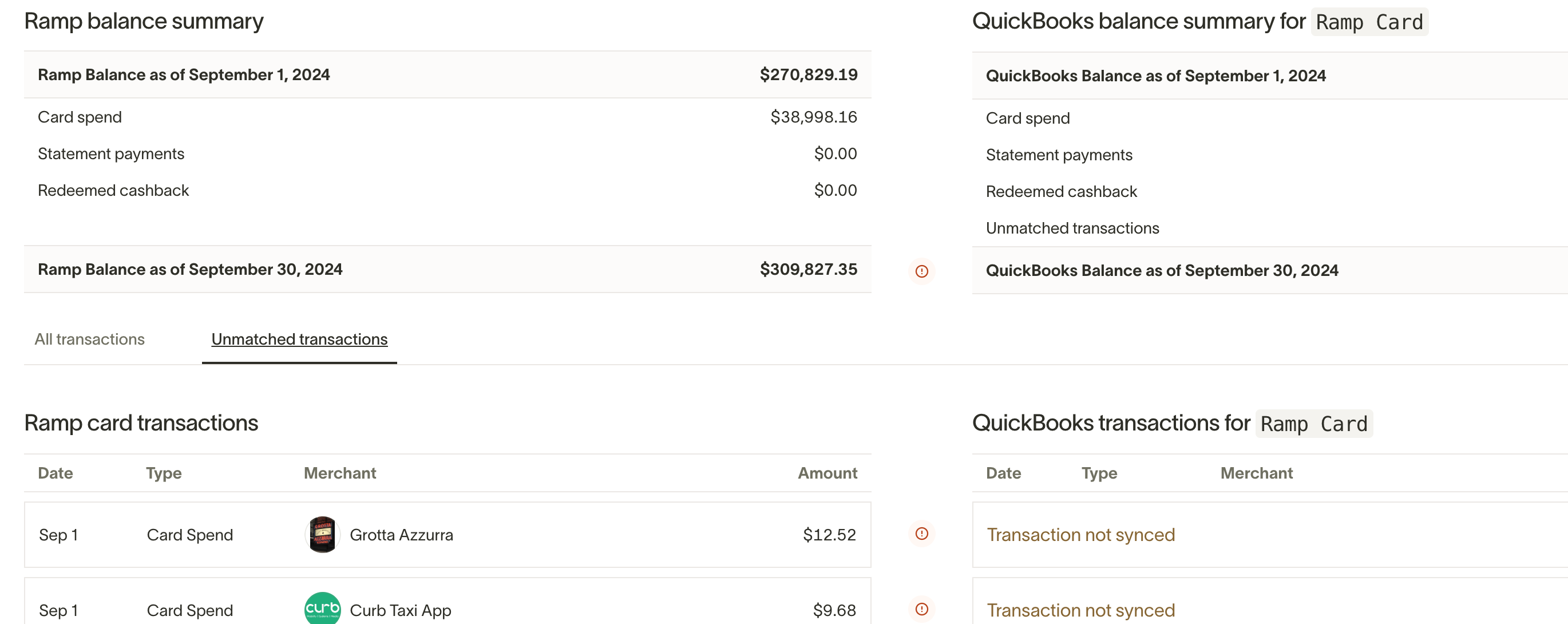
- "Transaction not synced" means the transaction exists in Ramp but has not been synced over to the ERP. You can also attempt to Find a match in the ERP.
- 1:1 match will show the same transaction and amount on each side, denoted by a green check mark in the middle.

How to use
Video walkthrough: Connect QuickBooks Online to Ramp, including sync settings, accounting fields, coding rules, and reconciliation. Best when setting up your QBO integration so transactions, fields, and reconciliations sync from day one. Watch the playlist.
Ramp balance summary
The Ramp balance summary shows 4 values:
- [Plus] Card Spend
- Statement Payments
- Cashback
- Total Change
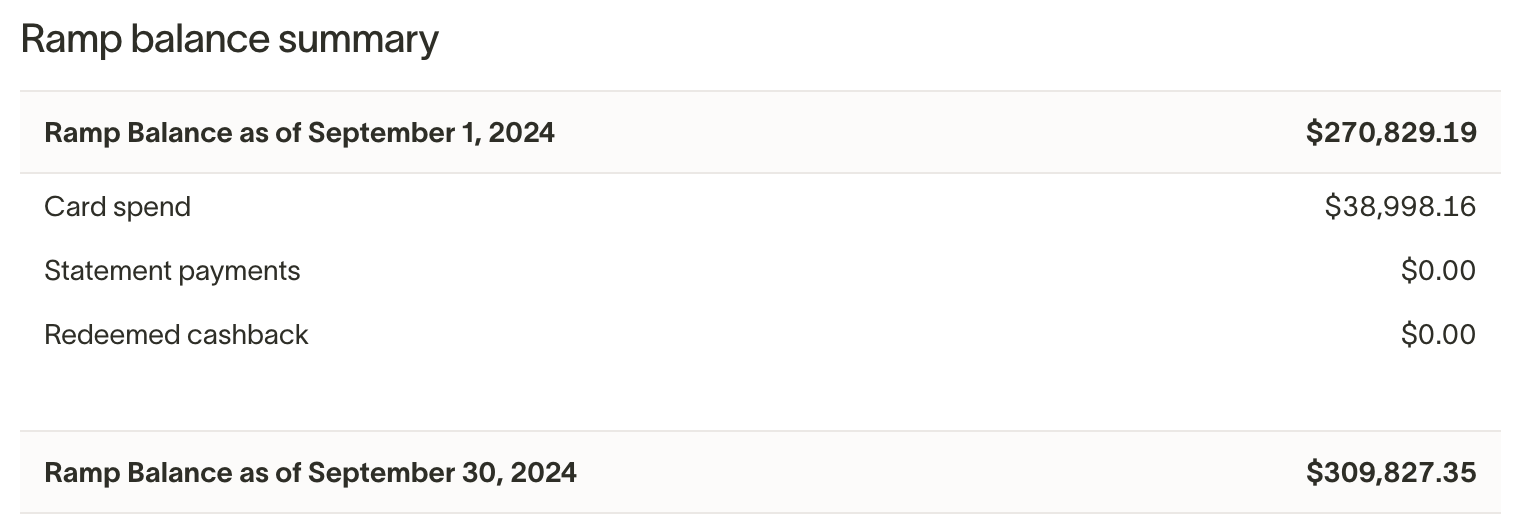
Total Balance =Opening Balance* + Card Spend - Payments and Cashback
*An opening balance (beginning of the month) will only exist if you have existing liabilities from the prior month.
QuickBooks balance summary for Ramp card
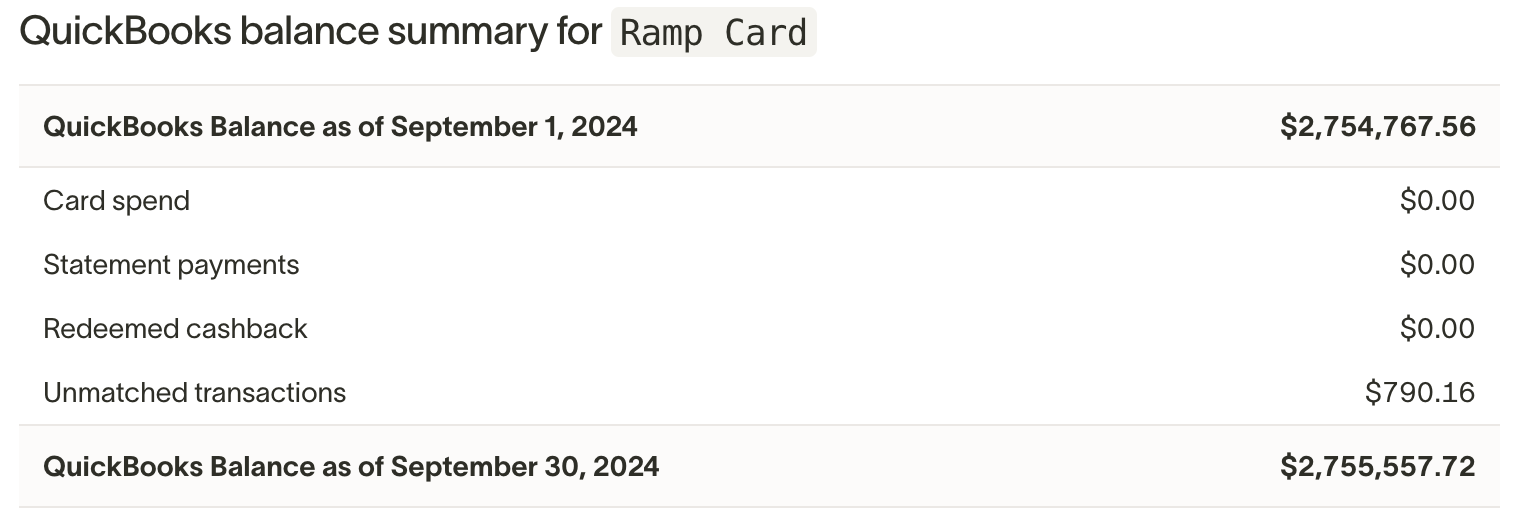
The top right quadrant of the Reconciliation report shows the corresponding values that should match the Ramp Balance Summary, as well as any discrepancies. Ramp will also import your end of month balance directly from QuickBooks.
This shows 5 values:
- Card Spend
- Statement Payments
- Cashback
- Unmatched Transactions
- Total Change
Total Change =Total $ value of all transactions that do not have a 1:1 Match+Card Spend
How do I find a matching expense for my transaction?
If a Ramp transaction does not have a corresponding ERP transaction, you will be given the option to**Find a Match.**This feature will allow you to search through all unmatched transactions in the selected period and perform a manual match.
- Click Find a Match on the unmatched transaction
- Browse Unmatched Ramp Expenses for a matching transaction
- Click Confirm Match
You can also filter directly by unmatched transactions in the table by clicking on theUnmatched Transactionstab.
How do I view my matched transaction in QuickBooks?
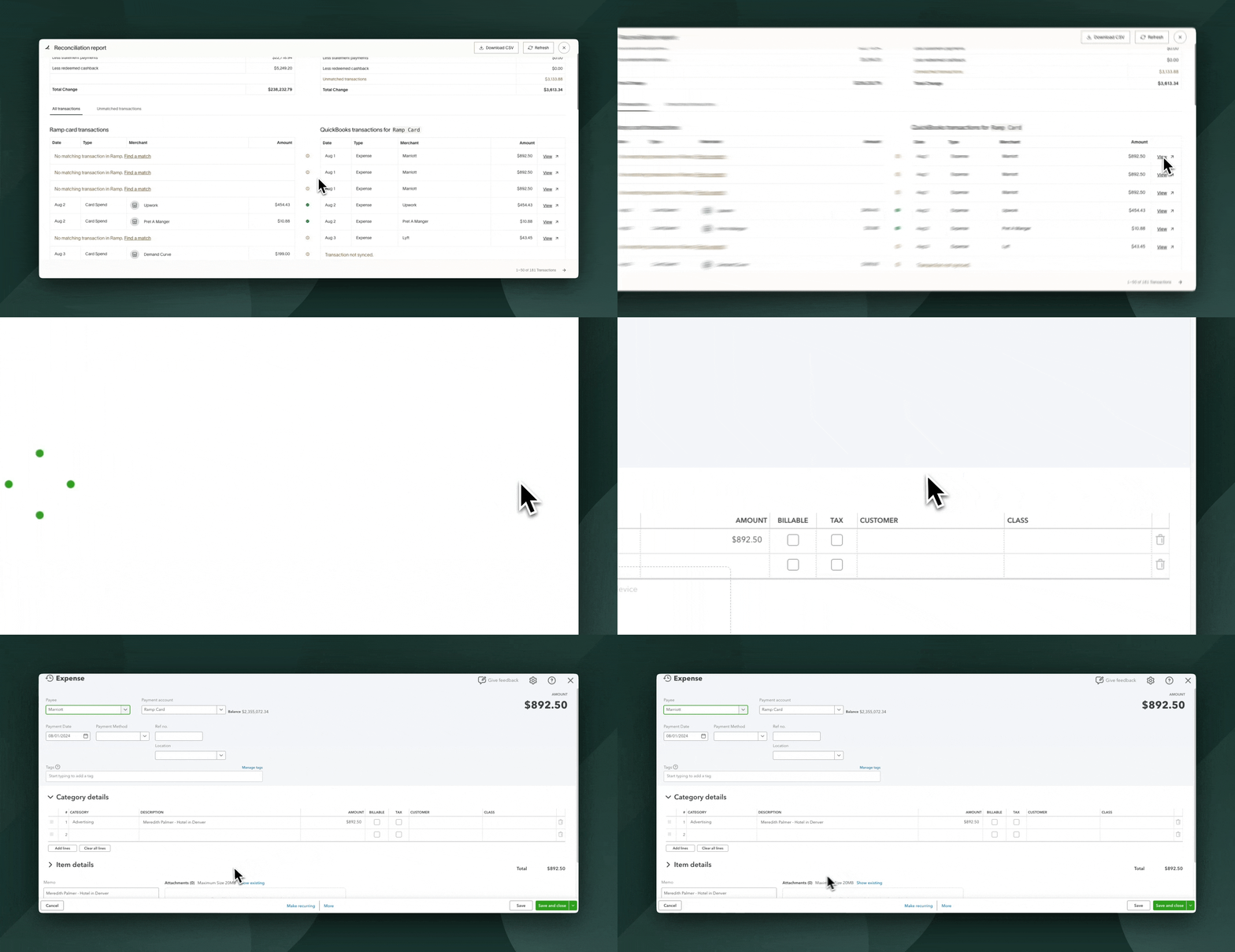
The right side of the report shows all the corresponding transactions that have been synced to QuickBooks, assuming it is a 1:1 match. You can view the transaction directly in QuickBooks by the click the View button on the right hand side.
PDF download option for reconciliation report
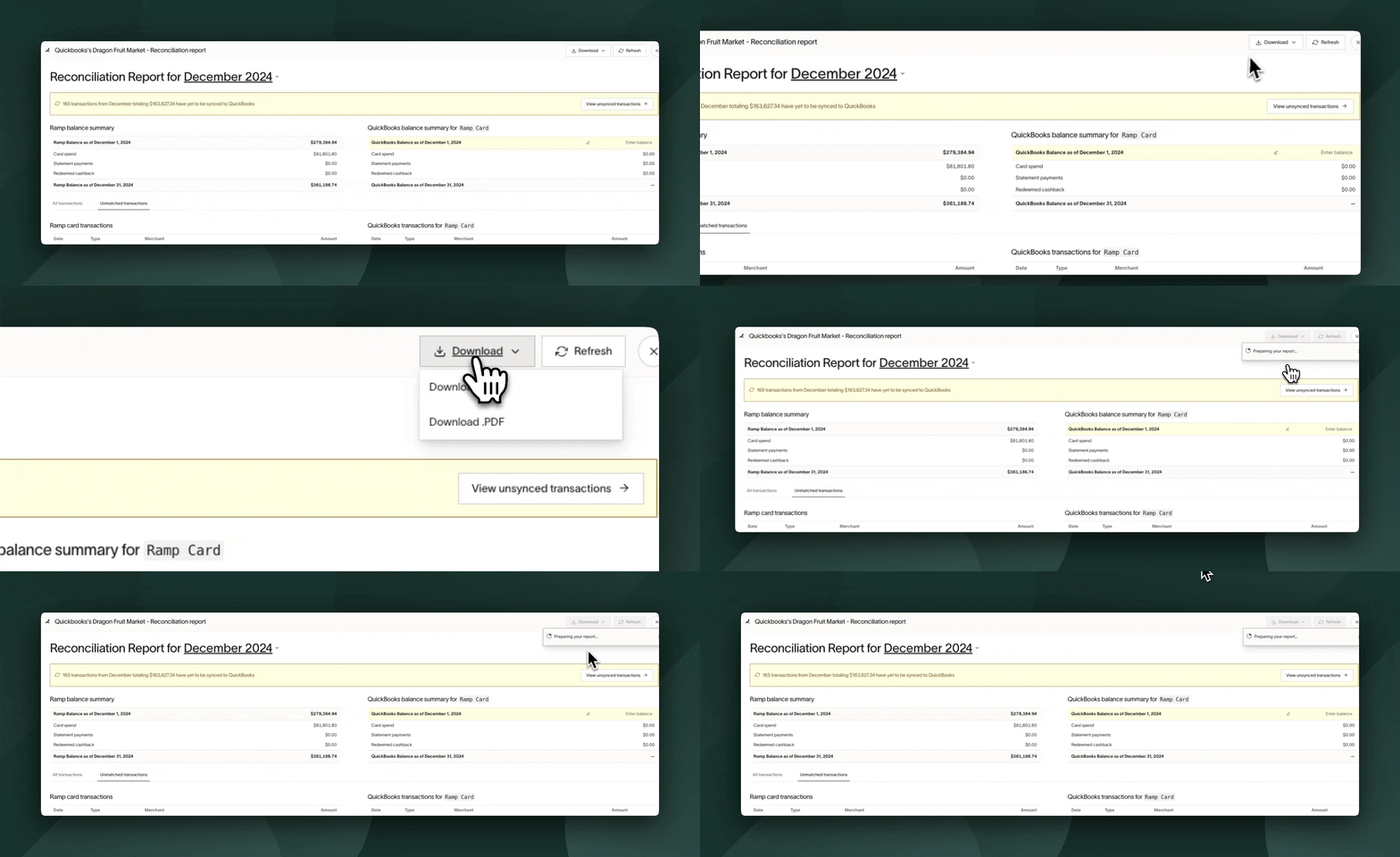
You can download your current or historical statements by navigating to the top right corner of the reconciliation report and clicking Downloads.
Statement formats:
- CSV
Frequently asked questions
Why does my matched transaction have a different date?
Time zone differences or manual date adjustments can cause discrepancies. Use theAccounting Datein Ramp to align dates in QuickBooks.
Does the reconciliation tool capture bill payments that are paid outside of the card?
The reconciliation tool includes all transactions that are made with, or should be made with, the Ramp Credit Card / Ramp Statement. Any payments made through ACH are not included.
How can I find my QuickBooks statement balance?
No need. Ramp automatically pulls your QuickBooks statement balance in the reconciliation report.
What if my accounting date is in a different period than when I synced to QBO?
If a Ramp transaction is recorded in one month but synced in a subsequent month, the Reconciliation tool will account for this by populating both months with a placeholder. This allows those with the Accounting role to understand the discrepancy and account for it accordingly.

How the transaction shows up in the month it was processed.

How the transaction shows up in the month it was synced to QuickBooks.
I downloaded my expenses via CSV, how can I match them on Ramp?
When downloading expenses via CSV, you will be prompted to either Mark as Synced or Preview Only. When you mark as synced, these transactions will show up in the reconciliation tool as synced on the QuickBooks side.
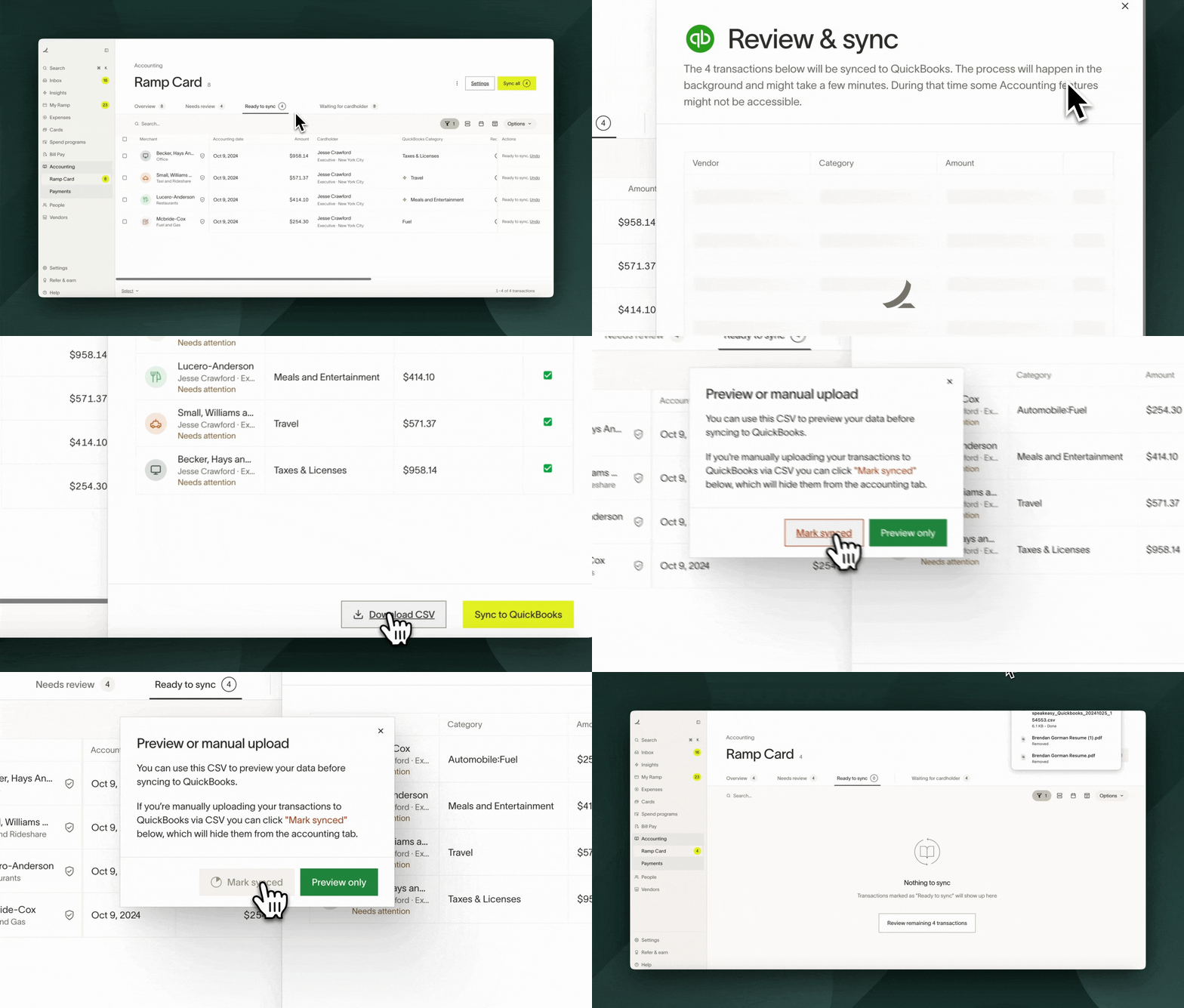
Note: You will still have to manually match these transactions in the reconciliation tool (below image)

I didn't sync my statement payment but recorded it manually in the accounting provider, how can I match it on Ramp?
Use the find a match feature in the QuickBooks Transactions column to link your statement payment on QuickBooks to the corresponding statement payment on Ramp.
Note: Do NOT sync your statement payment and manually record it in QuickBooks, this will result in a duplicate statement in the reconciliation tool.