Ramp support for multi-entity businesses
Overview
Available on Ramp Plus. See Ramp Plus overview for plan details.
Ramp supports multi-entity businesses for NetSuite, Sage Intacct, Acumatica, Microsoft Dynamics Business Central, Microsoft Dynamics Finance & Operations, Workday Financial Management, Oracle Fusion, and UCSV customers. Ramp allows customers to add all business entities within a single instance and set different payment settings for each entity.
This enables customers to:
- Generate individual statement payments for each entity/subsidiary
- Eliminates the need to perform inter-company transactions every time you close your books
- Track card transactions, payout reimbursements, and bill payments for each entity from different bank accounts
- Sync to multiple entities within one batch sync for both transactions and reimbursements
Choose multi-entity or separate Ramp businesses
Use multi-entity when legally related entities or entities with shared management should operate within one Ramp business. Ramp uses one business-level accounting connection, while each entity can have its own subsidiary mapping, payment settings, and sync settings.
Use separate Ramp businesses when each entity must operate independently or each accounting company requires its own connection. Roles, cards, Spend Limits, and settings are independent in each business, but users can access multiple businesses with one email through Unified login.
Entities that are not legally related and do not share management are not eligible for one multi-entity Ramp business. Set them up as separate Ramp businesses instead.
Check multi-entity access
Multi-entity management is available on Ramp Plus and Ramp Enterprise. There is no separate multi-entity enablement toggle.
Admins with permission to manage entities can open Entities settings and select Add entity. If your business does not have multi-entity access, Ramp displays the available Ramp Plus options or lets you notify an Admin.
The option may be unavailable when:
- Your role cannot manage business entities.
- Your business uses one-day card payment terms.
- Your business is not eligible for multi-entity setup in its underwriting country.
Requirements for adding sub-entities
To keep Ramp secure and maintain strong banking-partner compliance, all entities added to a multi-entity account undergo a standard business verification review. This review helps us confirm the legitimacy of each entity and ensure they’re properly connected to your organization.
When you create a new entity in Ramp, we’ll ask for a few basic business details so we can verify the entity. The information requested may vary based on your organization’s structure, but it generally includes:
- Legal entity name (and DBA, if applicable)
- Business description
- Tax ID / EIN
- Principal place of business (physical address required)
- State/province and year of incorporation
- Country of registration
- Website URL
- Ownership relationship to the primary business (entity structure)
Depending on the ownership structure of the sub-entity, additional documentation may also be required (for example, relating to ultimate beneficial owners or proof of shared financial governance). Ramp will present the exact requirements when you create the entity.
Important to know:
- If we’re unable to verify the entity, we’ll reach out with next steps and may remove it if requirements cannot be met.
- Entities must have a legal relationship or shared management with the primary business in order to qualify for multi-entity. Independent affiliates without common management are not eligible.
Create business entities on Ramp
- Open Entities settings.
- Click Add entity.
- Note: During setup, the default entity will apply to all existing transactions and reimbursements.
- Fill out ALL required fields.
- Note: When selecting the checking account you'd like to use to pay down the balance for this entity, the bank account must be verified on Ramp to be included as an option in the drop-down.
- Click Create entity .
How business entities work on Ramp
With users
When inviting a user onto Ramp, you have to select a Department and Location that the user belongs to. Additionally, when setting up Multi-entity on Ramp, you have to map Locations to Entities.
So, when inviting a user, make sure you select the correct location for said user since all of the cards and funds will default to the entity corresponding to that location.
To see which users map to each entity:
- Navigate to Company > Entities .
- Select the Entity you would like to edit.
- Click Users tab.
With transactions
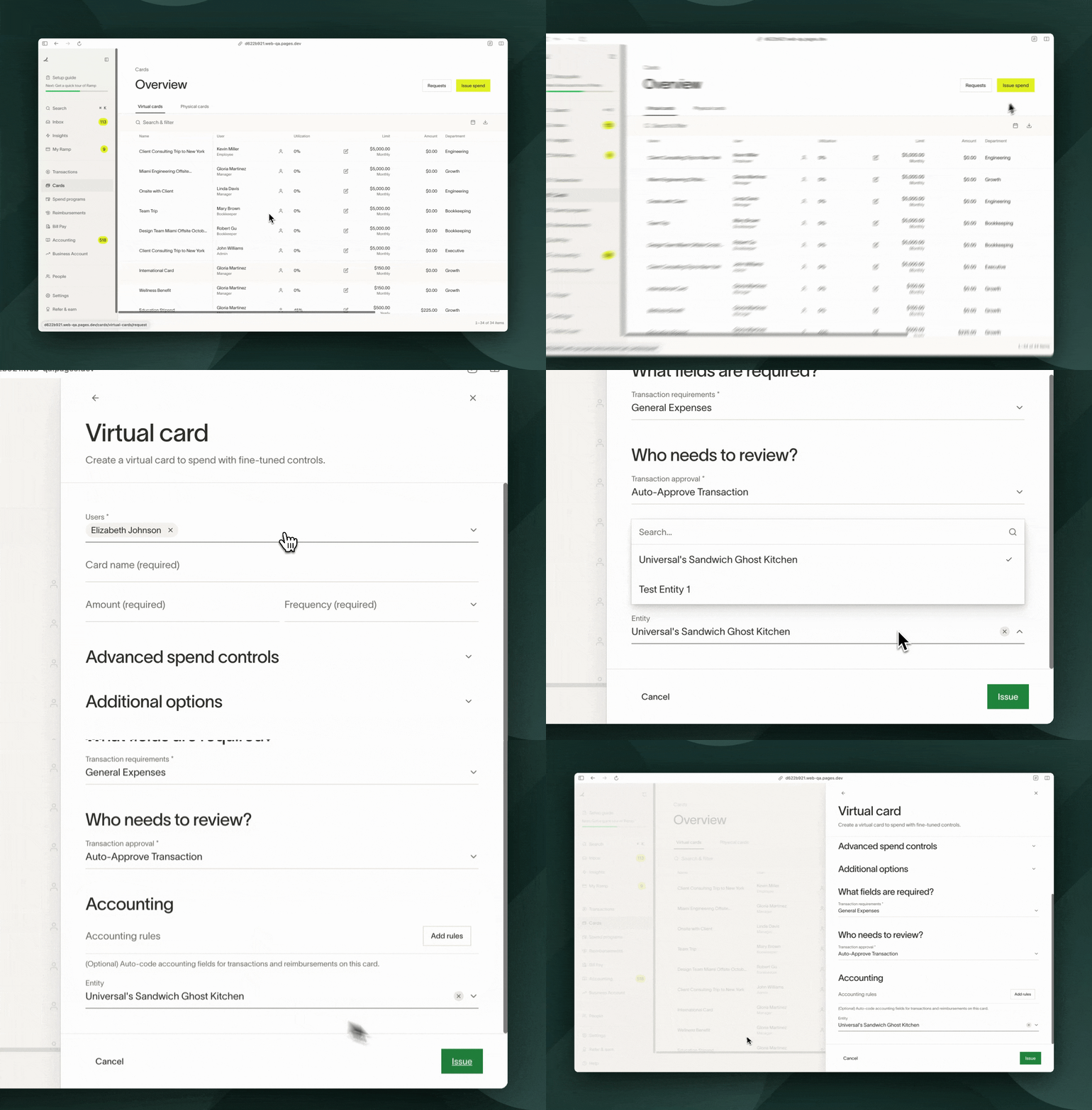
Each issued card or funds are linked to a specific entity, with all transactions on the card or funds attributed to this entity. The associated entity is determined at the time of issuance, defaulting to the entity tied to the cardholder's designated location. However, this default entity can be modified during the spend creation or editing process.
- Navigate to Manage Spend > Funds or Cards > Issue Spend .
- Select the spend type.
- Scroll to bottom of the draw and click Entity drop-down.
- Select the entity you'd like that card or funds to map to.
- Entity change will ONLY affect future transactions. In other words, the entity of a transaction is locked once a transaction is made.
With reimbursements
The entity of a reimbursement is dependent on what entity the user who submitted the reimbursement is in. There is no way to currently change this.
With statement payments
Statement payments will now be calculated at the entity level and paid out from the bank account specified in the entity settings. If an entity does not have enough funds to cover its expenses, we will default to the parent/default entity's bank account.
Editing business entities
- Navigate to Company > Entities .
- Select the Entity you would like to edit.
Creating user restrictions by entity
Admins can restrict eligible financial roles, including Accounting, Finance Admin, Accounts Payable, and eligible Custom Roles, to specific entities. Admins and Owners always have access to every entity and cannot be entity-restricted.
Open Entities settings, select an entity, and use Share entity access to add or remove eligible users. Every restricted user must retain access to at least one entity. See Manage entity restrictions for instructions and troubleshooting.
Frequently asked questions
Can I have limits per entity and/or get underwritten per entity?
Currently, we cannot delegate limits by entity within one Ramp instance. Underwriting is also as a whole, not by entity.
How can I change the entity of a transaction?
Click into the transaction and then scroll to the entity field in the transaction drawer. Click the drop-down menu and change the entity of the transaction. Please note that this functionality is only available before the statement is generated. Once a statement is generated, the entity of the transaction is locked.
Why is the location greyed out when assigning transactions?
Location is selectable only if the transaction is tied to compatible or top-level entity. To enable selection, update transaction to use the correct entity or set entity to top-level. Go to change entity settings: Company → Entities > [select entity] > Edit → Change Subsidiary → Top Level > Save.
Why can't employees change the entity of transactions?
Please contact your account manager or support team to request this feature be enabled on your account.
What should I do if an employee or user spends across multiple entities?
Each virtual card or funds are tied to an entity, and a user may have cards and funds that tie to different entities. Thus, if a user spends across multiple entities, the suggested setup is to have multiple virtual cards or funds, one for each entity. This will make the statement payment and reconciliation process more seamless since if you had the option to move around the subsidiary, there is the possibility it doesn't match up with how it was paid out.
What happens if I change the mapping of a location (i.e. Location A now maps to Entity A instead of Entity B)?
Future cards or funds will now default to the updated entities, however existing ones will remain untouched. To edit the entity of a card or funds, click on the card > click Actions> Edit > Scroll to the bottom, and change the entity. Note: This will only affect future transactions.
Can I get multiple physical cards, one for each entity?
You can only have 1 physical card by employee, and the business name and logo must be the same across entities.
How can I change the entity of an existing physical card?
You cannot change the entity of the physical card, but you can change the entity of the funds tied to that card. Only new transactions will use the updated entity. Existing transactions remain with the original entity.
- Go to Manage spend > Cards > select the physical card
- Select the Fund from that Card that you want to change
- Open actions at the top right and Edit and scroll to Danger Zone .
- Choose Change entity and select the correct entity for this fund.
Can I split transactions across entities?
- NetSuite does not allow this so you cannot do so within Ramp.
- Sage : You can split across locations (which may correspond to entities). However, the locations available are the locations where the card is created (i.e., if a card is created at Location 100, then the only locations you can split that transaction across are other locations available within Location 100).
How can I delete an entity?
Please visit How to delete an entity on Ramp?
How can I remove a user from an entity?
Change the location of the user.
Why isn't this bank account showing?
The bank account must be verified in Ramp to appear in the list of drop-down options for an entity.
How can I move reimbursements that were submitted to the wrong entity?
- Reimbursements are assigned to the entity that matches the employee's Location at the time the reimbursement is submitted.
- Once submitted, the reimbursement's entity cannot be changed retroactively .
- To correct a reimbursement that was submitted under the wrong entity, delete the existing reimbursement and have the employee resubmit it after their Location has been updated to the correct entity in the dashboard.