Unified login
Overview
Unified sign-in lets you access multiple Ramp businesses with a single email address. You sign in once and switch between businesses from the navigation — no need to sign out and back in.
How unified sign-in works
Your Ramp account is tied to a single email address. When you belong to more than one Ramp business, all of those businesses are linked to that same email. Each business is fully independent — your role, cards, Spend Limits, and settings in one business have no effect on another.
For example, you might be an Admin in your own company's Ramp account and a Cardholder in a client's account. Unified sign-in connects both under one sign-in, but the two businesses remain completely separate.
Switch between businesses
On desktop
To switch between businesses on the web:
- Open the account switcher dropdown in the left-side navigation bar.
- Select the business you want to switch to.
The dropdown lists each business by name. If you belong to six or more businesses, a search box appears at the top of the list.
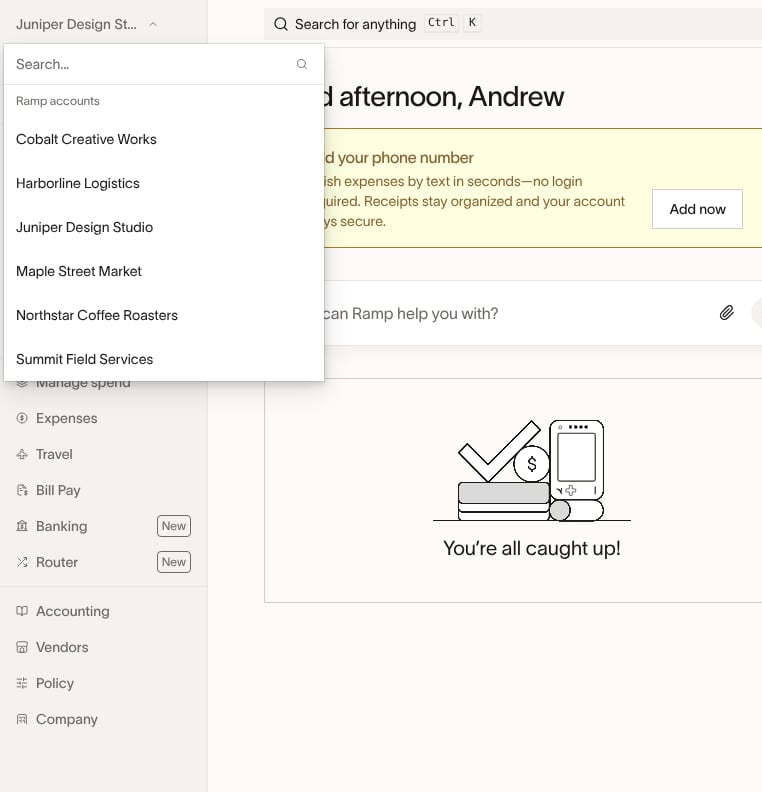
Switching is instant — the page updates without a full reload.
On mobile
On the Ramp mobile app, account switching is handled through the native app settings. Open the app settings and select Switch account to choose a different business.
Sign out of Ramp
You do not need to sign out to switch between Ramp businesses linked to the same email address. Use the account switcher when you want to move between businesses. Sign out only when you want to end your current session or revoke all of your active sessions.
Sign out of your current browser session
On desktop, open the profile menu in the top bar and select Sign out. On smaller browser widths, including mobile browsers, open Settings from the navigation and select Sign out. This ends the current session and takes you back to the Ramp sign-in page.
Sign out of the Ramp app on iOS or Android
On iOS or Android, tap your profile button in the upper-left corner of the home screen to open Settings. Scroll to the bottom and tap Sign out.
Sign out of all active sessions
In a browser, open Personal settings and select Sign out everywhere if you want Ramp to revoke all of your active sessions. After you confirm, you need to sign in again on each device. Use this option when you want to secure your account across devices, not when you only need to switch between businesses.
Get invited to another business
To access an additional Ramp business, an admin at that business needs to invite you using your existing Ramp email address.
- The admin sends you an invitation to the same email you already use for Ramp.
- You sign in to your existing Ramp account and accept the invitation.
- The new business appears in your account switcher immediately.
You do not need to create a new account or use a different password. The invitation links the new business to your existing sign-in.
Troubleshoot multi-account issues
I have two Ramp accounts with different emails
Ramp does not support merging accounts or linking multiple email addresses. If you have two separate Ramp sign-ins, choose which email you want to use going forward, and ask the admin of each business to re-invite you with that single email address. Once you accept the new invitations, all your businesses will be accessible under one sign-in.
I was invited with a different email than my existing account
If an admin invited you with an email that does not match your current Ramp account, you will end up with two separate sign-ins. Ask the admin to cancel the original invitation and re-send it to the email address you already use for Ramp.
I don't know which business to use
Open the account switcher to see all businesses linked to your email. Each business is independent — select the one relevant to what you need to do. Your role, cards, and settings are specific to each business.
A business disappeared from my switcher
If a business is no longer visible in the account switcher, you were likely removed from that business by its admin. Your other businesses are not affected. Contact the admin of the missing business if you believe this was a mistake.
I see "This business is locked"
A locked business has been restricted at the business level. You cannot access it until the restriction is lifted. Contact that business's admin for details, or reach out to Ramp Support if the admin is unavailable.
My company changed email domains
If your company migrated to a new email domain, your admin may need to update the SAML or SSO configuration and re-invite affected users with their new email addresses. Contact your company's Ramp admin to coordinate the transition.
Frequently asked questions
Is there a limit to how many businesses I can access?
No. There is no limit to the number of Ramp businesses you can access with a single email.
Can I have different roles in different businesses?
Yes. Your role is set independently in each business. You might be an Admin in one business and a Cardholder in another.
What happens if I'm removed from one business?
Your access to that business ends, but all other businesses linked to your email are unaffected. You can continue signing in and switching between your remaining businesses as usual.
Can I merge two Ramp accounts into one?
No. Ramp does not support account merging. If you have two accounts under different emails, pick one email address and ask each business's admin to re-invite you with that email.
Can two users on the same business have their profiles unified?
No. Unified sign-in supports one user accessing multiple Ramp businesses with the same email, but it does not combine two different users from the same business into one sign-in.
If you're an Admin or Owner and need read-only access to an eligible non-admin user's account, use Preview Mode. Ramp does not support read-only preview access to another Admin's or Owner's account. If you need to complete supported tasks on behalf of another user, use the Assistant permission. If you need read-only access and do not have the Admin or Owner role, ask an Admin or Owner at your business to use Preview Mode.
Does my role in one business affect another?
No. Roles, permissions, cards, and Spend Limits are completely independent across businesses.
Where can I get help with sign-in issues beyond multi-account problems?
For password resets, MFA issues, or other sign-in problems, see Troubleshooting Ramp sign-in and MFA issues.