Inviting users to Ramp
Note: This article primarily applies to Ramp Administrators. Cardholders may find other articles in the Ramp overview section to be more applicable.
Overview
Once you've set up your account, you can invite your entire company to start managing funds on Ramp. Inviting a new user to your Ramp account is easy. This article will cover the following:
Invite information
Sending out invites
When inviting users to Ramp, some required and optional inputs need to be populated.
Required fields:
- Email address
- Department (not applicable for Developer Admin or Vendor Network Admin roles)
- Location (not applicable for Developer Admin or Vendor Network Admin roles)
- User role ( for information on user roles, please visit this article )
- Manager (required if you can invite only users on your team; optional if you can invite users across the business)
Optional fields:
- Funds or Spend Programs
- Deactivation date (defaults to 6 months for Guest users, but can be changed or removed)
You may choose to auto-issue a Ramp card linked to funds to new employees. Auto-issued cards and funds do not need to be configured when inviting the user. For more information on this, please review our Spend Program article.
Guest and Vendor Network Admin invites
Guest users: When you invite a Guest user, the deactivation date defaults to 6 months from the invite date. You can adjust or remove this date during the invite process. If no deactivation date is set, the guest remains active until manually deactivated. Guest users cannot be issued physical cards. The Guest role requires Ramp Plus.
Vendor Network Admin: This role is intended for external users who manage vendor relationships. The department, location, and manager fields are hidden during the invite process since these fields do not apply to external users.
How invites work
When you invite a user to Ramp, they receive an email with a secure link to sign up and join your business on Ramp. Invite emails are system-generated and cannot include a custom message, so consider sending your own announcement (email, Slack, etc.) letting employees know to expect an invite from Ramp. You can share the Getting started as a User guide to help them through the onboarding steps.
By default, invites expire after 14 days. Your admin can adjust this window (from 1 to 365 days) in invite issuance settings. Invites sent through SCIM provisioning expire after 90 days unless your business uses a custom invite expiration window.
To resend an invite, open Invited, then select Resend invite next to the invite. You can also select multiple invites to resend at once. If resend is unavailable because the email bounced, correct the email address, revoke the old invite, and send a new one.
When you resend an invite, Ramp resets the expiration timer. The invitee should use the link from the most recent invite email.
Invites can also be revoked before they are accepted. To revoke an invite, open Invited, locate the user, and select Revoke invite. This deactivates their pending invite immediately.
Check out this article for more information on user sign-up.
Inviting a single user to Ramp
To invite a single user to Ramp:
- Open Invite
- Select the user role for the invitee
- Input the required fields (and any optional fields)
- To issue a Ramp Card, toggle on Issue a physical Ramp Card
- Click " Send invite "
Bulk invite users to Ramp
For bulk inviting guests, see here
If you need to invite several users at once, you can send out invites using a CSV. Note that your Ramp account can have unlimited users.
To bulk invite users:
- From People, select Invite > Upload CSV, then select Download template.
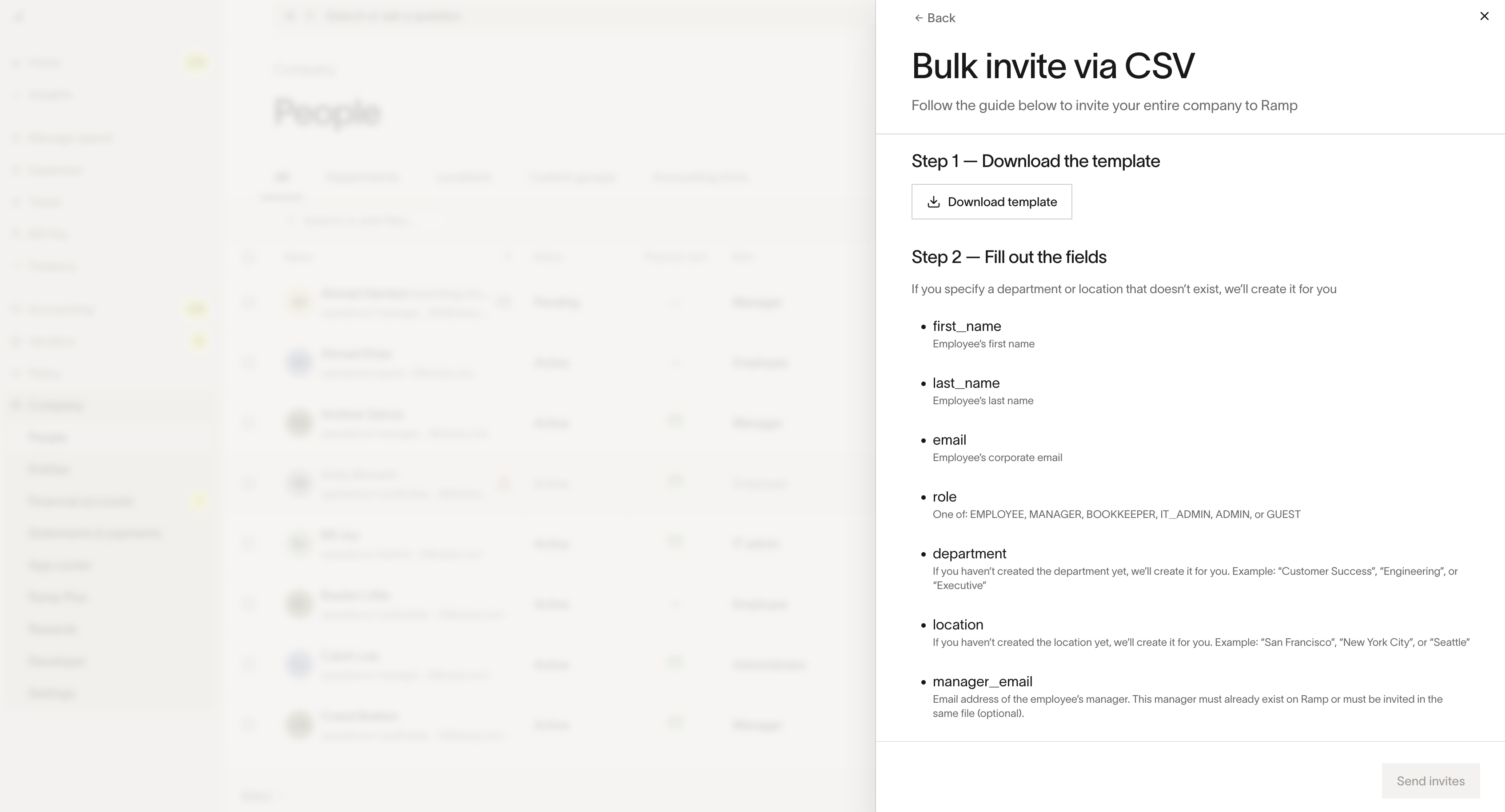
- Fill out the required fields (and any optional fields).
- Required and optional fields are listed and explained on the Bulk invite screen.
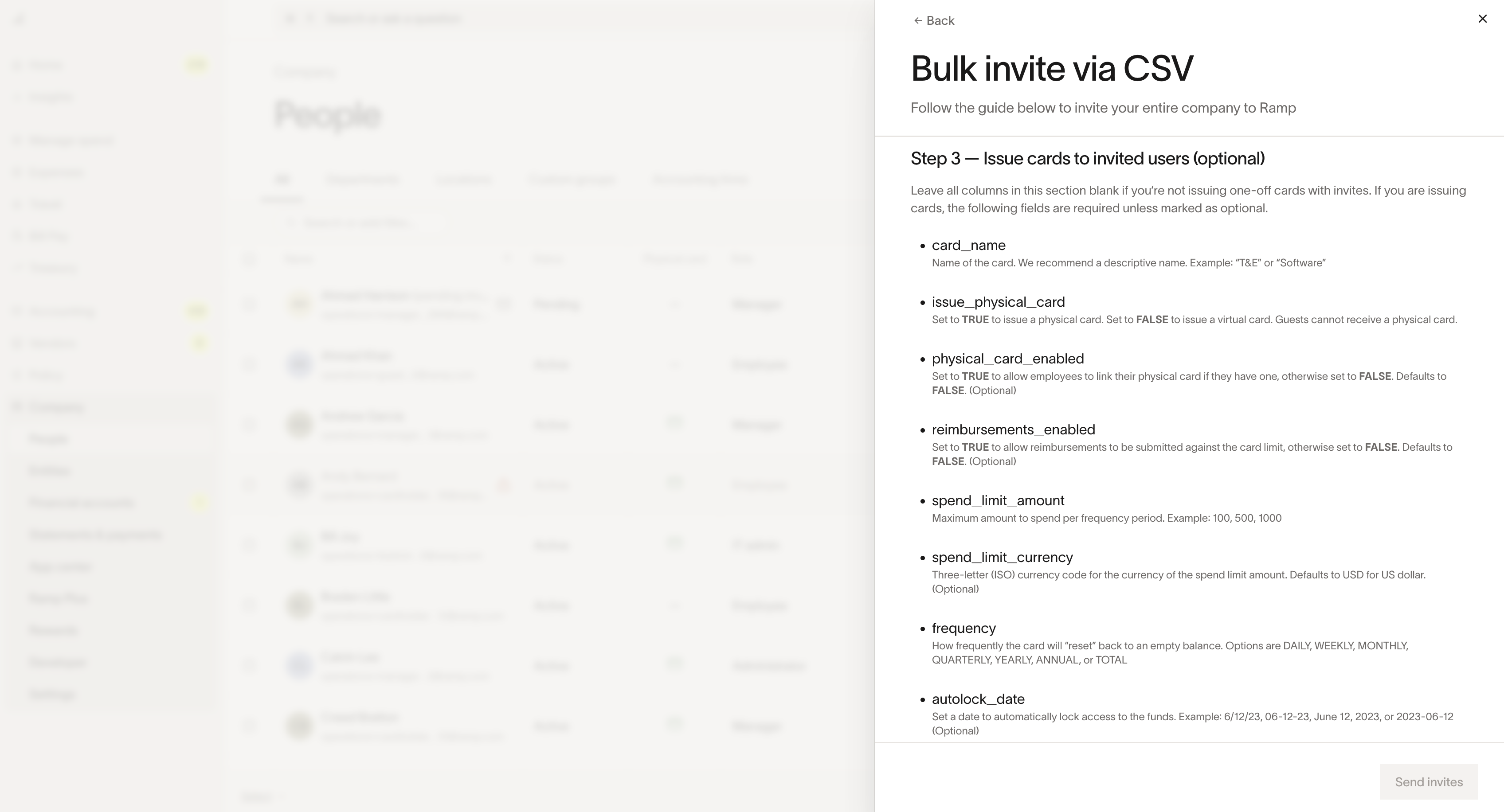
- To bulk issue cards to invited users, the following fields are required unless marked optional:
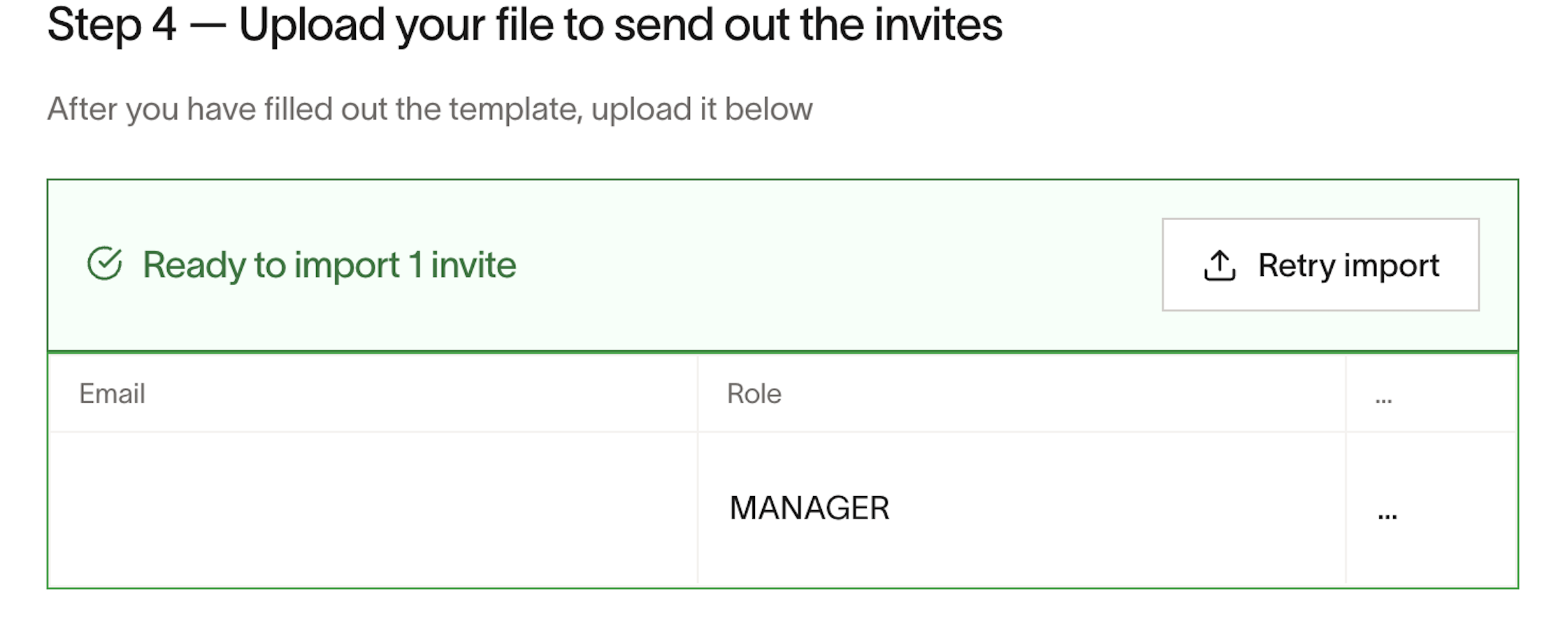
- Import the CSV file.
- Select if you would like to ship physical cards in advance, and enter the shipping address.
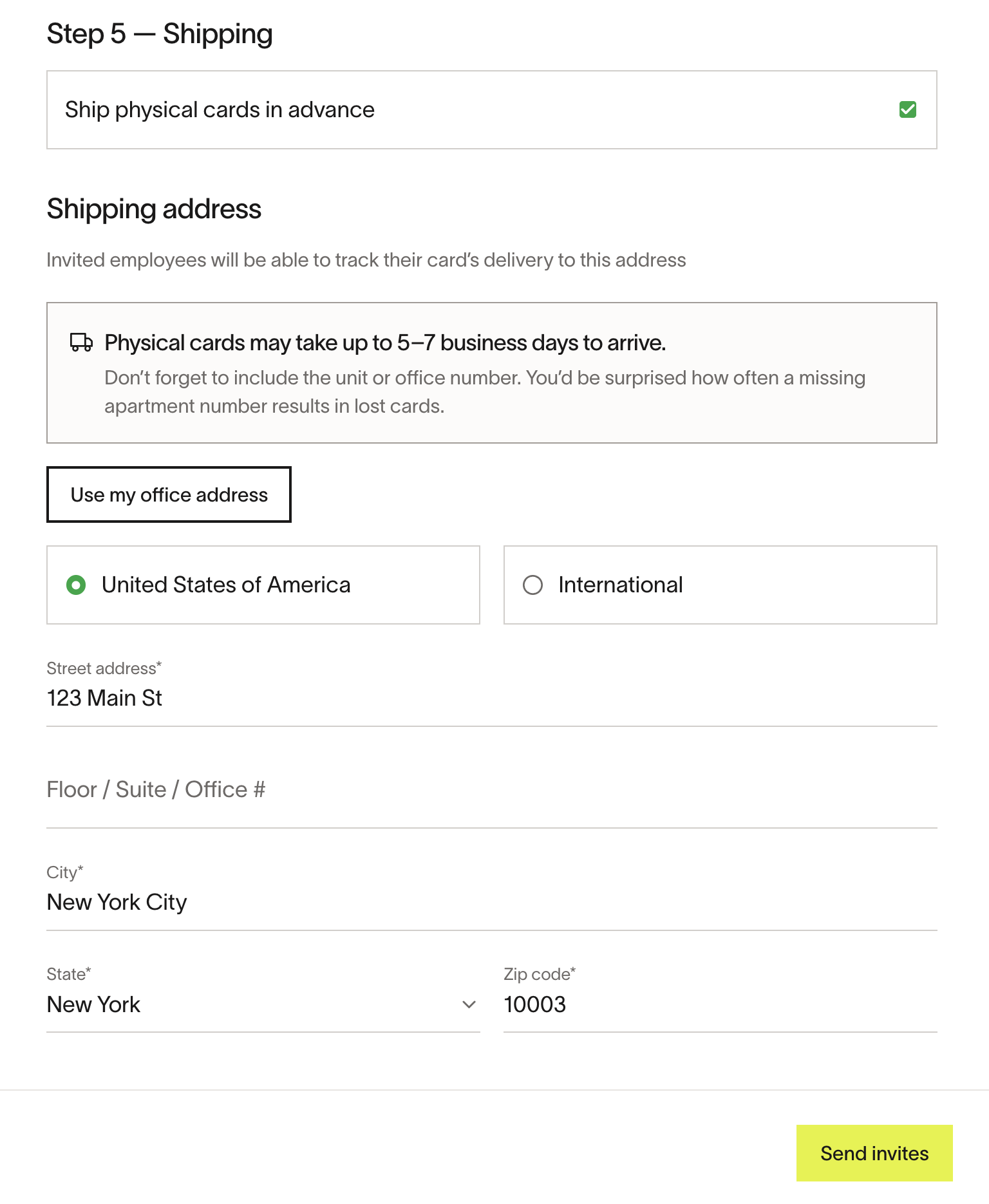 The screenshot shows the previous Send invites label. The current action is Create users.
 - Select Create users.
Note: Selecting ship physical cards in advance orders and ships the cards immediately, not when invites are accepted. Physical card fulfillment also runs synchronously when ordered for draft users, such as via CSV user upload — see Setting up draft users.
Using HRIS to invite users
Ramp can integrate with many common HR systems. For more information on how to set this up and invite users, visit HR Integration
If your business uses Slack, admins can enable Sync Slack users to Ramp to automatically import members of your Slack workspace into Ramp as draft users for admins to invite. Your business must have the Slack integration connected before enabling user sync.
Invite by phone
To enable text delivery, open Invite settings and turn on Invite texts enabled. Invite texts are only sent for new invites (alongside other configured invite delivery methods).
When you add a mobile number, confirm that the invitee has agreed to receive texts from Ramp. Messages and data rates may apply.
Automatic workspace invite delivery
When you create an invite in Ramp, we attempt to deliver it through your connected Slack or Microsoft Teams workspace (alongside other available invite delivery methods) if we can identify the invitee as an active member.
To connect a workspace, see Slack integration: Set up for admins or Microsoft Teams integration: Set up for admins.
Invite by link (campaign links)
Invite campaigns let you share a single sign-up link (or QR code) that anyone you give it to can use to request a Ramp invite themselves, instead of you typing each email into the invite form or a CSV. They're useful for events, conferences, and onboarding cohorts where you don't have the full list of email addresses up front. To create one, go to People > click the Invite dropdown > Invite by link. You must be able to invite users across your business and access Spend Management.
Each campaign acts as a template: when someone submits the form, the new user is created with the campaign's preset department, location, direct manager (optional), role, and (optionally) Spend Program. Roles are limited to base employee roles and the Guest role — campaign links cannot grant Admin, IT Admin, Bookkeeper, or Finance Admin. You can also set a maximum number of invites per campaign (up to 500), and restrict accepted email domains (for example, only @yourcompany.com) so the link can't be used by anyone outside your organization. Leaving the email domain list empty means no domain restriction.
Once the campaign is created, open its detail drawer to copy the shareable URL or download a QR code as a PNG. The URL is unique to the campaign and is unauthenticated — anyone with the link can submit the form, subject to the limits above. Recipients fill in their first name, last name, and email; Ramp then sends them a standard invite email and they accept it the same way as any other Ramp invite, including signing in via SSO if your business requires it. People who sign up through a campaign show up in Invited until they accept.
To manage an active campaign, open its detail drawer. The Danger zone has two actions: Generate new link rotates the campaign's token so the previously shared URL stops working immediately (people who already accepted keep their accounts), and Delete campaign removes the campaign. Deleting a campaign does not revoke outstanding pending invites or deactivate users who joined through it. To stop access before an invite is accepted, revoke each pending invite. Use Generate new link if a link was shared more broadly than intended, and use Delete campaign when an event or hiring cohort is finished.
Invite accounting firms
If you're inviting your external Accounting firm, you can invite them from the invite drawer on the People page or from the External firms tab. See Connect with your Accounting firm for the full steps.
(Plus only) missing manager or IT Admin invite permissions?
If you are in the Manager or IT Admin role and your business is on Ramp Plus, you might not see the ability to invite users to Ramp. That is because your business Owner or Admin may have removed this permission from the Manager or IT Admin role capabilities. You can contact them for more information, and refer to this article for more information on role permissions.
Troubleshooting invite delivery
If a user reports that they did not receive their invite email, try the following steps:
- Check spam or junk folders. Invite emails sometimes get caught by email filters.
- Verify the email address. Confirm the email was entered correctly in the invite. A small typo can prevent delivery.
- Whitelist Ramp's sender domain. Invite emails come from Ramp. Ask your IT team to add Ramp's sender domain to your organization's email allowlist.
- Resend the invite. If the invite was delivered but the link is not working, ask an admin to resend the invite from Invited. Resending resets the expiration timer. The invitee should use the link from the most recent invite email.
- Delete and re-invite if the email bounced. If the invite email bounced (for example, due to a typo in the address), the admin needs to delete the invite and send a new one to the corrected email address.
Frequently asked questions
Can I issue an employee funds at the point of invitation?
Yes, users can be issued funds at the point of invitation to Ramp.
Do employees have to accept an invite before being issued funds?
Employees must receive and accept an invite to Ramp before they can activate their funds.
Can I get notified when a user accepts their invite?
Ramp does not offer a dedicated or configurable email, SMS, push, or notification-preference alert for invite acceptance.
After the user accepts their invite and completes onboarding, their status updates from Pending to Active on the People page. Admins may also see a homepage notification that the employee recently joined, but there is no separate alert you can turn on for invite acceptance.
Can I invite a user or issue a card for someone who does not have an email address?
Ramp requires an email address for every user invite, including employees, contractors, and cardholders. There is no way to create a Ramp user or issue a card without providing an email address. Inviting a user by phone number only (without an email) is not supported. For people who are already Ramp users, admins can issue physical or virtual cards without entering the email again.
For employees who do not have a company email address, such as field workers or frontline staff, you can use their personal email address instead. The invite does not require a company-domain email, but depending on the invite path and your settings, Ramp may ask you to confirm the external email, keep some admin invites pending until another admin approves them, or block the invite because the email domain does not match your business.
If you use an HRIS integration to sync and invite employees, any employee record in your HR system that does not have an email address is skipped during the sync and does not appear in Ramp. To add these employees, invite them manually with an email address.
Why am I unable to invite someone? It says the email is already associated with an account
This can happen for a few reasons:
- The person is already on another Ramp business. You can still invite them — Ramp will recognize their email and add your business to their account via unified sign-in . No action needed from the other business.
- A pending invite already exists for this email. Open Invited to see if an invite was already sent. You can resend or revoke it from there.
- The user was previously deactivated. If the person was a former employee who was deactivated on your business, reactivate them from the People page rather than sending a new invite. See Help an employee regain access to Ramp .
- The person signed up for Ramp independently. Sometimes users apply to Ramp on their own before receiving a company invite. In this case, contact Ramp Support to have their standalone account removed so you can re-invite them under your business.
Can I view a deleted pending invite?
No. After you delete or revoke a pending invite, it no longer appears in the customer-facing pending invites views in Ramp. Ramp does not have a customer-facing history view for deleted or revoked invites. If you need that person to join later, send them a new invite.
What if I get an SSO error when accepting my invite?
If your admin has enabled SSO (single sign-on) as a sign-in method for your role, you may need to accept the invite using your SSO sign-in. Common errors include:
- A mismatch between the email in your SSO provider and the email used for the invite
- SSO not being configured for your email domain
- Your role is configured for a different sign-in method (for example, email and password or Google SSO)
Check with your IT Admin to verify which sign-in method is enabled for your role and that your invite email matches your SSO identity. For more detail, see Signing in to Ramp for the first time.
What are the CSV requirements for bulk invites?
The CSV must include the following required columns: first_name, last_name, email, and role. Optional columns include department, location, manager_email, deactivation_date, and card-related fields.
Common errors include:
- Duplicate email addresses in the file
- An email that is already associated with an existing Ramp user
- Invalid role names
If validation fails, the entire CSV is rejected — fix all errors and re-upload.