HR integration overview
Overview
Ramp connects to your HRIS so you can add and manage employees in Ramp, with employee data refreshed daily.
Depending on your employee invitation settings, Ramp either automatically creates user profiles for your employees or prompts you to review and add them to your business. Ramp also prompts you to remove employees who are terminated in your HRIS.
If you enable automatic organizational changes, we will automatically update employee information (location and department) or reporting structure (manager relationship) on Ramp to match that on your HRIS provider on a daily basis.
Ramp will pull the following information from your HR System for each employee:
- Name, Email
- Role (if manager)
- Direct Manager (if the manager on HRIS is either already on Ramp or invited through the same bulk invite)
- Department
- Location
- Employment status
- Start date - Termination date (to flag when an employee has been terminated)
- Employee ID
- Company Name
Note: We do not pull compensation information. Feel free not to give Ramp any compensation-related permissions. Additionally, if you've enabled custom fields, we may pull additional fields based on the configuration.
Setup
To set up your HR software on Ramp:
- Head to Company -> Integrations -> User management
- Search for or select your HR provider.
- You’ll then be prompted to enter your sign-in credentials for your HR provider. Enter your admin credentials and submit.
Note: To ensure a successful connection, we suggest that the HR integration be performed by someone who has full admin access to the HR platform itself.
Invite employees
Ramp can add employees from your HRIS automatically or let you review them before inviting them. For employees invited through HRIS, Ramp issues Default Spend Programs based on each Spend Program's settings.
Note: Invited HRIS users will only have their manager auto-populated if the manager already has a Ramp profile or will be invited via HRIS.
Automatically add new employees
When Automatically add new employees is on, Ramp automatically provisions new users from your HRIS. These users can either be invited or not invited. They will continue to receive organizational updates based on your automatic organizational changes settings.
Invite immediately: Ramp sends an invitation email to each automatically added user, allowing them to join your business.
Create profile only: Ramp creates and links a user profile without sending an invitation email to the user. The employee cannot sign in, spend, or receive Ramp communications until an Admin invites them.
Manually add new employees
When Automatically add new employees is off, Ramp imports active HRIS records but does not provision users for them. Once the connection is established, you will receive a confirmation email. If you'd like more Admins to be notified, you can manage HRIS notifications here↗.
Admins can review employees individually before inviting them via Company > To invite. If you know a specific employee will not be invited to Ramp, select Remove suggestion next to their name. If you change your mind, this employee can still be invited at a later date.
Manage terminations
When your HRIS reports that an employee is terminated, Ramp surfaces the employee in Company > To terminate, where Admins can terminate the Ramp user.
Automatically sync organizational changes
Available on Ramp Plus. See Ramp Plus overview for plan details.
If you have enabled automatic updates, we will update information on Ramp daily depending on what's on your HRIS provider. To enable, all you have to do is:
- Go to Company > Integrations.
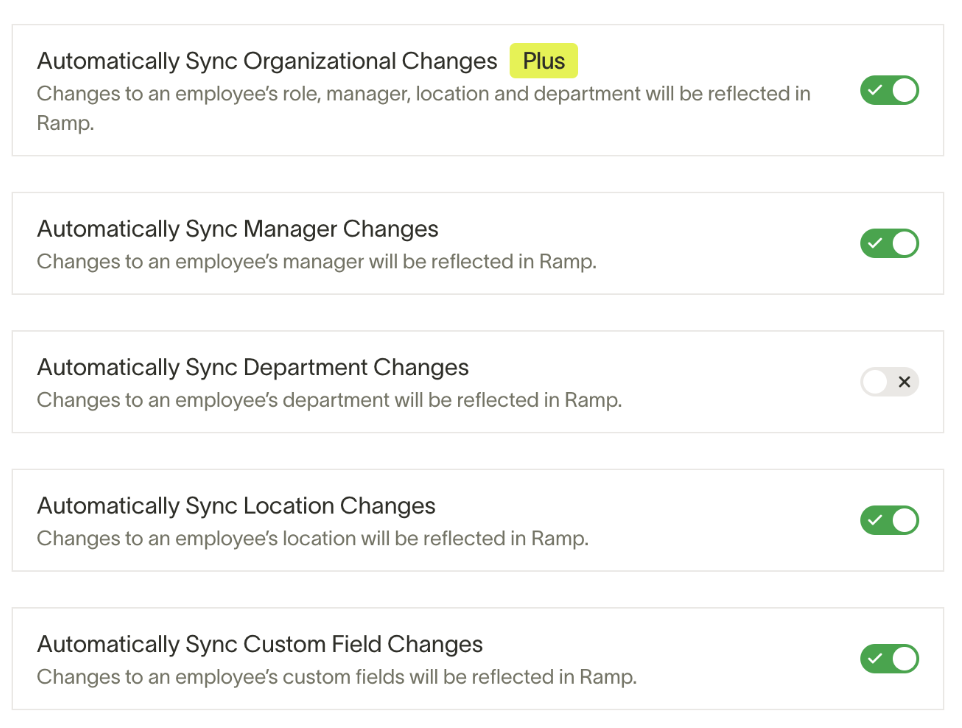
- Open your connected HR system's settings and enable Automatically sync organizational changes.
When enabled, Ramp will update your employee records daily based on any changes made in your HR System. This includes changes to your Employee’s Manager, Location, and/or Department.
Note: When enabled, this will override any manual adjustments you have made in Ramp regarding your Employee’s Card Manager, Department, and Location. This feature is available on a per-field basis, so if you want to maintain updates for Department and Location but set different Managers within Ramp vs. your HRIS provider, turn on Auto-sync and, in the next step, toggle off Manager updates.
Supported providers
Providers include ADP, BambooHR, Freshteam, Gusto, Hibob, HR Cloud, HR Partner, Hummans.io, Justworks, Lano, Namely, Nmbrs, Paychex Flex, Paylocity, Personio, Proliant, Sage HR, SAP SuccessFactors, Sapling, Square Payroll, TriNet, UKG Pro, UKG Ready, Workday (Plus), Ceridian Dayforce, Zenefits, and more.
Common issues
List of employees is not complete:
This is usually the case when the person who is connected to the HRIS provider does not have full admin access to the HRIS provider
Credentials are wrong when they are not:
This may happen when someone has more than one company associated with that email. The solution is to create a dummy admin account that is connected to only one company and initiate the connection
My email is connected to multiple companies:
Same solution as above