Microsoft Teams integration: Set up for admins
Note: This article primarily applies to Ramp Administrators. Want to show employees how to use this integration? See this article: How to use Ramp’s Microsoft Teams integration for employees
Overview
Admins on Ramp can get real-time alerts about their finances and handle employee requests using our Microsoft Teams integration. Employees can get alerts for missing items and ask questions about their expense policies which we'll generate responses to with AI. The following article provides more information about how to set up and use the integration.
How to set up the Microsoft Teams integration as an Admin
Connecting to Microsoft Teams
- Navigate to the " Company > Integrations " tab on your Ramp dashboard.
- Under " Categories ", select " Productivity ".
- Microsoft Teams will be available as an option to select.
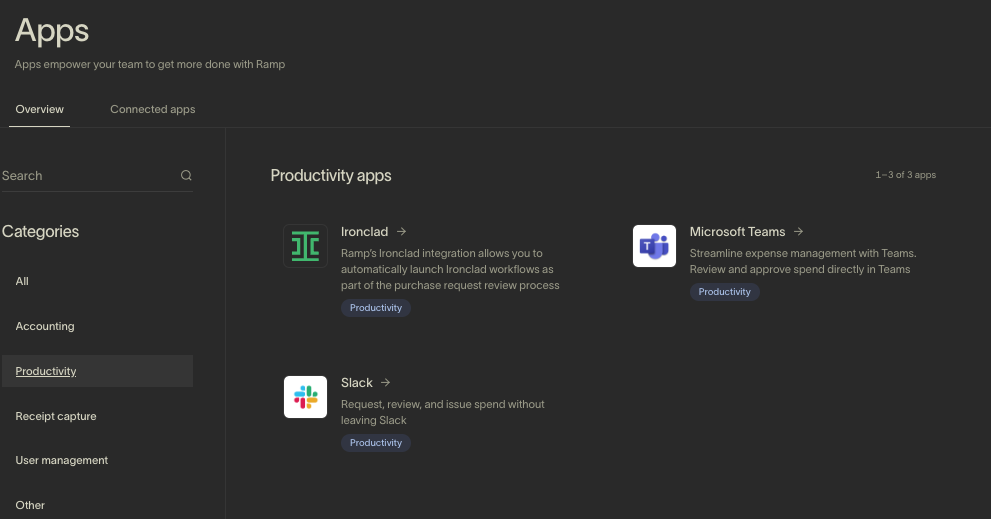
- You can read a little more about our Microsoft Teams Integration before connecting. When you are ready to connect your Microsoft Teams workspace, click “ Connect ”
- You will be taken to the Microsoft Authentication Screen to grant access.
- Once you are connected, you can set up two different channels for alerts in your Microsoft Teams workspace: 1) Business activity and 2) All transactions
Enabling business activity alerts or all transaction notifications
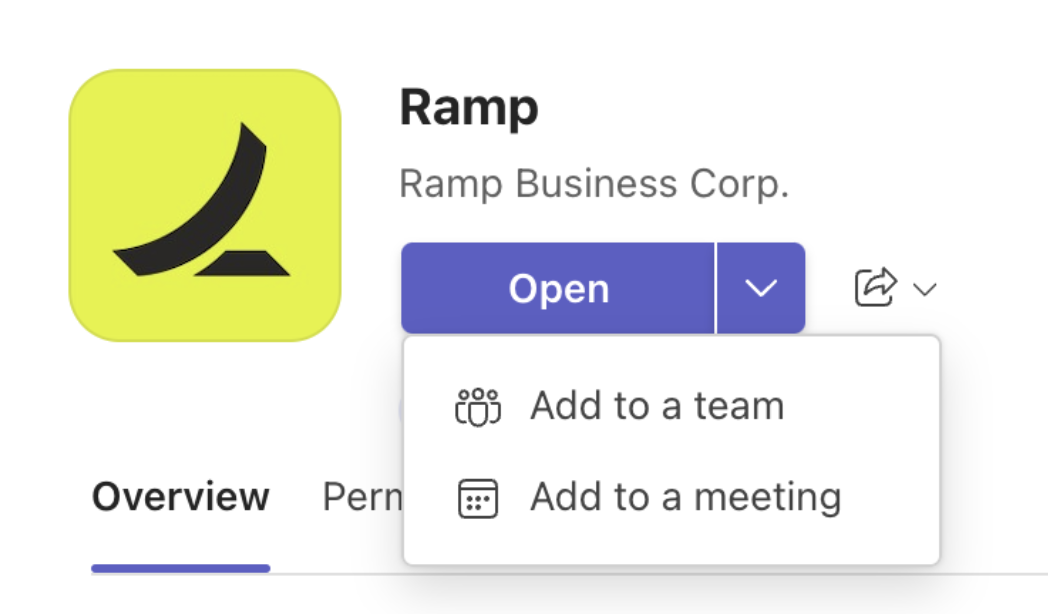
- Please add Ramp to a team from the Teams store (link here ). Double-check that the selected team includes all employees since Ramp can only send direct messages to members of the selected team.
- Select a channel in your workspace from a drop-down menu. The channel picker lists the available channels in your workspace. Please note that you may select a public channel in a private team but not a private channel.
- If you select a channel that Ramp is unable to send messages to, Ramp will initiate a private message in Teams to inform you a new channel needs to be selected.
- Your business activity and/or transaction alerts are now connected.
- Customize your business notifications by using the toggles. Options include:
- New requests
- Individual reimbursements
- Large transaction alert
- Statements for Ramp
- Business amount warnings
- Bill requests
- Monthly spending report
- Savings insights
- Weekly missing items
Disconnecting from Microsoft Teams
If you decide you want to turn off your integration, you can unsubscribe from the business activity alerts or all transaction alerts. You can also disconnect the entire integration by clicking “Disconnect”
App permissions
Ramp requires several permissions to perform the tasks above. For example, we require permission to read your chat messages with the Ramp bot. Microsoft does not offer read-only permissions, only read and write. We also use these permissions to tie your team members back to their Ramp accounts
Additionally, individual employees cannot go through your company-wide spending. Non-admins / owners cannot see anything beyond their & their own reporting chain’s transactions.
- Read the members of the teams and channels
- Read your channel messages
- Send channel messages
- Read and write your channel messages
- Read the members of chats
- Read all groups
- Read the names and descriptions of teams
- Read the members of teams
- Read all user's basic profiles
- Maintain access to data you have given it access to
- View your basic profile
Note:Currently, our integration does not support notifications for individual missing items.
How to use the Microsoft Teams integration as an approver (manager or Admin)
Assigned approvers for businesses outside the GovCloud environment can approve or reject requests, transactions, bills, and purchase orders with the Microsoft Teams AI assistant. The AI assistant, including approvals requested in chat, is not available for businesses on GovCloud. See Microsoft Teams integration: Use as an employee for notification availability and reminder behavior.
Video demo
Microsoft Teams for Admins on mobile
Video walkthrough: Set up Ramp's Microsoft Teams integration, including authentication, channel configuration, and notification routing. Best if your company runs on Teams and you want receipts, approvals, and alerts sent to the right channels from day one. Watch the video.