User roles overview
Overview
Ramp provides a range of user roles and permissions, allowing companies to manage their financial operations effectively while maintaining the necessary level of control and security. These roles include Admins and Owners, Accounting, Accounting Firms, Employees, Managers, Accounts Payable, Assistants, and Guests, each with specific access levels and responsibilities. By understanding and utilizing these user roles, businesses can optimize their spend management processes and ensure a seamless financial workflow within their organization.
Roles are organized into two categories: base roles and add-on roles. Every user gets exactly one base role. Compatible add-on roles can layer on top for additional permissions. Permissions across all assigned roles are additive — if any role grants a permission, the user has it.
Role summary
| Role | Best for | Can issue spend | Can manage users | Can access accounting |
|---|---|---|---|---|
| Base roles | ||||
| Admin / Owner | Implementation owners, trusted ops leaders | Yes | Yes | Yes |
| Accounting | Accountants, BPO partners, controllers | No | No | Yes |
| Employee | Standard team members | No (can request) | No | No |
| IT Admin | IT teams, developers | No | Yes | No |
| View-Only Admin | Auditors, FP&A, compliance | No | Read-only | Read-only |
| Guest (Plus) | Contractors, temp workers | Only if issued | No | No |
| Add-on roles | ||||
| Manager | Team leads, department heads | No (can request for team) | Team only | No |
| Finance Admin | CFOs, Controllers, Finance leads | Yes | Read-only | Yes |
| Accounts Payable | Accounts payable staff | No | No | Bill Pay only |
| Assistant | Executive assistants | No | No | No |
How roles work on Ramp
Owner and Admin are super-user roles and are granted all permissions.
Base roles vs. add-on roles
Every user gets exactly one base role: Owner, Admin, Employee, Accounting, IT Admin, Guest, or View-Only Admin. Add-on roles — Manager, Finance Admin, Accounts Payable, Assistant, and Custom Roles — can be layered on top when compatible. Permissions are additive: if any of your assigned roles grants a permission, you have it.
Valid combinations
| Add-on role | Compatible base roles |
|---|---|
| Manager | Owner, Admin, Employee, Accounting, IT Admin |
| Finance Admin | Employee, Accounting, IT Admin |
| Accounts Payable | Owner, Admin, Employee, Accounting |
| Assistant | Any base role except Guest |
| Custom Role (Plus) | Employee, Accounting, IT Admin |
| View-Only Admin | Guest only (as add-on) |
What cannot stack
Guest can only add View-Only Admin.
For step-by-step instructions on assigning roles, see Editing a user's role. For details on customizing what each role can do, see Customize role permissions.
Admins and Owners
Business Owner and Business Admin have the same permissions and are the super-users of Ramp. They have full access to all platform capabilities and controls.
Best for: Implementation owners, trusted ops leaders.
Admins and Owners can:
- Set up company-wide controls, including linking bank accounts, configuring auto-pay, and applying monitoring controls
- Invite new team members, set individual limits, and monitor balances and transactions
- Customize Ramp to match the company's accounting structure, integrate accounting software, and view statement history
- Redeem earned cashback, access savings insights, and use the partner reward program
Admins and Owners cannot:
- There are no platform restrictions — Admins have full access to all Ramp capabilities
While the number of Admins you can invite is not restricted, we recommend proceeding with care. Admins may have a manager for approval purposes, but they are not required to have one. Only managers and admins can be set as another admin's manager.
To control whether admins can approve their own spend, use the toggle under Expenses, Spend Requests and Bills in Policy (on left panel). If self-issuing is disabled and the admin has a manager, the manager reviews their spend requests and bills. If self-issuing is enabled, admins can approve their own spend regardless of whether they have a manager.

Finance Admin
Finance Admin is an add-on role that can be assigned on top of the Employee, Accounting, or IT Admin role. Finance Admins manage all of the company's financial products, expenses, bills, vendors, and treasury accounts within Ramp.
Best for: CFOs, Controllers, Finance leads.
Finance Admins can:
- Review, edit, and export all company-wide transactions, reimbursements, and statements
- Manage accounting integrations, sync settings, and accounting rules
- Create, edit, and archive bills, reimbursements, and payments
- View and manage vendors, including requesting onboarding details and using Price Intelligence and Seat Intelligence
- Access connected bank accounts, billing, rewards, and treasury accounts
Finance Admins cannot:
- Manage users — user management access is read-only
- Assign roles to other users
- Modify organizational structure (departments, locations, reporting chains)
For Ramp Plus customers, many of the above permissions can be customized. See Customize role permissions.
Note: Finance Admins are the direct counterpart to IT Admins — one manages finances while the other manages people and roles.
For more details on this role, see Finance Admin.
Accounting (internal)
Accounting is a base role for internal employees with access to the company's Ramp activity data to help with bookkeeping. Users with this role can still use Ramp cards and funds that are specifically issued to them.
Best for: Accountants, BPO partners, controllers.
Users with the Accounting role can:
- Integrate accounting software with Ramp
- Code transactions
- Sync Ramp financial data to the integrated accounting software
- Customize Ramp Accounting settings
- View and download the company's Ramp financial data and statements
Users with the Accounting role cannot:
- Issue spend to other users
- Make company payments
- Manage users or organizational settings
Note: Administrators can assign additional manager permissions to those with the Accounting role. For more details, see Editing a user's role.
Accounting firm (external)
The Accounting Firm role enables third parties — such as external accountants — to access your company's Ramp instance in a secure fashion. By connecting with your Accounting Firm, you enable administrators at the firm to assign staff to your account according to the roles you selected in the invite.
Best for: External accountants, BPO firms.
When connecting an Accounting Firm, you can assign the following roles to their staff:
- Administrator: Super-users who can invite users, issue cards and funds, set Spend Limits, create accounting rules, and modify all Ramp company settings.
- Accounting and Accounts Payable: Access to activity data for expenses and accounting, plus the ability to view, create, edit, and initiate approval processes for bills. Cannot issue cards or release funds.
- Accounts Payable: Can view, create, edit, and initiate approval processes for bills. Cannot release payments.
External users will appear in your People tab with the "external" label. You cannot assign managers to external users, make them managers of internal employees, or change their department or location. However, you can issue them virtual cards or funds, set them as Assistants, and lock their accounts.
To invite an Accounting Firm, go to Company > People and open the External firms tab.
Employees
Employees are standard team members who can make purchases through their individual Ramp cards. Each Employee gains access to their own Ramp dashboard to view cards, funds, limits, and balances.
Best for: Standard team members.
Employees can:
- Use physical or virtual cards and funds issued to them
- Request new spend
- Submit receipts and memos via text or email, which are automatically matched to transactions
- View their own transaction history, limits, and balances
Employees cannot:
- Issue cards or funds to other users
- Access company-wide transaction data
- Manage users, settings, or accounting features
Managers
Manager is an add-on role that can be combined with Owner, Admin, Employee, Accounting, or IT Admin roles. Managers oversee the spending of their own teams, including inviting team members, requesting spend on their behalf, and terminating users on their team.
Best for: Team leads, department heads.
Managers can:
- Invite team members to Ramp and request virtual cards, physical cards, and Spend Programs for their direct reports (requests go through the standard approval workflow)
- Change their own spending limits and extend Ramp invites to their team
- View all transactions from direct and indirect reports in their reporting hierarchy
- Receive spend and limit alerts and insights for their team
- Invite other managers under them as needed
Managers cannot:
- Issue spend directly — all spend requests go through the approval workflow
- Access company-wide spending, company settings, or accounting functionality
- Make company payments
- View their employees' full card numbers (only the last four digits)
You can set up additional approval workflow steps to control how Manager spend requests are routed, including limits on cards and funds and reimbursement approvals. See Policy on left panel.
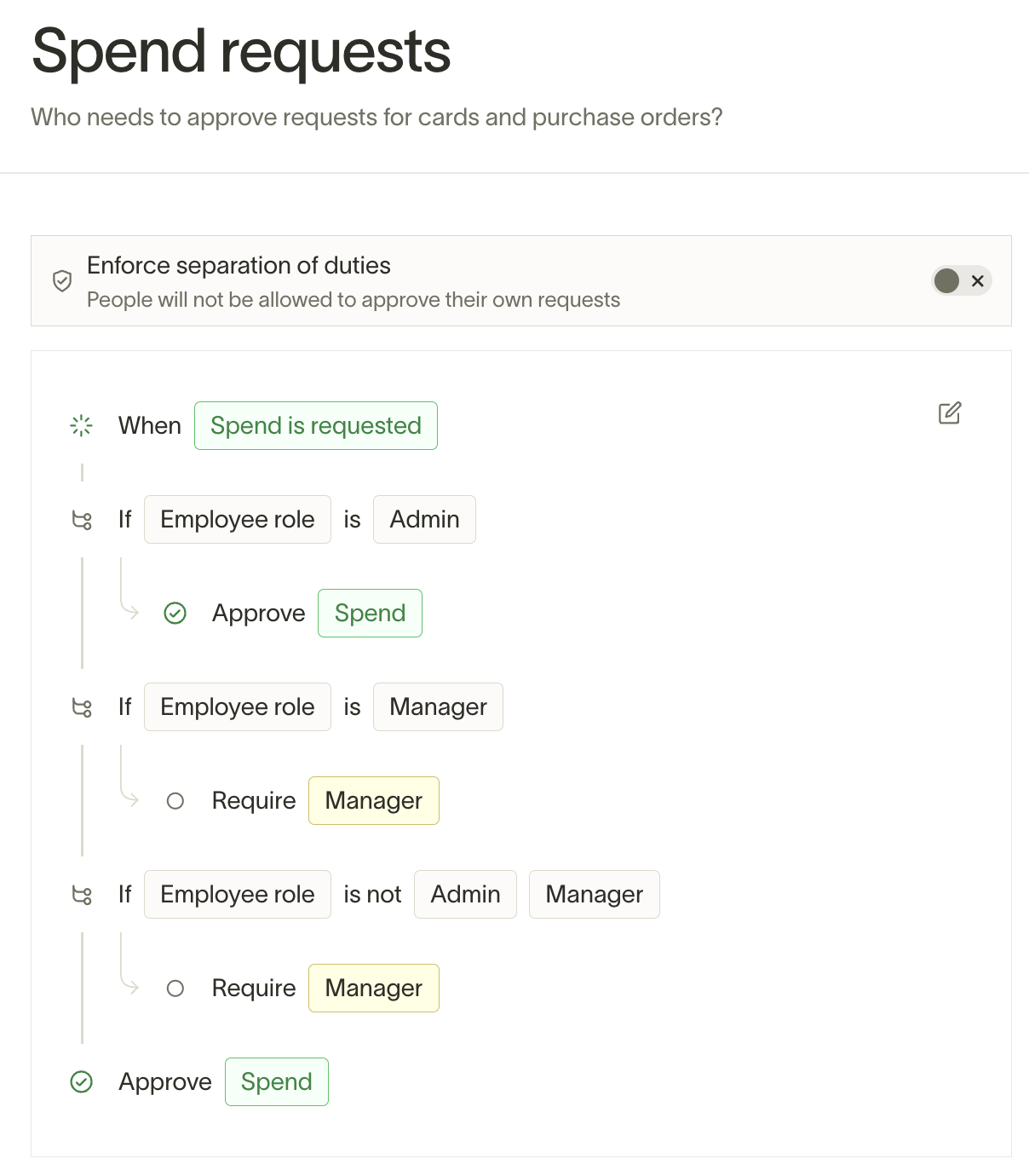
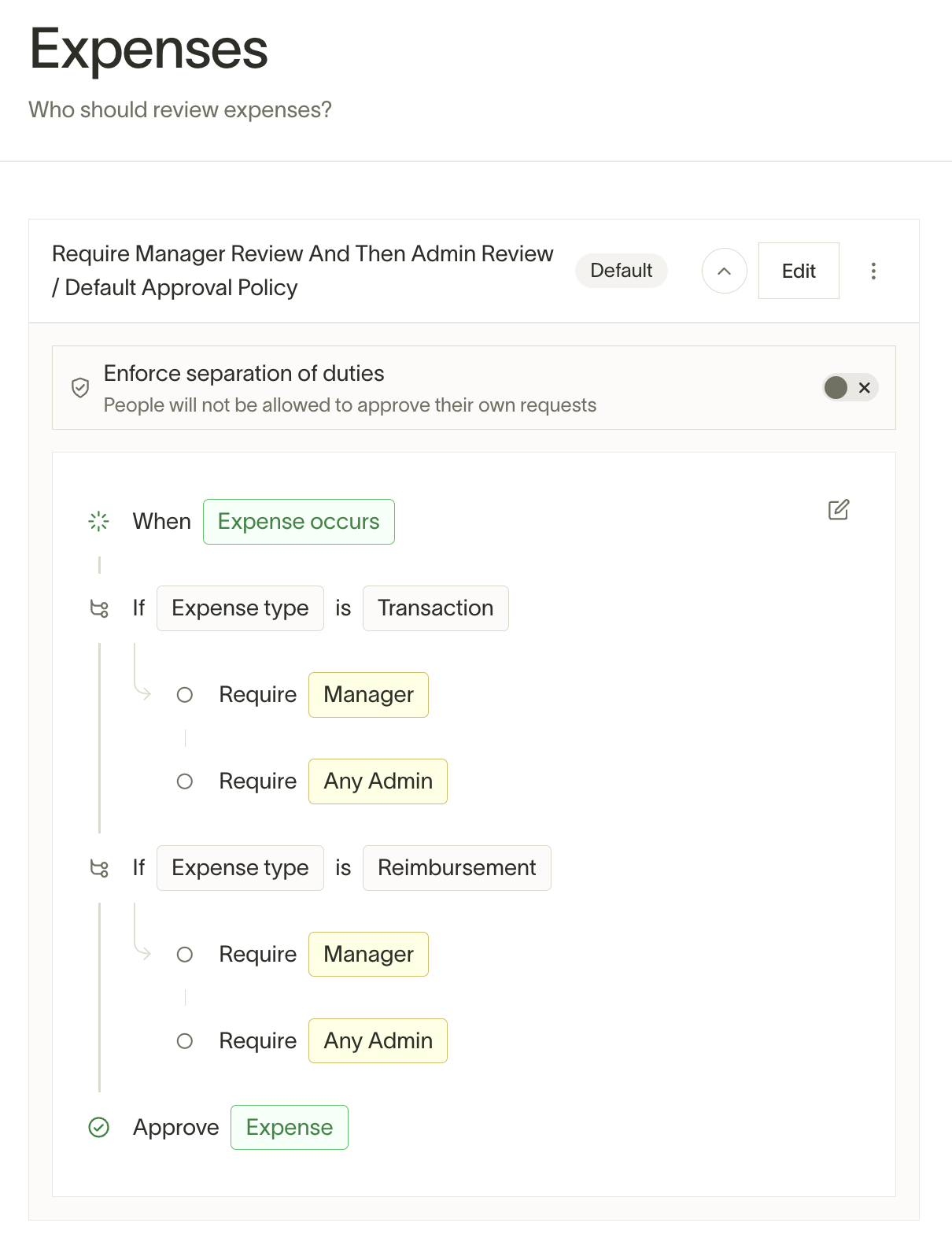
Transaction visibility is determined by the management chain (who reports to whom), not by department labels. Being in the same department as another user does not grant a manager visibility into that user's spending — only the reporting structure matters. To view or update the reporting structure, go to Company > People and edit a user's profile.
Note: Administrators can assign manager permissions to those with the Accounting or IT Admin role. For more details, see Editing a user's role.
IT Admins
IT Admin is a base role for employees who need to manage integrations, provisioning, and account security on Ramp. IT Admins have the same permissions as an Employee with additional access to People, Company Settings, Developer API, and Integrations.
Best for: IT teams, developers.
IT Admins can:
- Manage user provisioning and account security settings
- Configure integrations and Developer API access
- Edit People and Company Settings
- Use Ramp cards and funds issued to them (same as Employee)
IT Admins cannot:
- View or manage expenses or transactions
- Access Bill Pay
- Access accounting integrations (unless customized on Plus)
Note: Administrators can assign IT Admins additional manager permissions. For more details, see Editing a user's role.
For more details on this role, see IT Admin.
View-Only Admins
View-Only Admin does not require Ramp Plus. It is not available with standalone Bill Pay access alone.
View-Only Admin is a base role for employees who need the ability to view but not edit all data within Ramp. View-Only Admins have access to all the same pages as Admins, except the ability to edit has been removed.
Best for: Auditors, FP&A, compliance.
View-Only Admins can:
- View all company-wide data, including transactions, users, settings, and accounting
- Access all the same pages as Admins in a read-only capacity
View-Only Admins cannot:
- Issue cards or funds
- Edit any data within Ramp
- Request spend or reimbursements
- Access Price Intelligence or Seat Intelligence
For more details on this role, see View-Only Admin.
Accounts Payable
Accounts Payable is an add-on role that grants access to Bill Pay. It can be added to Employee, Accounting, Admin, or Owner base roles.
Best for: Accounts payable staff.
Users with the Accounts Payable role can:
- View, create, and edit bills
- Initiate approval processes for bills
- Create bill drafts
- Release payments without a separate release approval when the payment release workflow does not require an approval step for that payment, either by being the last approver on a bill that is initiated automatically on the payment date or by updating the payment date on a bill
When a payment requires release approval, users with the Accounts Payable role can approve its release only if they are assigned as a Payer on the current step of the payment release workflow. Ask an Admin with approval-policy access to add an eligible Payer if needed.
Users with the Accounts Payable role cannot:
- Access any features outside of Bill Pay
- Manage users or company settings
To add someone with the Accounts Payable role, go to Bill Pay on the left panel, then Settings under the 3-dot menu on the top right, and choose who you would like to assign the Accounts Payable role to.
Assistants
The Assistant permission lets one user perform tasks on behalf of another — from submitting expenses to booking travel. It can be added to any base role except Guest.
Best for: Executive assistants.
Assistants can:
- View transactions on behalf of the user they assist
- Submit receipts and fill out transaction details for another user
- Submit expenses and book travel on behalf of another user
Assistants cannot:
- Perform actions beyond what is granted by their base role and the Assistant permission
- Access data for users they are not assigned to assist
For more details on this role and how to add an Assistant, see Assistants.
Guests
Available on Ramp Plus. See Ramp Plus overview for plan details.
Guest is a base role with limited access to Ramp. This role is designed for temporary employees or contractors who need access to spend on Ramp or request reimbursements but should not have full access to the platform.
Best for: Contractors, temp workers.
Guests can:
- Use virtual cards and funds issued to them
- Request reimbursements
Guests cannot:
- Request or receive physical cards
- Access company-wide data, settings, or accounting features
- Issue spend to other users
- View other users' transactions
For more details on this role, see Guest.
Frequently asked questions
What is the difference between Admin and Finance Admin?
Admin has full platform control. Finance Admin is scoped to financial operations with read-only user management, and can be layered on the Employee, Accounting, or IT Admin role. See the Finance Admin deep-dive for details.
Which roles require Ramp Plus?
Guest, Custom Roles, and role permission customization all require Ramp Plus. All other roles are available on every Ramp plan.
Can I restrict a role to specific business entities?
Yes, for Finance Admin, Accounting, and Accounts Payable roles on multi-entity businesses with Ramp Plus. See Customize role permissions for details.
Why does Bill Pay show up for a user who should not have it?
The Bill Pay tab can appear if a user is involved in an approval workflow, is mentioned in a bill comment, or is a vendor owner — not just if they have a Bill Pay role. Check approval workflows and vendor ownership in addition to role assignments.