Editing a user's role
Note: This article primarily applies to Ramp Administrators. Cardholders may find other articles in the Ramp overview section to be more applicable.
Overview
Ramp provides multiple user roles that can be assigned to users, including base roles and add-on roles. This article explains how to change these user roles.
Please note: These same rules apply when updating a Guest user role to an employee, but not vice versa.
How it works
The following user roles have the ability to edit other employees' role in Ramp: Managers (for their own team), Admins, and IT admins. They can change an employee's role by following these steps:
-
Click on the Company > People tab and search for the user you want to update.
-
Click Edit Profile.
-
Edit the user's role by clicking on the pencil icon on the user's role card.
Users can have a base role plus one or more add-on roles (such as Manager, Accounts Payable, or Finance Admin). When editing a user's role, you can adjust both their base role and their add-on roles. For more on how roles combine, see User Roles Overview.
What happens when you change someone's role
Changing a user's role can have several downstream effects. Review the following before making changes:
- Gaining Manager permissions: The user is added to the management hierarchy. They begin receiving approval requests and gain visibility into their team's transactions.
- Losing Manager permissions: The user is removed from the management hierarchy. Their direct reports are automatically reassigned to the next manager up the chain. Delegate approver assignments are removed.
- Switching to View-Only Admin: The user loses access to cards, funds, and reimbursements. Reassign ownership of any funds before making this change.
- Losing Admin, Accounting, or Manager role: Delegate approver assignments associated with that role are removed.
- Losing Developer API access: Any active API tokens are revoked.
- Losing entity-restricted role permissions: Entity restrictions associated with the previous role are removed.
- Cards are not automatically canceled when a role changes. Cards are only canceled when a user is deactivated.
- The user receives an email notification listing the roles that were added and removed.
Why can't I change this user's role?
If the option to change a user's role is greyed out or unavailable, check the following:
- The user is the Business Owner. Business ownership transfers are handled separately. See Changing business ownership .
- The user is an active delegate approver. Remove them as a delegate approver before changing their role.
- The user is assigned to an active approval policy. Remove them from the policy before changing their role.
- The user was added via an Accounting Firm connection. External users' roles are managed by their Accounting Firm admin, not directly by your company's admins. See Connect and configure your accountant's access .
- The user is managed via SCIM/HRIS. Role changes made in Ramp may be overwritten by your identity provider on the next sync. Update the role in your HRIS instead.
- You're trying to downgrade a user to Guest. Downgrading to Guest is not supported from most roles. You can downgrade from View-Only Admin to Guest, but not from Employee, Admin, or other roles. The workaround is to deactivate the user and re-invite them as a Guest.
Adding manager permissions to accounting and IT Admin roles
Admins can now give manager permissions to Accounting or IT Admin roles so that they can oversee approvals and spend for their direct reports. Below are the steps to follow.
-
First, make sure the user is assigned the Accounting or IT Admin role in the People tab. Otherwise, click Edit profile and change the role accordingly. You might need to refresh the page after doing so.
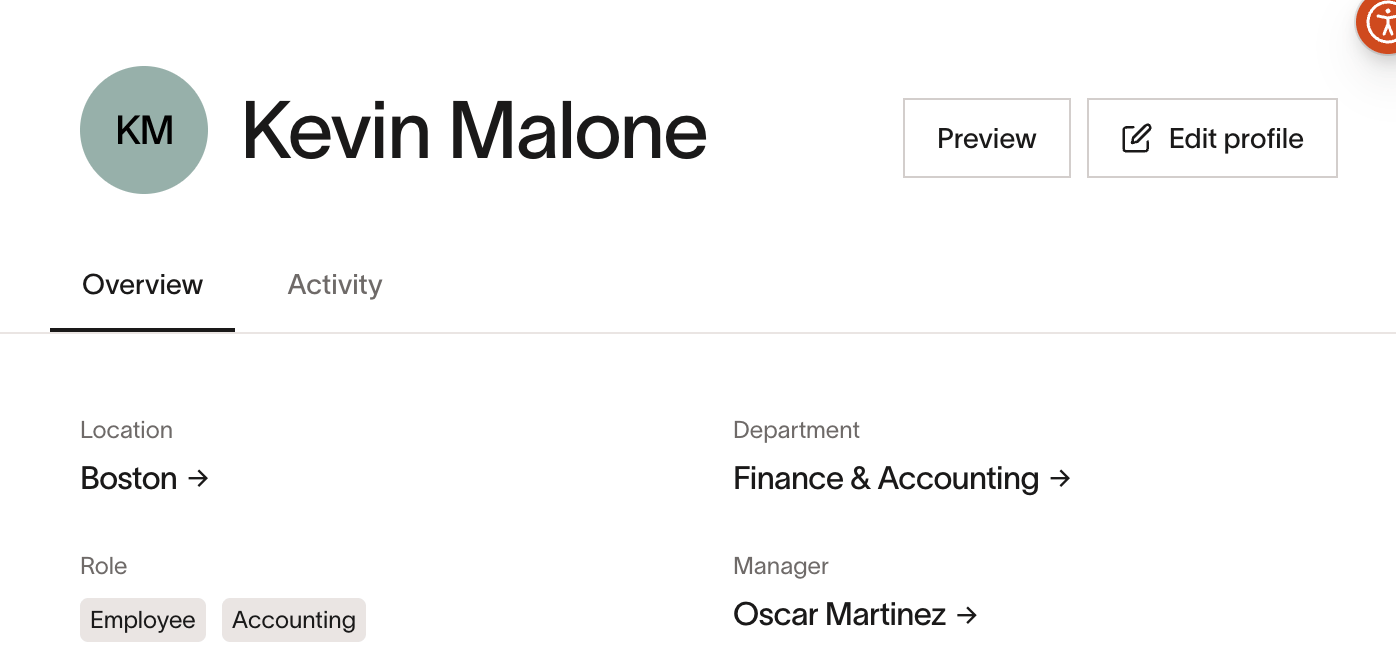
-
Next, click on Edit profile and view the Company tab.
-
Select the checkbox for Manage a direct team .
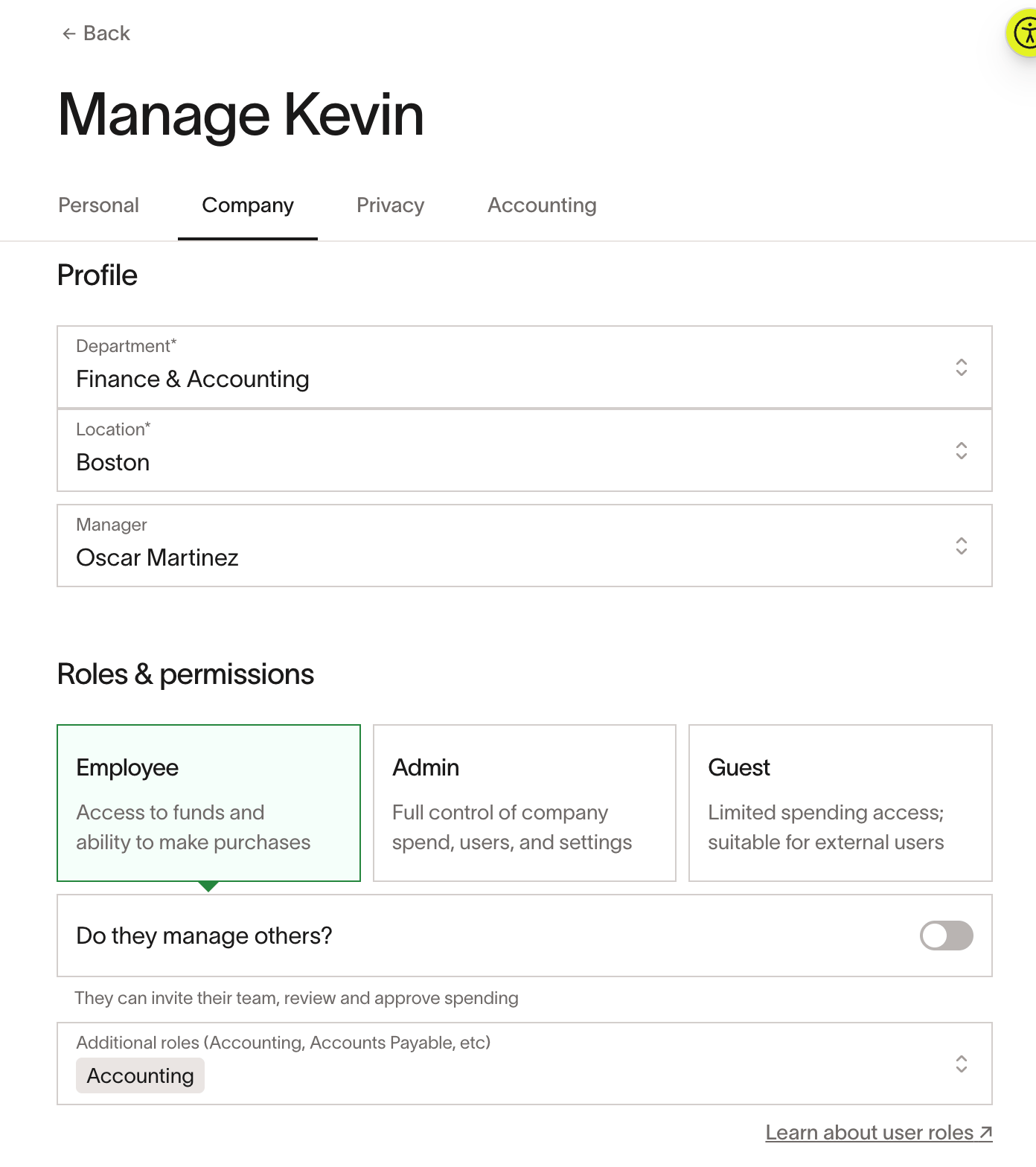
-
The user should now be available as an option when assigning managers to other employees.
Change business ownership to a different user
To change Business owner to a different Ramp user, follow the process here.
Helpful tips and recommendations
- You cannot directly edit a user's role if they are an external user assigned to your Ramp account via the Accounting Firm connection. If you need to change an external user's role (e.g., say you want to upgrade your accountant from the Accounts Payable role to the Accounting & Accounts Payable roles), first check to make sure you've enabled that role in the External firms tab on the People page.
- Once you've confirmed the role is enabled within the permission set, then you should tell that external user to request the role change from the Accounting Firm admin(s).
- Only Accounting Firm admins can edit the staff roles within their clients' Ramp instances. See Connect and configure your accountant's access.
- To edit the Business Owner role, please reach out to Ramp Support .