User role deep-dive: Assistant
Overview
The Assistant permission lets one user (e.g. an Executive Assistant) perform tasks on behalf of another user (e.g. an Executive) — from submitting expenses and booking travel to requesting funds. It's not a separate user role. It's a permission added to an existing account. Assistant permissions are set for the assigned user and apply to every Assistant assigned to that user.
Available on all plans: Fund requests, card/billing detail visibility, expense management on behalf of assigned users
The Assistant permission can be added to users except Guests and View-Only Admins. Guests and View-Only Admins cannot be assigned as another user's Assistant, though a Guest can still have an Assistant assigned to them (see Guest).
For an overview of all roles on Ramp and how they work together, see User Roles Overview.
What can the assistant user do?
Assistants can do the following on behalf of their assigned user(s):
- View transactions
- Submit receipts
- Fill out the transaction memo
- Code accounting fields that are required by their Expense Policy
- Submit/edit reimbursements
- Request policy exceptions or add attendees
- Book travel (only if Ramp Travel is enabled for all employees)
- Edit traveler profile (only if Ramp Travel is enabled for all employees)
- Request funds on behalf of their assigned user(s). The request follows the same intake and approval flow as standard requests. Approval routing is based on the assigned user's reporting line, not the Assistant's. The assigned user is notified when a request is made on their behalf.
- View their assigned user's card details (card number, CVV), billing addresses, and available fund balances. Ramp may require MFA before showing card details.
- View and import transactions from the assigned user's personal card when the assigned user enables access.
If Ramp Travel is not enabled for all employees, ask your Ramp Admin to enable it.
Notable limitations at this time:
- Assistants can create reimbursements on behalf of their assigned user(s), but they cannot add personal bank accounts on their behalf. Each user must link their own bank account. See Add or change a personal bank account for more.
- If an Assistant forwards a receipt on behalf of their assigned user to [email protected], Ramp searches the Assistant's transactions and the transactions of users they assist together, then ranks the possible matches.
- Assistants cannot approve requests or transactions on behalf of their assigned user(s). Approval authority is managed separately through delegate approvers.
Tip: If you need to manage receipts or edit expenses for another user's transactions — including transactions on shared funds — the Assistant role is the way to do this. Co-owners of shared funds can view other members' transactions but cannot edit them or attach receipts. See Shared funds for more on co-owner permissions.
What can the assistant user see?
The Assistant can see the transactions and related information for the user(s) who have assigned them as Assistant. This includes billing addresses and available fund balances. For activated, unlocked cards, the Assistant can also see the card number and CVV. Card details are unavailable for locked or unactivated cards, and Ramp may require MFA before showing them.
Assistants are not able to see activity beyond their designated scope, such as the transactions of other users that the user(s) they're assisting can see, even if they are assigned to an Admin user.
Assistants will also be notified of their assigned user's missing items in their weekly "Missing Items" email.
Configuring assistant permissions
Assistant permission controls are set for each assigned user. The same settings apply to every Assistant assigned to that user, and different assigned users can have different settings. Select Save after changing permissions.
Ramp displays the permission controls available to your business. Admins can manage most Assistant permissions, but only the assigned user can change personal card access.
View and import personal card transactions is off by default. Only the assigned user can enable it, and Ramp requires MFA or another step-up verification when the setting changes. See Personal Card Reimbursements for access limits and account responsibilities.
Important: These controls do not restrict access to card details (card number, CVV), billing addresses, or available fund balances. For activated, unlocked cards, any assigned Assistant can view card details regardless of permission settings. Card details are unavailable for locked or unactivated cards.
All Assistants assigned to the same user share that user's permission settings. The same Assistant can have different permissions for different users they support.
To configure as an executive:
If you can access the Assistant control:
- Open your Delegation settings
- Select the permissions you want to enable or disable
- Select Save
If your business restricts Assistant management to Admins, ask an Admin to update these permissions for you.
To configure as an Admin:
- Open People
- Select the user whose Assistant permissions you want to configure, then select Edit profile
- On the Company tab, adjust the Assistant permissions under Delegation
- Save the profile. Admins cannot change View and import personal card transactions.
Note: If all permissions are turned off, the Assistant remains assigned but cannot perform permission-controlled actions until at least one permission is re-enabled. For activated, unlocked cards, the Assistant can still view the assigned user's card details, billing addresses, and fund balances.
Setting up an assistant
Users who can access the Assistant control in Delegation settings can assign one or more Assistants to their Ramp account. Businesses can restrict Assistant management to Admins. Guests and View-Only Admins cannot be assigned as Assistants. One user can have multiple Assistants, and one Assistant can be assigned to multiple users. Admins with Assistant management access can assign users other than Guests and View-Only Admins as Assistants from People. Giving a Guest an Assistant is the exception: it is set up when the Guest is invited, not from People by default.
Assigning your own assistant
- Open your Delegation settings
- In Assistant, begin typing the name of the user you want to assign
- Select the user, configure the available permissions, and select Save
Assigning assistants to others (Admin)
- Open People
- Select the user who needs an Assistant, then select Edit profile
- On the Company tab, find Delegation and begin typing the Assistant's name in Assistant
- Select the Assistant, configure the available permissions, and save the profile
Using assistant mode
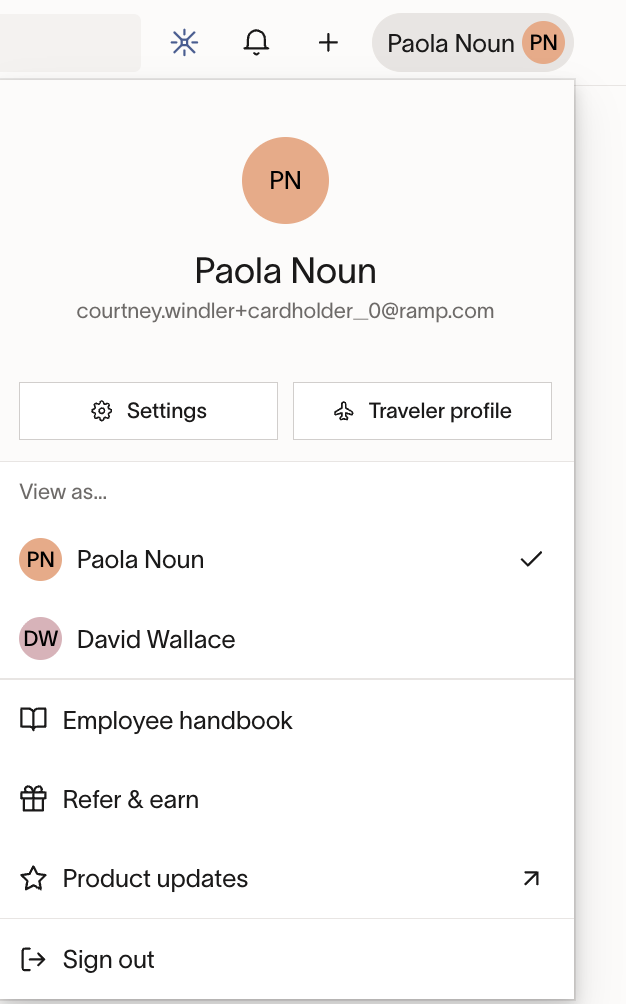
To view and act on behalf of your assigned user, click Profile on the top right. You'll see a section titled "View as..." with your name and the names of the users you are an Assistant for in Ramp. Click on the user's name to view their Ramp account as their Assistant.
From here you can perform any of the actions your permissions allow, including submitting expenses, requesting funds, and booking travel on their behalf.
Audit trail
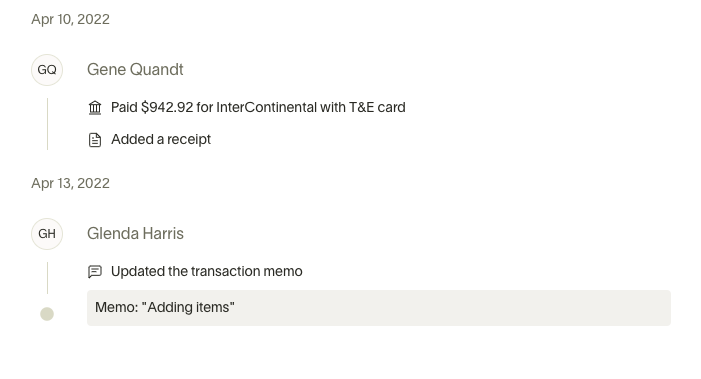
Ramp keeps an audit trail of all Assistant actions. Edits to transactions and requests made by an Assistant are logged with the Assistant's identity, so the assigned user and Admins can see exactly who made each change.
Frequently asked questions
Can an Assistant support multiple users?
Yes. An Assistant can be assigned to multiple users, with separate permission configurations for each.
Can an Assistant approve on behalf of their assigned user?
No. Approval authority is handled separately through delegate approvers.
Does the assigned user see what the Assistant did?
Yes. Actions taken by an Assistant are attributed to the assigned user but logged with the Assistant's identity for audit purposes. The assigned user is notified when requests are made on their behalf.
How does the Assistant receive notifications about the assigned user's missing items?
Assistants receive their assigned user's action items (such as missing business items) in their weekly digest. The assigned user may also set email filters to automatically forward Ramp notification emails to their Assistant.