Sync repayments to your accounting software
Overview
When an employee pays the company back for a charge on their Ramp card, it is called a repayment. You must track these in your books to keep your records accurate. Ramp can sync eligible repayments to your accounting software to reverse the expense impact of the original transaction, keeping your General Ledger (GL) balanced without manual data entry.
Repayment syncing is supported for QuickBooks Online, Sage Intacct, NetSuite, Xero, Microsoft Dynamics Finance and Operations, Microsoft Dynamics Business Central, and Workday Financial. Ramp supports repayments made by bank account, manual payment, payroll, or debit card.
Sage Intacct, NetSuite, Microsoft Dynamics Business Central, Microsoft Dynamics Finance and Operations, and Workday Financial repayment syncing require Ramp Plus. Debit card repayment syncing requires Ramp Enterprise.
This article applies to Admins and users with the Accounting role who manage accounting syncs.
Prerequisites
Before a repayment can sync, confirm the following:
- Your supported accounting integration is connected in Ramp. See the setup overview for QuickBooks Online, Sage Intacct, NetSuite, Xero, Microsoft Dynamics Finance and Operations, Microsoft Dynamics Business Central, or Workday Financial.
- The original Ramp card transaction has already synced to your accounting software.
- The repayment has finished processing in Ramp and is linked to the original transaction.
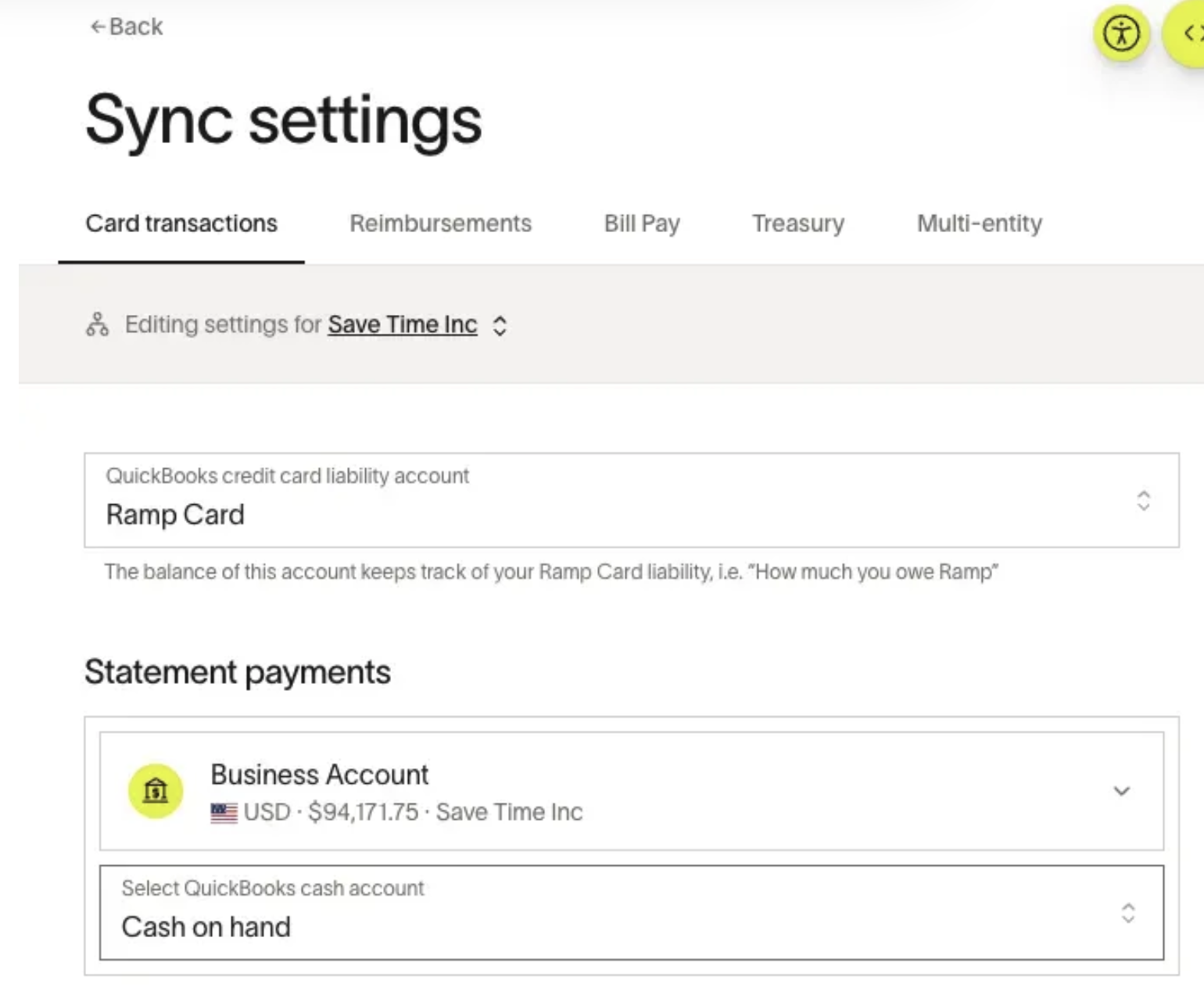
- For bank account, manual, or payroll repayments : the bank account used for statement payments or autopay is mapped to a cash account in Accounting Settings .
- For debit card repayments (Ramp Enterprise) : a credit card liability GL account is mapped in Accounting Settings .
- The original transaction has complete accounting coding, including any required dimensions or tracking categories for your provider.
Where to find repayments in Ramp
Repayments appear in two places in Ramp.
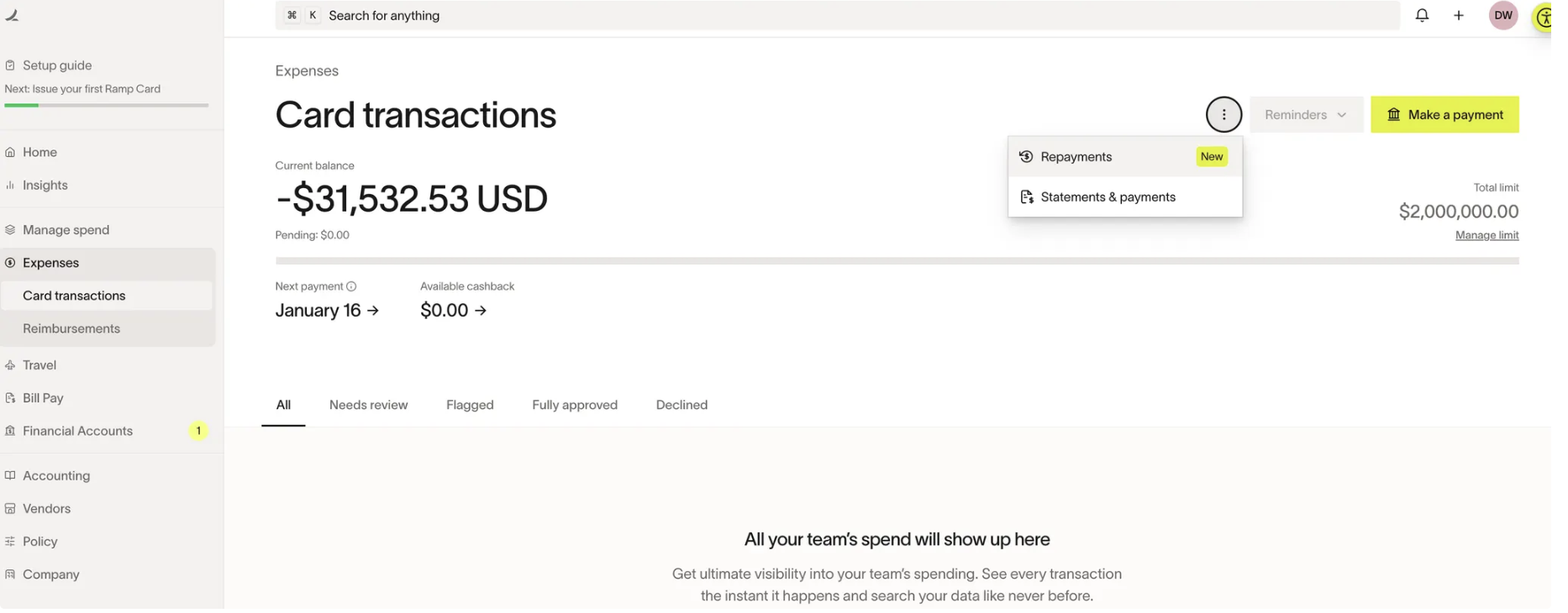
To see all repayments:
- Go to Expenses > Card transactions in the sidebar.
- Click the three-dot menu on the right side of the screen and select Repayments .
To see repayments ready to sync:
- Go to Accounting > Card transactions in the sidebar.
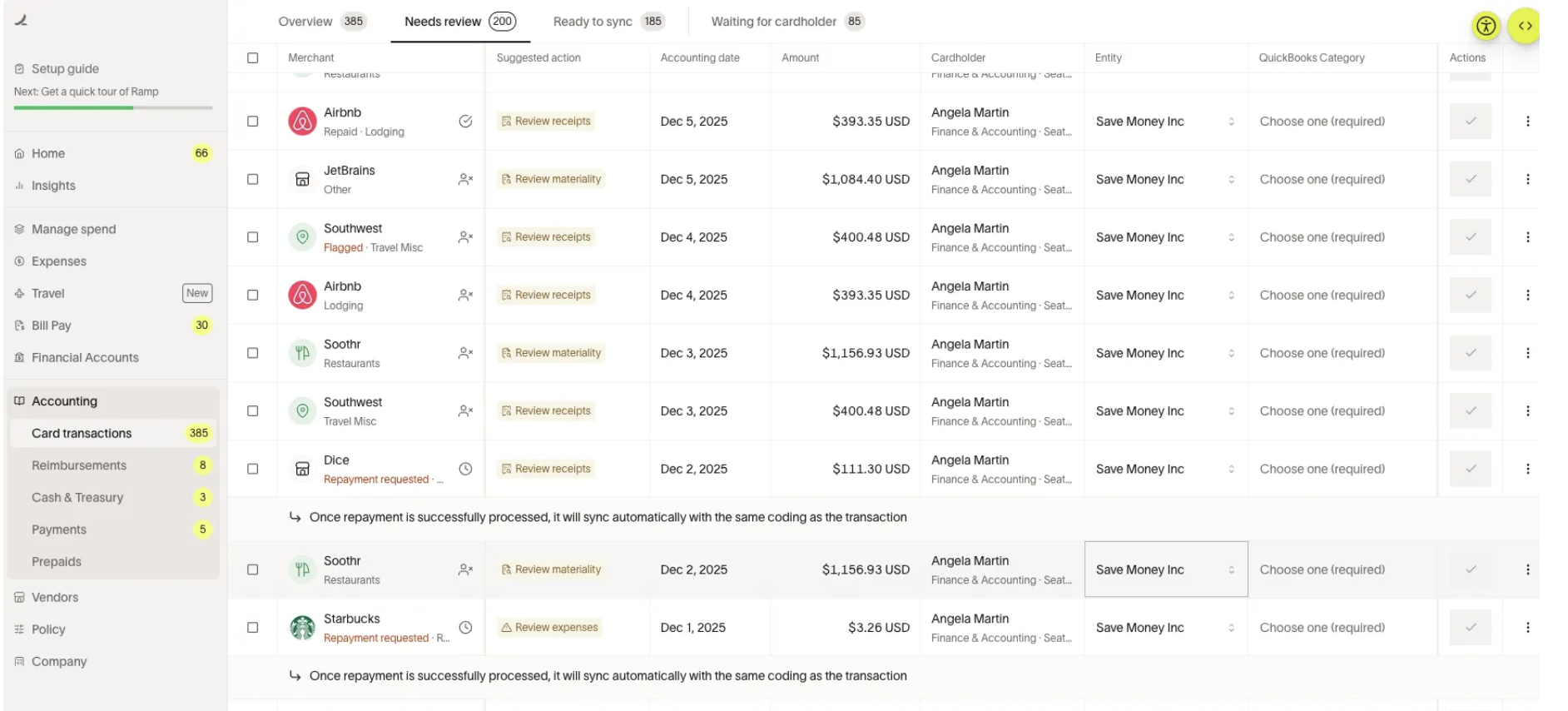
In the repayments table, the Sync status column shows the current state: Synced, Failed, Syncing, Pending, Canceled, or Skipped.
How bank account, manual, and payroll repayments sync
For repayments made by bank account, manual payment, or payroll, Ramp creates a record in your accounting software that reverses the expense impact of the original transaction. Ramp starts with the original transaction's accounting coding, and you can update the repayment's accounting coding in Ramp before the repayment syncs to your ERP.
Sage Intacct, NetSuite, Microsoft Dynamics Business Central, Microsoft Dynamics Finance and Operations, and Workday Financial require Ramp Plus.
QuickBooks Online
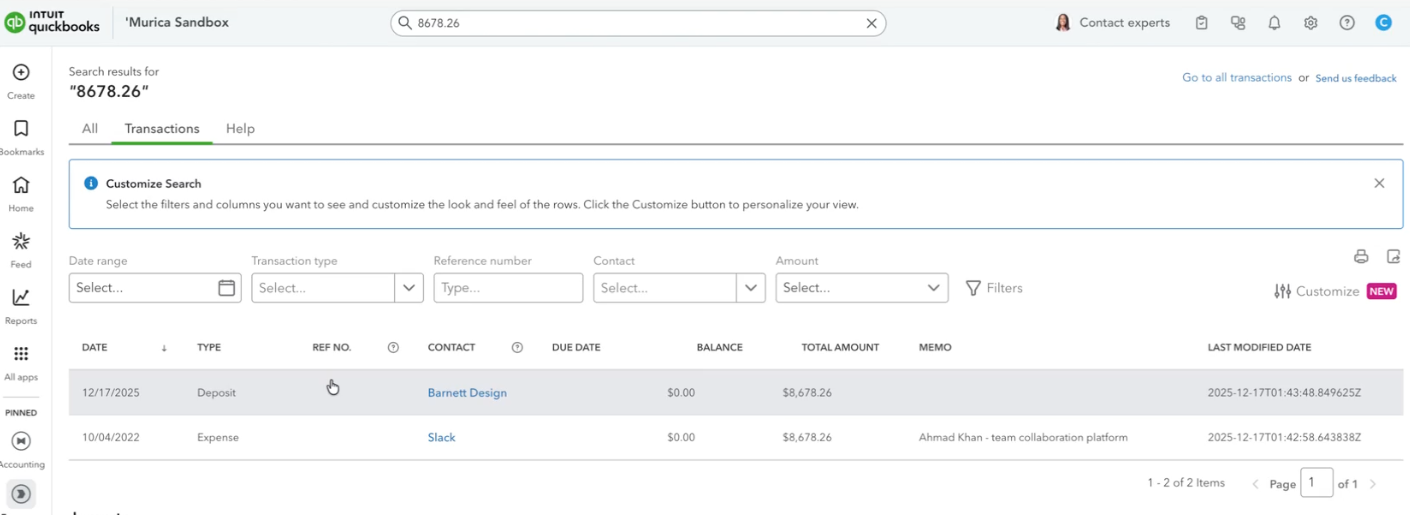
Ramp syncs bank account, manual, and payroll repayments as Deposit objects in QuickBooks Online.
- Each credit line uses the same expense account as the original transaction and copies the original tracking categories (class, location, department).
- The debit line uses the account selected under Statements & Payments in Accounting Settings .
Sage Intacct
Ramp syncs bank account, manual, and payroll repayments as journal entries (GL Batch) in Sage Intacct.
- Creates debit lines in the cash or bank GL account mapped to your statement payment or autopay bank account.
- Creates credit lines for each line item in the original transaction, using the same GL coding and dimensions.
- Uses the repayment date as the journal entry date.
After the sync succeeds, you can open the Sage Intacct journal entry directly from Ramp using the deep link.
NetSuite
Ramp syncs bank account, manual, and payroll repayments as journal entries in NetSuite.
- Creates one or more balancing debit lines in the cash account mapped to your statement payment bank account.
- Creates one credit line for each line item in the original transaction.
- Carries over the original GL coding and tracking categories.
- Uses the repayment date as the journal entry date.
If you use NetSuite OneWorld, Ramp also includes the subsidiary tied to the business entity on the journal entry.
Microsoft Dynamics Finance and Operations
Ramp syncs bank account, manual, and payroll repayments as journal entries in Microsoft Dynamics Finance and Operations.
- Creates one balancing debit line in the cash or bank GL account.
- Creates one credit line for each line item in the original transaction.
Workday Financial
Ramp syncs bank account, manual, and payroll repayments as journal entries in Workday Financial.
- Creates one balancing debit line in the cash or bank GL account.
- Creates one credit line for each line item in the original transaction.
Microsoft Dynamics Business Central
Ramp syncs bank account, manual, and payroll repayments as journal entries in Microsoft Dynamics Business Central.
- Creates one balancing debit line in the cash or bank GL account.
- Creates one credit line for each line item in the original transaction.
Xero
Ramp syncs bank account, manual, and payroll repayments as Bank Transaction (Receive) records in Xero. The receipt posts to the cash or bank account.
How debit card repayments sync
Available on Ramp Enterprise. See Ramp Enterprise overview for plan details.
When an employee repays via debit card, Ramp creates a record in your accounting software that reverses the original expense, using the credit card liability GL account as the offset instead of a bank cash account.
QuickBooks Online
Ramp syncs debit card repayments as Credit Card Purchase (credit) objects in QuickBooks Online.
- Credits the original expense accounts used in the card transaction, preserving tracking categories (class, location, department).
- Debits the credit card liability GL account mapped in Accounting Settings .
After the sync, the record appears as a positive credit card credit in QuickBooks Online.
Sage Intacct
Ramp syncs debit card repayments as Credit Card Transactions (refund type) in Sage Intacct.
- Credits the original expense lines using the same GL coding and dimensions.
- Uses the credit card associated with the liability account mapping as the card ID.
- Uses the repayment date as the transaction date.
After the sync, the record appears as a negative amount on the credit card associated with the liability account mapping.
NetSuite
Ramp syncs debit card repayments as journal entries in NetSuite, using the same structure as bank account repayments.
- Creates one or more balancing debit lines in the credit card liability GL account instead of the bank cash account.
- Creates one credit line for each line item in the original transaction.
- Carries over the original GL coding and tracking categories.
If you use NetSuite OneWorld, the subsidiary is included on the journal entry.
Microsoft Dynamics Finance and Operations
Ramp syncs debit card repayments as journal entries in Microsoft Dynamics Finance and Operations.
- Creates one balancing debit line in the liability or card GL account.
- Creates one credit line for each line item in the original transaction.
Workday Financial
Ramp syncs debit card repayments as journal entries in Workday Financial.
- Creates one balancing debit line in the liability or card GL account.
- Creates one credit line for each line item in the original transaction.
Microsoft Dynamics Business Central
Ramp syncs debit card repayments as journal entries in Microsoft Dynamics Business Central.
- Creates one balancing debit line in the liability or card GL account.
- Creates one credit line for each line item in the original transaction.
Xero
Ramp syncs debit card repayments as Bank Transaction (Receive) records in Xero. The record appears as money received against the same card or liability account associated with the original transaction.
Repayment sync summary by provider
| Provider | Provider-specific plan requirement | Bank account, manual, or payroll repayment | Debit card repayment (Ramp Enterprise) | Offset account |
|---|---|---|---|---|
| QuickBooks Online | None | Deposit | Credit Card Purchase (credit) | Bank account: Cash or bank GL account Debit card: Credit card liability GL account |
| Sage Intacct | Ramp Plus | Journal Entry (GL Batch) | Credit Card Transaction (refund) | Bank account: Cash or bank GL account Debit card: Credit card liability GL account |
| NetSuite | Ramp Plus | Journal Entry | Journal Entry | Bank account: Cash account Debit card: Credit card liability GL account |
| Microsoft Dynamics Finance and Operations | Ramp Plus | Journal Entry | Journal Entry | Bank account: Cash or bank GL account Debit card: Liability or card GL account |
| Workday Financial | Ramp Plus | Journal Entry | Journal Entry | Bank account: Cash or bank GL account Debit card: Liability or card GL account |
| Microsoft Dynamics Business Central | Ramp Plus | Journal Entry | Journal Entry | Bank account: Cash or bank GL account Debit card: Liability or card GL account |
| Xero | None | Bank Transaction (Receive) | Bank Transaction (Receive) | Bank account: Cash or bank account Debit card: Card or liability account associated with the original transaction |
How syncs are triggered
You can trigger a repayment sync manually in Ramp, or Ramp can pick it up automatically once the repayment is ready to sync.
Manual syncs
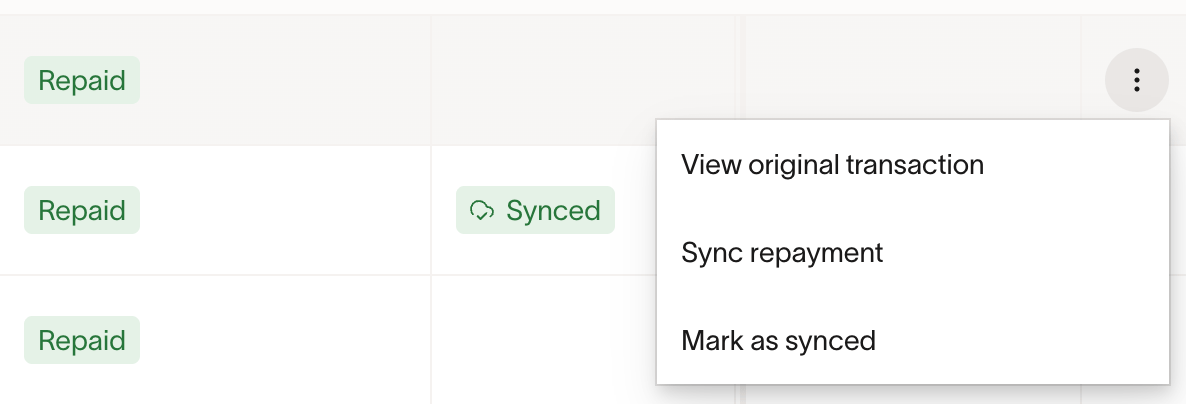
- Sync from the repayments page. Go to Expenses > Card transactions , open the three-dot menu, and select Repayments . For a repayment with a Repaid status, open the three-dot menu and select Sync Repayment .
- Mark a repayment as synced. If the repayment already exists in your accounting software or you resolved the accounting entry outside Ramp, open the repayment's three-dot menu and select Mark as synced . This marks the repayment as synced in Ramp without creating another record in your accounting software. If Ramp should create the record for you, use Sync Repayment instead.
- Retry from Sync History. Go to Accounting > Card transactions , open the three-dot menu, and select Sync History . If a repayment sync attempt failed, fix the underlying issue and use Retry Sync to rerun that sync commit.
Automatic syncs
- Daily automatic sync. Ramp runs a daily sync job for repayments that are ready to sync for supported providers, including Workday Financial.
- Workday Financial. Workday Financial repayments sync automatically unless your integration is configured to use expense reports.
- A repayment is ready when the original card transaction has already synced and the repayment is in Repaid status.
After a successful sync, you can use the deep link on the repayment to open the synced record directly in your accounting software.
Partial repayments
Ramp applies a partial repayment to one split line when the repayment amount exactly matches only that line. Otherwise, Ramp distributes the repayment proportionally across all split lines in the original transaction, based on each line's share of the total amount.
Example
Original transaction:
- Split Line A: $60 (60%)
- Split Line B: $40 (40%)
- Total: $100
Partial repayment: $30
Distribution:
- Line A: $30 x 60% = $18
- Line B: $30 x 40% = $12
In this example, each split line receives a portion of the repayment that matches its original percentage of the total. If you need a different allocation from the one Ramp applies, manually update the entry in your accounting software after it syncs.
Troubleshooting
If a repayment fails to sync, check for these common causes:
- Original transaction has not synced yet. The original card transaction must sync to your accounting software before the repayment can sync. Check the transaction's sync status in Ramp and resolve any sync errors first.
- Repayment still processing. Wait for the repayment to finish processing in Ramp before attempting a sync.
- Repayment not linked. The repayment must be linked to a transaction that has already synced.
- Missing account mapping. For bank account, manual, or payroll repayments, the statement payment bank account must be mapped to a cash account. For debit card repayments, the credit card liability GL account must be mapped. Update the mapping in Accounting Settings and retry the sync.
- Missing required dimensions or tracking categories. The original transaction may be missing required fields for your accounting provider. Complete the accounting coding on the original transaction, then retry the repayment sync.
- Invalid integration connection. Your accounting integration may be expired or the connected user may lack permissions. Reconnect the integration in Ramp with an admin-level user, then retry the sync.
- Repayment already exists in your accounting software. If the repayment is already recorded in your accounting software and you do not want Ramp to create a duplicate record, use Mark as synced from the repayment's three-dot menu.
Frequently asked questions
Which accounting providers support repayment syncing?
QuickBooks Online and Xero have no provider-specific plan requirement. Sage Intacct, NetSuite, Microsoft Dynamics Business Central, Microsoft Dynamics Finance and Operations, and Workday Financial require Ramp Plus.
Which repayment methods sync?
Ramp supports repayments made by bank account, manual payment, payroll, or debit card. Debit card repayment syncing requires Ramp Enterprise.
When are repayments eligible to sync?
Repayments are eligible to sync once the underlying transaction has successfully synced and the repayment has been fully processed.
What record does Ramp create in my accounting software?
It depends on the provider and repayment method. See the summary table for details.
Can I change the accounting coding on a repayment?
Yes. Ramp starts with the original transaction's accounting coding, and you can update the repayment's accounting coding in Ramp before it syncs. Ramp syncs the repayment using the coding currently shown on the repayment.
Where can I find the synced record?
After a successful sync, Ramp stores a deep link to the record in your accounting software. Open it directly from the repayment in Ramp.
Does Ramp create an AP payment for repayments?
No. Ramp creates the record shown in the summary table. It does not create AP payments, vendor bills, or bill payments.