Missing-items auto-locks for cards and funds
Overview
Alpha. This feature is in early development and may change based on feedback.
Missing-items auto-locks help your company collect required expense information by automatically locking a cardholder's primary physical card and access to affected funds when items are overdue. This guide covers the experience with Lock cards for overdue requirements in Expense requirements, including settings, submitting missing items, and getting unlocked. If your company still configures missing-item locks separately on each submission policy, use Automatically lock cards and funds.
Submit missing items to unlock your card
If your card or funds are locked for missing items, complete the overdue requirements linked in your lock notice. Ramp automatically removes the corresponding missing-item locks after processing your updates; an Admin does not need to manually unlock them.
- Open the transaction linked in your lock notice or missing-items reminder.
- Complete each required item shown on the transaction. Uploading a receipt does not also complete a missing memo, accounting field, or other requirement.
- Check the other transactions listed in the notice and complete their overdue requirements too.
- Check the card and fund notices for any remaining lock reasons before trying another purchase.
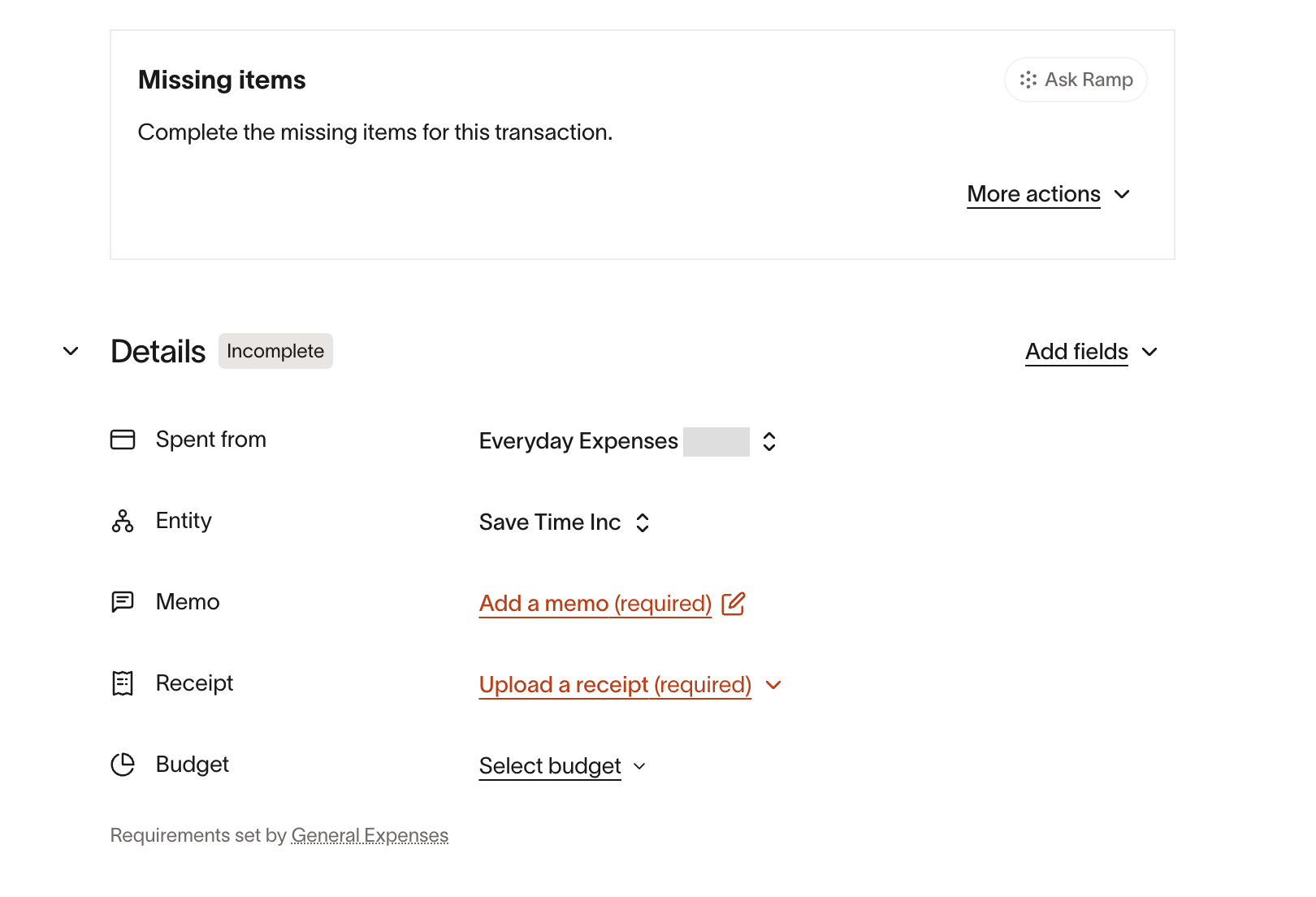
You can submit expense information on the web or in the Ramp mobile app. Other submission options include email, SMS, Slack, WhatsApp, and receipt automation; the fields and availability differ by channel. See Submitting receipts, memos, and accounting for your Ramp transactions for instructions.
If you cannot provide a receipt, follow Request an exception for a missing receipt. If you already submitted everything, follow Troubleshoot remaining missing-item card locks.
Understand which missing items can cause a lock
Your company's submission policies determine what you must provide for each expense. Missing-items auto-locks can apply to required:
- Receipts.
- Memos.
- Accounting fields.
- Attendees.
- Trip information.
- XML receipts.
Only requirements that apply to the transaction count. A field that your company does not require does not become mandatory because auto-locking is enabled. Admins can also exclude a requirement type from locking without removing the requirement itself.
This guide covers missing items on Ramp card transactions, including purchases made with physical and virtual cards. For out-of-pocket expenses, see Submitting reimbursements. Overdue expense reviews, repayment requests, and change requests have separate auto-lock rules.
Understand which cards and funds lock for missing items
For an overdue card transaction covered by your company's missing-item auto-lock settings, Ramp locks:
- Your primary physical card. Switching that card to another fund does not remove the card lock.
- Your access to the affected fund. If overdue transactions affect multiple funds, your access to each affected fund can lock.
Other members of a shared fund can continue using it. The restriction applies to the cardholder with overdue items, rather than every member of the fund.
A fund-access lock can also prevent you from spending with a virtual card tied to that fund. Do not assume that switching from a physical card to a virtual card will resolve a decline.
Card and fund locks can clear separately. Completing all overdue requirements on one fund can restore access to that fund while your primary physical card stays locked because of overdue items on another fund or another lock reason. See Troubleshoot remaining missing-item card locks.
For Admins: Enable missing-item auto-locks
You need permission to manage your company's spend policies to change these settings. If you cannot edit them, ask your Ramp Admin to review the setup with you.
- Open Expense requirements.
- Under Missing items, select Lock cards for overdue requirements.
- Turn on Lock cards when requirements are overdue.
- Choose the company deadline under How long should people have to submit missing items?
- Add any deadline exceptions or locking exclusions.
- Select Save to apply the settings.
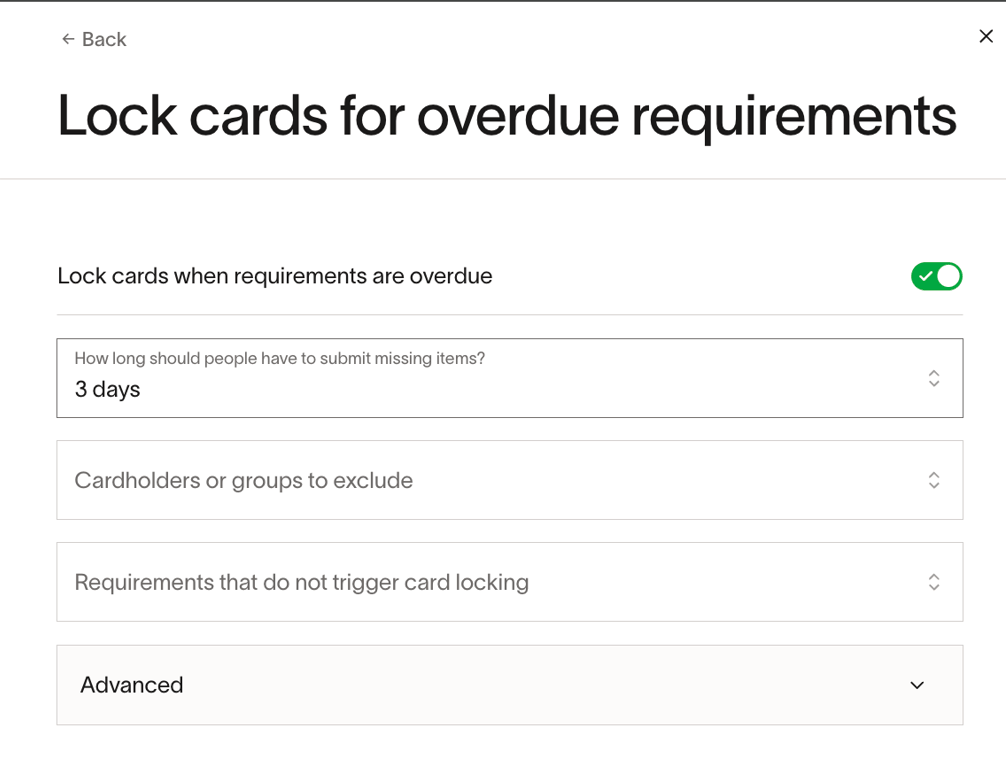
The deadline controls when missing requirements become overdue for auto-locking. Your submission policies still determine which information an expense requires. If your company has already moved to this experience, your existing settings carry over; review them before making changes.
Choose a rolling or fixed monthly missing-item auto-lock deadline
The deadline selector in Lock cards for overdue requirements, accessible from Expense requirements, offers two approaches:
- Rolling deadline: Choose 3, 7, 14, 30, or 60 days. The period starts when Ramp creates the missing-items request, which may differ from the purchase date.
- Fixed deadline: Choose the 3rd, 5th, or 7th of the month. This deadline applies to expenses from the previous calendar month. For example, a deadline on the 5th makes September expenses due on October 5.
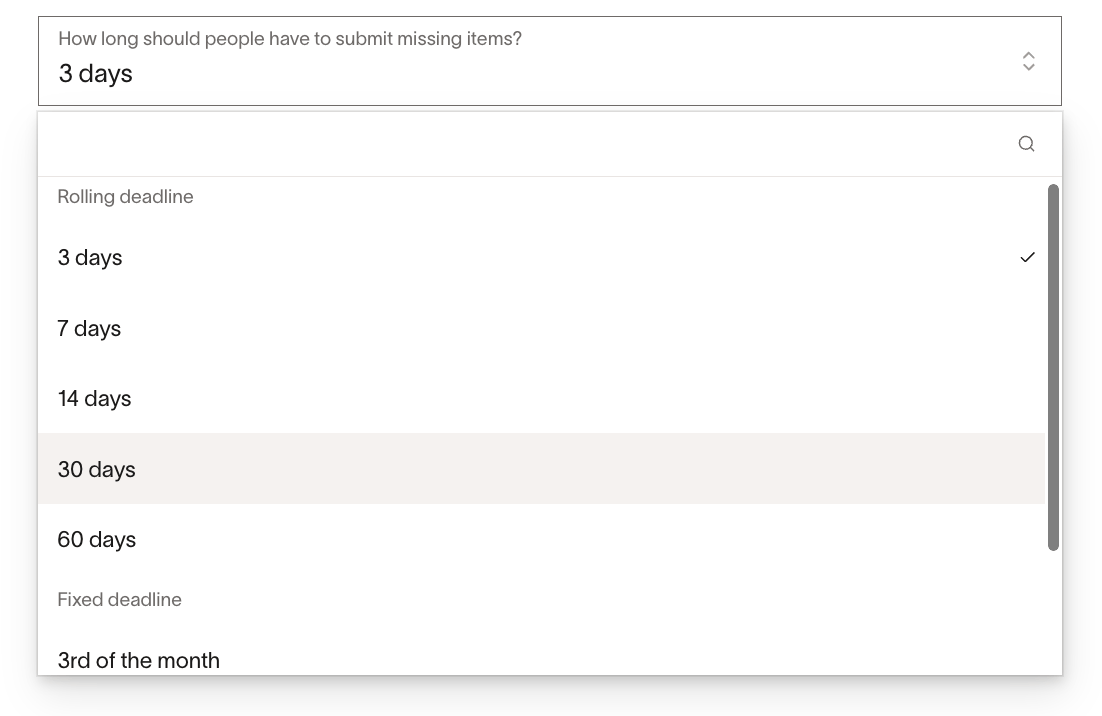
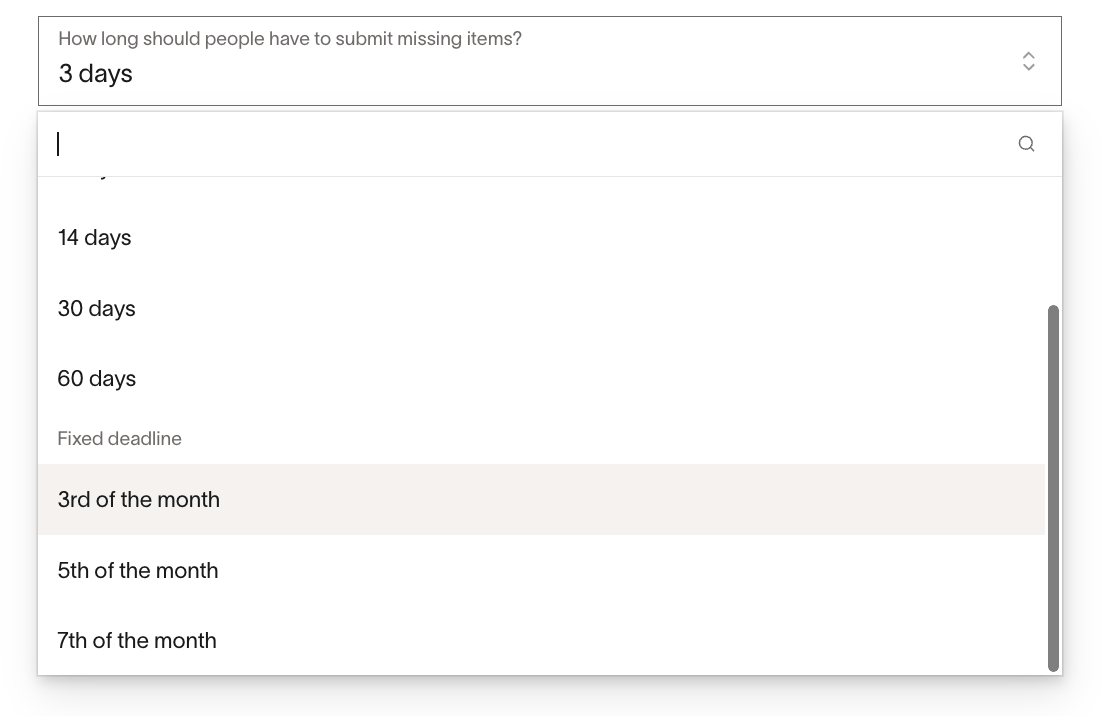
Check the deadline shown in the missing-items notice rather than calculating it from a card's purchase or clearing date. Ramp checks for overdue items on a schedule, so a lock may take effect after the displayed deadline rather than at the exact moment it passes.
For a deadline that differs from the company default, use deadline exceptions. For existing requests, see Change or turn off missing-item auto-lock settings.
For Admins: Set missing-item auto-lock deadline exceptions
Deadline exceptions let you choose a different rolling or fixed deadline for specific cardholders, groups, funds, Spend Programs, or submission policies.
- Open Lock cards for overdue requirements in Expense requirements.
- Expand Advanced and find Deadline exceptions.
- Select Add exception.
- Choose the exception type and the cardholder, group, fund, Spend Program, or submission policy it applies to.
- Choose the Deadline, then select Save after completing your changes.
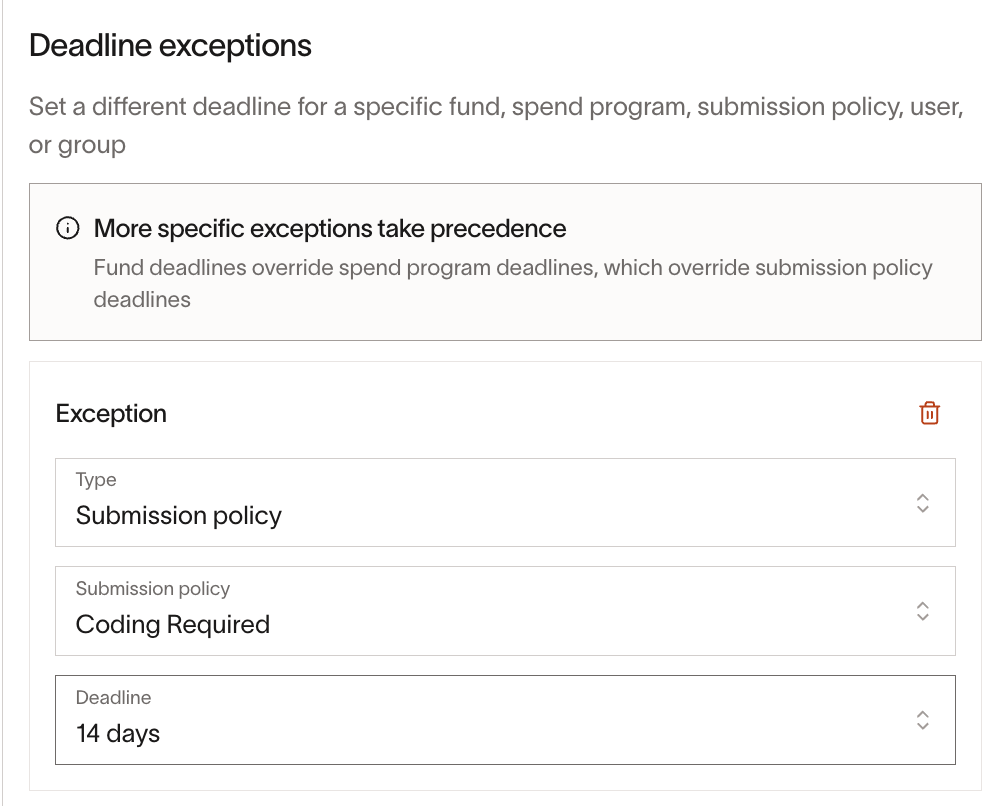
When several exceptions apply, Ramp uses the first matching level in this order: individual cardholder, group, fund, Spend Program, submission policy, then company default. If a cardholder belongs to multiple groups with exceptions, Ramp uses the group exception that gives them the latest deadline.
Edit or remove an exception: Change the exception's selection or deadline, or use its remove control, then select Save. Existing missing-items requests keep their assigned deadlines; removing or changing an exception does not restart their clocks.
For Admins: Choose who and what can trigger a missing-item lock
Use these controls in Lock cards for overdue requirements in Expense requirements, then select Save:
- Cardholders or groups to exclude: Exclude selected people or groups from missing-item auto-locks.
- Requirements that do not trigger card locking: Exclude selected missing-item types, such as receipts or memos.
- Advanced spend selections: Use Do not lock cards when spent from to exclude selected funds or Spend Programs, or Only lock cards when spent from to limit locking to selected funds or Spend Programs. Matching any selected fund or Spend Program is enough; a transaction does not have to match both.
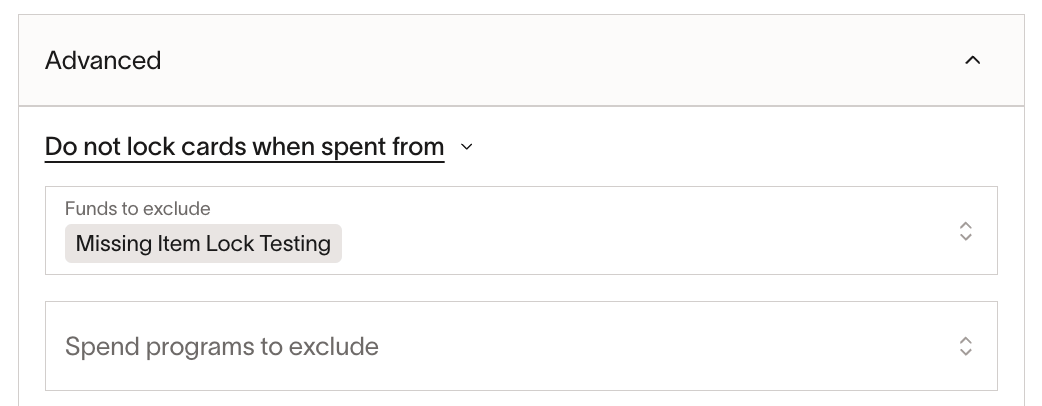
If submission-policy selections were carried over into these spend controls, you can also review them there. The submission-policy include/exclude selector is not shown in every setup. Submission-policy deadline exceptions are a separate control.
Exclusions affect locking, not whether employees must submit the required items. For example, if you exclude receipts but a transaction still has an overdue required memo, the memo can cause a lock.
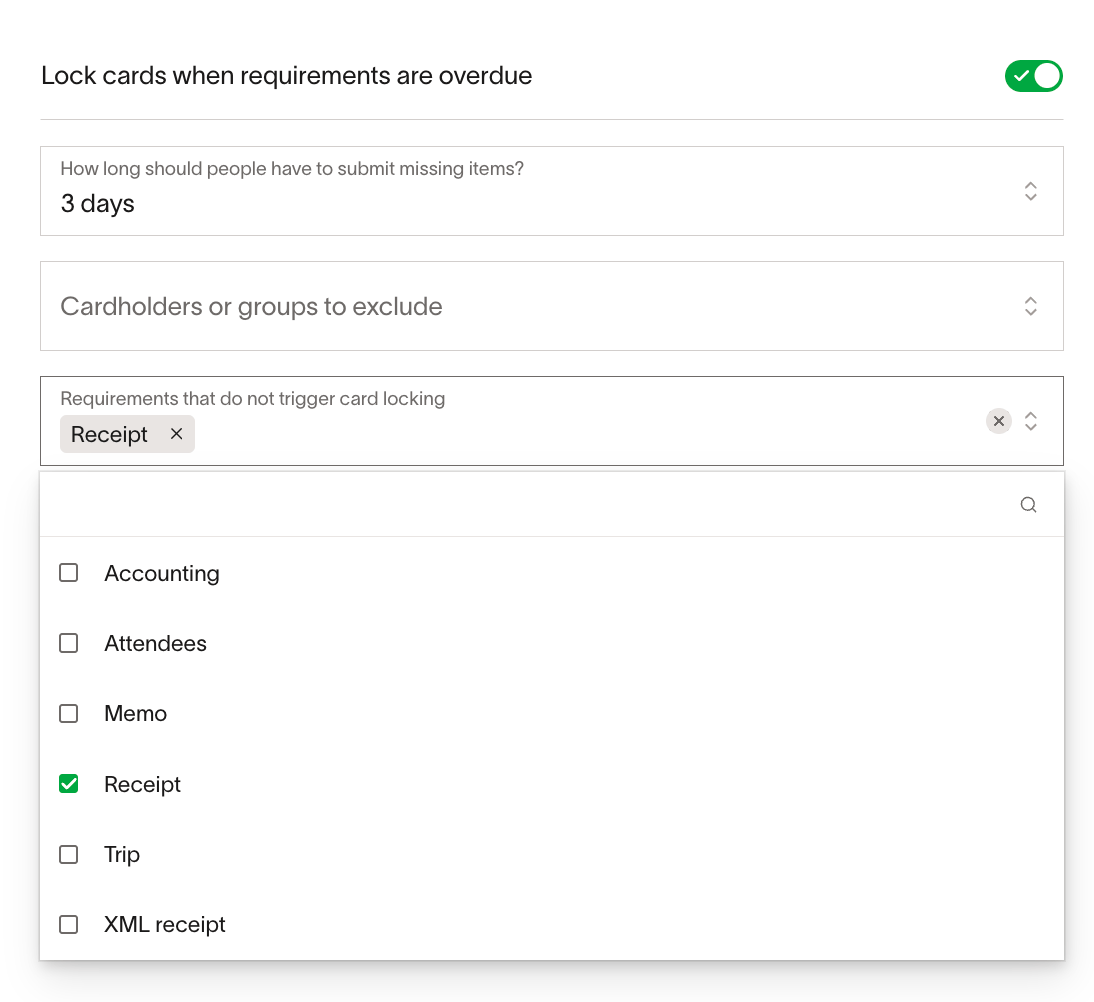
Remove an exclusion: Remove the person, group, requirement type, or spend selection from the relevant control and select Save. Review existing overdue requests before including them in enforcement again.
For Admins: Change or turn off missing-item auto-lock settings
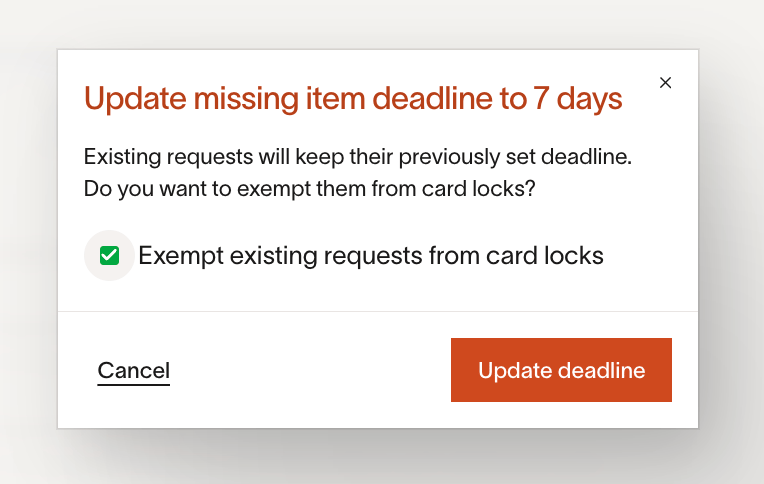
Change the default deadline: Update it in Lock cards for overdue requirements in Expense requirements. Existing requests keep their previously assigned deadline. When prompted, choose whether to Exempt existing requests from card locks, select Update deadline, then select Save in the settings drawer. Exempting a request from locks does not complete its missing requirements.
Change a deadline exception: Update it under Advanced and save. This also does not rewrite deadlines already assigned to existing requests. Moving spending to another fund or changing a submission policy should not be treated as a guaranteed new grace period; check the deadline on each request.
Turn off missing-item auto-locking: Turn off Lock cards when requirements are overdue and select Save. This changes enforcement for the missing-items experience covered by this guide. It does not remove expense requirements or disable independent locks for expense reviews, repayments, changes, fraud, or manual restrictions. Transactions from before the migration can still follow the previous missing-item rules.
Request an exception for a missing receipt
If you cannot provide a receipt, use the missing-receipt exception process for your transaction on the web or in the mobile app. Complete and submit the request, including a missing-receipt affidavit if your company requires one.
Once the missing-receipt exception has been successfully submitted, that receipt no longer causes a missing-item lock while the expense awaits review. Starting the form without completing it is not enough. The transaction still follows your company's approval process.
The exception applies to the receipt requirement. An overdue memo, accounting field, another transaction, or a separate card lock can still prevent spending. Follow What to do if you're missing a receipt for the full exception process and the authorized Admin or Owner process for dismissing requirements on someone's behalf.
Understand missing-item lock notifications
Ramp uses reminders and lock notices to direct you to overdue requirements and requirements approaching their deadline. Messages can arrive by email, SMS, or connected chat, depending on your connections and notification settings. A warning may be included in Ramp Digest rather than sent as a separate message.
Check the notices on your card or fund for the current lock status and links to the tasks you need to complete. Ramp sends an email when a task-based primary physical card lock is lifted; do not rely on a separate email for every individual fund that becomes available again.
Receipt-submission reminders and mobile push preferences are separate from card-lock notices. See Manage your communication preferences and Submitting receipts, memos, and accounting for your Ramp transactions to manage reminders and submission options.
For Admins: Temporarily pause task-based card locks
A pause, also called a snooze, temporarily lifts task-based locks while the cardholder completes outstanding requirements. It does not complete the requests or extend their original deadlines. When the pause ends, unresolved overdue requirements can cause locks again.
Follow Ramp card management: Editing cards and funds to find the cardholder's card. Open its details and use the pause action in the task-based lock notice. Review the duration displayed in the action and the pause end date. The notice may label the action Pause card lock or Pause task-based lock, followed by the duration.
This pause applies to the cardholder's task-based locks, not just one transaction or one missing-item type. Manual, fraud, and other non-task restrictions remain in place. If the action is unavailable, ask an Admin with spend-policy permissions to review the notice.
Understand missing-item auto-locks for pending, disputed, and refunded transactions
Pending transactions: Under this missing-item auto-lock experience, pending transactions do not trigger missing-item locks. This includes pending hotel, gas station, and car rental charges. You may still receive requests to submit expense information. Once a transaction is no longer pending, check its actual requirements and deadline; do not assume there is a new full submission period after clearing or hotel checkout.
Disputed transactions: Transactions with an in-progress or resolved dispute are excluded from missing-item lock enforcement. This does not mean every expense requirement is permanently dismissed. If a dispute is canceled and requirements become actionable again, check the transaction's requirements and deadline.
Refunded or canceled purchases: Do not assume a refund or merchant cancellation has completed the original transaction's requirements. Check the transaction linked in the notice. Submit the remaining information, request a receipt exception, or ask your finance team to review whether the requirement should be dismissed.
Troubleshoot remaining missing-item card locks
Use the lock notice to identify what still needs attention:
- Another item is missing. Check the receipt, memo, accounting, attendee, trip, and XML receipt requirements on each listed transaction.
- The receipt is attached elsewhere. Confirm it is attached to the transaction in the notice. See Troubleshooting transaction receipt matching.
- A suggested value still needs review. Check that prefilled expense information has been reviewed and the requirement is complete.
- Another overdue transaction remains. Complete all overdue requirements causing the lock. Submitting a newer receipt does not resolve an older overdue expense.
- A different lock reason remains. Reviews, repayments, requested changes, manual locks, fraud restrictions, and scheduled fund restrictions must be resolved separately. Check the card type and last four digits to ensure you are reviewing the correct card. See Transaction declines.
For example, suppose two transactions on the same fund have deadlines of October 5 and October 12. If the first causes a lock, resolving it before October 12 can clear that missing-item lock while the second is not yet overdue. If the second later becomes overdue, another lock can apply. Once both are overdue, resolving only one is insufficient.
Updating a fund's scheduled auto-lock date is not the same as resolving a missing-item lock. After submitting corrections, allow Ramp to process the updates and check the current notices.
Understand the missing-item auto-lock migration
Your existing missing-item auto-lock settings carry over automatically. You do not need to recreate them in the new settings.
During migration, the longest enabled deadline from the previous submission-policy settings becomes the company default. Different policy deadlines are retained as submission-policy deadline exceptions, and the enabled or excluded policy scope is carried over.
After the update, manage these settings centrally in Expense requirements. Review the company default, deadline exceptions, and spend selections, and let cardholders know that overdue missing items can lock their primary physical card as well as their access to affected funds.
Transactions purchased before your company switched to the new experience continue to follow the previous missing-item rules. Transactions purchased from the switch onward follow the new rules. This distinction uses the purchase time, not simply the day a charge clears, so two transactions can behave differently during the transition.
For guidance on the previous experience, see Automatically lock cards and funds. For a specific transaction, follow its own missing-item notice and deadline.
Frequently asked questions
Can an Admin exclude a merchant instead of a cardholder?
Merchant exemptions from receipt and memo requirements are managed separately from locking exclusions. See Excluding merchants from receipt and memo requirements. Other required fields on those transactions can still cause a missing-item lock.
Does excluding receipts from locking remove the receipt requirement?
No. A locking exclusion changes enforcement, not your obligation to submit required items. See Choose who and what can trigger a missing-item lock.
Can a repayment still lock my card after I mark a purchase as accidental?
Yes. Accidental-purchase handling and repayment obligations are separate; review the repayment auto-lock rules and the repayment request linked in your card notice.
Why don't I see the new auto-lock settings?
You need spend-policy administration permissions and the updated missing-item experience. Ask your Ramp Admin to check your company's settings. If missing-item locks are still configured within individual submission policies, follow the previous setup instructions.