Submitting reimbursements
Overview
As an employee using Ramp, here's everything you need to know to submit reimbursements and get paid back. Depending on how your company has set up reimbursements, Ramp supports out-of-pocket expenses, mileage, and per diem requests. Please note that your finance team must enable reimbursements for your company before you can submit a reimbursement.
Set up your bank account
If your business pays reimbursements through Ramp, you may need to add a personal bank account before submitting, but the account does not need to be verified to receive payments. See Add or change a personal bank account for US and international setup instructions. If your business pays reimbursements outside Ramp, you do not need to connect an account for those payments.
Submitting reimbursements
How Ramp replaces an expense report
Ramp Card transactions and reimbursements are individual expenses. Attach receipts, memos, and any required accounting details to each expense as it occurs, then submit each expense for review when it is complete instead of waiting to assemble a traditional expense report. Bulk uploading, editing, and submitting are quick actions across multiple separate reimbursements; they do not keep those reimbursements together after submission. If available to you, Expense Groups provide optional report-like grouping that keeps related reimbursements together through submission and review. Reviewers and approvers see the group only when their approval table is grouped by Expense groups.
How to submit a reimbursement
There are three possible types of reimbursements that you may submit depending on how your company has set up reimbursements:
- Out-of-pocket : any purchase you paid for yourself on behalf of your company, including with cash or a personal card, excluding mileage
- Mileage : mileage reimbursements. (Note: If you don't see this option, your finance team has mileage reimbursements turned off for the company.)
- Per diem : Fixed amount reimbursements for travel.
To start a new reimbursement, select Request reimbursement or go to Home > New > Reimbursement. Both options start the same reimbursement draft workflow. To find and complete a reimbursement you already started, go to My Expenses > Reimbursements and open it under Drafts.
There are several ways to submit a reimbursement:
- Send or forward receipts to [email protected]. Ramp creates one draft reimbursement for each emailed receipt and sends you a confirmation email. Complete and submit these drafts from My Expenses > Reimbursements > Drafts.
- Submit via the mobile app.
Download our mobile apps (iOS, Android) to submit receipts easily on the go. You can save photos as draft receipts right from the app and even allow the app to track your GPS for mileage reimbursements. - Text your receipt photo to a supported Ramp number.
- US: HIRAMP (447-267). If your carrier cannot send MMS to a short code, use +1 844 331 1023.
- Canada: +1 365 400 7267.
- UK: Receipt-photo MMS is not supported. Use another submission method in this section instead.
- Other countries: MMS support varies by country and carrier. Use another submission method in this section if texting is unavailable. Take a picture or screenshot of your receipt and text it to our number. We'll text you asking if you want to match it to a transaction or create a reimbursement. After selecting the reimbursement option, you can complete the reimbursement on the mobile app or at a later time.
- Create a new Reimbursement via web or mobile browser. Go to Home > New > Reimbursement , where you can drag and drop your receipts. Your company configures the accounting fields and available options shown on reimbursement forms. Field names may reflect your company's internal terminology. Ask your manager or finance team if you're unsure which option to choose. You will then have to add a receipt, memo, and any other policy requirements that your organization requires. To add multiple receipts to a single reimbursement, click on the existing draft reimbursement, and click on the upload button in the top left corner.
- Duplicate a previous reimbursement. You may duplicate any reimbursement by clicking into the draft, approved, or rejected reimbursement and clicking duplicate .
Recurring reimbursements
Ramp supports recurring schedules for your own out-of-pocket and mileage reimbursements.
- Create the reimbursement first from Request reimbursement . You cannot set a recurring schedule on the initial page.
- Open the draft or reimbursement details, then click Make recurring or Edit recurring schedule .
- Choose one of the available schedules: Daily (weekdays only), Weekly on Monday , or Monthly on the 1st .
Ramp creates future recurring reimbursements as drafts. For each recurring out-of-pocket reimbursement, upload a receipt before submitting. If you do not have one and your company allows affidavits, an eligible draft can use a reimbursement receipt affidavit in Ramp's web app instead.
Out-of-pocket reimbursements
For out-of-pocket reimbursements, here are a few additional details.
- Paid with cash or a personal card: Submit these as a standard out-of-pocket reimbursement using the steps above — you enter the merchant, amount, and transaction date yourself. In Ramp's web app, if you don't have a receipt and I don't have a receipt appears, select it when creating the reimbursement. When your company requires a receipt and allows an affidavit instead, see Reimbursement receipt affidavits. The Personal Card Reimbursements feature below is a separate, optional shortcut that applies only when you connect a personal card to import its transactions.
- Personal Card Reimbursements (Plus) : If your business has this feature enabled, go to Banking , use the Personal credit card section to click Connect card , then choose Import via personal card when creating a reimbursement. Ramp pre-fills the merchant, amount, and date, and you still submit through the normal reimbursement flow.
- Bulk actions: Bulk upload receipts to create multiple separate reimbursement drafts, bulk edit selected drafts, or bulk submit completed drafts. These actions speed up work across reimbursements but do not create a group. See Bulk edit reimbursement drafts. To keep related reimbursements together through submission and review, use Expense Groups, if available.
- Group with trip: If your reimbursement is part of company travel, you may add it to a trip to group them together for submission and review. Open the Trip field (click Show optional fields if you don't see it), then select an existing trip or click Create new trip.
- Add meal attendees: click the "Add Attendees" button.
- Reimburse from: Select the fund or Spend Limit that this reimbursement should draw from. Your selection also determines the policy and approval route for this reimbursement. We will automatically fill in the fund if there is only one available to spend from, and if there isn't one available, None will be pre-filled if allowed by your company's expense policy. If your company uses Purchase Orders with reimbursements enabled, PO-backed funds appear in Reimburse from. Selecting one counts the reimbursement toward that Purchase Order's total.
- Auto-save: Reimbursements will auto-save as you edit them and appear as a draft on your Reimbursements main page if you click the back button.
- Edit a reimbursement after submission : Unless a missing-receipt affidavit is attached, before final approval, you or an eligible reviewer may edit a pending reimbursement. Some fields can be edited inline, while reimbursement-defining fields require Edit & resubmit, which returns the reimbursement to Draft and resets the approval chain. See Editing a reimbursement you submitted for the fields and steps in each path.
- Submitting towards a locked card : If your card was auto-locked, you may submit a reimbursement if the transaction date is before the lock date. If your card was locked by a manager or admin, you will not be able to submit a reimbursement for this card. Please contact your manager or finance team to unlock this card and submit a reimbursement towards it.
Mileage reimbursements
If your company has turned on mileage reimbursements, here are additional details.
- GPS mileage : Ramp's mobile apps allow you to use GPS location to track the exact number of miles you've driven. Trips lasting about 30 seconds or shorter than 500 meters may be discarded. If your trip is lost before saving, it cannot be recovered.
- Entering destinations : You can input the starting and ending destinations (and multiple stops) to auto-calculate the distance traveled. Ramp uses the Google Maps recommended route based on the average traffic conditions. The number of miles Ramp calculates may differ from the actual miles you drove. You may edit the calculated number of miles if that is the case.
- Manually entering miles driven : You can manually enter a maximum of 999 miles when entering the number of miles driven. However, the reimbursement can still be submitted if you enter two addresses with a distance greater than 1,000 miles.
- Deducting commute distance : If your finance team has enabled commute deductions, you can subtract your regular commute distance from a mileage reimbursement. After you enter your start and end locations, a Commute row appears in the distance summary. Click the edit icon next to it to enter your home and office addresses and choose whether to deduct a one-way or round-trip commute. Ramp saves the addresses you enter once the reimbursement is submitted, so they are pre-filled the next time you submit a mileage reimbursement. Saving a draft alone does not store the addresses as defaults. However, the commute deduction is not applied automatically — you must choose to apply it on each new request.
- Reimbursement rate : Your finance team can edit the reimbursement amount per mile, which defaults to the IRS rate for the year.
- Frequent trips: Frequent trips are defined as the same destinations entered in reimbursement requests submitted at least three times. These will now appear at the top of the mileage reimbursement draft during the submission process. Employees can use a checkbox to indicate whether the trip is a round trip. Previously used locations will automatically display when users begin typing.
Per diem reimbursements
If your company has per diem reimbursements enabled, you can submit per diem reimbursement requests for business travel. To get started on the web, open Request reimbursement and select Per diem. If Per diem is unavailable, ask your Admin to check the per diem reimbursement settings.
On the per diem form, enter your travel destination and date range. The reimbursement amount is calculated automatically based on your company's per diem rate configuration.
If your company has meal deductions configured, a daily breakdown table appears where you can mark which meals (breakfast, lunch, dinner) were provided by your employer on each day of travel. Provided meals reduce the per diem amount according to your company's configured rates.
Submit a per diem reimbursement with multiple stops
Add stop appears on the web per diem reimbursement form only when multi-stop submission is available to your business. If it is absent, you can still submit a single-destination per diem reimbursement.
- Enter or confirm the first stop's Location, Start date, and End date. Select Add stop to enter another destination and its end date. Each subsequent stop starts the day after the preceding stop ends; stops cannot overlap or leave a gap.
- Edit a stop's location or end date on the form as needed. To remove a stop, use that stop's remove control; the form retains at least one stop.
- If Meals provided? appears, mark the provided meals for each applicable date across the entire trip. Those selections affect the calculated daily amounts when your company's meal deductions apply.
- You can attach an existing trip using the Trip field. A trip may prefill the initial stop's dates and destination, but you must enter additional stops yourself.
- If a daily breakdown appears on the form, review its amounts and total before submitting. Ramp calculates each day's amount using that day's destination and combines the days into one reimbursement; if your company uses reduced travel-day rates, only the first and last days of the overall reimbursement count as travel days.
After submission, open the reimbursement on the web to see Summary, including each stop's dates, location, daily amounts, subtotal, and the trip total. This summary shows the resulting daily amounts, not separate base-rate or meal-deduction line items. If Meals provided appears, open it to see the marked meals for each date.
Create or edit multiple stops on the web. The iOS and Android per diem detail screens show overall dates and amounts, not a stop-by-stop itinerary, and their forms do not offer a multi-stop editor.
Per diem for international employees
If your company has enabled country-specific per diem rates and your country of residence is in the list of supported countries, your per diem reimbursements are calculated using your country's government-mandated statutory rates.
The per diem form will show additional fields:
- Departure time and Return time — required fields that determine how many hours you traveled on your first and last day. The system uses these times to calculate partial-day rates based on your country's time-tier rules.
- Meals provided — if your country has statutory meal deductions, a daily table appears with checkboxes for breakfast, lunch, and dinner. Check the meals that were provided by your employer to apply the deduction.
The reimbursement amount section shows the rate basis, such as "Based on government-mandated per diem rates for Germany," and the calculated total. For international trips, the destination country determines the applicable rate from your home country's international rate table.
Waiting for reimbursement approval
Once you submit a reimbursement, it will be routed to either your direct manager or admins for approval or a combination of reviewers for approval, based on the Expenses approval setup.
Reimbursement expenses will by default follow the Default approvals flow.
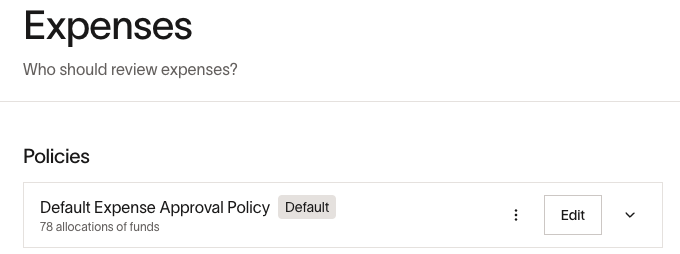
To use a different Expenses policy for reimbursement requests, the submitter must choose an existing fund linked to the desired policy in Reimburse from on the form.
- If your reimbursement is approved, it can be approved for electronic payment on Ramp or with another method your finance team chooses off Ramp. More in the "Getting paid back on or off Ramp" section.
- Approved reimbursements cannot be edited.
- If a reimbursement is rejected, you can edit it and resubmit it unless a missing-receipt affidavit is attached.
Editing a reimbursement you submitted
You can edit a reimbursement that is in Draft, Pending, or Rejected status unless a missing-receipt affidavit is attached. To change a reimbursement with an affidavit, delete the affidavit while the reimbursement is still a draft. After the reimbursement leaves Draft, you cannot edit it while the affidavit is attached. Approved reimbursements cannot be edited by the submitter.
Editing a pending reimbursement inline:
You can edit the following fields directly without returning the reimbursement to Draft or resetting its approval chain: memo; receipt or XML receipt attachments; attendees; trip association for non-per-diem reimbursements; entity; Sunshine Act details; policy and accounting tracking categories and tax amounts; per-diem daily-limit inclusion; budget mapping; custom fields; accounting date and amortization; and accounting splits or coding.
- Go to My Expenses > Reimbursements
- Click on the reimbursement you want to edit
- Click the options menu ( ... ) and select Edit
- Update the inline fields you need to change
- Click Save changes
- Review the summary of your changes and confirm
Editing and resubmitting a pending reimbursement:
Use Edit & resubmit to change reimbursement-defining fields: merchant, amount or currency, transaction date, or per-diem dates, location, times, meals, lodging, weekend, or amount inputs. For a mileage reimbursement, this path is also required to change the route, distance, stops, round-trip selection, vehicle class, or personal-commute details. Edit & resubmit returns the Pending reimbursement to Draft, terminates its current approval chain, resets approvals when it is resubmitted, and reopens the full reimbursement form for editing.
- Go to My Expenses > Reimbursements
- Click on the pending reimbursement
- Click the options menu ( ... ) and select Edit & resubmit
- Update the reimbursement-defining fields and submit the reimbursement
Editing and resubmitting a rejected reimbursement:
- Go to My Expenses > Reimbursements
- Click on the rejected reimbursement
- Click the options menu ( ... ) and select Edit & resubmit
- Update the fields as needed and submit
Who can edit: While a reimbursement is pending, you, your direct manager (and any manager in your reporting chain), your assigned assistant, and anyone with the Accounting or Admin role may edit it. Inline fields can be edited directly on the reimbursement detail page; reimbursement-defining fields require Edit & resubmit. For the reviewer workflow, see Editing reimbursements as a reviewer.
How edits affect approvals: Inline edits do not reset the approval chain. Using Edit & resubmit returns the Pending reimbursement to Draft, terminates the current approval chain, and resets approvals when it is resubmitted.
Deleting a reimbursement
You can delete your own reimbursement requests that have not yet been approved and paid. The Delete option is available on reimbursements with the following statuses: Draft, Pending (submitted, awaiting approval), Rejected, and Failed.
To delete a reimbursement:
- Go to My Expenses > Reimbursements
- Click on the reimbursement you want to delete
- Click the options menu and select Delete
- Confirm the deletion when prompted
To delete multiple draft reimbursements at once, select the check boxes next to each reimbursement in your Drafts list and click Delete at the bottom of the page.
Note: Deletion is permanent and cannot be undone or recovered. If you still need the reimbursement after deleting it, submit a new one.
If your reimbursement has already been approved and is awaiting or processing payment, you cannot delete it yourself. Ask your admin or owner to cancel the payment if it has not yet processed.
Getting paid back on or off Ramp
You may get paid back in one of two ways depending on your finance team's preference.
- Electronic payment to your bank account
- Paid off the Ramp platform
For payments on Ramp
Once approved, you will receive funds directly into your bank account. The payment process after the final approval typically takes 3-5 business days if your finance team has scheduled real-time or daily payouts. Payments may be delivered in a week or a month if your finance team has scheduled weekly or monthly payouts.
After a reimbursement has been approved and before the payment begins processing, admins, and owners can cancel your reimbursement payment from the reimbursement drawer in case of mistakes in approval, payment method, or bank issues. This will both cancel and reject the reimbursement. If you believe this was done in error, you can duplicate and resubmit the reimbursement and let your manager and/or finance team know.
For payments off Ramp
If your company hasn't enabled payments via Ramp, you will be paid outside of the Ramp platform using alternative methods, such as Zelle, Venmo, check, payroll, or another method. The reimbursement will be marked as 'Paid Manually,' which means:
- No ACH payment is sent through Ramp to your bank account. The ' Paid Manually' status is for tracking purposes only.
- For timing or details on the payment method, check with your manager, the company's finance, or the payroll team.
Ramp records off-platform reimbursements for tracking but does not provide employee paystubs or W-2s. If you need payroll documents, contact your employer's payroll provider.
Bulk edit reimbursement drafts
Bulk uploading, bulk editing, and bulk submitting are quick actions that let you work across multiple reimbursements at once. Each reimbursement remains a separate expense for submission and review unless you add it to an Expense Group.
Bulk upload: Drag and drop up to 20 receipts into the upload section on the web. Ramp creates a separate reimbursement draft for each receipt.
Bulk edit: Apply the same field changes to multiple drafts:
-
Open Reimbursements
-
Check the boxes on the left-hand side of the reimbursements you want to bulk edit
-
Click Edit on the bottom of the page
-
Select the field you want to bulk edit (e.g. memo, accounting fields, trip)
-
Enter the relevant information and click the green "Edit" button to save.
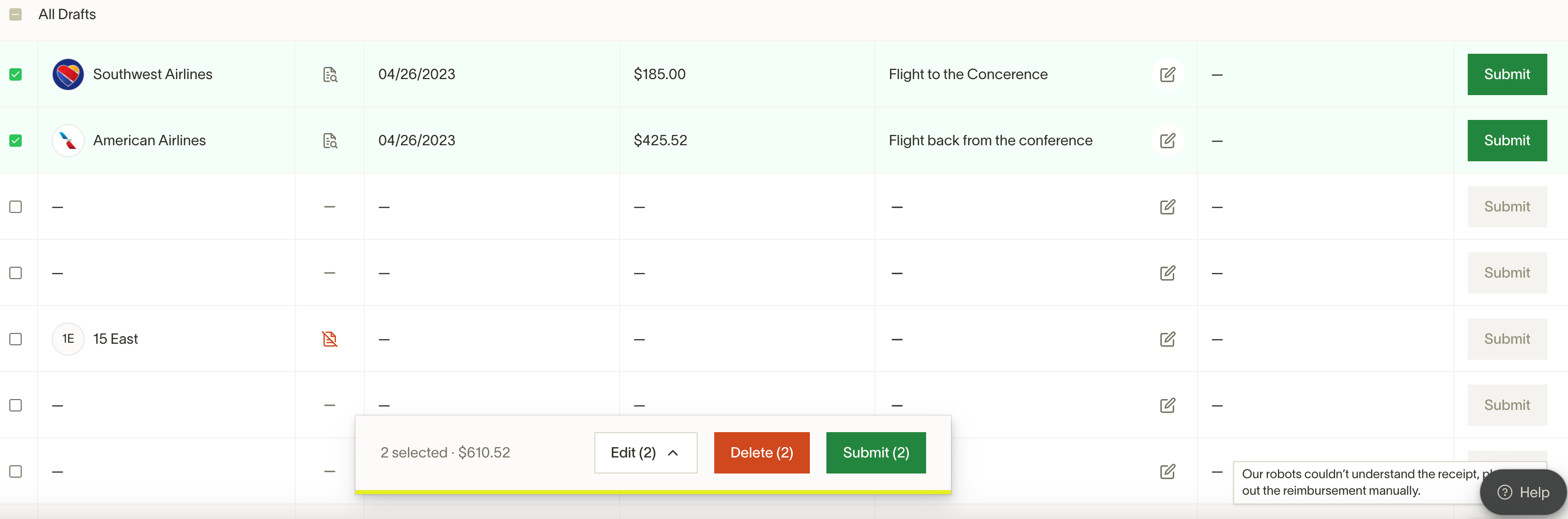
Bulk submit: Select multiple completed drafts, then click Submit in the action bar. Ramp submits each as a separate reimbursement unless the drafts are in an Expense Group.
Group related reimbursements with Expense Groups
Available on Ramp Plus. See Ramp Plus overview for plan details.
Expense Groups are different from bulk actions. You can still bulk upload, edit, and submit reimbursements, but adding drafts to an Expense Group keeps related reimbursements together through submission and review. Reviewers and approvers see the Expense Group and can review its individual reimbursements only when their approval table is grouped by Expense groups. Grouping is optional; you can submit reimbursements without an Expense Group.
Create an Expense Group from uploaded receipts
- Open Reimbursements.
- Click New > Reimbursement, then select or drag and drop up to 20 receipts.
- After Ramp creates the reimbursement drafts, they appear under Other drafts. Click Create group, choose the drafts you want to include or click Select all, then click Create group again.
- Ramp may suggest a contextual group name based on the selected reimbursements. Review or edit the name in Describe these expenses on the web or What are these expenses for? on mobile.
- Fill out the required fields for each reimbursement. Draft labels change from Incomplete to Complete when all required information is added.
- Submit the Expense Group for review.
Create an Expense Group from existing reimbursement drafts
From Reimbursements, select the draft reimbursements you want to group and click Review & submit. Ramp reopens an existing Expense Group only when every selected draft belongs to that same group. If the selected drafts are ungrouped or belong to different Expense Groups, Ramp creates a new Expense Group and may suggest a contextual name that you can change.
While reviewing reimbursements, you can also click Create group and select drafts from Other drafts or existing Expense Groups. To add another draft to an existing Expense Group, drag it to that group's Drag to add to group area. Each reimbursement draft can belong to only one Expense Group, so moving a draft removes it from its previous group.
Missing Employee reimbursement permissions
Available on Ramp Plus. See Ramp Plus overview for plan details.
If you are in the Employee role and your business is on Ramp Plus, you might not see the ability to submit reimbursements. Your business Owner or Admin may have removed this permission from the Employee role capabilities. Contact them for more information, or see Customize roles and permissions for details on role permissions.
Frequently asked questions
Can I recover, restore, or undo a deleted reimbursement?
No. Deleting a reimbursement is permanent. Ramp does not provide any way to recover, restore, or undo a deletion. If you still need to be reimbursed, submit a new reimbursement. To avoid accidental deletions, Ramp shows a confirmation prompt before deleting a reimbursement.
Can I delete a card transaction?
No. Card transactions are permanent records of completed purchases and cannot be deleted or removed from Ramp. If a charge is unauthorized or incorrect, see Disputes at Ramp. If you used your Ramp card for a personal or accidental purchase, see Accidental or personal charges on Ramp.
Can I delete an expense on Ramp?
It depends on the type of expense. Out-of-pocket reimbursement expenses can be deleted when they have not yet been approved and paid. Card transaction expenses cannot be deleted because they are permanent records of completed purchases.
How do I cancel a reimbursement I already submitted?
If your reimbursement is still pending approval, you can delete it. If it has already been approved, ask your admin to cancel the payment.
Can I change the "Reimburse from" fund after a reimbursement is approved?
The Reimburse from fund can be changed while a reimbursement is in Draft or Pending status. While pending, you or anyone in your approval chain can edit the fund along with other reimbursement fields unless a missing-receipt affidavit is attached. Once the reimbursement is approved, the fund is locked and cannot be changed — even if it has not yet been paid or synced to your accounting provider.
If the reimbursement has been approved but payment has not yet begun processing, ask your Admin or Owner to cancel the payment so you can resubmit it with the correct fund. If payment is already processing or complete, the fund cannot be changed. Contact your finance team to determine how to handle the correction.
After approval, only accounting fields (such as accounting categories, memo, and entity) can be edited by Accounting or Admin users. For more details on post-approval editing rules, see Editing reimbursements as a reviewer.
Can I enter a negative amount or add a credit line item to a reimbursement?
No. Reimbursement amounts must be greater than zero. There is no way to add a negative or credit line item to reduce a reimbursement amount. To return all or part of an eligible paid reimbursement, use Reimbursement repayments. To return money for an accidental or out-of-policy Ramp Card transaction, use Employee repayments.
Can I use Ramp to get reimbursed for hours worked, submit timesheets, or track billable hours?
Ramp does not provide a native timesheet, time-entry, or billable-hours workflow to support this.