Reviewing reimbursements
Note: This article primarily applies to Ramp Administrators. Cardholders may find other articles in the Reimbursements section to be more applicable.
Overview
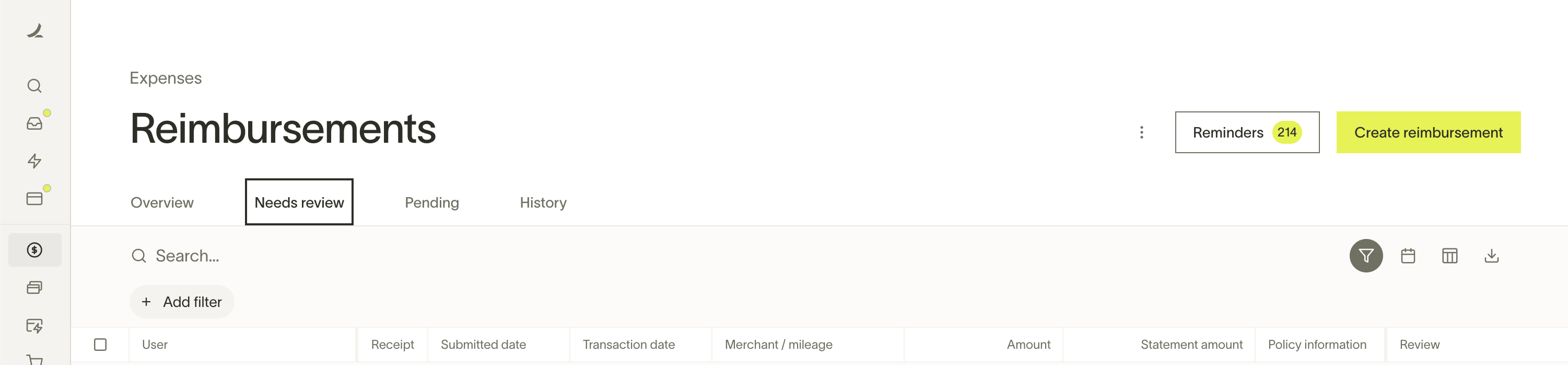
Once employees submit their reimbursements, they will appear in the Pending or Needs Review tab under Expenses > Reimbursements.
For a per diem reimbursement with multiple destinations, open the reimbursement to review each stop's dates, location, daily amounts, and subtotal. See Submit a per diem reimbursement with multiple stops for how employees enter the itinerary.
Editing reimbursements as a reviewer
While a reimbursement is pending, the submitter's direct manager (and any manager in the reporting chain), assigned assistant, and anyone with the Accounting or Admin role may edit it. Memo, receipt attachments, attendees, accounting or tracking categories, custom fields, and accounting date or splits can be edited inline; reimbursement-defining fields require Edit & resubmit.
To edit these fields inline:
- Navigate to Expenses > Reimbursements
- Click on the reimbursement you want to edit
- Click the options menu ( ... ) and select Edit
- Update the inline fields as needed
- Click Save changes and confirm
Reimbursement-defining fields use Edit & resubmit, which returns the Pending reimbursement to Draft, terminates the current approval chain, and resets approvals when it is resubmitted. These fields include merchant, amount or currency, transaction date, per-diem-defining inputs, and mileage route, distance, stops, round-trip selection, vehicle class, or personal-commute details. See Editing a reimbursement you submitted for the complete field lists and approval effects for both edit paths.
After a reimbursement has been approved and paid, only accounting fields can be edited — and only by users with the Accounting or Admin role. Editable accounting fields include accounting categories, memo, and entity. Fields such as amount, receipt, merchant, date, and Reimburse from (fund) cannot be changed once the reimbursement has been approved, regardless of whether it has been synced to your accounting provider.
Note: The Reimburse from fund and the reimbursement amount are locked at approval. Whether the reimbursement has synced to your ERP does not affect which fields can be edited — editability is determined by approval and payment status, not sync status.
Canceling reimbursements
After a reimbursement has been approved and before the payment begins processing, Admins and Owners (not Assistants or card managers) can cancel the reimbursement in case of mistakes in approval, payment method, or bank issues.
To cancel a Reimbursement:
- Navigate to Expenses > Reimbursements
- Click on the reimbursement, and select the Cancel payment button at the bottom
- This will both cancel and reject the reimbursement
If the payment has already been withdrawn from your company's bank account, you will automatically receive your funds back after another 5-7 business days.
Employees can delete their own reimbursement requests that are in Draft, Pending, Rejected, or Failed status. Deletion is permanent and cannot be undone. For details on the employee experience, see Deleting a reimbursement.
Bulk approving reimbursements
Admins and managers may approve reimbursements in bulk by selecting the check boxes next to each reimbursement. After clicking "Approve," you'll be prompted to confirm your selection.
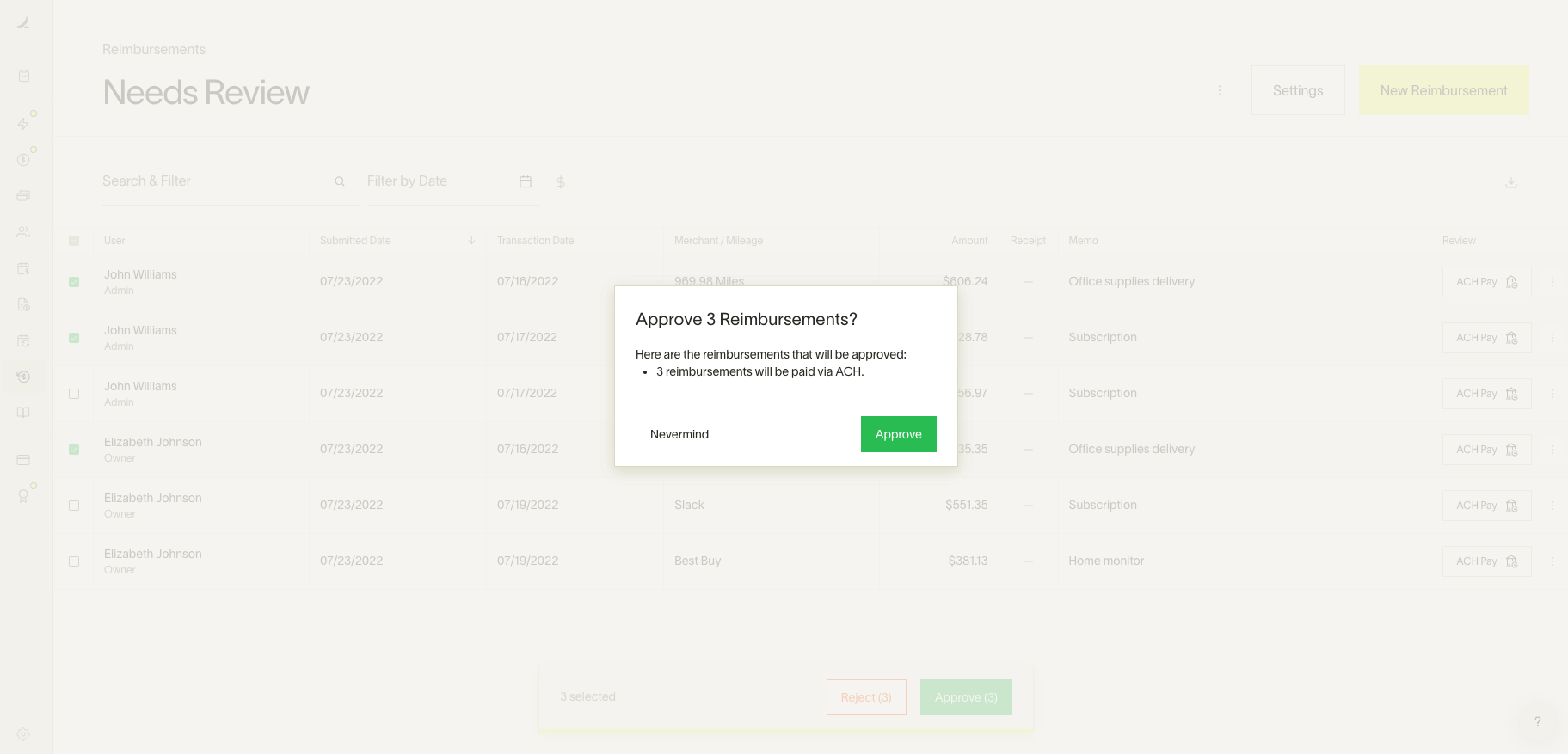
Please note: When you click the "Approve" button while multiple reimbursements are selected, those reimbursements will be approved, and payment will be initiated. If your configuration has "Batching" enabled for reimbursements, then you will see "Awaiting payment" instead of "Payment initiated" until the end of the day.
Approving expense groups
Available on Ramp Plus. See Ramp Plus overview for plan details.
In addition to bulk approvals for individually submitted reimbursements, you can approve reimbursements in employee-submitted groups. Employees may elect to submit a group of reimbursements at once (e.g., for a trip or for a project).
Reviewers can then approve these expense groups and review individual reimbursements as needed. Your approval tables must be grouped by “Expense groups” to view.
Personal card reimbursements
Personal card reimbursements are available on Ramp Plus. See Personal Card Reimbursements for details.
- Reviewers can tell when a reimbursement was created from a personal card transaction because Ramp shows the label Imported via personal card.
- This helps verify that the reimbursement is tied to a real card transaction.
- Being an Admin or manager does not grant access to an employee's personal card transaction feed. An assigned Assistant can access the feed only after the employee explicitly enables access, as described in Personal Card Reimbursements.
Foreign transaction reimbursements
If an employee spends in a currency other than USD, they can let you know when they submit their reimbursement.
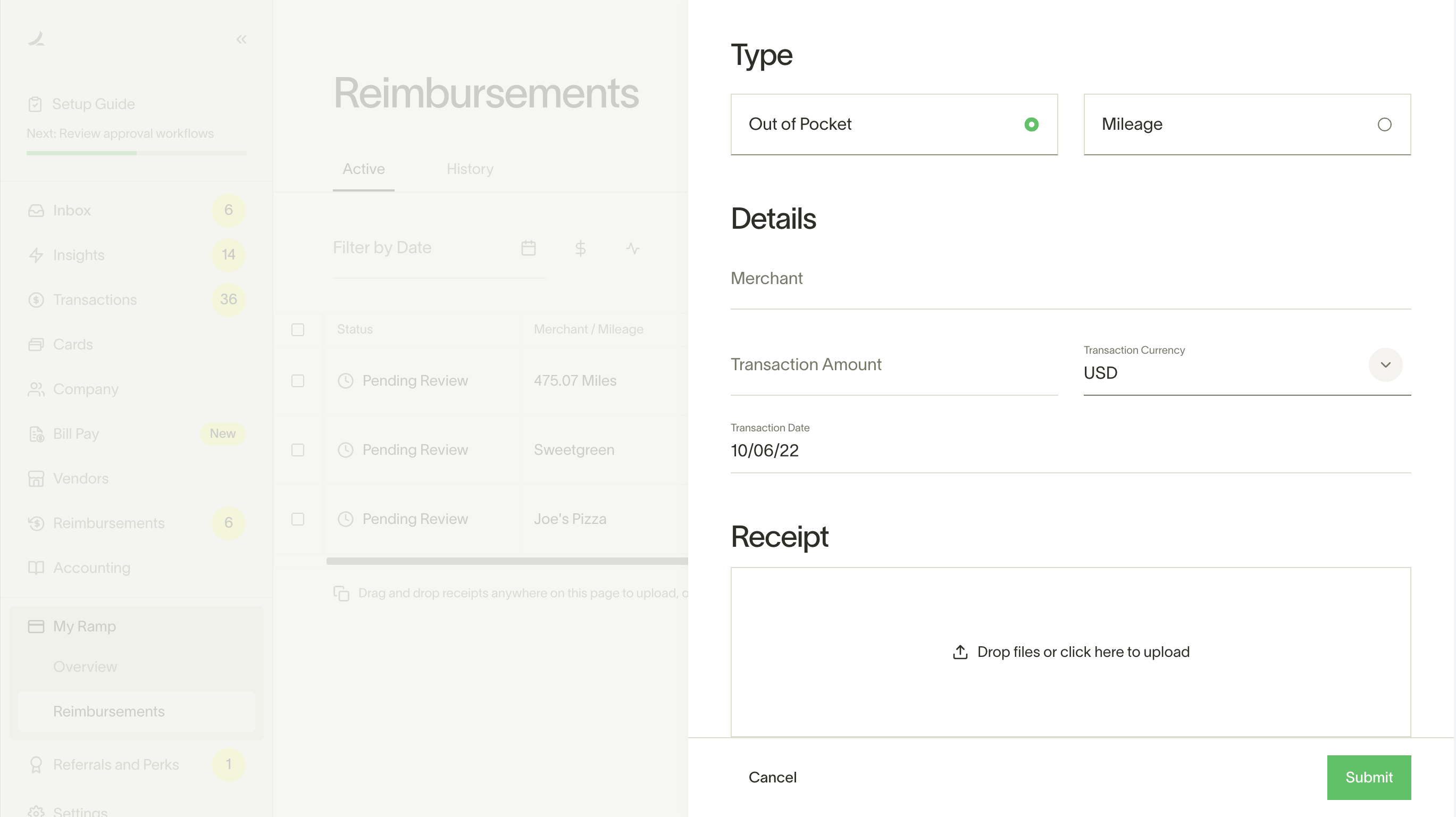
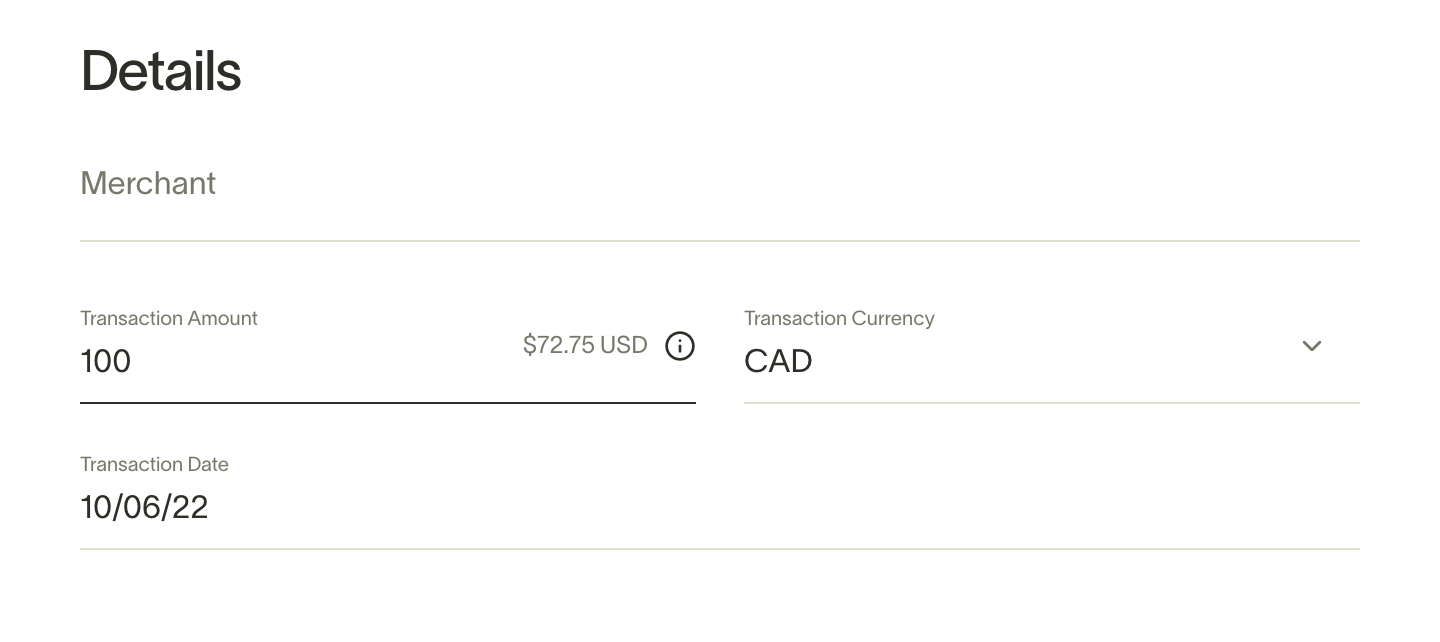
The employee will see the estimated USD they will receive, and you'll see a globe icon indicating the amount in the transaction's original currency.
International reimbursements
Admins and managers will see USD-equivalent amounts for reimbursements paid out in foreign currencies.
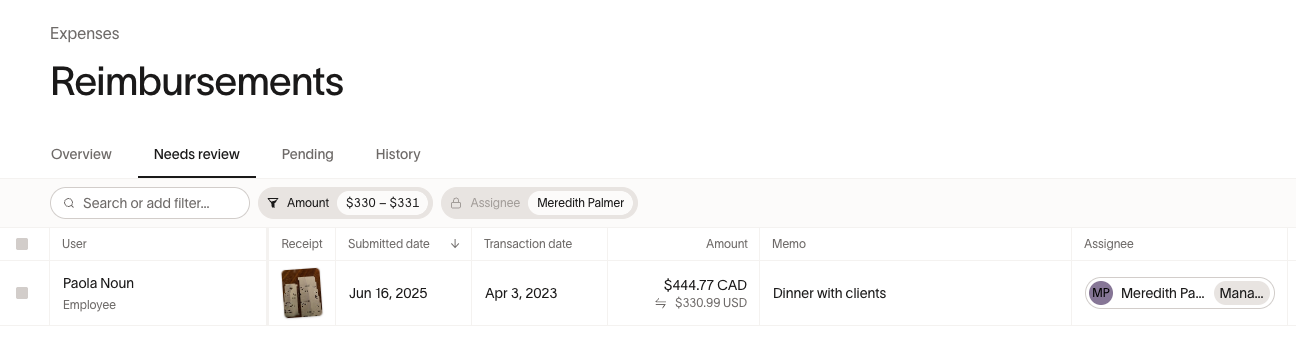
If the employee both had a foreign transaction and needs to be paid out in a foreign currency (ex. your Canadian employee spends GBP on a work trip to London), you'll see both the transaction's original currency and the currency they will be paid out on.
Businesses based in Nevada, and businesses in certain industries, may not be able to use international reimbursements or may require Enhanced Due Diligence (EDD). See Limitations for international reimbursements for details.
Reimbursement payment options
- Approve & pay: Refers to approving and paying via ACH and Wire
- ACH Pay: Approve and pay back the employee via ACH on Ramp. Your employee will have to enter their bank details to have this option.
- Wire Pay: Approve and pay back the employee via International Wire on Ramp. Your employee will have to enter their international bank details to have this option.
- Paid off Ramp: Mark a payment made outside of Ramp.
- Reject: You can reject the reimbursement request with an optional note that's sent to the employee.
Sending reminders for pending reimbursements
Admins can send manual reminders to managers who have reimbursements waiting for their review. To send reminders:
- Navigate to Expenses & travel > Reimbursements
- Click the Reminders button in the page header
- In the drawer that opens, you will see a list of approvers with pending reimbursements to review, grouped by person
- Click Remind next to an individual approver, or click Remind all at the bottom to notify all approvers at once
Reminders are delivered via email and include a list of the reimbursements that need the approver's attention. You can send a reminder to each approver once per day.
For reminders related to card transactions and missing receipts or memos, see the Sending reminders to employees for missing items section in the Reviewing transactions article.
Frequently asked questions
Why can't I reimburse an employee directly via Ramp?
- Make sure that you've enabled ACH payments in your Reimbursement Settings.
- If an employee hasn't added their personal bank account details, you won't be able to pay them directly via Ramp.
What's the difference between the Pending and Needs Review tab?
- Admins will see reimbursements in the Pending tab rather than the Needs Review tab if they are not the next person in line to approve
- The Needs Review tab will show the reimbursements the Manager or Admin is directly responsible for approving
How do I approve any reimbursements as an Admin?
Admins can approve pending reimbursements from any employee (even if not the direct manager) by clicking on them, scrolling down to the bottom, and clicking on the three dots. From there, you'll be given the option to bypass the manager's approval.
Can I undo or reverse an approved reimbursement?
Yes, but only one reimbursement at a time and only before payment begins processing. Admins and Owners can open the reimbursement from Expenses > Reimbursements and click Cancel payment. This cancels the payment and rejects the reimbursement. Managers, Assistants, and card managers can't do this. Ramp supports bulk approvals and bulk rejections in Needs Review, but not bulk cancel or bulk undo for approved reimbursements.
Why did my employee's reimbursement payment fail?
Typically, it's due to incorrect bank details. To resolve this, the employee will have to update the ACH details and retry the payment.
How to retry a reimbursement repayment if it fails?
Only the employee who owns the source reimbursement can retry its failed repayment. See Cancel or retry a reimbursement repayment for the requirements and steps.