Reviewing transactions from Ramp cards
Note: This article primarily applies to Ramp Administrators and Managers. Cardholders may find Homepage FAQ article to be more applicable.
Overview
For companies that require additional review of transactions, whether for compliance or other monitoring purposes, Ramp supports transaction approvals directly within the platform. This feature allows managers and Finance teams to review and approve spend that employees have used their company card for.
Note: users may receive a Ramp notification for a transaction that does not appear in the manager/admin dashboard if the transaction was authorized but then reversed by the vendor (authorization reversal). Such transactions result in a $0 charge, are not disputable, and will not show in transaction reports.
Best practices
We recommend clients design their expense policies based on who is spending and what they spend on. For example, you may determine that certain types of spend don't require manager review (such as executive spend, ad spending, and recurring SaaS spend).
Meanwhile, other expenses, such as per diem, travel, or day-to-day operating expenses, may be more important to track.
For this reason, we enable and encourage you to configure policies that allow you to save even more time without sacrificing the need to monitor and control company spending. Our solution helps in a few ways:
- Eases the administrative burden on card managers by decreasing the volume of transactions they need to be personally responsible for
- Distributes ownership and accountability for expenses
- Gives Finance teams the confidence to distribute cards to employees who may not have been entrusted with company cards in the past
- Allows businesses to transition expenses from manual reimbursements to corporate cards (increasing savings via cashback and providing better visibility and control over expenses)
How to set up transaction review policies
Transaction reviews are set up within the company expense policy. We've written a detailed guide for Admins and Finance teams here.
How to review transactions
Reviews may be completed in two places. Ramp recommends reviewing from the Inbox tab (where all approvals for reimbursements, transactions, bills, and spend requests live).Reviewers can also navigate toExpenses & travel > Card transactionsto see all transactions.
Inbox tab
Reviewers see a notification in the Inbox indicating how many items need attention. Inbox card transactions shows transactions assigned to you and awaiting review; it does not categorically exclude transactions with missing required items. For transactions outside your Inbox, use Card transactions. If an Inbox transaction has missing items, see Sending reminders for missing items.
As you review these transactions, you can take two main actions on each:
- Approve: If the transaction in question falls within your expense policy, or you’ve authorized it, click on the Approve button. Ramp also allows you to make bulk approvals by selecting the empty checkboxes or checkboxes for an entire group.
- Reject: If you choose to reject a transaction, you have the option to either Request changes, formerly the option to flag transactions that you need additional information on, or are out of policy, or Request repay. Ramp will start an email thread between you and the cardholder to collect this additional information. Responses will be added to the transaction in Ramp.
- Once a transaction is flagged, this will move the transaction to the “ Flagged ” sub-tab of Expenses & travel > Card transactions
Grouped expenses: There are several fields in priority: expenses associated with a Trip, then Spend Limit, then cardholder. All expenses within a group can be approved at once.
- When an expense is tied to a Trip, all expenses will be tied to it under a section named " [Cardholder's name] Trip to [Location and date]
- If an expense is not tied to a trip group, Ramp will group expenses by card or funds under a section named "[Cardholder's name] · [Card name]"
- When an expense is not tied to a card or a trip, all pending expenses will be grouped by the cardholder and under a section named "[Cardholder's name]"
- When a reviewer filters or sorts on the table, all groupings will be removed in place of the filter
- Ordering of group sections will be based on the most recent transaction date for transaction tables and the most recent submitted date for reimbursement tables
- For transaction tables, the section displayed at the top contains the most recent expense transaction date. So, the section takes on the date of the most recent transaction
- Spend requests and bills will be based on the most recent request date
If certain employees use cards or funds as you would expect them to (for example, if you’ve flagged transactions multiple times), you can lock their Ramp card(s) or funds until further action is taken. You can do this from Cards or Funds by searching for their card or funds, selecting it, and activating the Lock icon.
Card transactions tab
TheExpenses & travel > Card transactionstab has several sub-tabs for additional visibility and transaction filtering.
- All— This includes all transactions that you are allowed to view at your organization, depending on your role. For admins, this includes transactions from all employees. For managers, this includes their direct team.
- Needs review— This category includes transactions that require review based on the company's approval policy. It also includes cleared transactions that do not have missing items. Pending transactions and transactions with flags from policy rules will not appear here.
- Flagged - This includes transactions that were manually or automatically flagged as out-of-policy and have not yet been resolved.
- Fully approved - Includes transactions that have been manually or automatically approved, transactions that were manually or automatically flagged and approved, and transactions that have been flagged for repayment and were repaid. This can include pending approved transactions.
- Declined - Includes declined transactions.
Please note that if you are the final approver on a transaction that is not ready for review (contains missing items), your approval will automatically dismiss all remaining missing items.
Sending reminders to employees for missing items
Reviewers may also remind employees to submit missing items, and admins may remind managers to review transactions in Expenses & travel > Card transactions. Admins may also remind managers to review reimbursements in the Expenses & travel > Reimbursements > Needs review tab. Sending a reminder to employees and managers will notify them via email with a list of transactions needing attention.
- The "Remind" button for managers will allow managers to remind employees to submit memos and receipts
- Admins with access to approver reminders can use Reminders > Pending approvals for approvers; see Sending reminders to approvers.
Below is a view of the reminder drawer for missing items. Managers may also send bulk reminders in the Inbox tab when selecting multiple transactions. Please note: Ramp does not yet support reminders for repayments since a notification is sent when it is requested.
Getting notified of transactions requiring review
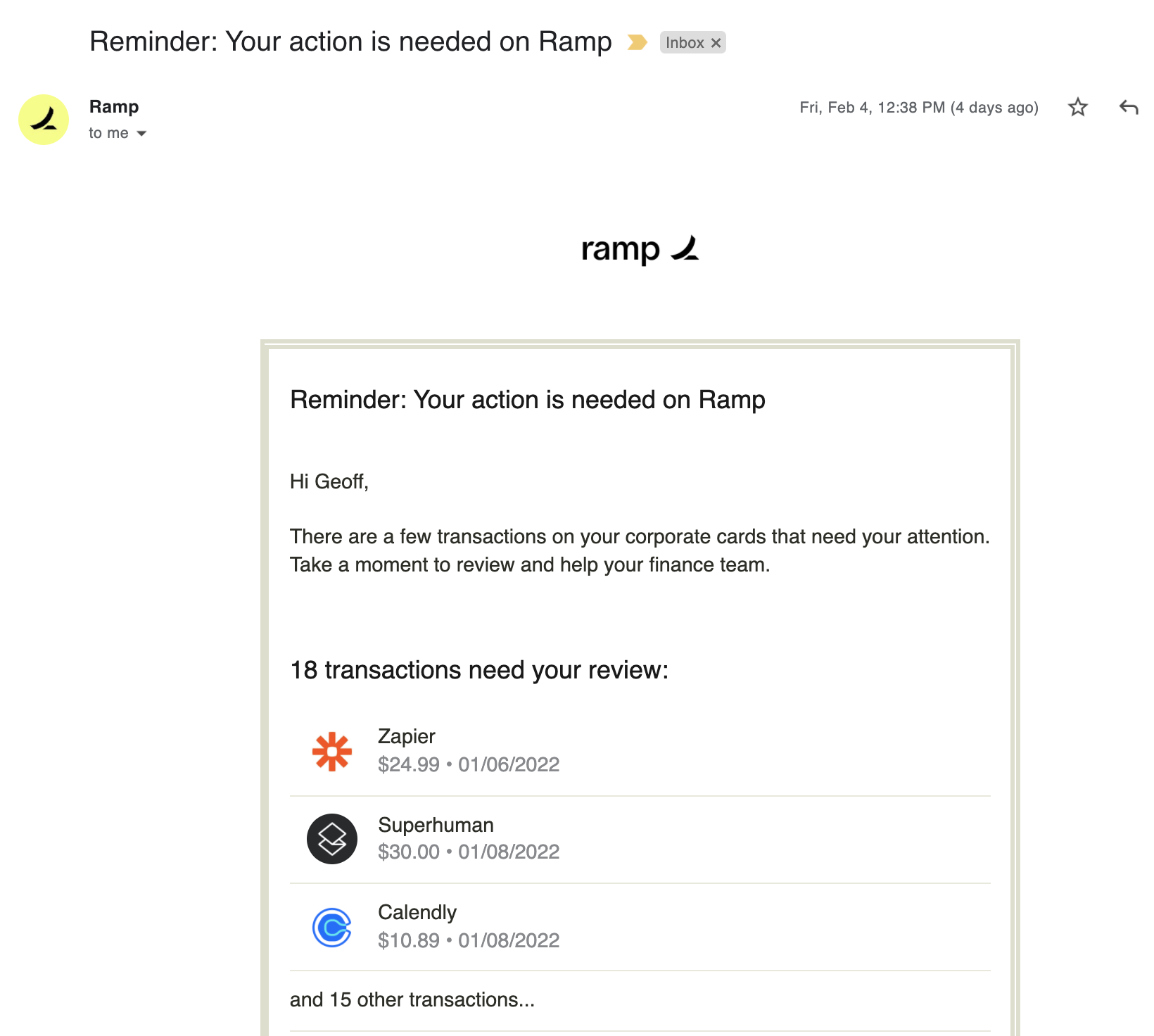
Managers can receive a weekly chat reminder listing items that need review when their organization has connected Slack or Microsoft Teams. Managers should ask their Ramp Admin to confirm the connection. Admins can set up or check it by following Slack integration: Set up for admins or Microsoft Teams integration: Set up for admins.
Note: The image below shows a previous email format. Current weekly reminders use connected chat.
Request changes
If a transaction put on a Ramp card is out of policy, managers can request changes to the employee after rejecting the expense. This will notify the employee and the finance team and start an email conversation. The Finance team will be able to request that the employee pay back the company according to the company's expense policy.
Read more here: Review transactions: Personal charges, fraud, and policy issues.
How transaction reviews relate to accounting sync
Unlike legacy expense reporting systems, Ramp's transaction review process does not create a bottleneck in your reconciliation process each month. You will still be able to code and sync transactions once they are fully clear within the VISA network. The transaction review framework was built to help monitor the legitimacy of transactions and enforce your expense policy with minimal disruption to your accounting processes.
If you'd like to sync only transactions that have been approved, filter for**"Approval status**>Fully approved" transactions within the Accounting tab. Once you have your filters applied, you'll see a +Save as new view button in the upper right. Saving this view will ensure you only sync "Fully approved" charges.
In the event that a transaction is matched to a bill:
- The transaction is then approved
- Missing required items will be dismissed

[For Plus customers] reviewing Policy Agent recommendations
Note: This section applies only to Ramp Plus customers who have enabled Policy Agent.
If your organization uses Policy Agent, you may see AI-powered recommendations when reviewing transactions. Policy Agent is Ramp's AI expense reviewer that evaluates every card transaction against your written expense policy and provides recommendations to help you review more efficiently.
What Policy Agent recommendations look like
When reviewing transactions, you'll see Policy Agent badges and recommendations on eligible expenses:
- Approval recommended – The agent determined the expense clearly complies with your policy
- Review recommended – The agent is uncertain, missing context, or your policy explicitly requires human review
- Rejection recommended – The agent identified a clear policy violation
On the homepage, these recommendations appear under Transactions ready to approve, Transactions to review, or Transactions ready to reject, respectively.
Important: Policy Agent recommendations are suggestions only. As a reviewer, you always have final authority to approve, reject, or request changes regardless of what the agent recommends.
Understanding the agent's reasoning
Click into any transaction to see Policy Agent's detailed assessment in the activity feed. The activity feed shows:
- The agent's recommendation (approval, requires review, or rejection)
- Rationale explaining why the agent made this decision
- Cited policy text – the exact sections of your policy the agent referenced
- The policy version used for the assessment
- Any updated assessments after new information was added (e.g., receipt or memo)
This transparency helps you understand the agent's logic and make informed decisions.
Taking action on recommendations
You can take the same actions on transactions with Policy Agent recommendations as you would on any other transaction:
- Approve – If you agree with an approval recommendation, or if you determine an expense is in-policy despite a "requires review" flag
- Reject – Use Request changes or Request repay if the expense is out of policy or needs additional information
- Provide feedback – Use the thumbs up/down buttons to indicate whether you agree with the agent's assessment
Your feedback and overrides are signed in the activity feed and help improve Policy Agent's accuracy over time.
Visibility and employee experience
- Admins and owners can see Policy Agent assessments and reasoning.
- When all-reviewer visibility is turned on, all reviewers can see approval recommendations.
Employees cannot see Policy Agent assessments.
Only Admins can change visibility under Policy > Travel & expenses > Policy agent. If you cannot access the setting, ask your Admin to update visibility.
Auto-approvals (if configured)
If your organization has configured Policy Agent to automatically approve clearly in-policy expenses, those transactions may be auto-approved before they reach your review queue. You can still view these in the Fully approved tab and see the agent's reasoning in the activity feed.
To learn more about Policy Agent, including how to configure auto-approvals and visibility settings, see Policy Agent Overview.
Frequently asked questions
What does "Requirements completed" mean?
If a transaction is displayed as “Requirements completed,” the cardholder has submitted the missing items required by the expense policy (if any were required). If a transaction's receipt shows"Auto-approved," two out of three of the heuristics on the receipt matched the transaction's heuristics (e.g., merchant, amount, time).
How can admins view their direct team?
Admins can click "X" on the default filter for their team ("Direct Team: Arletta Cheryl Morris" in the above image) to see all the transactions that require approval at the company and review anyone's transactions.
What happens if an admin approves a transaction and there were other approvers in the chain before them?
It'll skip the earlier approvers in the chain.
Can I reverse a transaction review after approving it?
Ramp doesn't offer a general bulk undo or reverse flow for approved card transactions. If the transaction detail page shows Revert to previous approver, you can use that action to send that single transaction back one step in the approval chain. This option isn't available in bulk, and it won't appear for every transaction. If it isn't available, Ramp doesn't expose a separate reverse or undo action for that transaction.
What does it mean if a workflow is "Inactive"?
This just means no cards or funds currently have that policy configured. If you apply the policy to a card or funds, the inactive badge will be removed.
Can I use approval flows for live transactions?
Since transactions happen in real-time, there's no way to provide live approval. The best way to control your employees' spend on cards is to use category restrictions and single transaction limits (e.g. can't spend more than $500 on any transaction). This can all be done from Cards or Funds by selecting a card, or set up as you create a new card.