Review transactions: Personal charges, fraud, and policy issues
Note: This article primarily applies to Ramp Administrators. Cardholders may find other articles in the Expense policy and receipts section to be more applicable.
Overview
Ramp supports different workflows for personal charges, fraudulent transactions, and out-of-policy spend:
- Personal charges: The cardholder accidentally used funds or a physical card for a personal expense and can repay the transaction.
- Fraudulent transactions: The cardholder does not recognize the transaction and should report it as fraud.
- Out-of-policy flags: The cardholder spent on something that is out of policy.
Repay a personal charge
If you accidentally make a personal charge using your funds or a physical card, repay the transaction from the transaction details page. Here's how:
- Open the transaction in Ramp.
- Select Options, then select Repay transaction.
- Enter the amount to repay. If you enter a partial amount, you cannot submit a second in-Ramp repayment for the remaining balance after the partial repayment completes.
- Submit the repayment.
To repay by ACH, a cardholder who lives in the US needs a USD transaction, a verified default personal USD bank account, and a company with ACH repayments enabled and a USD reimbursement bank account. By default, Repay Off-Ramp is the fallback when no automated repayment method is available. Some companies make it available alongside automated methods. For more details, see Employee repayments and Accidental or personal charges on Ramp.
Fraudulent transactions
It's easy to monitor spend and flag any charges that are unauthorized or potentially fraudulent within the Ramp dashboard. In the event of suspected fraudulent activity, follow the steps in Flagging unauthorized charges or fraudulent activity.
Review out-of-policy spend
Available actions depend on the transaction status and your permissions. If Reject is available:
-
Go to Expenses > Card transactions.
-
Click on the transaction that you believe was unapproved.
-
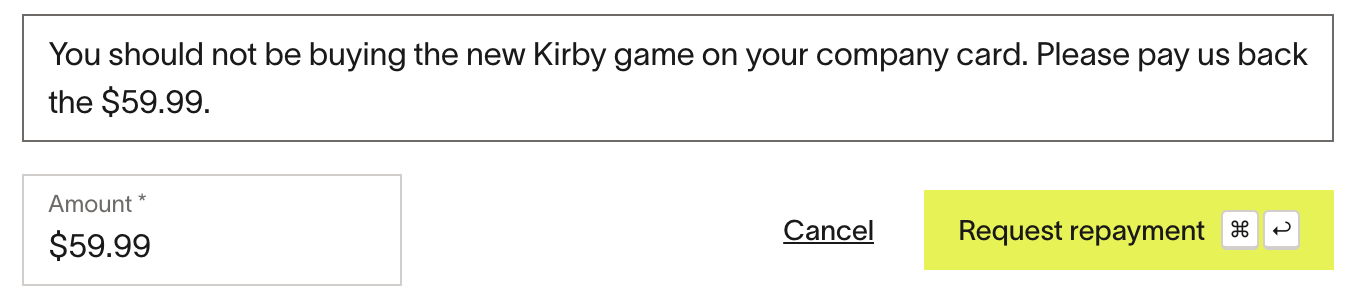
At the bottom, click Reject and select either Request changes or Request repay. This will open a text box for you to enter the reason.
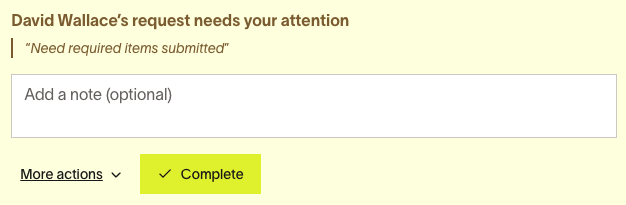
- If you select Request changes, the cardholder must select Send for review to route the transaction back for review. This also clears the Changes requested banner.
Clearing flags
Approval removes the transaction from the pending Flagged review state, but it does not remove the underlying out-of-policy flag or warning. See Automatically flag transactions with policy flags for how policy flags are resolved.