Submission policies
Note: This article primarily applies to Ramp Administrators. Cardholders may find other articles in the Expense policy and receipts section to be more applicable.
Overview
Submission requirements are guidelines employees must follow when submitting receipts, memos, and other items for reimbursement or spending on a Ramp card. This makes it easy for finance admins to collect information for review, code transactions, and sync them to their accounting system. After an employee transacts on a Ramp card, Ramp will automatically notify the user when they need to submit receipts or memos for their card transactions.
To manage submission policies, open Policy > Travel & expenses > Additional controls > Expense requirements.
Within expense requirements, you have the ability to:
Set submission policies for transaction and reimbursements
- Create multiple policies for each department, expense category, or other distinction
- Define conditions that require employees to satisfy any accounting field
- Clone, edit, and update policies for funds (e.g. create "executive" or other distinct policies)
- Attach policies to new cards or funds, with the option to override policy requirements
- Note that changing or editing a submission policy associated with a card or funds will affect only future transactions
- Allow multiple attendees to meal transactions
- Delete policies that are no longer needed
Set up receipt and memo automation and controls
- Automatically generate receipts for select merchants
- Automatically generate memos using transaction details and past history
- Enforce receipt compliance with affidavits for Ramp Card transactions (Plus)
- Enforce receipt compliance with affidavits for out-of-pocket reimbursements (Plus, Alpha)
Set up reimbursement field defaults (Beta)
- Automatically set Reimburse from to None when a fund or Spend Limit is not required by your policy
- Reimburse from appears by default in your reimbursement draft form, even when not required by policy
Configure accounting coding
- Allow employees to split expenses for accounting coding
- Allow 'None" as a selectable value for accounting fields
Configure global approvals and restrictions
- Select merchants to block transactions from
- Exempt submission requirements for transactions from certain merchants ( learn more )
How to set up submission policies
Note: If you received an email from Ramp about your company’s migration to the updated missing-items auto-lock experience, see Missing-items auto-locks for cards and funds for migration details and instructions for the new experience.
- Navigate to Policy > Travel & expenses > Additional controls > Expense requirements
- You may either edit your default policy or click "add submission policy"
- You'll be redirected to the policy workflow builder
- Clicking any “add” button will pull up a drop-down of the following options to begin configuring your approval chain:
- Expense type - specify whether you would like the approval chain to apply to only transaction review, only reimbursement approvals, or both. Note that the "reimbursements" option under Expense type applies policies to both out-of-pocket and mileage reimbursements. Reimbursement type allows you to configure requirements for out-of-pocket and mileage reimbursements separately.
- Require fields - specify the fields you'd like employees to submit. Options include receipts, memos, mileage reimbursement locations, accounting fields, and XML receipts (if enabled for your business).
- Optional fields - specify the fields you'd like to require as optional. The options are the same as for the required fields above.
- Please note, receipt and memo fields are always available to be added to any transaction or reimbursement, even if not explicitly added as optional. If they are added as a requirement, then they will be required.
- Set conditions - add conditions to check various transaction and reimbursement fields (e.g. accounting coding, amount, employee role, employee department, etc.) that assist in determining which items employees will be required to submit along with their spend.
- Layer and nest these options using AND / OR statements to create your ideal requirements when employees spend on behalf of your company
- Hover over any statement to delete or duplicate the statement.
- Once you're satisfied with your policy, click the green "save" button to exit the builder
Changing or editing a submission policy associated with a card or funds will affect only future transactions and any pending transactions at the time of the change on that card or those funds. Please note that after a transaction is marked ready to sync, any required accounting fields will no longer appear under the Requirements section. After it's synced, no accounting fields can be edited.
Note(s):
- Dismissing policy requirements for a transaction is permanent and cannot be reversed for that transaction.
- Updates to policy requirements only apply to future transactions.
- Past transactions where requirements were dismissed will not be affected by future policy changes.
- To enforce documentation for a specific transaction after dismissal, request information directly from the cardholder using ' Reject ' > ' Request changes '
Setting conditions
There are multiple transaction and reimbursement fields you may require or make optional. While the Amount, Business Entity, and Employee Role fields is available to all customers, the additional conditions in the list below are only available to customers on Ramp Plus.
- Spend Type (transaction or reimbursement)
- Amount
- Employee Role
- Reimbursement type
- Business Entity
- Direct Ramp manager (Plus)
- Employee (Plus)
- Merchant (Plus)
- Merchant category (Plus)
- Ramp Department (Plus)
- Ramp Location (Plus)
- HR Integration fields (if integrated) (Plus)
- Account fields (including UCSV) (Plus)
Once a condition has been selected, you can select which options to check for (e.g. if the condition is employee role, you'd further select the role to base conditions off).
After selecting your desired conditions and options, you will be prompted to add your optional and required employee submission fields.
Examples of ways to set up submission policies
- Required fields for expenses above an amount - If you want to allow your employees to code their transactions, but not require them to do so, a good workaround is to require the additional fields only for a very high transaction amount- as long as charges are under that amount, the fields will be available, but not required.
- Creating different policies for card transactions and reimbursements - Within the same submission policy, you can create separate policies for transactions, out-of-pocket reimbursements, and mileage reimbursements based on the Expense type and Reimbursement type (fields that allow distinguishing between out-of-pocket and mileage reimbursements) fields. You can then apply this policy to a card or funds so that any transaction or reimbursement associated will follow their own logic for employee requirements.
Field setup
Ramp automatically pulls the list of available fields from your accounting system. To integrate your accounting system, visit How Does Ramp Integrate with Accounting Software?
Within the submission policy, you can select which field is required to be filled by the employee.
Mapping policies to cards and funds
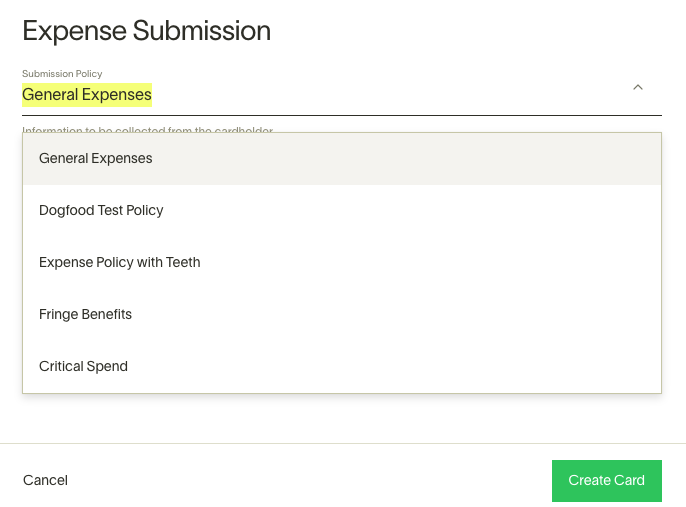
During the card-issuing process, you can add a submission policy to that card or those funds. Simply choose the policy associated with it. Additionally, you can attach a submission policy to existing Ramp cards or funds by clicking on it in your Ramp dashboard. Note that the submission policy applied is determined by the fund used for the transaction, not by the merchant category of the transaction.
Frequently asked questions
What happens when I edit the policy associated with a card or funds or change the policy it is linked to?
Future transactions on the card will have the updated submission policy requirements. Past transactions won't be affected. They will keep the fields required by the previous submission policy.
What happens to multi-entity submission policies?
There's a General Entity policy that'll apply by default to all entities and new cards or funds created for those entities.
Can I require receipts, memos, or other items based on the accounting fields?
Conditional/dynamic routing based on the accounting fields an employee selects is now supported. You can learn more about it in Conditional coding in submission policies .
Can I require submission requirements for refunds?
Currently, there is no option or toggle to enable this. Instead, you will need to use conditions to set requirements for card transactions where the "amount is less than $0.00." By creating this condition and setting the requirements, you can mandate these fields for refunded transactions.
Why Do Transaction Policy Requirements Change?
When you update the submission requirements policy, any pending transactions will automatically adopt the current policy requirements. Additionally, any changes to accounting fields made on an expense will trigger a regeneration of policy requirements based on the most current policy.
How do I delete a submission policy?
Navigate to Policy > Travel & expenses > Additional controls > Expense requirements, find the policy, click the three-dot menu (⋮), and select Delete. Confirm in the dialog to complete the deletion. This action is permanent and cannot be undone. You cannot delete a submission policy if it is the default policy, if it has funds associated with it, or if it has Spend Programs associated with it. Move any associated funds or Spend Programs to a different policy before deleting.