Pause task-based card locks
Overview
Available on Ramp Plus. See Ramp Plus overview for plan details.
Alpha. Cardholder self-snooze may not be available for every company yet.
With the updated missing-items auto-lock experience, Admins can let cardholders pause their own task-based locks instead of asking an Admin for more time. This setting is off by default.
Self-snooze covers locks for missing items, transaction reviews, reimbursement reviews, repayments, and change requests.
For Admins: Let cardholders pause card locks
- Open Expense requirements.
- Under Pausing locks, select Let cardholders pause card locks.
- Turn on Allow cardholders to pause card locks.
- Set Who can pause their card locks to All cardholders or Specific users or groups. Groups can include dynamic groups. Leaving the selection empty allows all cardholders.
- Choose a Pause duration of 1, 3, 5, or 7 days.
- Choose How often they can pause: once every 7, 14, 28, or 60 days.
- Select Save.
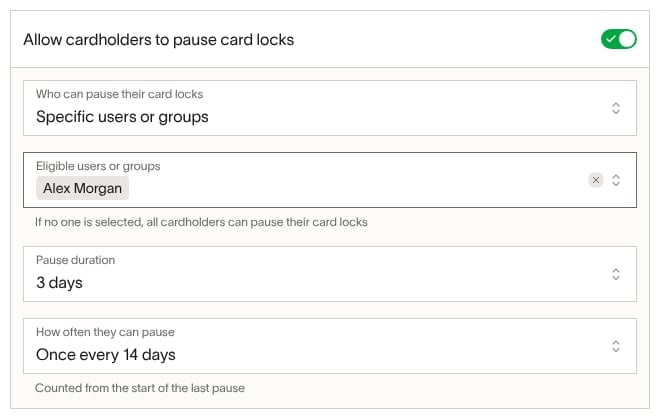
When first enabled, the form starts with a 3-day pause, once every 14 days, for All cardholders. Review these values in Expense requirements before saving. One company-wide setting applies across the task-based lock types listed in the Overview.
Change or turn off self-snooze: Return to the same settings and save your changes. Active pauses keep their end dates. Changes to How often they can pause apply immediately; turning the setting off prevents new self-pauses, and turning it back on does not reset anyone's allowance.
Pause your own task-based card locks
If your Admin has enabled self-snooze for you, select I need more time in a lock notice on the web, such as on Home, in your wallet or card details, or on an affected fund. Review the duration in Need more time?, then select I need more time again to confirm. Opening the confirmation does not start a pause.

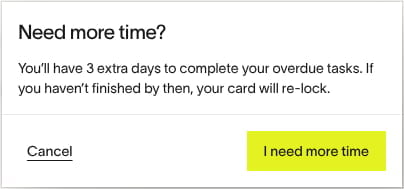
The pause applies to you, not just the card or fund you opened, and lifts your task-based card and fund locks. It also pauses existing missing-item fund locks from the previous experience. Unlocking may take a moment to appear.
You can pause an active task-based lock or an upcoming lock less than 24 hours before its deadline. Check the deadline in your lock notice. If you pause before locking begins, your full pause duration runs from the original lock deadline, not from when you confirm.
On Home, Card locks paused until [date] shows your pause end date. If overdue tasks remain, the notice lists what to complete to keep your card unlocked.

Pause card locks from reminders or chat
For eligibility and allowance details, see Self-snooze limits.
From a reminder: If your Ramp reminder includes a pause link, open it and confirm on the web. An already-paused link shows the pause end date. If it is for another company, switch to that company or sign in with an account that has access, then reopen the link.
From chat: Where available, ask Ramp in Slack, SMS, WhatsApp, or iMessage to check whether you can pause your locks, then follow the confirmation prompt.
Understand self-snooze limits
- A confirmed pause uses your allowance. Completing tasks early does not restore it. The interval in How often they can pause is counted from the start of the last pause; for an early pause, that is the original lock deadline. Ask your Admin to check the interval in Expense requirements.
- Tasks still need to be completed. A pause does not complete them or change their original deadlines. New overdue tasks covered by task-based auto-locking do not trigger locks while the pause is active. If overdue tasks remain afterward, locks can return within a day after the pause ends, rather than at the exact end time. Check your notices for the current status.
- Other restrictions remain. A self-pause does not remove manual locks or fraud restrictions. See Transaction declines for other reasons spending may be blocked.
- Overlapping pauses use the later end date. An Admin pause and a self-pause do not add their durations together.
- Admins use a different action. Web task-lock notices show Pause card lock for 7 days, not I need more time. Through reminder links or chat, Admins also get a 7-day pause without using the cardholder allowance. See Admin pause options.
If you don't see I need more time
Your company may not have access, your Admin may not have enabled it for you, your last pause may still be active, or you may have used your allowance. An upcoming lock must be within the pause window. A manually locked card shows a different notice and is not unlocked by self-snooze.
For overdue task-based locks, use the task links in your lock notice. Follow the completion guide for each task type:
- Missing items: Submit missing items to unlock your card.
- Transaction reviews: Review assigned card transactions.
- Reimbursement reviews: Approve or reject assigned reimbursements.
- Repayment requests: Respond to a reviewer's repayment request.
- Change requests: Send a transaction with requested changes back for review.
If you still need help, ask your Admin to review the lock and pause settings with you.