Transaction declines
Overview
Receiving a message that your transaction has been declined can be frustrating and inconvenient. Below are some common reasons for transaction declines and steps you can take to address them.
How to view declined transactions
To view your declined transactions:
As a cardholder
Open Home and click on the funds for which you wish to view declines. At the bottom of the panel, click the Declined Transactions tab.
As a manager or Admin
You can view all declined transactions at the company (admin) or team level (admin and manager) in the Expenses & travel > Card transactions > Declinedsubsection.
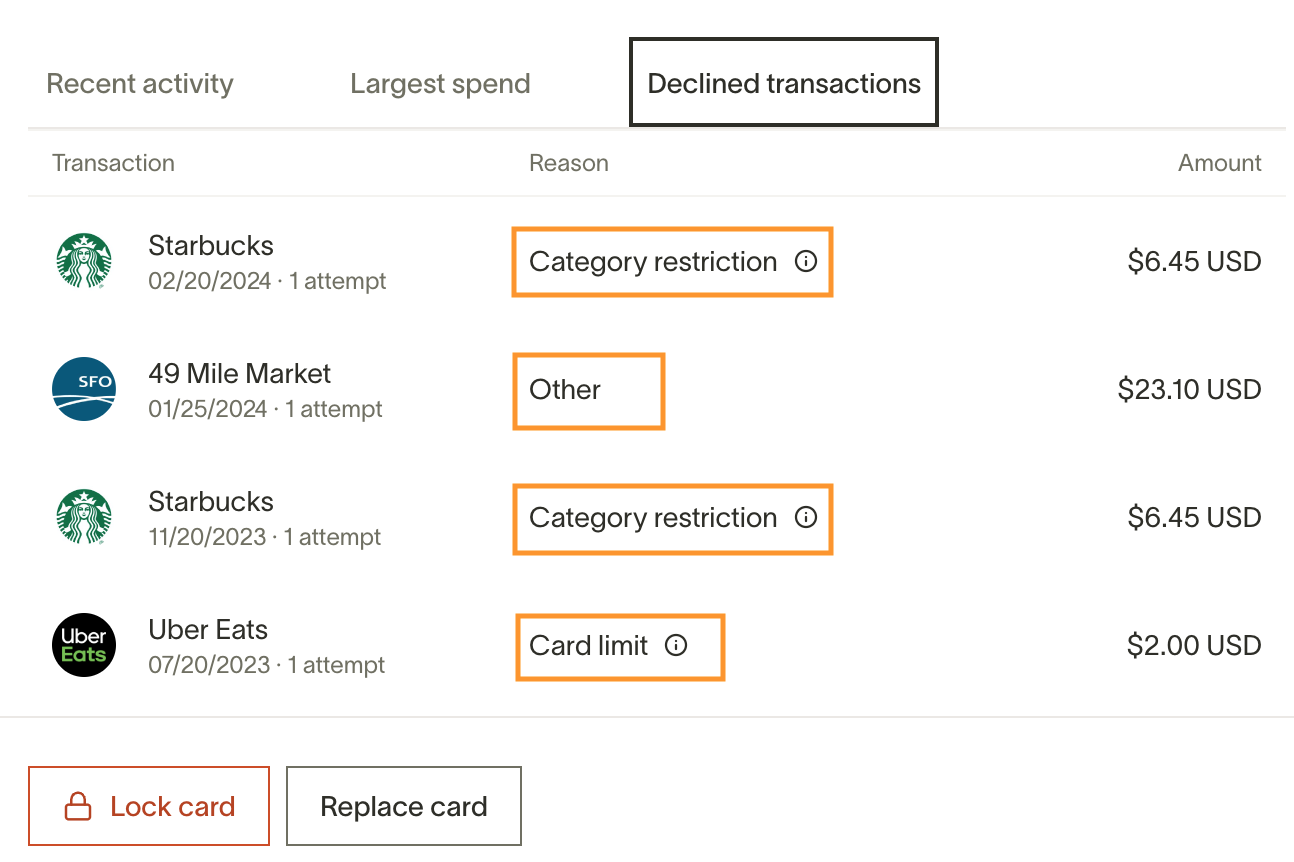
Common decline scenarios and how to resolve them
The first step is to check your SMS notifications on your mobile device to see why your card was declined. See the list below to understand why transactions are often declined and what you can do next:
Card or funds locked or terminated
Note: If you received an email from Ramp about your company’s migration to the updated missing-items auto-lock experience, see Missing-items auto-locks for cards and funds for migration details and instructions for the new experience.
For a physical card to be used for transactions, it must be spending from funds. If your linked funds are locked or terminated, any transactions attempted with the physical card will be declined.
How to resolve:
- We suggest checking your funds' Activity feed to see who locked it and when. Then, you can contact your manager to unlock it.
- You may also link your physical card to other funds or request a new funds before attempting the charge again.
Transaction amount limit
If the transaction amount exceeds the remaining balance on your funds, the transaction will be declined.
How to resolve:
- As a Cardholder, if you have the Ramp mobile app downloaded and push notifications turned on, you will receive a push notification with instructions to contact your Admin or Manager to request an increase in the funds limit if needed or you'll receive an SMS notification. Once approved, you may attempt the charge again.
- If you have not received a message, sign in to your Ramp account, select the funds in question, then choose More actions (⋯) > Request a temporary increase (recurring limits) or Request an increase (one-time/total limits). Enter the Additional amount you need and a reason, then click Request increase. See Spend requests and spending limit increases.
- As an Admin, you will receive an SMS notification with the option to increase your funds limit if you have added a phone number to your Ramp account.
Company balance limit
Your transaction will be declined if it exceeds your company's remaining balance.
How to resolve:
- Your company's Admins or Owners can manually pay down the company's balance to allow new transactions to go through. Once the balance is freed up, you may attempt the charge again.
- You may contact your Manager or Finance Team directly for more information.
**Please note:**More information regarding the differences between individual card limits vs. business limits can be found here.
Physical card spending
If your funds are set to Virtual card-only, you cannot spend them with your physical Ramp Card.
Only people with edit access to the funds can change Spend on. If you do not have edit access, ask the fund owner, a co-owner, or another person with edit access to make this change.
How to resolve:
- Open the funds.
- Select Edit.
- Under Spend on, select Physical card.
Fraudulent activity
If Ramp declines a transaction for suspected fraud, Ramp may alert the cardholder and lock the card to protect against future unauthorized activity.
How to resolve:
The cardholder, a Manager, or an Admin with permission can clear the fraud flag by confirming the transaction is legitimate and unlocking the card. Ramp Support cannot take this action on the cardholder's behalf.
If the cardholder believes the transaction is legitimate, they can clear the fraud flag by:
- Replying Yes to a fraud alert by SMS, if they receive one from Ramp, or
- When in-app confirmation is available, opening the affected card in My wallet, choosing Unlock card, and confirming the flagged transaction is legitimate.
After the cardholder confirms the transaction is legitimate and unlocks the card, the transaction can be retried. Encourage your team to respond quickly to fraud alerts to avoid disruption.
Note: If a transaction continues to be declined for fraud after the cardholder confirms the transaction is legitimate and unlocks the card, please contact Ramp Support.
Merchant restriction
If your Finance Team has added a Merchant Restriction to your funds, it can only be used to transact with specific vendors or merchants. If you attempt to spend under a Merchant that isn't authorized, your funds will be declined.
How to Resolve:
- You will receive an SMS notification and can request an exception from your Admin or Manager. Once approved, you may attempt the charge again.
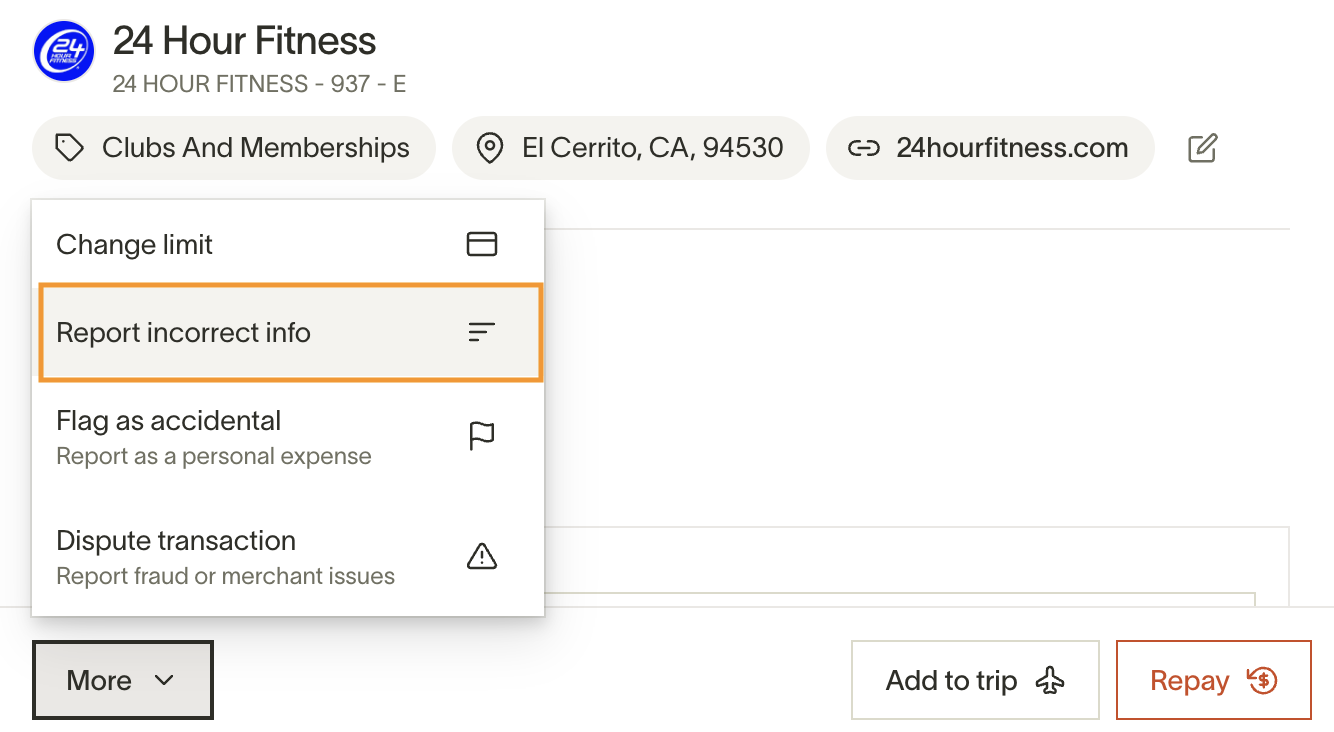
- Please note that sometimes Ramp incorrectly labels a vendor. In these cases, please Report Incorrect Info directly from the transaction.
Forbidden category
If your Finance Team has added a Category Restriction to your funds, it can only be used to transact under specific categories. If you attempt to spend under a Category that isn't authorized, your funds will be declined.
How to resolve:
- You will receive an SMS notification and can request an exception from your Admin or Manager. Once approved, you may attempt the charge again.
- Please note that sometimes, Ramp may incorrectly categorize a vendor. In these cases, please Report Incorrect Info directly from the transaction.
Merchant decline
If you continue to experience multiple declines despite having enough funds and you're not receiving notifications from Ramp, it is likely a vendor-specific issue. If you do not see the decline in Ramp, the transaction didn't reach our system for authorization, and the vendor is declining the transaction. This is more common for certain high-risk categories, such as gift cards.
How to resolve:
- Please contact the vendor directly to resolve the issue.
Transaction declined by network
If you see this message in Ramp, it means the vendor has declined the transaction.
How to resolve:
- Reach out to the vendor to request a retry of the transaction, or get more information about why it was declined.
Card or funds information entered incorrectly
We recommend always ensuring you enter the correct expiration date and CVV for any online purchases.
How to resolve:
- If you can confirm the card details are entered correctly, we suggest creating a new virtual card or funds to attempt to resolve the problem.
No active user profile on Ramp
You should always check to make sure you have an active user sign-in on the Ramp app, especially if you are either a new user or if your business uses a provisioning method like SCIM.
How to resolve:
- Try signing in to the Ramp website or mobile app.
- Check with your admin or manager to make sure that your account is still active.
Temporary authorization holds
When a transaction appears as 'Pending' or 'On Hold' despite a failed or declined online payment, this doesn't mean the amount has been charged. A pending transaction simply means that it has been authorized, but hasn't been fully processed yet. Most pending charges resolve within 9 days, often sooner. However, travel-related charges (especially for hotels and car rentals) may take up to 30 days to finalize. You can find more information on this article: Pending charges - FAQs
How to resolve:
In most cases, the only way to speed up the finalization of a pending or on hold charge is to reach out to the vendor who made the charge, and request that it be cleared or reversed. One exception: for a pending hotel authorization after checkout, Ramp Support may be able to help in some cases — see Pending charges - FAQs.
You can dispute the charge by following the steps here: Disputes at Ramp
Understanding card and fund statuses
Ramp cards are tied directly to funds, and the status of each affects your ability to make transactions:
Locked fund or card: Transactions will fail. Check in the Ramp dashboard to see if the card or associated fund is locked.
Terminated fund: Future transactions will decline. If needed, switch the card to a different active fund or request new funds.
Multiple cards linked to one fund: All cards linked to a fund will be affected if the fund is locked or terminated.
For more information on locking or terminating cards and funds, see Manually lock or terminate Ramp funds and cards.
Frequently asked questions
How can I request a change to a specific card or fund amount or frequency?
To request more spending, select the card or fund from your wallet, open the More actions (⋯) menu, and choose Request a temporary increase (recurring limits) or Request an increase (one-time/total limits). Enter the Additional amount and a reason, then click Request increase. To change other settings such as the reset frequency, open the fund's Actions menu and select Edit. Requested changes go through your approval flow.
What should I do if an employee's transaction is declined because it has reached the spending limit?
As an Admin or Manager, you can increase the spending limit or review the transaction to ensure it complies with your company's policies.
What should I do if a blocked or declined transaction is not visible on Ramp?
If a transaction is not appearing on Ramp, it could be due to the following reasons:
Merchant decline: The vendor may have blocked or declined the transaction.
Pre-authorization failure: The transaction might have failed during the initial authorization process.
To resolve the issue, please contact the vendor directly, as they can provide more insight into why the transaction may not have gone through.