Submitting receipts, memos, and accounting for your Ramp transactions
Overview
Ramp offers multiple ways for you to submit receipts, memos, and accounting codes for your transactions. Ramp can also automate memos and suggest accounting categories to save you time.
Please note that if you would like your company to reimburse you for spend incurred on a non-Ramp fund, you will want to refer to this reimbursement article instead. If you are an admin and would like to set up reimbursements for those transactions made on your employees' funds, please view this guide.
Ways to submit receipts, memos, and accounting fields
After you make a transaction on your physical card, funds, or virtual card, you can send your receipts to Ramp in a few ways:
| Channel | Receipts | Memos | Accounting Fields |
|---|---|---|---|
| SMS | Text a receipt photo to a supported Ramp number listed below. We try to match it with a transaction, or you can create a reimbursement. | Text us - we will add the memo to the last transaction | Text us or click the submission link sent via SMS for a mobile-friendly submission flow |
| Forward to [email protected]. See How to automatically forward receipts to Ramp for set-up. (Reimbursements must be forwarded to [email protected]) | Add "memo: enter your memo " in the body of the email | When receipts are captured automatically with the Gmail integration, we offer the option to code dynamic fields | |
| Ramp.com | Click into the transaction to upload the receipt or bulk upload manually via the missing items section . | Click into the transaction or missing items section and add a memo | Click into the transaction or missing items section and enter the field |
| Mobile App | Capture a receipt using our mobile app or use the share extension on your phone | Tap into the transaction to record your memo | Scroll further to add your accounting fields in-app |
| Slack | Send your receipt to the Ramp app on Slack (Simple type /ramp, press enter, then attach a picture of your receipt to the next message) | Add a memo when the Slack app prompts you to (after the receipt has been matched) | Click on the link within Slack to enter the fields within the Ramp website |
| Text a receipt in WhatsApp at tel: +1 855 206-7283. Ramp will start the receipt matching process, or you can create a reimbursement. | Text Ramp a memo and it will add the memo to the last transaction | Click the submission link sent via WhatsApp for a mobile-friendly submission flow. | |
| Chrome Extension | Download Ramp for Chrome to submit receipts with 1-click. | Submit a memo when prompted | Not available via the Chrome Extension |
| Employee Mailbox | Connect your work email (Gmail or Outlook) to Ramp to automatically capture and attach email receipts to your transactions. Set up from Email connections. See Employee mailbox integration overview for details. | Not available via the Employee Mailbox integration | Not available via the Employee Mailbox integration |
To send a receipt photo by MMS:
- US: Text HIRAMP (447-267). If your carrier cannot send MMS to a short code, use +1 844 331 1023.
- Canada: Text +1 365 400 7267.
- UK: Receipt-photo MMS is not supported. Use another channel in the table instead.
- Other countries: MMS support varies by country and carrier. Use another channel in the table if texting is unavailable.
In addition to these manual channels, Ramp can automatically retrieve receipts from select merchants. With standard auto-capture, Ramp uses your transaction details to fetch receipts from select vendors with no action required. With merchant receipt collection, you can connect supported merchant accounts and Ramp will automatically retrieve and attach receipts when you make purchases. See Receipt auto-capture for details and setup instructions.
Leveraging automatic receipt matching
Ramp offers automatic receipt matching for multiple languages/countries and international currencies, which means that we'll automatically match your receipts to the correct transactions in seconds. You no longer have to spend time finding receipts and attaching them to your transactions— Ramp will do it for you.
- For transactions made in person , we'll notify you via SMS when a receipt is required. Simply reply with a photo of your receipt or text us at HIRAMP (447-267). Any text you add to this SMS will be added as a memo.
- For online transactions , we'll notify you via email when a receipt is required. Simply respond or email/forward your receipt(s) directly to [email protected] . Simply add "memo: enter your memo " in the body of the email after attaching to the email the receipt for that specific transaction, and we'll automatically add the memo.
- Via mobile push notifications , if you have the Ramp mobile app installed and push notifications enabled, Ramp can send you a push notification when a receipt, memo, or other item is needed. The notification tells you what is required for the transaction, and tapping it opens the transaction directly in the app so you can submit the missing items. Push notifications for missing items are turned off by default. To enable them, open Notifications and turn on push for receipt and memo reminders.
- Set up automatic receipt forwarding from your mailbox. We've written more about this in How to automatically forward receipts to Ramp.
- Supported file types for standard web receipt uploads: PDF, PNG, JPG, JPEG, HEIC, and WebP
- The maximum receipt upload size on the web is 20 MB per file. Upload the receipt from Expenses.
- The maximum page length for PDFs is 50 pages
Pro tips
- To include a memo when forwarding your receipts for automatic matching, simply enter Memo: insert memo here into the body of the email that you send to us.
- Please note that it must be submitted in this format. Otherwise, it may not apply correctly to the transaction.
- You must also have the dynamic email setting enabled for entering memos within Gmail.
- Save our email ( [email protected] ) in your contacts.
- You can forward multiple receipts to Ramp at once.
- You can also set up automatic forwarding of email receipts via your mailbox. Read more in How to automatically forward receipts to Ramp.
Forwarding receipts via additional email addresses
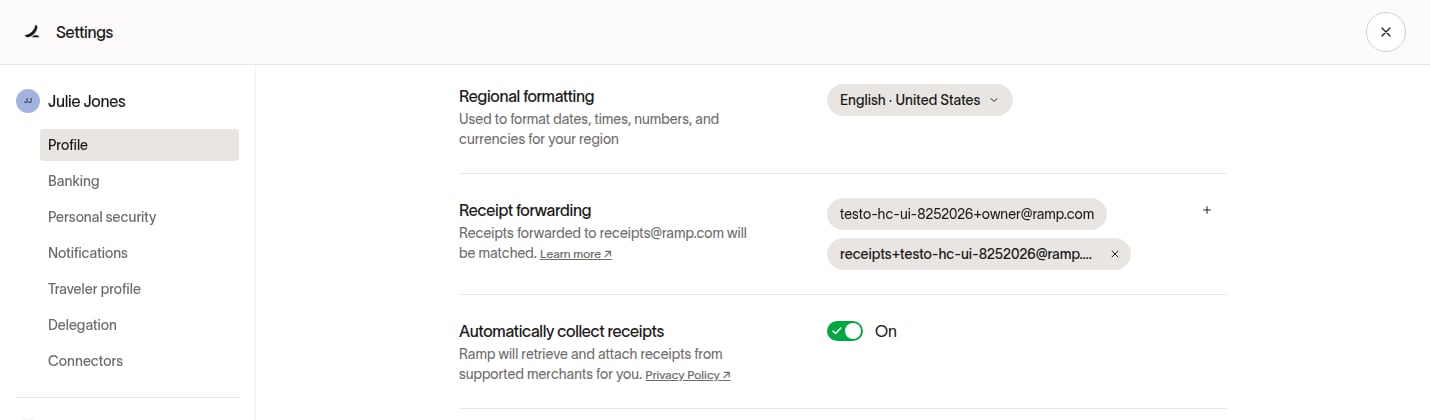
Any receipt forwarded from the email associated with your Ramp account will be automatically matched to a transaction. We can also accept receipts from other email addresses you set up, such as your email address. Please note that additional email addresses can only be linked to one Ramp account.
- Open your Profile settings.
- Under Receipt forwarding, select Add receipt forwarding email and enter the email address.
- Enter the six-character code Ramp emails to that address to verify it.
Automated memos
Ramp can save you time by automating memos for your transactions. All memo automation is turned on by default — no setup required. You can always type your own memo to override any automation.
Memo suggestions
When you open a transaction, Ramp may suggest up to three memos based on memos you have used before. These are just options — the memo field stays blank until you choose one. You can also ignore the suggestions and type your own.
When you select a memo suggestion on the Ramp homepage, Ramp may also prefill other empty expense fields such as tracking categories, trips, and attendees.
Recurring memos
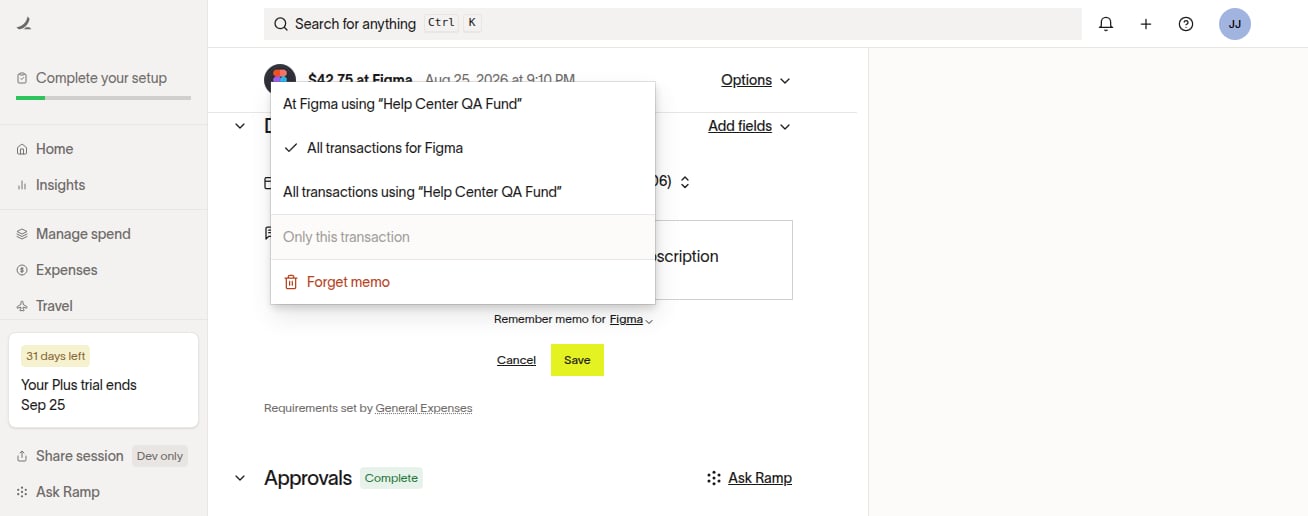
If you frequently use the same memo for a particular merchant or fund, open the transaction from Expenses and set the memo to apply automatically to future transactions. When entering a memo, a dropdown appears below the memo field where you can choose to apply it to:
- This transaction only
- All future transactions for this merchant
- All future transactions on this fund
- All future transactions for this merchant and fund
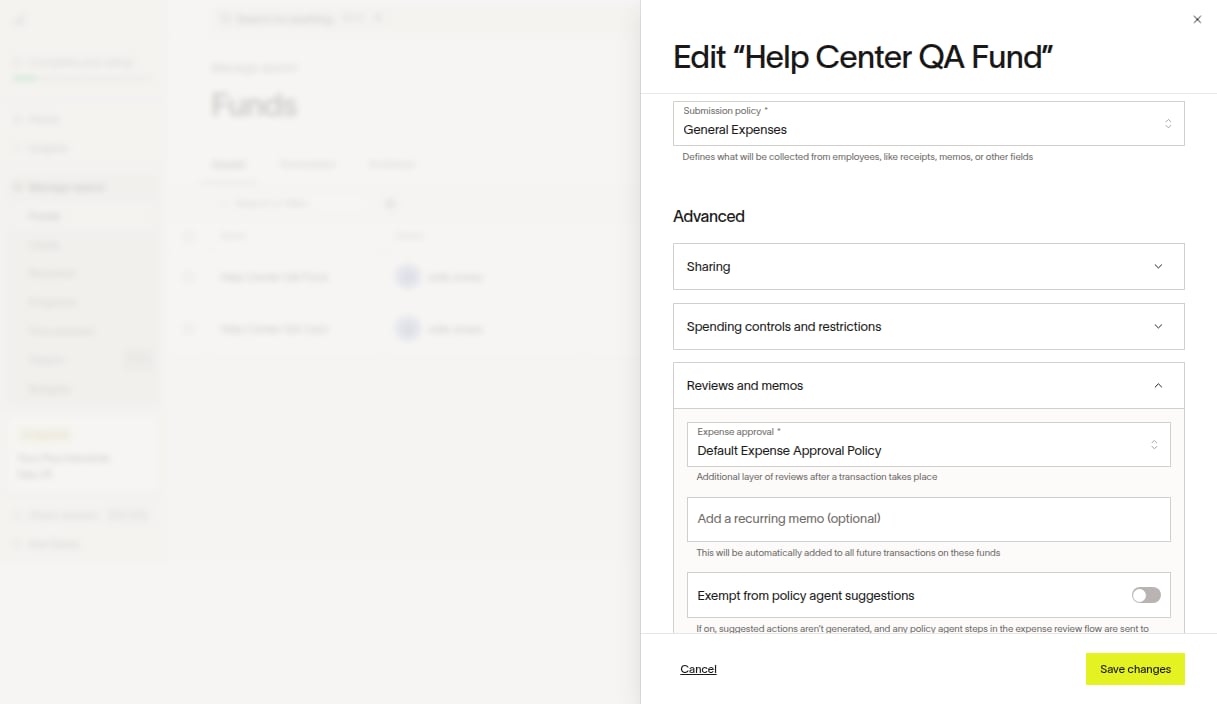
You can also set a recurring memo when creating or editing funds.
To remove a recurring memo, open a transaction where the memo appears, open the dropdown below the memo field, and select Forget memo.
Pre-filled and auto-filled memos
For some transactions, Ramp may pre-fill the memo field with a suggestion based on your past activity.
- Pre-filled memos still require your review. Simply opening the transaction or clicking into the memo field counts as reviewing it. Once all other required fields are complete, the expense will be submitted.
- Auto-filled memos do not require your review — Ramp completes the memo on your behalf. This currently applies to transactions at SaaS vendors, fuel stations, and parking garages.
Ramp automatically adjusts the level of memo automation based on how you interact with suggestions:
- If you frequently edit pre-filled memos, Ramp steps back the automation (for example, switching from auto-fill to pre-fill after 3 edits, or from pre-fill to no automation after 7 edits).
- If you frequently accept suggestions over a 2-week period, Ramp increases the automation (for example, moving from no automation to pre-fill after 7 accepted suggestions, or from pre-fill to auto-fill after 10 accepted suggestions).
This ensures that memo automation adapts to your preferences over time.
AI-assisted expense field prefill
When you select a memo suggestion on the Ramp homepage, Ramp's AI may also prefill other empty expense fields to help you complete your expenses faster. The fields that may be prefilled include:
- Tracking categories — accounting fields required by your company's expense policy
- Trips — travel trips associated with the transaction
- Attendees — people who attended the meal or event
Which fields are prefilled depends on your company's submission policy. Ramp only fills in fields that are required by your company and that are currently empty on the transaction.
How it works
- Open the Ramp homepage and find a transaction with memo suggestions.
- Click one of the suggested memos.
- The expense form opens with the memo set and other applicable fields prefilled.
- Review the prefilled values. Edit any that need to be changed.
- Submit the expense as usual once all required fields are complete.
Prefilled fields are visually marked so you can identify them. On the homepage, prefilled fields display a brief animation. On the transaction detail page, prefilled fields are indicated with a visual marker.
Note: Existing values are never overwritten. If a field already has a value from accounting automation, a policy rule, or something you previously entered, the AI prefill skips that field. Only empty fields are filled.
This feature is currently available on the web.
Automating accounting categories
When your company requires accounting (GL) codes on transactions, Ramp can automatically predict and suggest the right category. Ramp uses multiple signals — including the merchant, transaction amount, department, memo, receipt content, and your past coding patterns — to make these predictions.
SMS
- After a purchase, you may receive an SMS with options to submit a receipt and memo.
- Ramp may automatically predict and set the appropriate accounting code for you.
- If the code is correct, no action is needed.
- To change the category or memo, reply with the appropriate option or open the transaction in the app.
Web
- When you open a transaction on the web, Ramp may suggest an accounting code based on the merchant, your past transactions, and other details.
- You can keep the suggested code or choose a different one.
Pre-filled accounting categories
Ramp learns from your past accounting code selections to predict and suggest categories for new transactions. A suggested accounting category will appear on your transaction. You will need to confirm or change it before the expense is considered complete and submitted.
Removing a receipt
If you uploaded the wrong receipt to a transaction, you can delete it and upload the correct one. Deleting a receipt permanently removes it from the transaction — this action cannot be undone.
On the web
- Open the transaction from Expenses > Transactions .
- Click the receipt to open the full viewer, select Delete receipt from the menu, and confirm the deletion.
- Upload the correct receipt.
On mobile
- Open the transaction in the Ramp mobile app.
- Tap the receipt to open the viewer, then select Delete.
- Upload the correct receipt.
Note: You cannot delete a receipt if you have already submitted a receipt policy exemption (affidavit) for the transaction. Assistants and users with transaction write access can also delete receipts on behalf of other users.
Frequently asked questions
What file types can I submit my receipt in?
On the web, standard receipt uploads support PDF, PNG, JPG, JPEG, HEIC, and WebP files. See the supported file types and upload limits.
How long does it take for Ramp to match my receipt?
It takes Ramp a few seconds to match a receipt. Depending on the type of receipt, we'll inform you whether a receipt has been successfully matched via SMS or email. If we don't find a match with your transactions, Ramp may also search eligible transactions from other employees in your company.
What do I do if I'm missing a receipt?
Open the transaction from Expenses, select Options, and then select I don't have a receipt.
Why hasn't my receipt matched?
Ramp will do its best to match your receipts, but there will be times when our system will have a harder time finding the right match. Some common reasons this happens are:
- The difference in date on the charge vs. the receipt
- Multiple charges on a single receipt
- Multiple transactions with similar information (eg. recurring SaaS spend)
If Ramp isn't able to match your receipt, don't worry. You can head over to your Ramp account, find the transaction that needs a receipt, and upload your receipt directly. Some things to keep in mind when you're uploading receipts in your Ramp account:
- You can upload the same receipt to multiple transactions (eg. you purchase two items at Amazon, they ship separately, creating two separate charges, but you have only one receipt for both items)
- Our system won't always be able to auto-verify receipts. If you're sure that you have the right receipt for the transaction, you should be all set.
Can I take a receipt photo while offline and have it upload later?
Receipt uploads may continue automatically when your connection returns. If an upload remains failed after reconnecting, open Saved receipts, select the failed receipt, and retry the upload.
Why didn't I receive an SMS notification for missing items?
Please note: SMS notifications for missing items will only be generated when a physical card is used to complete the expense.
Can I receive push notifications on my phone when a receipt or memo is needed?
Yes. If you have the Ramp mobile app installed and push notifications enabled on your device, you can opt in to push notifications for missing items. Open Notifications and enable push for receipt and memo reminders. Push notifications are turned off by default, so you must enable them manually. Once enabled, tapping a missing items notification opens the transaction in the Ramp mobile app where you can upload a receipt, enter a memo, and complete any other required fields.
Am I only able to submit receipts via SMS for my latest transaction?
No, users can submit receipts for past transactions, not just the most recent ones.
What if there isn't a message from Ramp requesting a memo, or the memo isn't required?
We'll attach your message to the latest transaction that happened.
Why were some expense fields prefilled when I clicked a memo suggestion?
When you select a memo suggestion on the Ramp homepage, Ramp may also prefill other empty required fields such as tracking categories, trips, and attendees. You can edit or remove any prefilled value before submitting. See AI-assisted expense field prefill for details.
How can I let Ramp complete more expenses automatically?
Receipt capture is the starting point for memo and accounting automation. See Automate receipts and expense requirements to turn on employee-controlled receipt sources, identify what your Admin controls, and cover merchants without direct auto-capture.
Can I add a receipt and/or memo to a transaction after it's been synced over?
After syncing, memos cannot be added. For QBO and Sage Intacct, receipts can be added and synced as long as the accounting period remains open.
What happens once I submit all of my expenses?
When you are caught up on your Ramp homepage on the web, Ramp may show Ramp Arcade with Receipt Snake and Ramp Ramp Revolution. You can have up to three play credits; credits replenish as your transaction or reimbursement total increases.
How do I resolve canceled transactions that still require a receipt?
Open the canceled transaction in your dashboard, click the three dots, SelectI don't have a receipt, enter a brief reason (e.g., 'Transaction was canceled') and submit.
What happens if I want to change a default memo?
If a memo needs to be adjusted, you can still adjust and override the automated memo on any transaction.
Will the predicted accounting category still apply if there is an existing accounting automation rule?
No, the accounting automation rule will still take precedence over the automated GL category. If a rule is created or a rule already exists, the GL category code will not be automated.
Can employees still review or input an accounting category?
Yes. Employees are still asked to review what Ramp has suggested and can edit the recommendations. Categorization through the Ramp app and website remains fully functional alongside SMS-based automation.
Why is my card still locked after I submitted my receipt?
Note: If you received an email from Ramp about your company’s migration to the updated missing-items auto-lock experience, see Missing-items auto-locks for cards and funds for migration details and instructions for the new experience.
Receipts, memos, and accounting fields (such as GL codes, departments, or cost centers) are tracked as separate, independent requirements. Submitting a receipt fulfills only the receipt requirement. If your company's submission policy also requires a memo or accounting fields, those must be submitted separately before the expense is considered complete.
To see which items are still outstanding, open the transaction from Expenses > Transactions or the Missing items section on your homepage. Each required field displays a red (required) label until it is submitted. Once all required fields are complete, the missing-items lock on your card or funds will clear automatically — this may take up to an hour.
If your card or funds remain locked after all missing items are submitted, you may have another overdue task that must be resolved separately. See Automatically lock cards and funds for expense review, repayment request, and change request locks.
Can I restore a deleted receipt?
No. Once you delete a receipt from a transaction, it cannot be restored or recovered. If you need the receipt again, upload a new copy using any of the submission methods listed above.