How to automatically forward receipts to Ramp
Overview
Ramp automatically matches the receipts you send to [email protected] to your transactions. For customers who want to save even more time, you can now set up forwarding rules in your email account that automatically forward receipts to Ramp.
Add or edit a receipt-forwarding email in Ramp
Before you set up forwarding in Gmail or through an alias, make sure Ramp recognizes the sender address. Ramp can match receipts from your Ramp login email automatically, but receipts forwarded from a personal or private inbox, alias, or other sender must come from an address added under Profile settings > Receipt forwarding.
- Open Profile settings.
- In Receipt forwarding, add or edit the email address that will send receipts to [email protected].
- Enter the six-character code Ramp emails to that address to verify it.
- After the address is verified, finish the forwarding setup in Gmail or your alias.
Adding and verifying the address lets Ramp recognize forwarded receipts from that sender. It does not connect Ramp to unsupported personal or private inboxes, and Ramp cannot associate receipts from a personal or private sender until the address is added and verified in your Ramp profile.
Use selected email forwarding in Gmail
- Add [email protected] as a forwarding address in Gmail by clicking here
- Create a filter that captures emails with receipts for your Ramp funds. You can do this by clicking on an example email and selecting ' Filter messages like these' - Gmail instructions can be found here.
- Select Implement a forwarding rule for all emails in that filter to [email protected] . Gmail instructions can be found here .
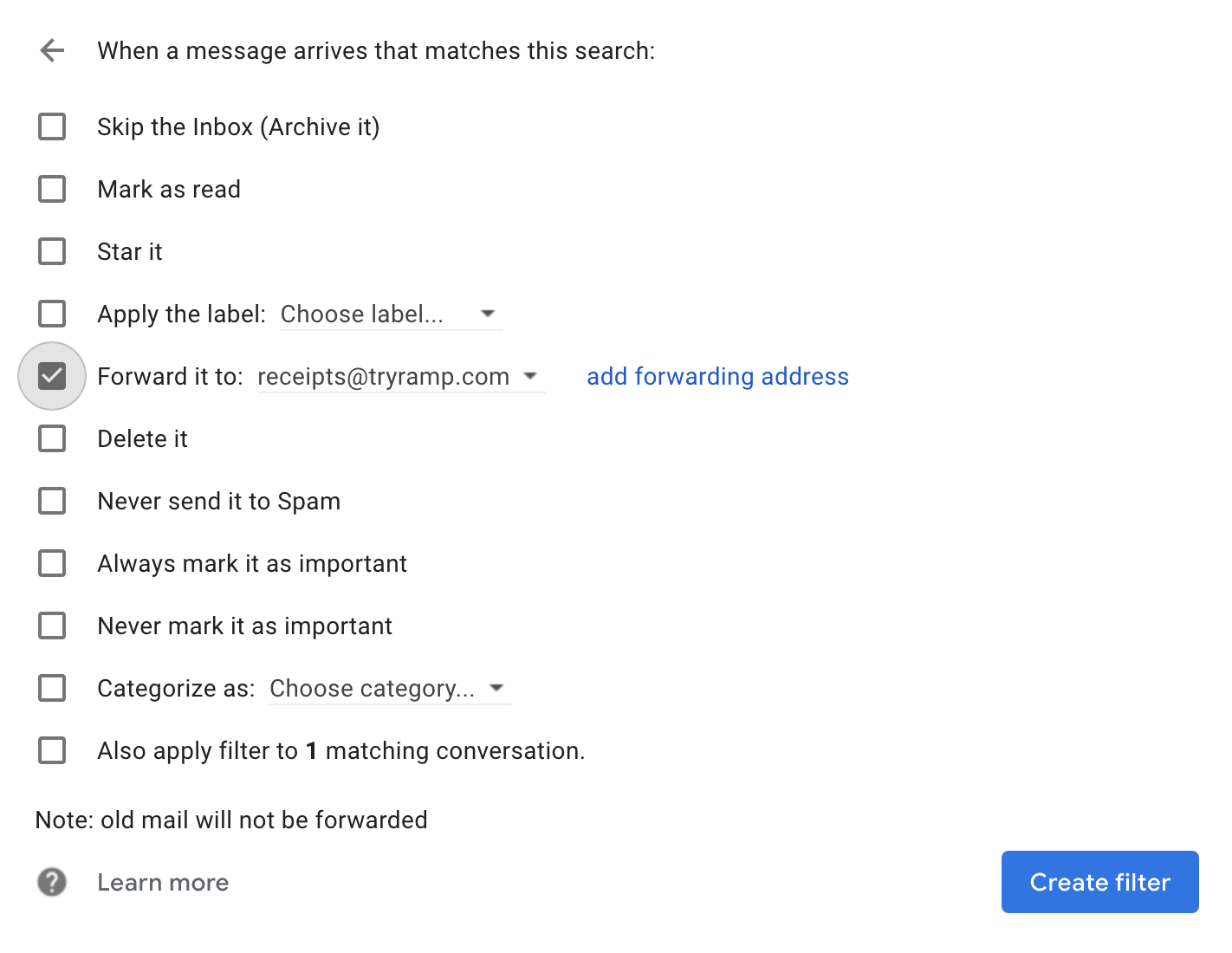
- Afterwards, you should be all set.
Use an email alias for receipts
For customers that send receipts to centralized aliases like "[email protected]" , we allow forwarding to Ramp accounts automatically.
- Create the alias (likely contacting your system admin) - e.g. "[email protected]"
- Select this alias as the billing email address for each of the vendors you pay with your Ramp funds
- Add that alias to your Ramp account as an authorized receipt sender using the steps above.
- Note that this centralized alias can be added to only one Ramp account.
- Set up a forwarding rule to automatically send all receipts from your alias to Ramp using the details under Use selected email forwarding in Gmail.
Then you're all set. Receipts will automatically be forwarded, and Ramp will match receipts automatically and send you confirmations. If we don't find a match with your transactions, we'll also search transactions across the company for a match.