Managing bills and payments on Bill Pay
Overview
Managing your bills on Bill Pay just got easier. Use the available filters, sorts, and bulk actions to streamline bill management on Ramp Bill Pay.
Managing bills
Bill table views
By default, Bill Pay opens the Overview view, which organizes bills by status. Use the tabs at the top of the page to switch among Overview, Drafts, For approval, Payment required, In-flight, and History. History includes paid and archived bills.
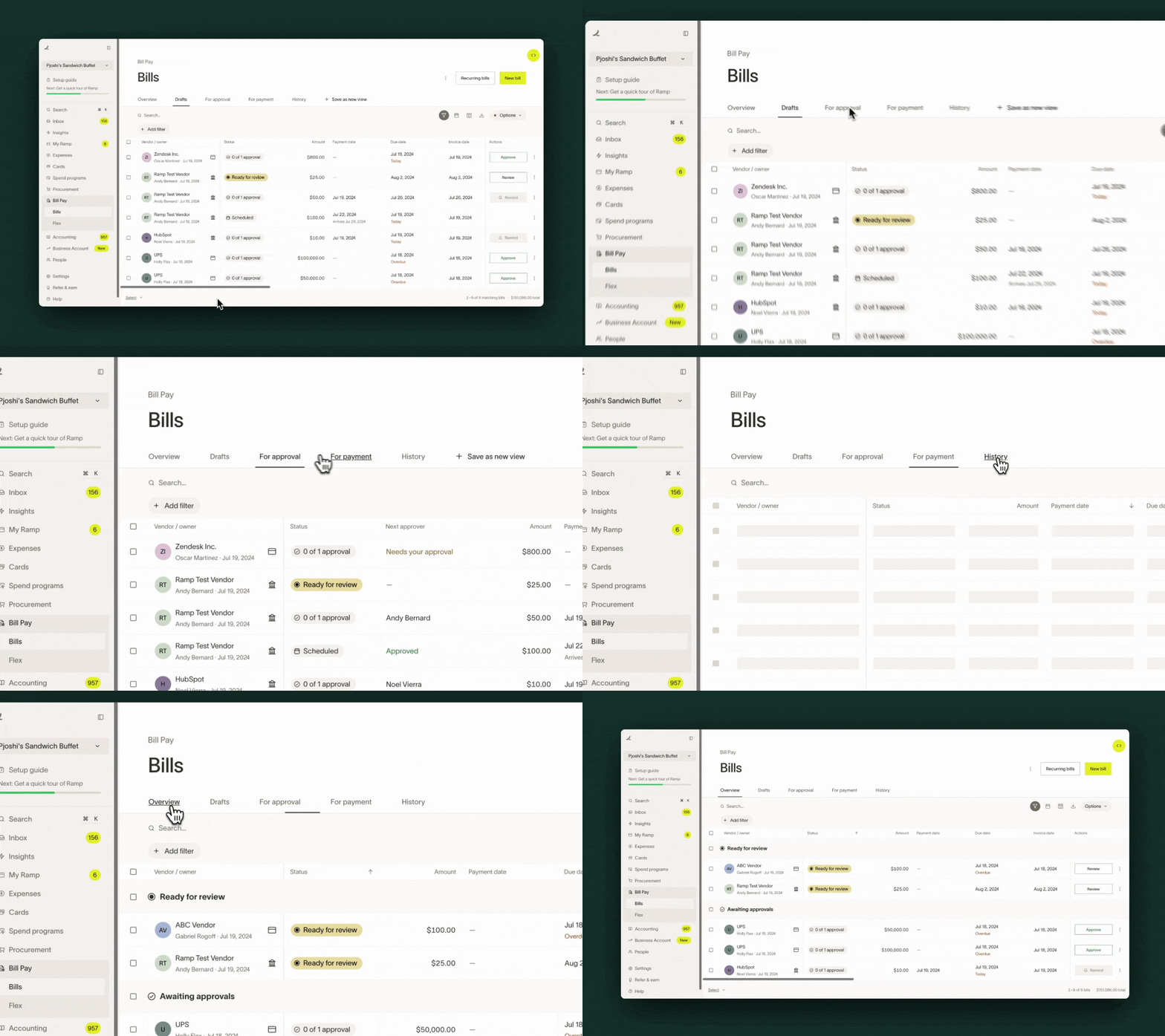
Video of a customer navigating among Bill Pay views
You also have the option to add and remove and re-order the columns within your view.
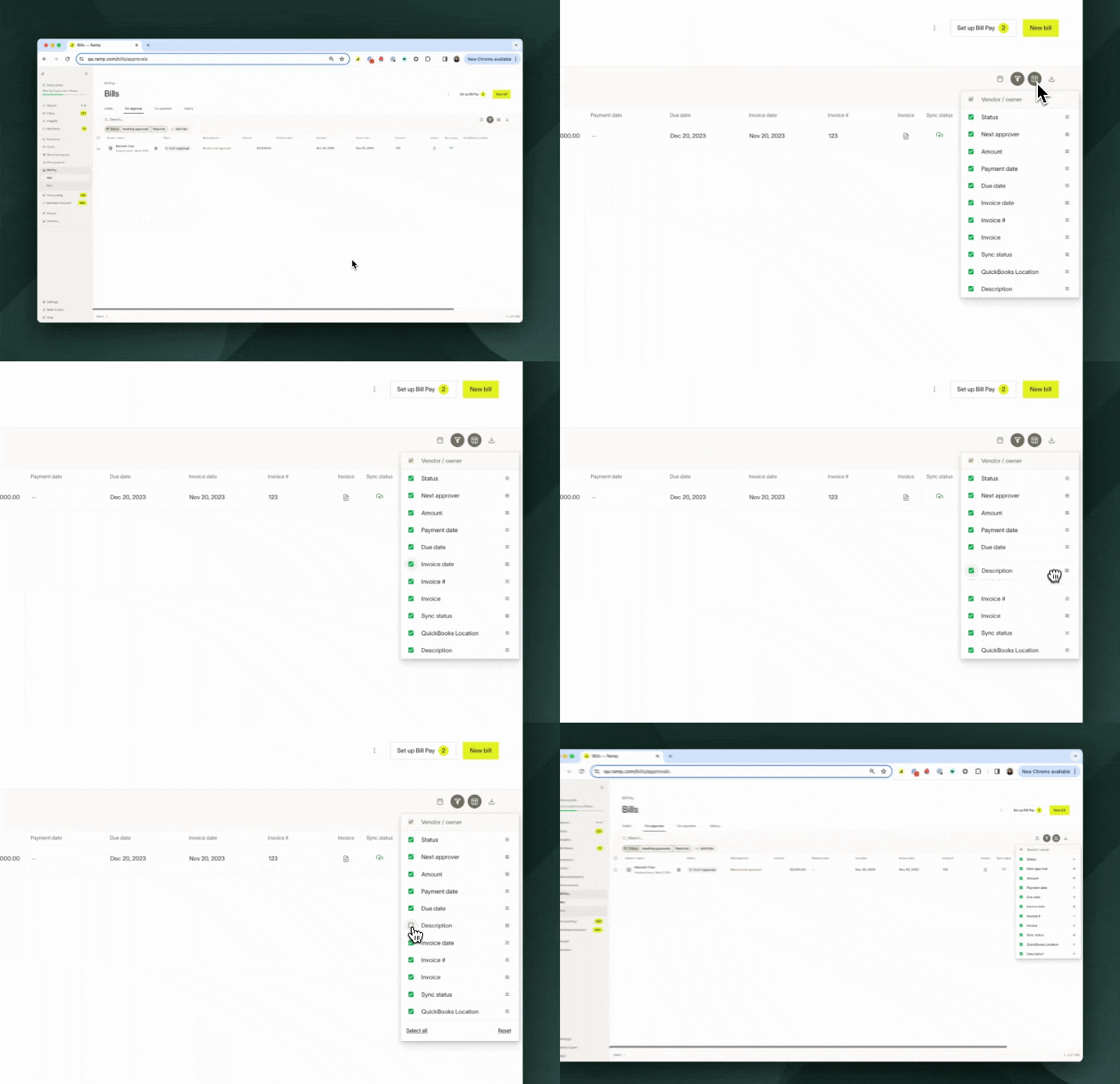
Video of customer adding/removing columns and reordering the columns
If you consistently view a specific set of columns and/or filters, you can save a custom view on your Bill Pay tab.
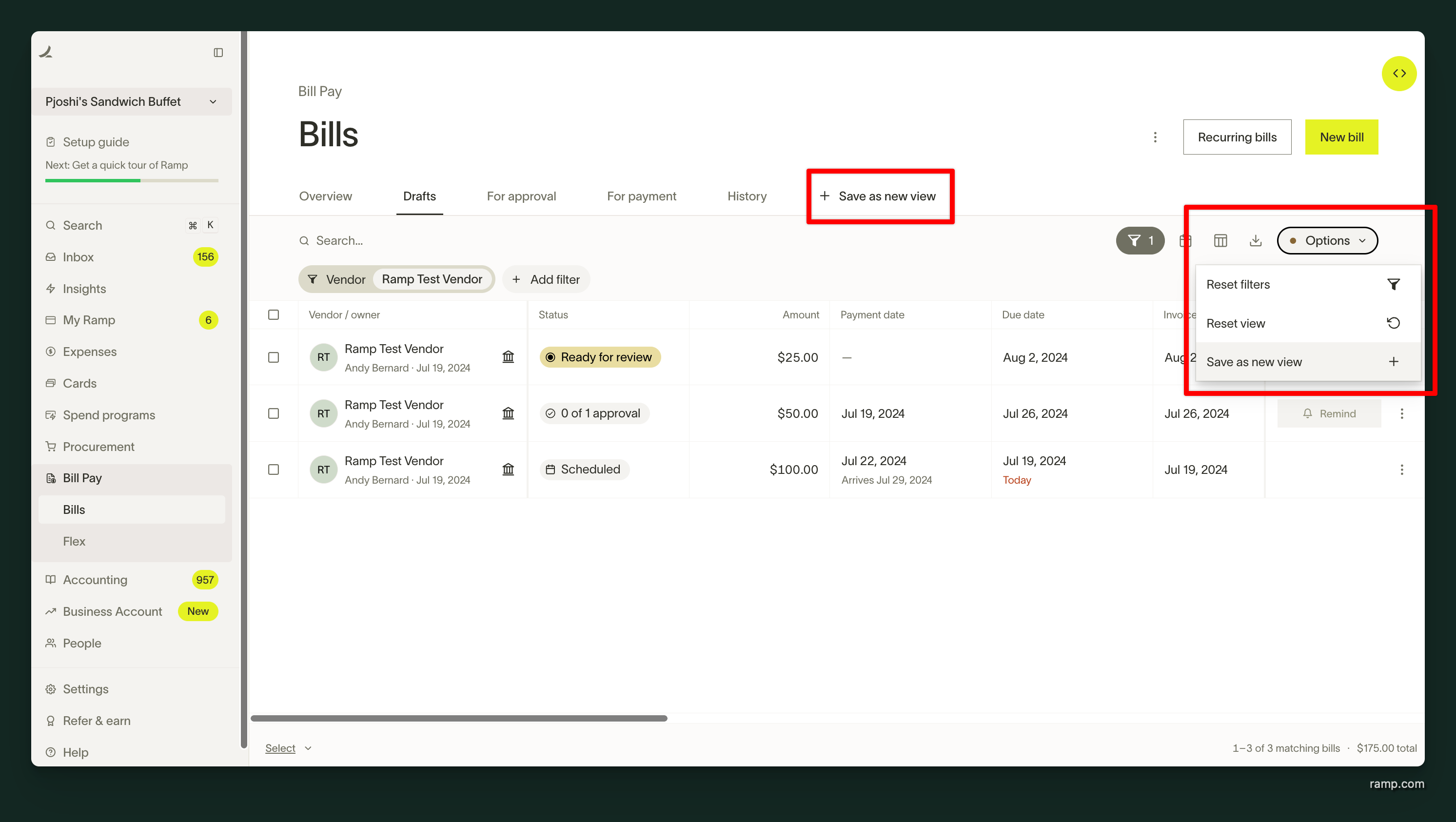
Bill filters
Bill Pay gives you the ability to filter bills by several options:
- Vendor - view bills for a selected vendor or vendors
- Vendor owner - view bills for vendors with selected vendor owner(s)
- Status - view bills based on the available statuses from the Overview tab
- Missing info - view bills that have been scanned but are missing required info to proceed with bill creation
- Ready - view bills that have all required info and can proceed with bill creation
- Awaiting approvals - view bills in the approval flow
- Scheduled - view bills that have been approved and scheduled for payment
- Initiated - view bill payments that have been initiated
- Swipe card - view approved bills that are waiting for a Ramp Card transaction match
- Ready for payment - view bills that are approved and selected to be paid off of Ramp
- Waiting for vendor - view bills that have open vendor details requests that have not yet been completed
- Unscheduled - view bills that have been approved but do not have set scheduled payment dates
- Payment failed - view bills that have attempted payment but the payment failed
- Paid - view bills that have completed payment
- Archived - view bills that have been archived (essentially deleted, but kept visible for audit purposes. Bills in this state cannot be hidden or moved to a different state)
- Rejected - view bills that have been rejected from approvals
- Amount - view bills between a specified minimum and maximum amount
- Payment type - view bills with selected payment types:
- ACH (direct deposit)
- International wire (includes both SWIFT USD and FX payments)
- Check by mail
- Card
- Paid off Ramp
- Next approver - view bills that are in the approval stage filtered by a specific approver
- ERP Accounting Fields - view the accounting codings for the bill. Note, if an accounting field is coded differently across multiple line items, the table view will show "MULTIPLE"
- Sync status - view bills with specified sync status
- Sync successfully
- Sync in progress
- Sync failed
- Entity - view bills for the specified entity (only available for multi-entity customers)
- Bill Dates (Invoice Date, Due Date, Payment send date, Payment arrival date) - view bills based on specified dates
- Note this filter is found in the top right corner of the Bill Pay table view
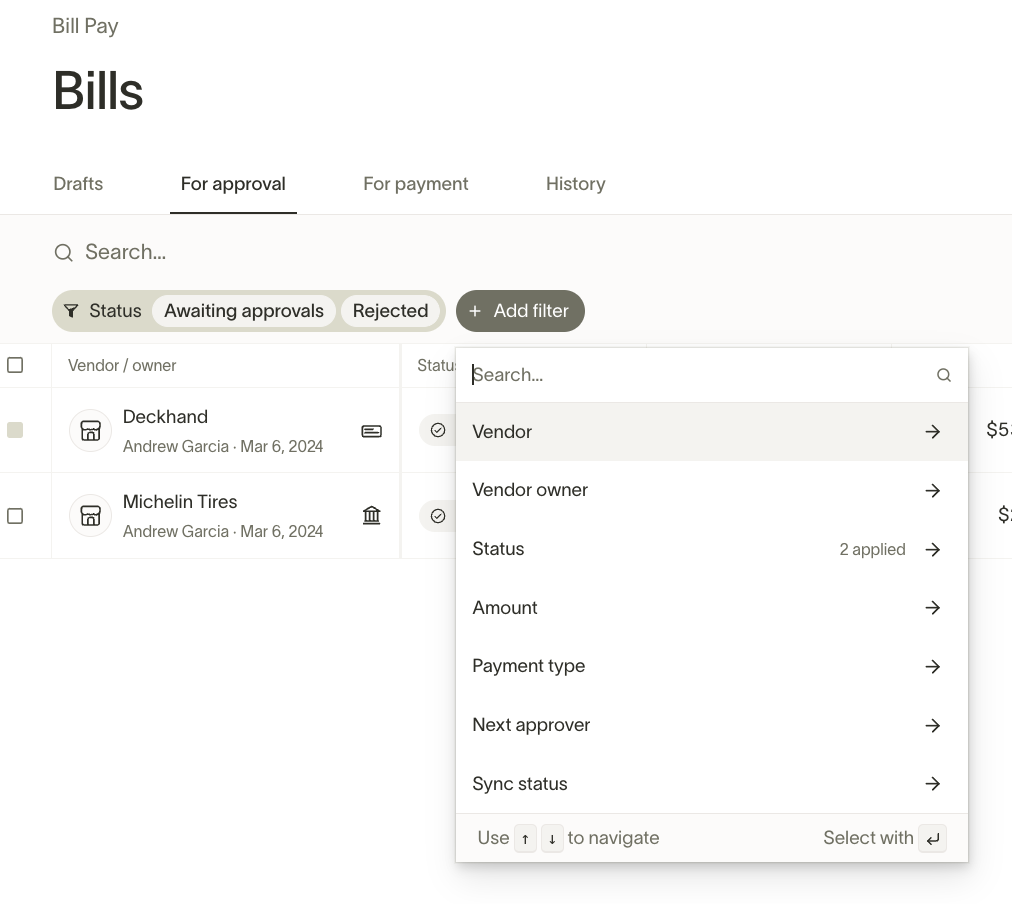
Image of the filter drop-down menu options
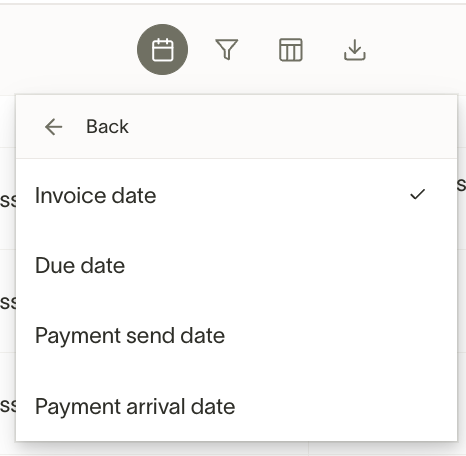
Image of the bill dates filter and its available options
Bill sorts
You can sort by the following columns in the Bill Pay table's view:
- Vendor/Owner
- Status
- Amount
- Payment, Invoice, and Due Dates
- Invoice #
- Entity
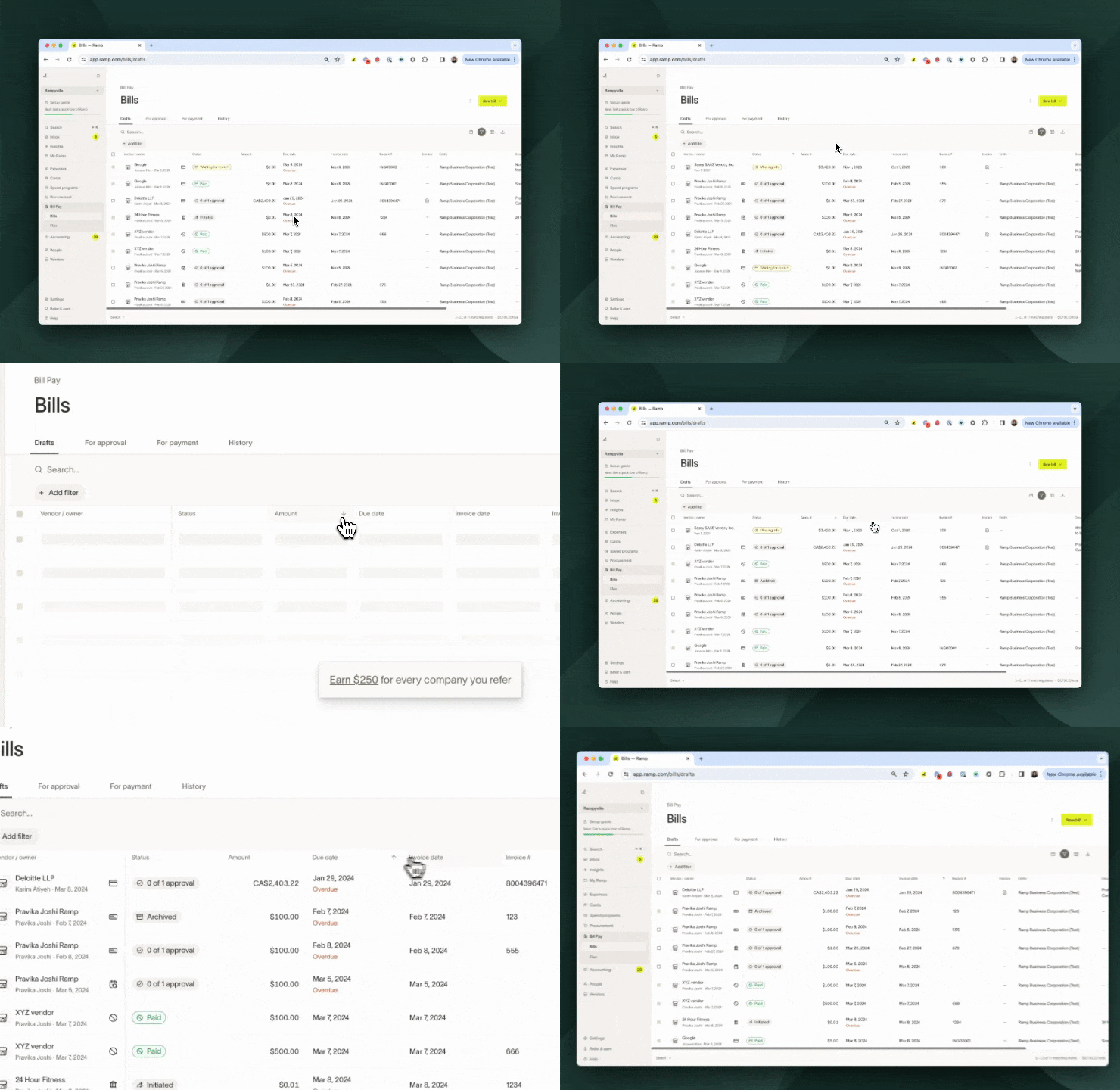
Video of customer sorting columns in Bill Pay tables view
Excluding categories
You can choose to exclude specific categories when filtering in the Bill Pay table. To do this, toggle on the "Exclude" option located at the bottom of the filter list.
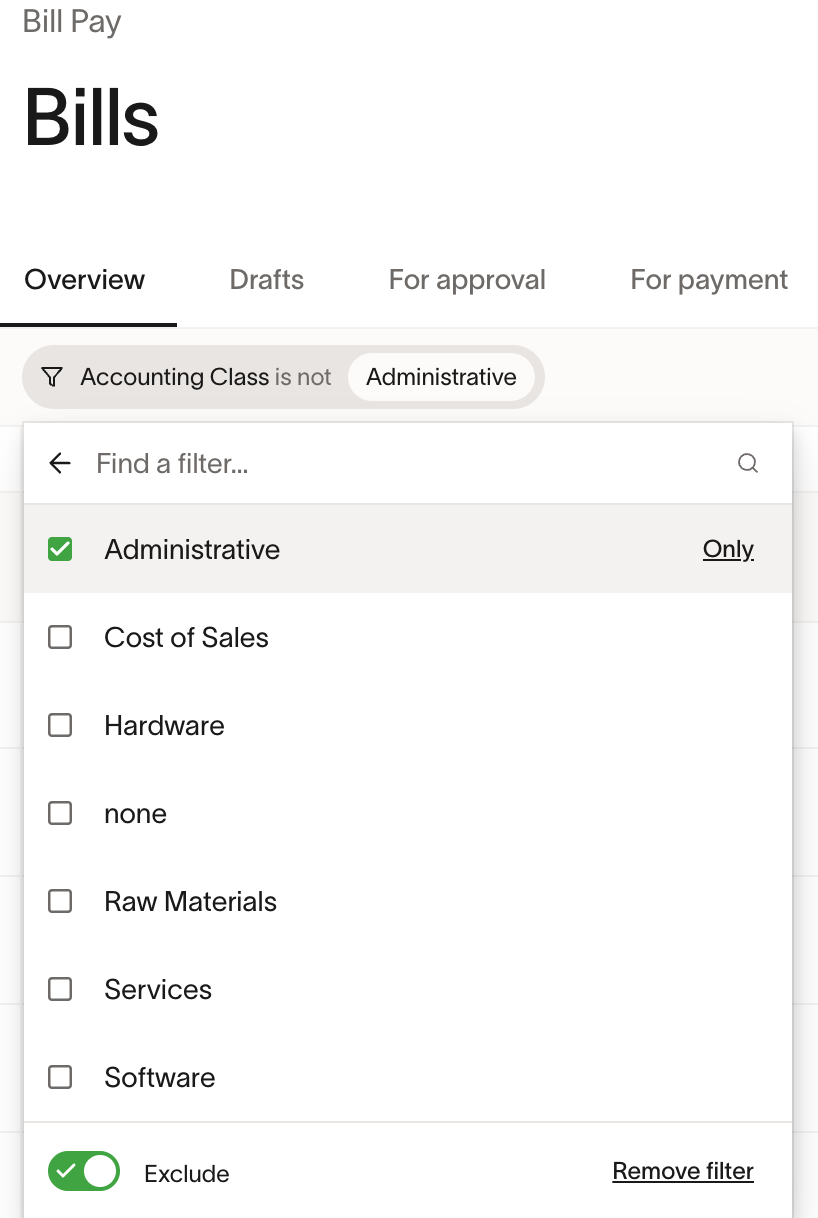
Bill bulk actions
Ramp Bill Pay currently supports the following bulk actions.
- Remind reviewers
- Edit bills
- amount - change the total amount on selected bills
- due date - change the due date on selected bills
- invoice date - change the invoice date on selected bills
- description - change the bill description on selected bills
- accounting fields - change any of the accounting fields on selected bills
- Retry Sync - retry the bill or bill payment sync for any bills that have associated sync errors
- Approval Actions
- Approve - in the For approval tab you may select bills awaiting your approval and bulk approve them
- Payments actions
- Mark bills as paid - for bills paid off of Ramp, select bills and mark them as paid
- Mark as unpaid - reopen eligible paid bills. For paid-outside-Ramp bills, this removes the manual payment details. For bills matched to existing Ramp card transactions, this removes the transaction match. Ramp applies the action only to eligible selected bills. See Mark a paid-outside-Ramp bill as unpaid and Remove a matched card transaction from a bill for details
- Edit payment date - add or update the scheduled payment date for bills past the draft stage
- Retry payments - initiate payment for selected bills that have failed payment.
- Unschedule - remove payment date and unscheduled bills past the draft stage
- Cancel - cancel any initiated payments that have not yet been delivered to the vendor. See Cancel a bill for details if funds were already debited from your bank account
- Delete - in the Drafts tab, admins may select bills and bulk delete them. Note this permanently deletes the draft bill from Ramp and cannot be undone.
When you use Mark bills as paid for bills paid outside Ramp, supported accounting providers can sync the bill payment after you enter the payment date and mapped cash or bank account. See Paying outside of Ramp for provider support and the manual process for unsupported providers.
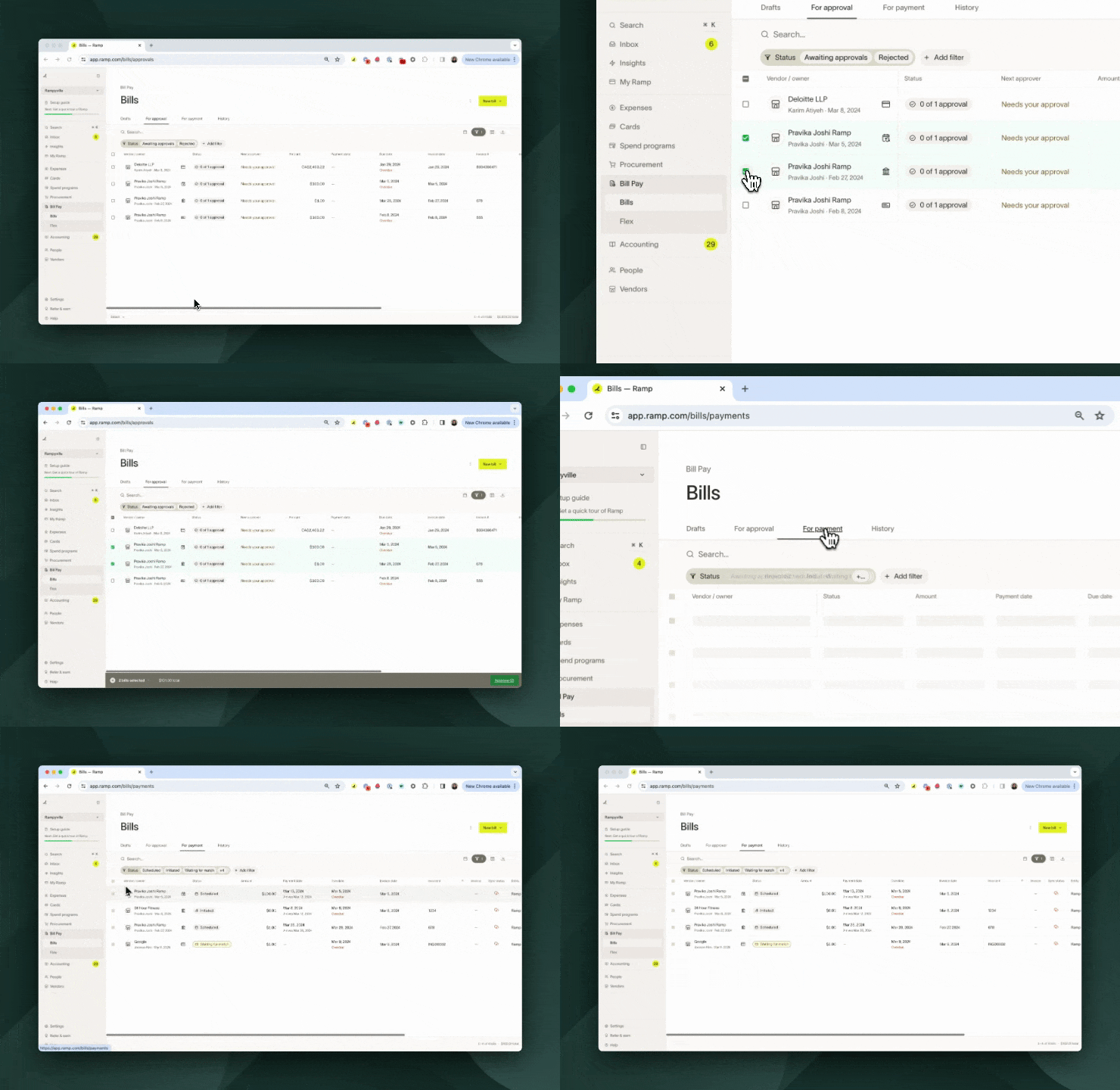
Video of customer bulk approving bills
Archiving a bill
Archiving closes a bill without payment and moves it to the History tab with an Archived status. This action is permanent and cannot be undone. For step-by-step instructions, when archiving is blocked, and accounting provider effects, see Archive a bill on Bill Pay.
Managing payments
Available on Ramp Plus. See Ramp Plus overview for plan details.
The Payments tab is a dedicated surface within Bill Pay for managing payments, separate from the Bills tab. While the Bills tab focuses on invoice creation and approval, the Payments tab is your central workspace for tracking and actioning on payments after a bill has been fully approved.
A payment appears in the Payments tab after all linked bills are fully approved. It represents the transfer of funds to the vendor and has its own lifecycle, status, and available actions, separate from the bill.
To access the Payments tab, navigate to Bill Pay > Payments.
Payments table views
The Payments tab organizes payments into views based on the actions you need to take:
- Overview — View all of your payments at a glance. Each row represents a payment object, and you can see a mix of statuses.
- Needs Review — This is your triage view. It surfaces everything that requires action before a payment can go out, including payments that require release or are missing information.
- Pending — View payments that are in motion. This includes ACH transfers in transit, checks that have been mailed, and bills scheduled for payment that will auto-release on their scheduled date. These payments don't need immediate attention but you can monitor their progress here.
- History — View all completed and canceled payments. You can also select Receipt in an eligible payment row to download the remittance receipt.
Payments filters
The Payments tab provides the following filters to help you find specific payments:
- Arrival date — filter by expected payment arrival date
- Bill due date — filter by the due date on the linked bill
- Payment date — filter by the date the payment was sent or is scheduled to send
- Vendor — filter by vendor name
- Status — filter by payment status (e.g., ready for release, initiated, scheduled, payment failed, paid)
- Amount — filter by payment amount range
- Payment method — filter by payment method (ACH, check by mail, domestic wire, international transfer, card, etc.)
Payments sorts
You can sort the Payments table by the following date columns:
- Due date
- Payment date
- Arrival date
Payments bulk actions
The Payments tab supports the following bulk actions on selected payments:
- Release — act on selected payments awaiting your approval. An intermediate approval advances the payment to the next required step; only the final approval releases it. See Bill Pay payment release.
- Cancel — cancel selected in-flight payments that have not yet been delivered
- Edit payment date — update the scheduled payment date for selected payments
- Mark as paid — mark selected payments as paid (for payments made outside of Ramp)
- Retry — retry selected payments that have failed
Exporting bills and payments
You can export bills and payments from both tabs respectively by clicking the download icon in the top right corner of the page. The following exports are available.
- Export (CSV) - exports the list of bills or payments based on the current set of applied filters and columns. In the Bills tab, draft bills are included in this export by default. To export only draft (unsubmitted) bills, open the Drafts view and export from there.
- Download invoices in bulk (Zip option) - Users can select the "download invoices (ZIP)" option from the download icon in the bills tables view. After clicking this, an email will be sent with a call-to-action to download the requested files. Only available in bills table view, not the payments table view.
- Download AP aging report - learn more about AP aging reports here . Only available in bills table view, not the payments table view.
- Advanced Export - learn more below
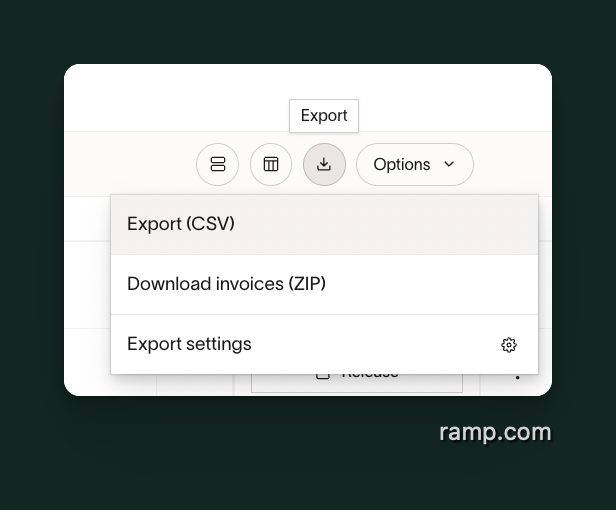
Image of the Bill Pay export icon and options
Advanced export
Advanced export lets you select additional export fields, including:
- Bill URL
- Invoice received date
- Payment method
- Payment initiated date
- Payment received date
- Bill Amount
- Purchase order number
- Currency
- Bill payment sync status
- Entity
- Vendor memo
- Trace ID
- Check number
- Banking partner ID
- Latest approver
- Approvers
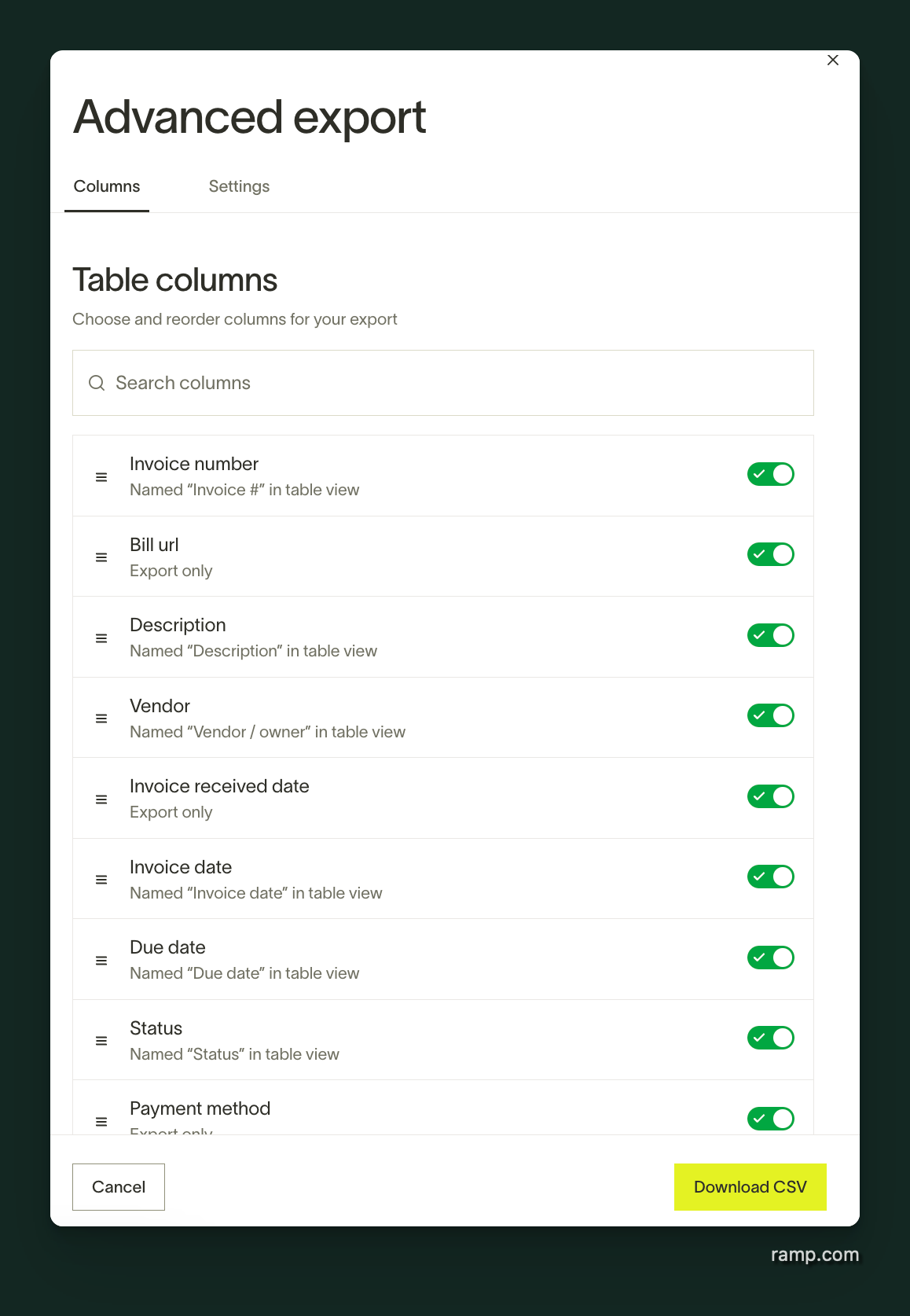
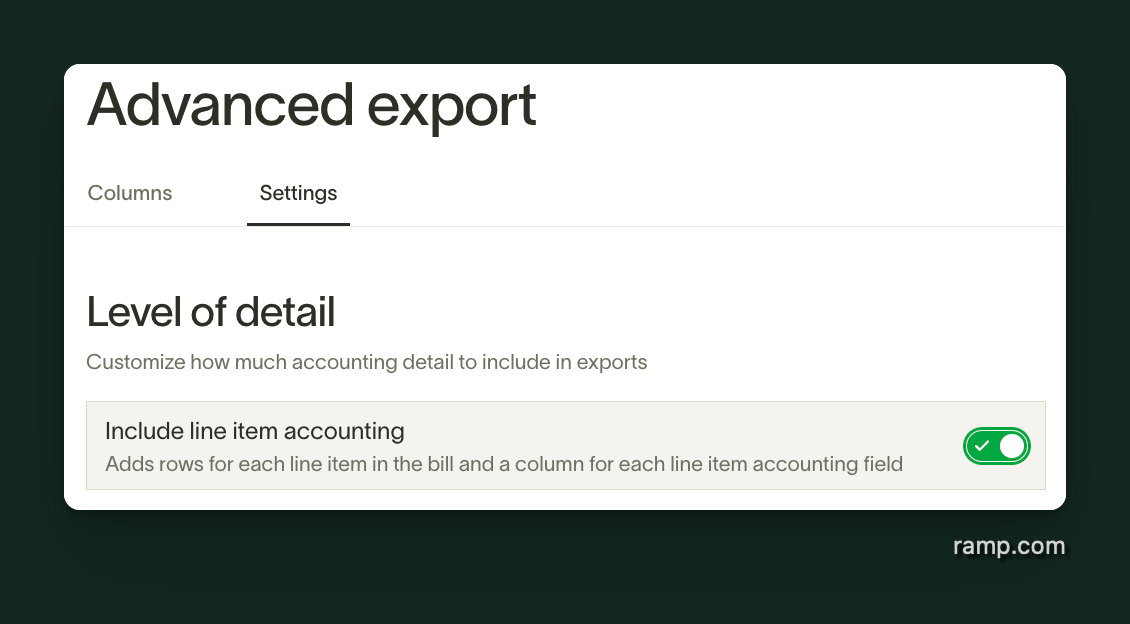
You also have the option to export line item level accounting within the Settings tab.
Frequently asked questions
Who has access to these bill table views and the available filters, sorts, and bulk actions?
- Admin, Owner, and Accounts Payable roles can access all Bill Pay views and all bills available to their business.
- Vendor Owners can access bills for vendors they own. Filters are adjusted to display only bills accessible to them.
- Individuals on the approval chain can access For approval and view bills that require their approval. They may also see bills they previously approved, created, or were tagged in, or bills available through vendor ownership, team access, entity access, or another permission. When approver editing is enabled by an Admin, approvers can edit supported bill fields during approval. They cannot edit the bill total amount, payment details, currency, vendor, vendor contact, or entity. See Employee Roles and Permissions on Bill Pay for details.
- Managers and Employees may still access bills they created or uploaded, or bills available through their team.
Can I recover a deleted draft bill or unarchive an archived bill?
No. Both actions are permanent. Ramp does not provide an unarchive or restore option. If you archived a bill by mistake, re-upload the original invoice to create a new bill. See Archive a bill on Bill Pay for full details.
Can I mark a partial payment as paid on a bill?
Yes. If a bill has multiple payments, you can use Mark as paid for one payment made outside Ramp without marking the remaining bill balance as paid.
Who can see the Payments tab?
The Payments tab is available on Ramp Plus to users who can access Bill Pay and have the view payment details permission, including Admins, Owners, and AP Clerks by default.
Can I print an invoice from Bill Pay?
Ramp does not include a print button on the invoice viewer. To print an invoice, open the bill, select Download or Download original when available from the invoice preview menu, and then print the file from your computer's PDF viewer or browser. Download original retrieves the source file that was uploaded to the bill. To download multiple invoices at once, see Exporting bills and payments above.
Can I adjust the size of an invoice in the viewer?
Yes. When viewing a PDF invoice on a bill, you can use the zoom in and zoom out controls in the viewer toolbar to enlarge or shrink the document on screen. You can also zoom by holding Cmd (Mac) or Ctrl (Windows) and scrolling your mouse wheel, use pinch-to-zoom on a trackpad, or press Cmd/Ctrl + = to zoom in and Cmd/Ctrl + – to zoom out. A rotate control is also available. These controls adjust the on-screen view only and do not change the downloaded file.