Bill lifecycle
Overview
Ramp Bill Pay is made with speed and process controls in mind to move your bill from an invoice to paid as efficiently as possible. Use this guide to understand how we make it happen.
Uploading an invoice
The first step toward paying most bills is to add an invoice from your vendor to Bill Pay. We provide several options to get started.
Email your invoice:
Most invoices end up in your email inbox, so we've created a specific AP email address for you to forward these invoices to. There are a few requirements, but if done correctly, Ramp will automatically create a draft bill for you based on the invoice you've sent over:
- Make sure you forward invoices from a company email address (e.g. for Ramp, the email would be forwarded from an "@ramp.com" email), from an address associated with any internal user profile on your account, or from an email domain associated with a vendor that's been added to your Ramp instance. Emails sent from external domains not associated with a vendor will not be processed.
- Supported file types include PNG, JPG, JPEG, Excel, CSV, and Word documents, in addition to PDFs.
The inbox we create for you is, by default, {{your company name with no spaces}}@ap.ramp.com. For example, a company named Fast Stuff Inc would have an AP email of [email protected] (to customize your AP email, contact our Support team).
You can also view the email address in your Bill Pay Settings.
We will send an email notification when you send documents into your AP forwarding address to let the sender know what Ramp created and whether any forwarded files could not be processed.
Review advanced configurations in our article on AP Forwarding
Manually create a bill
You can add any invoice file into the Bills Drafts page by clicking New bill in the upper right section of Bill Pay. Drag and drop invoices, or select the specific invoice in your file browser.
For the file types supported by each upload method, see Uploading invoices and bills on Ramp Bill Pay.
XML file(s) can be uploaded to the Documents section only, not as the invoice or PO.XML support was added to comply with specific international electronic invoice requirements.
Bulk upload invoices:
Ramp also allows you to upload bills in bulk using the import via spreadsheet option:

Bill drafts
Once an invoice has been submitted, we use OCR (computer vision) to extract the invoice number, vendor name, contact information, payment details, and line items for the bill. This information pre-fills into the bill fields lightning fast.
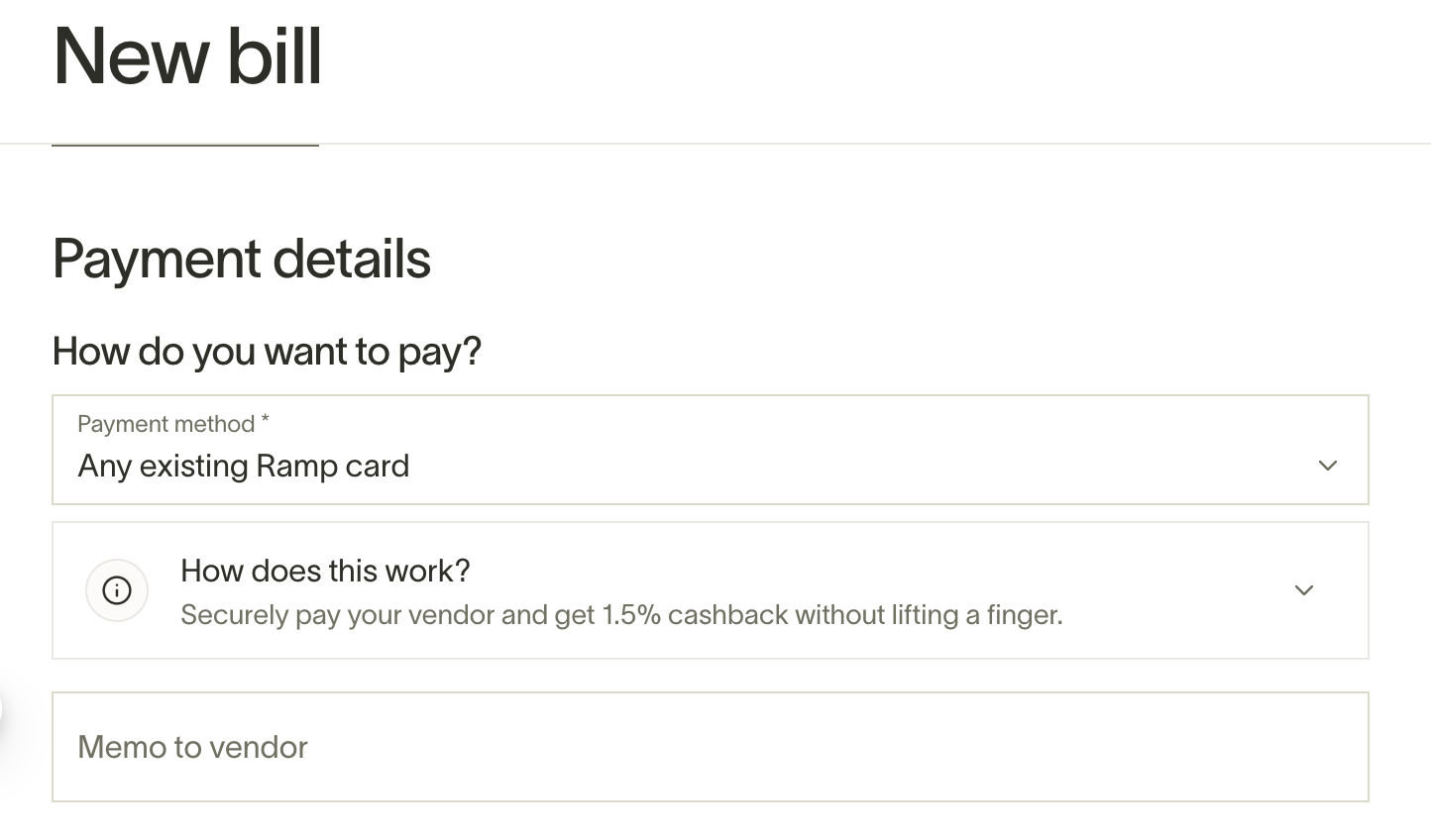
After uploading the invoice and letting OCR work its magic, you can select the drafted bill in the Bills Draft page and verify we gathered the right information. Once you've confirmed the information is accurate, select your preferred payment method and then click Continue. More information about Bill payment methods can be found in our article on Bill payment methods.
Note that you can optionally add a vendor memo to your bill at this stage. Vendor memos are communicated by email to your vendor.
Bill approvals
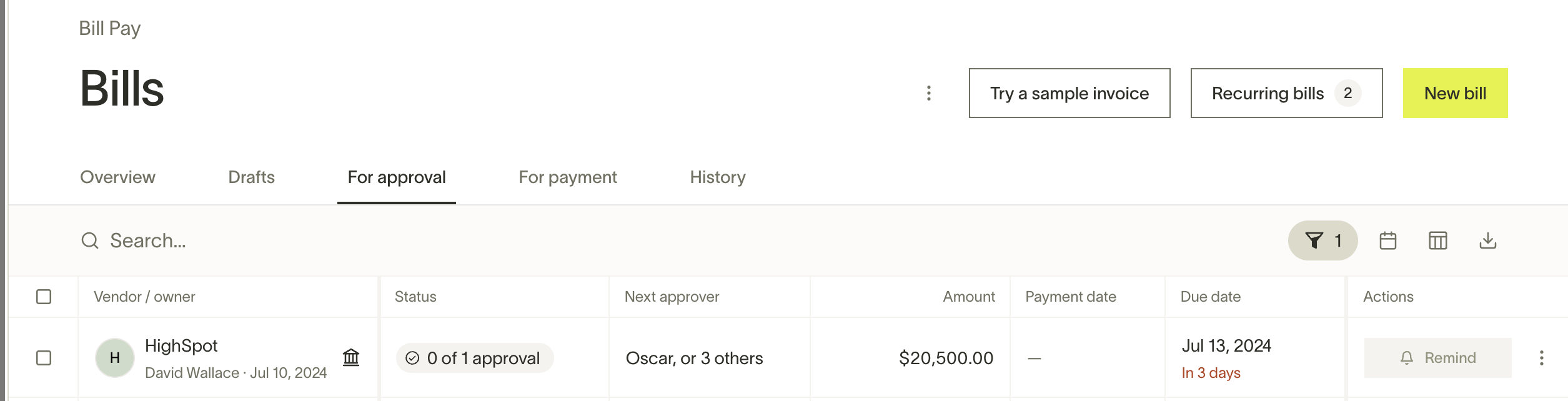
Bills waiting for approval live in the For approval section. You can see who is the next approver, send them a reminder once a day, approve bills that require your own review, and if you're an Admin or a Business Owner, skip approvals and pay now.
Bills can also be rejected at this stage. If a bill was rejected by mistake and remains in Rejected status, a user with bill modification permissions can open it from For approval, click Edit bill, make any needed changes, and click Continue to submit it back through the approval chain. Bill modification permissions are included in the Admin and Owner roles and can be granted through Custom Roles — being the bill creator alone is not sufficient. For details, see Employee Roles and Permissions on Bill Pay. If the bill was archived instead, you will need to re-upload it.
Find more information about approvals in our article on Bill Pay: Approvals and Accounts Payable roles
Bill payments
Once a bill is approved, open Bill Pay. It appears in Payment required when action is needed, or In-flight after its payment is scheduled or initiated. Actions you'll need to take vary by payment method, but for scheduled bills, you're all set at this stage.
Find information about bill payment methods in our article on Bill payment methods
Viewing your paid bills:
All your paid bills are available in the History section.Search them, download them in a .csv, view an invoice, or review details as needed.
With a few easy steps bills move from invoiced to paid.
For info about how to set up recurring bills, please see our article on Creating and managing recurring bill payments on Ramp's Bill Pay
Cancel a bill
Users with permission to modify bills can cancel eligible bill payments. In-flight card payments require Admin access to cancel.
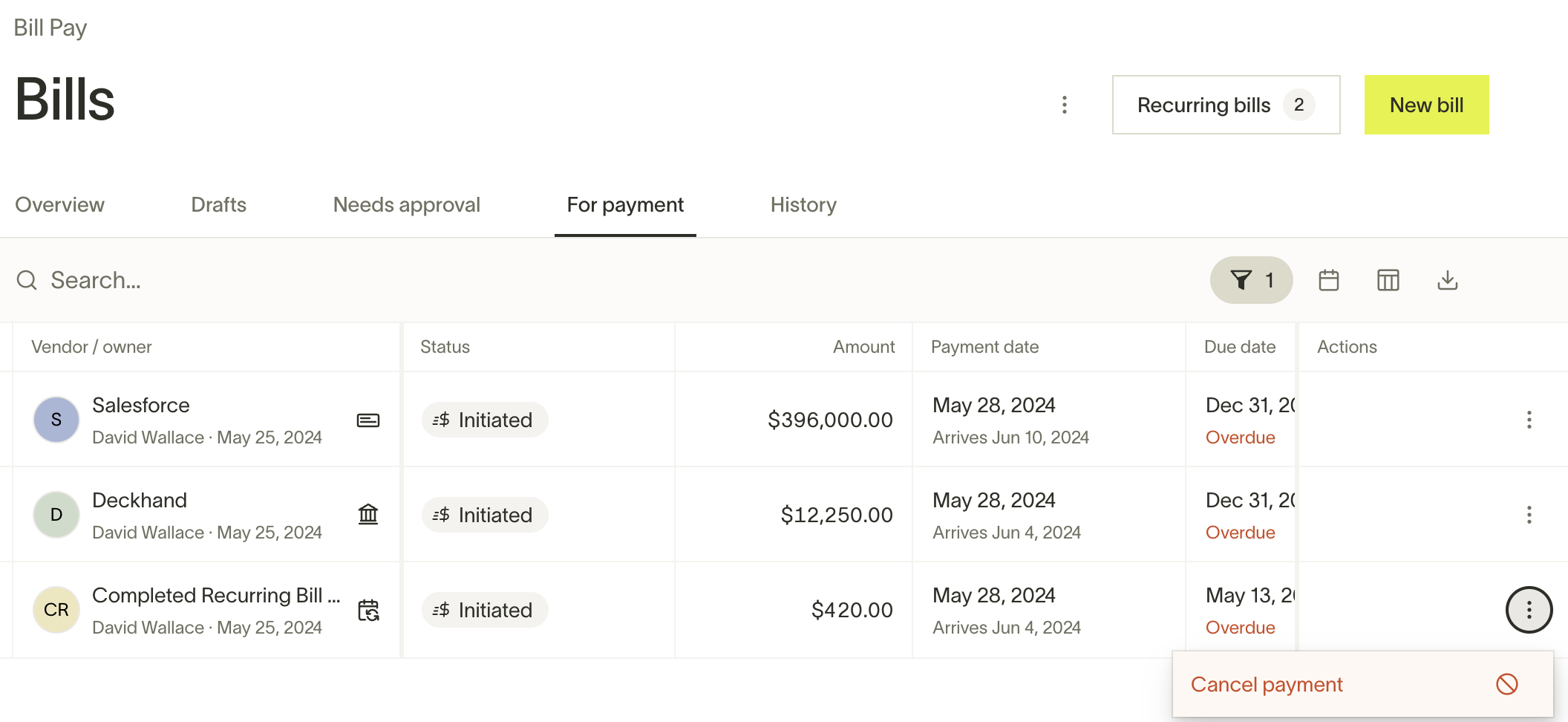
- From Bill Pay, open In-flight and click the three vertical dots in the Actions column for the bill whose payment you want to cancel.
- Click Cancel payment
If you can modify bills, you can cancel an eligible bill payment while Cancel payment is still available for that bill in Ramp. In-flight card payments require Admin access to cancel. Depending on the payment method and its current stage, Ramp may still be able to stop a payment after it is initiated. If you cannot modify bills, ask someone who can to check the bill for you. Once Cancel payment is no longer available to anyone with the required permission, the payment can no longer be canceled in Ramp.
If a payment was sent in error (for example, to the wrong or an unknown account, a duplicate, or the wrong amount), see the recall and reversal options under Reverting, recalling, or reversing a bill.
If you cancel a payment after funds have already been debited from your bank account, Ramp will return the debited funds to your bank account within approximately 5 business days. Your bill will return to an unscheduled state, and the payment will show as canceled.
Note: Do not reinitiate the payment until the refund has posted to your bank account. Reinitiating before the refund arrives may result in a second debit from your account.
If you no longer need the bill after canceling the payment, you can archive it — see Archiving bills below. Archiving moves the bill to History with an Archived status. If a Ramp-created bill has already synced to your accounting provider, Ramp asks the provider to remove or reverse the corresponding record. The provider may reject the request, so check the bill's sync status after archiving. A bill imported from your accounting provider must be archived there instead.
Failed payments
If a bill payment does not go through, the bill's status changes to Payment failed. Open the bill from Bill Pay to see the specific failure reason and available next steps.
Common reasons a payment may fail include insufficient funds in the source bank account, an outstanding balance owed to Ramp, an invalid or closed vendor bank account, or an issue with check delivery. The failure reason determines what action is needed before you can retry.
Retry a failed payment
To retry a single failed payment, open the bill and click Retry payment in the failure notice. To retry multiple failed payments at once, select the bills in Bill Pay and use the Retry payments bulk action.
Some failure reasons require resolving the underlying issue before retrying:
- Outstanding balance owed to Ramp — pay your outstanding Ramp statement balance first, then retry the bill payment.
- Source bank account issue (insufficient funds, debit block, or closed account) — resolve the issue with your bank or update the payment source. If the account was removed, re-add and verify it first — see Ramp bank connections overview. If you see the error "Cannot retry payment without replacing invalid source bank account details!", see the troubleshooting steps.
- Vendor bank account issue (closed, not found, or rejected) — update the vendor's bank details on their vendor profile before retrying.
- Check delivery failure (undeliverable address) — update the vendor's mailing address on their vendor profile, then retry.
Note: A sync failure is different from a payment failure. If a bill failed to sync to your accounting provider, the payment may still have succeeded — check the bill's payment status separately from its sync status. For details on resolving sync errors, see Bill Pay accounting.
Editing bills
You can edit most bill fields at any point by selecting the bill, then clicking Edit bill.
Note: The invoice currency cannot be changed after a bill is created. To pay in a different currency, create a new bill with the correct currency and handle the original bill based on its current stage — see Reverting, recalling, or reversing a bill for options. If the original bill has already been paid, contact your vendor directly to arrange a refund or credit. For details on supported currencies, see International transfers on Ramp Bill Pay.
After a bill has been paid, you can still edit most fields — including descriptions, dates, accounting fields, line items (as long as the total amount stays the same), and the purchase order (PO) number. The vendor, entity, total amount, and payment method are locked once payment is completed.
When enabled by an Admin, approvers can edit supported bill fields during approval, including descriptions, dates, line items, and accounting fields. Approvers cannot edit the bill total amount, payment details, currency, vendor, vendor contact, or entity. For the full details on approver editing capabilities, see Employee Roles and Permissions on Bill Pay.
If you edit a bill after it has been approved and synced to your accounting provider, we will update the tracking categories within your accounting provider as long as the month is still open in your accounting provider. If your month has been closed, we cannot update the accounting fields.
Please note that some accounting providers have additional limitations on bills that can be edited (for example, Sage Intacct does not allow editing paid bills).
Reverting, recalling, or reversing a bill
Ramp does not provide a way to revert a bill to draft, recall a bill, or unapprove a bill once it has been submitted for approval. After a bill leaves draft, you cannot return it to the Drafts tab.
Instead, use one of the following approaches depending on the bill's current stage:
If the bill is pending approval
Ask an approver or Admin to reject the bill from Bill Pay > For approval. After rejection, a user with bill modification permissions (such as an Admin or Owner) can open the bill, make corrections, and click Edit & re-submit to send it through the approval workflow again. For details on rejecting and re-submitting bills, see Rejecting bills.
If the bill has been approved but not yet paid
You can still edit the bill after approval — edits to certain fields will restart the approval chain. See what changes restart the approval chain for the full list. If you no longer need the bill, archive it instead.
If the bill has a scheduled or in-flight payment
If you no longer need the bill, archive it. Archiving cancels a scheduled or in-flight payment that is still eligible for cancellation. If you want to edit or reschedule the bill instead, ask someone who can modify bills to cancel the payment first. For an in-flight card payment, ask an Admin because only Admins can cancel it. After the payment is canceled, the bill returns to an unscheduled state. You can then edit it, reschedule a payment, or archive it. If Cancel payment is no longer available to anyone with the required permission, the payment can no longer be canceled in Ramp and the bill cannot be archived.
If the bill has been paid
The available action depends on how the bill was paid:
- Paid outside Ramp: Use Mark as unpaid to remove the manual payment details and reopen the bill. See Mark a paid-outside-Ramp bill as unpaid.
- Matched to an existing Ramp card transaction: Use Remove transaction to unlink the transaction and reopen the bill. See Remove a matched card transaction from a bill.
These actions update the bill and its payment record; they do not recall or reverse funds. Ramp does not offer a self-service way to recall or reverse a payment after funds have been sent. What to do next depends on why you want the funds back:
- The payment reached your intended vendor — for example, you want a refund, or you overpaid or sent the wrong amount to the correct vendor — contact your vendor directly to arrange a refund or credit. See Vendor credits and credit memos on Ramp Bill Pay for how to record it.
- The payment was misdirected or erroneous — for example, sent to the wrong or an unknown bank account, or a duplicate payment — contact Ramp Support as soon as you notice. Ramp may be able to attempt a recall or reversal on your behalf, but this is time-sensitive and recovery is not guaranteed. Reporting it immediately gives the best chance of recovery.
Archiving bills
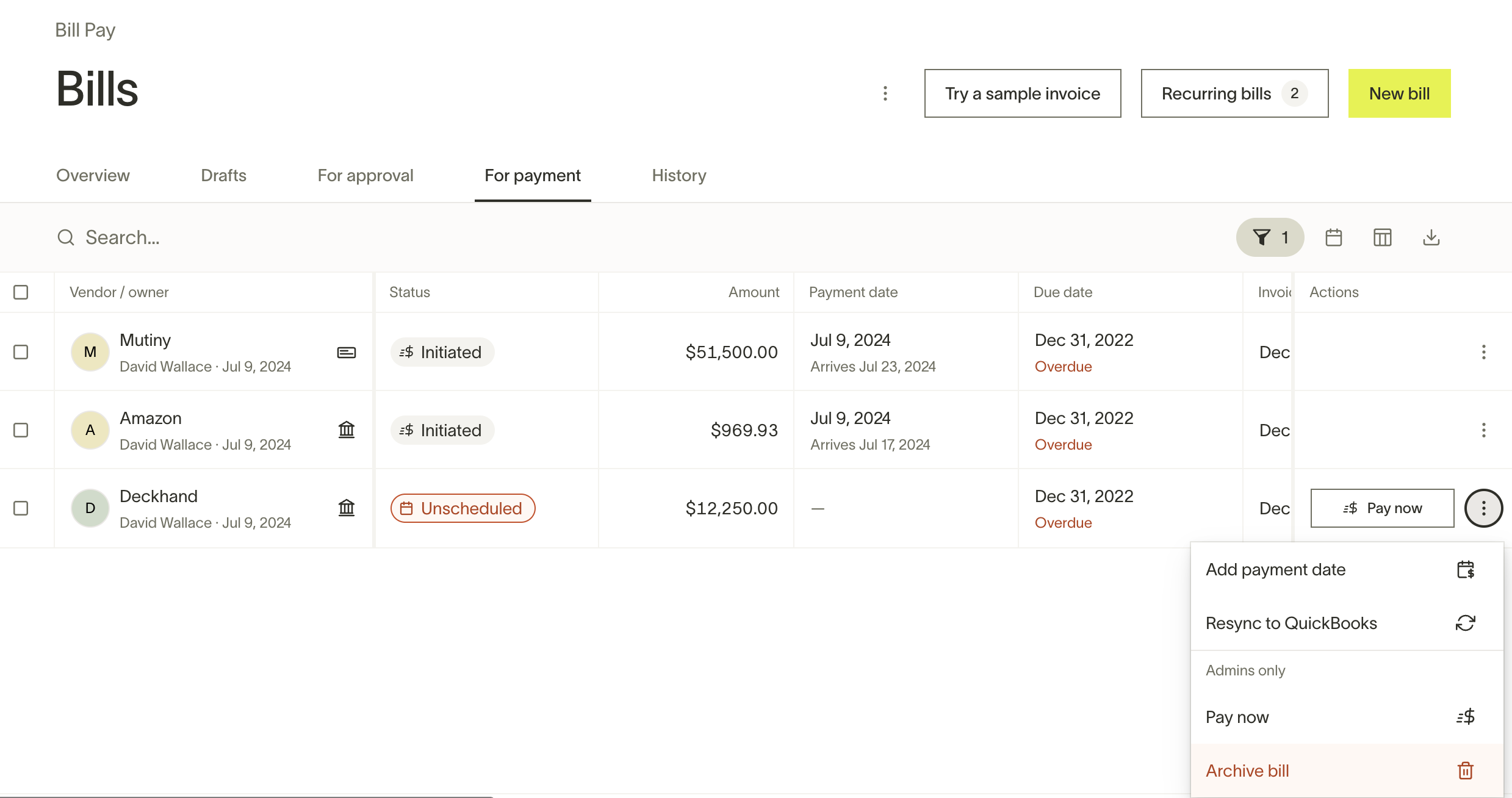
Archiving closes a bill without payment and moves it to the History tab of Bill Pay with an Archived status. This action is permanent — archived bills cannot be restored to an active state. If you archived a bill by mistake, re-upload the original invoice to Bill Pay to create a new bill.
For step-by-step instructions, restrictions on when archiving is blocked, accounting provider effects, and answers to common questions, see Archive a bill on Bill Pay.
Frequently asked questions
Can I edit a bill after it has been paid?
Yes, if you have bill modification permissions (included in the Admin and Owner roles, and available through Custom Roles). Open the paid bill from Bill Pay > History and click Edit bill. You can update descriptions, dates, accounting fields, line items (as long as the total amount stays the same), and the purchase order (PO) number. The vendor, entity, total amount, and payment method are locked after payment is completed. For the full list of who can edit bills, see Employee Roles and Permissions on Bill Pay.
If you edit accounting fields on a paid bill that has already synced, the update will only sync if the accounting period is still open in your accounting provider. Some providers (such as Sage Intacct) may reject updates to paid bills entirely — see the relevant sync error article for resolution steps.
To correct the vendor, entity, or total amount on a paid bill, contact your vendor to arrange a refund or credit, then create a new bill. See Vendor credits and credit memos on Ramp Bill Pay for how to record vendor credits.
Can I view a bill's version history or restore a previous version?
- No. Ramp's Activity tab shows bill history such as approval actions, comments, and edits, but it does not provide a restorable version history or a way to return a bill to an earlier saved version. To correct a bill based on its current stage, see Reverting, recalling, or reversing a bill.
Can I change the PO number on a paid bill?
Yes. Open the paid bill, click Edit bill, and update the purchase order field. This does not require canceling or reversing the payment. For details on PO matching, see Importing and matching Purchase Orders (POs) on Ramp Bill Pay.