Creating and managing recurring bill payments on Ramp's Bill Pay
Overview
Ramp allows you to set up recurring bills for regularly scheduled payments to your vendors. Based on the schedule you set up, Ramp automatically creates each bill in the series. The first bill always goes through your bill approval workflow. For subsequent bills, you choose during setup whether each bill requires individual approval or is auto-approved and sent directly for payment.
Setting up a recurring bill
Follow the steps below to set up a recurring bill series:
- You have two options to begin recurring bill series creation:
- Click the recurring bills button at the top right corner of the Bill Pay page and click the new recurring bill button in the side panel that opens up
- OR click the three dots menu next to a draft bill and click the create recurring bill button
- Select the vendor you would like to create a recurring series for. Learn more about selecting and creating vendors here .
- Input an optional invoice number and/or description for the recurring series
- Invoice numbers for subsequent recurring bills will be automatically created with a suffix (-2, -3, etc.)
- Enter line items and accounting codings for the recurring bill
- Each bill in the series will be created with the same line items and accounting codings. You will have the option to modify the line items for the series or for a specific bill at any point.
- Select the payment method for the recurring series.
- Available payment methods, eligibility, and delivery times vary. See Bill payment methods and timelines.
- Select the pay from and pay to accounts for the recurring bill
- Set the payment frequency (e.g. Monthly on the 1st) and the recurring series length (e.g. Ends after 1 year)
- The payment frequency will determine when your end recipient will receive funds. For example, if you select Monthly on the 1st , the recipient will receive funds on the 1st of each month (or the closest business day if the 1st falls on a weekend).
- Preview the approval chain for approving the recurring series as a whole.
- Use the Require approvals for each recurring bill toggle to control whether subsequent bills in the series go through your approval workflow:
- On — each subsequent bill is routed through your bill approval policy before payment, just like any other bill.
- Off (default) — subsequent bills are auto-approved by Ramp without requiring individual approver action. Your bill approval policy is not applied to these bills. Payment release remains separate: a payment requires release only if its branch includes an approval step.
- Click Create recurring bill.
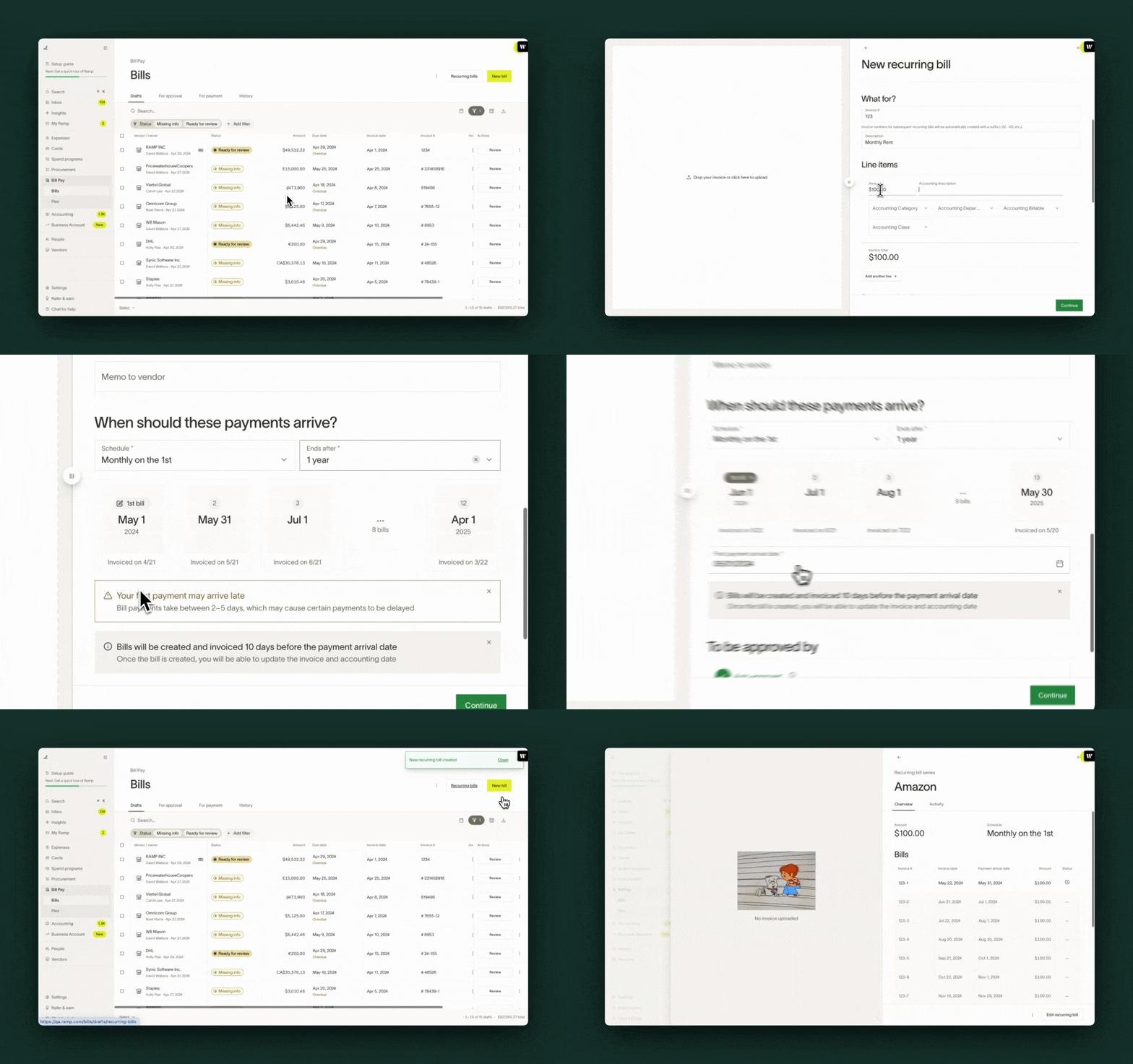
When/how are bills in a recurring series created?
Note: The first bill in a recurring series is created and routed for approval immediately when the series is set up, regardless of the payment date. Subsequent bills are created automatically 10 days (for ACH payments) or 15 days (for check payments) before their payment date. For example, if you set your payment frequency to be Monthly on the 1st paid via ACH, Ramp will create each subsequent invoice 10 days before the 1st (i.e. on the 21st/22nd of each month).
Ramp will use the details provided above as the template for future bills in the series – i.e., Ramp will keep the same bill codings, bill payment methods, etc., for future bills unless the series is edited or a specific bill is modified. You will also have the option to modify invoice dates and accounting periods for a given bill once it's created in Ramp.
Viewing recurring series
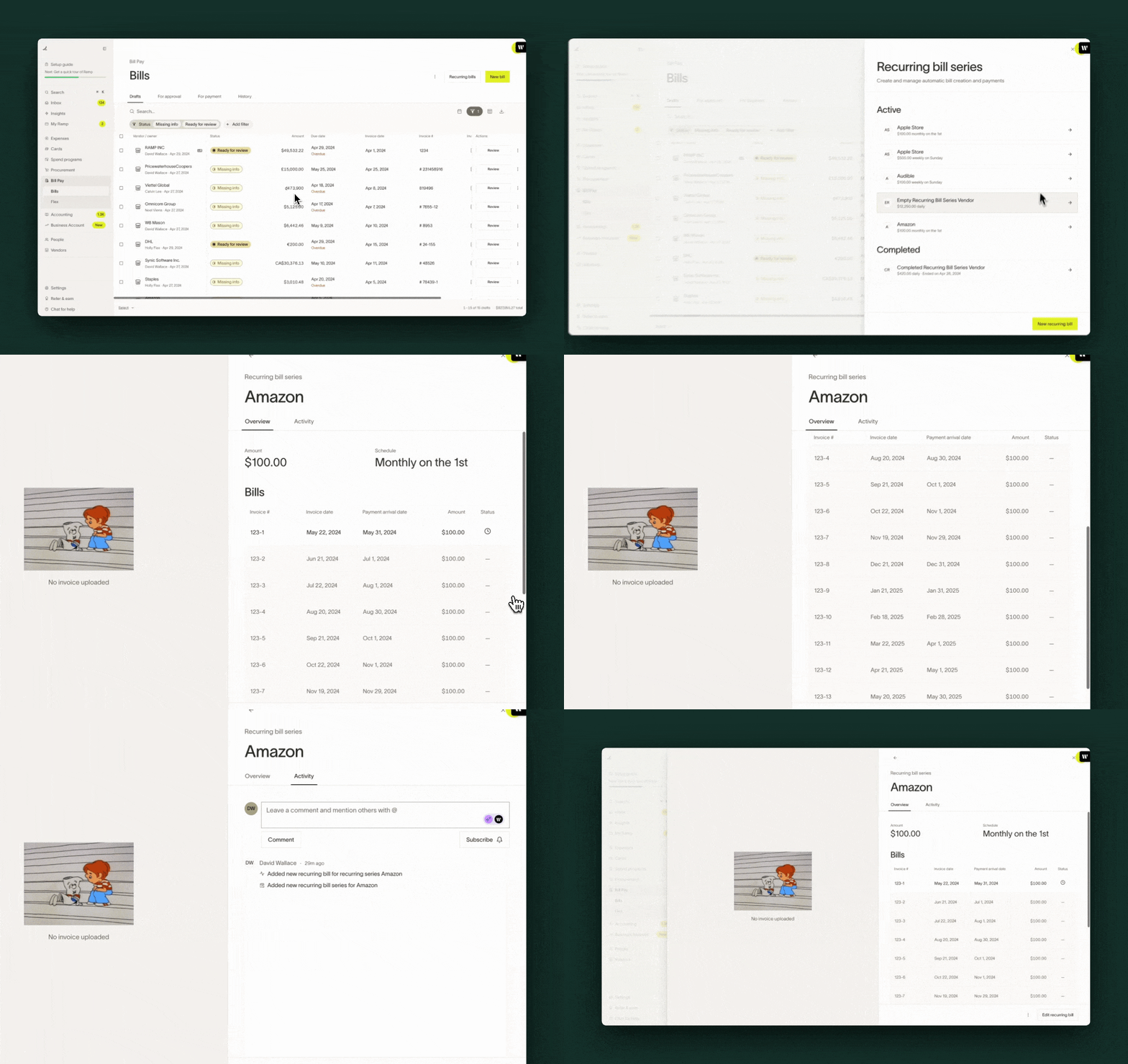
You can view all active and completed recurring series by clicking the Recurring bills button at the top right corner of the Bill Pay page.
Clicking on a specific series will allow you to view its recurring series details and the full list of bills that will be created as part of it.
Editing recurring series
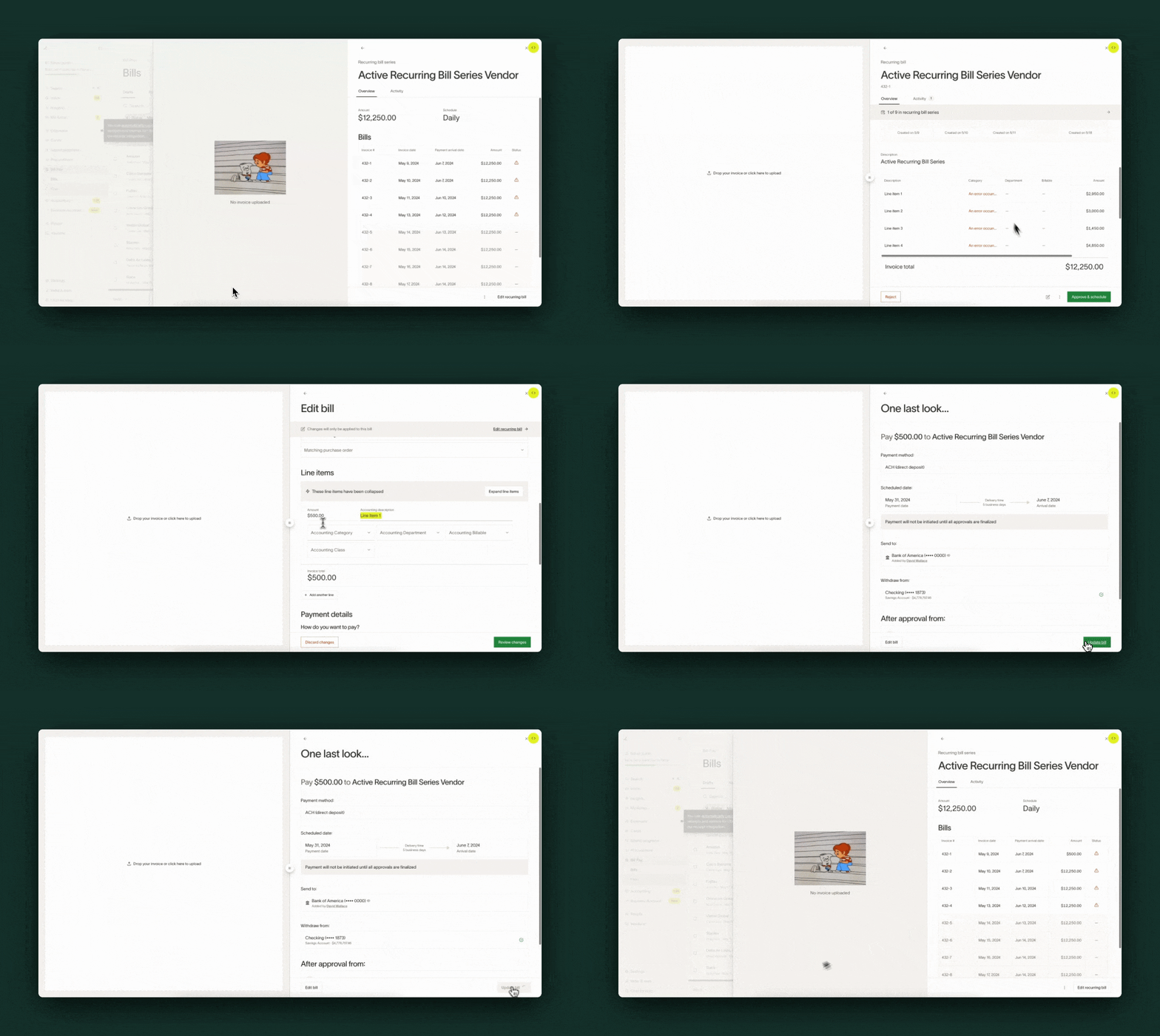
Ramp gives you the option to both edit the recurring series or edit specific bills in the series. Follow the steps below to edit a recurring series:
- Click the Recurring bills button at the top of the Bill Pay page
- Click on the desired recurring series you'd like to modify. Note you may only modify active recurring series
- Click edit recurring bill in the bottom right corner
- Edit the desired field on the series (e.g. amount, payment method, end date, etc.). You can modify the bill frequency until the series has generated its first bill.
- Click Update recurring bill to save the changes
Updates to the series will be applied to future bills that have yet to be created. Changes will NOT be applied to any bills that have already been created in Ramp.
Editing a specific recurring bill
Once a bill from a series has been created in Ramp, you will have the ability to edit and update that specific bill. This can be useful if you need to make changes that apply only to the specific bill and should not be applied to the series as a whole.
Follow the steps below to edit a specific bill from a series.
- Locate the bill in Ramp one of two ways:
- Click the Recurring bills button, select the relevant recurring series, and click on the desired bill
- Locate the desired bill in the approvals and/or payments tab
- Click Edit bill in the bottom right corner
- Edit the desired field on the bill (e.g. amount, payment method, invoice date, etc.)
- Click Update bill to save the changes
- Note that certain changes may trigger re-approval based on the approval policy your company has set.
Deleting recurring series
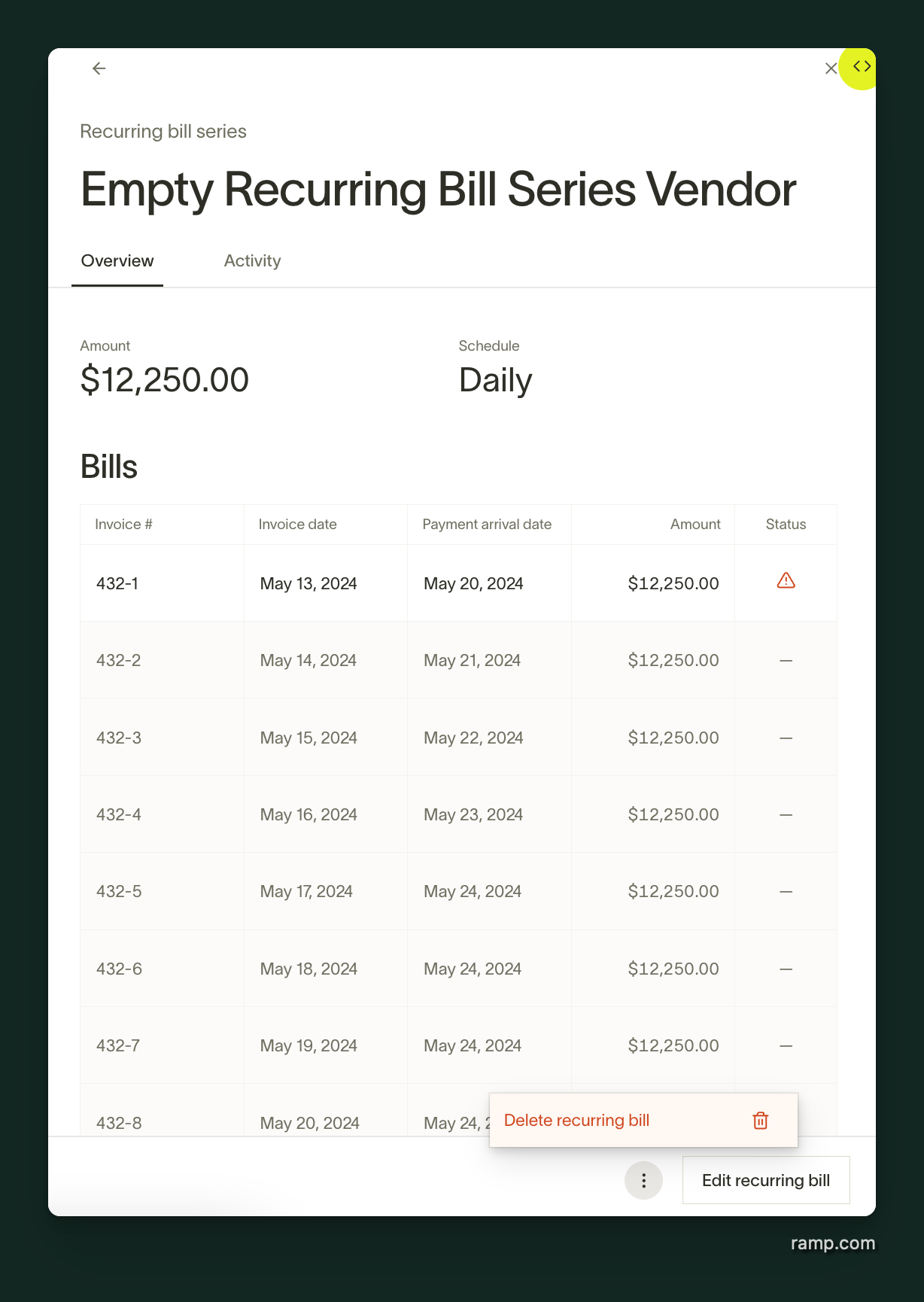
Ramp gives you the option to both delete the recurring series or delete specific bills in the series. Follow the steps below to delete a recurring series:
- Click the Recurring bills button at the top of the Bill Pay page
- Click on the desired recurring series you'd like to delete.
- Click the 3 dots menu in the bottom right corner and select Delete recurring bill
Deleting a series will prevent future bills in the series from being created and scheduled in Ramp. Bills that have already been created, initiated, or paid will remain unaffected and won't be deleted.
Deleting a specific recurring bill
Follow the steps below to delete a specific recurring bill:
- Locate the bill in Ramp one of two ways:
- Click the Recurring bills button, select the relevant recurring series, and click on the desired bill
- Locate the desired bill in the approvals and/or payments tab
- Click the 3 dots menu in the bottom right corner and select Archive bill
This will archive the specific bill. The recurring series and future bills won't be impacted. Ramp will continue to create and schedule bills on the recurring schedule that's been set.
Frequently asked questions
Who is able to create/edit/delete recurring series?
Admin and Accounts Payable roles have the ability to create, edit, and delete recurring bills.
What are the supported frequencies for recurring bills?
Weekly, Monthly, Quarterly, Annually.
Why don't I see my recurring payments in the Recurring Bills section?
Only bills that were formally set up as a recurring series (using the steps above) appear in the Recurring Bills panel. Ramp does not automatically detect recurring payment patterns from individually created bills. If you regularly pay the same vendor on a schedule but haven't set up a recurring series, those bills will appear as individual bills in your standard Bill Pay views.
How do approvals work for recurring bill series?
The first bill in a recurring series always goes through your bill approval workflow. For subsequent bills, the behavior depends on the Require approvals for each recurring bill toggle you set during series creation:
- Toggle on — each subsequent bill goes through your approval workflow before payment.
- Toggle off — subsequent bills are auto-approved by Ramp. Your bill approval policy does not apply to these auto-approved bills. Payment release remains separate; a payment requires release only if its branch includes an approval step.
Note: If you change certain series details — such as the payment method, amount, or pay-to account — the next bill in the series will require approval regardless of the toggle setting. This is a one-time re-approval; subsequent bills after that will follow the toggle setting again.
Does my bill approval policy override the recurring bill approval toggle?
No. When the Require approvals for each recurring bill toggle is off, subsequent bills are auto-approved regardless of your bill approval policy. The first bill in the series always goes through your approval workflow, but after that, the approval policy only applies to subsequent bills when the toggle is on.
How do I cancel an individual bill?
See here for details.