Employee Roles and Permissions on Bill Pay
Overview
Involving your employees in the Accounts Payable (AP) process can significantly streamline your operations by removing bottlenecks and empowering the people closest to the vendors. Allow employees to submit, code, and prepare their own bills for final review and payment by the AP team.
This guide outlines the different ways employees can gain access to Bill Pay and how you, as an admin, can customize their permissions to fit your company's workflow.
How employees can access and use Bill Pay
There are four primary ways an employee can gain visibility and take action on bills within Ramp. An employee's access and editing capabilities depend on how they are associated with a bill.
Access Type
View Access
Edit Access
(1) As an Approver
Can view bill details including invoice, line items, and approval history
Cannot view payment details associated with the bill
When enabled by an Admin, approvers can edit supported bill fields during approval, including descriptions, dates, line items, accounting fields, and line item splits. Approvers can also use the "Apply to all" option on accounting fields.
Approvers cannot edit the following:
- Bill total amount
- Payment details
- Currency
- Vendor
- Vendor contact
- Entity
Approvers can edit the purchase order (PO) field, but only to POs they own or that have been pre-matched to a bill they are approving. Approvers can apply line item splits but cannot save new split templates.
Admins and Owners can enable or disable approver editing from Bill Pay settings > Permissions.
(2) As a Vendor Owner or Vendor Owner Manager
View all bills from any vendor they own. Also gain access to the Vendors tab in the main navigation, filtered to show only their assigned vendors.
By default, being a Vendor Owner grants view-only access to bills. Cannot edit bill details unless they are also an approver or have been granted specific custom permissions (see below)
(3) As a tagged employee in the bill activity history
Can view bill details if tagged by Admin / Accounts Payable roles in the bill activity history
Cannot view payment details
Can edit bill details if, and only if, custom permissions have been granted to the employee role (see below).
(3) As a bill submitter via email forwarding
Can see bills they forwarded to the Ramp AP inbox and view bill details, including the invoice, line items, and approval history.
Cannot view payment details associated with the bill
By default, forwarding to AP inbox grants view-only access to bills. Cannot edit bill details unless they are also an approver or have been granted specific custom permissions (see below).
(4) As a bill submitter via invoice upload
(Plus only) Requires employee custom permissions. Admins can expand employee's ability to submit invoices by granting specific permissions to create and edit bills directly within Ramp.
see below
Requires employee custom permissions. Admins can expand employee's ability to edit invoices by granting specific permissions to edit bills directly within Ramp.
see below
| Access Type | View Access | Edit Access |
|---|---|---|
| (1) As an Approver | Can view bill details including invoice, line items, and approval history Cannot view payment details associated with the bill | When enabled by an Admin, approvers can edit supported bill fields during approval, including descriptions, dates, line items, accounting fields, and line item splits. Approvers can also use the "Apply to all" option on accounting fields. Approvers cannot edit the following: Bill total amount; Payment details; Currency; Vendor or vendor contact; Entity. Approvers can edit the purchase order (PO) field, but only to POs they own or that have been pre-matched to a bill they are approving. Approvers can apply line item splits but cannot save new split templates. Admins and Owners can enable or disable approver editing from Bill Pay settings > Permissions. |
| (2) As a Vendor Owner or Vendor Owner Manager | View all bills from any vendor they own. Also gain access to the Vendors tab in the main navigation, filtered to show only their assigned vendors. | By default, being a Vendor Owner grants view-only access to bills. Cannot edit bill details unless they are also an approver or have been granted specific custom permissions (see below) |
| (3) As a tagged employee in the bill activity history | Can view bill details if tagged by Admin / Accounts Payable roles in the bill activity history Cannot view payment details | Can edit bill details if, and only if, custom permissions have been granted to the employee role (see below). |
| (3) As a bill submitter via email forwarding | Can see bills they forwarded to the Ramp AP inbox and view bill details, including the invoice, line items, and approval history. Cannot view payment details associated with the bill | By default, forwarding to AP inbox grants view-only access to bills. Cannot edit bill details unless they are also an approver or have been granted specific custom permissions (see below). |
| (4) As a bill submitter via invoice upload | Requires employee custom permissions. Admins can expand employee's ability to submit invoices by granting specific permissions to create and edit bills directly within Ramp. see below | Requires employee custom permissions. Admins can expand employee's ability to edit invoices by granting specific permissions to edit bills directly within Ramp. see below |
Customizing employee permissions for Bill Pay
Available on Ramp Plus. See Ramp Plus overview for plan details.
As an admin, you can define what a standard employee can do within Bill Pay, allowing you to give them the ability to fully prepare a bill before submitting it for approval.
To customize Employee role permissions:
- Navigate to Company > Settings .
- Click on the User Roles tab.
- Find the Employee role and click on it to open the permissions editor.
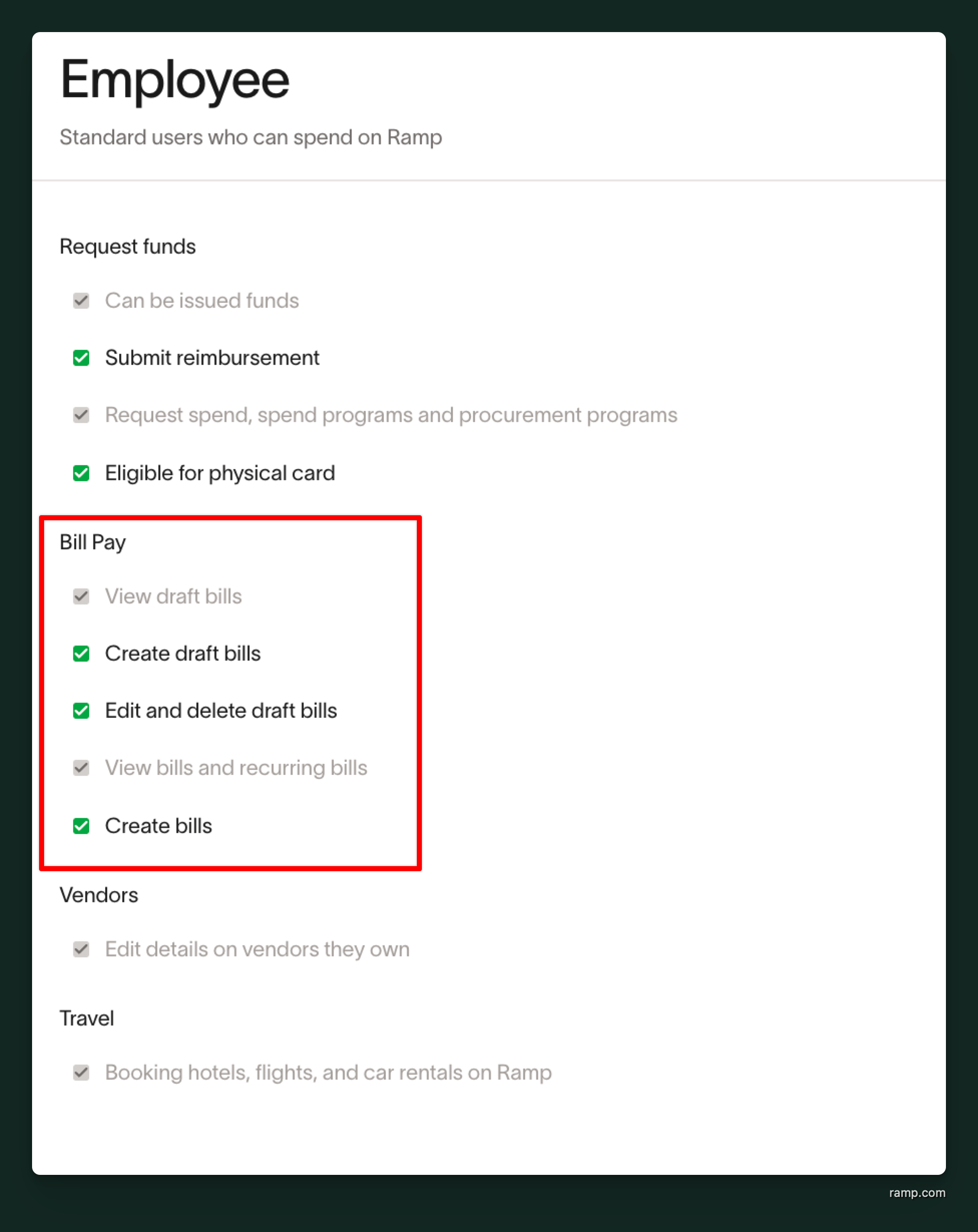
From this screen, you can toggle the following permissions for the Bill Pay section:
- Create draft bills: Allow employees to upload an invoice PDF and create a new draft.
- Edit and delete draft bills: Allow employees to edit all fields on a draft bill they have created, including vendor, amounts, dates, and accounting coding.
- Create bills and recurring bills: Allow employees to fully prepare a bill and submit it into the approval workflow.
Once these permissions are enabled, an employee can create a new bill by either
- clicking the Request button on their home page and selecting "Bill Pay" or
- the Upload invoice button from the Bill Pay tab.
They will be able to fill out all necessary information, code the bill, and submit it for review, removing the need for the finance team to handle initial data entry
Frequently asked questions
What is the difference between an Approver's edit rights and an Employee's with "Edit draft bills" permission?
When approver editing is enabled by an admin, an Approver can edit most fields on a bill that is in approvals — including descriptions, dates, line items, and accounting fields — but cannot change the bill total amount, payment details, or vendor. An Employee with Edit and delete draft bills permission can edit all fields (amount, date, vendor, etc.) but only on a draft bill they have created themselves, before it has been submitted for approval.
Can employees change the approval workflow for a bill they submit?
No. When an employee creates and submits a bill, the approval workflow is automatically determined by the rules set up by an admin. The employee cannot add, remove, or change the approvers.
If I give employees permission to create bills, where can they do it?
An employee with the "Create draft bills" permission can initiate a new bill from two places:
- The Request button on the Home page.
- The Upload invoice button on the Bill Pay page.