Vendor credits / Credit memos on Ramp Bill Pay
Overview
Vendor credits are credits that you receive from your vendor as an equivalent of the amount that they owe you. With vendor credits, you can track this amount until it is paid by the vendor, refunded, or applied to other bills of the vendor.
Customers can easily track these vendor credits within Ramp and seamlessly apply them to their bills within Bill Pay.
Creating a vendor credit
Customers can create a credit memo for a particular vendor by using an existing paid bill in Bill Pay.
From a paid bill
If a credit memo is issued on a particular bill that has been paid, you can locate that bill within the Paid tab and begin to create a vendor credit from the three dots menu.
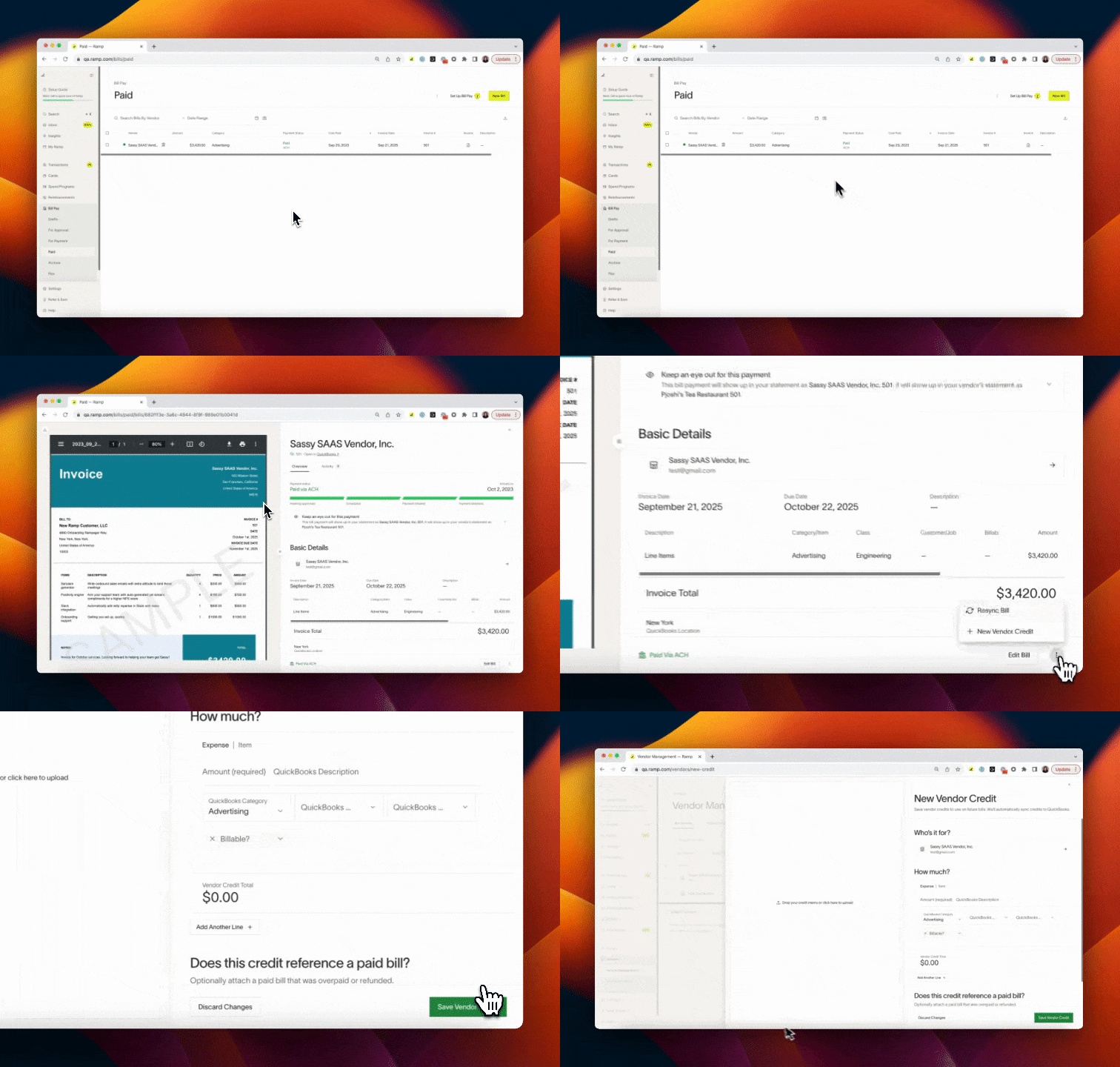
After clicking New Vendor Credit, a vendor credit form will appear where you can input relevant credit memo information. When creating a vendor credit from an existing paid bill, Ramp will automatically tie the credit to the vendor and the bill the credit was created from. Additionally, Ramp will also pull the line item coding from the linked bill and apply it to the vendor credit. If there are any vendor credit memo attachments, you may optionally upload them to the draft vendor credit.
Once all the vendor credit information has been entered, simply click Save Vendor Credit to create the vendor credit. All vendor credits are stored and easily accessible from the vendor’s profile.

If you do not see the vendor credit option
If you do not see New Vendor Credit on a bill, confirm that the bill is already in the Paid tab and linked to a vendor. If you do not see New > Vendor credit on a vendor profile, your role may not include the vendor permissions needed to create a credit from that page.
If neither option appears, confirm that your connected accounting provider is listed in the Vendor credit accounting section below. If you still cannot create a vendor credit, ask your Ramp Admin to review your Bill Pay and vendor permissions.
From the vendor profile
You can also create a vendor credit directly from the vendor’s profile in the Vendor tab. Locate the desired vendor, open their profile, click on New in the top right, then Vendor credit.
From there, you will once again have the opportunity to input all the relevant vendor credit information, such as line item amounts, descriptions, and codings, as well as a link to a reference bill, if desired. If you do link a reference bill, please note that only the paid bills connected to the selected vendor will appear in the dropdown.
Note to create a vendor credit, a vendor name and line item(s) are required. A reference bill or credit memo documents are NOT required fields.
Viewing vendor credits
All vendor credits are stored on the vendor profile they are associated with. To view a particular vendor credit, navigate to the Vendor tab, locate the desired vendor, and scroll to the vendor credit section.
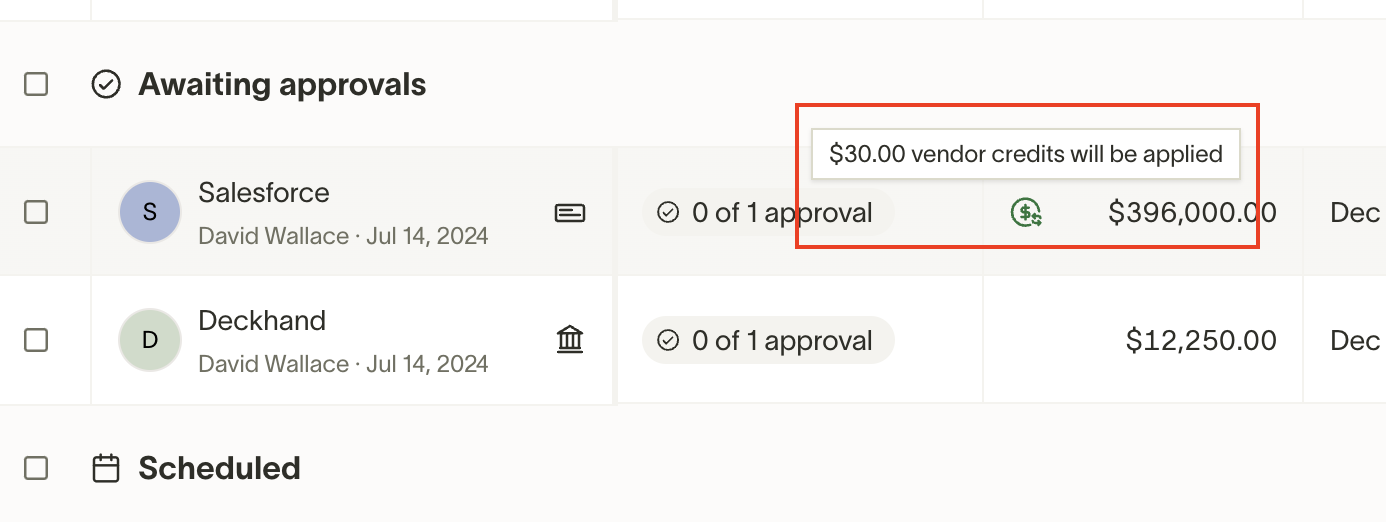
Please note: Vendor credits can also be shown on the Bills table by hovering over the payment method icon as shown in the screenshot below.
Applying a vendor credit
Ramp shows one of the following methods when a vendor credit is available for the bill. Use the method that appears on your bill.
If you see Apply available vendor credits
- Select Apply available vendor credits to add available credits to the bill's payments.
- To choose a credit or enter a specific credit amount, select Split payment, set Payment method to Vendor credit, choose the credit, and enter the Amount.
- Select an available payment method for any remaining invoice balance. Make sure the sum of all payments equals the invoice total, then use the bill's displayed submit action.
If you see Apply vendor credits
Turn on Apply vendor credits for the bill.
Ramp applies available credits in ascending order by the vendor credit's accounting date. This is not the order in which credits were created or imported, their reference-number order, or the order suggested by a month or name label. If multiple credits have the same accounting date, Ramp applies the credit with the largest remaining balance first.

Choose a vendor credit amount
Apply part of a credit
With Apply available vendor credits, you can enter an amount that is less than the available credit balance when another payment method covers the remaining invoice balance.
Apply the full credit balance
With Apply vendor credits, Ramp uses the full credit balance when the credit is less than the invoice total, and the other payment method covers the remainder.
For example, if the vendor credit is $50 USD and the bill total is $150 USD, Ramp uses the full $50 USD credit and the remaining payment is $100 USD.
Apply a credit that fully covers the bill
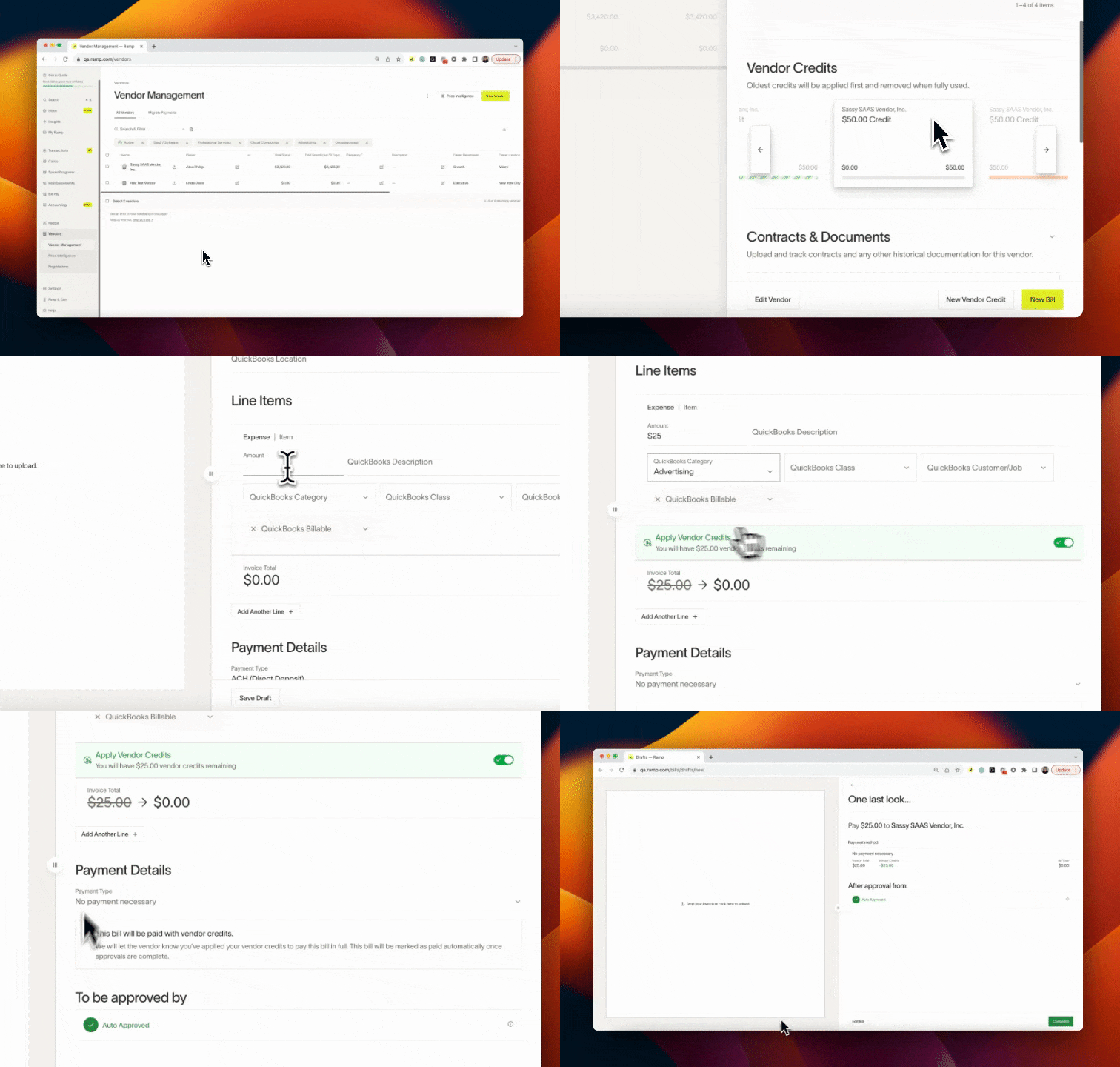
When the available vendor credit is greater than or equal to the bill total, the credit can cover the entire bill.
For example, if the vendor credit is $50 USD and the bill total is $25 USD, the remaining payment is $0 USD and the credit retains a $25 USD balance.
Bills where the vendor credit fully pays for the bill do not require a payment method. Additionally, once all approvals are received, the bill will automatically be marked as paid and will be moved to the Paid tab in Ramp.
Please note: that once a vendor credit has been applied, it cannot be edited or deleted unless the bills it is connected to are deleted or have the vendor credit removed from them.
Troubleshoot vendor credit payments
- Sum of payments must match invoice total: Change the payment amounts or select Rebalance payments so the payments equal the full invoice total.
- Vendor credit is unavailable: Confirm that the credit and bill use USD, belong to the same vendor and entity, and that the credit has an available balance. If the credit does not meet these requirements, select another eligible credit or use another available payment method. You cannot apply a credit after the payment starts or is added to a batch.
- Vendor credit has an accounting sync error: Follow the status shown in Ramp. In the legacy Apply vendor credits flow, a credit with a sync error is unavailable. Successful accounting sync is not required for every credit shown in Apply available vendor credits.
Vendor credit accounting
Please note vendor credits functionality is supported for the following accounting connections on Ramp:
- QuickBooks Online
- Xero
- NetSuite
- Sage Intacct
- Microsoft Dynamics Finance & Operations
- Deploy Ramp's latest ISV package to your F&O environment through lcs.dynamics.com before vendor credits can sync.
- Universal CSV (Beta)
- Dev API
Direct integration syncing
For accounting providers connected via direct integration (for example, QuickBooks Online, NetSuite, Xero, Sage Intacct, and Microsoft Dynamics Finance & Operations), there are two accounting syncs to consider with vendor credits.
- Vendor credit creation
- Vendor credit application
Vendor credit creation
Ramp will automatically sync your vendor credits to your connected accounting software as soon as it is created. The synced vendor credit will be tied to the appropriate vendor and will pull over all the accounting coding information you inputted within Ramp. Any updates to the vendor credit within Ramp will also be reflected in your accounting provider. However, please note that changes to the vendor credit within the accounting provider will NOT be reflected in Ramp and might, in turn, result in accounting sync errors.
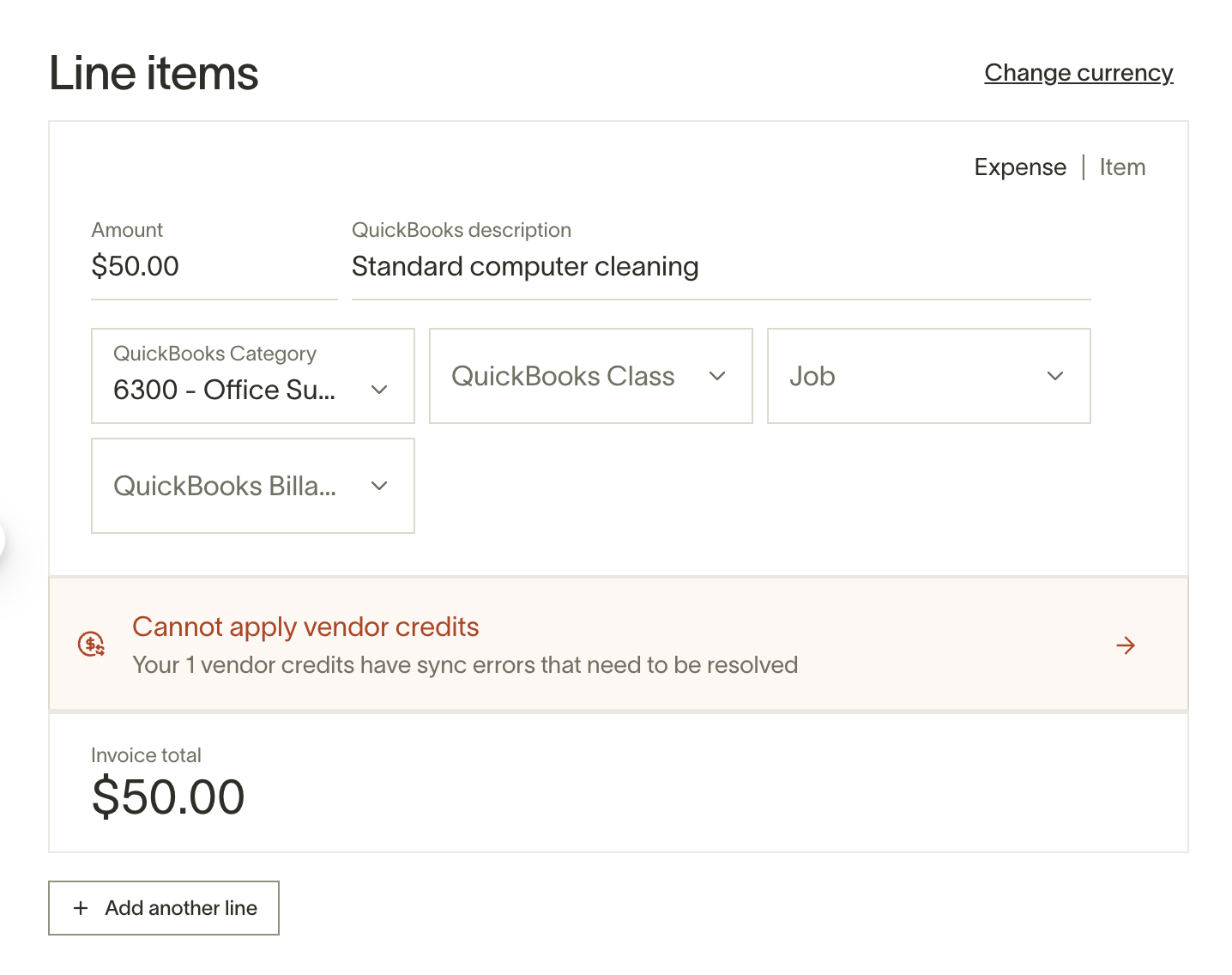
In the legacy Apply vendor credits flow, resolve sync errors before applying the affected credit. The Apply available vendor credits flow may show credits with sync errors because successful accounting sync is not a universal prerequisite. Ramp notifies you on draft bills when a sync error blocks a credit:
Vendor credit application
If you do apply a vendor credit to a bill in Ramp, Ramp will also automatically apply the vendor credit to the bill created in your accounting provider. This action will happen only once the bill payment has been initiated. For example, if you receive a $100 bill and apply for a $25 vendor credit within Ramp, the bill will initially sync as $100. However, once the bill payment is initiated, the vendor credit will be applied, and the bill payment will sync to your accounting provider, updating the bill amount to $75.
Universal CSV syncing
Ramp supports exporting vendor credits from the Accounting > Bills tab for customers on universal CSV accounting connection.
Details on how to manage and export vendor credits for uCSV connection are here
Frequently asked questions
Can I import or upload vendor credits in bulk?
No. Ramp does not support CSV or spreadsheet imports for vendor credits. You can create vendor credits one at a time from a paid bill or from a vendor profile. If you forward a vendor credit memo to your Ramp AP inbox, Ramp ingests it as a draft bill in Bill Pay Drafts rather than as a vendor credit; you then convert the draft bill to a vendor credit. See Bill Pay AP Email Forwarding.
Will Vendors get notified about applied vendor credits?
Yes, if a vendor credit has been applied to a bill, then the standard email communications to vendors will be updated to include information that a credit was applied.
Can you create vendor credits/link vendor credits to unpaid bills?
That is not possible at this time.
What happens to a vendor credit once fully applied?
Ramp will automatically remove the vendor credit, and it will not be available to be applied to future bills.
Which currencies are vendor credits supported in?
Vendor credits are currently only supported in USD.
Can you delete a vendor credit from a vendor's profile?
No, the bill will have to be archived.
Can you delete a vendor credit that has been applied to a bill?
No, it can't be deleted and will need to be marked as used.
Are vendor credits and/or payment discounts supported on imported bills?
Imported bills can use vendor credits when Apply available vendor credits appears, but payment discounts are not supported; see Importing bills from your accounting provider for details.