Bill Pay AP email forwarding
Overview
Ramp AP email forwarding gives your team a dedicated @ap.ramp.com inbox for vendor emails. By default, Ramp processes emails from recognized employees and vendors, reviews supported attachments, creates draft bills from invoices and vendor credit memos, attaches relevant supporting documents, and filters out other files, decorative assets, exact duplicates, and files that cannot be processed. Forwarded vendor credit memos are created as draft bills, not vendor credits; you can convert a draft bill to a vendor credit after review.
Use AP forwarding when you want to turn vendor invoice emails into draft bills without re-uploading files by hand. Looking for other ways to add invoices? See Uploading invoices and bills on Ramp Bill Pay.
Set up AP email forwarding
Important: Your @ap.ramp.com address is unique to your business and is for Bill Pay invoices only; contracts and renewal documents sent there won't reach contract management. Send those documents to [email protected] instead, or see Forward contract documents by email.
Find your Ramp AP email address
Ramp creates a dedicated AP forwarding address for your business. The format is <company-name>@ap.ramp.com. For example, if your business is called Super Fast Inc, your AP email address would be [email protected].
Go to Bill Pay > Bills, select New bill, then select Forward invoices to pre-fill drafts.
Multi-entity inboxes
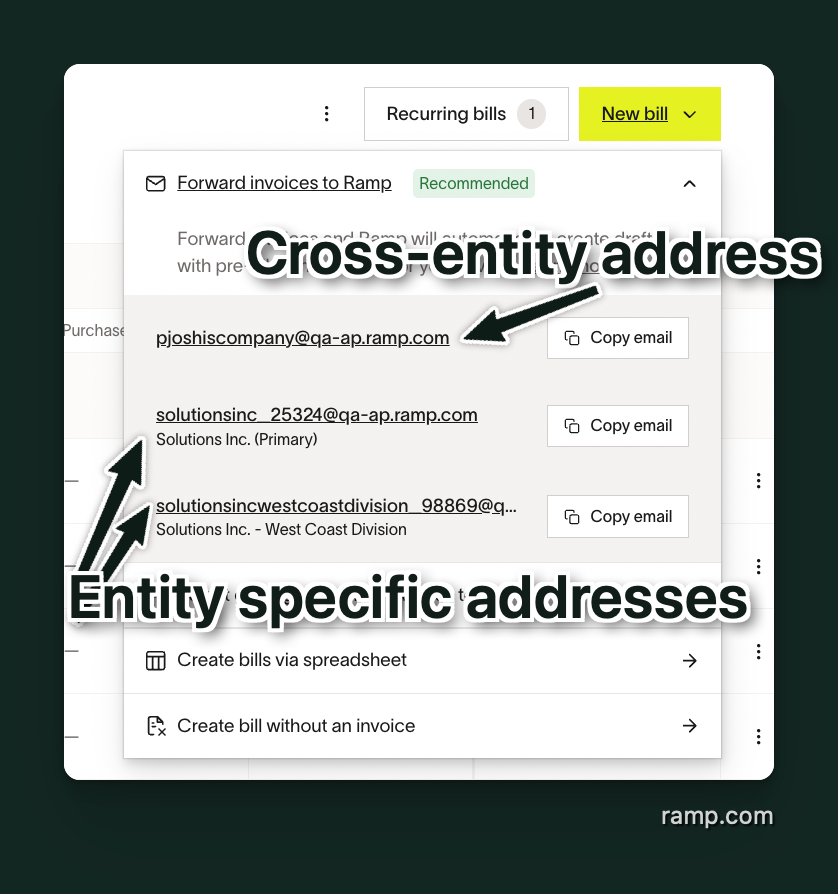
If you use Ramp Multi-Entity, you will have an AP inbox for each entity plus a shared cross-entity inbox.
An inbox can preselect an entity, but invoice processing and bill defaults can change which entity the draft uses. See how Ramp selects an entity for a draft bill.
- Entity-specific address: Emails sent to an entity-specific inbox create draft bills with that entity preselected.
- Cross-entity address: The shared inbox does not supply an entity; Ramp may select one based on the vendor or prior bills.
Manual forwarding and auto-forwarding
You can manually forward individual vendor emails to Ramp or set up automatic forwarding from a shared AP inbox. Auto-forwarding works best for teams that receive invoices and vendor documents in a centralized mailbox.
If your business connects Gmail for AP inbox automation, Ramp does not also process emails sent through AP forwarding. Use one ingestion method for the connected inbox.
Ramp automatically verifies forwarding requests, so you no longer need to contact Ramp Support to finish setup.
Set up auto-forwarding with Google Workspace
- From the inbox you want to forward from, follow Google's instructions for email forwarding .
- Add your Ramp AP email address as the forwarding destination.
- Ramp automatically approves the forwarding verification email.
- Send a test invoice to confirm it creates a draft bill in Ramp.
Set up auto-forwarding with Microsoft 365 or Outlook
- Follow Microsoft's instructions for automatic forwarding .
- Add your Ramp AP email address as the forwarding destination.
- Send a test invoice to confirm it creates a draft bill in Ramp.
Choose which forwarded emails create draft bills
Users who can manage Bill Pay settings can choose which senders' emails Ramp processes and which attachments become draft bills. If you cannot access Bill Pay settings, ask an Admin who can manage them for your business.
- Open Bill Pay importing and forwarding settings.
- Under Automatic draft creation, configure the two settings below.
Choose which senders Ramp processes
Process emails controls which senders' emails Ramp processes. Choose one option:
- Only if sent by employees or my vendors: This default option processes emails when Ramp recognizes the sender, someone in the forwarding chain, or someone in the To field as an employee, a company-domain user, or a vendor contact.
- Only if sent by employees: Ramp processes emails sent directly by registered employees at your company.
- Always, regardless of sender: Ramp processes emails without checking whether the sender matches an employee or vendor.
If an email does not match the selected Process emails option, Ramp does not process its attachments or create draft bills.
Choose which attachments become draft bills
After an email passes the Process emails setting, Create drafts from attachments controls which attachments become drafts. Choose one option:
- Only if they appear to be invoices: This default option classifies attachments before creating drafts. Ramp creates draft bills from invoices and vendor credit memos, attaches supporting files to drafts created from the same email, and filters out other documents and decorative assets.
- Always, regardless of attachment: Ramp creates a draft bill from each supported, processable, nonduplicate attachment. Image files still receive a loose check so decorative image assets do not create drafts.
Neither setting changes which file types Ramp supports or how Ramp handles duplicate and unprocessed files.
Supported AP forwarding attachments
Ramp supports PDF, PNG, JPG, JPEG, WebP, GIF, HEIC, CSV, Word, and Excel attachments. Word files include DOC and DOCX, and Excel files include XLS and XLSX.
Ramp cannot process unsupported, password-protected, encrypted, empty, or unreadable files. These files do not create drafts under either Create drafts from attachments option. You do not need to convert supported files before forwarding them.
What Ramp creates from forwarded emails
An email must first match the selected Process emails option. Ramp then applies Create drafts from attachments: with Only if they appear to be invoices, Ramp creates draft bills only from attachments it identifies as invoices or vendor credit memos. With Always, regardless of attachment, each supported, processable, nonduplicate attachment creates a draft bill unless it is a decorative image asset.
Draft bills and vendor credit memos
If Ramp detects a bill and the forwarded email meets the criteria above, Ramp creates a draft bill in Bill Pay and uses OCR to pre-fill invoice number, due date, total, line items, vendor details, and payment details when possible. Ramp also attaches the forwarded email itself to the draft bill for context. Learn how to review and edit draft bills in Creating draft bills on Bill Pay.
If an email includes multiple invoices, Ramp creates a separate draft bill for each invoice it detects. If one attachment contains multiple invoices, add [Split] to the email subject line to ask Ramp to separate them into draft bills.
If Ramp detects a vendor credit memo, Ramp creates a draft bill for it in the Drafts tab — not a vendor credit. To record it as a vendor credit, open the draft bill from Bill Pay > Drafts and select Create vendor credit; Ramp asks you to confirm (Convert to vendor credit?), then deletes the draft and creates the vendor credit on the vendor. This requires an accounting provider that supports vendor credits. Learn more in Vendor credits / Credit memos on Ramp Bill Pay.
With Only if they appear to be invoices, Ramp attaches supporting files to every draft created from the same email. If the email does not create a draft, Ramp cannot attach its supporting files.
Why a forwarded attachment did not create a draft
First, confirm that the sender meets the selected Process emails option. If the sender does not match that option, Ramp does not process the email's attachments.
If the sender matches, review Create drafts from attachments. With Only if they appear to be invoices, Ramp filters out attachments that are neither invoices nor vendor credit memos and supporting files that cannot be attached to a draft. With Always, regardless of attachment, Ramp still filters out decorative image assets. Ramp filters out exact duplicates and unprocessed files with either option.
If you expected a file to create a draft bill, confirm that the file is supported, processable, and not an exact duplicate. With Only if they appear to be invoices, also confirm that the file contains an invoice or vendor credit memo. You can upload the file manually from Bill Pay Drafts.
If you expected a forwarded credit memo to appear in Drafts, confirm that the file is a vendor credit memo and meets the forwarding requirements above. Forwarded credit memos appear as draft bills; convert one to a vendor credit with Create vendor credit, or create a vendor credit manually. See Draft bills and vendor credit memos.
If you receive a confirmation that says No invoice found in your attachment, Ramp did not create a draft from that attachment. Review the checks above or upload the file manually from Bill Pay Drafts.
Ramp filters out exact duplicate files automatically by checking the file hash. If a vendor sends an updated file, the hash can differ and the file may still create a draft. In that case, Bill Pay can still flag a potential duplicate invoice when the vendor name and invoice number match an existing bill.
Email notifications
- Documents received confirmation: Ramp replies to the forwarded email with a summary of draft bills created, relevant supporting documents attached, and files that were not processed.
- Files not processed: The summary can include files Ramp did not process because they were not identified as invoices or vendor credit memos under Only if they appear to be invoices, were not relevant to draft bills, were exact duplicates, were password-protected or encrypted, or were not supported file types.
- Notification preferences: You can turn these emails off from personal notification settings under Bill Pay.
Frequently asked questions
Can vendors send documents directly to my Ramp AP email address?
Yes, if the vendor's email matches your selected Process emails option. The default Only if sent by employees or my vendors option processes email from vendor contacts Ramp recognizes. Many teams still prefer auto-forwarding from a shared AP inbox so they can review vendor emails before Ramp creates draft bills.
What happens if I forward a mix of invoices, vendor credits, and other documents?
Ramp creates draft bills for both invoices and vendor credit memos. Related vendor documents can be attached to the bill for reference, and other unrelated documents are filtered out automatically. To record a forwarded credit memo as a vendor credit, see Draft bills and vendor credit memos.
What happens if a forwarded file is not a bill?
If Ramp identifies it as a vendor credit memo, Ramp creates a draft bill for it, which you can convert to a vendor credit (see Draft bills and vendor credit memos). Otherwise, Ramp filters it out unless the file appears relevant to an invoice in the same email and can be attached to that draft bill for reference. Spam and duplicate files are filtered out automatically.
Can I change my Ramp AP email address?
Your AP email address is automatically generated by Ramp when your business is set up. You cannot change it yourself in the Ramp product. To request a custom AP email address, contact Ramp Support.
Do I still need Ramp Support to approve forwarding verification emails?
No. Ramp automatically verifies forwarding requests when auto-forwarding is enabled.