Creating draft bills on Bill Pay
Overview
Ramp makes it easy to upload, draft, and review bills on Bill Pay. Customers can streamline ways to add invoices into Ramp, manage their bill attachments, and even automate their bill data entry with OCR technology.
Uploading invoices
Bill Pay offers customers multiple ways to add and upload invoices within Ramp.
- AP forwarding for invoice emails
- CSV / Spreadsheet upload
- Drag-and-drop invoices
- Internal Invoice via Vendor Network
Read more about uploading invoices in Uploading invoices and bills on Ramp Bill Pay. For AP forwarding, Ramp creates draft bills for invoices and vendor credit memos, attaches relevant supporting documents, and filters out files that are neither invoices nor vendor credits, are not relevant to a draft bill, are exact duplicate files, or cannot be processed. Supported file types include PNG, JPG, JPEG, Excel, CSV, and Word documents, in addition to PDFs. For more detail, see Bill Pay AP Email Forwarding.
Managing bill attachments and documents
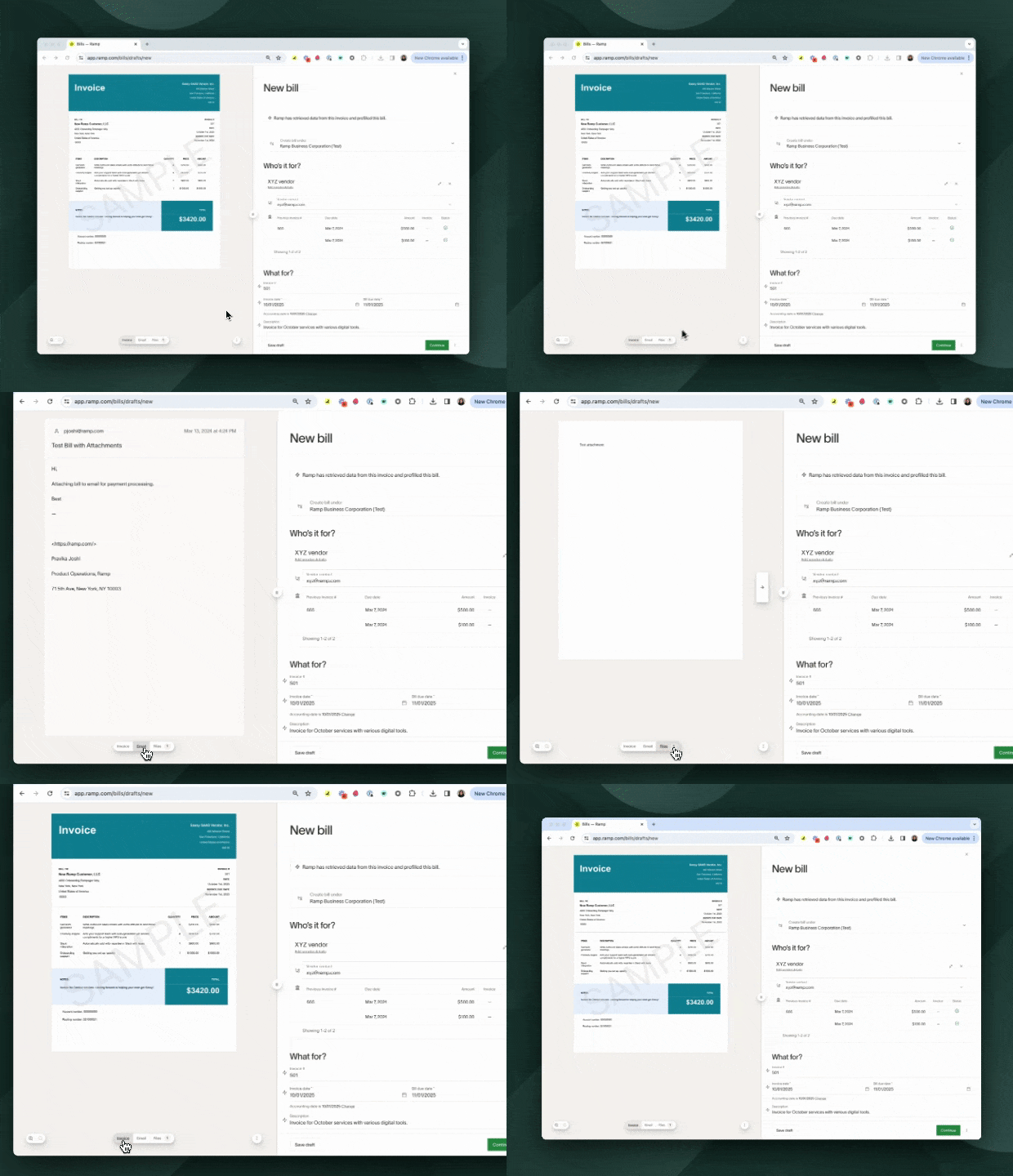
Any bill attachments uploaded via drag and drop or added through AP forwarding will appear on the left side of the bill once you click on it. For each bill you'll be able to upload the following documents:
- Invoice - the primary invoice file for the bill.
- Email - if the bill was created through AP forwarding, Ramp will pull in the email to provide additional context when drafting the bill
- Files - any additional supporting documents can be added to the bill manually or attached automatically from the same forwarded email when available
Actions on bill attachments
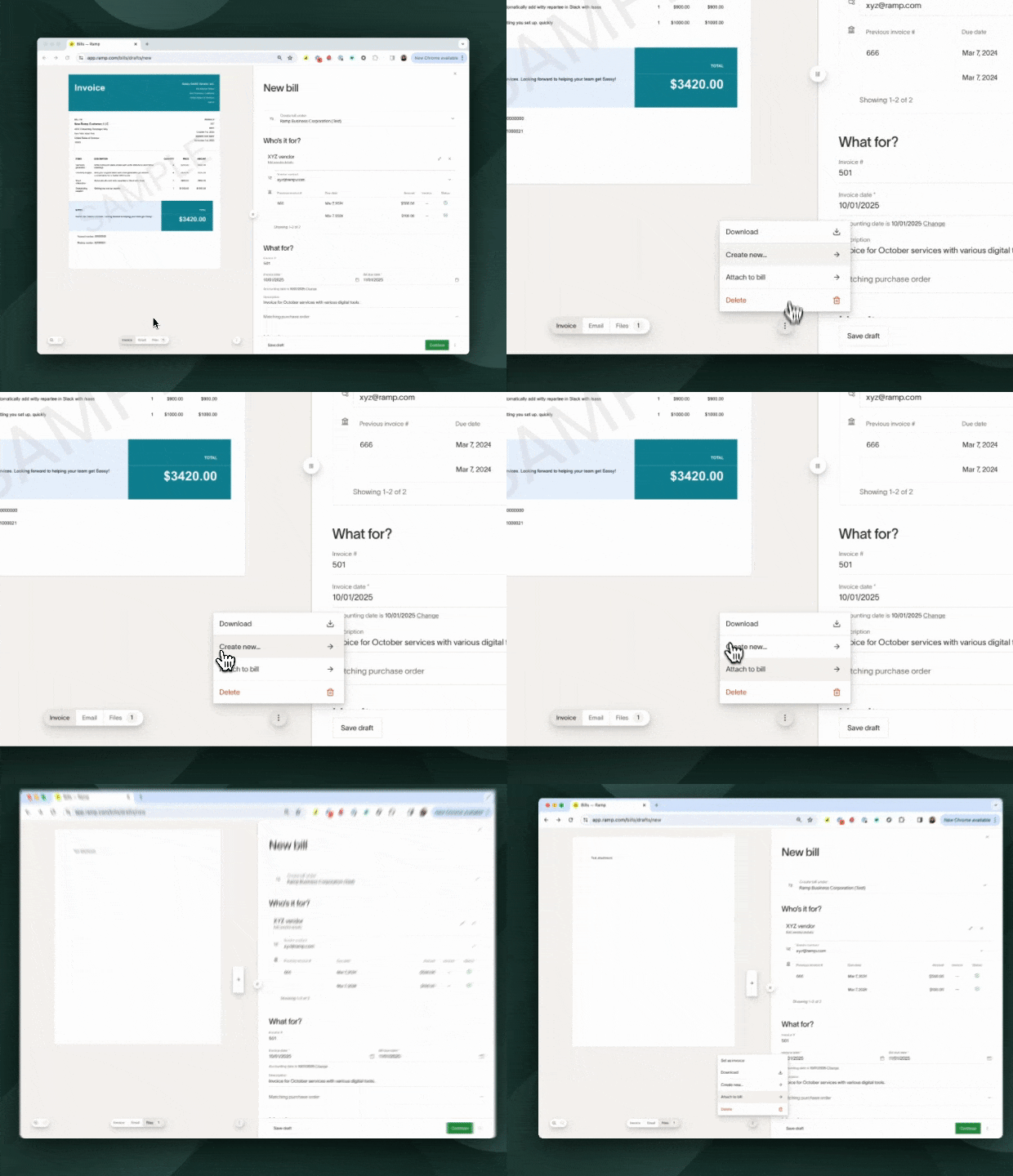
Ramp also allows you to easily perform simple actions on your bill documents:
- Download - download the current document you are viewing
- Set as invoice - set a document in the files tab as the bill invoice
- Note that this will be the document that's synced over to your ERP. See Syncing attachments to ERPs below.
- Create New
- Bill - create a new bill from the selected document
- Vendor Credit - create a new vendor credit from the selected document
- Attach to bill - add the selected document to another bill in drafts. Note you cannot attach to bills that are beyond the draft stage (e.g. bills in the approvals or payments tab)
- Delete - remove the selected document from the bill
Syncing attachments to ERPs
When a bill syncs to a directly integrated accounting provider, Ramp pushes the actual invoice PDF to your ERP — not just a link back to Ramp. The synced document is whichever file is set as the bill's Invoice. If the invoice document is changed or updated, Ramp re-syncs the attachment and overwrites the previous document.
Ramp syncs the invoice PDF for these accounting integrations: QuickBooks Online, Sage Intacct, Xero, Acumatica, Microsoft Dynamics Business Central, Microsoft Dynamics Finance and Operations, Oracle Fusion, Workday Financial, and Zoho Books.
QuickBooks Desktop handles invoice attachments differently: Ramp can't sync the invoice PDF because of a QuickBooks Desktop API limitation. See QuickBooks Desktop integration API overview.
Scanning and parsing invoices via OCR
Ramp takes advantage of Optical Character Recognition (OCR) technology to scan and parse invoices, allowing for the extraction of key invoice details and automatic data entry into bills in Ramp.
Once an invoice document is added to drafts - either via AP forwarding or via drag & drop - Ramp will begin scanning the document to pull relevant fields found on the invoice. Specifically, Ramp can extract the following fields if present on the invoice:
- Invoice details
- Invoice number
- Invoice receive date
- Invoice due date
- Invoice total
- Invoice line items + description
- Purchase Order number
- Vendor details
- Vendor name
- Vendor contact info (email, phone, address)
- Payment details
- ACH routing numbers / account numbers
- Mailing address
- International wire details
OCR typically takes 30–60 seconds. We recommend waiting until OCR is complete before editing the bill in Ramp since once you edit the bill, Ramp’s OCR will end.
Note that Ramp will only OCR the document that's set as the “Invoice” document for the bill. Ramp won't run the OCR on the additional attachments — i.e. the email or the additional files. Also, Ramp won't re-run the OCR if a file is changed and set as the invoice as OCR is only run once per bill.
Editing and reviewing bill details
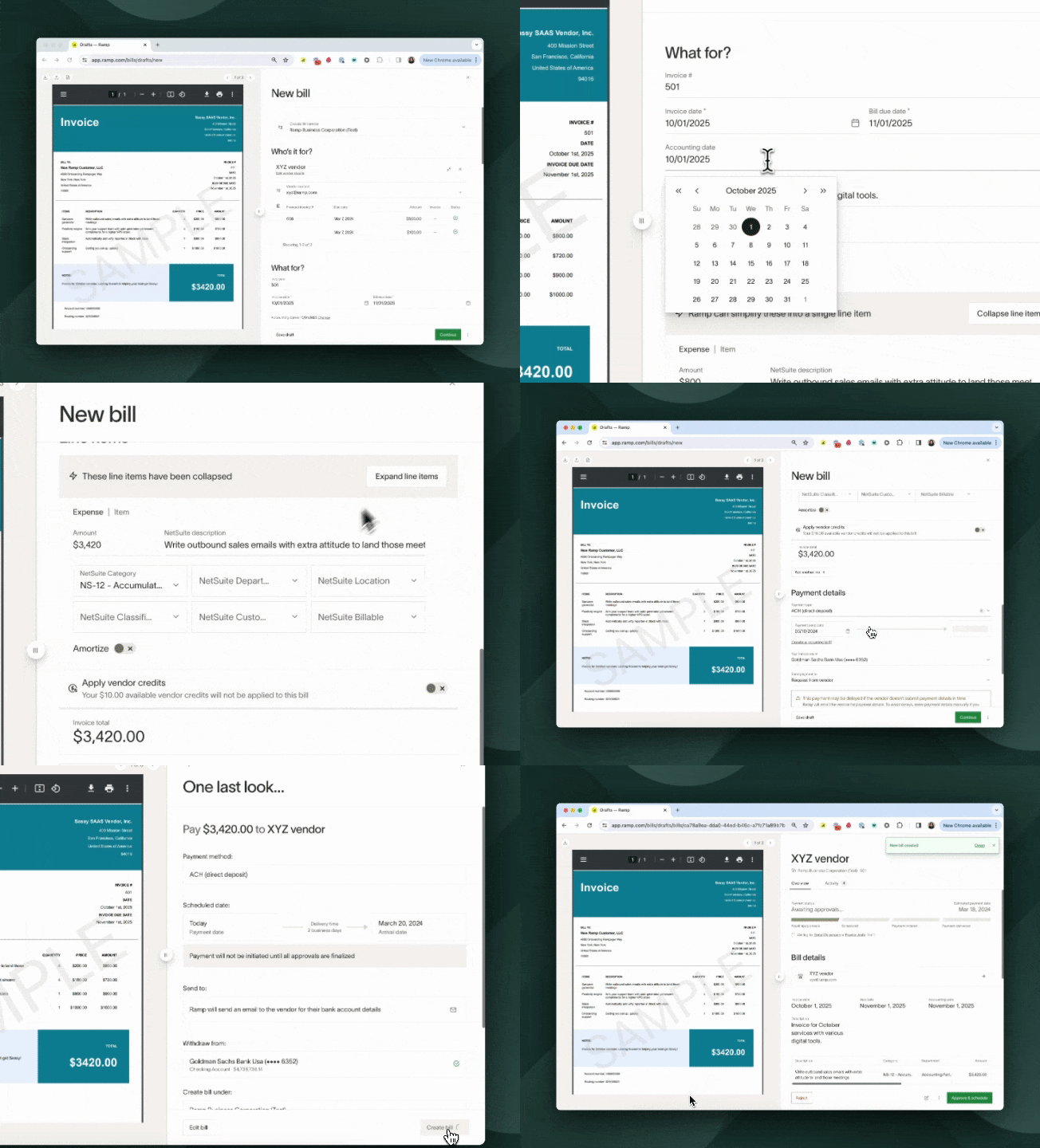
Review and edit the draft bill before submitting it for approval. Typically, the default accounting codes are added to the bill, the payment method and dates are verified, the accounting period is verified, and any necessary edits are made to the approval chain before submission. Ramp enables users to add comments and initiate discussions on draft bills.
Removing line items
To remove a line item from a bill, open the bill from Bill Pay, click the three-dot menu (⋮) on the line item row, and select Delete. The line item is removed when you save the bill.
Every bill must have at least one line item, so the Delete option is not available on the last remaining line item. The option is also unavailable if the bill belongs to a closed accounting period — reopen the period in your accounting provider first — or has been exported to your accounting provider without auto-sync enabled. For more on editing constraints, see Editing Bills in Bill lifecycle.
Ramp does not support bulk deletion of multiple line items at once. To remove several line items, delete them individually using the three-dot menu on each row.
Bill creation defaults
Ramp can further streamline bill creation by leveraging default payment terms, default entities, default vendor codings, and remembering previously used payment methods on a bill.
Default payment terms
Ramp uses default payment terms from the vendor profile to calculate a due date when a bill does not already have one. For Smart OCR bills, Ramp preserves an extracted due date and uses invoice date + vendor payment terms only when Smart OCR returns no due date. Classic OCR recalculates an extracted due date from vendor terms when Ramp matches the vendor and finds an invoice date. For example, if the invoice date is 1/1 and the payment terms are 30 days, Ramp sets the due date to 1/31. Available options include Due on receipt, 7, 10, 15, 30, 45, 60, 90 days, or a custom number of days. To configure net payment terms for a vendor, see Net payment terms in Vendor management on Ramp.
Default entities
Ramp may retain an entity already on a draft. When invoice processing matches a purchase order with an entity, that entity takes precedence. For Ramp Multi-Entity businesses, an entity-specific AP inbox supplies an initial entity, but a different vendor default can take precedence. When available and sufficiently reliable, invoice entity recognition may replace an unconfirmed selection with an entity identified from the invoice. These are conditional invoice-processing decisions, not a fixed sequence for every way of creating a bill.
If the draft still has no entity after invoice processing and a vendor is identified, Ramp tries these defaults in order. Access and vendor compatibility can limit which entities are available:
- The entity associated with the forwarded invoice, if one is available. A shared cross-entity inbox does not supply an entity.
- The vendor's default entity.
- The entity on the most recently created bill for that vendor.
- The entity on the most recently created bill across your business.
- An available entity assigned or preferred for you, then your business's initial entity, then another available entity.
For invoices sent to a shared inbox, if Ramp cannot identify a vendor, the draft may have no entity. In that case, entity restrictions alone will not hide it; who can see it still depends on their draft permissions. An entity-specific inbox supplies an initial entity, but draft visibility also depends on other permissions and a person's connection to the draft. See how employees gain access to Bill Pay bills.
Vendor default accounting codings
You can set default codings for a given vendor in their vendor profile within the Vendors tab in Ramp. If a vendor doesn't have default coding set, and a category is applied to a bill for that vendor, this will automatically be saved as the vendor's default accounting. Existing default accounting fields will never be overwritten, this will only be set if the field is empty.
Vendor default payment method
Ramp will automatically set the first payment method added to a vendor as the default payment method, but you can update the default at any time. Changing the default payment method allows you to update the payment method on any pending bills. Read more about setting a default payment method here.
Copying a draft bill
To help streamline bill creation, you can now duplicate any draft bill by selecting Copy draft bill. This will create a new draft with the following fields copied over:
- Vendor
- Description
- Invoice
- Currency
- Entity
- Line item amounts and descriptions
- Accounting fields (both at the bill level and line item level)
You can edit the duplicated draft bill before submitting it for approval or payment.