Importing bills from your accounting provider
Overview
Ramp gives customers the ability to pull bills directly from their accounting provider and pay them on Ramp Bill Pay. This feature is supported for accounting provider integrations with Sage, QuickBooks, NetSuite, Xero, QuickBooks Desktop, Acumatica and Zoho Books.
How to set up bill import from accounting provider
First-time guided setup
When you enable bill importing for the first time, Ramp walks you through a guided setup to configure your payment defaults before any bills are imported.
Note: Vendor importing must be enabled before you can import bills. If you have not already enabled vendor importing, Ramp will prompt you to turn it on during setup. Learn more in Two-Way Vendor Sync.
- Go to Bill Pay > Settings > Importing & forwarding .
- Click Enable on the import bills card.
- On the Set up importing bills page, review your payment defaults:
- Review default funding account — Select the bank account Ramp will use to pay imported bills. For multi-entity businesses, use the entity switcher to set a default account for each entity.
- Set default vendor payment method — Download the vendor payment details template, fill in the default payment method for each vendor with open bills, and upload the completed template. You can skip this step and update vendor payment methods later.
- Choose which vendors to import bills from:
- All bills — Imports bills from all vendors in your accounting provider.
- Only bills from certain vendors — Select specific vendors to include or exclude from bill importing.
- Configure whether imported bills require approval. See Bill approvals for imported bills for details.
- Click Finish & import bills to begin importing.
Note: Ramp imports all open bills from your accounting provider that are less than 1 year old. The initial import may take 30 minutes to 2 hours depending on volume.
Import settings
To adjust your import settings after the initial setup, or to enable importing without the guided setup:
- Go to Bill Pay
- Select Settings from the three-dot menu in the upper right corner
- Click the Importing tab
- Toggle the Import bills option ON. Note that we will only import bills less than 1 year old in your accounting system.
- If you don't already have vendor importing turned on, we will ask you to enable it here. Select if you would like Ramp to automatically import vendors from your accounting software. Learn more about importing vendors here.
- We recommend selecting the importing vendors with bills option, which will only import vendors associated with AP in your accounting system, rather than all your vendors.
- You can specify which vendors to exclude from bill imports from your accounting provider. When you choose to import only AP vendors (vendors with bills), these vendors are automatically added to the exclusion list.
- We do not support automated vendor importing for users on Acumatica, QBD and Zoho Books . If you are on this integration, you can bulk upload your vendors via CSV from the Vendors page by selecting New vendor. Bills will not import unless the vendor exists in Ramp.
- If there are vendors that you do not intend to pay bills for in Ramp, you can add them to an exclusion list. In Settings under Importing, click Configure and then add the vendors to the list you do not want bills to import for.
- The initial vendor and bill import may take anywhere from 30 minutes to 2 hours to populate, depending on the volume of vendors and bills. However, they should begin to populate after that time in your Vendor table and Bills table.
- Moving forward, any updates from your accounting provider will take ~10 minutes to refresh in Ramp as long as you sign in to Ramp, which will automatically initiate the refresh. Learn more about how Ramp syncs with your accounting provider below.
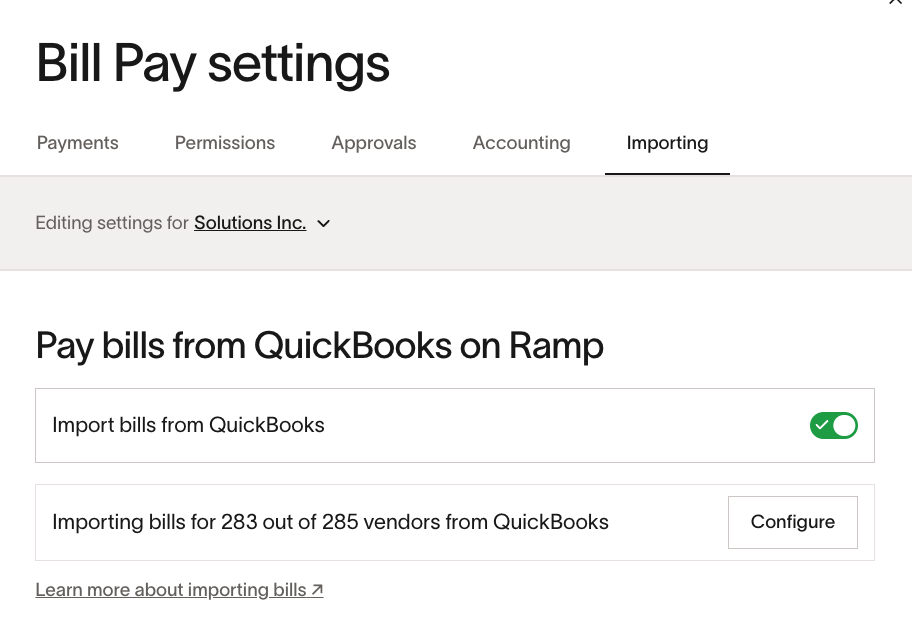
Setting up defaults for imported bills
Before importing bills, configure your default funding account and vendor payment methods to ensure imported bills have the correct payment details. You can set these during the first-time guided setup or adjust them at any time in Bill Pay settings.
Default funding account
The default funding account determines which bank account Ramp debits to pay imported bills.
- Go to Bill Pay > Settings > Payments tab.
- Under Default payment account , select the bank account you want to use.
- For multi-entity businesses, use the entity switcher to set a default account for each entity.
Note: You can override the funding account on individual bills if needed.
Default vendor payment methods
Imported bills use the default payment method configured for each vendor. If no default is set, Ramp uses the payment method from the most recent bill paid to that vendor. To set default payment methods in bulk:
- During the guided setup , download the vendor payment details template.
- Fill in the default payment method for each vendor with open bills in your accounting provider.
- Upload the completed template to apply the updates.
You can also set a default payment method for individual vendors when creating or editing a bill by selecting Set as default payment method. Learn more in Bill creation defaults.
How defaults are applied to imported bills
When a bill is imported, Ramp assigns a funding account and payment method using the following priority:
Funding account priority:
- Most recently used funding account for the vendor
- Default Bill Pay account for the entity
- Most recently used funding account across your business
- First eligible bank account
Payment method priority:
- Default payment method set on the vendor
- Payment method from the most recent bill paid to the vendor
- ACH, check, or other available method based on vendor payment details
Bill approvals for imported bills
By default, imported bills are auto-approved and bypass your configured bill approval policy. Admins can change this setting so that imported bills go through the standard bill approval workflow before they can be scheduled for payment.
To configure bill approvals for imported bills:
- Go to Bill Pay > Settings > Importing & forwarding .
- Click Configure .
- Under Require approvals on imported bills? , select one of the following:
- Auto-approve imported bills (default) — Imported bills skip the approval chain and go directly to the payment stage.
- Require approvals for imported bills — Imported bills go through your configured bill approval workflow, the same as bills created on Ramp.
You can also configure this during the first-time guided setup.
Note: Payment release is separate from bill approval. An imported bill's payment requires release only if its payment-release branch includes an approval step.
How to pay imported bills on Ramp
By default, imported bills are auto-approved and bypass your configured approval policy. These auto-approved bills appear in Payment required with the status Payment details needed or Unscheduled. If payment release is required for their payment, they may instead have the status Ready for release or show progress through multiple release approvals. If you have enabled approvals for imported bills, imported bills first appear in For approval and follow your bill approval workflow before moving to Payment required for scheduling.
Ramp will be able to pull the following information from your accounting software into Ramp to create the bill:
- Vendor
- Bill amount
- Bill currency
- Invoice number
- Invoice date
- Bill due date
- Subsidiary (if multi-entity customer)
Note: Line item accounting codes (such as GL accounts, classes, departments, and other categories) are not imported with the bill. You will need to code these fields in Ramp after the bill is imported.
Click into a specific bill to begin adding the necessary payment details such as payment method, pay from account, pay to account, and the schedule date. Click Review payment to take a final look at the bill details and schedule it for payment.
If the vendor has already been set up in Ramp with payment details, or you've already paid this vendor before on Ramp, then we'll default to that vendor's payment details on the imported bills. In this case, the bill will import with the status of Unscheduled.
On the assigned scheduled date, Ramp will initiate the bill for payment and deliver funds to the associated vendor.
Note, only payment details can be modified on imported bills. Bill details like the vendor, invoice amount, or due date must be updated within the accounting provider.
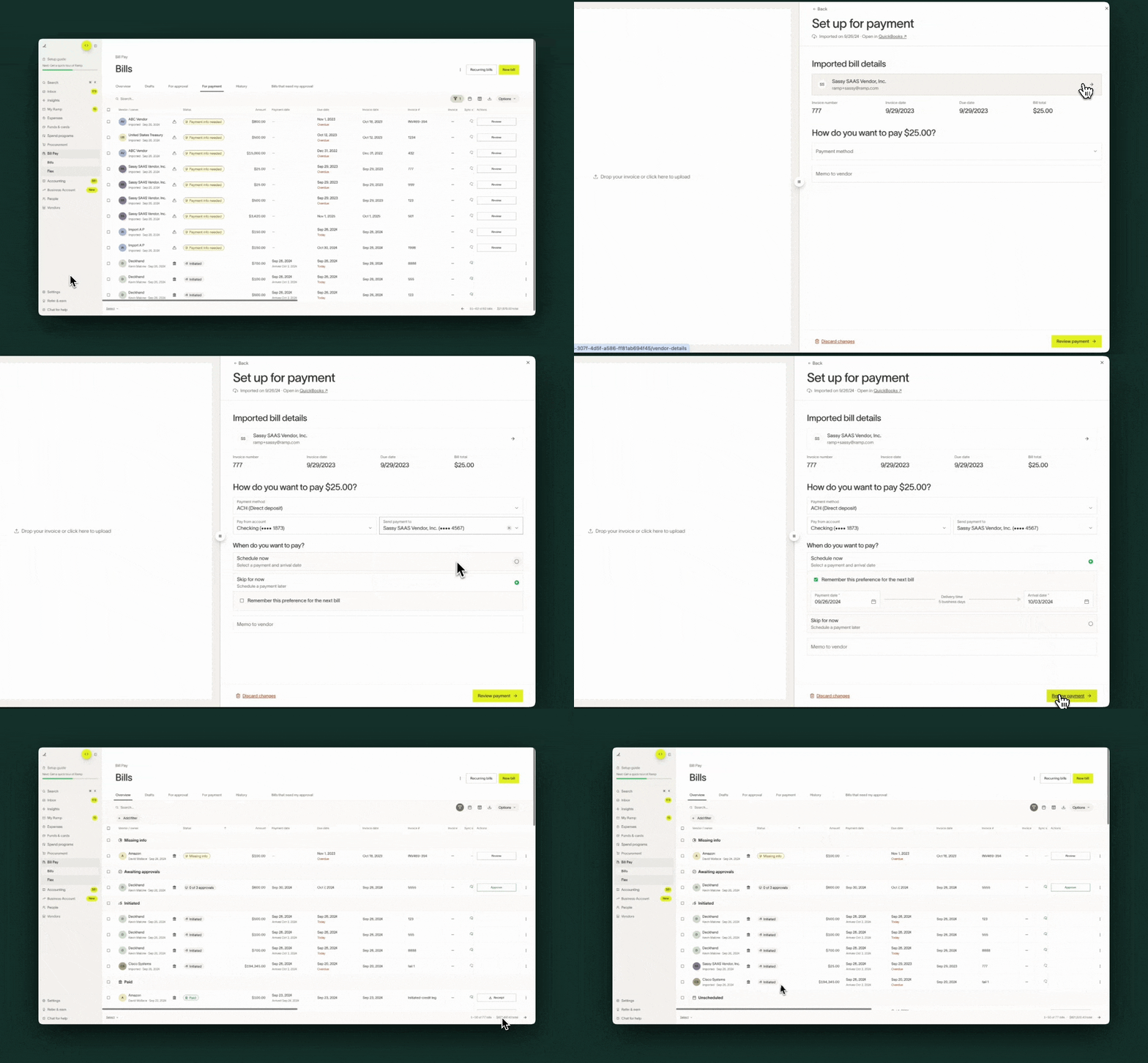
Imported bill status defaults
When bills are imported into Ramp, they appear in For approval, Payment required, or History depending on status.
Ramp defaults the payment method on imported bills according to the same logic used for bills created on Ramp. See How defaults are applied to imported bills for the full priority order.
- If the vendor has been paid before on Ramp, we will default to the payment method and payment details used on the last bill paid
- If the vendor has not been paid before on Ramp, but has payment details stored on them in Ramp, then we will default to that corresponding payment method and payment details (e.g. if a bank account has been saved to the vendor, we will default to ACH and that bank account)
- Learn more about bill creation defaults here: Bill creation defaults
Depending on if payment method is automatically set on the imported bills, this will result in an imported bill having a variety of statuses:
- Payment details needed: Payment method was not automatically set, as the vendor has not been paid before on Ramp or vendor is missing payment info
- Ready for payment: Payment method has been automatically set to "pay outside of Ramp" according to Bill creation defaults
- Unscheduled: Payment method has been automatically set to ACH, Check, or International Wire according to Bill creation defaults. If the payment requires release approval, it may instead show Ready for release or progress through multiple release approvals.
- Archived: The imported bill was deleted in the accounting system
- Paid: The imported bill was updated to Paid in the accounting system
How Ramp syncs bills and payments for imported bills
Syncing bills into Ramp
We will refresh the importing sync automatically every 24 hours. In addition, we will initiate another sync refresh every time you sign in to Ramp.
If you need to refresh the sync, you can do so manually by clicking "Refresh" in the banner above your bills table. We also provide the date and time of the latest sync refresh in that same banner.
After a sync is initiated, it typically takes 2-5 minutes for new bills to load into Ramp, or imported bills to update with changes made in your accounting system. The date and time of your latest sync should update in the banner, once the sync task has completed.
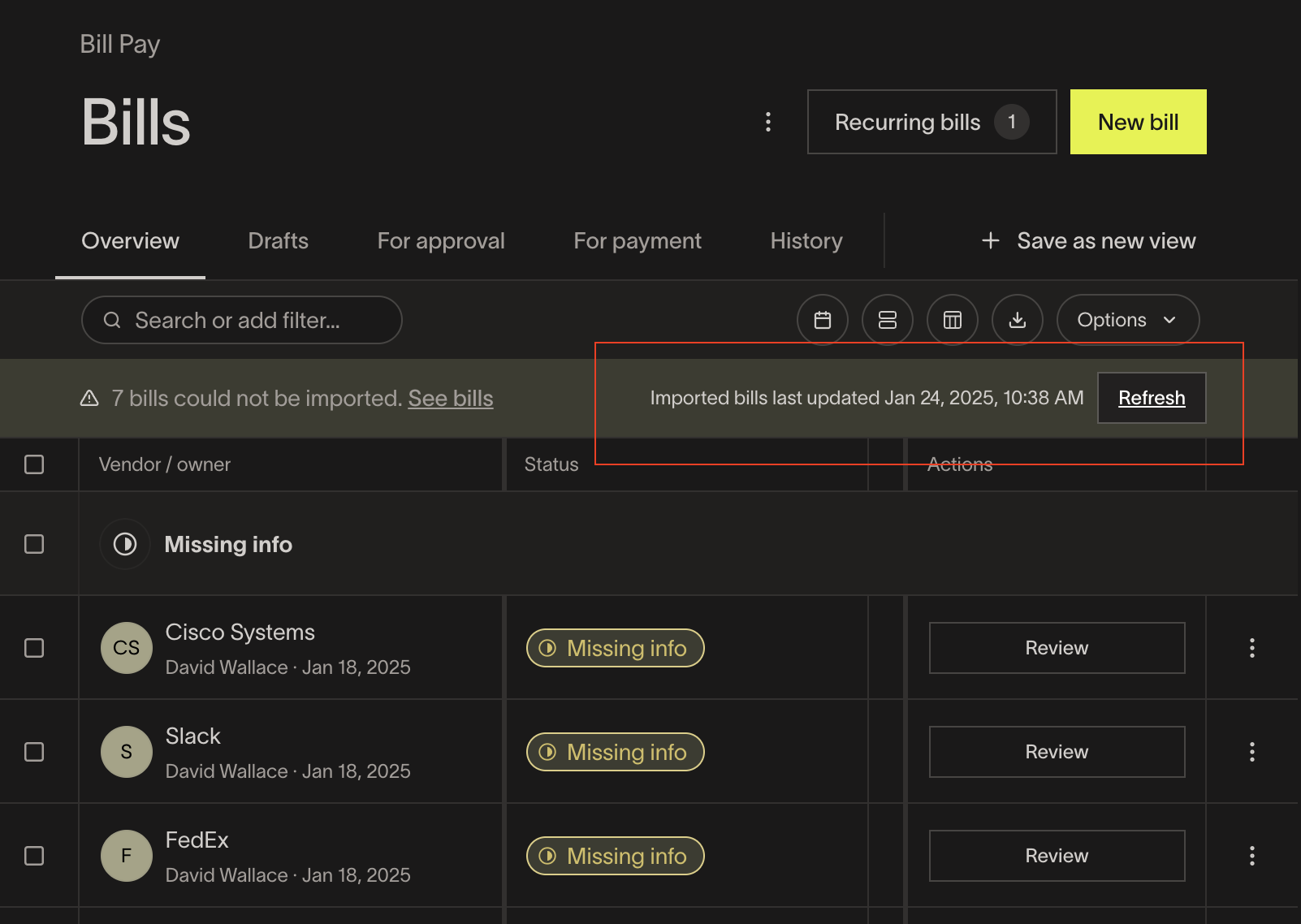
Syncing payments from Ramp
We sync payments for imported bills, the same way we sync payments for bills created on Ramp. On the schedule date, Ramp will initiate a debit from the selected source account on the bill. At the same time, Ramp will sync over an associated bill payment object to the open bill in your accounting provider and mark it as paid.
Learn more about how Ramp syncs bill payments to the accounting system here.
How to troubleshoot bills not importing
If bills are not importing, we'll surface a banner at the top of the Bills table letting you know. QuickBooks Online does not support importing non-USD bills. NetSuite, Sage Intacct, and Xero support importing bills in any currency.
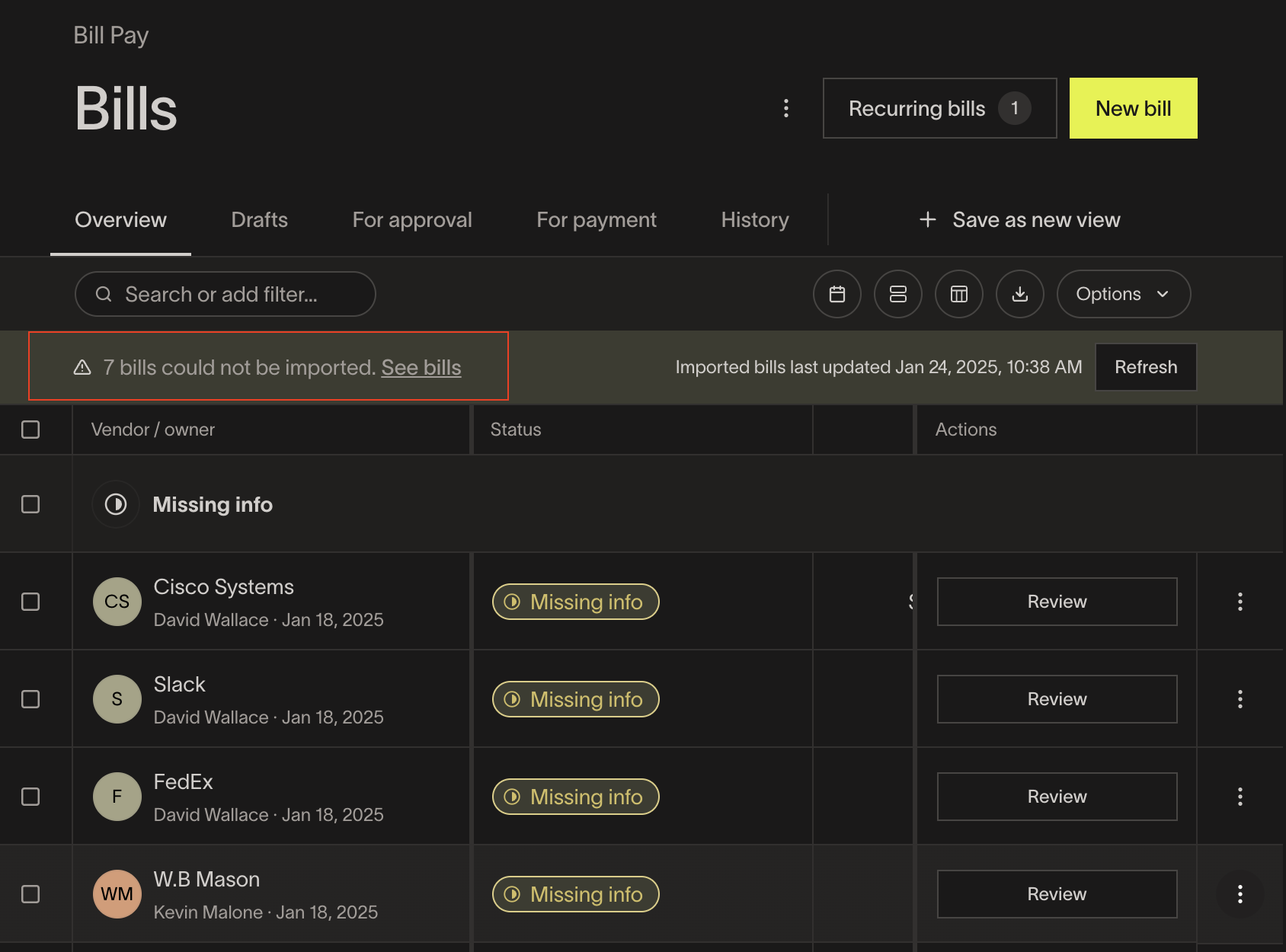
If you click into the banner, you'll see a screen with a list of bills that could not import along with the reason they could not import. We will hyperlink the invoice in this screen so you can click into it in your accounting provider.
Below are the reasons included, along with troubleshooting steps for each reason.
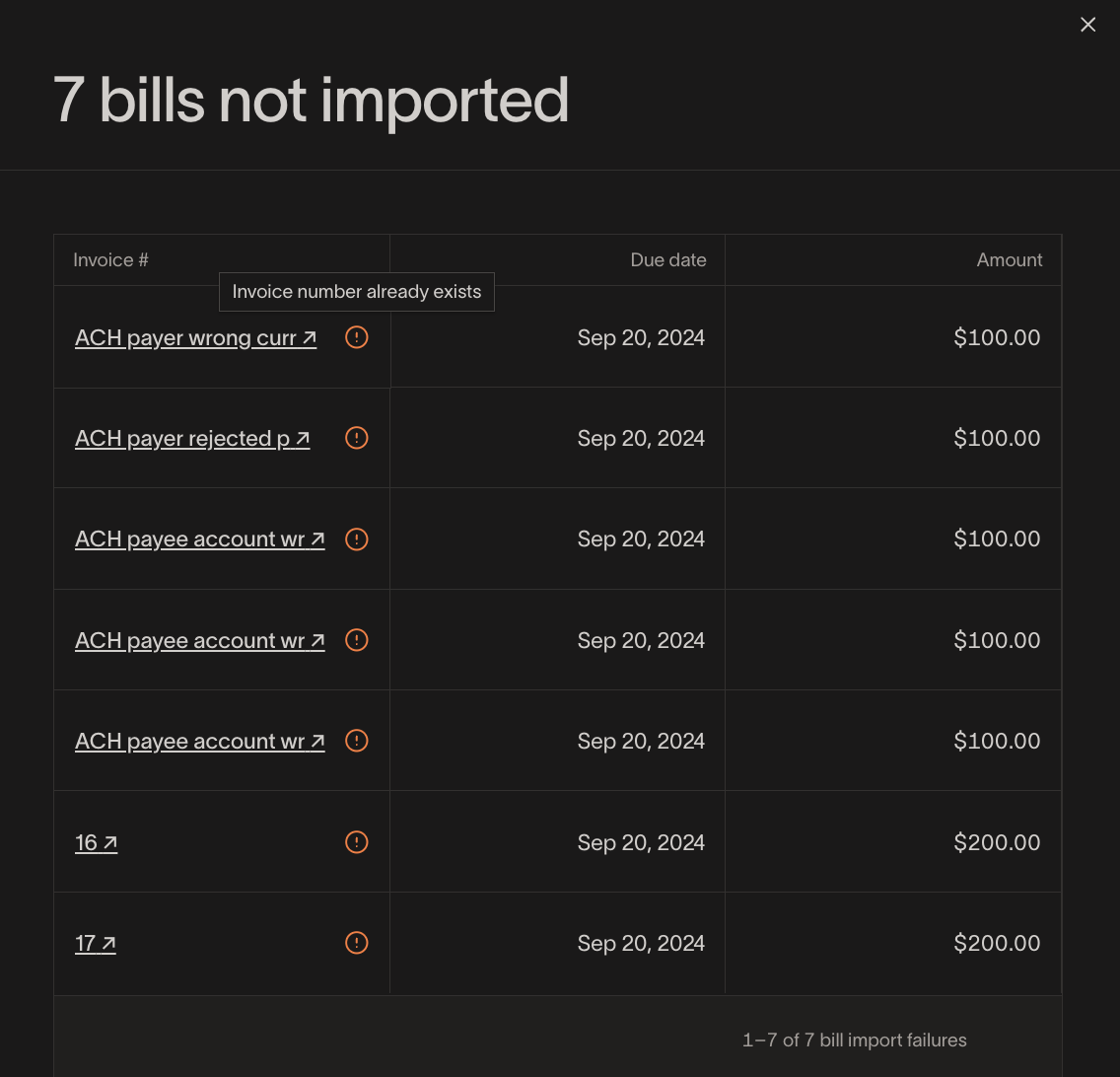
- Invoice number already exists: We won't import a bill if a bill already exists in Ramp with the same vendor and invoice number, to prevent duplicates.
- If this is not actually a duplicate, to resolve, update the invoice number on either one of the bills in your accounting system. The additional bill should import within 2-5 minutes after the change.
- If this is a duplicate, then delete one of the bills in your accounting system.
- Missing Ramp vendor: If the vendor is missing, it’s likely that we haven’t finished importing them. We recommend checking again in 30-60 minutes.
- If you are on an integration that doesn't support automated vendor imports (QBD, Acumatica, and Zoho Books), you will need to manually create the vendors on Ramp. You can do this from the Vendors page by selecting New vendor, then either bulk uploading via CSV or creating vendors individually.
- Otherwise, if the vendor still hasn’t been imported, you can create the vendor on Ramp and link it to the corresponding accounting vendor. The bill(s) for that vendor should import within 2-5 minutes.
- However, if you have a high volume of vendors not importing, we recommend reaching out to our support team to resolve.
- Missing business entity mapping: This means that an entity you have in your accounting system linked to that bill, is missing in Ramp. To resolve, you would need to create an entity on Ramp that maps to the entity in your accounting system listed for that bill or bill(s). Learn more about Multi-Entity here .
- Unknown reason: In this case, we recommend reaching out to our support team to resolve.
Impact on imported bills if you update bills in your accounting provider
If you update a bill in your accounting provider that has already been imported into Ramp, the bill in Ramp will update according to the state of the bill (pre- or in-flight) as well as the type of update you made.
- If the payment has not yet been initiated in Ramp (pre-flight), and the bill has been:
- Deleted: The Ramp bill will get automatically archived
- Marked as paid: The Ramp bill is automatically updated to Paid . For supported providers, this happens automatically through two-way payment status sync. See Two-way bill payment sync for details.
- Amount or vendor changed: The Ramp bill will automatically update with the new amount or vendor and we will send an email to let you know of the change.
- If the payment has been initiated in Ramp (in-flight), and the bill is updated in any way (deleted, marked as paid, vendor or amount changed), then nothing will happen to the imported bill.
- However, we will surface a warning banner on the impacted bill to let you know
- We will also send you an email
- After the bill has been paid, you will likely get a sync error on these bill. To resolve, you will have to update the bill in your accounting system to align with the imported bill in Ramp and then retry the sync, or you can mark the bill payment as resolved manually in Ramp.
Frequently asked questions
- Which payment methods are supported for imported bills?
- We support all payment methods: ACH, check, credit card, domestic and international wire in local currency, and Swift USD.
- Can I apply approvals to imported bills?
- Yes. Admins can configure imported bills to go through the standard bill approval workflow. Go to Bill Pay > Settings > Importing & forwarding > Configure and select Require approvals for imported bills . See Bill approvals for imported bills for details.
- Payment release (Plus only) is separate from bill approval; an imported bill's payment requires release only if its branch includes an approval step.
- Are vendor credits and/or payment discounts supported on imported bills?
- Imported bills can use vendor credits when Apply available vendor credits appears on the bill. Payment discounts are not supported on imported bills. If you apply a vendor credit to the bill in your accounting system, the imported bill amount should update. See Vendor credits / Credit memos on Ramp Bill Pay for requirements.
- Can you import the invoice image?
- No, importing the invoice image is not supported at this time. However, you can easily click into the bill in your accounting provider to view the invoice image, through the link at the top of the imported bill.
- Do you support importing non-USD bills?
- NetSuite, Sage Intacct, and Xero support importing bills in any currency. QuickBooks Online supports importing bills denominated in your home currency only.
- How do I archive an imported bill?
- If you truly want to delete the bill, you can void or delete the bill in your accounting system. The bill will get automatically archived in Ramp.
- However, if you just don't want to pay an imported bill on Ramp you can mark the imported bill with a payment method of "Pay outside of Ramp." Then you can mark the bill as paid in Ramp. Both of these actions can be used in bulk. For supported accounting providers, Ramp can sync the bill payment after you mark the bill as paid in Ramp. See Paying outside of Ramp for provider support.
- When importing bills for a vendor, how are payment details handled?
- The payment details associated with the vendor are only relevant for the first bill that is imported. For subsequent imports, the system will default to using the payment method from the last imported bill.
- What happens to bills that I imported if I turn this feature off?
- We'll keep the imported bills in Ramp unless you manually reject/archive them