Purchase orders in Ramp
Overview
Ramp Procurement creates purchase orders from approved procurement requests so your team can track approved spend, send POs to vendors, and match invoices or card spend against the original request.
Note: Procurement requires the Procurement add-on; if your business is eligible, you may be able to start a 60-day free trial.
Create a purchase order
In the standard intake flow, create a purchase order by starting a Request and choosing a Program that uses purchase orders. When the request is fully approved, Ramp creates the PO automatically.
The Purchase orders page is for viewing, downloading, sending, syncing, and managing POs after they exist. If its empty state shows New request, you can select it to start a request.
Admins can skip approvals and issue a PO directly when they are not on the request's approval chain. To configure Spend Programs, payment methods, and approval workflows, see Get started with Procurement.
A pending procurement request can be edited by the requestor/creator, owner, or coordinator; anyone who has participated in its approval chain; the direct manager of its owner or coordinator when granted team-level procurement management permission; and users with company-wide procurement management permission, including Business Owners, Admins, Finance Admins, and AP Clerks. Custom Roles can also be granted these abilities.
Customize purchase orders
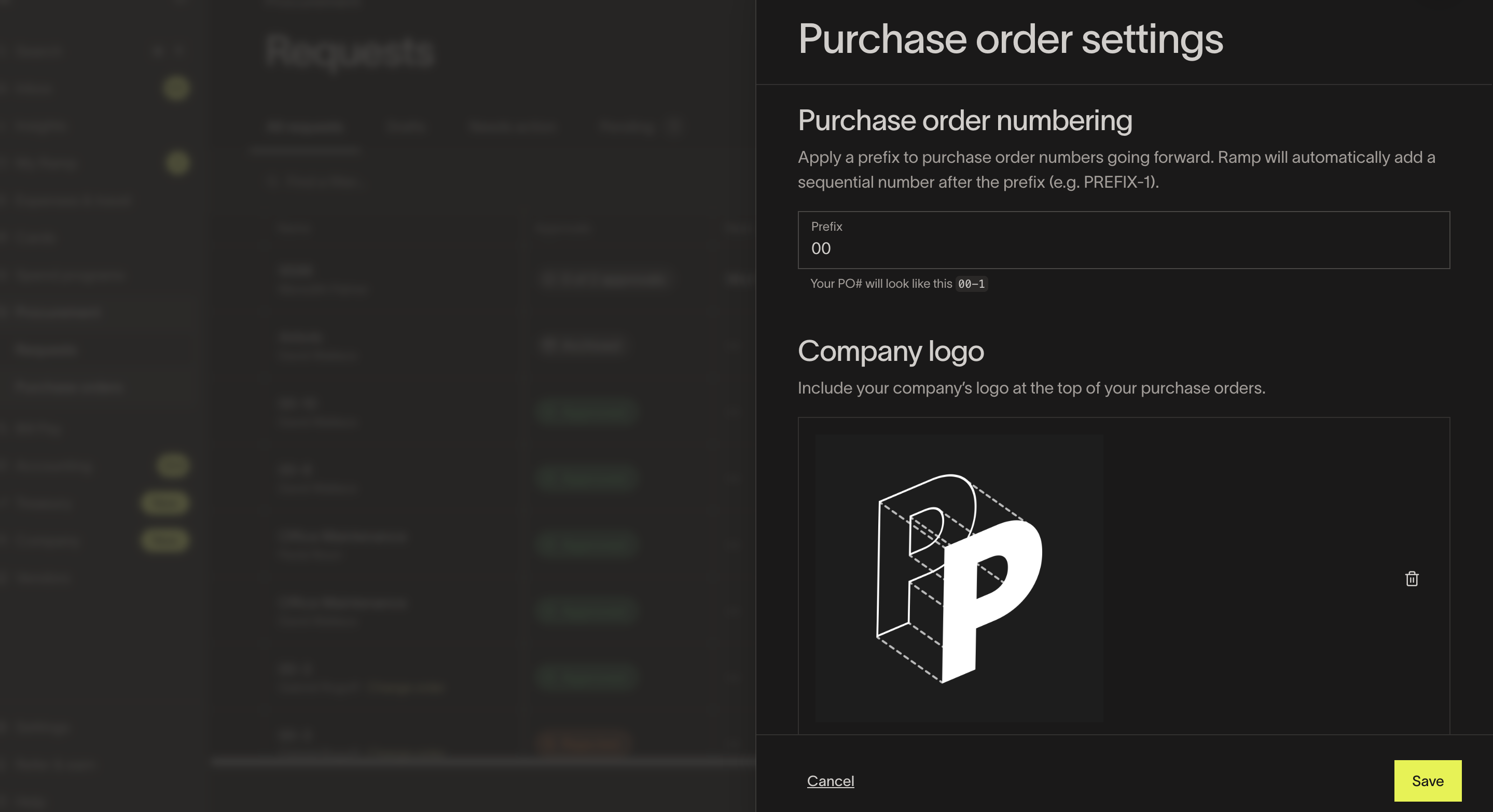
Ramp Procurement allows you to customize purchase orders for your business needs. Configure them from Manage spend > Purchase orders > Settings. You can also set different configurations per entity on Ramp.
- PO Numbering - Customize the prefix for your POs
- Logo - Upload a logo for your PO PDF
- Billing address - Set a default billing address
- Billing contact - Set a default billing contact (e.g. invoices@domain))
- Footer text - Customize instructions for every PO
For instructions on saving default billing and shipping addresses, creating purchase order fields, and setting up custom line item fields, see Customizing Purchase Orders (POs).
PO overview
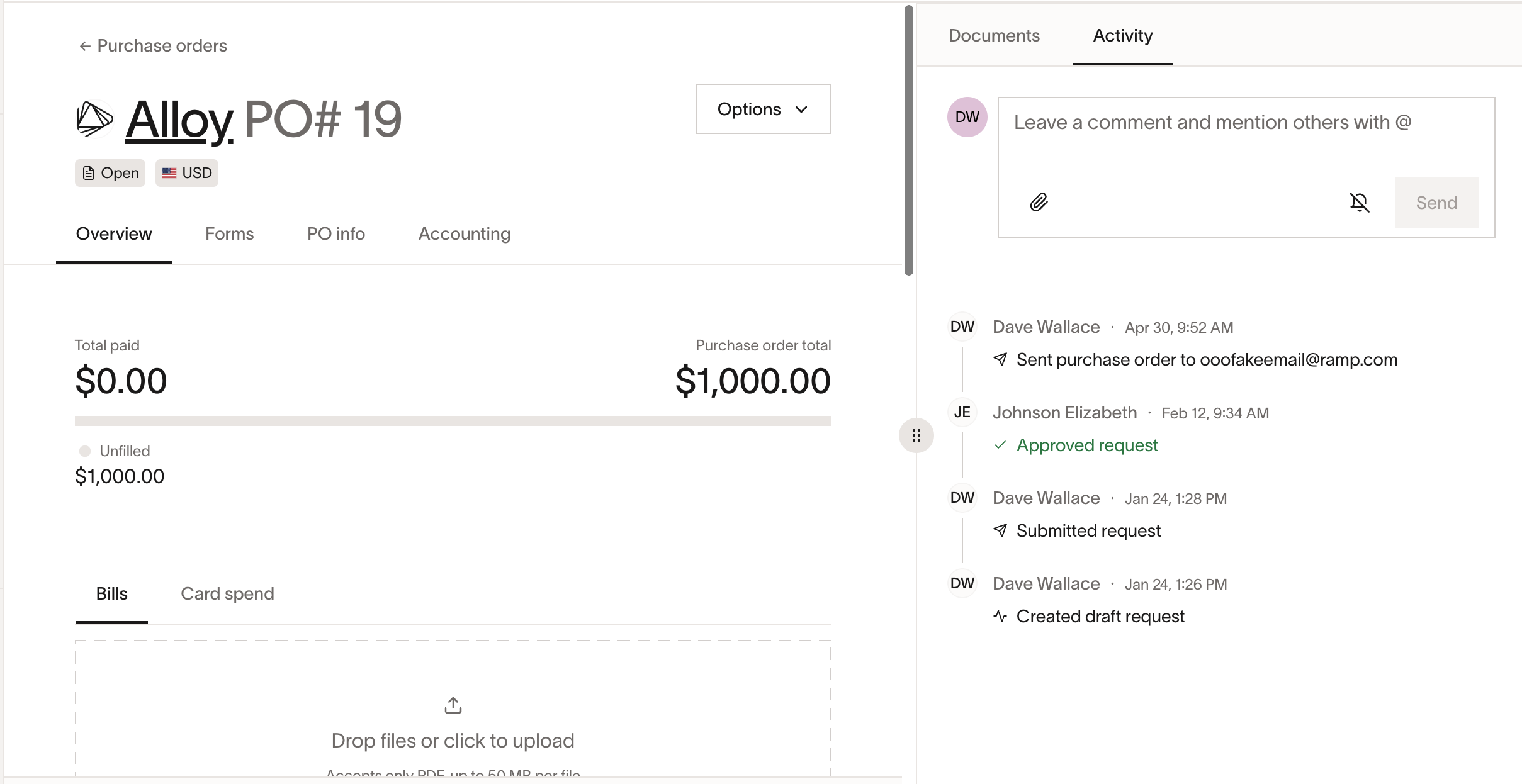
The Overview tab shows you how much spend has been fulfilled against the total, based on attached bills or card spend. The PO number can be changed on an approved PO. The Overview also shows you:
- Approvals and current status
- Line items
- Request details
Purchase requests with recurring frequency will issue 1 PO with the total amount being amount per frequency \* frequency.For matching spend, you would match all spend to that same PO.
Purchase order statuses
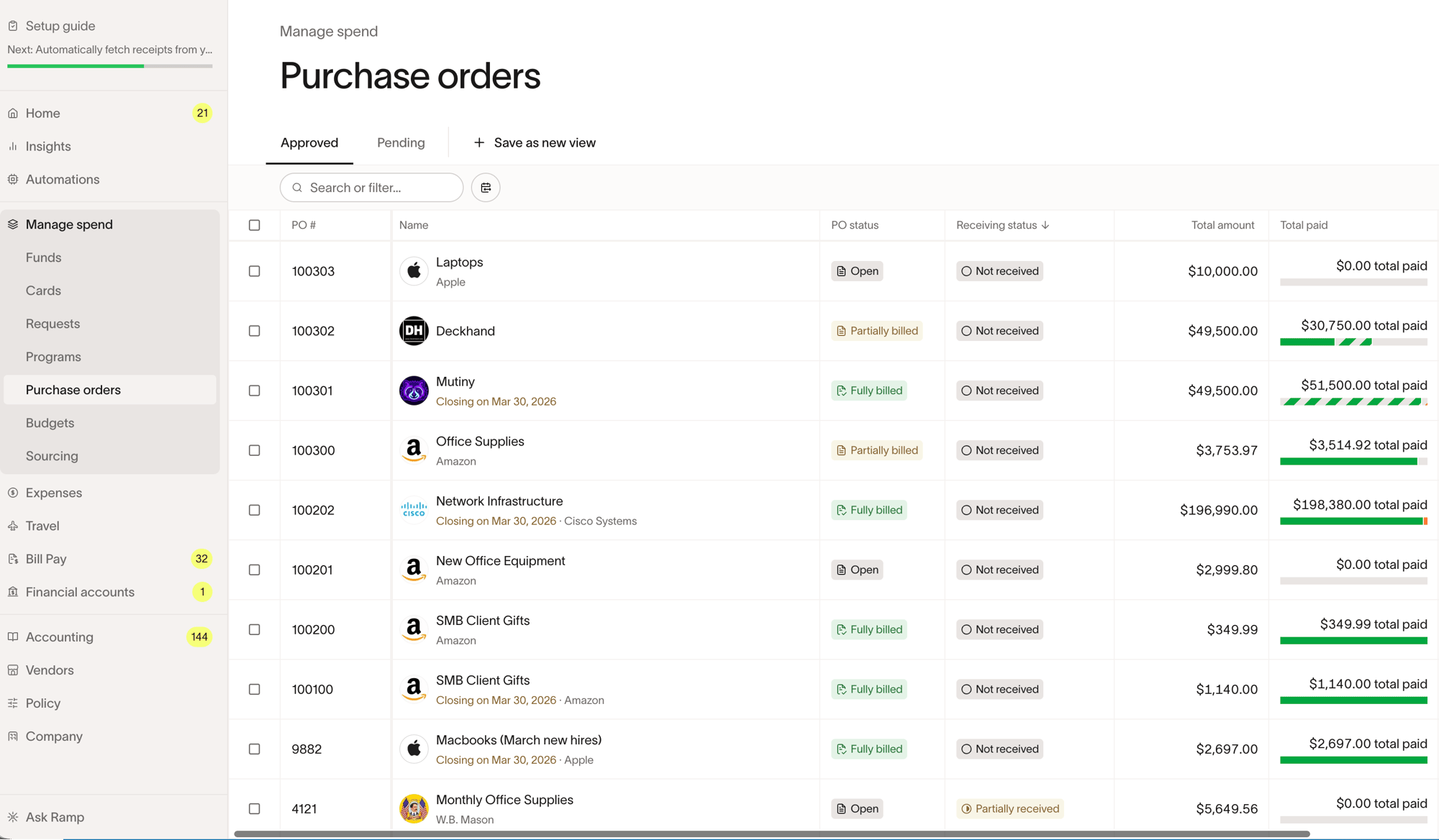
A PO can be in the following states:
- Open : No billing has been created against the PO.
- Partially Billed : Some billing has occurred, but the full PO amount has not been billed.
- Fully Billed : The PO has been billed for the full amount or more.
- Closed : No further billing can occur against the PO, though receiving is still allowed. Auto-close can move fully billed POs into this state after your configured waiting period.
- Ended : PO's end date has passed
- Archived : The purchase order has been archived and is no longer active. See Archiving purchase orders .
Filter the purchase orders list
On the Purchase orders page, use the filters at the top of the list to find the POs you need.
- Vendor - Open the Vendor filter and select one or more vendors. The list shows purchase orders for all selected vendors.
- Include archived - Archived purchase orders are hidden by default. Apply this filter to include them. See Archiving purchase orders.
If you save a view with a vendor filter applied, the selection is retained when you return to that view. Saved views that filter on one vendor continue to work unchanged.
Auto-close fully billed purchase orders
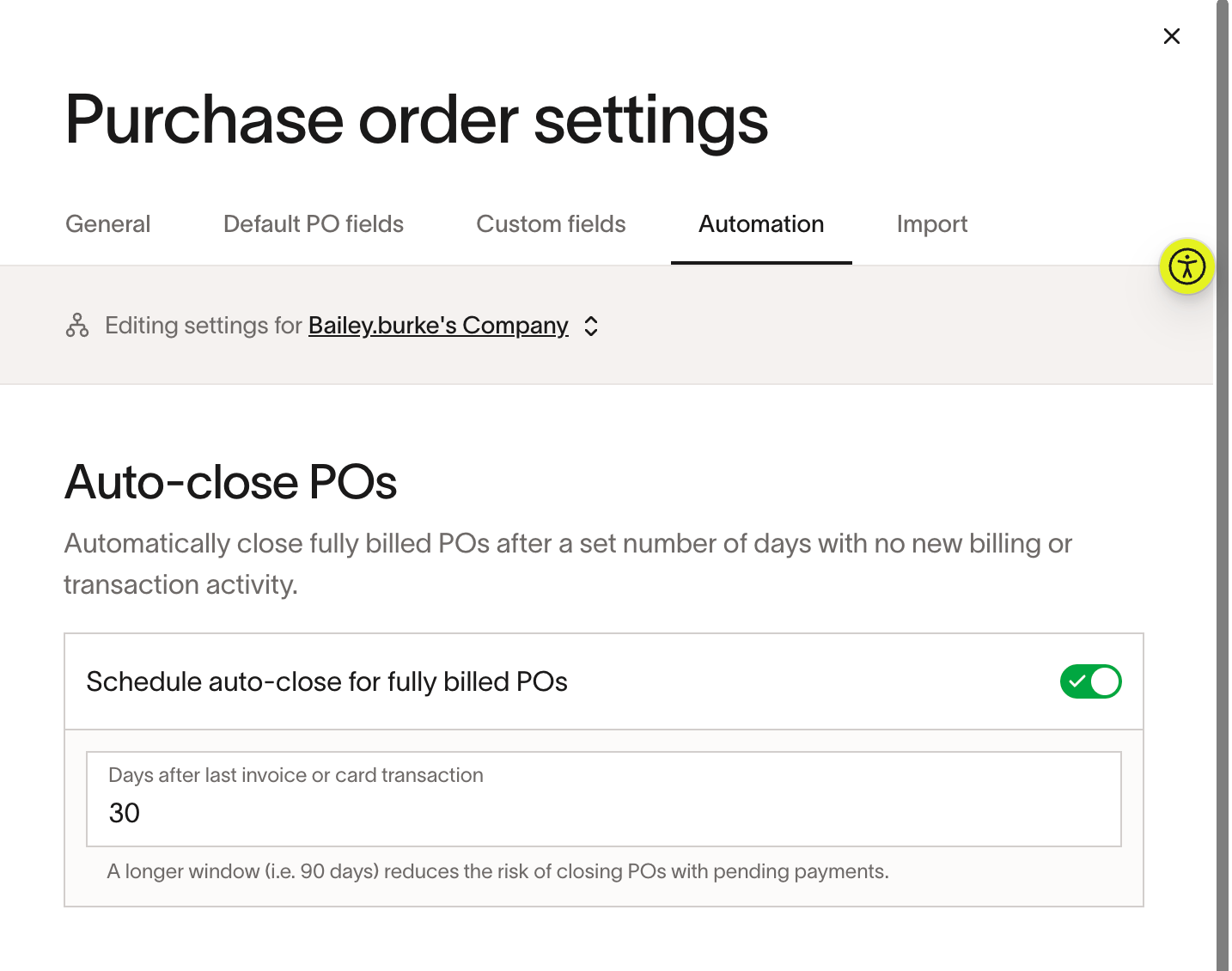
Admins can automatically close fully billed purchase orders after a set number of days with no new invoice or card activity. Configure this in Manage spend > Purchase orders > Settings > Automation with Schedule auto-close for fully billed POs and Days after last invoice or card transaction.
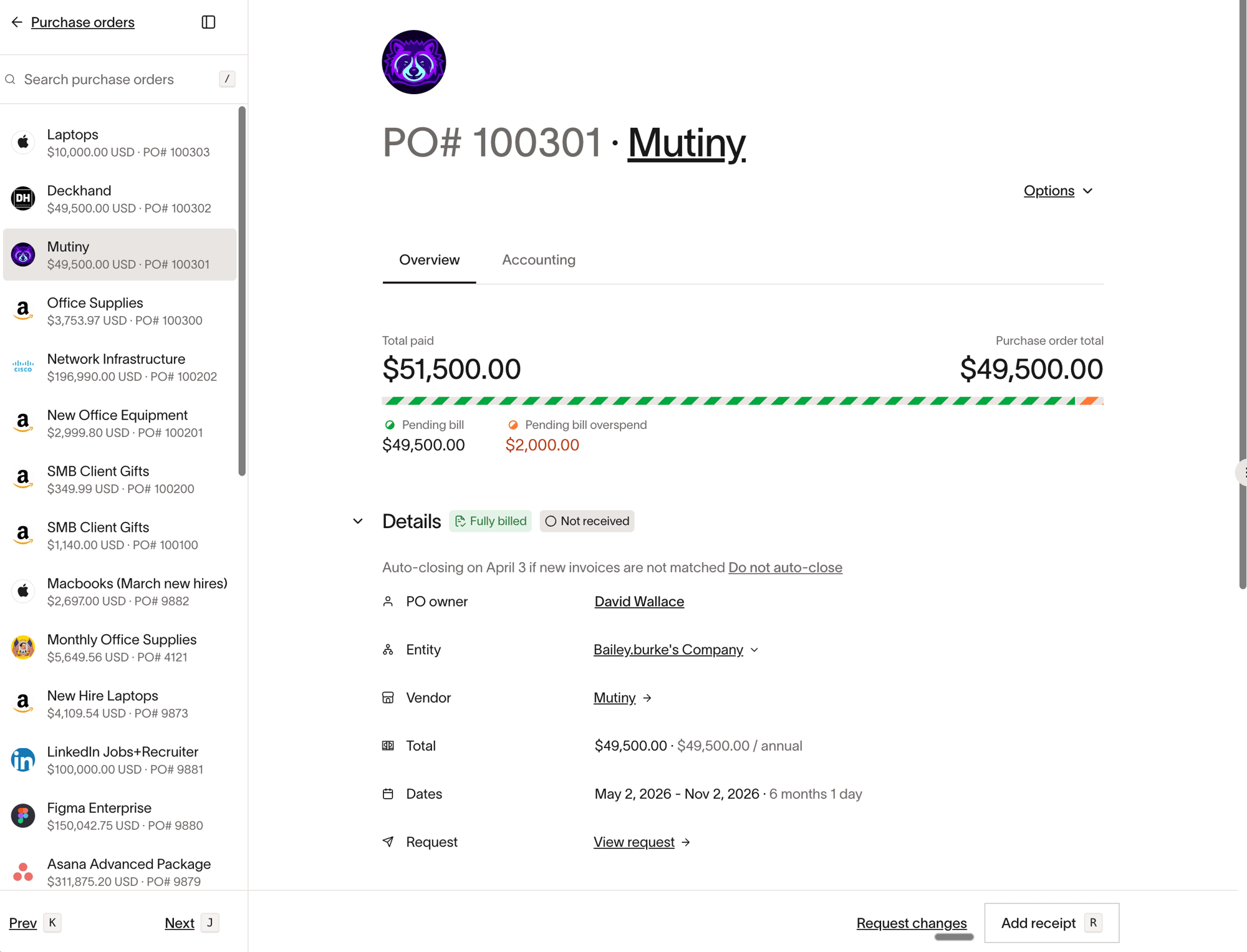
The default window is 90 days. On a PO that is scheduled to auto-close, Ramp shows Auto-closing on {date} if new invoices are not matched.
- Go to Manage spend > Purchase orders > Settings.
- Open the Automation tab.
- Turn on Schedule auto-close for fully billed POs .
- Set Days after last invoice or card transaction .
Note: This settings surface is admin-only and appears after Bill Pay onboarding has started.
Exclude or reopen auto-close
Open a purchase order to review its auto-close timing. Click Do not auto-close to exclude that PO from the schedule. If auto-close is already disabled, Ramp shows Auto-close disabled for this PO.
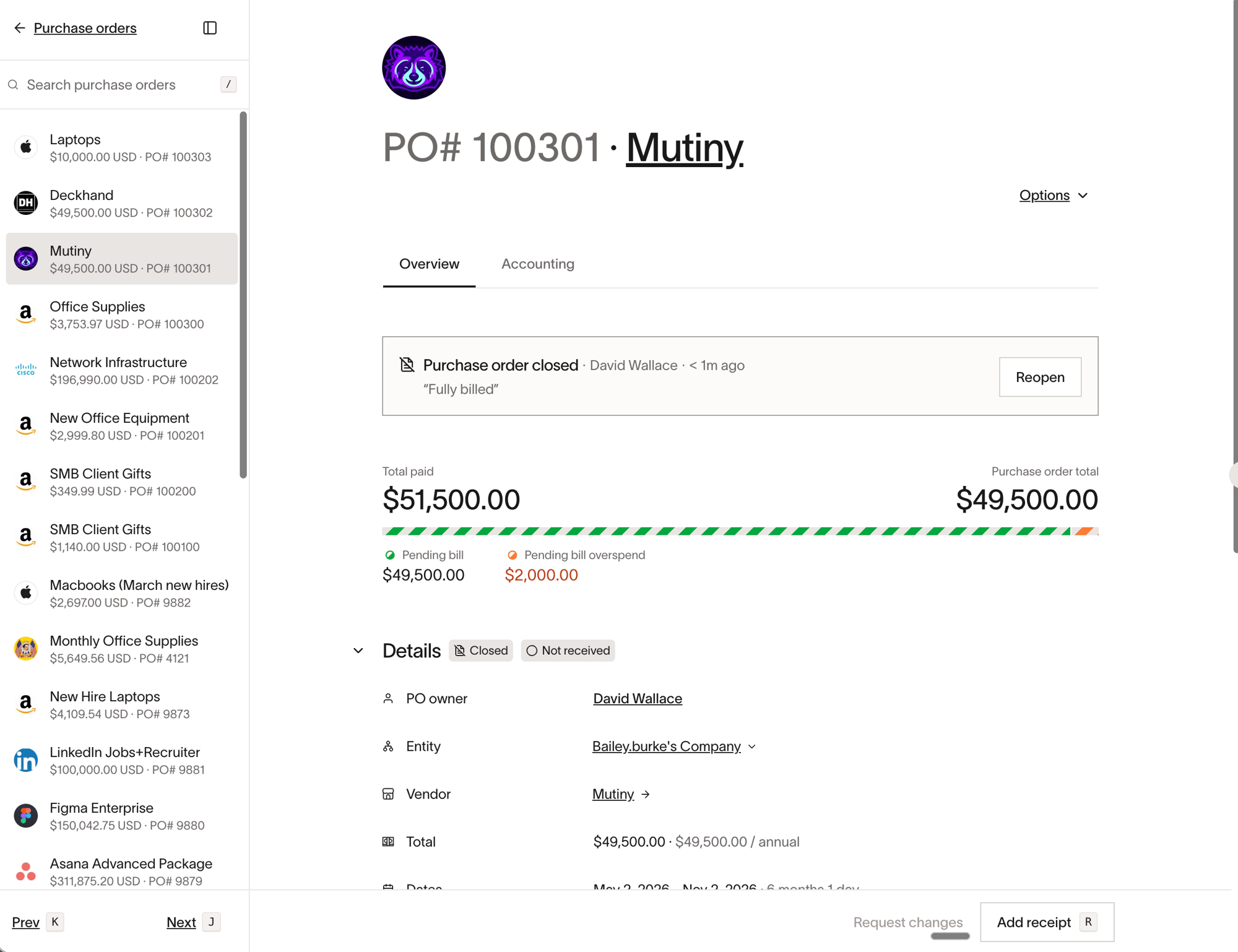
When a PO is auto-closed, Ramp shows the banner Purchase order closed and blocks new bill or card matches. You can click Reopen to use the PO again.
Archiving purchase orders
Archiving permanently removes a purchase order from active views. This action cannot be undone.
Who can archive: Admins, the request owner or creator, and Procurement Coordinators can archive a purchase order.
When a purchase order can be archived: A purchase order can be archived when it has no associated bills and no matched card transactions. Rejected requests cannot be archived.
To archive a purchase order:
- Open the purchase order from Manage spend > Purchase orders .
- Select Archive from the actions menu.
- Optionally enter a reason for archiving, then confirm.
Note: Archiving cannot be undone. If you need the same purchase order again, you can submit a new request using the original details.
Viewing archived purchase orders: Archived purchase orders are hidden from the default list. To include them, apply the Include archived filter on the Purchase orders page.
Take bulk actions on purchase orders
You can act on several purchase orders at once from the Purchase orders page. Select the checkbox on each PO you want to include; an actions bar appears at the bottom of the list. Open the ⋯ (more) menu at the bottom right of that bar to run a bulk action on the selected POs:
To download purchase orders or line items as CSV files, see Export purchase orders to CSV.
- Reopen — reopens the selected closed POs so you can match new bills or card spend against them again. Only POs that are currently Closed and were created in Ramp are eligible, and the menu shows a count of eligible POs. Reopening applies immediately with no confirmation, and each PO returns to Open, Partially billed, or Fully billed based on how much has already been billed.
- Close — closes the selected POs so no further billing can occur. Ramp asks for a Reason, which is applied to all selected POs.
- Send PDFs to vendor — emails the PO PDFs to a vendor email address you enter.
The actions bar also includes an Edit menu to bulk-edit accounting fields, the bill-to address, or the ship-to address on the selected POs, and a Sync button to sync eligible selected POs to your connected accounting provider.
Upload an invoice for payment
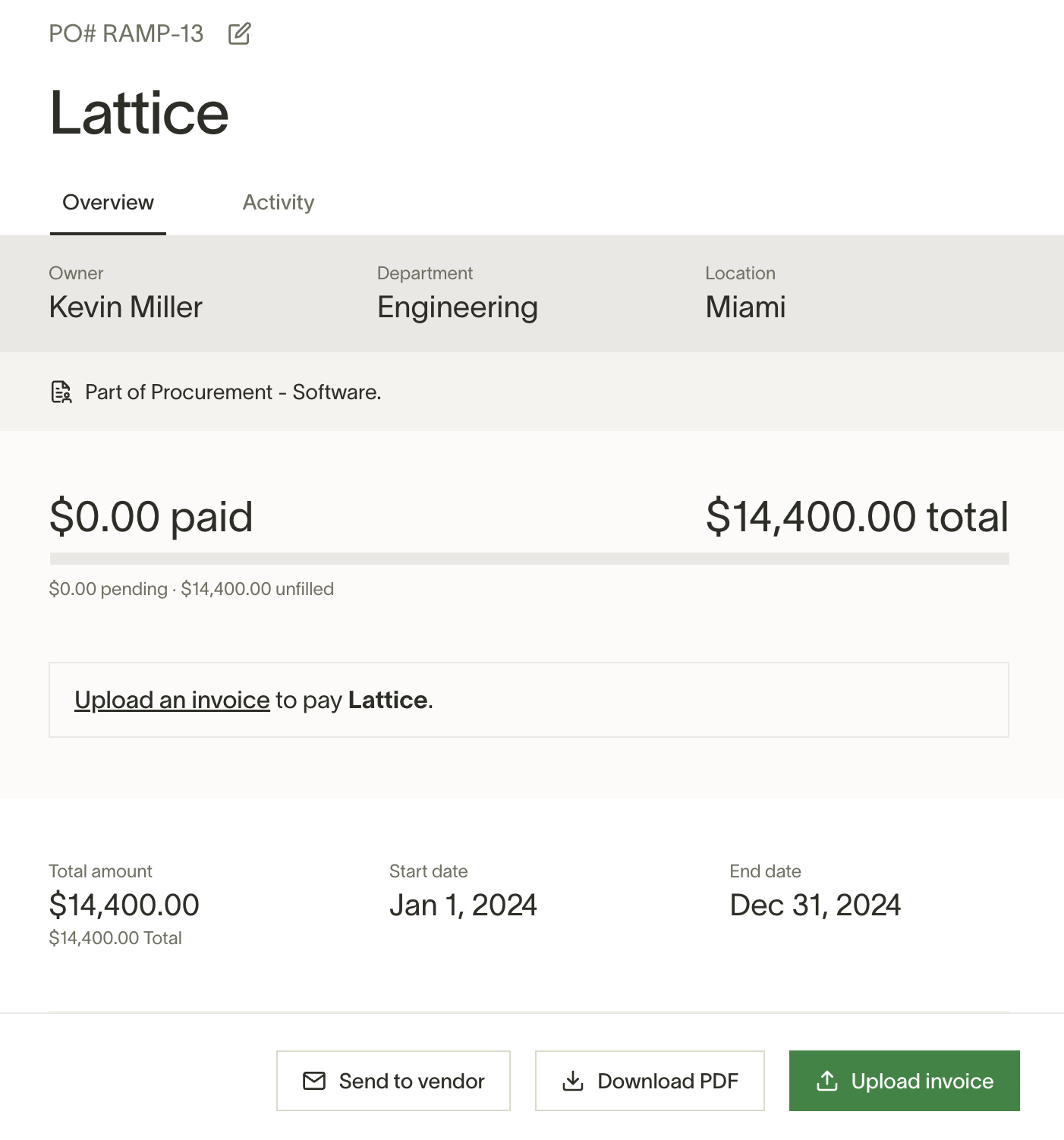
- Once you receive an invoice from the vendor for the services, click "Upload invoice" and drop in the invoice that you've received. This will send the invoice to your AP team for payment.
- If the vendor is sending the invoice to your company's AP email inbox, you can tell them the PO# to put on the invoice for payment. Ramp will automatically match the invoice to the open PO to streamline the payment process for your finance team.
PO info/Downloading and sending Ramp POs
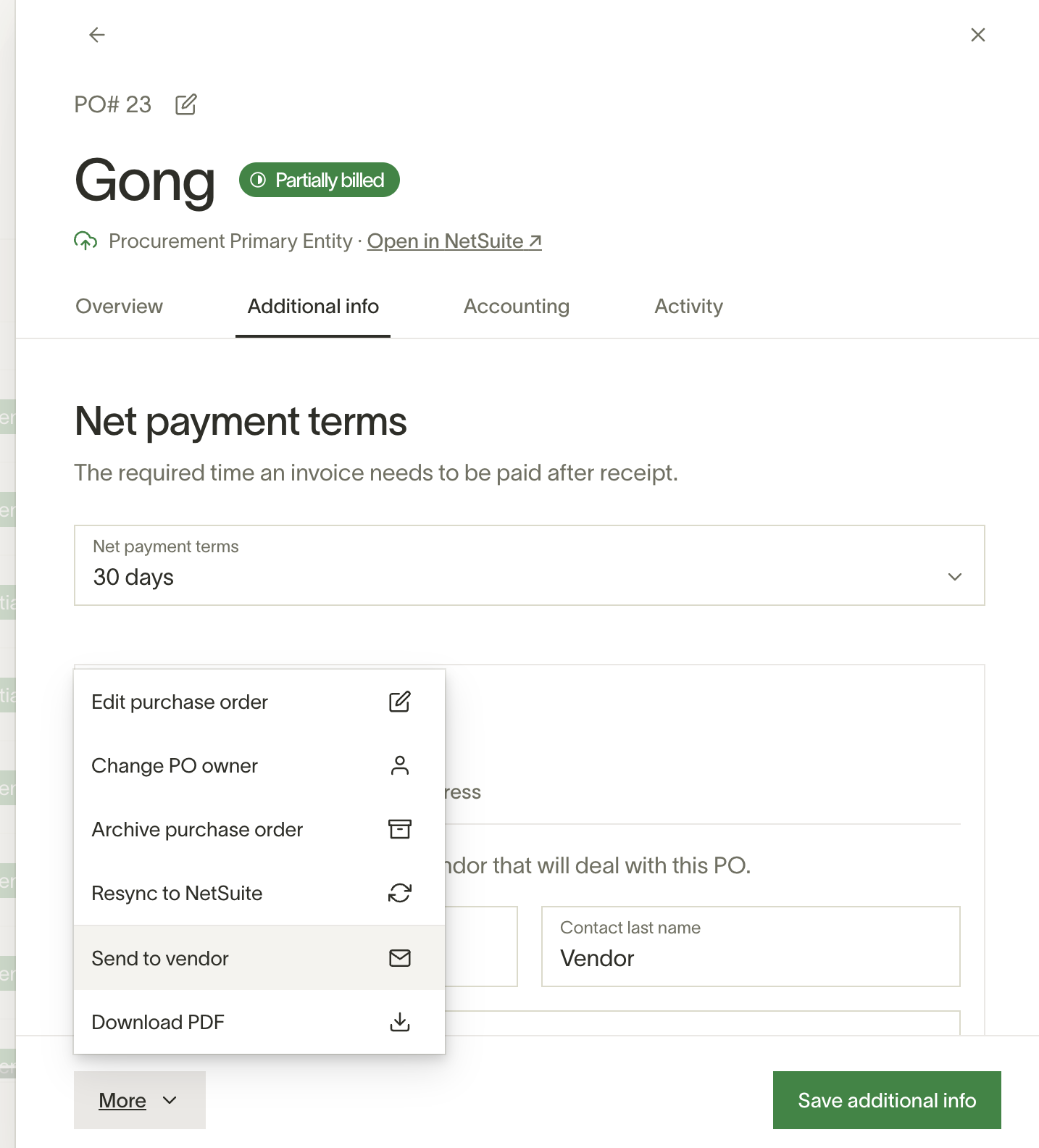
Admins, approvers, and PO owners can download Ramp purchase orders into a PDF or send them directly to the vendor contact's email inbox. Click the "More" option on a purchase order and choose either "Send to vendor" or "Download PDF."
- You can have a separate ship to and bill to address on a PO when you export.
- You can change the company name on a PO by going to PO Info --> Business Info --> edit company name and save the PO.
Matching bills to purchase orders in Ramp
Ramp allows you to match invoices in Ramp Bill Pay to purchase orders created in Ramp. There are two ways to submit an invoice against a purchase order.
- PO owner can directly "Upload invoice" on the purchase order to send the received invoice to your company's AP team. This will be sent to Bill Pay > Drafts and automatically OCRed by Ramp's AI.
- Note: When the PO owner is an Employee, they must have the appropriate permissions. See Employee Roles and Permissions on Bill Pay for further information.
- In the Bill Pay workflow, you can choose a "Matching purchase order" for the invoice.
How does automated matching work?
- If there's an exact match for the Ramp purchase order # on the invoice, Ramp will automatically match the invoice to the Ramp PO.
- If the vendor doesn't add the Ramp PO# on the invoice, Ramp will show you suggested purchase orders in the "Matching purchase order" dropdown that's filtered by the vendor.
- Once a matching purchase order is selected, Ramp will also automatically match invoice line items with purchase order line items.
- Once the line items are connected, if there's accounting coding on the PO line items, we'll automatically pull those fields in on the Invoice line item.
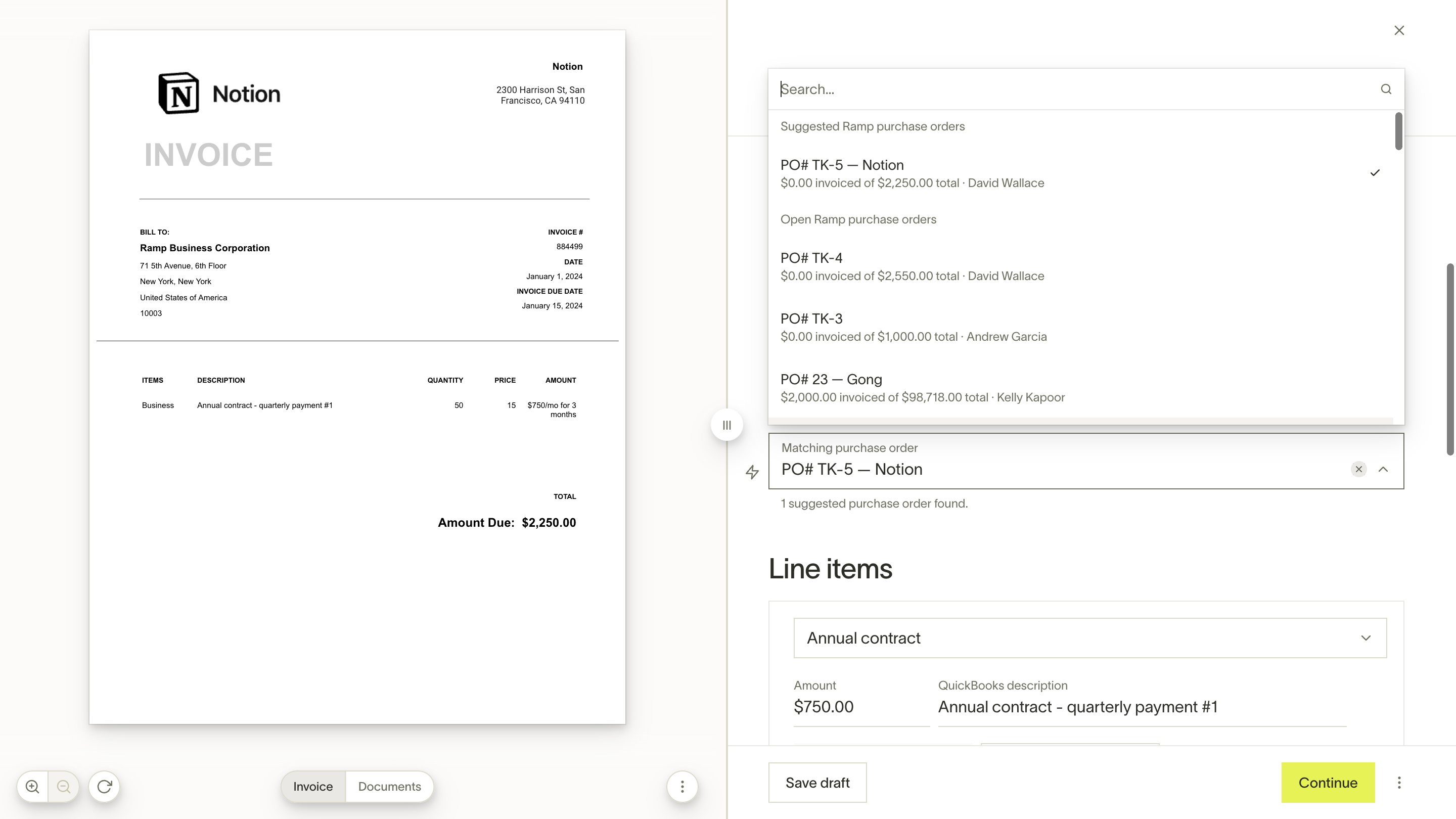
If your business imports POs from NetSuite or Universal CSV, you can match multiple POs to a single bill. See Match multiple purchase orders to a bill for details.
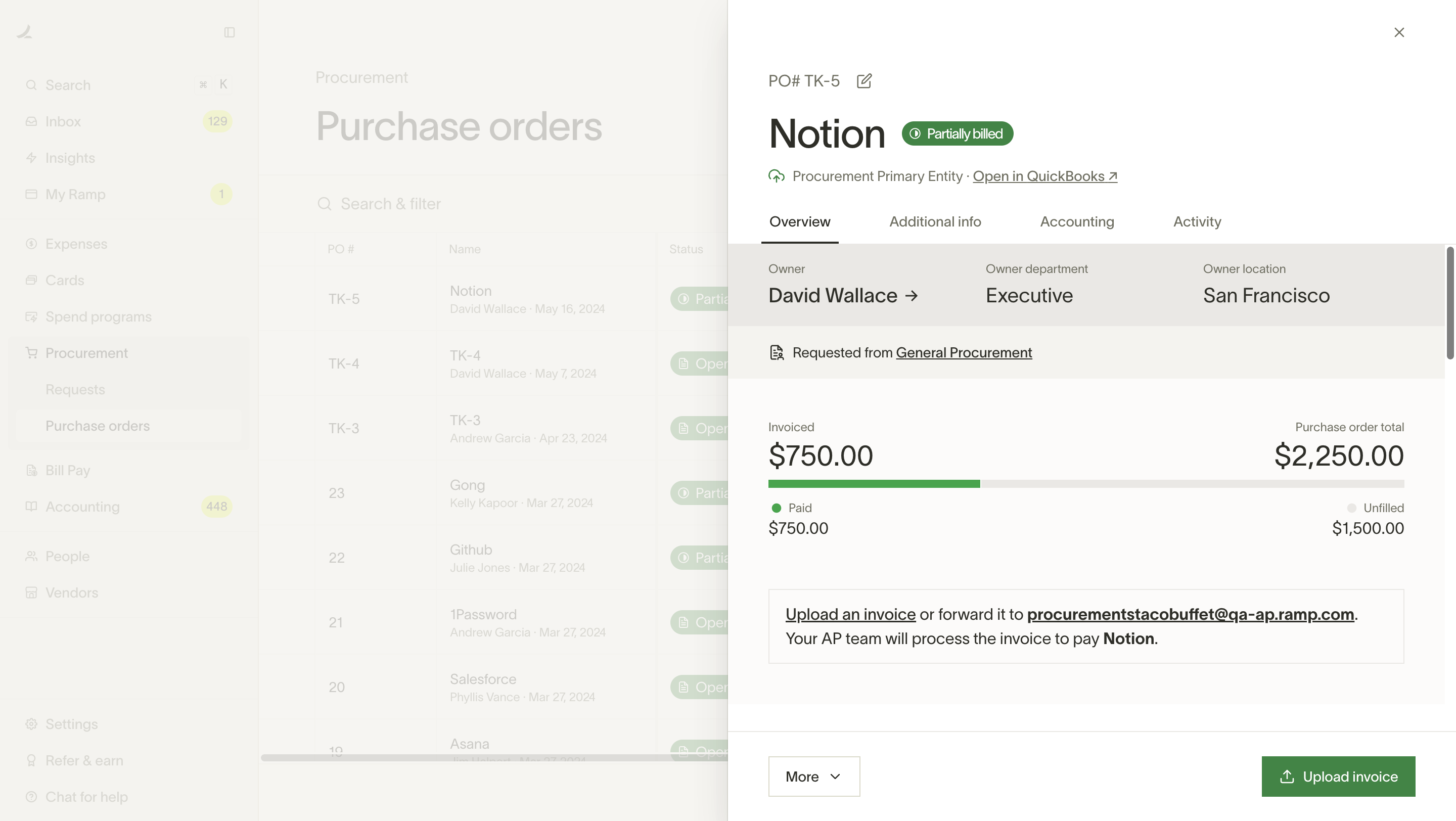
- Once you bill against the PO, you will see the remaining spend available on the PO.
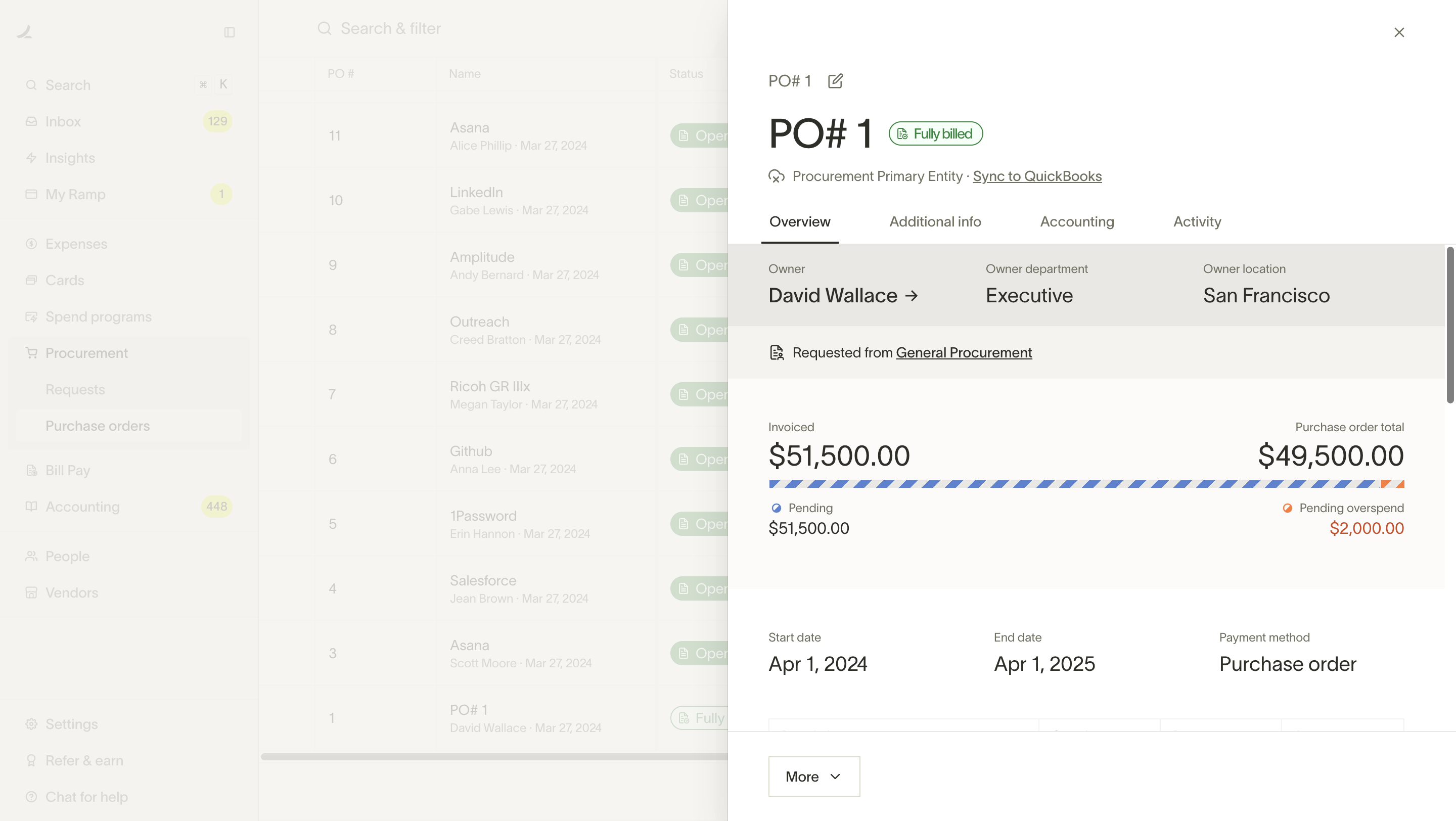
- Invoices can be over-billed against a PO today and this will be clearly shown on the PO like below.
Purchase order line item mappings in Bill Pay
When a bill line item is matched to a PO line item, Ramp uses the accounting details from the PO line item—even if those values are null. This ensures consistency and prioritizes the accounting logic defined at the PO level. In these cases, any vendor defaults are ignored.
If you update the mapping by selecting a different PO line item, the bill line item’s accounting is fully replaced by the new PO line item’s accounting. This includes null values from the new PO line item, which will overwrite any previously set accounting data.
Reimbursement spend against purchase orders
Employees can submit reimbursements against a Purchase Order when the PO's fund has reimbursements enabled as a permitted spend type. The reimbursement amount counts toward the PO's total paid amount, alongside bills and card spend.
Admin setup: To allow reimbursements on a PO fund, configure the PO program or virtual card settings to enable reimbursements as a permitted spend type.
Employee submission: When creating or editing a reimbursement, select the PO-backed fund in the Reimburse from field. This field becomes available after entering an amount and transaction date. For step-by-step submission instructions, see Submitting reimbursements.
Syncing purchase orders into accounting
Purchase orders created in Ramp can be synced into NetSuite and QuickBooks Online. Learn more in Syncing Ramp Purchase Orders into Accounting. If you have POs in your accounting provider, you can also use our Import PO feature for NetSuite and QuickBooks Online.
If you're using NetSuite and QBO, you can change the PO a bill is matched to even after the bill is created.
Editing purchase orders
Business Owners, Admins, and Finance Admins can edit all fields of an approved purchase order directly, including its name, line items, amounts, dates, entity, form responses, owner, and coordinator. Custom Roles can also be granted these abilities.
Accounting/Bookkeeper and AP Clerk roles, and Custom Roles granted these abilities, can edit secondary details without a change order. Secondary details include the memo, net payment terms, bill-to and ship-to addresses and contacts, promise date, attached documents, PDF display settings, accounting coding and tracking categories, syncing to the accounting provider, invoices created from PO documents, item receipts, and PO custom fields.
To change who is responsible for an eligible PO, see Transfer purchase order ownership.
All other users must submit a change order for material changes such as amounts or line items. Archived purchase orders cannot be edited.
Purchase orders created outside Ramp
Purchase orders created in Ramp through requests or programs support all purchase order features, including change orders. Configure their change order questions and approvals for each program under Edit program > Change order approval policy.
CSV-imported purchase orders require a connected accounting provider and otherwise behave like Ramp-created purchase orders for viewing and editing. They support change orders. Change order approvals for CSV-imported purchase orders route to your admins by default; configure them under Manage spend > Purchase orders > Settings > Import > Change order approvals. Their request questions cannot be customized for each program.
Purchase orders synced from your ERP appear in Ramp for visibility and bill matching while the connection is active, but they cannot be edited in Ramp. Edit them in your ERP and let the changes sync to Ramp. Ramp change orders do not apply, and three-way match is controlled by your business-level imported-purchase-order setting.
Purchase orders created through the Ramp Developer API are approved at creation and behave like Ramp-created purchase orders for editing. They do not support change orders and are not tied to a program.
Frequently asked questions
Why are the request number and PO number different?
A submitted request receives a request number, such as REQ-1656, for internal tracking. If the approved request creates a purchase order, the PO receives its own PO number because the request and PO are separate records in the procurement lifecycle.
Send the approved PO number, not the request number, to the vendor. Ask the vendor to include the PO number on invoices so Ramp can match them to the PO. For purchase orders originating outside Ramp, continue using that PO's existing PO number.
Does Ramp support EDI, cXML, or punchout for purchase orders?
Ramp does not support standalone EDI (X12/EDIFACT) or direct cXML PO transmission to arbitrary vendors. For most vendors, purchase orders are sent by email with a PDF attachment or downloaded as a PDF for manual distribution. To send a PO, open the purchase order, select More, and choose Send to vendor or Download PDF.
For supported punchout suppliers (such as Amazon Business and CDW), Ramp routes orders electronically when you shop a connected supplier's catalog — no manual email or PDF required. See Punchouts in Ramp for setup and supported vendors.
For programmatic PO creation and management, Ramp offers the Developer API. You can also add a Custom API workflow step in procurement workflows to connect Ramp to external systems that require structured purchase order data.
Can I approve multiple purchase order requests at once?
Yes. Go to Requests > Needs Action, select the purchase order requests you want to approve, then use the bulk approve action.
Bulk actions on the Purchase Orders page do not include approval — use the Requests page to approve pending purchase order requests. For the bulk actions that the Purchase Orders page does support, see Take bulk actions on purchase orders.
To approve a single purchase order request, open it from Requests or from a notification and select Approve.
What integrations does Ramp Procurement support?
Ramp Procurement integrates with tools for contract management, e-signatures, ticketing, and third-party risk management as steps within procurement workflows. These integrations automate approval processes, not purchase order delivery. See Configuring Procurement Workflows — Integrations for the full list of supported workflow integrations.