Syncing Ramp Purchase Orders into accounting
Overview
Available on Ramp Plus. See Ramp Plus overview for plan details.
Purchase orders (POs) created via Ramp Procurement can be natively synced into NetSuite and QuickBooks. PO and item-receipt sync to Sage Intacct is rolling out to eligible businesses — contact your Ramp account team to enable it, and see Sage Intacct integration: Purchase orders and item receipts for setup, supported line types, and limitations.
- Use Ramp POs to issue spend to employees and track spending by matching invoices to Ramp POs.
- Set up accounting coding on Ramp POs to automate invoice coding for AP teams.
If you're using Xero or Universal CSV, you can still automate field codings on Ramp POs and export via CSV.
Adding accounting coding to Ramp POs
Admin and Accounting roles, and PO owners can add accounting coding to Ramp POs, or enable employees to add coding. This streamlines the process for automating invoice coding once the invoice is matched to the PO.
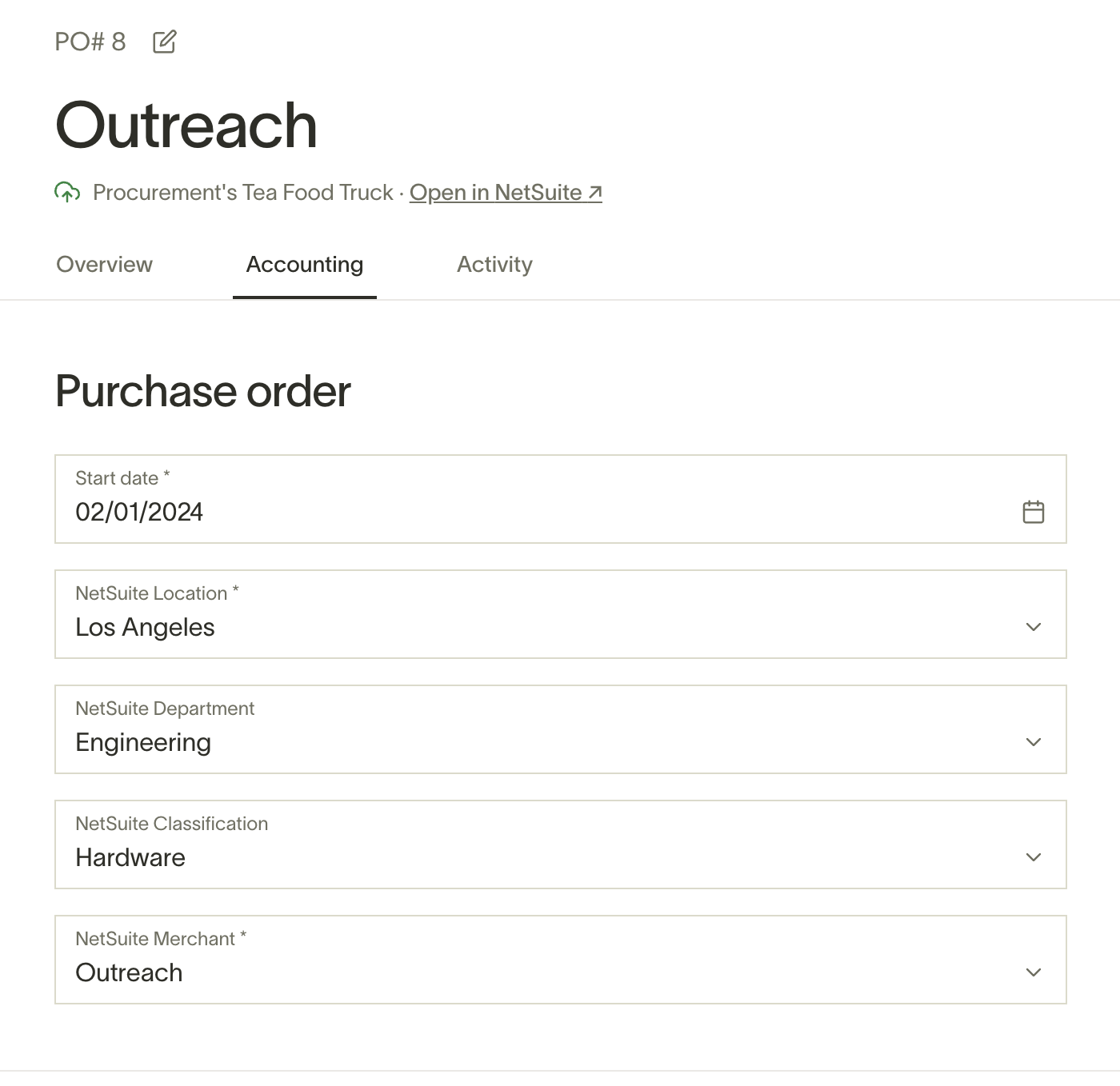
To add coding as someone with the Admin or Accounting role, or as a PO Owner - Navigate to the "Accounting" section in the specific purchase order to add coding.
- If your company has multiple entities, choose the entity that you'd like to create the PO in.
- Fill in all the required fields for the PO. This will depend on your accounting provider settings but most accounting providers require a Start Date, Location, and Merchant/Vendor.
- Add categories to "Expense" line items and inventory item selection to "Item" line items.
- Click "Save changes" to save your coding.
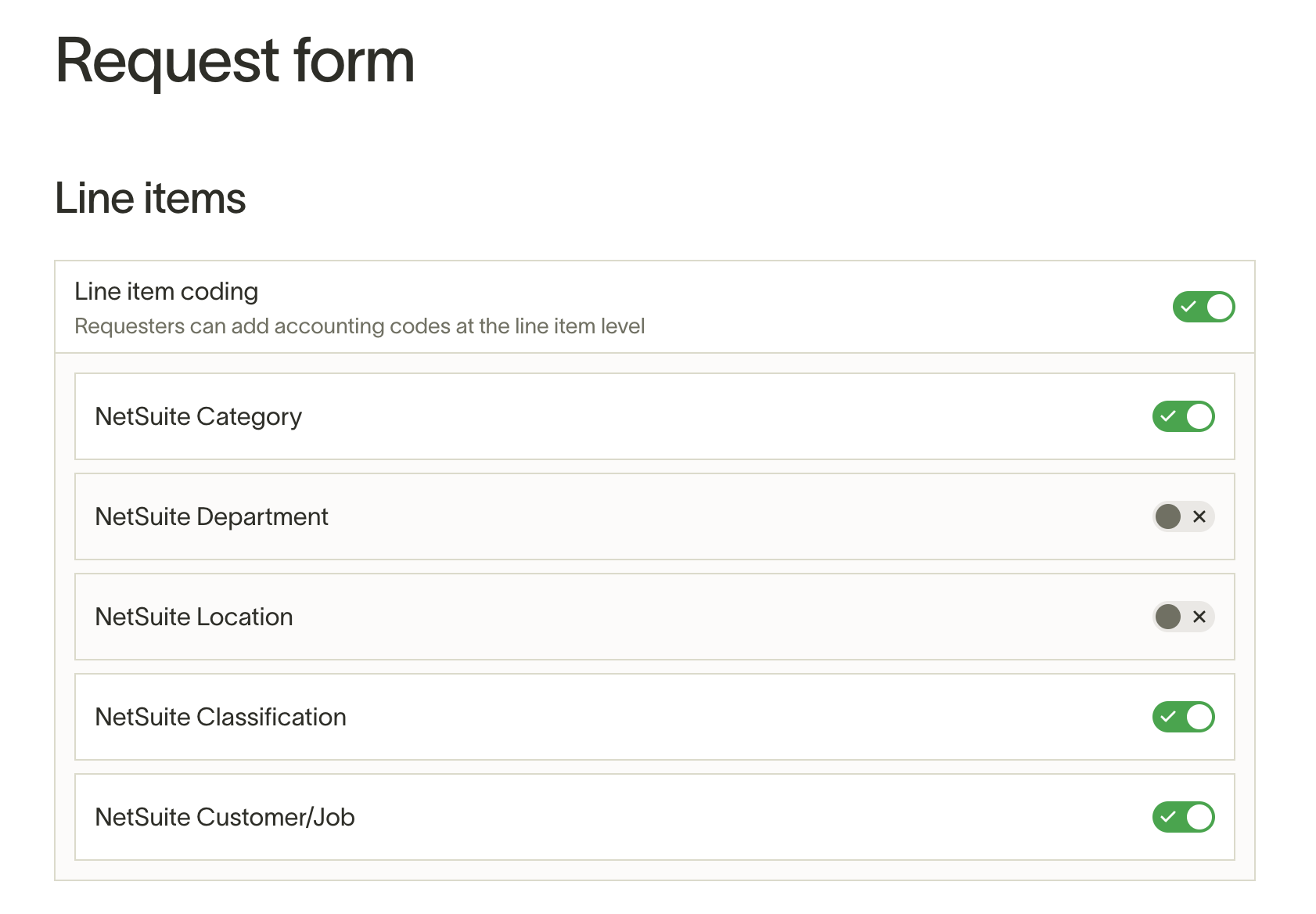
To allow employees to submit line item coding, Admins can enable "Line item coding" in the controls of a Spend Program. You can choose which accounting fields you want to display on the request form. Even after a PO is submitted/approved, the requester and admins can update these fields.
Sync POs to your ERP and view synced POs
These sync instructions apply only when Sync purchase orders and receipts to [accounting provider] is on. If it is off, open Purchase Order settings, select General, and turn on the setting in the section named for your accounting provider. When the setting is off, Ramp hides PO sync and resync actions; see Disable ERP sync for purchase orders and receipts.
After the coding has been saved, click the sync button for your accounting provider to create the PO record in your accounting provider. After a few seconds, the PO record will be created and linked back to the Ramp PO. After a PO is initially manually synced once, any following edits to the "Accounting" tab of a PO will trigger an auto-sync. All other changes will require a manual sync.
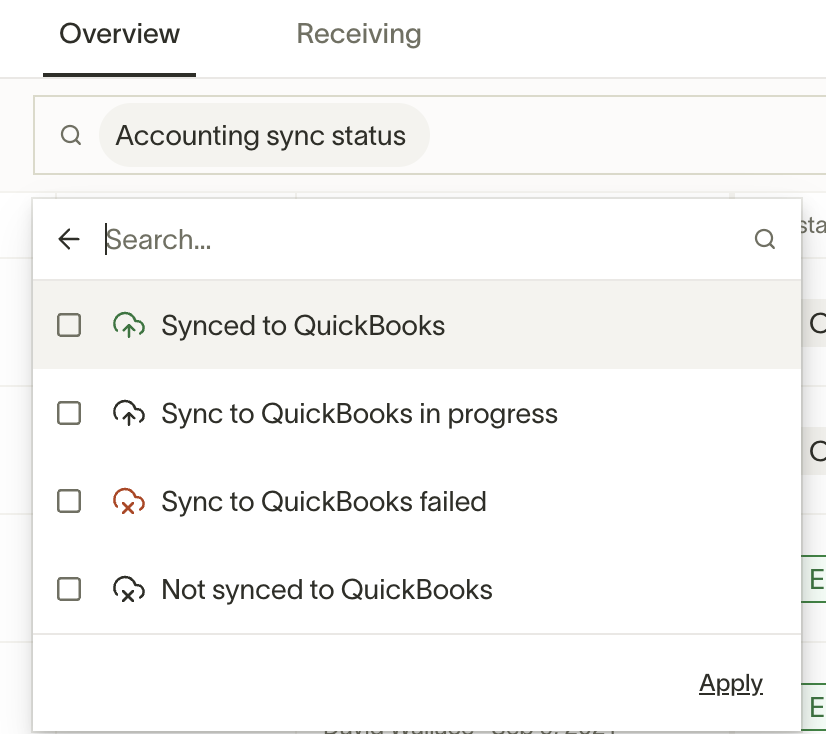
You can view synced POs by going to the Procurement Purchase Orders page and filtering by "Accounting sync status".
If you're syncing to NetSuite, in order to make sure that the PO numbers from Ramp carry over to NetSuite properly,double check in NS you have"Allow Override" enabled specifically for Purchase Orders transaction numbers.Steps below fromreference documentation:
- An administrator can go to Setup > Company > Auto-Generated Numbers .
- Click the Transactions subtab.
- To ensure that no duplicate transaction numbers are used, clear the box in the Allow Override column for each transaction.
- Click Save .
Automating bill coding with Ramp POs
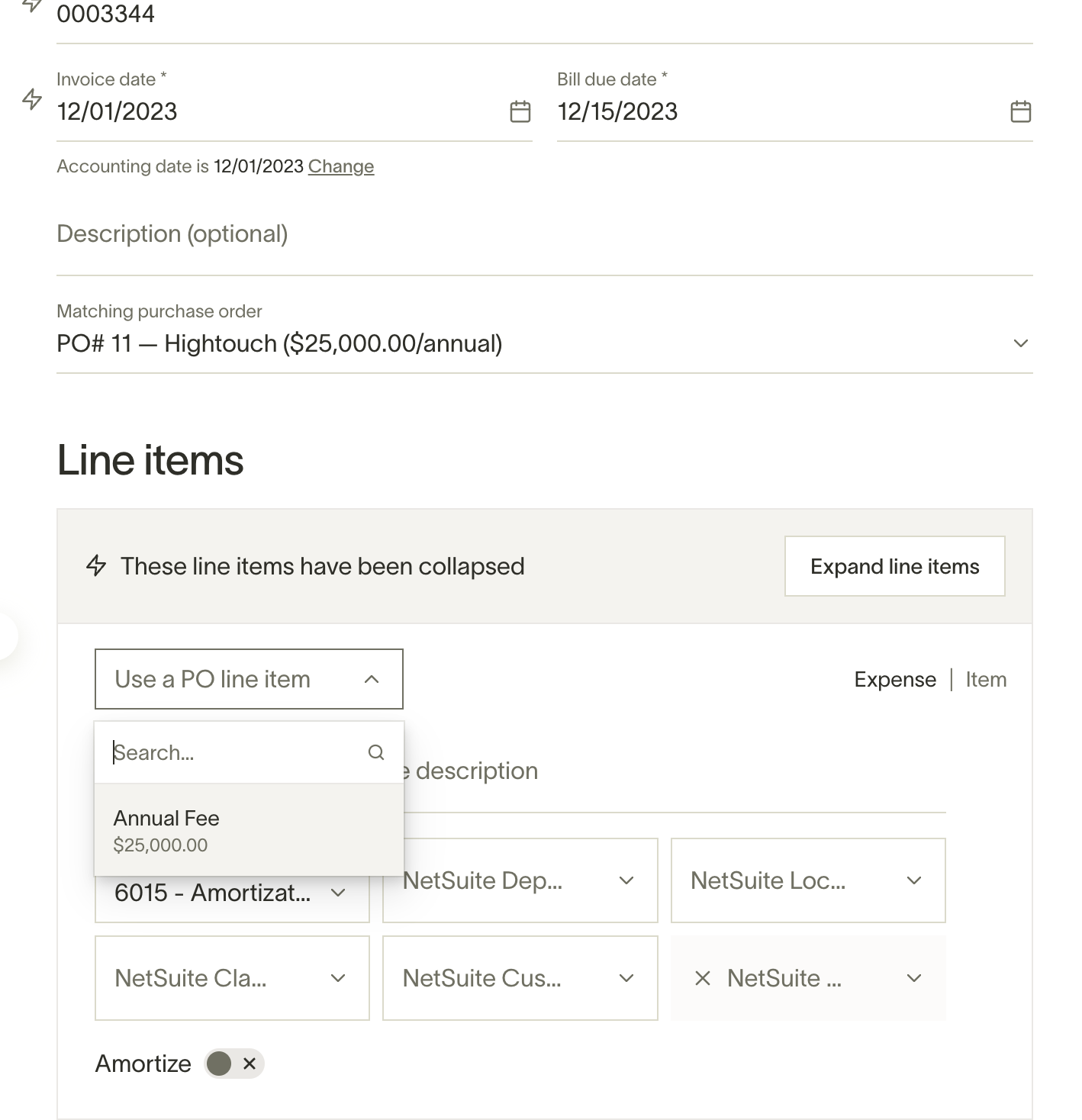
- Once you upload an invoice via Ramp Bill Pay, you'll see a "Matching purchase order" dropdown that searches through Ramp POs and any imported POs . We will automatically suggest Ramp POs by the vendor or PO#.
- Once you choose a matching PO, you can automate coding per invoice line item. Click on "Match a PO line item" to bring in the coding from the PO line item. Ramp's AI will automatically map invoice line item <> PO line item.
- After you sync the invoice to your accounting provider, the invoice line items and PO line items will be matched together in your ERP.
Note that line items must be the exact same type (Expense or Item). Once you've added a matched line item, you won't be able to override the coding for certain fields depending on the line item type (Category field for Expense and Inventory Item field for Item). This check is in place to remove any discrepancies in the coding between the invoice and the PO.
Frequently asked questions
Can PO line items be numbered?
No, line items on Ramp’s purchase orders can not be numbered at this time.
Are there plans to integrate POs with additional accounting or ERP providers?
No, not in the immediate future.
Once a PO is synced to Sage, NetSuite or QBO, how does the PO automatically close out?
If a PO is generated in Ramp and synced to Sage, NetSuite, or QBO:
- The PO will automatically close in Ramp as “Full Billed” once the amount of matched bills processed in Bill Pay meets the amount indicated on the PO.
- Once the Fully Billed PO in Ramp is re-synced to Sage, NetSuite or QuickBooks, the PO will close out in the ERP.