Customizing Purchase Orders (POs)
Overview
Ramp lets you customize purchase orders in several ways. You can save default billing and shipping details for each entity, add custom fields directly to purchase orders, and create line item fields for procurement request forms and purchase order PDFs.
Note: Procurement requires the Procurement add-on.
For broader purchase order settings such as numbering, logos, footer text, statuses, and automation, see Purchase orders in Ramp.
Note: These customizations apply to purchase orders created in Ramp through a purchase request, CSV import, or the Ramp Developer API. Change orders are available for approved, non-archived purchase orders that are not closed and were created through a purchase request or CSV import. Purchase orders created through the Ramp Developer API or synced from your ERP do not support Ramp change orders. See Purchase orders created outside Ramp for details.
Save default billing and shipping addresses
Use the Default PO fields tab to save default purchase order details for each entity, including bill-to and ship-to addresses.
- Go to Manage spend > Purchase orders > Settings > Default PO fields .
- Select the entity you want to configure.
- Add or update the default billing and shipping address details for that entity.
- Save your changes.
Create purchase order fields
Purchase order fields capture structured information on the PO itself, separate from line item data.
- Go to Manage spend > Purchase orders > Settings > Custom fields.
- Click Create a custom field .
- Choose a supported field type. Purchase order fields support Text , Number , Boolean , and Date . Some accounts also support Select .
- Enter the field name and any other setup details.
- Optional: turn on Include in PO PDFs by default if the field should appear on purchase order PDFs unless you hide it on an individual PO.
- Click Save .
Use purchase order fields on a PO
After you create a purchase order field, Ramp shows it directly on purchase orders so your team can fill in or update the value there.
- Go to Manage spend > Purchase orders .
- Open the purchase order you want to update.
- Find the Custom fields section on the PO.
- Enter or update the value for each field.
Create line item fields
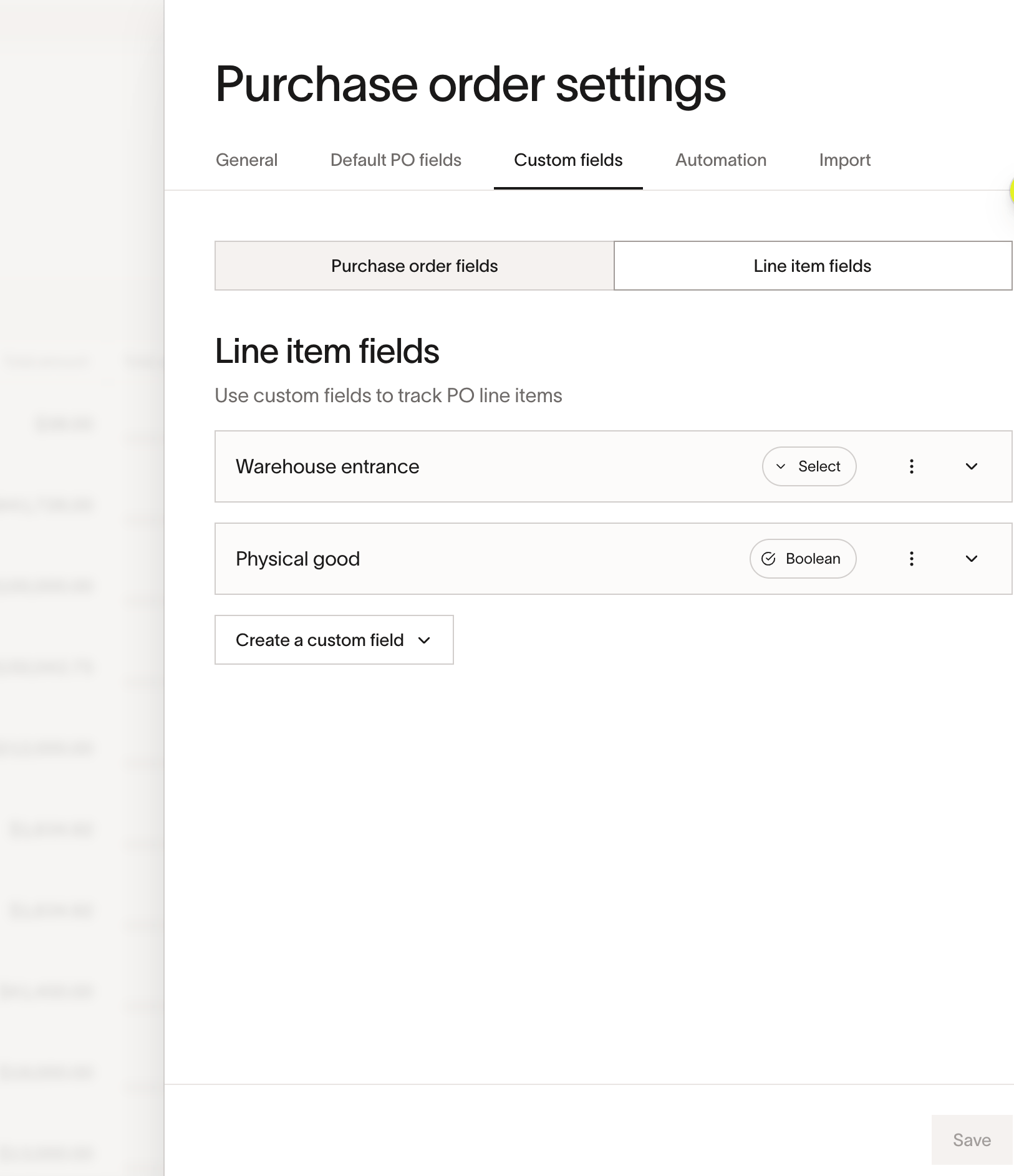
- Go to Manage spend > Purchase orders > Settings > Custom fields and select Line item fields.
- Click Create a custom field .
- Choose a field type: Text , Number , Boolean , Date , Select , or Multi-select .
- Enter the field name and any other setup details. For Select and Multi-select fields, add the options requesters should choose from.
- Optional: turn on Include in PO PDFs by default if the field should appear on purchase order PDFs unless you hide it on an individual PO.
- Click Save .
Add line item fields to Spend Programs
Creating a line item field does not automatically add it to a request form. You choose which procurement Spend Programs use each field.
- Go to Manage spend > Programs.
- Open the procurement Spend Program you want to update and click Edit .
- In the request form step, turn on Line items if it is not already enabled.
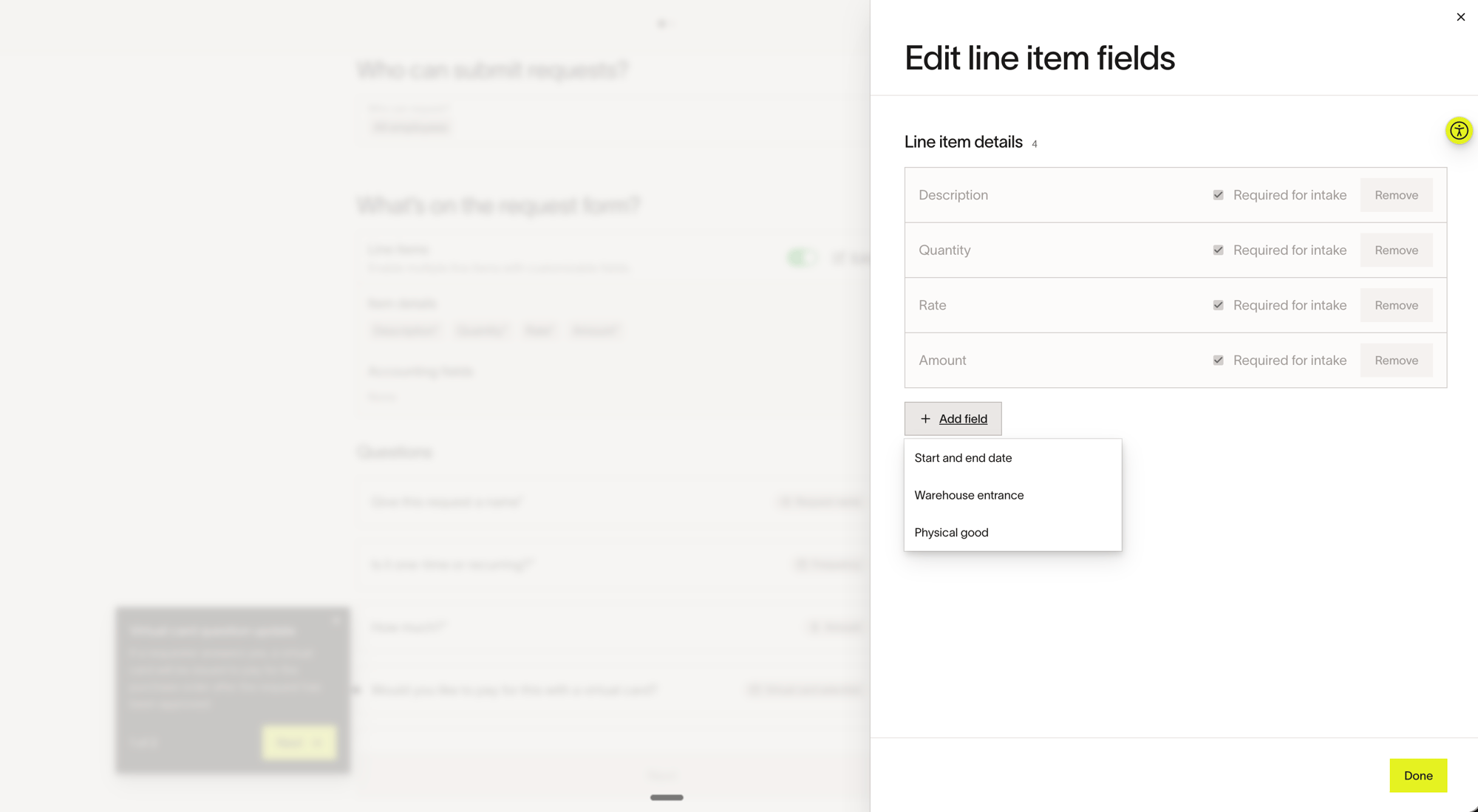
- Click Edit field selection .
- Select the line item fields you want on that program.
- Use Required for intake for any field that every line item must include before the request can be submitted.
- Save the program.
Use line item fields on requests and purchase orders
When a requester uses a procurement Spend Program that includes line item fields, Ramp shows those fields under Additional fields for each line item on the request form. Required fields must be filled out on every line item before submission.
After the request is approved, the values carry into the purchase order so approvers and procurement teams can review the same line-level data on the PO.
For the requester workflow, see How to submit procurement requests.
Show or hide line item fields on the PO PDF
You can control PDF visibility in two places: a default setting when you create the field, and an override on each purchase order.
- Go to Manage spend > Purchase orders and open the purchase order.
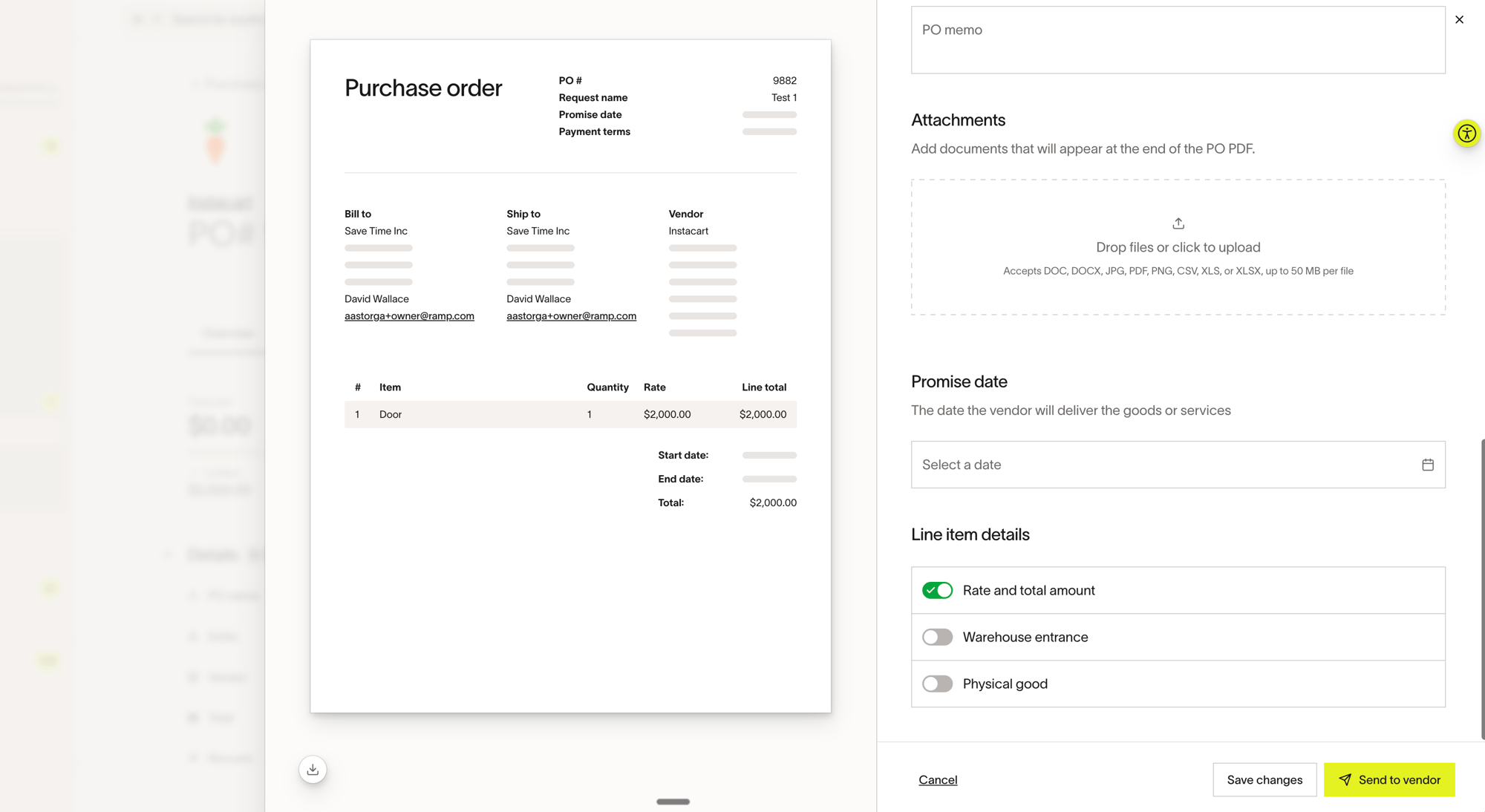
- Click Manage PDF .
- In Line item details , choose which line item custom fields appear on the PDF.
- Use the same section to show or hide Rate and total amount .
- Save your changes, then download or send the PDF.
Manage existing line item fields
- Edit a field - Go back to Line item fields to update the field name, description, select options, or default PDF visibility.
- Delete a field - Delete the field from the same settings page if you no longer want it available for future requests.
- Update program coverage - Edit any procurement Spend Program to add or remove line item fields later.
Note: Deleting a field removes it from attached procurement programs. Existing purchase orders remain unchanged.
Note: If you remove an option from a Select field, Ramp clears that option anywhere it was previously selected on requests and purchase orders.
Frequently asked questions
Can I use different line item fields on different procurement Spend Programs?
Yes. You create the field once, then choose which procurement Spend Programs use it.
What's the difference between purchase order fields and line item fields?
Purchase order fields live on the PO itself. Line item fields are attached to each individual line item and are configured through procurement Spend Programs.
Can I make a line item field required?
Yes. Turn on Required for intake in the Spend Program's Edit field selection drawer to require that field on every line item submitted through that program.
Can I change a field's type after I create it?
No. To use a different field type, create a new field and update your procurement Spend Programs to use it.