How to submit procurement requests
Overview
Employees submit procurement requests through Programs that Admins publish in Ramp. Depending on the Program and approval workflow, an approved request can create a purchase order, issue a virtual card, or both.
Note: Procurement requires the Procurement add-on.
Submit a procurement request
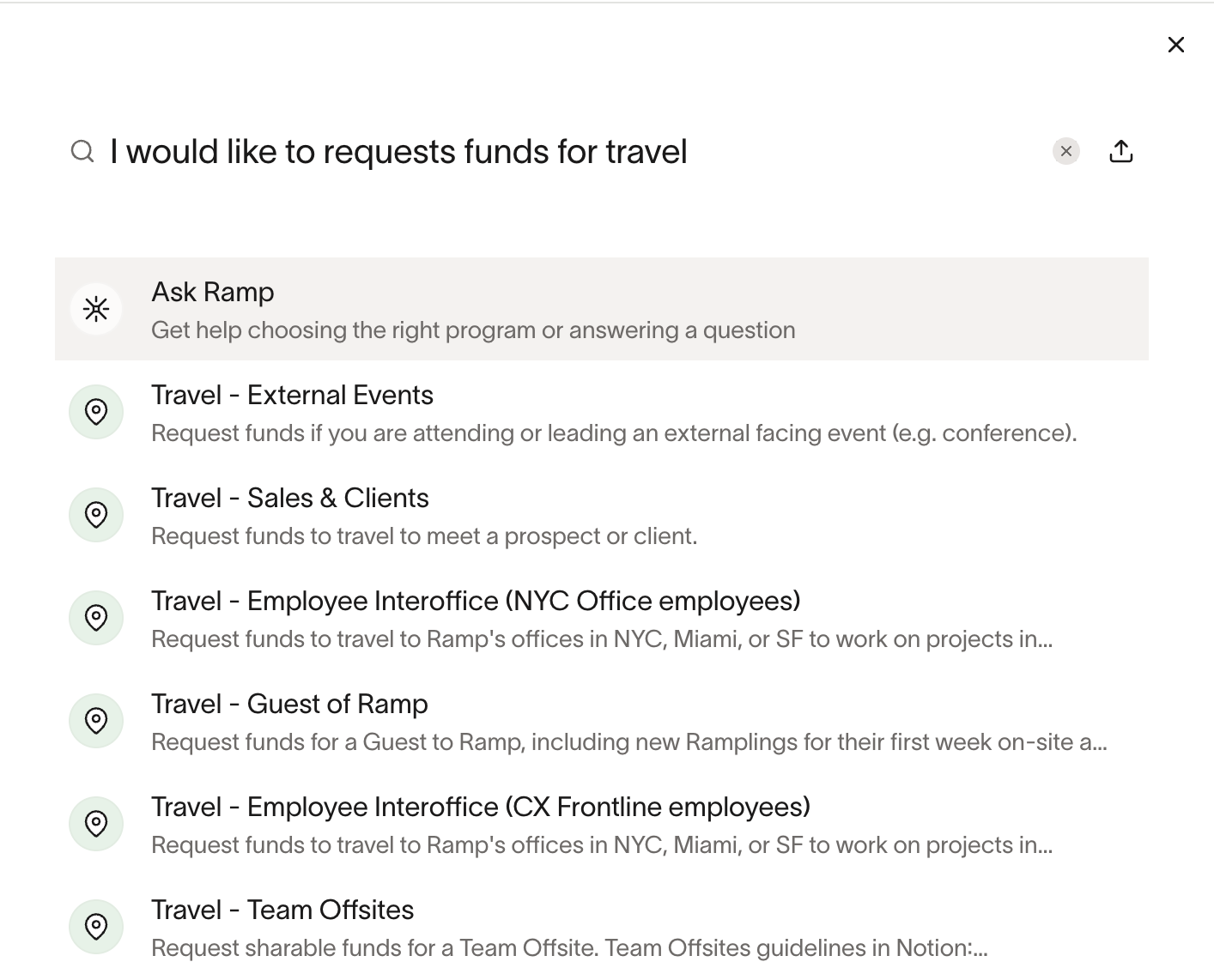
Use Request, then choose the Program that matches what you need to buy.
Request spend from a Program
Select the Program that matches the purchase you need to make. If you do not see a relevant Program, ask your Ramp Admin which program to use or whether they need to publish one for your purchase type.
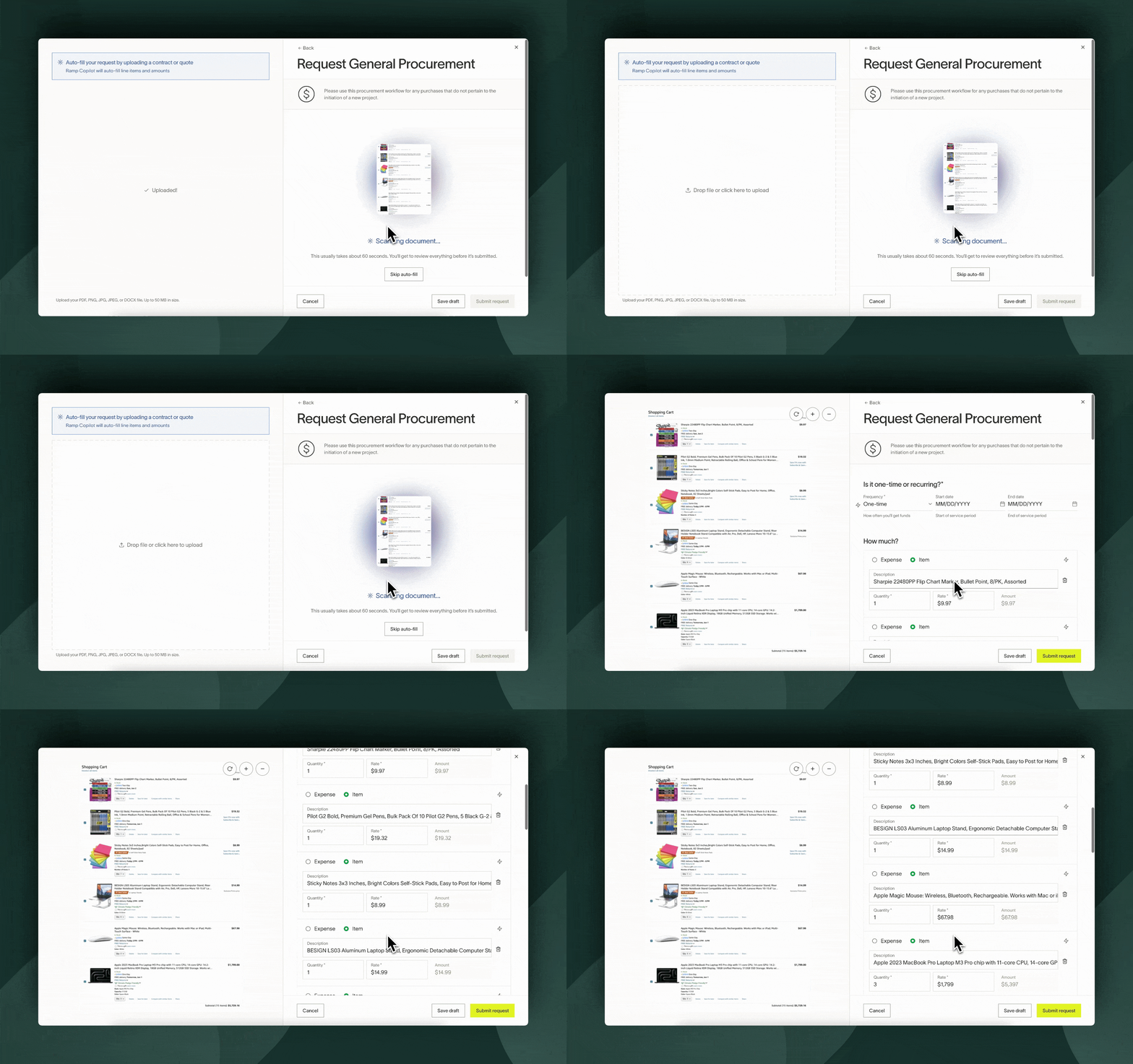
Upload a contract or quote for automated intake
You can upload a contract or quote and Ramp will auto-fill the Frequency, Start/end date, and Line items. You can also manually fill everything out or edit any fields.
You can save requests as drafts and re-access it from your Home dashboard.
**Please note:**Negative amounts are permitted.
Fill out the request manually
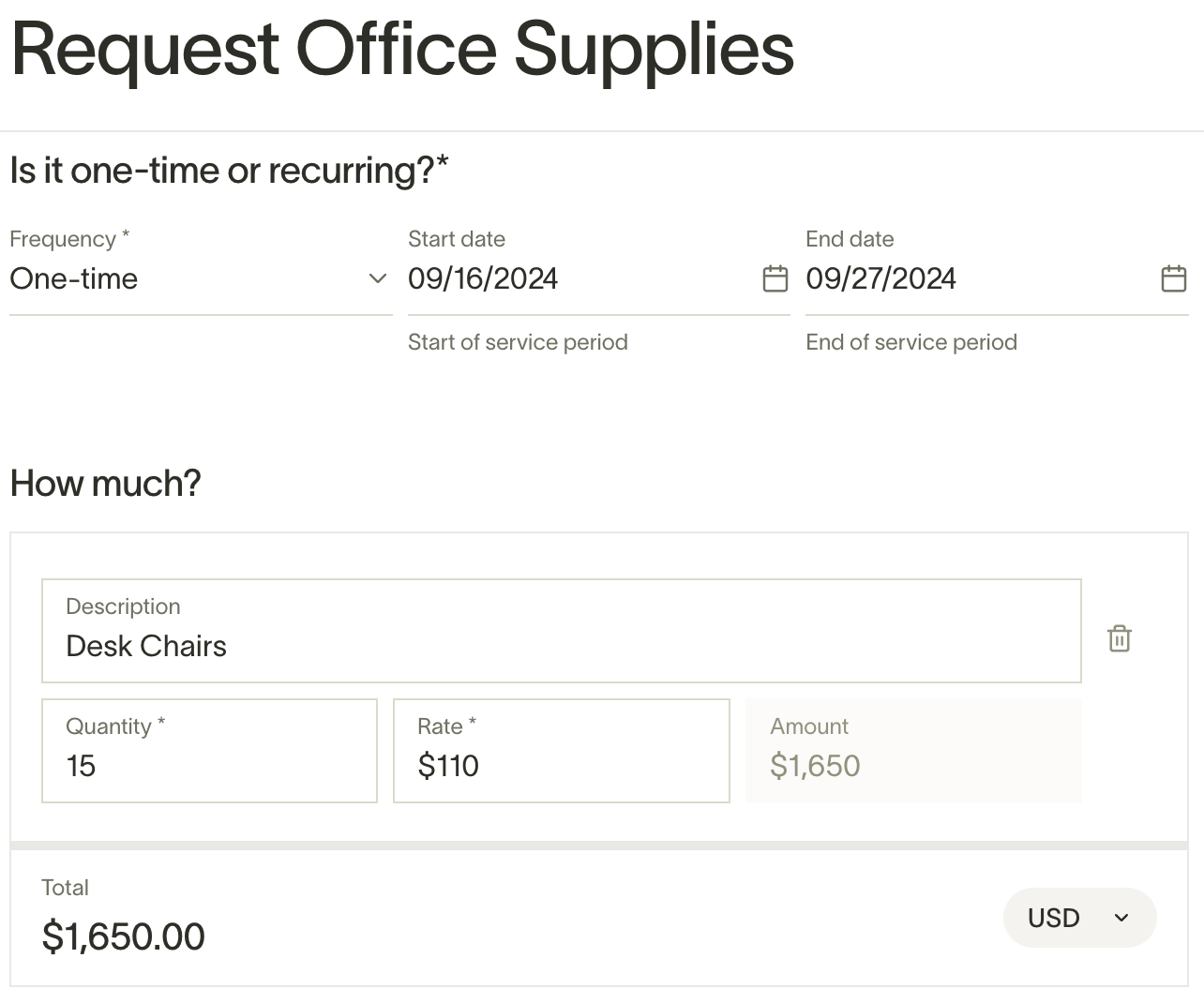
Fill in the required questions on the form. If the form includes Frequency, select the option that matches the purchase. Add any required service start/end dates and line items. All other questions & accounting fields on this form are added by your administrator, so any questions/feedback should be directed to them.
Learn more about multi-currency POs here.
Approvals
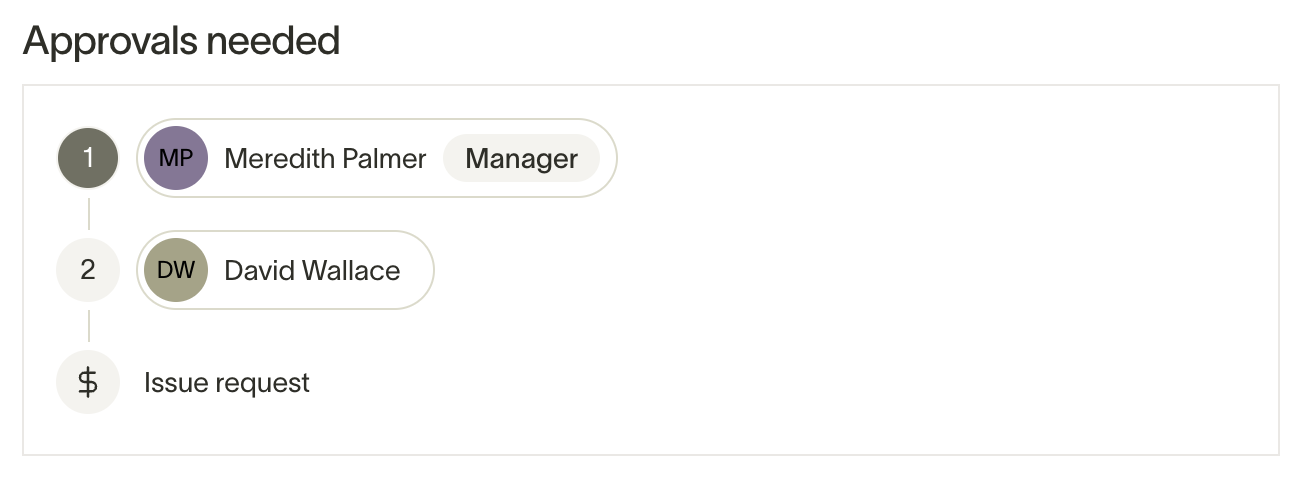
On the request page, you'll see the approvals required to issue the request. A pending procurement request can be edited by the requestor/creator, owner, or coordinator; anyone who has participated in its approval chain; the direct manager of its owner or coordinator when granted team-level procurement management permission; and users with company-wide procurement management permission, including Business Owners, Admins, Finance Admins, and AP Clerks. Custom Roles can also be granted these abilities.
If approval-relevant request details are edited after a previous stakeholder approves, Ramp reevaluates the approval chain and may restart prior approvals. Approvers will receive a notification via email and Slack, if enabled, when they are up for approval.
If a reviewer requests changes, follow Respond to requested procurement changes to address the instructions and return the request for review.
Note: If no approvals are required or your role can skip approvals, submitting the request can immediately generate a PO, issue a virtual card, or both. Otherwise, Ramp issues the result after the request is fully approved.
Create a purchase order from a procurement request
If the Program uses purchase orders, Ramp creates the PO when the request is fully approved. The Purchase orders page is mainly for managing POs after they exist. If its empty state shows New request, you can select it to start a request.
Request states
Procurement requests use these statuses:
- Draft: Request has been saved for later.
- Pending approval: Request is actively being approved by stakeholders in the approval chain.
- Approved: Request has been fully approved by stakeholders within the approval chain. Ramp has issued the resulting virtual card, PO, or both.
- Rejected: Request has been denied by an approver or Admin. The requester can edit and resubmit it, which starts a new approval attempt.
Archiving is separate from request status. An archived request is no longer active, and this action cannot be undone.
- Admins, the requester, and Procurement Coordinators can archive a request that is not linked to bills or matched card transactions.
- For more details, see Archiving purchase orders.
Track your procurement request
Ramp makes it easy for you to get the latest updates on your procurement request by centralizing approvals and comments in one place.
Requests table
View any pending procurement requests in the Requests table. They will also appear in the bottom right on Home. You can hit "Remind" once a day to send a reminder to approvers.

View activity and documents
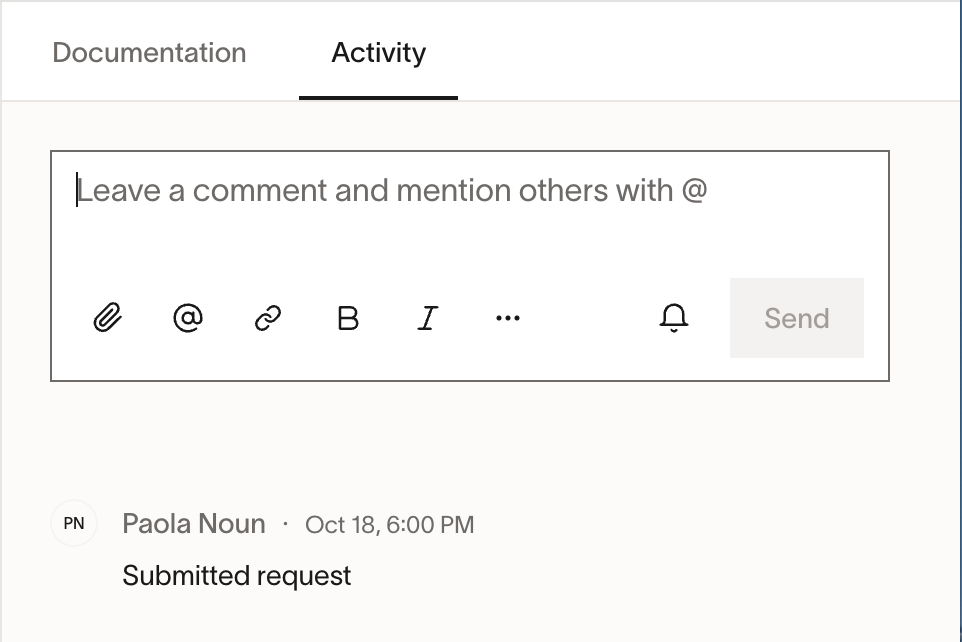
Click into a request to see approvals or any comments in the "Activity" tab. You can make comments and tag people directly. You'll be notified about comments and mentions via email and Slack integration (if enabled). Additionally, you can view any documents you uploaded while submitting the request (if any), or upload anything new that may be relevant for the request.
Keep stakeholders informed
To keep colleagues informed about your request without adding them to the approval chain, tag them in a comment on the Activity tab using the @ mention. Tagged users receive a notification via email and Slack (if your company has enabled the Slack integration) and can then view the request and add their own comments.
For procurement requests, admins can also assign a Request Coordinator — a designated person who oversees the request through its lifecycle. See Procurement Request Coordinator for details.
Additionally, admins can add a Notify step to the approval workflow to automatically send notifications to specific users or groups at key points in the approval process. See Configuring Procurement Workflows for details.
Update PO info
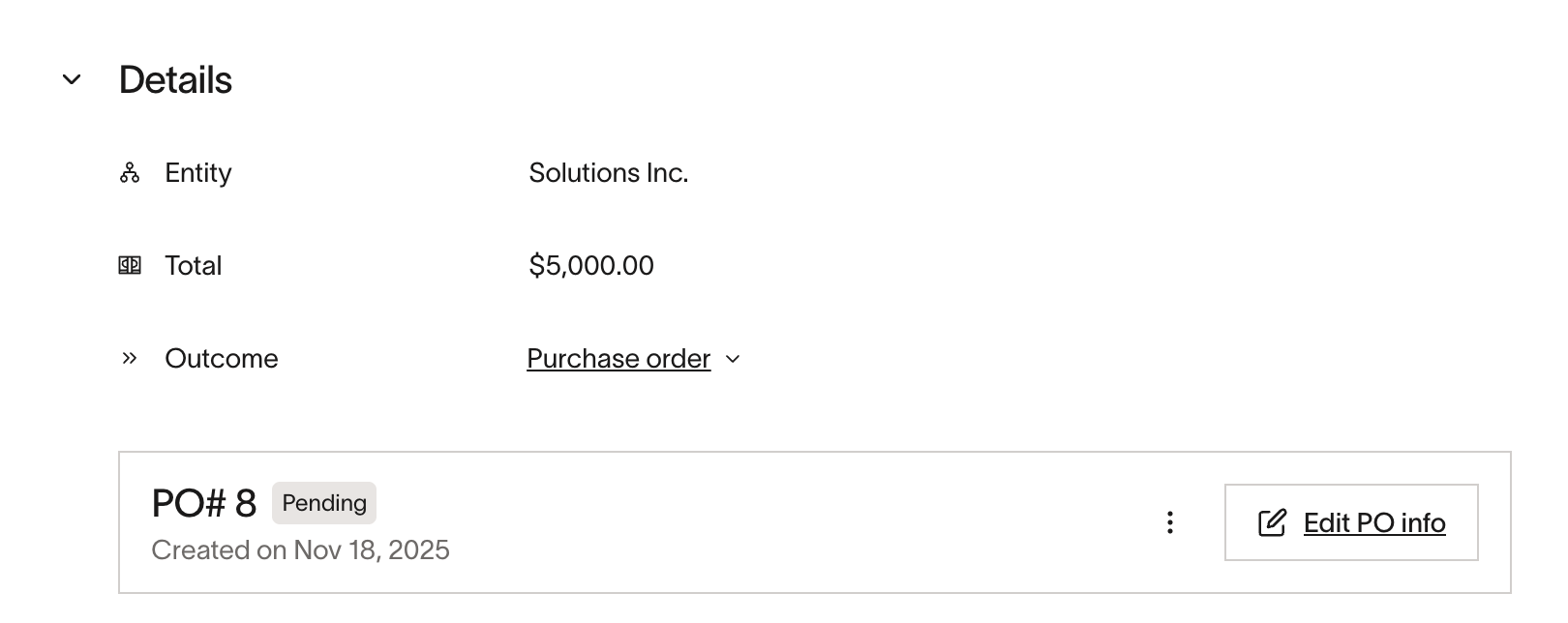
In the request, under Details, you can see the draft PO that will be created upon approval of the request. By clicking into Edit PO Info, you can update things like the PO number, payment terms, shipping & billing information, an associated memo, and any attachments you'd like to add to the PO itself.
Update accounting information
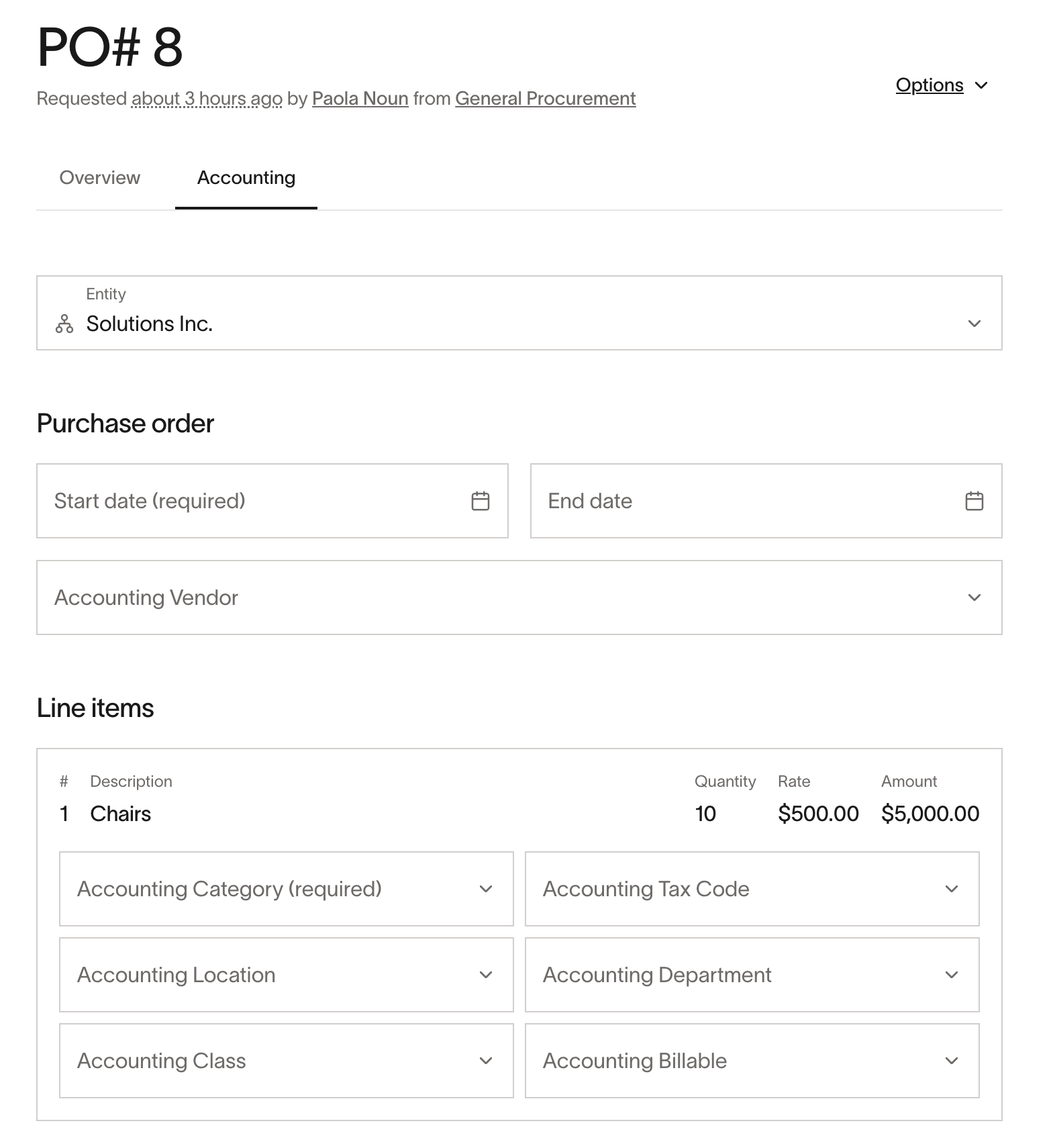
The PO request will have two tabs, one providing an overview of the request and the other allowing you to see and edit the requests associated Accounting information. In this Accounting tab, you will be able to update the coding for all of your line items, as well as the overarching PO itself.
Purchase orders issued
Once all approvals are completed, Ramp issues an open purchase order (PO) if the Program uses purchase orders.
For more details, see Purchase orders in Ramp.