Ramp Admin guide
Note: This article primarily applies to Ramp Administrators. Cardholders may find Getting started as a User to be more applicable.
Welcome!
Understanding Ramp - financial basics
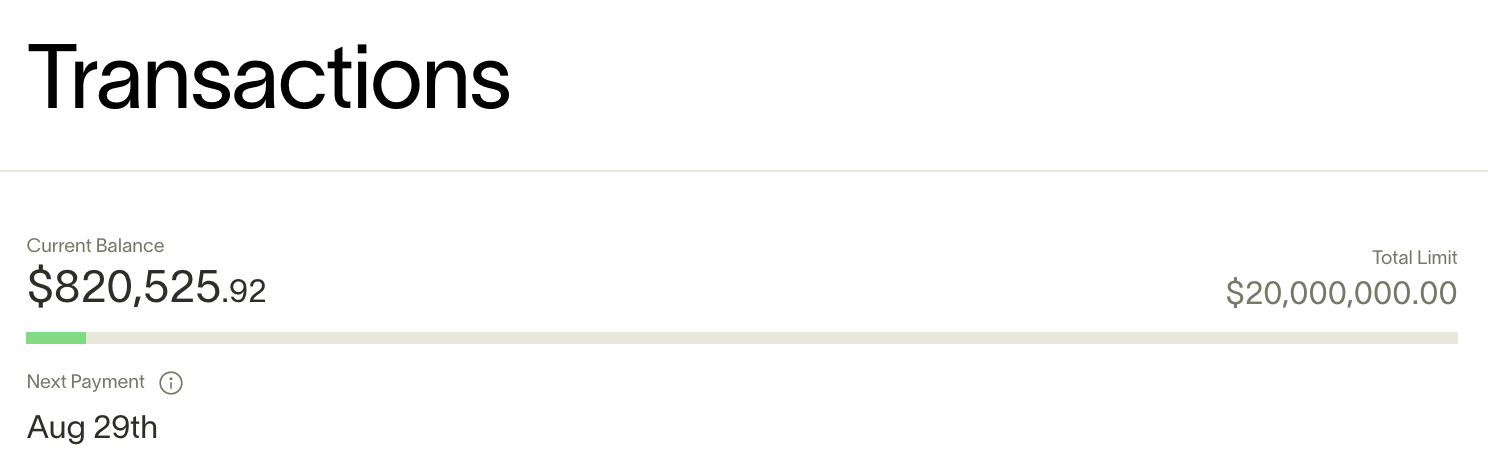
- Card functionality : Ramp currently offers a charge card with a 30-day billing cycle. Your billing cycle begins on the day of your first transaction. Your balance is due in full every 30 days from then on.
- Available cashback : How much cashback you can apply to your current statement (redeem by “Payments” → Redeem cashback).
- Available shared funds: How much you have remaining to spend in your current billing cycle. Access additional spend by making a manual payment (“payments” → “manual payment.”)
- Next payment : The date of your next automatic payment, your current statement balance will be deducted from your default payment account on that date.
- Account statements : Available on the day of your “next payment” by clicking on the Statements button on your transactions tab.
Your cards and funds
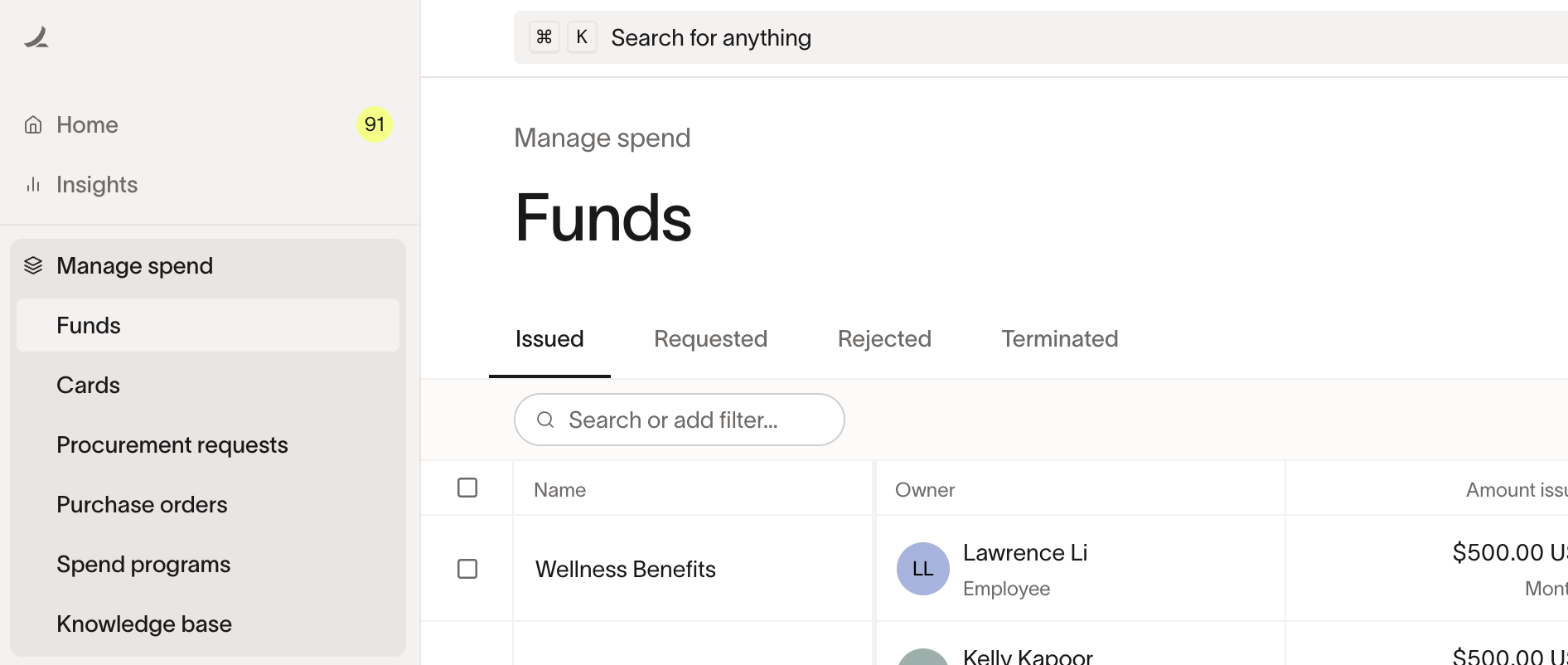
As a Ramp Admin, you have the ability to create and edit your own funds and virtual cards. Basic cardholders must either be assigned a card during their invite process or request one from their manager/admin. Your 'Cards' tab and your 'Funds' tab within 'Manage Spend' allows you to view your current funds and cards and create/request new cards based on your user type.
- Virtual cards: Instantly create online-only spend allocations for recurring purchases, granular vendor management control, or one-off expenses.
- Physical cards: Physical cards are recommended for individuals who spend frequently on T&E. They take roughly 1 week to arrive after a physical card is approved/created.
- Funds: instantly allocate money to be spent on physical or virtual cards with specific controls added to said money
Creating new cards
Go to Funds & cards → Issue funds. Choose from our commonly used card template or create a custom card.
Here is the required information for new cards:
- Fund type - choose virtual or physical. if you already have one physical, you cannot create another.
- Card name- as shown in the dashboard, this does not change your name on the card
- Fund amount - the allocated funds for that card (separate from your business's total allocated funds)
- Frequency - choose how often you want the allocated funds to reset (daily, monthly, yearly, or 'total' for a one-time allocation).
- Auto lock dates: Choose a date in the future in which the card will stop accepting transactions.
- Category controls: Select which spending categories or merchants are allowed or blocked on the card
- Transaction amount limits: Set a maximum amount per transaction above which a transaction will be declined
Editing cards
To adjust your allocated funds or frequency, click on any of your funds or virtual cards, select 'Actions', then select 'Edit,' and update the amount.
Setting your Ramp expense policies
Read: Setup your expense policy
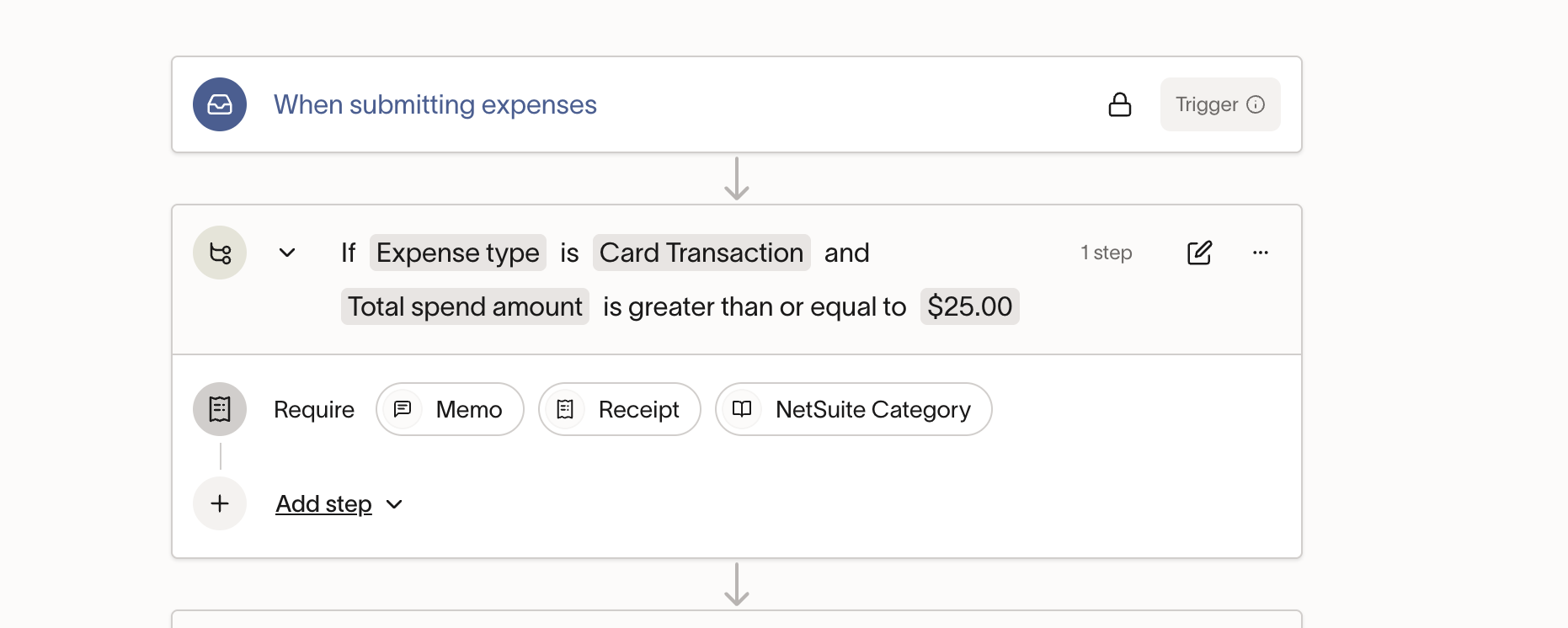
Ramp enables your business to implement its expense policy right into the platform. When properly implemented, Ramp will automatically notify the user when they need to submit receipts or memos for their card transactions.
To set up and edit your expense policy, go to Policy > Expense Requirements. Here you can control settings like at what thresholds employees need to provide receipts or memos. Specifically:
- Receipt requirements : For any transaction above the designated threshold all employees will be prompted to upload receipts to Ramp right after their transaction occurs. The default is $75.
- Memo requirements : Similar to Receipt Requirements, you can turn on the requirement for employees to include memos for their transactions.
- Additional fields: Require your employees to code specific accounting fields, like category, vendor, and location, for their own transactions (by default, they cannot).
Communication preferences
Ramp’s real-time notifications give Admins important visibility into what their colleagues are spending on and helps them better control their monthly finances. Ramp automatically notifies Admins about spend at both thecompanyandpersonallevel.
To adjust any of the following: Settings → Communication preferences
Business activity
- Large transaction alert - Get notified when colleagues spend above a certain threshold (set by you)
- Employee card declines - get alerted when a colleague’s transaction is declined because they’ve reached the spending limit on their card
- Monthly spend report - Receive a report at the beginning of every month to gain awareness of what your team is spending on.
- Savings insights - Get alerted when there are new savings opportunities.
Personal activity
Set your communication preferences for when and how Ramp reminds you to submit receipts for your own transactions (both in-person and digital transactions).
User onboarding and management
Inviting your team
Read: Invite a new user
Admins and Managers can invite employees onto Ramp and set them up with their initial card.
- To invite employees : Business → People & groups → Invite people. You can choose to invite in bulk if you have a large number of users to invite.
- To manage invites: Business → People & groups → Manage invites (click on the number)
User overview
Read: User roles overview
You can invite all employees on Ramp with the right permissions. When inviting, you can choose to issue your employee a card or simply have them request spend when they join.
- Cardholder : An employee who’s been granted access to allocated funds through virtual and/or physical cards.
- Admins: Super-users that can invite users, issue cards, set spending limits, create accounting rules, and modify all Ramp company settings.
- Card Managers: Card Managers are trusted with a lot of responsibility within the Ramp platform - they can invite users, set their limits, see their spending, and approve their requests. As such, Admins should give employees the Card Manager role if they are budget owners and trusted with company spending. These typically will be the heads of departments - engineering, IT, sales, and marketing. By doing so, finance teams empower these leaders to effectively manage their teams - while maintaining total oversight of the decisions and spending. This trust but verify approach is how leading finance teams create goodwill and an effective culture within the organization.
- Accounting: Employees or third parties who are given access to activity data to help with bookkeeping. Has full access to accounting, and can have cards, but cannot issue cards.
Accounting setup
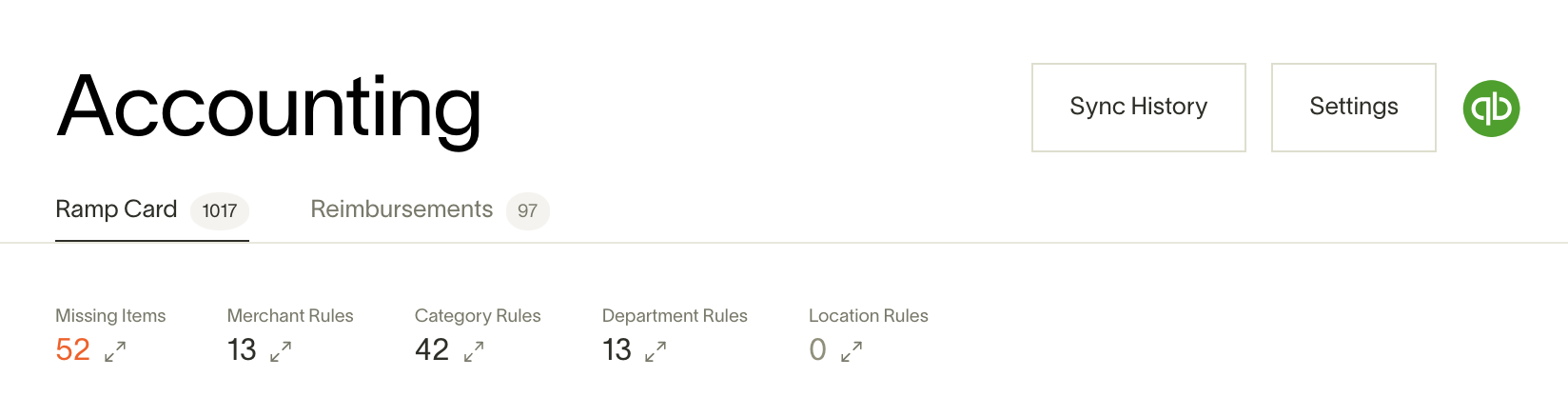
Ramp integrates in just a few clicks with QuickBooks Online, Xero, Sage Intacct, and NetSuite. Admins will be able to map Ramp categories with their accounting categories and automatically sync transactions to their accounting systems.
Visit below for detailed instructions for every accounting solution:
- QuickBooks
- Sage Intacct
- Xero
- NetSuite
- Integrations via Universal CSV - Ramp also supports QuickBooks Desktop , Sage 500, Aplos, Acumatica, and hundreds of others through our universal CSV adapter.
Bill Pay setup
Our Bill Pay product is completely free to use, easy to set up, and blazing fast when it comes to paying your bills. Our integrations with QuickBooks Online, Xero, Sage Intacct, and NetSuite make accounting for your ACH, check, and card payments to vendors easy.
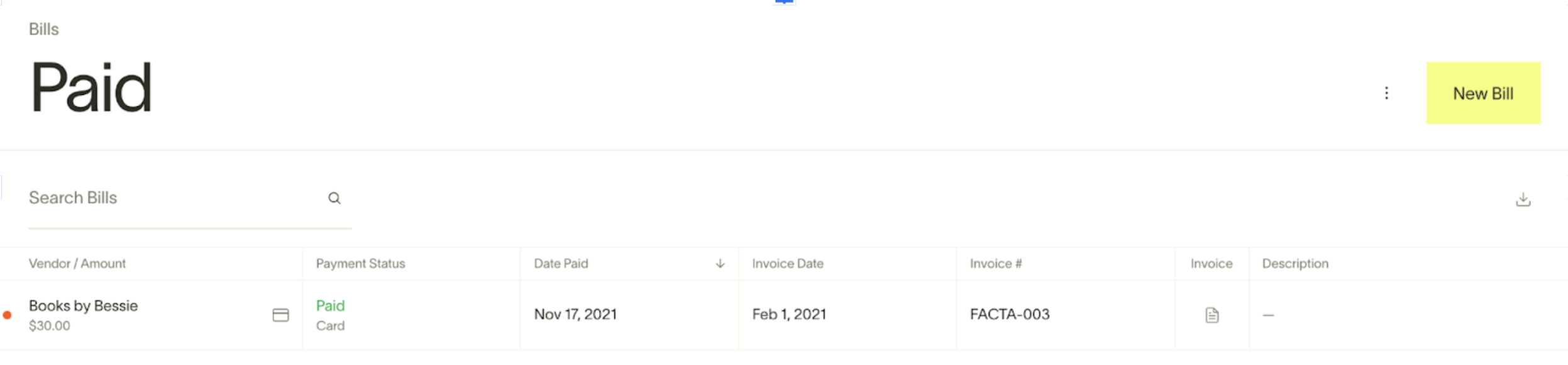
Learn more about Ramp Bill Pay:
- Bill Pay overview
- Bill Pay setup
- Bill lifecycle
- Bill payment methods and timelines
- Bill Pay accounting
- Bill Pay vendors and vendor owners
- Bill Pay approvals and Accounts Payable roles
Best practices - permissions, assigning limits, owning spend
Ramp offers much more control and flexibility around how modern finance leaders can implement a corporate card program. You no longer need to share cards or have one individual review expense reports every month. Before inviting users onto the platform, we encourage you to consider the permissions each employee should have and the allocated funds they should be assigned.
Spend management basics
At a basic level, Ramp enables admins to invite users with specific allocated funds and spending privileges. These typically fall into two buckets:
- Frequent spenders (e.g., marketing, procurement, or travelers) - these employees should be invited to the Ramp platform with monthly recurring allocated funds that closely match their typical spend.
- Infrequent spenders (e.g., average employee) - these employees should be invited to the Ramp platform without allocated funds and have the ability to request funds on a one-off basis. Typically, though, companies will invite employees with a $50-100 virtual card limit for one-off incidentals or as a benefit (e.g., coffee with a colleague). Keep in mind that the total cost to support generating and approving an expense report is $50, therefore, this is break-even and even better for your employees.
Eliminating expense reports
With Ramp, you can do away with expense reimbursements by issuing cards based on your expense policy. The easiest way to do this today is to identify the specific spending categories your policy allows and to issue allocated funds accordingly. Common examples:
- Annual budget for education - issue recurring allocated funds of $1000/year through a virtual card
- One-time onboarding desk budget - issue a single-use fund of $500 through a virtual card
- Recurring budget for wellness - issue recurring funds of $100/month through a virtual card.
- Additional recurring benefit for food/entertainment - issue recurring allocated funds of $15/day through a physical card
Keep in mind that employees can request spend from within Ramp on an as-needed basis - so you don't need to predict everything - just the big things so you don't get hassled with many requests going forward. Managers and admins can review these requests and approve them in real-time.
Controlling what vendors can charge
With Ramp, you can issue virtual cards to make payments to vendors. Typically, the best practice is to set up 1 virtual card per large vendor. This helps finance teams have additional control. Set a limit above which the vendor cannot overcharge you. You can also add an auto-lock date so you don't get charged for unwanted renewals. Terminate and re-issue a card anytime - without having to update the billing information of every other vendor.
Here are some guidelines as to who should own the spend:
- IT manager - should own most of the SaaS spending. His/her team can request cards for one-off SaaS procurement.
- Marketing manager - should own most of the advertising spend. His/her team can request cards for one-off advertising needs.
- Finance manager - should own most of the finance team's spending for cost of goods sold (e.g. furnishers)