Setting up single sign-on (SSO) and login controls in Ramp
Note: This article is for Ramp Administrators and IT Admins. Cardholders and other users may find the Getting started section more applicable.
Overview
Single sign-on (SSO) lets your team sign in to Ramp using their existing company credentials instead of a separate password. Ramp supports Google SSO and SAML-based authentication with providers like Okta, Microsoft Entra ID, JumpCloud, and OneLogin.
This article covers how to set up SSO, configure SAML identity providers, and manage which sign-in methods are available to each user role. Manage these settings from Company security.
Google SSO
Google SSO is available by default for users whose email addresses are on a Google Workspace domain. No setup is required — users with eligible email addresses can select Sign in with Google on the Ramp sign-in page.
Admins can disable Google SSO for specific roles through sign-in controls, as long as at least one other sign-in method remains enabled for that role.
Google Workspace SAML
Google SSO (the default sign-in option) is separate from Google Workspace SAML. If your organization uses Google Workspace as a SAML identity provider, configure it using the Other identity provider option in the SAML setup flow — not the Google SSO toggle.
SAML SSO
SAML (Security Assertion Markup Language) authentication lets you connect Ramp to your organization's identity provider. Once configured, users authenticate through your IdP and are signed into Ramp automatically.
Setting up a SAML provider
To begin SAML setup:
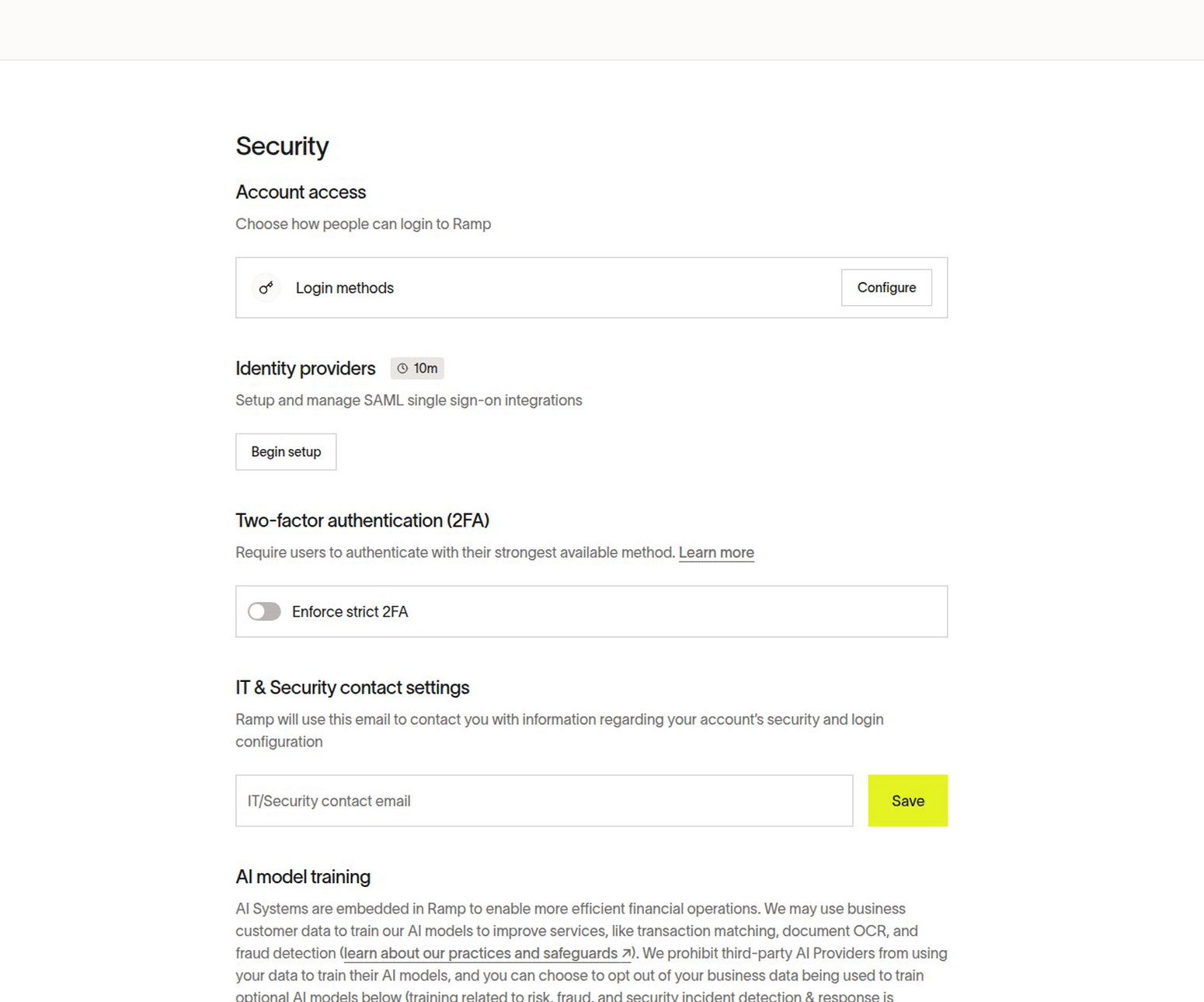
- Open Company security.
- In the Identity providers section, select Begin setup (or Add provider if you already have a provider configured).
You will be prompted to choose a provider. Ramp offers guided setup flows for the following providers:
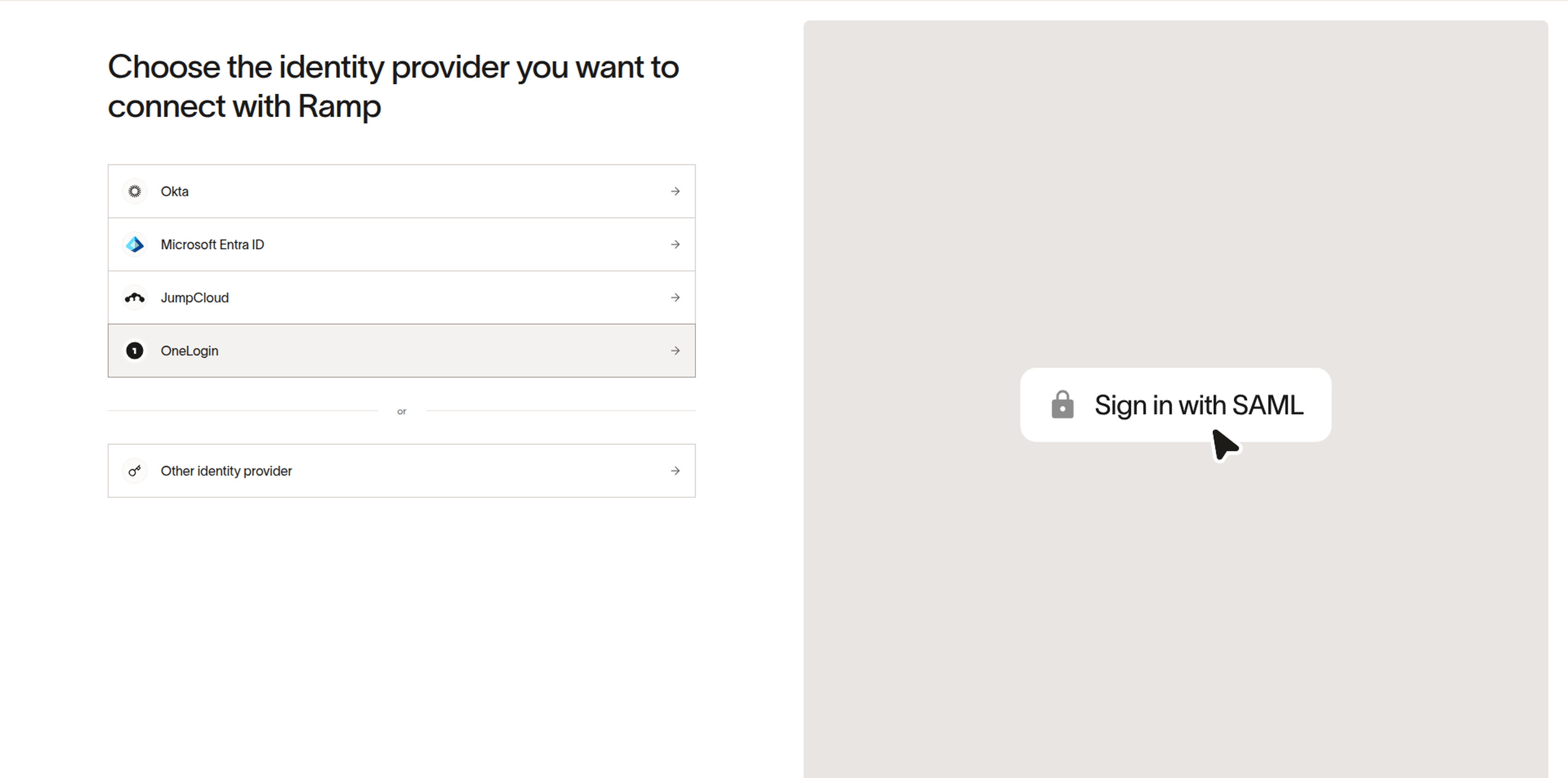
- Microsoft Entra ID
- Okta
- OneLogin (in-app guide, requires authentication)
- JumpCloud (in-app guide, requires authentication)
Each provider has a step-by-step wizard that walks you through configuration in both Ramp and your identity provider.
Note: Only users who exist in your identity provider will be able to sign in to Ramp using SAML.
Other identity providers
For any SAML provider not listed above — including Google Workspace SAML — select Other identity provider and follow the in-app instructions. The setup flow will guide you through the configuration steps needed in both Ramp and your identity provider.
Note: Some providers, such as Google Workspace, require you to host the metadata file yourself during initial setup to provide a metadata URL. Once the integration is configured, self-hosting is no longer needed.
Supporting multiple domains
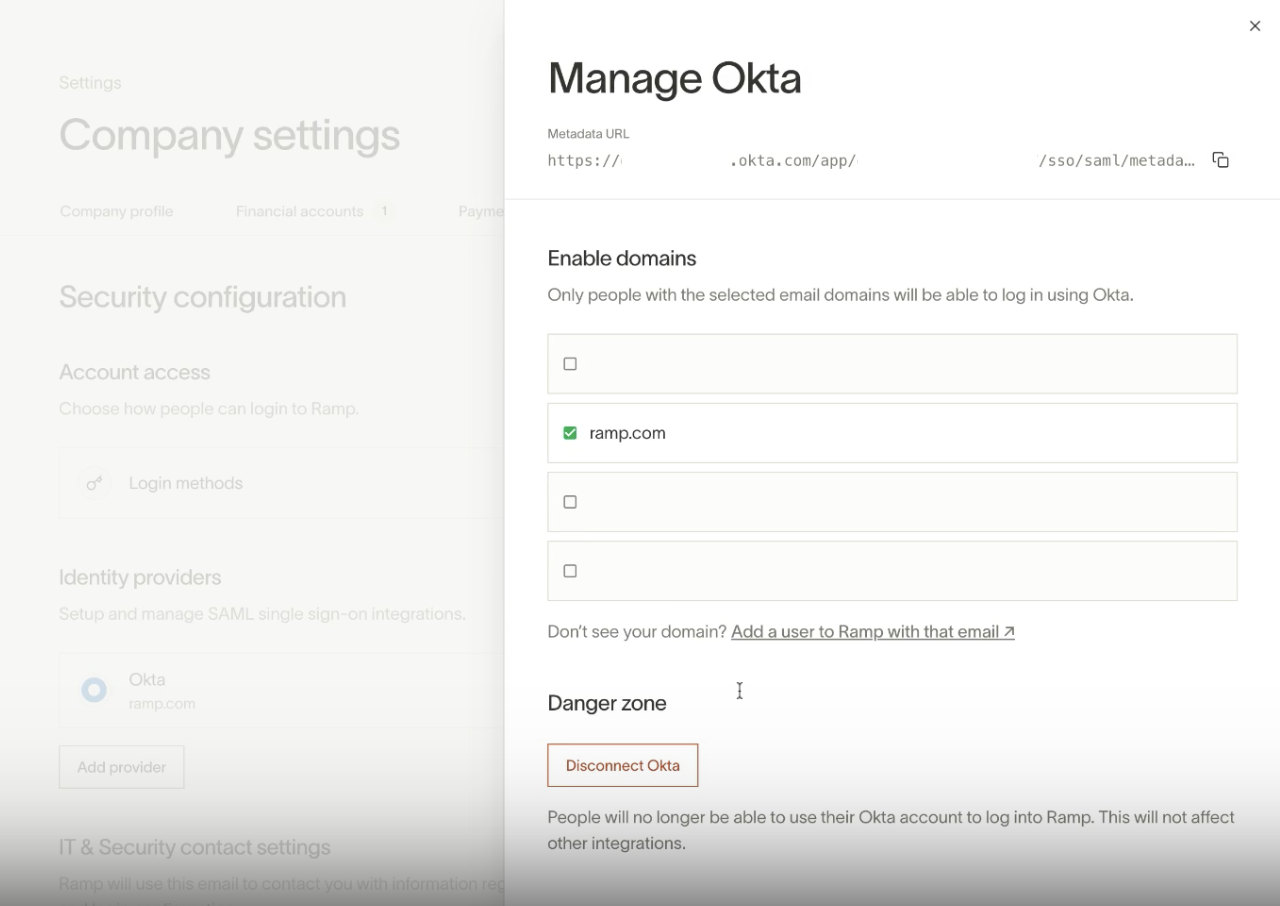
During SAML setup (and after), you can specify which email domains should use the SAML provider. You can assign multiple domains to a single provider, as long as:
- A user with that email domain has an active Ramp account.
- The domain is not already assigned to another SAML provider. In the standard setup, each domain can only be associated with one provider. If you need to share one domain across multiple Ramp businesses, see Sharing an SSO domain across multiple Ramp businesses .
Managing an existing provider
After a SAML provider is configured, admins can view its metadata URL and update its supported domains from the Identity providers section.
Before removing a SAML provider, confirm that users on its email domains have another working sign-in method. If you cannot confirm that a remaining provider supports those users, enable an alternative method (such as Password or Google SSO) for every affected role through sign-in controls. Ramp may allow removal when another SAML provider exists, even if it does not support the removed provider's domains.
Sign-in controls
Sign-in controls let you specify which authentication methods are available to each user role. Open Company security, then select Configure under Account access.
Setting sign-in methods by role
In the Login methods drawer, you can enable or disable Password, Google SSO, and SAML for each user role using the multi-select dropdown.
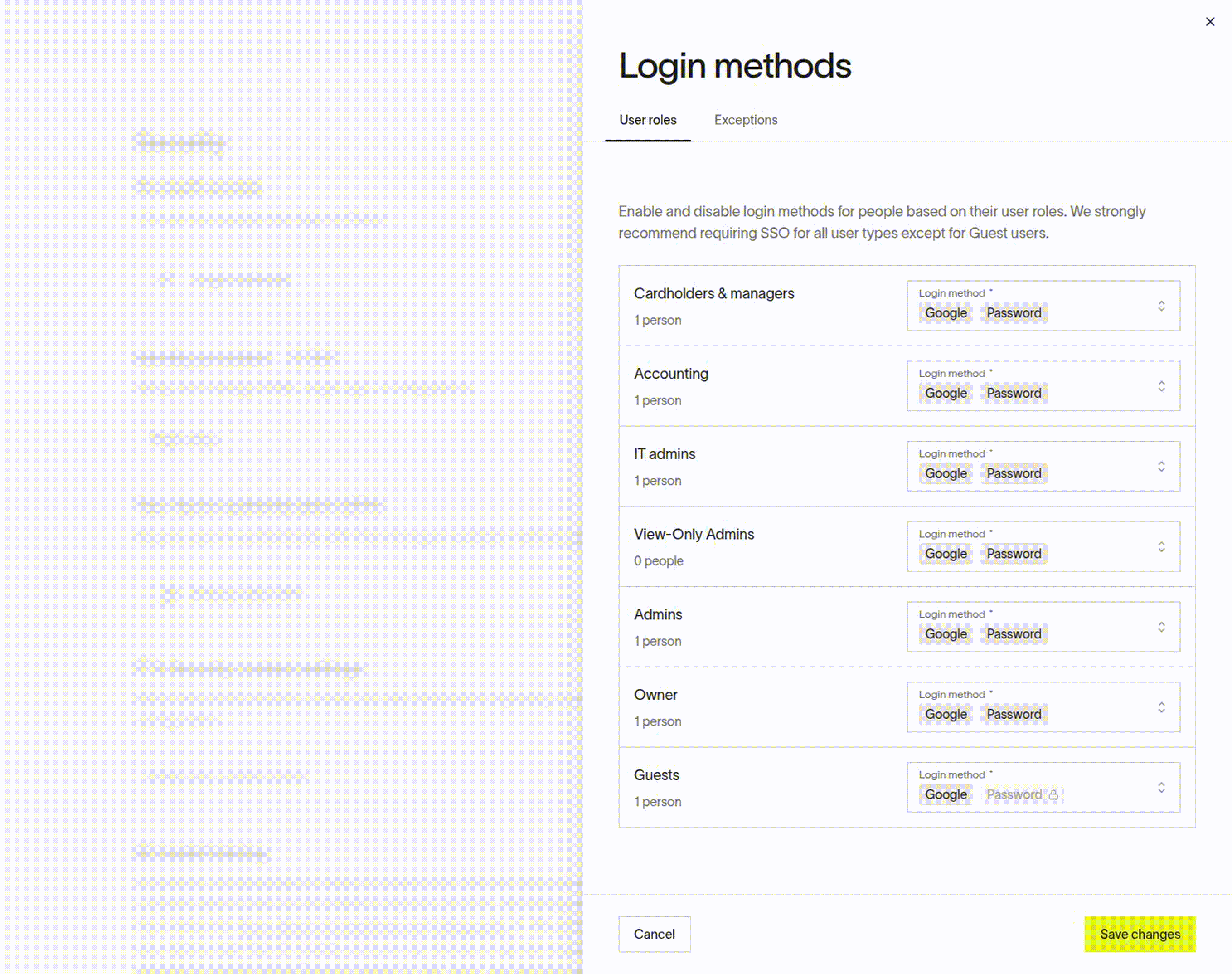
We strongly recommend requiring SSO for all roles except Guest users. To remove a sign-in method from a role, select the x next to the method. Every role must have at least one sign-in method enabled — Ramp enforces this automatically.
The example above shows where to review the sign-in methods available to each role. Your selections may differ.
Guest user password requirement
Guest users must always have password sign-in enabled. Because Guest users are external to your organization and may not have access to your SSO provider, Ramp enforces password authentication for this role. You can enable additional methods for Guests, but you cannot remove password.
Exception list for individual users
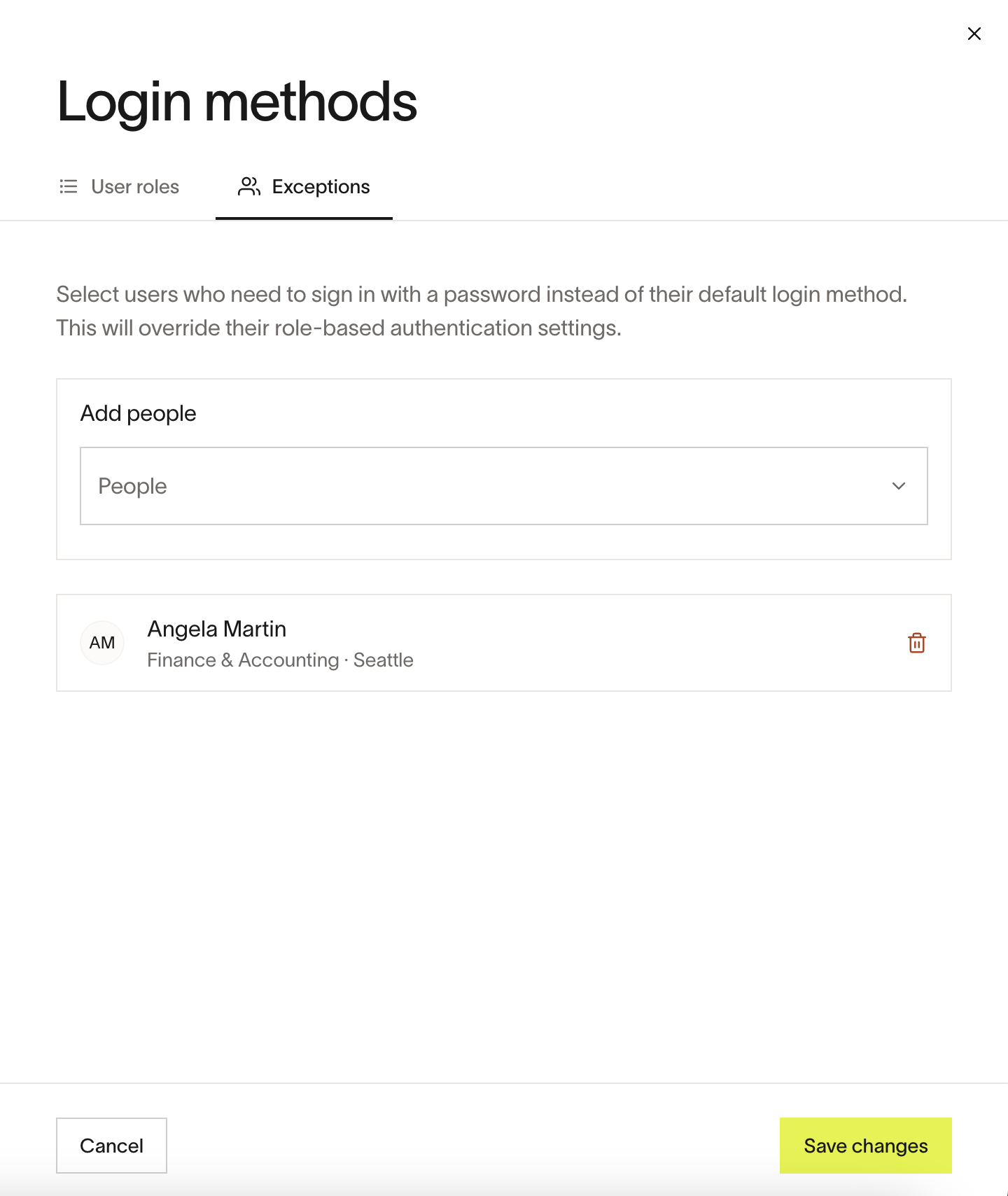
Some users may need password access even if their role is configured for SSO only — for example, external contractors or executives who need a fallback sign-in method.
To manage exceptions, open the Exceptions tab in the Login methods drawer. Adding an individual user makes Password available regardless of their role's settings and does not remove the other sign-in methods available to that user.
Passkeys and sign-in controls
Passkeys are not configurable per role. A user must have a registered passkey, and Password sign-in must be available for their account, before they can sign in with a passkey. For more details, see Signing in with Passkeys.
Frequently asked questions
Can I have multiple SAML providers?
Yes. Ramp supports multiple SAML providers, with each provider assigned to one or more email domains. In the standard setup, each domain can only be associated with one provider. If your organization needs to share one domain across multiple Ramp businesses, see Sharing an SSO domain across multiple Ramp businesses.
Does Ramp support IdP-initiated SAML?
No. Ramp supports only SP-initiated (service-provider-initiated) SAML, where the sign-in flow starts from the Ramp sign-in page. If your identity provider has a Ramp tile or bookmark, it should be configured to redirect to Ramp's sign-in URL, which then initiates the SAML flow. For more details, see SAML IdP-initiated sign-ins.
Can I require passkeys for specific roles?
No. Admins cannot require or restrict passkeys by role. See Signing in with Passkeys for more information.
What happens if I try to delete my SAML provider?
Ramp blocks deletion of the last SAML provider when a role relies only on SAML, but it may allow deletion when another provider exists. Before removing any provider, confirm affected users have another working sign-in method. See Managing an existing provider.
What if an employee's email domain does not match the SAML provider?
If a user tries to sign in with SAML but their email domain is not associated with any configured SAML provider, they may be blocked from signing in. Contact your IT administrator to verify that the user's domain is assigned to the correct provider, or add the domain to an existing SAML configuration.
A new user is getting an error when accepting their invite with SAML SSO. What should I check?
When a user accepts an invite and your organization uses SAML authentication, several things must align:
- The email address in the SAML identity provider must exactly match the email used for the invite.
- The user must use SAML as their sign-in method if SAML is the only enabled method for their role.
Common errors include:
- Email mismatch error — The SAML identity provider email and invite email are different. Ensure both match exactly.
- "Your SSO configuration is invalid" — The SAML provider configuration needs attention. Check the metadata URL and certificate validity.
- If the user's role is configured for SAML-only sign-in but they are trying to use a password, they will be blocked. Either add password as a sign-in method for their role through sign-in controls or add them to the exception list .
For step-by-step help with accepting an invite and signing in, see Signing in to Ramp for the first time.
I am having trouble signing in. Where can I get help?
For sign-in and MFA issues, see Troubleshooting Ramp sign-in and MFA issues. If you need to reach Ramp directly, see How to contact Ramp's Support team.