Okta integration: Set up SAML SSO
Overview
Note: This article primarily applies to Ramp Administrators.
Cardholders may find other articles in the Ramp overview section to be more applicable.
This article covers how to use Okta for SAML 2.0 Single Sign On (SSO). For System for Cross-domain Identity Management (SCIM) for your Ramp account, please refer here.
SSO will allow your employees to access Ramp through Okta seamlessly and securely. SCIM will allow you to manage your Ramp users from the Okta platform. With SCIM you can invite users, update profile attributes, and terminate users automatically via Okta.
Install the Ramp application in Okta
Note: Starting in Sept 2024, Ramp will be rolling out a new SAML configuration flow that will provide admins with step-by-step instructions to set up SAML within the application.
In order to set up SAML authentication, you must first set up the Ramp application in Okta.
- In a new browser tab, sign in to your Okta tenant
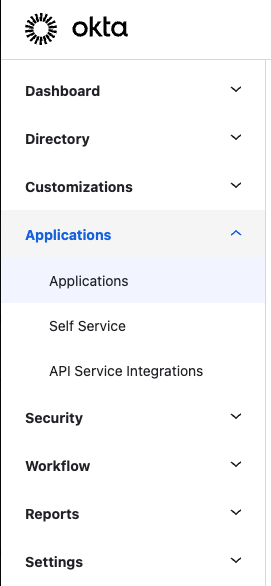
- Navigate to Applications > Applications:
-
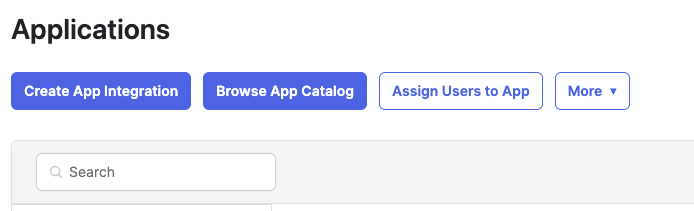
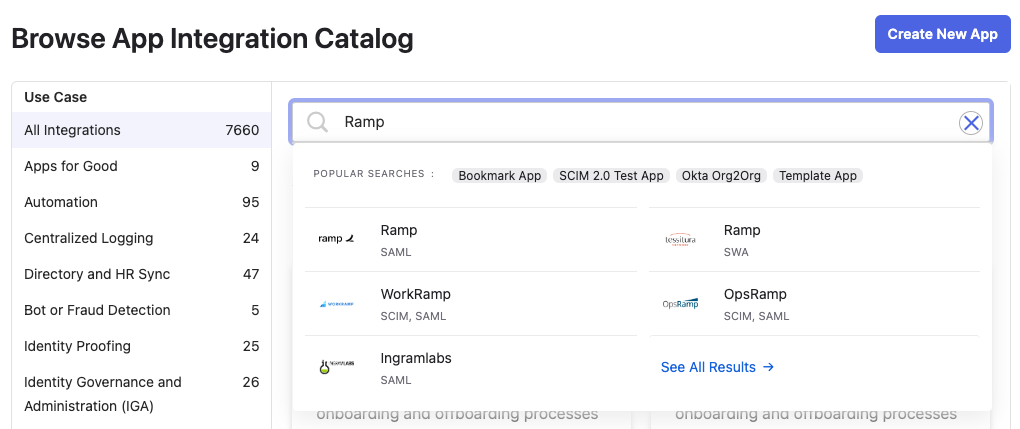
Click Browse App Catalog, search for Ramp, and click on the Ramp Application to view
-
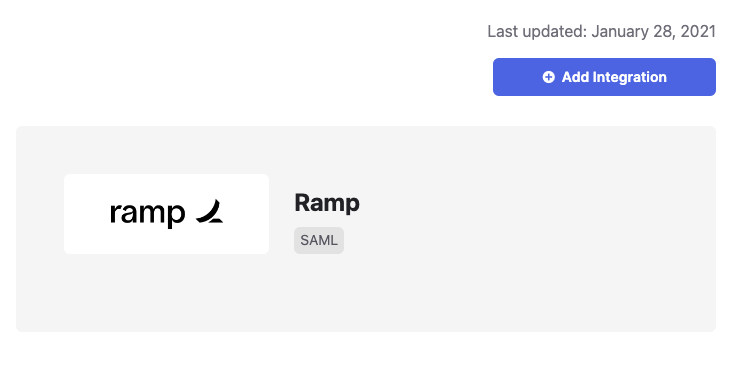
Click Add Integration
-
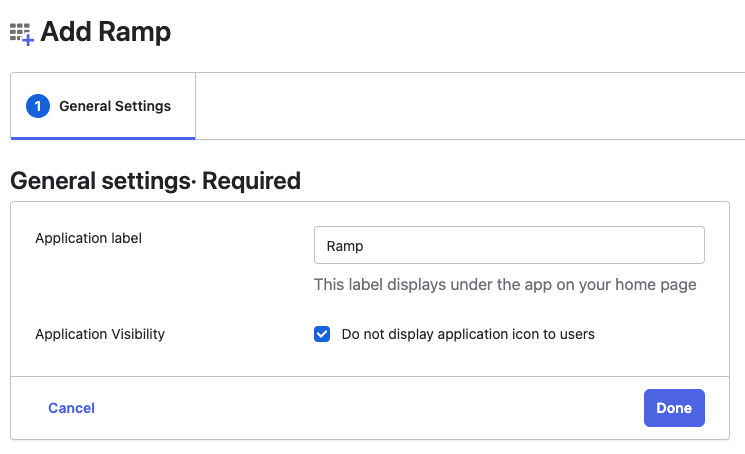
Under General Settings:
- Enter the Application Label. You can change the application label but we recommend using “Ramp.” This is the name of the app that your employees will see when accessing Ramp via Okta.
Since Ramp does not support IdP-initiated sign-ins, you should check the box: Do not display application icon to users
Supported SAML features
The Okta/Ramp SAML integration currently supports the following features:
- SP-initiated SSO
Set up Okta SSO on Ramp
Configuration steps
-
Sign in to the Ramp application and click the Settings tab on the lefthand side.
-
Navigate to Company settings, then Security.
-
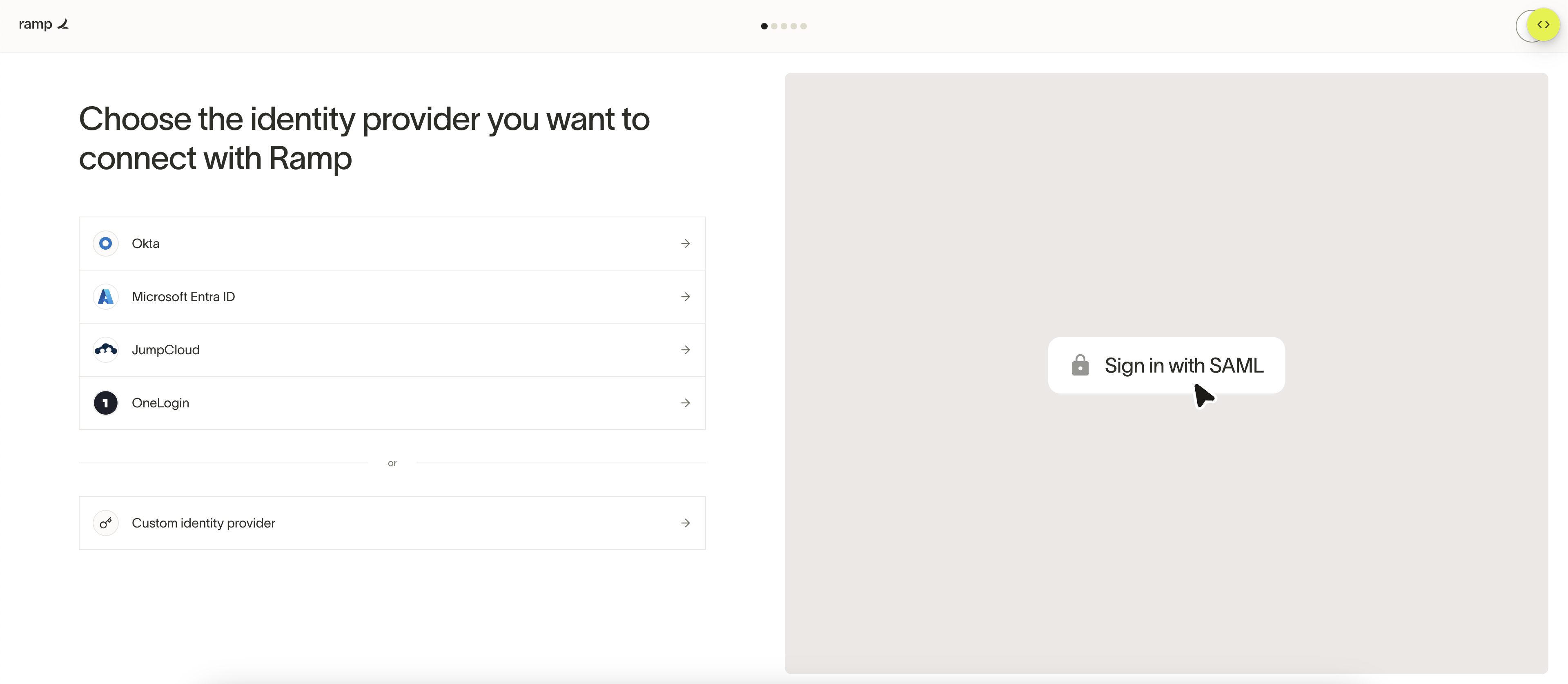
Under the Identity providers tab, click Begin setup.
-
Click on Okta, which will trigger the step-by-step configuration instructions below.
-
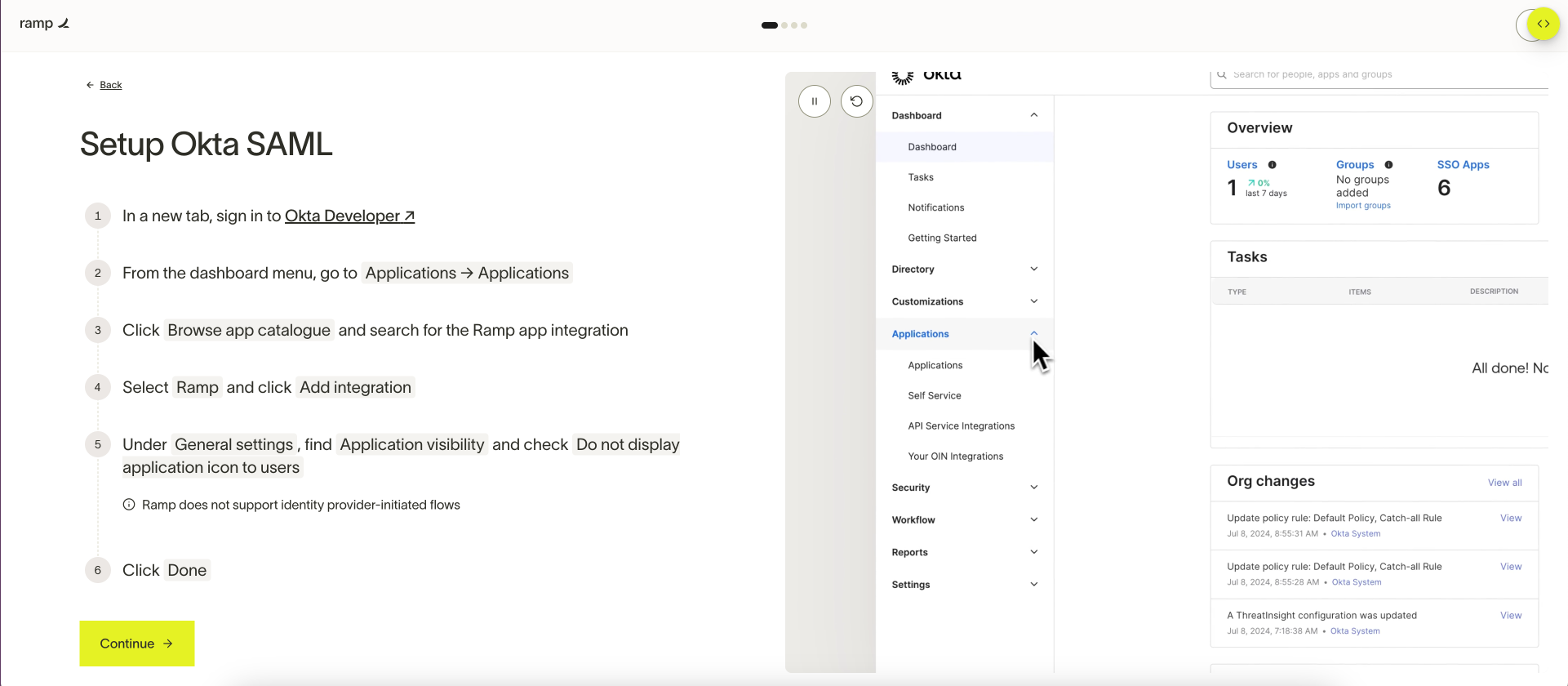
In a new browser tab, sign in to your Okta tenant.
-
Navigate to Applications > Applications.
-
If the Ramp application is already installed in Okta, click Done and skip to step 10. Otherwise, click Browse app catalog , search for the Ramp app integration, and click Add integration .
-
Under General settings , find Application visibility , and check Do not display application icon to users , since Ramp does not support IdP-initiated flows. Then click Done .
-
On the Ramp tab, click Continue to go to the next page.
-
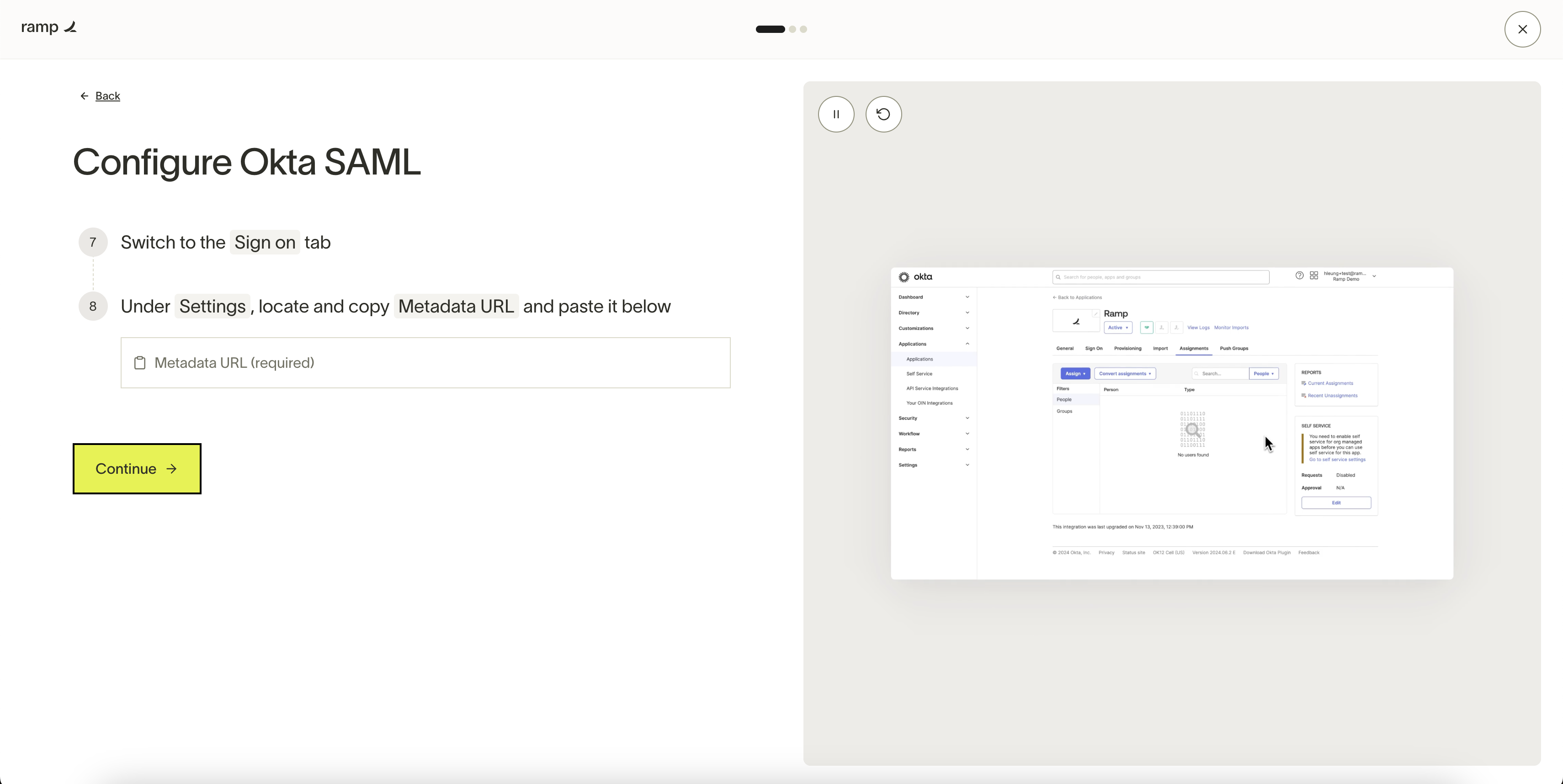
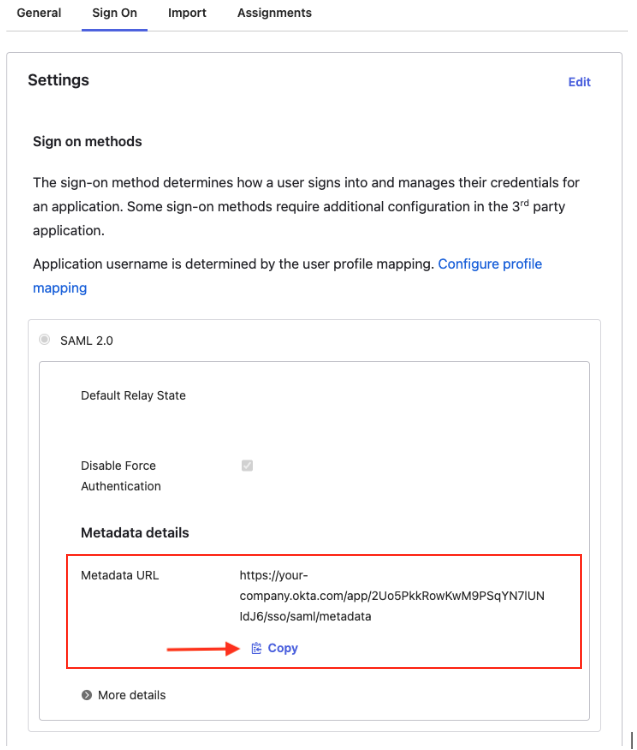
Switch to the Sign On tab in Okta.
-
Copy the "Metadata URL".
-
Navigate back to Ramp and paste it in the URL space. Then click Continue .
-
Switch to the Assignments tab in Okta, then use the Assign dropdown to add users to the application.
-
In Ramp, select the email domains to enable in Okta. Email domains already connected to another identity provider may be unavailable.
-
Click Exit & test to test the flow.
-
After successful test sign-in, you will return to Company Security.
-
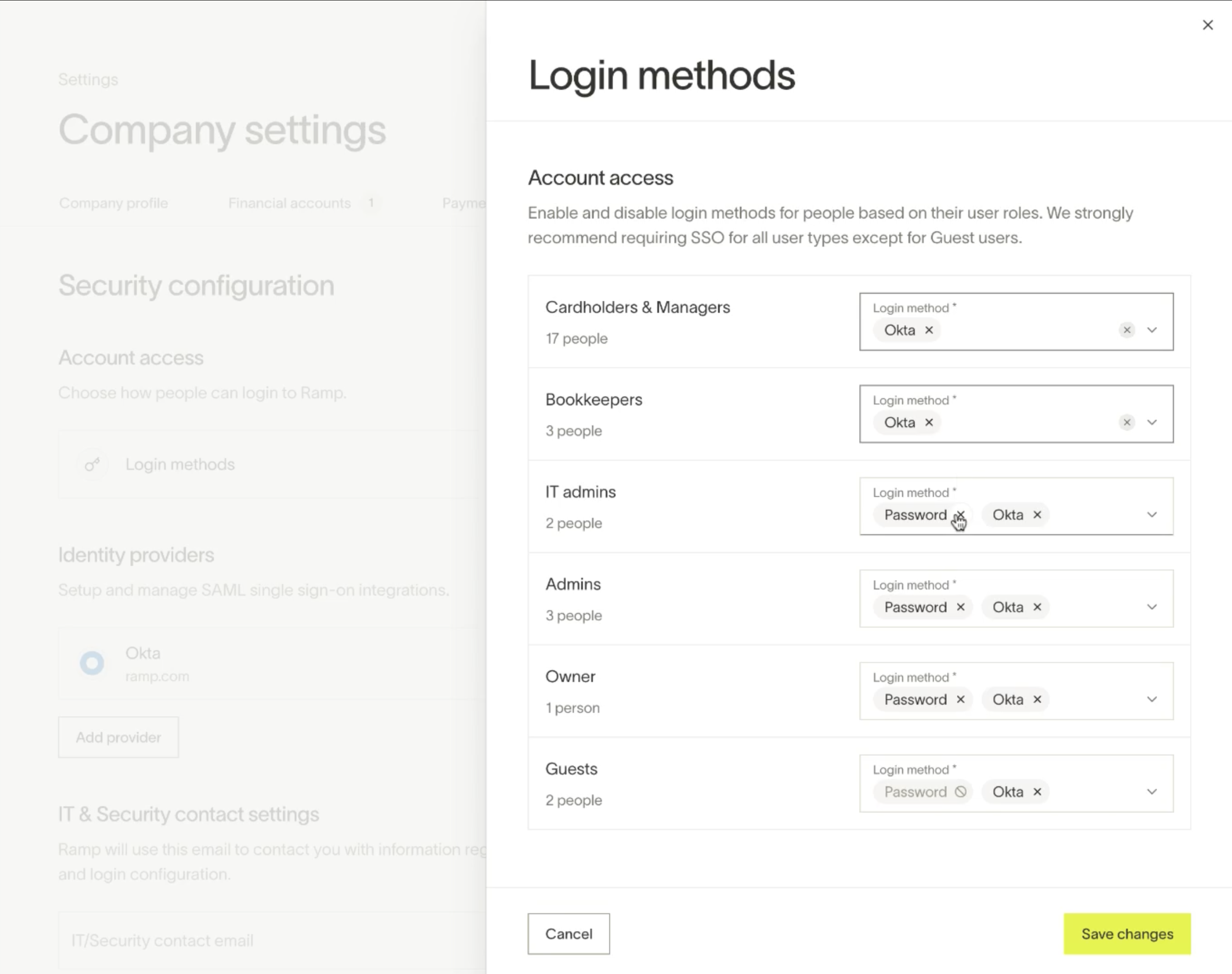
Under Account access, click Configure, then toggle Okta on or off for each role.
Configuring existing Okta SSO setup
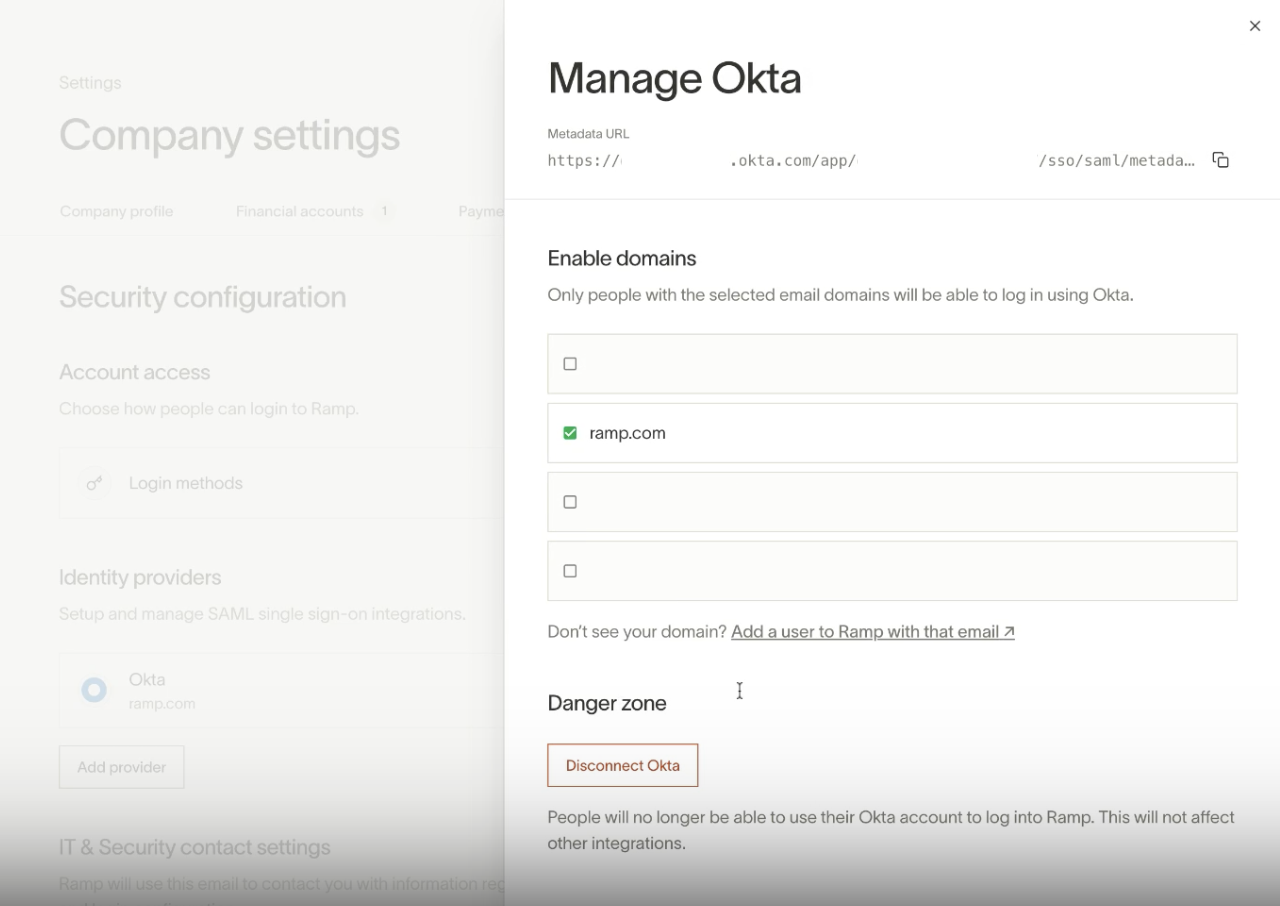
To modify supported domains, click Okta under Identity providers.
Note
Ensure you entered the correct value in the "Subdomain" field under the General tab. The wrong subdomain value prevents you from authenticating through SAML to Ramp.
Since only SP-initiated flow is supported, Okta recommends hiding the application icon for users.
The following SAML attributes are supported. Ensure you preserve capitalization for each of the names below. For example, in "firstName" make sure the 'N' is capitalized:
| Name | Value |
|---|---|
| user.email | |
| givenName | user.firstName |
| familyName | user.lastName |
SP-initiated SSO
- Go to: https://ramp.com/sign-in
- Click Sign in with Okta.
- Enter your email, then click Continue to Okta.